SwiftUI 침하하 앱 개발기
Step 6. Post Detail + Comments
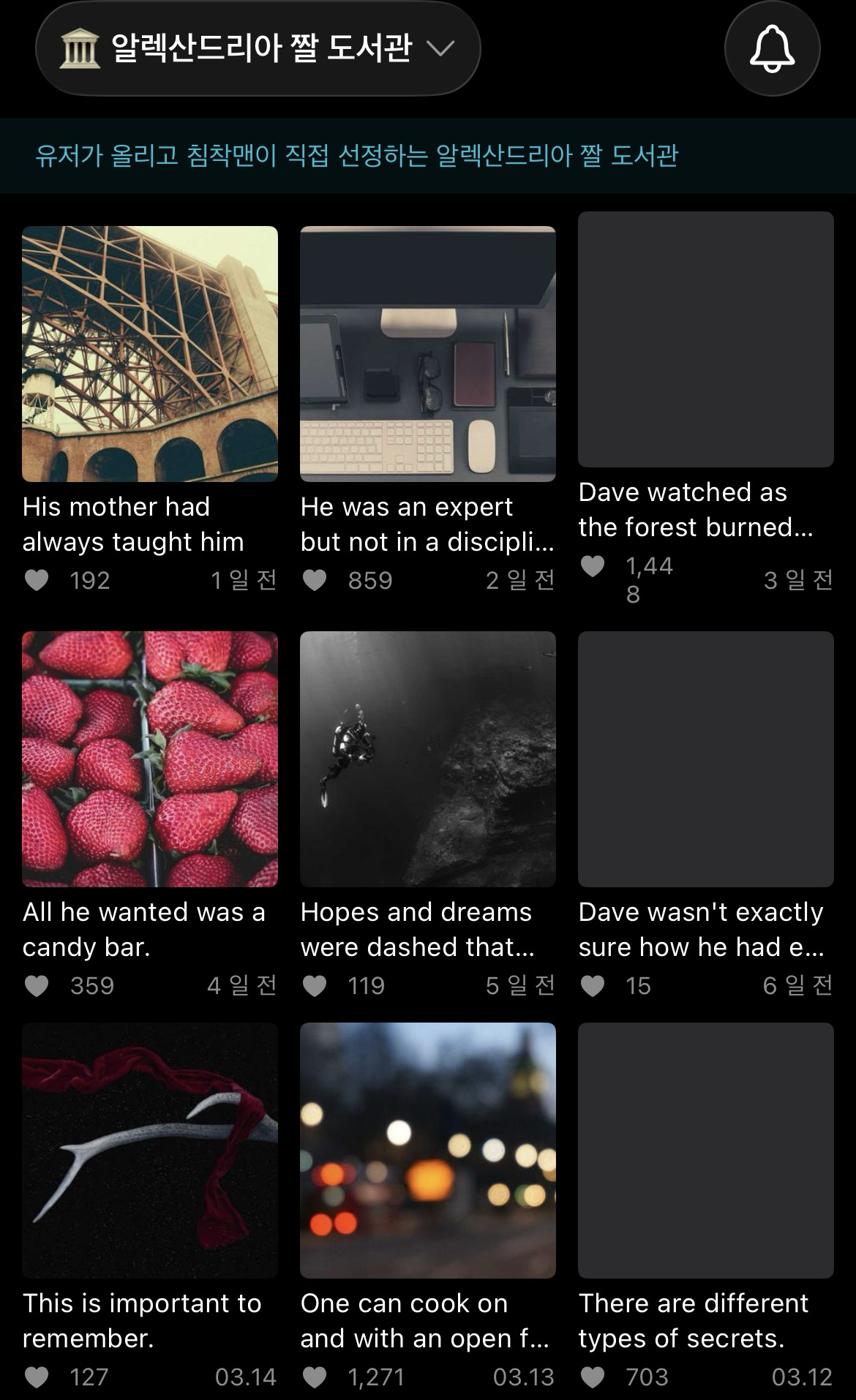
Step 7. PostGridView
오늘의 학습내용
- TCA 관련
- 네비게이션
- 레이아웃 & UI & 스크롤
[ TCA 관련 ]
BindingReducer + BindableAction — 양방향 바인딩
TextField처럼 View에서 State를 직접 바꿔야 할 때 사용한다.
enum Action: BindableAction {
    case binding(BindingAction<State>)
    case submitComment
}

var body: some ReducerOf<Self> {
    BindingReducer()
    Reduce { ... }
}
View에서는 $store.commentInput처럼 $ prefix로 바인딩을 연결한다.
이것도 역시 단방향 흐름을 지키면서 양방향 바인딩처럼 동작하는 것
[ 네비게이션 ]
navigationDestination(isPresented:) — 조건부 push
우선 NavigationStackReducer 없이 단순 push 구현
.navigationDestination(isPresented: Binding(
    get: { store.selectedPost != nil },
    set: { if !$0 { store.send(.postDetailDismissed) } }
)) {
    if let post = store.selectedPost {
        PostDetailView(store: Store(
            initialState: PostDetailReducer.State(post: post)
        ) {
            PostDetailReducer()
        })
    }
}set의 if !$0 — 뒤로가기로 dismiss될 때 액션을 보내 selectedPost를 nil로 처리
.toolbar(.hidden, for: .tabBar) — 탭바 숨기기
UIKit의 hidesBottomBarWhenPushed = true와 동일하지만
UIKit과 다르게... 뒤로 나오면 자동으로 복원된다.
PostDetailView()
    .toolbar(.hidden, for: .tabBar)
[ 레이아웃 & UI & Scroll ]
safeAreaInset — 하단 고정 뷰
댓글 입력 바를 하단에 고정할 때 다음과 같이 쓴다.
ScrollView { ... }
    .safeAreaInset(edge: .bottom) {
        CommentInputBar()
    }
키보드가 올라올 때 배경이 끊겨 보이길래 다음과 같이 처리:
.background(Color.chimSurface.ignoresSafeArea(edges: .bottom))플로팅 버튼 — .overlay(alignment:)
오버레이로 처리하는 것이 ZStack 사용하는 것보다 깔끔하다. 이유는,
- .overlay는 기준 뷰의 크기 계산에 영향을 주지 않아서 레이아웃이 꼬이지 않음
- ZStack은 모든 자식이 레이아웃 계산에 참여하지만, .overlay는 주인공 뷰와 부가 뷰가 완전히 분리된다.
- "이 뷰 위에 얹는다"는 의미가 명확해서 가독성도 좋다!
ScrollView { ... }
    .overlay(alignment: .bottomTrailing) {
        VStack(spacing: 12) {
            floatingButton1
            floatingButton2
        }
        .padding(.trailing, 16)
        .padding(.bottom, 16)
    }
Circle 테두리 — clipShape + overlay
border를 써 봤는데 네모난게 나와서 당황했다.
border는 사각형 전용이고, 원형 테두리는 이렇게 쓴다고 한다.
Image(...)
    .clipShape(Circle())
    .overlay(Circle().stroke(Color.chimSurface2, lineWidth: 1))
scrollDismissesKeyboard — 스크롤로 키보드 포커싱 해제
UIKit 쓸 때 앱딜리게이트에서 전역 포커싱 해제 메서드를 작성했었는데,
스크롤로 포커싱 해제하는 방법도 있다.
ScrollView { ... }
    .scrollDismissesKeyboard(.interactively)
ScrollViewReader + scrollTo — 특정 위치로 스크롤
ScrollViewReader는 클로저에 proxy를 넘겨주는데, 이게 ScrollViewProxy 타입이다.
swiftScrollViewReader { proxy in
    ScrollView { ... }
}
proxy가 하는 일은 단 하나로, id로 특정 뷰를 찾아서 스크롤하는 것이다.
proxy.scrollTo("comments", anchor: .top)proxy anchor 옵션
proxy.scrollTo("comments", anchor: .top)     // 해당 뷰의 상단이 화면 상단에
proxy.scrollTo("comments", anchor: .center)  // 해당 뷰의 중앙이 화면 중앙에
proxy.scrollTo("comments", anchor: .bottom)  // 해당 뷰의 하단이 화면 하단에
proxy.scrollTo("comments")                   // anchor 생략 시 최소한만 스크롤
본 프로젝트에서는 다음과 같이 사용했다.
LazyVStack(alignment: .leading, spacing: 0) {
                    Color.clear.frame(height:0).id("top")  // 1-1. 목적지에 id 달기
                    ...
    }

Divider().id("comments")  // 1-2. 목적지에 id 달기

ScrollViewReader { proxy in  // 2. ScrollViewReader로 감싸기
    ScrollView { ... }
        .overlay(alignment: .bottomTrailing) {
            Button {
                withAnimation { proxy.scrollTo("comments", anchor: .top) }
            } label: { ... }
        }
}
1-2 처럼 실제 있는 뷰에 id를 달아도 되고,
1-1 처럼 딱히 붙일 뷰가 없으면 앵커용 더미 뷰를 만들어도 된다.
LazyVGrid + GridItem — 그리드 레이아웃
LazyVGrid(
    columns: Array(repeating: GridItem(.flexible(), spacing: 2), count: 3),
    spacing: 2
) {
    ForEach(posts) { post in
        PostGridCellView(post: post)
    }
}- GridItem(.flexible()) — 가용 너비를 균등 분할한다.
- GridItem의 spacing — 열 사이 간격
- LazyVGrid의 spacing — 행 사이 간격
LazyScrollView와 같이 Lazy가 붙으므로 화면 밖 셀은 렌더링하지 않아 효율적이다.
Color.clear + overlay — 고정 비율 컨테이너 패턴
AsyncImage에 .aspectRatio를 직접 붙이면 로드 전후 크기가 달라져 레이아웃 버그가 생긴다.
// 이미지 로드 타이밍에 따라 셀 크기가 달라짐
AsyncImage(url: url) { ... }
    .aspectRatio(1, contentMode: .fit)

// 컨테이너를 먼저 고정, 이미지는 overlay로 얹기
Color.clear
    .aspectRatio(1, contentMode: .fit)
    .overlay {
        AsyncImage(url: url) { ... }
    }
    .clipped()
그리드 외에도 고정 비율 컨테이너가 필요한 모든 곳에 쓸 수 있는 패턴이다!
AsyncImage phase 처리
AsyncImage(url: url) { phase in
    switch phase {
    case .empty:
        Color(.chimSurface2)
    case .success(let image):
        image.resizable().scaledToFill()
    case .failure:
        Color(.chimSurface2)
            .overlay { Image(systemName: "photo") }
    @unknown default:
        Color(.chimSurface2)
    }
}
@unknown default — AsyncImagePhase가 @frozen이 아니기 때문에 (Apple이 미래에 케이스를 추가할 수 있으므로) 이걸 붙여야 컴파일 경고가 사라진다.
오늘의 결과물
게시물 디테일뷰
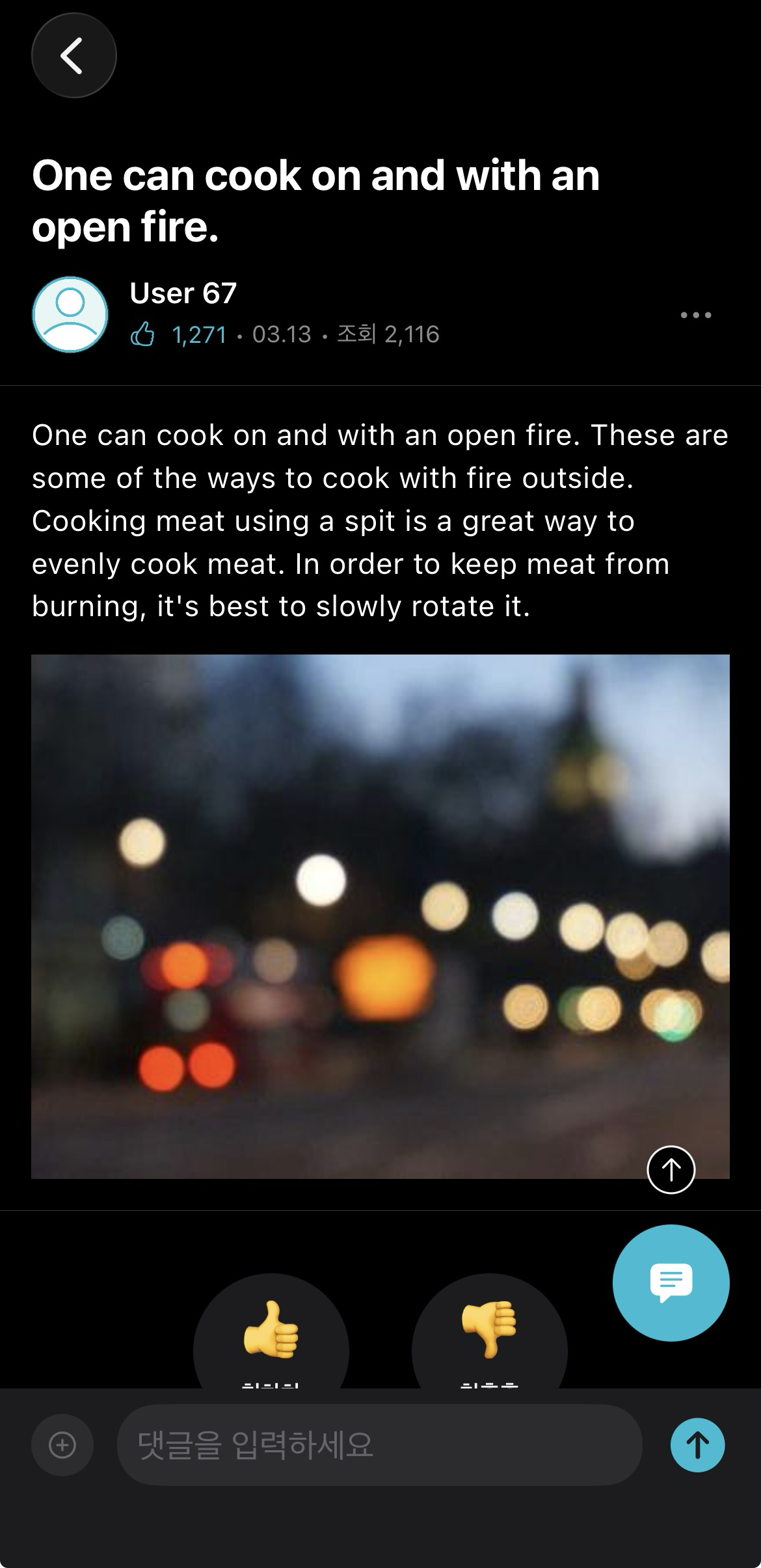
Photo Grid 뷰