
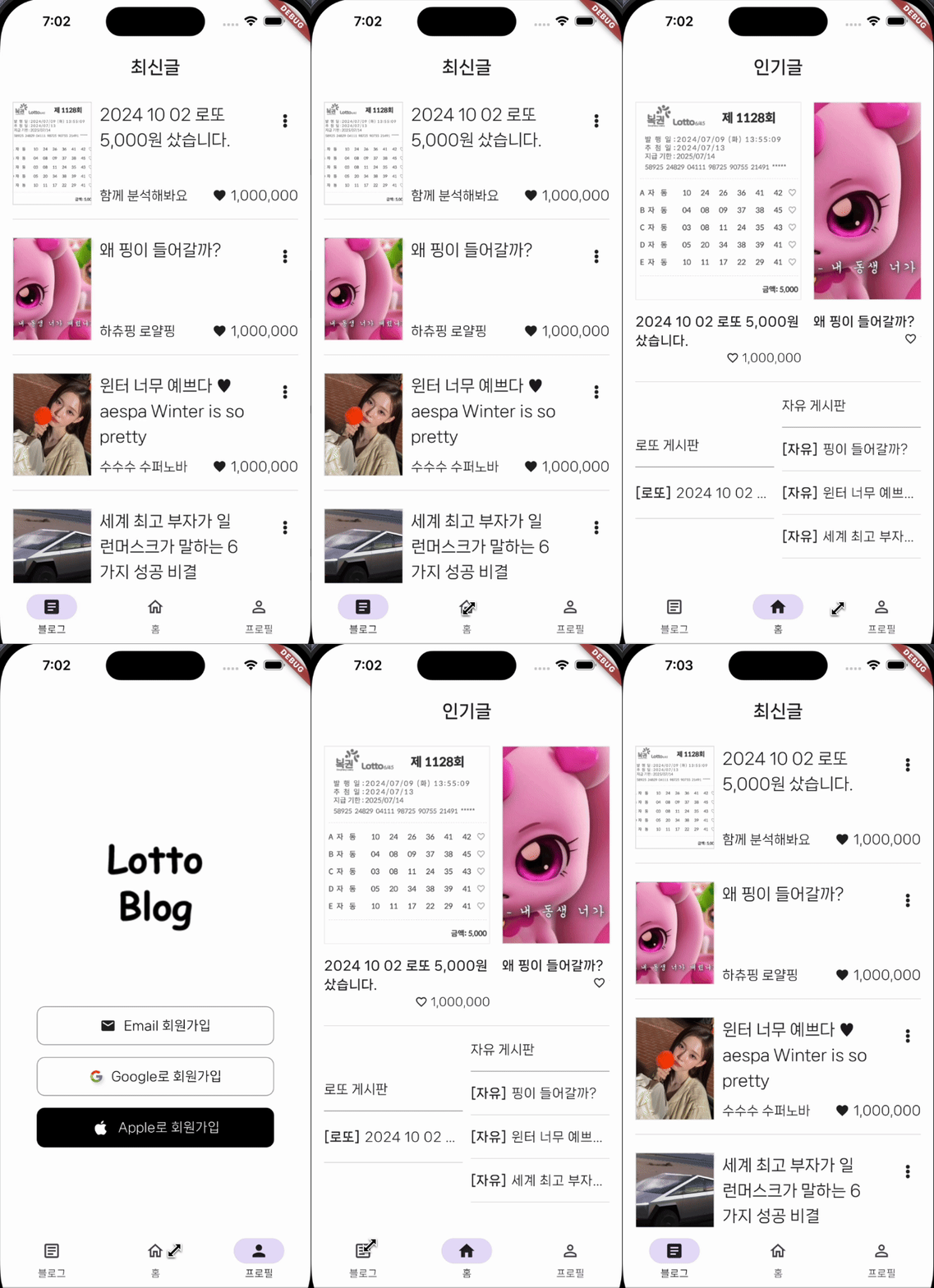
제 프로젝트에 활용한 Flutter BottomNavigationBar를 작성해볼려고 합니다.
새싹 Flutter 강의와 공식 문서를 참고해서 제 프로젝트에 활용했습니다.
flutter 취준생이 작성한거라 따로 공부하시면 좋을거 같습니다.
공식문서에 예제가 비슷한거 같아서 링크 걸어둘께요.
BottomNavigationBar class - material library - Dart API
링크텍스트
영상처럼 저는 하단바에 블로그, 홈, 프로필 3가지로 나눠져 있습니다.
하단바를 먼저 만들어보겠습니다.
bottomnavigationbar 폴더 생성 후
import 'package:flutter/material.dart';
import 'package:go_router/go_router.dart';

class bottomnavigationbar extends StatelessWidget {
  final StatefulNavigationShell navigationShell;
  const One({super.key,required this.navigationShell});

  @override
  Widget build(BuildContext context) {
    return Scaffold(
      backgroundColor: Colors.white,
      body: navigationShell,
      bottomNavigationBar: NavigationBar(
          destinations: const [
            NavigationDestination(
                icon: Icon(Icons.article_outlined),
                selectedIcon: Icon(Icons.article),
                label: '블로그'),
            NavigationDestination(
                icon: Icon(Icons.home_outlined),
                selectedIcon: Icon(Icons.home),
                label: '홈'),
            NavigationDestination(
                icon: Icon(Icons.person_outline),
                selectedIcon: Icon(Icons.person),
                label: '프로필'),
          ],
          selectedIndex: navigationShell.currentIndex,
            onDestinationSelected: (index){
              navigationShell.goBranch(index,
              initialLocation: index == navigationShell.currentIndex);
        },
      ),
    );
  }
}
아무래도 하단바는 앱에 가장 바깥쪽에 위치해야 하니
- Scaffold로 시작했습니다.
저는 화면이동을 GoRouter를 사용했습니다.
- 예제 강의에
StatefulNavigationShell를 사용해서 궁금해서 찾아보니
공식문서에StatefulShellRoute의 상태를 관리하기 위한 위젯입니다.
분기 Navigators 설명과 예제가 있어서
하단바 눌렀을 때 상태 유지와 화면 이동 했을 때StatefulShellRoute가 관리를 해주는구나 하고 생각이 들었습니다.
StatefulShellRoute문서도 보니shellRouter에 관한 내용이 있었습니다.
GoRouter에 StatefulNavigationShell Class 공식 문서
링크텍스트
bottomNavigationBar을 쓰면
icon,label두가지 나오는데selectedIcon을 쓰면
선택할 때 아이콘이 바뀌는 것을 확인할 수 있었습니다.
navigationShell이라는
- 네비게이션 컨트롤러를 사용하여, 사용자가 선택한 인덱스(아이콘)에 따라 화면을 변경해주는 역할을 합니다.
이제 바텀바를 연동해보겠습니다.
// router.dart

// 시작화면
final GlobalKey<NavigatorState> _rootNavigatorKey =
    GlobalKey<NavigatorState>(debugLabel: 'root');
// 블로그
final GlobalKey<NavigatorState> _articleNavigatorKey =
    GlobalKey<NavigatorState>(debugLabel: 'articleTab');
// 홈
final GlobalKey<NavigatorState> _homeNavigatorKey =
    GlobalKey<NavigatorState>(debugLabel: 'homeTab');
// 프로필
final GlobalKey<NavigatorState> _settingsTabNavigatorKey =
    GlobalKey<NavigatorState>(debugLabel: 'settingTab');

final GoRouter router = GoRouter(
  navigatorKey: _rootNavigatorKey,
  routes: <RouteBase>[
    GoRoute(
      path: '/',
      builder: (context, state) => LandingScreen(),
    ),
    StatefulShellRoute.indexedStack(
      parentNavigatorKey: _rootNavigatorKey,
      builder: (context, state, navigationShell) {
        return bottomnavigationbar(navigationShell: navigationShell);
      },
      branches: [
        StatefulShellBranch(
          navigatorKey: _articleNavigatorKey,
          routes: [
            GoRoute(
              path: '/mainhome_screen',
              builder: (context, state) {
                return MainHomeScreen();
              },
              routes: <RouteBase>[
                GoRoute(
                  path: 'post_screen01',
                  builder: (BuildContext context, GoRouterState state) {
                    return PostScreen01();
                  },
                ),
              ],
            ),
          ],
        ),
        StatefulShellBranch(
          navigatorKey: _homeNavigatorKey,
          routes: [
            GoRoute(
              path: '/dayofweek_screen',
              builder: (context, state) {
                return DayOfWeekScreen();
              },
              routes: <RouteBase>[
              ...
              ],
            ),
          ],
        ),
        StatefulShellBranch(
          navigatorKey: _settingsTabNavigatorKey,
          routes: [
            GoRoute(
              path: '/login_screen',
              builder: (context, state) {
                return LoginScreen();
              },
              routes: <RouteBase>[
                ...
                ),
              ],
            ),
          ],
        )
      ],
    ),
  ],
);GlobalKey<NavigatorState>
저는 시작화면,블로그,홈,프로필 4가지로
4개의 GlobalKey<NavigatorState> 을 만들었습니다.
저는 코드는 어떤 로직이 있을까 하고 코드를 한번 작성해보고 생각을 해봅니다.
navigatorKey: _rootNavigatorKey,
GoRouter _rootNavigatorKey 최상위 키
StatefulShellRoute.indexedStack()
에서 parentNavigatorKey: _rootNavigatorKey,
_rootNavigatorKey 는 부모키구나
bottomnavigationbar(navigationShell: navigationShell);
바텀네비게이션바를 화면을 불러오는구나
branches 그룹을 분리하고 기존 GoRouter 코드를 넣는구나
branches: [
StatefulShellBranch(), 블로그
StatefulShellBranch(), 홈
StatefulShellBranch(), 프로피
]
routes: <RouteBase>[],
블로그,홈,프로필 상위 계층을 제외한 하위 계층들은
builder: (BuildContext context, GoRouterState state)
가 BuildContext, GoRouterState 를 써줘야 하는구나
GPT
하위 계층 (각 브랜치의 GoRoute 내부):
실제 화면을 빌드하고 동적 경로나 쿼리 파라미터를 처리하는 역할을 합니다.
특정 경로마다 화면에 접근해야 하므로 BuildContext가 필요하고,
경로와 관련된 동적 정보가 필요할 경우 GoRouterState가 필요합니다.stackoverflow GoRouter 설정
링크텍스트
바텀네비게이션 하단바를 적용해봤습니다.

목표를 달성하자!