gromacs - GPU 인식 못 하는 문제
gmx mdrun -deffnm md_0_1 -v -nb gpu
-
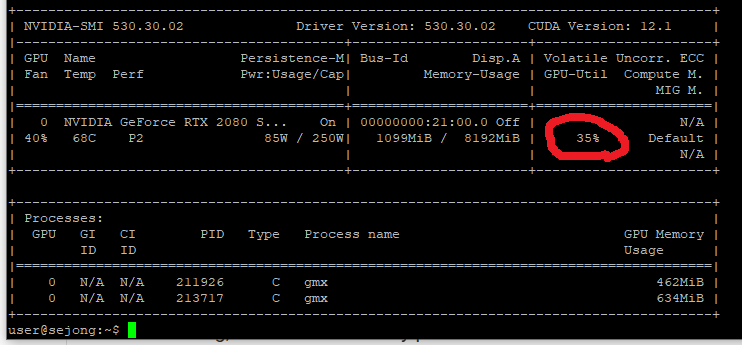
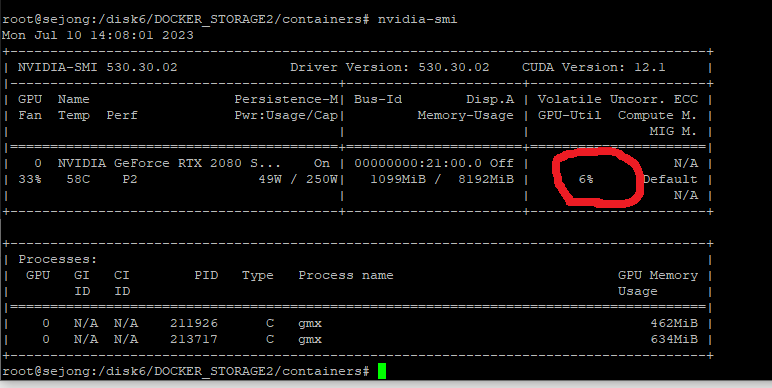
process가 GPU를 사용은 하고 있으나 사용 비율이 낮음.
-
GPU BottleNeck...
GPU BottleNeck 원인
-
Verify GPU compatibility: Ensure that your GPU is compatible with GROMACS and meets the minimum system requirements. GROMACS requires NVIDIA GPUs with CUDA support. (몇 달 전에 세팅한거라 문제 없을텐데..)
-
Install the latest GPU drivers: Make sure you have the latest NVIDIA GPU drivers installed on your system. Outdated drivers can cause performance issues.
-
Check GROMACS version: Ensure that you are using the latest version of GROMACS. Newer versions often include optimizations and improvements for GPU acceleration.
-
Confirm GPU availability: Ensure that GROMACS is detecting and utilizing your GPU correctly. You can use the nvidia-smi command to check if GROMACS is listed as a running process. Additionally, check the GROMACS logs for any error messages related to GPU initialization.
-
Verify CUDA toolkit installation: GROMACS relies on the CUDA toolkit for GPU acceleration. Make sure you have the CUDA toolkit properly installed and configured on your system.
-
Adjust GROMACS settings: GROMACS provides various settings that can affect GPU utilization. Check the GROMACS documentation for specific options related to GPU acceleration, such as nstlist, pme, and gpu_id. Experiment with different settings to optimize GPU usage.
-
Check simulation parameters: If your simulation parameters are not suitable for efficient GPU utilization, it can lead to low GPU utilization. Review your simulation settings and ensure they are compatible with GPU acceleration.
-
Batch size and parallelization: Adjusting the batch size and the number of parallel processes can impact GPU utilization. Experiment with different values to find the optimal balance for your system.
-
Monitor system resources: Besides GPU utilization, monitor other system resources like CPU and memory usage. If these resources are bottlenecked, it can limit the GPU's performance. Ensure that the CPU and memory are not being overwhelmed by other processes.
https://chaelin0722.github.io/etc/gpu_utility/
해결
- load average 보니 최대 코어수의 4배 가까이 과부하 되어 있었음.
과부하된 프로세스 종료 -> 30%까지 상승!!
그런데 왜 100%까지는 안될까.... 다른 사람이 쓰고있는 100개의 코어를 꺼버리면..