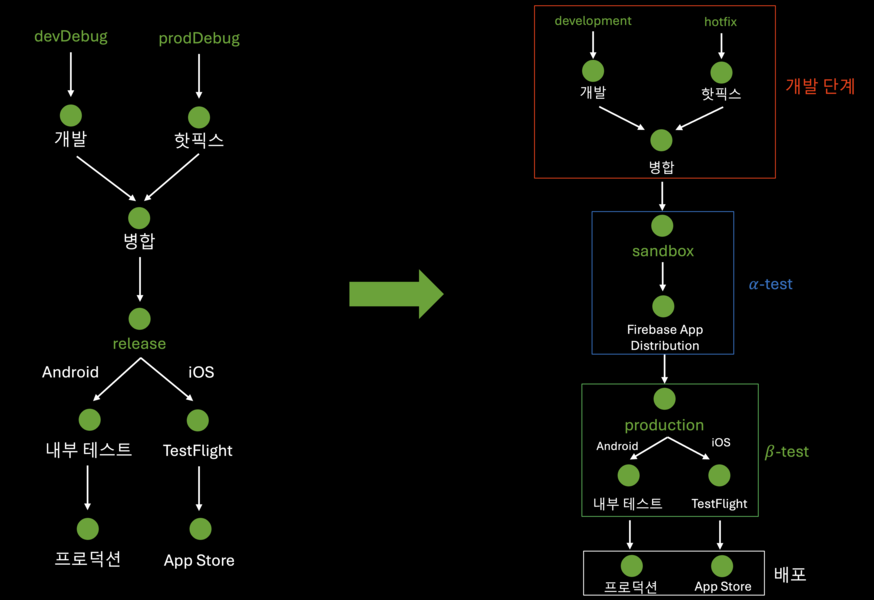
문제 정의
이전 게시글에서 flavor 를 통해 개발 환경(dev) 와 운영 환경(prod)을 나누어 앱 내 사용되는 환경 변수들을 교체하고, firebase 사용 시 각 환경에 맞는 프로젝트와 연동되도록 하는 방법에 대해 알아보았다. 이 때 Android 의 경우 개발 환경(dev)으로 빌드한 앱을 Play Console 의 '내부 테스트' 에 올릴 때 앱을 서명할 키가 없어 Firebase 프로젝트 연동 뿐 만 아니라 구글 로그인 까지 되지 않는 문제가 있었다.
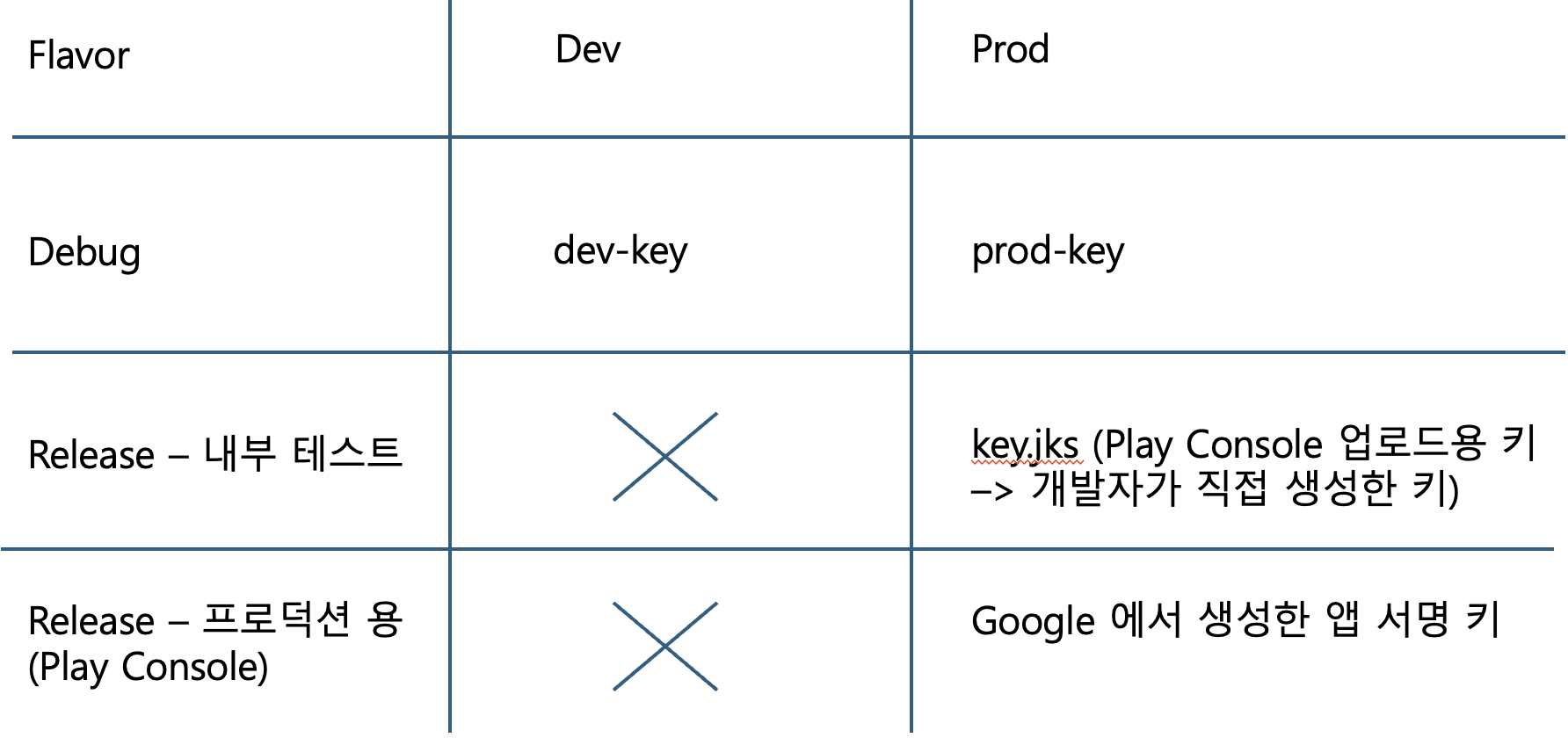
▲ 그림 1. (기존) Flavor 환경에 따라 사용되는 Signing key
이러한 문제가 발생하게 된 이유는 다음과 같다.
- Play Console 에 앱 배포 시 개발자가 업로드 한 키(Upload key), Google Play 가 서명하는 앱 서명 키(App Signing key) 에는 alias 가 1개만 등록이 가능하다 => 운영 환경에만 사용 가능
- 키의 SHA-1, SHA-256 을 여러 Firebase 프로젝트에 등록이 불가능하다
개발자가 IDE 에서 Release mode로 빌드하고 테스트를 한다고 가정했을 때, 개발 환경 전용 앱 서명 키를 하나 생성한 뒤 운영 환경과 별도로 관리한다면 Firebase 연동/구글 로그인 문제는 발생하지 않는다.
그러나 다른 팀원이 앱을 테스트 해야 하는 경우(ex. QA 팀에게 앱 번들 전달) 보통 Play Console의 '내부 테스트' 를 이용할텐데, 내부 테스트에 aab 파일을 업로드 할 때 Play Console 에 등록된 앱 서명 키가 사용되기 때문에 운영 환경이 아닌 개발 환경 전용 앱은 해당 키로 서명을 할 수 없어 위에서 다루었던 문제를 겪게 된다.
또 다른 문제로는 Play Console 의 내부 테스트에 앱 번들을 업로드하면 업데이트 되는데 걸리는 시간이 평균 30분~1시간이다. 앱 번들을 업로드하는데 시간이 오래 걸리진 않지만, 내부 테스터들이 새로운 버전의 앱을 다운로드 받을 수 있도록 업데이트 되는데 시간이 iOS 에 비해 오래 소요되었다(TestFlight 업로드 & 업데이트 시 평균 15분)
따라서 본 게시글에서는 (1)내부 테스트에 개발 환경 앱 배포 시 서명 키 문제와 (2)내부 테스트 앱 업데이트가 오래 걸리는 문제 를 해결하기 위해 Firebase App Distribution을 대안으로 선택하였으며, 이를 통한 문제 해결 방안을 설명하고자 한다.
새로운 Sandbox 환경 추가 및 SigningConfigs 네이밍 변경
기존에 다루었던 빌드 환경은 다음과 같다.
- Flavor: dev, BuildType: Debug => 개발 환경
- Flavor: prod, BuildType: Debug => 운영 환경(debug)
- Flavor: prod, BuildType: Release => 운영 환경(release)
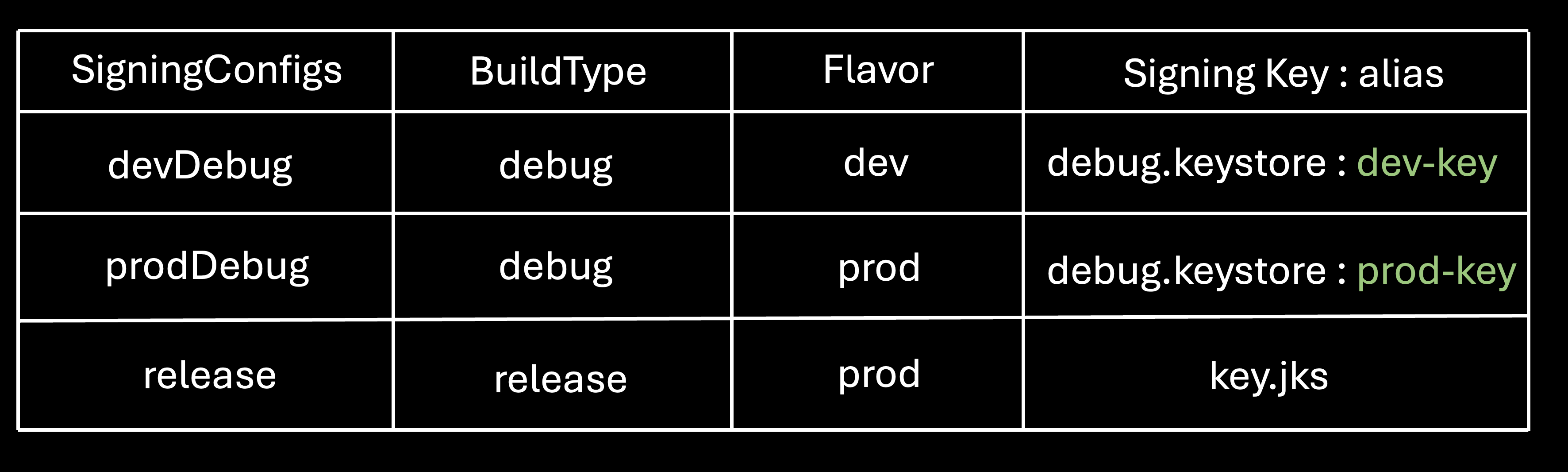
▲ 그림 2. (기존) BuildType 과 Flavor 에 따른 SigningConfigs
여기서 Flavor: dev, BuildType: Release 가 추가 되므로 해당 환경 전용 서명 키를 생성했고, SigningConfigs 의 네이밍을 좀 더 직관적으로 변경하였다.
- 서명키 생성
keytool -genkeypair \
    -alias dev-release-key \
    -keyalg RSA \
    -keysize 2048 \
    -validity 3650 \
-keystore android/keystore/release/dev/dev-release-key.jks- 네이밍 변경
- devDebug -> development
-> 새로운 기능 개발 및 유지보수를 위한 기본 디버그 환경 - prodDebug -> hotfix
-> 운영 중인 서비스의 긴급 오류 수정 시 빠른 로그 확인을 위한 환경 - release -> production
-> 최종 배포 및 실제 사용자에게 제공되는 운영 환경 - sandbox 추가(Flavor: dev && BuildType: release)
-> 팀원 및 QA 팀에게 테스트 목적으로 앱 번들을 제공하기 위한 환경
- devDebug -> development
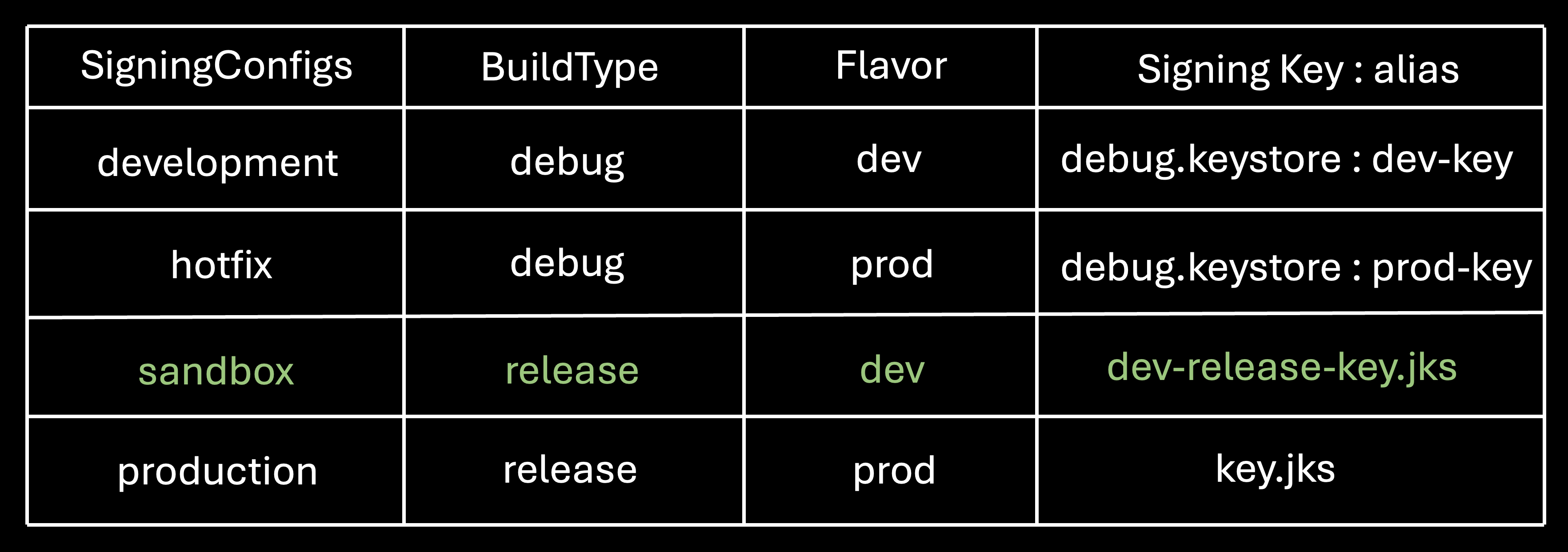
▲ 그림 3. (변경) sandbox 환경 추가 및 네이밍 변경
key관련 디렉토리 구조
android/
├── keystore/
│   ├── debug/
│   │   ├── debug.keystore
│   │   └── debug-key.properties
│   │
│   └── release/
│       ├── dev/
│       │   ├── dev-release-key.jks
│       │   └── dev-release-key.properties
│       │
│       └── prod/
│           ├── key.jks
│           └── key.properties
배포 환경 나누기
- android/app/build.gradle 에서 properties 변수 설정
// [development & hotfix]
// flavor: dev & prod / Build : Debug
def debugKeystoreProperties = new Properties()
def debugKeystorePropertiesFile = rootProject.file('keystore/debug/debug-key.properties')
if (debugKeystorePropertiesFile.exists()) {
    debugKeystoreProperties.load(new FileInputStream(debugKeystorePropertiesFile))
}

// [sandbox]
// flavor: dev / Build: Release
def sandboxKeystoreProperties = new Properties()
def sandboxKeystorePropertiesFile = rootProject.file('keystore/release/dev/dev-release-key.properties')
if (sandboxKeystorePropertiesFile.exists()) {
    sandboxKeystoreProperties.load(new FileInputStream(sandboxKeystorePropertiesFile))
}

// [production]
// flavor: Prod / Build : Release
def productionKeystoreProperties = new Properties()
def productionKeystorePropertiesFile = rootProject.file('keystore/release/prod/key.properties')
if (productionKeystorePropertiesFile.exists()) {
    productionKeystoreProperties.load(new FileInputStream(productionKeystorePropertiesFile))
}- signingConfigs 설정
android {
	...
	signingConfigs {
        // Flavor: dev / Build: Debug
        development {
            storeFile file(debugKeystoreProperties['storeFile'])
            storePassword debugKeystoreProperties['storePassword']
            keyAlias debugKeystoreProperties['devKeyAlias']
            keyPassword debugKeystoreProperties['keyPassword']
        }

        // Flavor: prod / Build: Debug
        hotfix {
            storeFile file(debugKeystoreProperties['storeFile'])
            storePassword debugKeystoreProperties['storePassword']
            keyAlias debugKeystoreProperties['prodKeyAlias']
            keyPassword debugKeystoreProperties['keyPassword']
        }

        // Flavor: dev / Build: Release
        sandbox {
            keyAlias sandboxKeystoreProperties['keyAlias']
            keyPassword sandboxKeystoreProperties['keyPassword']
            storeFile sandboxKeystoreProperties['storeFile'] ? file(sandboxKeystoreProperties['storeFile']) : null
            storePassword sandboxKeystoreProperties['storePassword']
        }

        // Flavor: prod / Build: Release
        production {
            keyAlias productionKeystoreProperties['keyAlias']
            keyPassword productionKeystoreProperties['keyPassword']
            storeFile productionKeystoreProperties['storeFile'] ? file(productionKeystoreProperties['storeFile']) : null
            storePassword productionKeystoreProperties['storePassword']
        }
}- buildTypes 설정
buildTypes {
        debug {
            minifyEnabled false
            shrinkResources false
            signingConfig null
        }

        release {
            minifyEnabled true
            proguardFiles getDefaultProguardFile('proguard-android.txt'), 'proguard-rules.pro'
            signingConfig null
        }
    }
- productFlavors 설정
	flavorDimensions "build-type"

    productFlavors {
        development {
            dimension "build-type"
            signingConfig signingConfigs.development
        }

        hotfix {
            dimension "build-type"
            signingConfig signingConfigs.hotfix
        }

        sandbox {
            dimension "build-type"
            signingConfig signingConfigs.sandbox
        }

        production {
            dimension "build-type"
            signingConfig signingConfigs.production
        }
    }
Firebase 프로젝트 연동
Firebase 프로젝트 연동 시 프로젝트 내에 google-services.json 을 포함시켜야 한다. 위에서 나눈 productFlavors 에 따라 연동해야 하는 Firebase 프로젝트의 google-services.json 을 복사해주기만 하면 된다. Firebase 프로젝트는 개발 환경 프로젝트와(flavor: dev) 운영 환경 프로젝트(flavor: prod) 로 나눠놓았기 때문에, 각 productFlavors 의 flavor 에 맞춰 google-services.json 을 복사한다.
android/
└── app/
    └── src/
        ├── debug/
        ├── development/
        │   └── google-services.json(dev 용)
        ├── hotfix/
        │   └── google-services.json(prod 용)
        ├── main/
        ├── production/
        │   └── google-services.json(prod 용)
        ├── profile/
        └── sandbox/
            └── google-services.json(dev 용)
sandbox 환경을 서명할 키를 생성했으니, 해당 키의 SHA-1 과 SHA-256 을 프로젝트 설정에 추가해줘야 연동이 가능하다.
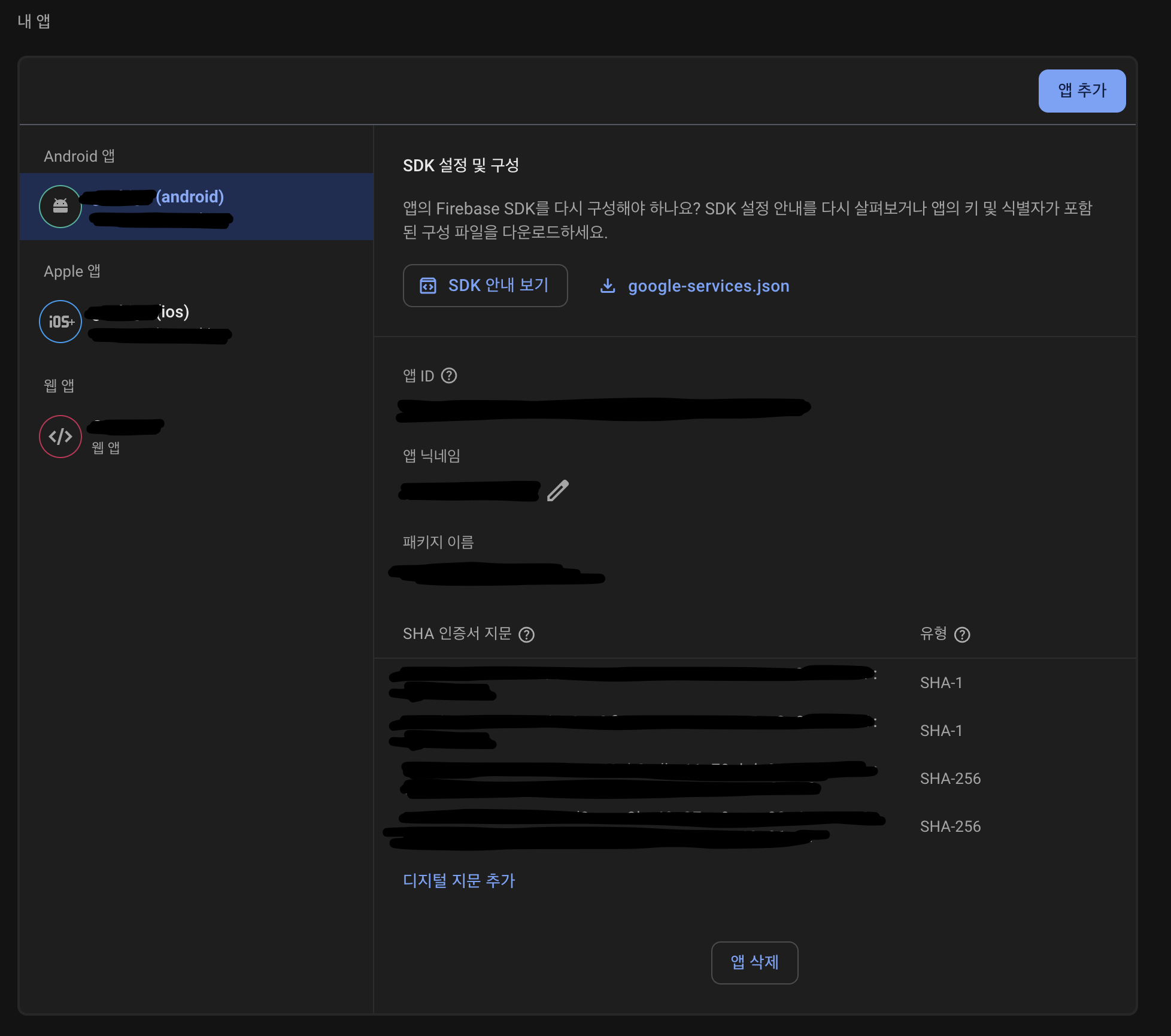
▲ 그림 4. SHA-1, SHA-256 추가
Firebase App Distribution에 APK 업로드
sandbox 환경의 .aab 파일을 업로드를 하였으나, 'app bundle 설정이 불완전합니다. 단계를 따라 app bundle 업로드를 위해 프로젝트를 설정하세요.' 라는 에러가 나오면서 업로드가 되지 않았다. Firebase FAQ 에서 aab 업로드 관련 FAQ를 찾아본 결과 해당 앱 번들은 자체적으로 생성한 서명 키이고, Google Play에서 테스트 앱 서명 키 인증서를 발급받지 않았으므로 서명에서 문제가 생겨 업로드가 되지 않은 것 같다.
- https://firebase.google.com/docs/app-distribution/troubleshooting?hl=ko&platform=android
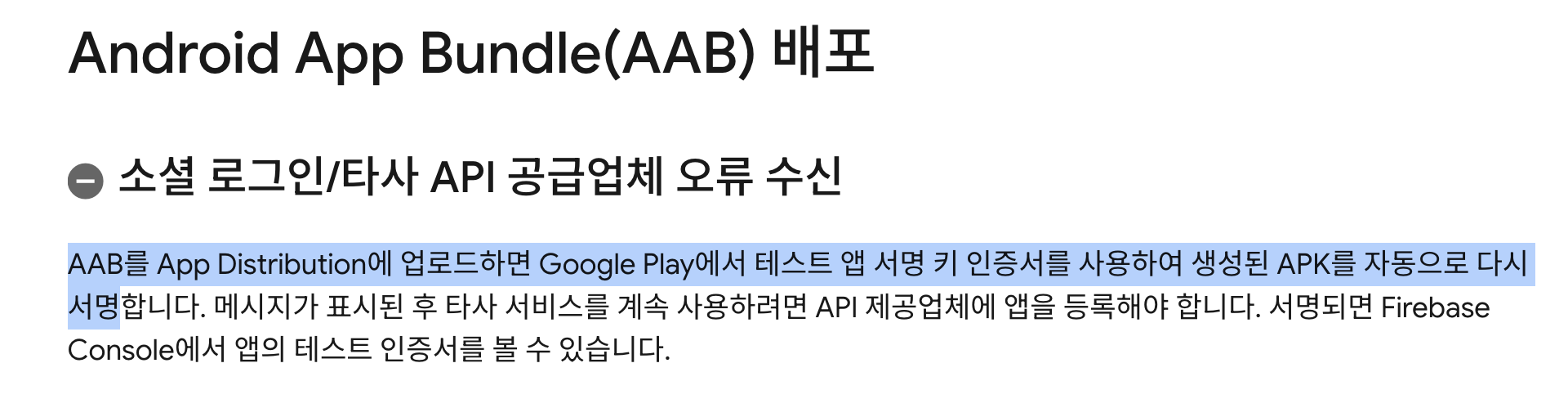
▲ 그림 5. Firebase 앱 배포 문제 해결 및 FAQ
따라서 .aab 가 아닌 .apk 를 업로드를 하니 성공적으로 업로드가 되었다.
- apk 생성
flutter build apk --flavor sandbox --release --dart-define=FLAVOR=dev해당 커맨드에서 뒤 --dart-define=FLAVOR=[Flavor 환경] 의 의미는 앱이 실행될 때 [Flavor 환경]을 전달받아 환경 변수들(ex. baseUrl, 을 세팅하는데 사용된다.
// Initializes environment settings based on the value of the "FLAVOR" environment variable.
// The FLAVOR value is set during compilation, such as `--dart-define=FLAVOR=debug`.
String flavor = const String.fromEnvironment('FLAVOR');
Environment.initialize(flavor);- Firebase App Distribution 에 apk 업로드
apk 생성 커맨드를 입력한 뒤 apk 파일을 수동으로 업로드 시 등록된 테스터에게 모두 메일이 가며 메일의 다운로드 링크를 통해 업로드한 sandbox 용 앱을 다운로드 받을 수 있다.
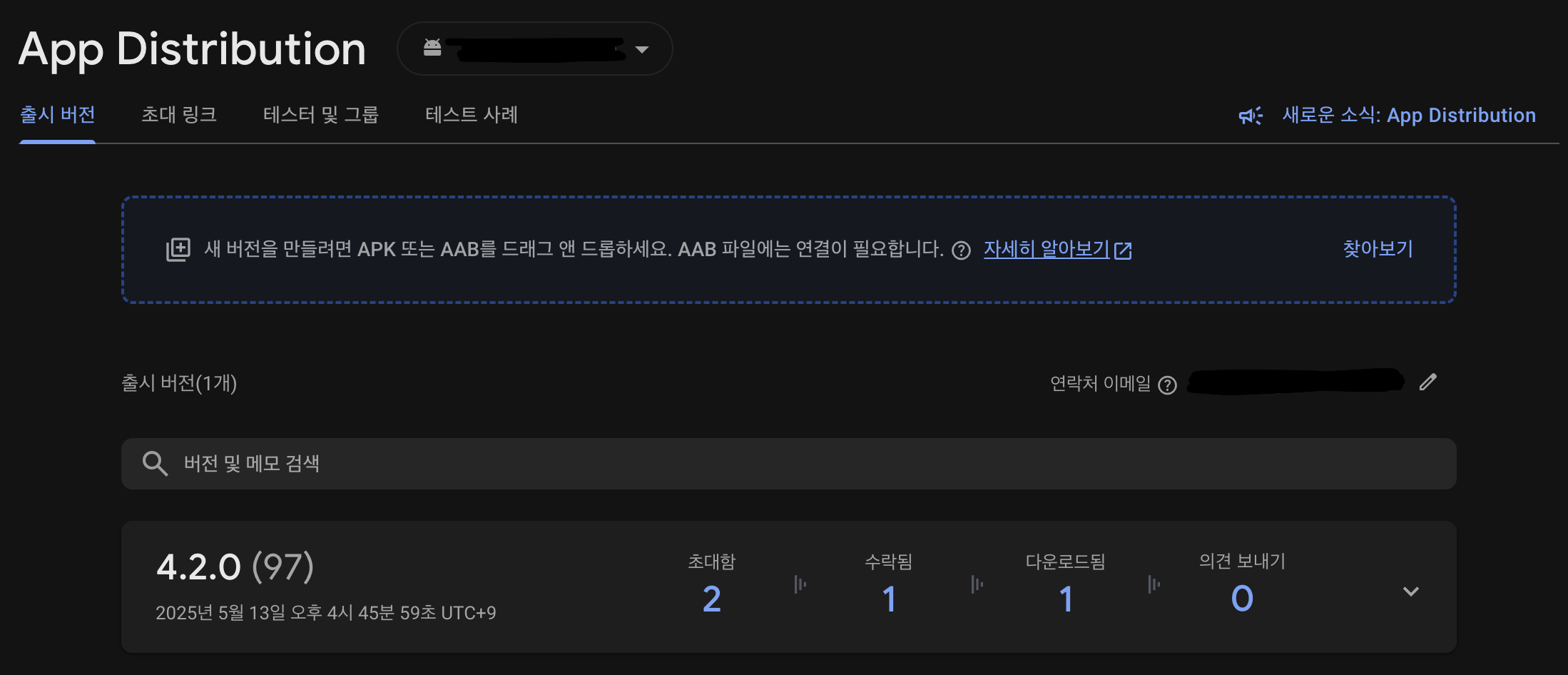
▲ 그림 6. App Distribution 에 apk 업로드
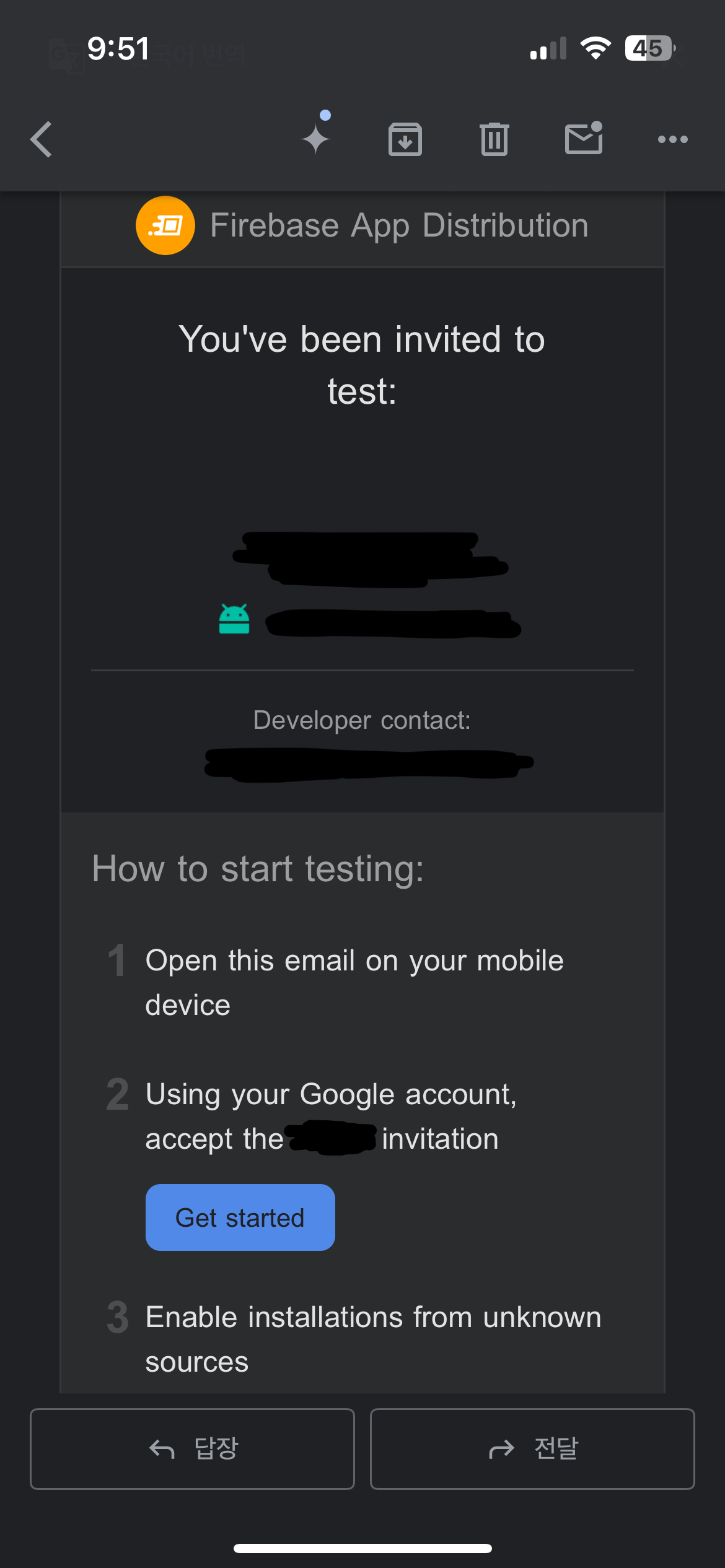
▲ 그림 7. apk 설치 메일
결론
이번 게시글에서는 sandbox 환경 추가와 이를 위한 Firebase App Distribution에 업로드 방법을 다루었다. 이를 통해 다음과 같은 문제를 효과적으로 해결할 수 있었다:
- sandbox는 α-test (팀 내부 테스트)
- Flavor: dev, Build Type: Release
- 팀원 및 QA 팀에게 테스트 목적으로 앱 번들을 제공하는 환경
- 내부 테스트 업로드 시 발생하는 Firebase 연동과 구글 로그인 문제를 해결하기 위해 => Firebase App Distribution 에 배포
- Firebase App Distribution은 sandbox 뿐만 아니라 production에서도 사용할 수 있음
- sandbox는 초기 기능 검증을 위한 내부 테스트
- production은 실사용자 피드백 수집을 위한 베타 테스트
- 두 환경 모두 빠른 배포와 피드백 수집에 최적화된 배포 채널
-.apk나.aab업로드 시 바로 테스터에게 메일 발송 => 다운로드 가능
sandbox 환경에서 빌드된 앱 번들은 여전히 Play Console의 내부 테스트에 직접 업로드할 수 없다 (production 환경의 앱만 가능). 그러나 Firebase App Distribution은 내부 테스트에서 제공하는 기능들을 대부분 지원하므로, 빠른 피드백 수집과 테스터 관리가 필요한 경우 훌륭한 대안이 될 수 있다.