[Swift/UIKit] Handwriting recognition 필기체 인식 (2)
이전 글에서 UIScribbleInteraction(직접)에 대해 알아봤고 이번 글에서는 UIIndirectScribbleInteraction(간접)에 대해 알아보겠다.
UIIndirectScribbleInteraction(간접)
UITextField나처럼 정식적인 텍스트 입력 UI가 아닌 곳에서도 사용자가 손글씨를 써서 텍스트를 입력할 수 있도록 지원해주는 클래스다.
주요 역할
간접 입력(Indirect Input) 처리: 실제 텍스트 입력 필드는 아니지만, 특정 영역을 "글씨 쓰기가 가능한 영역"으로 정의하고 Scribble 엔진과 연결해 준다.
주요 델리게이트 메서드 (UIIndirectScribbleInteractionDelegate)
1. 포커스 관리
func indirectScribbleInteraction(any UIInteraction, isElementFocused: Self.ElementIdentifier) -> Bool
func indirectScribbleInteraction(any UIInteraction, focusElementIfNeeded: Self.ElementIdentifier, referencePoint: CGPoint, completion: ((any UIResponder & UITextInput)?) -> Void)
func indirectScribbleInteraction(any UIInteraction, shouldDelayFocusForElement: Self.ElementIdentifier) -> Bool
isElementFocused
-
역할: 특정 요소가 현재 포커스 상태인지 물어볼 때 사용
-
반환: 포커스 되어 있다면 true, 아니면 false.
focusElementIfNeeded
-
역할: 시스템이 특정 요소를 활성화(Focus)하라고 요청할 때 호출됨
-
핵심: 여기서 실제 텍스트 입력을 담당할 객체(UITextInput을 채택한 객체)를 completion 클로저를 통해 전달해야 함 (최신문법은 밑에 async으로)
shouldDelayFocusForElement
- 역할: 포커스 잡는 것을 잠시 미룰지 결정. 기본적으로는 바로 포커스가 잡히지만, 특정 상황에서 지연이 필요할 때 true를 반환
2. Scribble 상태 추적
func indirectScribbleInteraction(any UIInteraction, willBeginWritingInElement: Self.ElementIdentifier)
func indirectScribbleInteraction(any UIInteraction, didFinishWritingInElement: Self.ElementIdentifier)
willBeginWritingInElement
- 역할: 사용자가 Apple Pencil로 글씨를 쓰기 시작할 때 호출됨
didFinishWritingInElement
- 역할: 사용자가 글씨 쓰기를 마쳤을 때 호출됨
3. 요소 및 프레임 찾기
func indirectScribbleInteraction(any UIInteraction, frameForElement: Self.ElementIdentifier) -> CGRect
func indirectScribbleInteraction(any UIInteraction, requestElementsIn: CGRect, completion: ([Self.ElementIdentifier]) -> Void)
frameForElement
- 역할: 특정 ID를 가진 요소의 실제 위치와 크기(CGRect)를 시스템에 알려줍
requestElementsIn
- 역할: 지정된 영역(CGRect) 안에 있는 모든 텍스트 입력 요소의 ID들을 배열로 묶어서 반환함 (최신문법은 밑에 async으로)
4. 최신 비동기 메서드 (Swift Concurrency)
func indirectScribbleInteraction(any UIInteraction, focusElementIfNeeded: Self.ElementIdentifier, referencePoint: CGPoint) async -> (any UIResponder & UITextInput)?
func indirectScribbleInteraction(any UIInteraction, requestElementsIn: CGRect) async -> [Self.ElementIdentifier]
focusElementIfNeeded (async)
- 역할: 시스템이 전달해준 ID에 해당하는 실제 입력창 객체(UITextInput)를 찾아 반환
requestElementsIn (async)
- 역할: 지정된 영역(CGRect) 안에 있는 모든 텍스트 입력 요소의 ID들을 배열로 묶어서 반환함
코드 예제
import UIKit

class ScribbleFullExampleViewController: UIViewController {

    private let targetTextField = UITextField()
    private let scribbleCanvas = UIView()
    private let elementID = "custom-memo-area"

    override func viewDidLoad() {
        super.viewDidLoad()
        setupUI()

        let interaction = UIIndirectScribbleInteraction(delegate: self)
        scribbleCanvas.addInteraction(interaction)
    }
}

// MARK: - UIIndirectScribbleInteractionDelegate
extension ScribbleFullExampleViewController: UIIndirectScribbleInteractionDelegate {

    // MARK: - [1. 요소 및 프레임 찾기]
    // 시스템이 어느 영역에서 Scribble을 작동시킬지 탐색하는 단계 (2개 메서드)

    /// 1-1. [요소 탐색] 사용자가 펜슬로 터치/탐색 중인 rect 안에 어떤 입력 요소(ID)가 있는지 보고합니다.
    func indirectScribbleInteraction(_ interaction: UIInteraction,
                                     requestElementsIn rect: CGRect,
                                     completion: @escaping ([String]) -> Void) {
        print("\n--- 🔍 STEP 1: 요소 탐색 ---")
        print("📍 위치: (x: \(Int(rect.origin.x)), y: \(Int(rect.origin.y))), 크기: \(Int(rect.width))x\(Int(rect.height))")
        completion([elementID])
    }

    /// 1-2. [프레임 제공] 특정 ID를 가진 요소의 실제 활성 영역(CGRect)을 시스템에 알려줍니다.
    func indirectScribbleInteraction(_ interaction: UIInteraction,
                                     frameForElement elementIdentifier: String) -> CGRect {
        let frame = scribbleCanvas.bounds
        print("📍 1-2. frameForElement: [\(elementIdentifier)] 영역 확정")
        return frame
    }


    // MARK: - [2. 포커스 관리]
    // 실제 입력창(TextField)과 펜슬 입력 영역을 연결하는 단계 (3개 메서드)

    /// 2-1. [상태 확인] 특정 요소가 현재 포커스(First Responder) 상태인지 확인합니다.
    func indirectScribbleInteraction(_ interaction: UIInteraction,
                                     isElementFocused elementIdentifier: String) -> Bool {
        let focused = targetTextField.isFirstResponder
        print("📍 2-1. isElementFocused: \(focused)")
        return focused
    }

    /// 2-2. [활성화 요청] 실제 입력을 받을 객체(UITextInput)를 지정합니다.
    func indirectScribbleInteraction(_ interaction: UIInteraction,
                                     focusElementIfNeeded elementIdentifier: String,
                                     referencePoint: CGPoint,
                                     completion: @escaping ((any UIResponder & UITextInput)?) -> Void) {
        print("\n--- 🎯 STEP 2: 포커스 활성화 ---")
        print("📍 터치 지점: \(Int(referencePoint.x)), \(Int(referencePoint.y))")

        targetTextField.becomeFirstResponder()
        completion(targetTextField)
    }

    /// 2-3. [지연 결정] 포커스 시점을 늦춰야 할지 결정합니다.
    func indirectScribbleInteraction(_ interaction: UIInteraction,
                                     shouldDelayFocusForElement elementIdentifier: String) -> Bool {
        print("📍 2-3. shouldDelayFocus: false (즉시 실행)")
        return false
    }


    // MARK: - [3. Scribble 상태 추적]
    // 글쓰기 시작과 끝에 맞춰 UI 피드백을 주는 단계 (2개 메서드)

    /// 3-1. [쓰기 시작] 사용자가 Apple Pencil로 글씨를 쓰기 시작할 때 호출됩니다.
    func indirectScribbleInteraction(_ interaction: UIInteraction,
                                     willBeginWritingInElement elementIdentifier: String) {
        print("\n--- ✍️ STEP 3: 쓰기 시작 ---")
        updateCanvasUI(isWriting: true)
    }

    /// 3-2. [쓰기 종료] 입력 및 텍스트 변환이 모두 끝난 시점입니다.
    func indirectScribbleInteraction(_ interaction: UIInteraction,
                                     didFinishWritingInElement elementIdentifier: String) {
        print("--- ✅ STEP 4: 쓰기 종료 ---\n")
        updateCanvasUI(isWriting: false)
    }

    private func updateCanvasUI(isWriting: Bool) {
        UIView.animate(withDuration: 0.2) {
            self.scribbleCanvas.layer.borderColor = isWriting ? UIColor.systemBlue.cgColor : UIColor.clear.cgColor
            self.scribbleCanvas.layer.borderWidth = isWriting ? 3 : 0
            self.scribbleCanvas.backgroundColor = isWriting ? .systemGray5 : .systemGray6
        }
    }
}

// MARK: - Layout Setup
extension ScribbleFullExampleViewController {
    private func setupUI() {
        view.backgroundColor = .white

        scribbleCanvas.backgroundColor = .systemGray6
        scribbleCanvas.layer.cornerRadius = 20
        scribbleCanvas.translatesAutoresizingMaskIntoConstraints = false
        view.addSubview(scribbleCanvas)

        let label = UILabel()
        label.text = "여기에 펜슬로 써보세요"
        label.font = .systemFont(ofSize: 14, weight: .medium)
        label.textColor = .systemGray
        label.translatesAutoresizingMaskIntoConstraints = false
        scribbleCanvas.addSubview(label)

        targetTextField.borderStyle = .roundedRect
        targetTextField.placeholder = "결과창"
        targetTextField.translatesAutoresizingMaskIntoConstraints = false
        view.addSubview(targetTextField)

        NSLayoutConstraint.activate([
            scribbleCanvas.centerXAnchor.constraint(equalTo: view.centerXAnchor),
            scribbleCanvas.centerYAnchor.constraint(equalTo: view.centerYAnchor, constant: -50),
            scribbleCanvas.widthAnchor.constraint(equalToConstant: 350),
            scribbleCanvas.heightAnchor.constraint(equalToConstant: 250),

            label.centerXAnchor.constraint(equalTo: scribbleCanvas.centerXAnchor),
            label.centerYAnchor.constraint(equalTo: scribbleCanvas.centerYAnchor),

            targetTextField.topAnchor.constraint(equalTo: scribbleCanvas.bottomAnchor, constant: 40),
            targetTextField.centerXAnchor.constraint(equalTo: view.centerXAnchor),
            targetTextField.widthAnchor.constraint(equalToConstant: 300)
        ])
    }
}
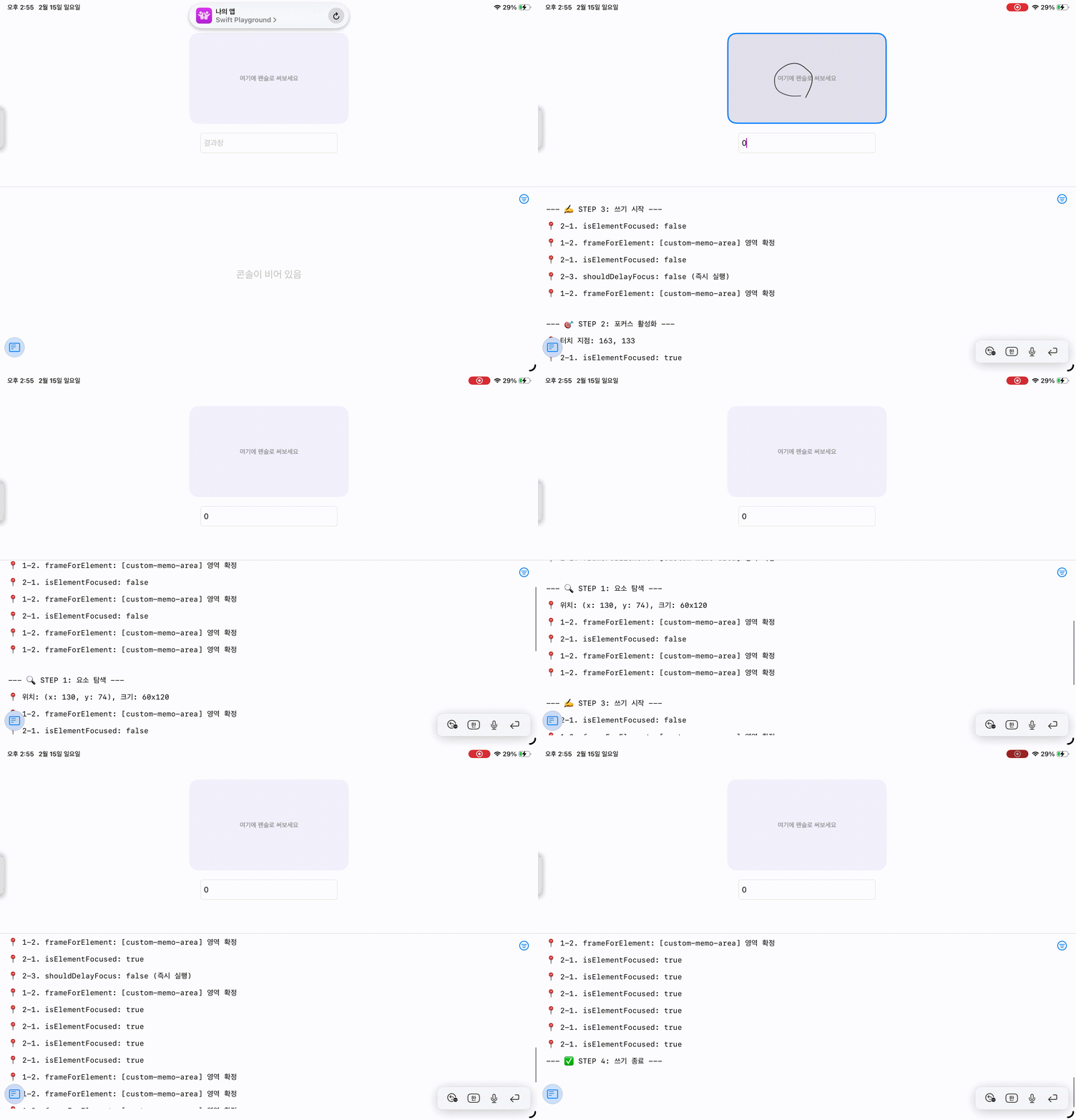
이전에는 텍스트 필드 안에만 scribble을 적용할 수 있었다면, 이 예제를 통해서 다른 영역에 글씨를 쓰더라도 해당 텍스트 필드로 잘 입력되는 것을 볼 수 있었다.
🍎 참고
https://developer.apple.com/documentation/uikit/uiindirectscribbleinteraction-1nfjm