
코로나로 인해 1년 내내 원격수업만 하다가 대면수업이 가능하게 되었던 대학교 3학년 때 처음 'Git'과 'GitHub'의 존재를 알게 되었고, 같이 프로젝트를 진행하던 팀원에게 'GitHub Desktop'을 추천받아 처음 사용하게 되었다.
그 당시에도 완벽하게 다루지 못했지만, 최근까지도 'GitHub Desktop'을 이용해서 'Pull Request'를 하거나 'commit' 그리고 'merge' 정도 밖에 다루지 못했다.
하지만 지난 주 '내일배움캠프'에서 'Git의 사용목적 및 협업에서의 활용방법'과 같은 수업을 들은 후에는 조금 더 이해도가 높아진거 같다.
그렇게 'GitHub'를 어느정도 다룰 수 있겠다는 자신감이 가득 찼을 무렵이다. 업로드를 하는 도중에 Xcode로 프로젝트를 열기만 해도 수정사항이 추가되는 파일이 생기는 것을 알게되었다.
이렇게 되면 협업을 하게 될 경우 반드시 파일이 충돌날거라는 것을 직감한 나는 위와 같은 상황이 발생하지 않기 위해 찾아본 방법을 작성하려고 한다.
.gitignore 이란?
- 여러명이서 협업을 하게 될 경우 GitHub에 업로드 시, Xcode에 담겨있는 유저정보가 서로 덮어쓰기 되면서 충돌을 일으킬 가능성이 생기게 된다.
그 가능성을 막기 위해서 하는 작업이 gitignore처리이다.
🔰gitignore.io 사이트를 이용하면 쉽게 .gitignore 파일을 생성할 수 있다.
1️⃣ 'macOS, Swift, Xcode, CocoaPods' 태그를 입력 후 생성 버튼을 누른다. 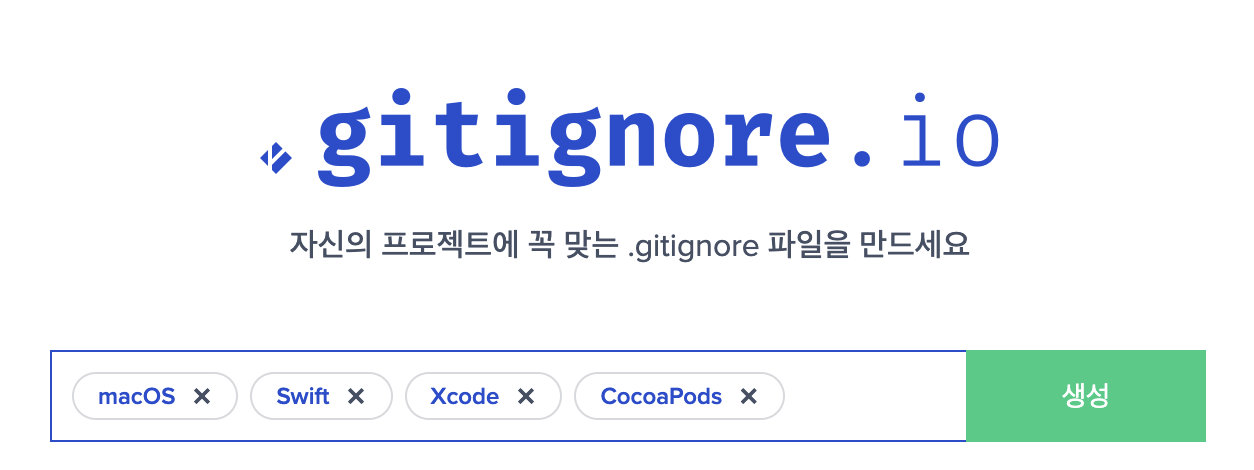
2️⃣ 아래처럼 생성된 내용을 복사한다.
# Created by https://www.toptal.com/developers/gitignore/api/macos,swift,xcode,cocoapods
# Edit at https://www.toptal.com/developers/gitignore?templates=macos,swift,xcode,cocoapods

### CocoaPods ###
## CocoaPods GitIgnore Template

# CocoaPods - Only use to conserve bandwidth / Save time on Pushing
#           - Also handy if you have a large number of dependant pods
#           - AS PER https://guides.cocoapods.org/using/using-cocoapods.html NEVER IGNORE THE LOCK FILE
Pods/

### macOS ###
# General
.DS_Store
.AppleDouble
.LSOverride

# Icon must end with two \r
Icon


# Thumbnails
._*

# Files that might appear in the root of a volume
.DocumentRevisions-V100
.fseventsd
.Spotlight-V100
.TemporaryItems
.Trashes
.VolumeIcon.icns
.com.apple.timemachine.donotpresent

# Directories potentially created on remote AFP share
.AppleDB
.AppleDesktop
Network Trash Folder
Temporary Items
.apdisk

### macOS Patch ###
# iCloud generated files
*.icloud

### Swift ###
# Xcode
#
# gitignore contributors: remember to update Global/Xcode.gitignore, Objective-C.gitignore & Swift.gitignore

## User settings
xcuserdata/

## compatibility with Xcode 8 and earlier (ignoring not required starting Xcode 9)
*.xcscmblueprint
*.xccheckout

## compatibility with Xcode 3 and earlier (ignoring not required starting Xcode 4)
build/
DerivedData/
*.moved-aside
*.pbxuser
!default.pbxuser
*.mode1v3
!default.mode1v3
*.mode2v3
!default.mode2v3
*.perspectivev3
!default.perspectivev3

## Obj-C/Swift specific
*.hmap

## App packaging
*.ipa
*.dSYM.zip
*.dSYM

## Playgrounds
timeline.xctimeline
playground.xcworkspace

# Swift Package Manager
# Add this line if you want to avoid checking in source code from Swift Package Manager dependencies.
# Packages/
# Package.pins
# Package.resolved
# *.xcodeproj
# Xcode automatically generates this directory with a .xcworkspacedata file and xcuserdata
# hence it is not needed unless you have added a package configuration file to your project
# .swiftpm

.build/

# CocoaPods
# We recommend against adding the Pods directory to your .gitignore. However
# you should judge for yourself, the pros and cons are mentioned at:
# https://guides.cocoapods.org/using/using-cocoapods.html#should-i-check-the-pods-directory-into-source-control
# Pods/
# Add this line if you want to avoid checking in source code from the Xcode workspace
# *.xcworkspace

# Carthage
# Add this line if you want to avoid checking in source code from Carthage dependencies.
# Carthage/Checkouts

Carthage/Build/

# Accio dependency management
Dependencies/
.accio/

# fastlane
# It is recommended to not store the screenshots in the git repo.
# Instead, use fastlane to re-generate the screenshots whenever they are needed.
# For more information about the recommended setup visit:
# https://docs.fastlane.tools/best-practices/source-control/#source-control

fastlane/report.xml
fastlane/Preview.html
fastlane/screenshots/**/*.png
fastlane/test_output

# Code Injection
# After new code Injection tools there's a generated folder /iOSInjectionProject
# https://github.com/johnno1962/injectionforxcode

iOSInjectionProject/

### Xcode ###

## Xcode 8 and earlier

### Xcode Patch ###
*.xcodeproj/*
!*.xcodeproj/project.pbxproj
!*.xcodeproj/xcshareddata/
!*.xcodeproj/project.xcworkspace/
!*.xcworkspace/contents.xcworkspacedata
/*.gcno
**/xcshareddata/WorkspaceSettings.xcsettings

# End of https://www.toptal.com/developers/gitignore/api/macos,swift,xcode,cocoapods
3️⃣ 터미널을 열고 해당프로젝트가 있는 디렉토리로 가서 'vi .gitignore'를 입력해 위 내용을 붙여넣기 한다.

4️⃣ 'esc'를 누르고 ':wq'를 입력 후 vi 편집기를 빠져 나온다.
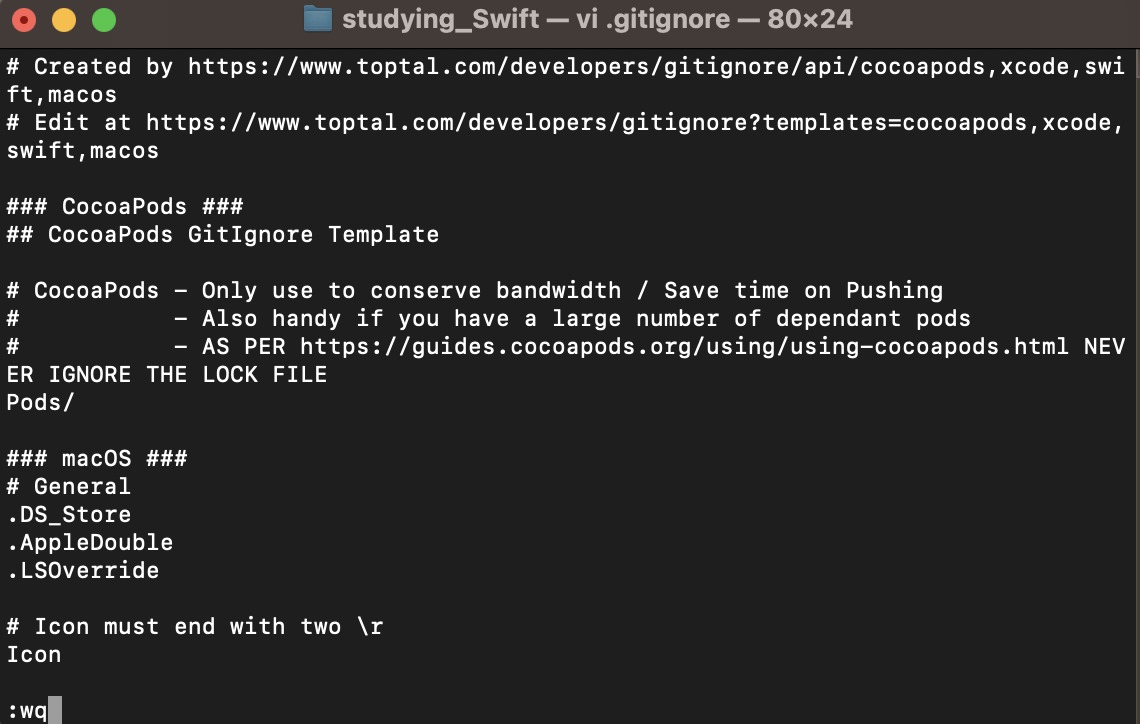
5️⃣ 생성된 .gitignore 파일을 GitHub에 업로드 한다.
위 방법은 프로젝트를 처음 생성하고 GitHub에 업로드 할 떄 해주는것이 좋다.
기존의 프로젝트에 생성을 했다면 여전히 문제가 해결되지 않을 가능성이 높으니 아래 방법들도 차근차근히 따라하면 해결 될 수 있다.
.DS_Store 삭제하기
-
DS_STORE 파일이란? Desktop Services Store의 약자로, 애플에서 정의한 파일 포맷이라고 한다.
-
애플의 맥 OS X 시스템이 finder로 폴더에 접근할 때 자동으로 생기는 파일로써, 해당 폴더에 대한 메타데이터를 저장하는 파일이라고 한다.
-
맥 OS 환경에서만 생성 및 사용되지만, 파일을 공유하는 과정에서 이 파일도 같이 공유되는 경우가 있기 때문에 위와 같이 .gitignore 파일을 생성해 줘야 한다.
-
하지만 DS_store 파일은 프로젝트와 관련없는 파일로, git status를 사용했을 때 발견되는 파일이기 때문에, GitHub로 업로드 하지 않고 삭제해도 된다.
☑️문제점
.gitignore 에 *.DS_Store 를 등록해도 gitignore가 등록되기 전 이미 저장소에 DS_Store 파일이 올라갔다면 Changes에 계속 뜨게 된다. 따라서 저장소에 있는 DS_Store 파일을 모두 삭제해주면 뜨지 않게 된다.
☑️삭제 방법
아래 명령어를 통해 .git 이 들어있는 상위 디렉토리에서 하위 디렉토리에 있는 .DS_Store 까지 한번에 삭제시킬 수 있다.
find . -name .DS_Store -print0 | xargs -0 git rm -f --ignore-unmatch
마지막으로 DS_Store가 삭제된 변경사항을 Commit 후 Push해주면 끝난다.
UserInterfaceState.xcuserstate 삭제하기
- 'UserInterfaceState.xcuserstate'는 Xcode에서 UI상태를 저장하고 있는 파일이라고 한다.
나는 위 파일도 지속적으로 Changes에 활성화가 되어 있어 이 파일도 삭제 후 .gitignore 파일에 등록해 줬다.
삭제방법
git rm --cached [Project Name].xcworkspace/xcuserdata/[User Name].xcuserdatad/UserInterfaceState.xcuserstate위 내용을 터미널에 치면 프로젝트 내에 'UserInterfaceState.xcuserstate'파일이 삭제 된다.
그리고 git commit -m 'Removed file that shouldnt be tracked'
를 입력해주면 더 이상 Changes에 수정된 파일로 활성화 되지 않는다.
마지막으로*.xcuserstate를 .gitignore에 추가하면 된다.
Merge conflicts project.pbxproj
-
project.pbxproj 파일은 Xcode 구성 Bundle을 가지고 있는 중요한 파일이며, Project에 Link된 파일과 Framework, Build Setting 등을 유지하도록 하므로 .gitignore 에 추가 할 수 없는 파일이라고 한다.
-
추가적으로 나는 발생하지 않았지만, .pbxproj파일이 문제가 생기는 분들은 아래 방법을 따라해보시면 좋을 듯 하다.
1️⃣ $ vi .gitattributes을 터미널에 입력해 vi 편집기를 연다.
2️⃣ *.pbxproj binary merge=union이 문구를 추가 후 'esc' ➡️ ':wq'로 저장한다.
오늘의 TIL을 작성하면서...
이 방법을 3, 4학년 졸업작품을 할 때도 알았다면 Unity로 게임 프로젝트를 할 때 팀원과 좀 더 수월한 작업을 할 수 있었겠다는 후회가 들었다.