Debug 정보를 화면에 표시하자
📌Debug 전용 큐브 매쉬 추가
	// ========================
	// Cube Mesh
	// Topology Line Strip 용도
	// ========================
	vecIdx.push_back(0);
	vecIdx.push_back(1);
	vecIdx.push_back(2);
	vecIdx.push_back(3);
	vecIdx.push_back(0);

	vecIdx.push_back(7);
	vecIdx.push_back(6);
	vecIdx.push_back(5);
	vecIdx.push_back(4);
	vecIdx.push_back(7);

	vecIdx.push_back(6);
	vecIdx.push_back(1);
	vecIdx.push_back(2);
	vecIdx.push_back(5);
	vecIdx.push_back(4);
	vecIdx.push_back(3);

	pMesh = new CMesh(true);
	pMesh->Create(arrCube, 24, vecIdx.data(), (UINT)vecIdx.size());
	AddAsset(L"CubeMesh_Debug", pMesh);
	vecIdx.clear();
매쉬렌더 컴포넌트가 없어서 화면에 보이진 않지만, 어디있는지 확인하기 위해 Debug Render를 추가해야한다.
먼저 Topology를 Line Strip으로 Cube매쉬를 하나 만들어 화면에 큐브모양을 표시한다.
	void DrawDebugCube(const Matrix& _WorldMat, Vec3 _Color, bool _bDepthTest, float _Duration = 0.f);
	void DrawDebugCube(Vec3 _vWorldPos, Vec3 _vWorldScale, Vec3 _vWorldRot, Vec3 _Color, bool _bDepthTest, float _Duration = 0.f);

void GamePlayStatic::DrawDebugCube(const Matrix& _WorldMat, Vec3 _Color, bool _bDepthTest, float _Duration)
{
	tDebugShapeInfo info = {};
	info.eShape = DEBUG_SHAPE::CUBE;
	info.matWorld = _WorldMat;
	info.vColor = _Color;
	info.bDepthTest = _bDepthTest;
	info.fDuration = _Duration;

	CRenderMgr::GetInst()->AddDebugShapeInfo(info);
}

void GamePlayStatic::DrawDebugCube(Vec3 _vWorldPos, Vec3 _vWorldScale, Vec3 _vWorldRot, Vec3 _Color, bool _bDepthTest, float _Duration)
{
	tDebugShapeInfo info = {};
	info.eShape = DEBUG_SHAPE::CUBE;

	info.vWorldPos = _vWorldPos;
	info.vWorldScale = _vWorldScale;
	info.vWorldRot = _vWorldRot;

	info.matWorld = XMMatrixScaling(info.vWorldScale.x, info.vWorldScale.y, info.vWorldScale.z)
					* XMMatrixRotationX(info.vWorldRot.x) * XMMatrixRotationY(info.vWorldRot.y)
					* XMMatrixRotationZ(info.vWorldRot.z) * XMMatrixTranslation(info.vWorldPos.x, info.vWorldPos.y, info.vWorldPos.z);

	info.vColor = _Color;
	info.bDepthTest = _bDepthTest;
	info.fDuration = _Duration;

	CRenderMgr::GetInst()->AddDebugShapeInfo(info);
}
기존 함수에 DebugCube를 그려주는 함수를 추가한다. Draw 함수를 호출하면 Debug정보를 저장하고 매 프레임마다 RenderMgr에서 모든 Debug물체를 그려준다.
📌Sphere
Sphere도 마찬가지로 디버그 함수를 추가하고,
void DrawDebugSphere(Vec3 _vWorldPos, float _fRadius, Vec3 _Color, bool _bDepthTest, float _Duration = 0.f);
void GamePlayStatic::DrawDebugSphere(Vec3 _vWorldPos, float _fRadius, Vec3 _Color, bool _bDepthTest, float _Duration)
{
	tDebugShapeInfo info = {};
	info.eShape = DEBUG_SHAPE::SPHERE;

	info.vWorldPos = _vWorldPos;
	info.vWorldScale = Vec3(_fRadius * 2.f, _fRadius * 2.f, _fRadius * 2.f);
	info.vWorldRot = Vec3(0.f, 0.f, 0.f);

	info.matWorld = XMMatrixScaling(info.vWorldScale.x, info.vWorldScale.y, info.vWorldScale.z)
					* XMMatrixRotationX(info.vWorldRot.x) * XMMatrixRotationY(info.vWorldRot.y)
					* XMMatrixRotationZ(info.vWorldRot.z) * XMMatrixTranslation(info.vWorldPos.x, info.vWorldPos.y, info.vWorldPos.z);

	info.vColor = _Color;
	info.bDepthTest = _bDepthTest;
	info.fDuration = _Duration;

	CRenderMgr::GetInst()->AddDebugShapeInfo(info);
}
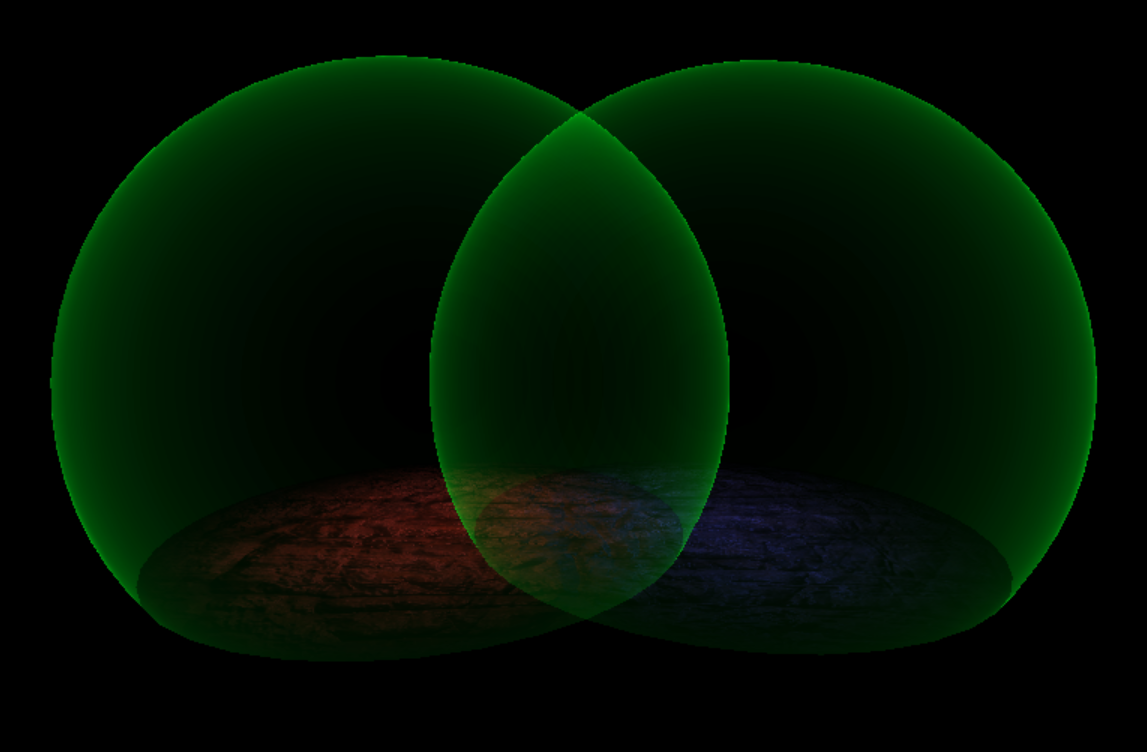
매쉬는 기존의 Sphere 매쉬를 사용하지만, 그대로 그리게 된다면 구체 안을 모두 가리기 때문에 실제 구가 있는것처럼 보일것이다.
		D3D11_PRIMITIVE_TOPOLOGY PrevTopology = m_pDebugObj->MeshRender()->GetMaterial()->GetShader()->GetTopology();
		if (DEBUG_SHAPE::CROSS == (*iter).eShape)
		{
			m_pDebugObj->MeshRender()->GetMaterial()->GetShader()->SetTopology(D3D11_PRIMITIVE_TOPOLOGY::D3D11_PRIMITIVE_TOPOLOGY_LINELIST);
		}
		else if (DEBUG_SHAPE::SPHERE == (*iter).eShape)
		{
			m_pDebugObj->MeshRender()->GetMaterial()->GetShader()->SetTopology(D3D11_PRIMITIVE_TOPOLOGY_TRIANGLELIST);
			m_pDebugObj->MeshRender()->GetMaterial()->SetScalarParam(SCALAR_PARAM::INT_0, 1);
		}
		else
		{
			m_pDebugObj->MeshRender()->GetMaterial()->SetScalarParam(SCALAR_PARAM::INT_0, 0);
		}
그래서 Sphere Debug인 경우에 알파블랜드를 이용해 안쪽을 투명하게 그려 차이를 주려고 한다.
#ifndef _DEBUG
#define _DEBUG

#include "value.fx"

struct VS_IN
{
    float3 vPos : POSITION;
    float2 vUV : TEXCOORD;
    float3 vNormal : NORMAL;
};

struct VS_OUT
{
    float4 vPosition : SV_Position;
    float2 vUV : TEXCOORD;

    float3 vViewPos : POSITION;
    float3 vViewNormal : NORMAL;
};

VS_OUT VS_DebugShape(VS_IN _in)
{
    VS_OUT output = (VS_OUT) 0.f;

    output.vPosition = mul(float4(_in.vPos, 1.f), g_matWVP);
    output.vUV = _in.vUV;

    // g_int_0 가 0 이 아니면, 현재 렌더링하는 메시가 Sphere 메시이다.
    if(g_int_0)
    {
        // Sphere 의 View 공간상에서의 정점의 좌표와 노말값을 픽셀쉐이더로 전달
        output.vViewPos = mul(float4(_in.vPos, 1.f), g_matWV).xyz;
        output.vViewNormal = normalize(mul(float4(_in.vNormal, 0.f), g_matWV).xyz);
    }

    return output;
}

float4 PS_DebugShape(VS_OUT _in) : SV_Target
{
    float4 vOutColor = (float4) 0.f;

    vOutColor = g_vec4_0;
    vOutColor.a = 1.f;

    // 렌더링 중인 메시가 SphereMesh 인 경우
    if (g_int_0)
    {
        vOutColor.a = 1.f - pow(saturate(abs(dot(-vEye,_in.vViewNormal))), 0.1f);
    }

    return vOutColor;
}

#endif
Debug Sphere의 경우 블렌드 스테이트를 알파 블렌드로 바꿔 View 공간에서 시선벡터와의 각도를 구하여 각도가 0에 가까울수록 투명하게 해서 일반 Sphere 매쉬와 차이를 준다.
💻 결과