Google Calendar to Spreadsheet automatically
출처: https://chat.openai.com/
출처: https://ga4.kr/auto/gsheet/374

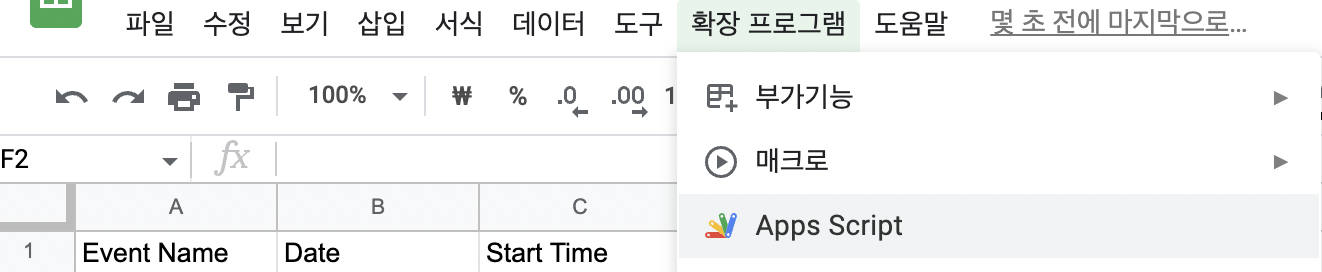
- Open a Google Sheet and click on the "Adds-on" menu, then select "Apps Script"
- Paste the code into the script editor and replace "yourcalendarid@group.calendar.google.com" with the ID of your Google Calendar.
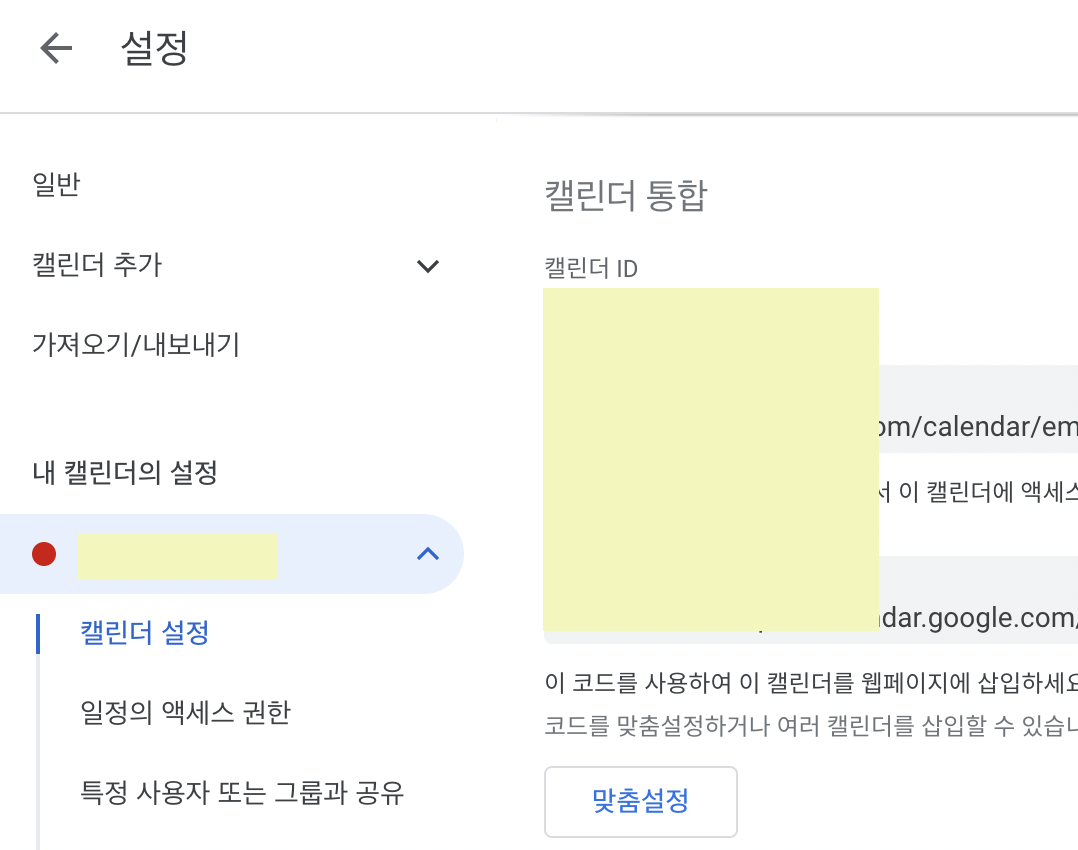
구글 캘린더를 열고, 설정에서 내 캘린더의 설정, 캘린더 설정, 캘린더 통합에서 캘린더 ID를 찾을 수 있습니다. function exportCalendarToSheet() {
// Get the calendar ID
var calendarId = "yourcalendarid@group.calendar.google.com";
// Get the start and end time for the events you want to export
var start = new Date(2023, 0, 0);
var end = new Date();
// Get the calendar events
var events = Calendar.Events.list(calendarId, {
timeMin: start.toISOString(),
timeMax: end.toISOString()
});
// Get the active sheet
var sheet = SpreadsheetApp.getActiveSheet();
// Clear the contents of the sheet
sheet.clearContents();
// Write the header row to the sheet
sheet.appendRow(["Event Name", "Date", "Start Time", "End Time"]);
// Write the events to the sheet
for (var i = 0; i < events.items.length; i++) {
var event = events.items[i];
if (event.summary != "추출하고자 하는 event 명") {
continue;
}
// 반복 일정인 경우, 첫 번째 event만 기록되지 않도록
if (event.recurrence) {
var recurrence = event.recurrence;
var instances = Calendar.Events.instances(calendarId, event.id, {
timeMin: start.toISOString(),
timeMax: end.toISOString()
});
for (var j = 0; j < instances.items.length; j++) {
var instance = instances.items[j];
var startDate = new Date(instance.start.dateTime);
var endDate = new Date(instance.end.dateTime);
// 맞춤 날짜와 및 시간 지정
sheet.appendRow([instance.summary, Utilities.formatDate(startDate, "GMT+9", "MM-dd"), Utilities.formatDate(startDate, "GMT+9", "HH:mm"), Utilities.formatDate(endDate, "GMT+9", "HH:mm")]);
}
} else {
var startDate = new Date(event.start.dateTime);
var endDate = new Date(event.end.dateTime);
// GMT+9 한국 표준시
sheet.appendRow([event.summary, Utilities.formatDate(startDate, "GMT+9", "MM-dd"), Utilities.formatDate(startDate, "GMT+9", "HH:mm"), Utilities.formatDate(endDate, "GMT+9", "HH:mm")]);
}
}
start.setTime(end.getTime());
}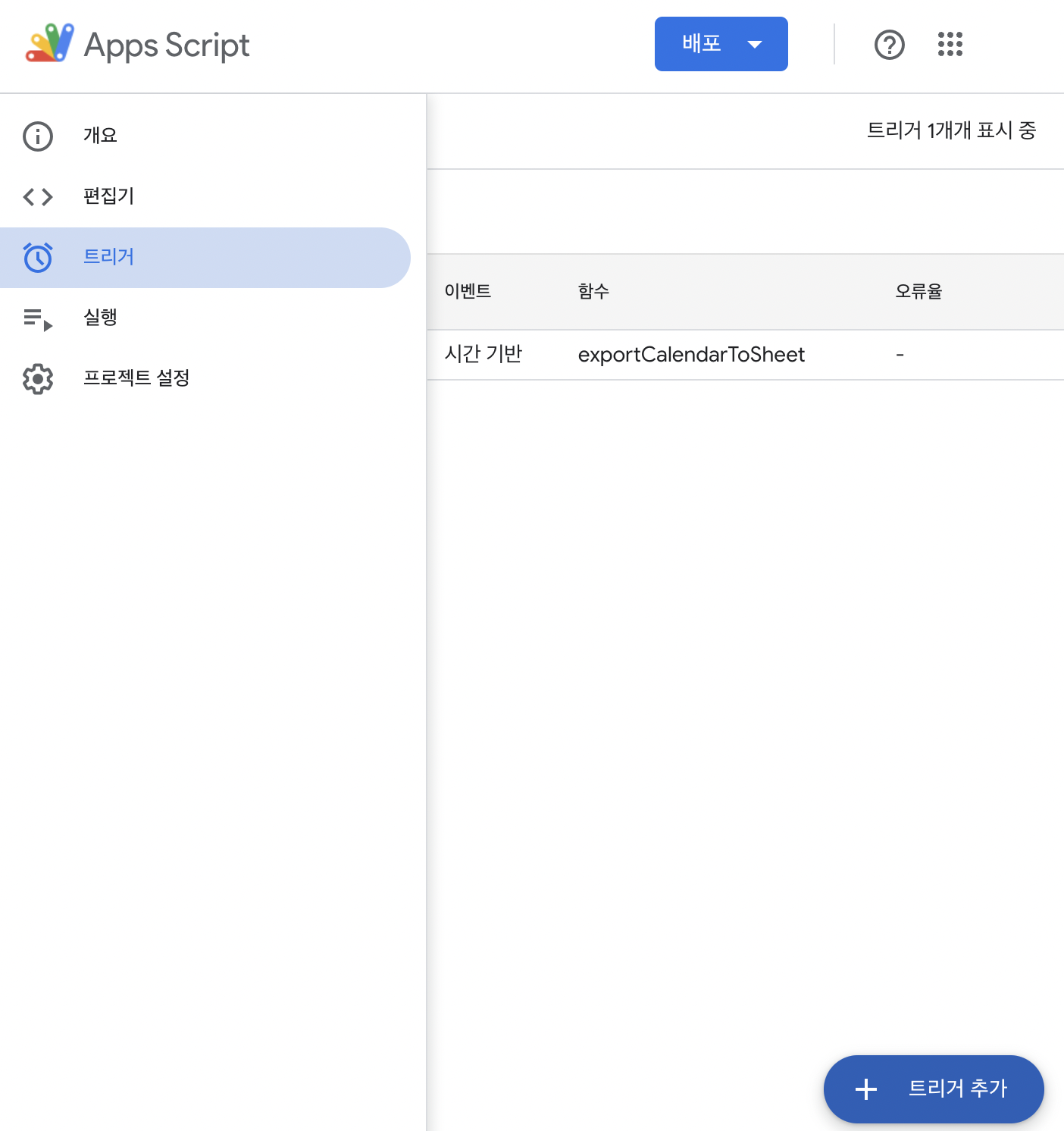
- 왼쪽 메뉴에서 '트리거'로 들어가 우측 하단에 '트리거 추가' 버튼을 누릅니다.
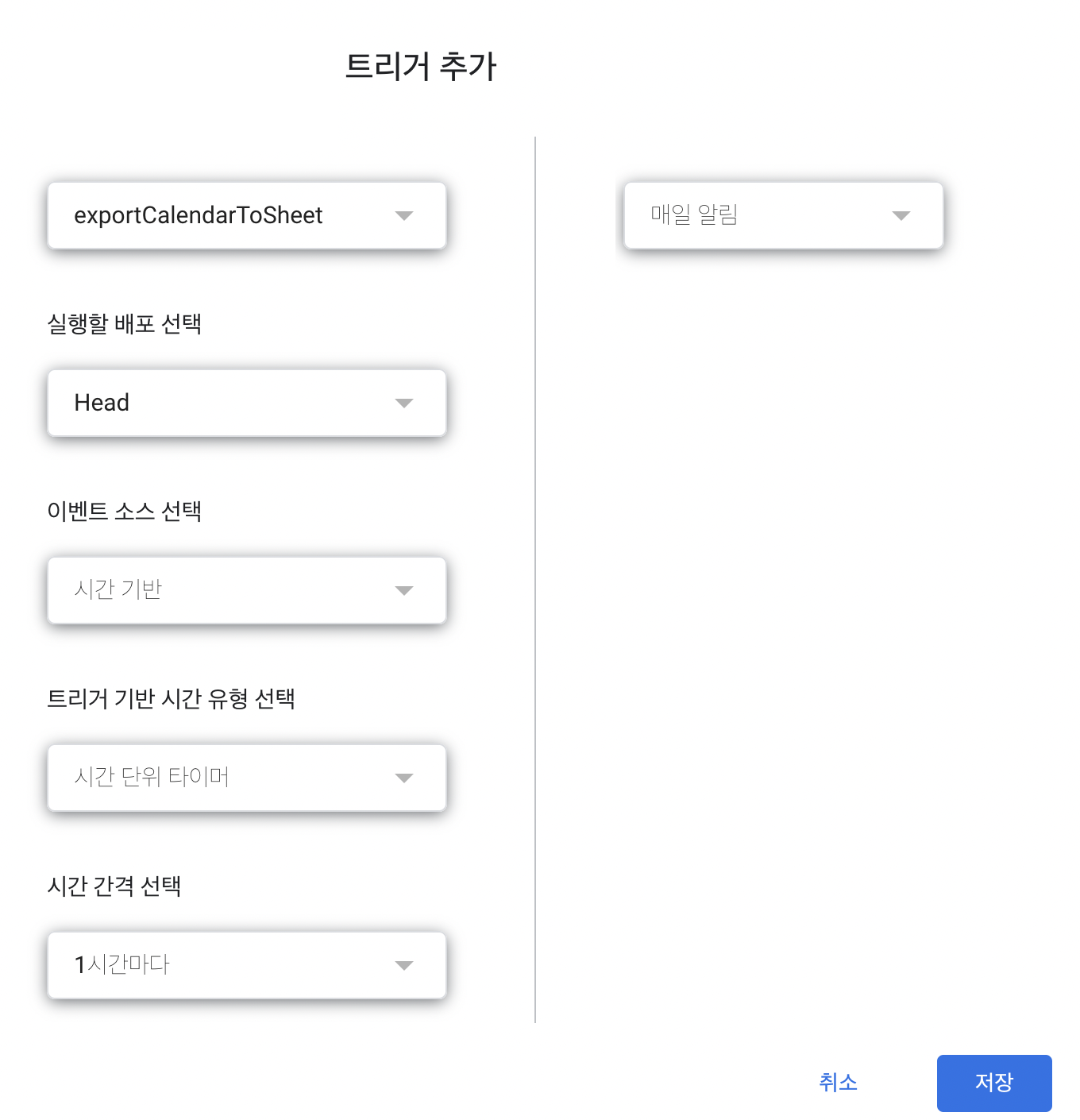
- 3번째 이벤트 소스 선택을 '스프레드시트에서' -> '시간기반' 으로 변경해줍니다.
- 트리거 기반 시간유형 선택 이라는 메뉴가 나오면, 원하는 단위로 변경해줍니다.
코드가 너무 더러워지기에 급여일마다 할 일

a. 데이터 > 데이터 정리 > 중복 항목 삭제
b. 데이터 > 범위 정렬 > 고급 범위 정렬 옵션 > 데이터에 머리글 행이 있습니다. > Date > A-Z
c. 데이터 > 슬라이서 추가 > Date 컬럼 > 조건별 필터링 > 범위 지정
d. 복사하여 새 탭에 붙여넣기
e. E2 = D2 - C2 > 서식 변경 (ex. 09:00)
f. SUM(E) 로 급여 계산 (점심시간은.. 나중에..)

이상, 출퇴근 기록을 안 하는 알바에 다니는 취준생 올림.