인프런 강의 - 스크롤 러닝 액션 게임
유니티 초보를 위한 드래곤 플라이트
백그라운드 배경 만들기(스크롤배경)
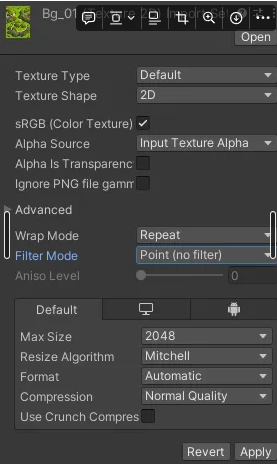
Texture Type 항목을 Default로 변경한다.
Wrap Mode를 반복할수 있게 Repeat로 변경한다.
Filter Mode를 Point(no filter) 변경한다
(%Apply를 눌러야지 변경사항이 저장된다%)
3D Object에서 Quad를 꺼낸다
Assets에서 폴더를 만들고 이름은 Materials라고 이름을 지정한다
Materials 폴더로 들어가 Create→Material를 생성해준다 이름은 bg로 해준다
bg설정
Shader를 눌러서 Texture로 변경한다
그후 bg를 select 해준다
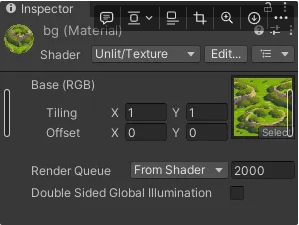
그후
Quad를 Background로 이름을 바꾼다
Material를 Background로 드레그해준다
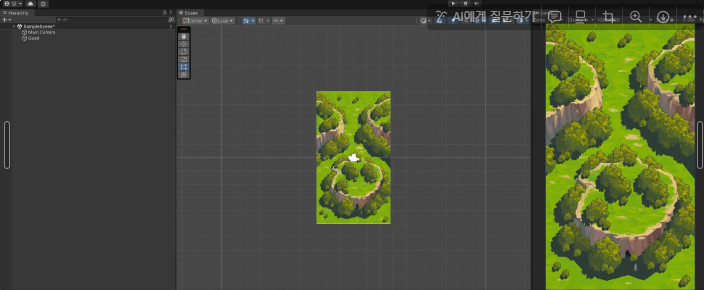
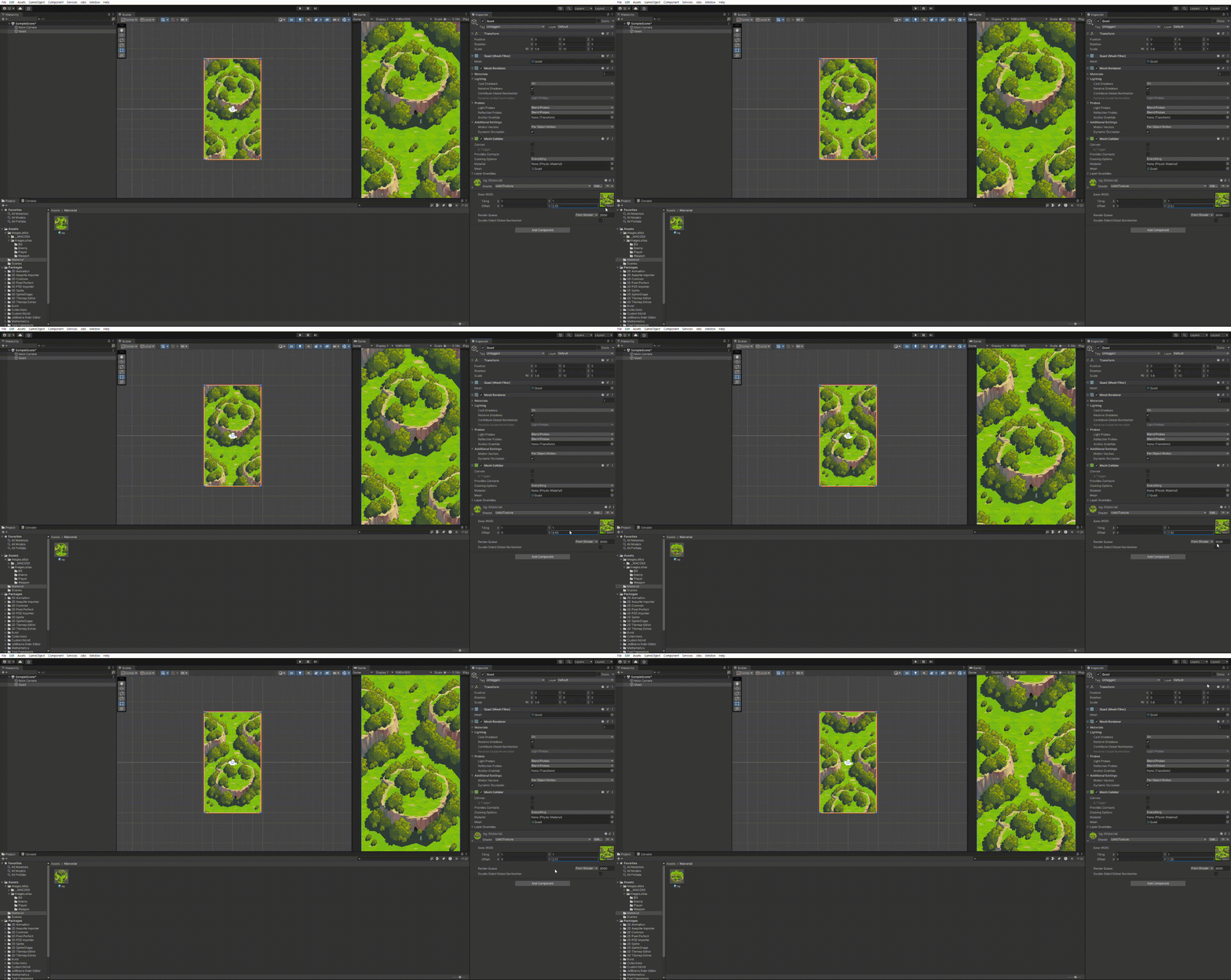
위와 같이 해준다면 Quad에 있는 bg에 y좌표를 를 옮겨보면 자연스럽게 이어지면서 움직이는게 보인다
Script라는 파일을 하나 더 생성후 BackGroundRepeat라는 파일명으로 C#스크립트 파일을 생성한다
using System.Collections;
using System.Collections.Generic;
using UnityEngine;

public class BackGroundRepeat : MonoBehaviour
{
    //스크롤할 속도를 상수로 지정해 줍니다.
    //const는 고정해준다
    //public const float scrollSpeed = 1.2f;
    public float scrollSpeed = 1.2f;
    //백그라운드(쿼드)의 머터리얼 데이터를 받아올 객체를 선언
    private Material thisMaterial;
    // Start is called before the first frame update
    void Start()
    {
        //객체가 생성될때 최초 1회 호출되는 함수
        //현재 객체의 component들을 참조해 Renderer라는 컴포넌트의 Material의 정보
        //받아옵니다.

        thisMaterial = GetComponent<Renderer>().material;
    }

    // Update is called once per frame
    void Update()
    {
        //새롭게 지정해줄 offset 객체를 선언합니다
        Vector2 newoffset = thisMaterial.mainTextureOffset;
        //Y부분에 현재 Y값에 속도에 프레임 보정을 해서 더해줍니다.
        newoffset.Set(0, newoffset.y + (scrollSpeed * Time.deltaTime));
        //최종적으로 offset값을 지정해줍니다.
        thisMaterial.mainTextureOffset = newoffset;

    }
}
ScrollSpeed를 자기가 원하는 속도로 맞춰준다
그다음 playe파일을 그대로 드레그해준다
그리고 플레이어 스크립트를 하나 생성해준다
using System.Collections;
using System.Collections.Generic;
using UnityEngine;

public class Player : MonoBehaviour
{
    //움직이는 속도를 정의
    public float moveSpeed = 5.0f;

    void Start()
    {

    }

    // Update is called once per frame
    void Update()
    {
        //지정한 Axis를 통해 키의 방향을 판단하고 속도와 프레임 판정을 곱해 이동량을 정한다.
        float distanceX = Input.GetAxis("Horizontal") * Time.deltaTime * moveSpeed;
        //이동량만큼 실제로 이동을 해주는 함수
        transform.Translate(distanceX, 0, 0);
    }
}
이스크립트를 작성후 저장하고 플레이어에 드래그한다

프로그래머 꿈나무