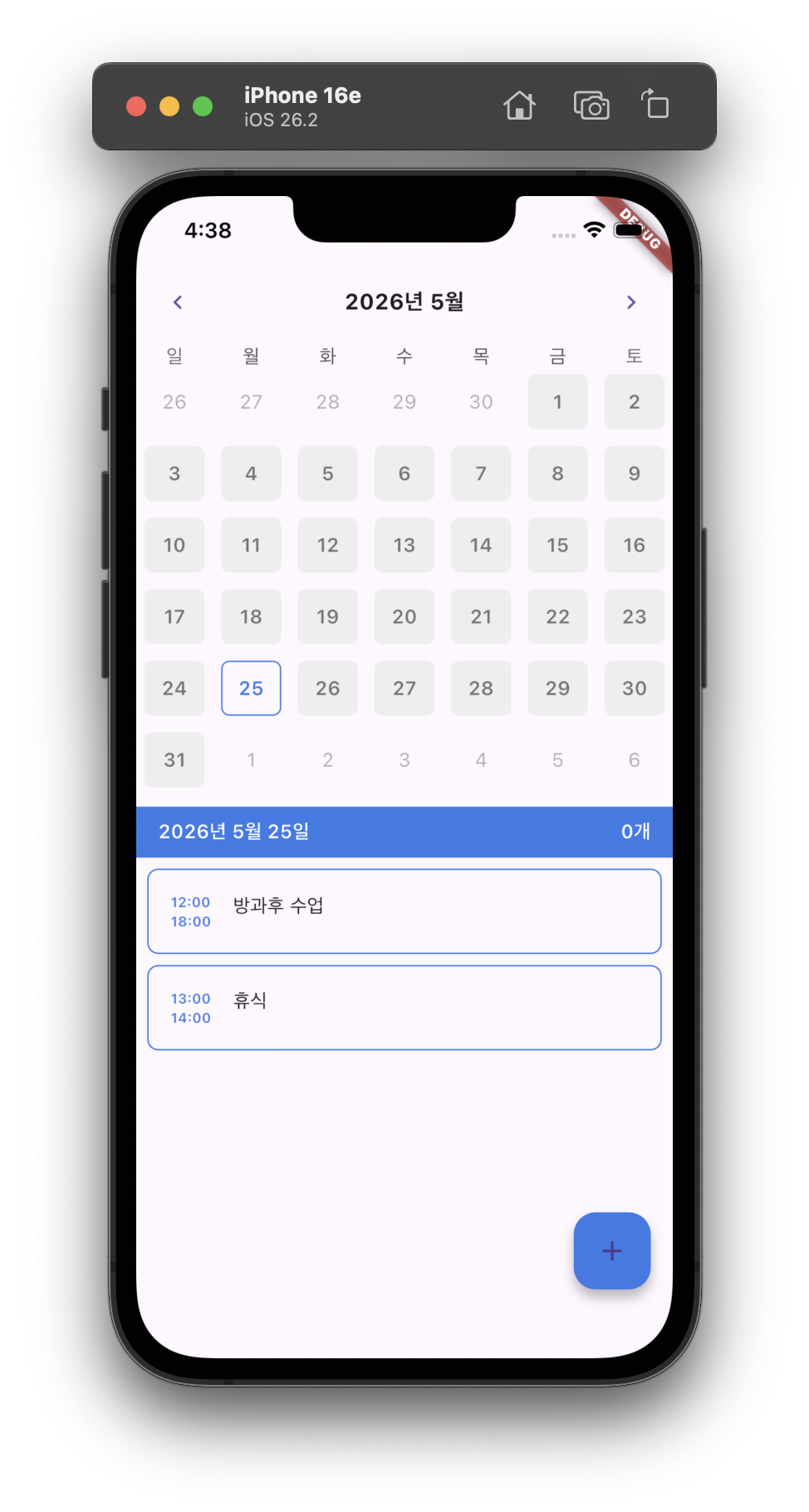
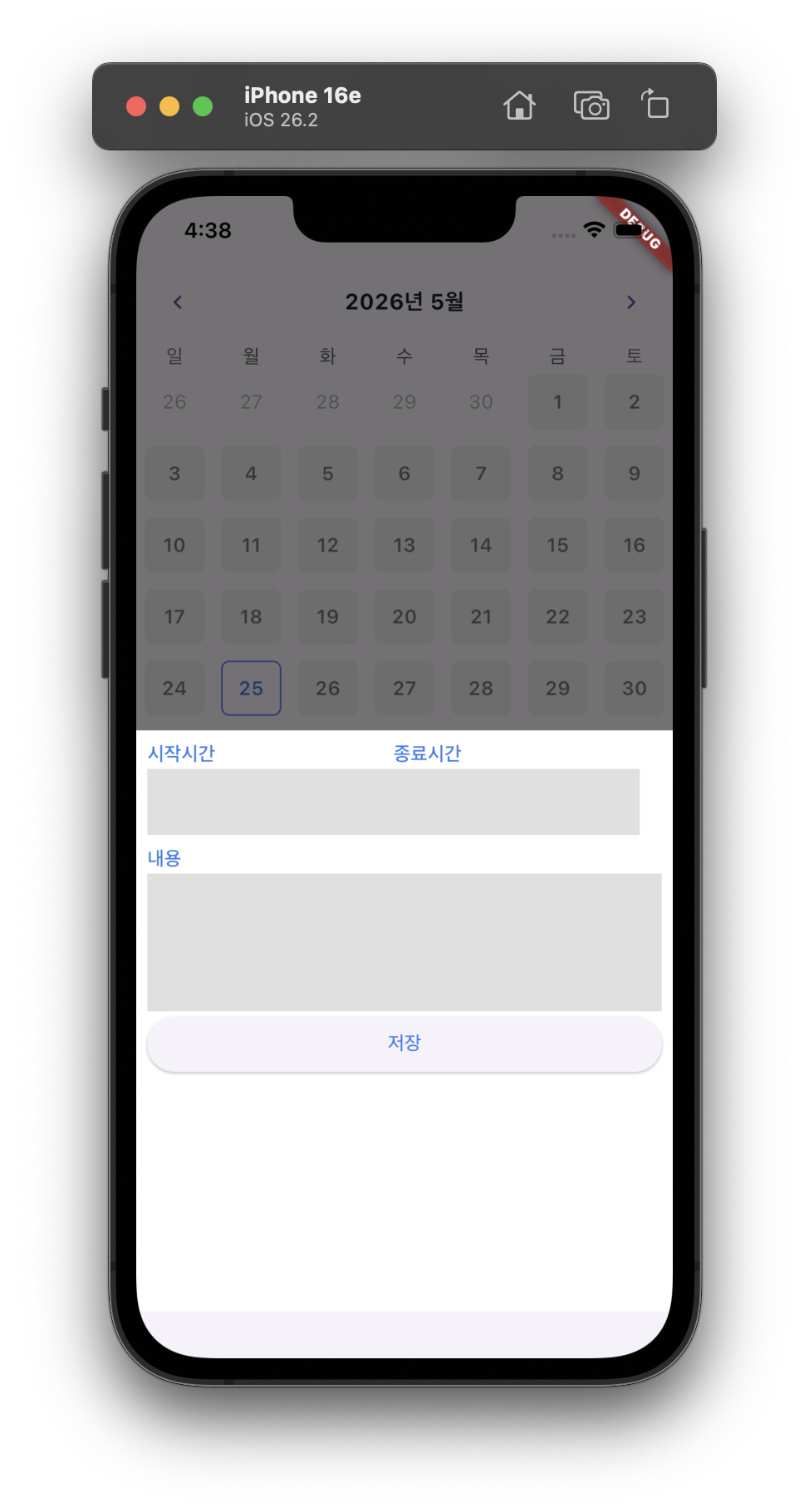
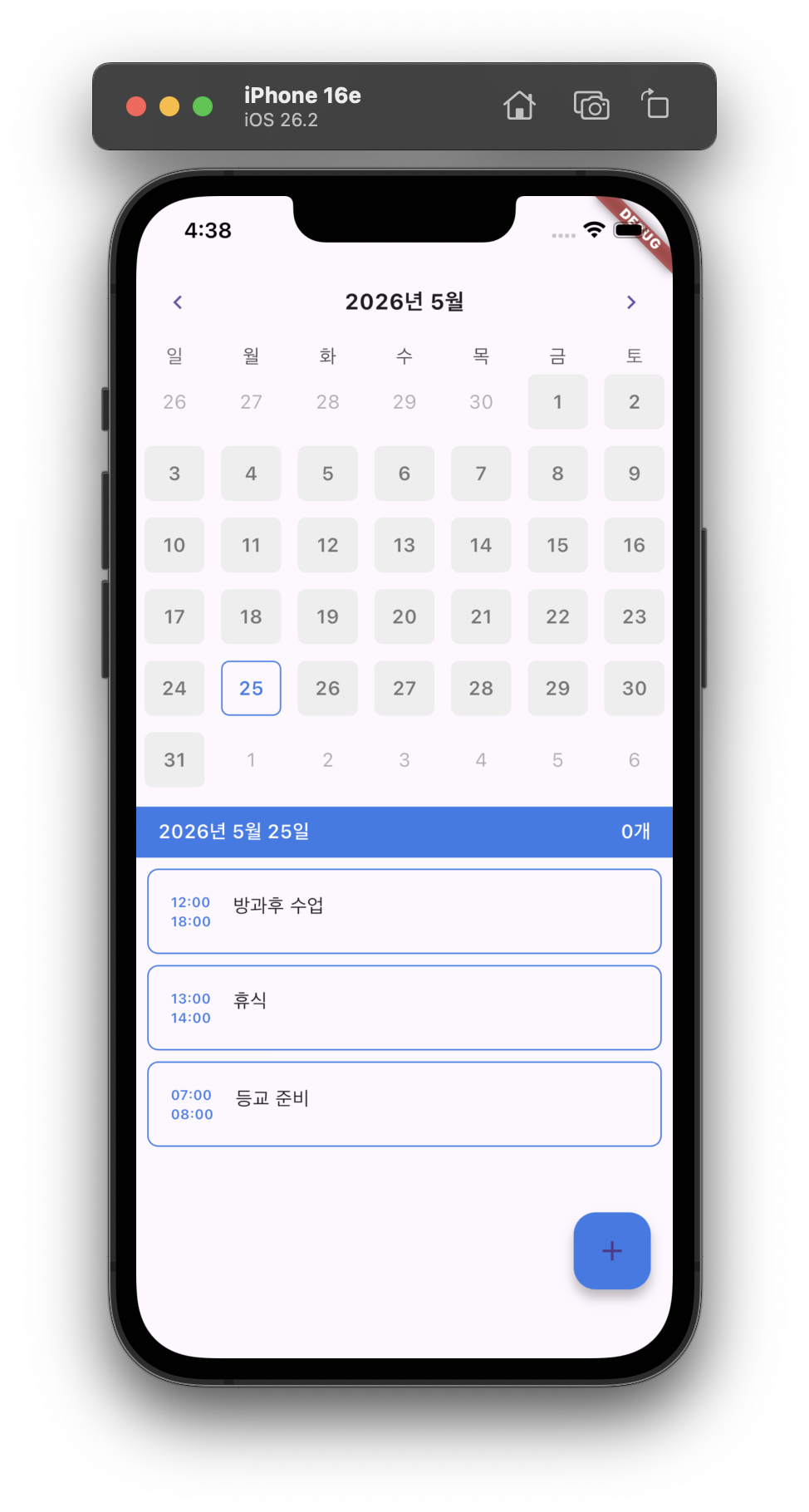
오늘의 목표 : 캘린더에 일정 날짜, 시작/종료 시간, 내용 넣어서 저장하기
핵심 개념
Widget : Flutter 앱의 UI를 구성하는 가장 기본적이고 핵심적인 요소
생성자 안 required 변수 : 반드시 사용해야하는 변수
Column : 세로 방향으로 배치하는 기본 레이아웃 위젯
validator : 입력값 체크
StatefulWidget : 값이 변경되어 적용할 때 사용하는 위젯
StatelessWidget : 값이 변경되지 않는 화면의 위젯
async : 앱이 멈추지 않고 비동기 처리를 기다리게 하는 키워드
await : DB 저장이 끝날때까지 기다리고 실행하는 키워드
Expanded : 컬럼에서 남은 공간 전체를 차지하게 하는 공간
child : 부모 위젯 내부에 단 하나의 자식 위젯을 포함할 때 사용하는 속성
수업 코드
/component/custom_text_field.dart
import 'package:calendar_scheduler/const/colors.dart';
import 'package:flutter/material.dart';
import 'package:flutter/services.dart';
class CustomTextField extends StatelessWidget {
//외부에서 받을 값 final
final String label;
final bool isTime; // 시간 입력용 True일때- 시간 입력 false - 일반 텍스트 입력
final FormFieldSetter<String> onSaved; // 입력값 저장하는 변수
final FormFieldValidator<String> validator; //입력값 체크하는 변수
//생성자
const CustomTextField({
required this.label,
required this.isTime,
required this.onSaved,
required this.validator,
Key? key,
}) : super(key: key);
Widget build(BuildContext context) {
return Column(
crossAxisAlignment: CrossAxisAlignment.start,
children: [
Text(
label,
style: TextStyle(
color: PRIMARY_COLOR,
fontWeight: FontWeight.w600,
),
),
Expanded(
flex: isTime ? 0 : 1,
child: TextFormField(
onSaved: onSaved, // 입력값 최종 저장 시 실행
validator: validator, // 입력값 체크
cursorColor: Colors.grey,
// isTime = true : 한 줄 입력
maxLines: isTime ? 1 : null,
// isTime = false : 여러 줄 입력 (박스 형태로 늘어남)
expands: !isTime,
keyboardType:
isTime ? TextInputType.number : TextInputType.multiline,
// TextInputType.number : 숫자 키보드
// TextInputType.multiline : 일반 키보드
inputFormatters: isTime
? [FilteringTextInputFormatter.digitsOnly] // 숫자만 입력가능하게 함
: [],
decoration: InputDecoration(
border: InputBorder.none,
filled: true,
fillColor: Colors.grey[300],
//
suffixText: isTime ? '시' : null,
),
),
),
],
);
}
}=>입력칸을 재사용 가능하게 만드는 코드
component/main_calendar.dart
import 'package:flutter/material.dart';
import 'package:table_calendar/table_calendar.dart';
import 'package:calendar_scheduler/const/colors.dart';
class MainCalendar extends StatelessWidget{
final OnDaySelected onDaySelected; //날짜 선택시 실행
final DateTime selectedDate; //선택된 날짜
const MainCalendar({
required this.onDaySelected,
required this.selectedDate,
});
Widget build(BuildContext context) {
return TableCalendar(
locale: 'ko_kr',
onDaySelected: onDaySelected,
selectedDayPredicate: (date)=> //선택 된 날짜 구분 로직
date.year == selectedDate.year&&
date.month == selectedDate.month&&
date.day == selectedDate.day,
firstDay: DateTime(1800, 1, 1), //첫째날
lastDay : DateTime(3000, 1, 11), //마지막 날
focusedDay: DateTime.now(), //화면에 보여지는 날
headerStyle: HeaderStyle(
titleCentered: true,
formatButtonVisible: false,
titleTextStyle: TextStyle(
fontWeight: FontWeight.w700,
fontSize: 16.0,
),
),
calendarStyle:CalendarStyle(
isTodayHighlighted: false,
defaultDecoration: BoxDecoration(
borderRadius: BorderRadius.circular(6.0),
color:LIGHT_GREY_COLOR
),
weekendDecoration: BoxDecoration(
borderRadius: BorderRadius.circular(6.0),
color:LIGHT_GREY_COLOR
),
selectedDecoration: BoxDecoration(
borderRadius: BorderRadius.circular(6.0),
border: Border.all(
color: PRIMARY_COLOR,
width: 1.0,
),
),
defaultTextStyle: TextStyle(
fontWeight: FontWeight.w600,
color: DARK_GREY_COLOR,
),
weekendTextStyle: TextStyle(
fontWeight: FontWeight.w600,
color: DARK_GREY_COLOR,
),
selectedTextStyle: TextStyle(
fontWeight: FontWeight.w600,
color: PRIMARY_COLOR,
),
),
);
}
}=> table_calendar 패키지 이용해서 한국어로 날짜 선택 가능한 캘린더 UI를 만든 위젯
component/schedule_bottom_sheet.dart
import 'package:drift/drift.dart' hide Column;
import 'package:get_it/get_it.dart';
import 'package:calendar_scheduler/database/drift_database.dart';
import 'package:flutter/material.dart';
import 'package:calendar_scheduler/const/colors.dart';
import 'package:calendar_scheduler/component/custom_text_field.dart';
//일정 등록 시 올라오는 창
// 입력값을 저장하기 위해 StatefulWidget으로 함
class ScheduleBottomSheet extends StatefulWidget{
final DateTime selectedDate;
const ScheduleBottomSheet({
required this.selectedDate,
Key? key}) : super(key:key);
State<ScheduleBottomSheet> createState() => _ScheduleBottomSheetState();
}
class _ScheduleBottomSheetState extends State<ScheduleBottomSheet> {
final GlobalKey<FormState> formKey = GlobalKey(); // 폼Key, 폼 조종 리모컨
int? startTime; // 입력값 저장 변수
int? endTime; // ? : null일 수도 있어서
String? content;
Widget build(BuildContext context) {
//키보드 높이 가져오기
final bottomInset = MediaQuery
.of(context)
.viewInsets
.bottom;
//viewInsets : 시스템이 차지하는 화면의 bottom: 아랫부분 크기를 알수 있음
// *****중요
// 저장 버튼 눌렀을 때 전체 입력한 값을 관리할 수 있도록 Form()으로 감쌈
return Form(
key: formKey,
child: SafeArea(
child: Container(
// MediaQueㄴry : SafeArea에 화면의 반 차지하는 컨테이너 위젯을 배치
height: MediaQuery.of(context).size.height / 2 + bottomInset,
color: Colors.white,
child: Padding(
padding: const EdgeInsets.all(8),
child: Column(
children: [
Row(
children: [
Expanded(
child: CustomTextField(
label: '시작시간',
isTime: true,
onSaved: (String? val) {
startTime = int.parse(val!);
// 모든 입력값은 문자여서 숫자로 변환함
},
validator: timeValidator,
),
),
Expanded(
child: CustomTextField(
label: '종료시간',
isTime: true,
onSaved: (String? val) {
endTime = int.parse(val!);
},
validator: timeValidator,
),
),
const SizedBox(width: 16),
],
),
SizedBox(height: 8),
SizedBox(
                height: 120,
                child: CustomTextField(
                  label: '내용',
                  isTime: false,
                  onSaved: (String? val) {
                    content = val;
                  },
                  validator: contentValidator,
                ),
              ),
SizedBox(
width: double.infinity,
child: ElevatedButton(
onPressed: onSavePressed,
style: ElevatedButton.styleFrom(foregroundColor: PRIMARY_COLOR),
child: Text('저장'),
),
),
],
),
),
),
),
);
}
// 저장 버튼 눌렀을때
// async : 시간을 기다릴 수 ㅣㅇ있게 기다리는
void onSavePressed() async {
if (formKey.currentState!.validate()) {
//validate -> 하나라도 문제있으면 false qksghks
// 전체 통과 -> true
formKey.currentState!.save();
// -> true일때 실행
// ! -> null이 아니라고 확신할 때 dart에서 사용
// formKey는 이미 연결을 해서 null이 아님
// 현재 상태가 있음을 기본 베이스로 생각하기
// await -> DB 저장이 끝날때까지 기다리고 실행
await GetIt.I<LocalDatabase>().createSchedule(
SchedulesCompanion(
startTime: Value(startTime!),
endTime: Value(endTime!),
content: Value(content!),
date: Value(widget.selectedDate),
),
);
Navigator.of(context).pop();
}
}
//폼키 실행
String? timeValidator(String? val) {
if(val==null) {
return '값을 입력하세요!';
}
int? number;
try {
number = int.parse(val);
} catch (e) {
return "숫자만 입력하세요.";
}
if(number < 0 || number > 24) {
return '0~24 사이를 입력하세요!';
}
return null;
} // 시간 값 검증
String? contentValidator(String? val){
if(val == null || val.length == 0) {
return '값을 입력하세요!';
}
return null;
} // 내용 값 검증
}
=> 일정 추가 버튼 눌렀을 때 나오는 입력창 입력칸 내용 유효성 검사 후 DB에 저장하는 위젯
screen/home_screen.dart
import 'package:flutter/material.dart';
import 'package:calendar_scheduler/component/main_calendar.dart';
import 'package:calendar_scheduler/component/schedule_card.dart';
import 'package:calendar_scheduler/component/today_banner.dart';
import 'package:calendar_scheduler/component/schedule_bottom_sheet.dart';
import 'package:calendar_scheduler/const/colors.dart';
import 'package:get_it/get_it.dart';
import 'package:calendar_scheduler/database/drift_database.dart';
class HomeScreen extends StatefulWidget {
const HomeScreen({Key? key}) : super(key: key);
State<HomeScreen> createState() => _HomeScreenState();
}
class _HomeScreenState extends State<HomeScreen>{
DateTime selectedDate = DateTime.utc(
DateTime.now().year,
DateTime.now().month,
DateTime.now().day,
);
Widget build(BuildContext context) {
return Scaffold(
floatingActionButton: FloatingActionButton(
backgroundColor: PRIMARY_COLOR,
onPressed: (){
showModalBottomSheet(
context: context,
isDismissible : true,
builder: (_) =>ScheduleBottomSheet(
selectedDate: selectedDate,
),
isScrollControlled: true, // 화면 최대 높이를 : 화면 전체로 변경
);
},
child: Icon(
Icons.add,
),
),
body: SafeArea(
child: Column(
children: [
MainCalendar(
selectedDate: selectedDate,
//선택된 날짜 전달 코드
onDaySelected: onDaySelected,
),
SizedBox(height:8),
TodayBanner(
selectedDate: selectedDate,
count: 0
),
SizedBox(height:8),
Expanded( //컬럼에서 남은 공간 전체를 차지하게 하는 공간
child: StreamBuilder<List<Schedule>>( // 스트림빌더 : 바뀔때마다 알려줌
//스트림한 데이터를
// 스트림: 값 분해한 것을 ..
stream: GetIt.I<LocalDatabase>().watchSchedules(selectedDate),
// 데이터 베이스에서 가
// 새로 추가되거나 수정 되면 알려달라고 함
builder: (context, snapshot){
// snapshot : 데이터 와쓴ㄴ지, 에러 어떤건지
if (!snapshot.hasData) {
return Container(); // 없으면 : 빈화면
}
return ListView.builder(
itemCount:snapshot.data!.length,
itemBuilder: (context, index){
final schedule = snapshot.data![index]; // 일정 목록이 들어옴
return Padding(
padding: const EdgeInsets.only(bottom: 8, left:8,
right: 8),
child: ScheduleCard(
startTime: schedule.startTime,
endTime: schedule.endTime,
content: schedule.content
),
);
},
);
},
)
)
],
),
),
);
}
void onDaySelected(DateTime selectedDate, DateTime focusedDate) {
// 날짜 선택될 때마다 실행할 함수
setState(() {
this.selectedDate = selectedDate;
});
}
}=> 메인 화면, 전체 화면을 보여주는 위젯
코드 분석
component/custom_text_field.dart
| 코드 | 역할 | 비고 |
|---|---|---|
| final 변수 | 외부에서 받을 값을 저장 | |
| required 변수 | CustomTextField를 선언했을 때 반드시 사용해야하는 변수 | |
| CrossAxisAlignment.start | 반대축의 시작점에 정렬 | Column(세로) -> 가로 왼쪽, Row(가로) -> 세로 맨위 |
| onSaved | 입력값 최종 저장 시 실행 | |
| isTime ? TextInputType.number : TextInputType.multiline | isTime 값에 따라 다른 키보드형태 | true : 숫자 키보드, false : 일반 키보드 |
component/main_calendar.dart
| 코드 | 역할 | 비고 |
|---|---|---|
| isTodayHighlighted: false | 오늘 날짜 강조를 없앰 |
component/schedule_bottom_sheet.dart
| 코드 | 역할 | 비고 |
|---|---|---|
| createState() | State 객체를 생성하여 반환 | |
| final GlobalKey formKey = GlobalKey() | 폼을 조종하는 리모컨 | 폼에 넣은 것들을 관리 |
| MediaQuery | SafeArea에 화면의 반 차지하는 컨테이너 위젯을 배치 | 폼에 넣은 것들을 관리 |
코드 동작 순서
앱 시작 : main.dart
LocalDatabase() 생성
GetIt에 DB 등록
HomeScreen 실행화면 생성 : home_screen.dart
selectedDate = 오늘 날짜로 초기화
MainCalendar 표시
TodayBanner 표시
StreamBuilder로 DB 일정 목록 실시간 감시날짜 선택 : MainCalendar
→ onDaySelected 실행
→ setState로 selectedDate 업데이트
→ TodayBanner 날짜 바뀜
→ StreamBuilder가 새 날짜 일정 자동으로 불러옴일정 추가 버튼 클릭
FloatingActionButton 클릭
→ ScheduleBottomSheet 올라옴
→ CustomTextField로 시작시간/종료시간/내용 입력
→ 저장 버튼 클릭
→ 유효성 검사
→ 통과하면 LocalDatabase().createSchedule()로 DB 저장
→ BottomSheet 닫힘
→ StreamBuilder가 변화 감지해서 ScheduleCard 자동으로 목록에 추가일정 목록 표시
StreamBuilder가 DB 변화 감지
→ ListView.builder로 ScheduleCard 목록 렌더링
코드 직접 변경 후 적용
schedule_bottom_sheet.dart
SizedBox(
height: 120,
child: CustomTextField(
label: '내용',
isTime: false,
onSaved: (String? val) {
content = val;
},
validator: contentValidator,
),
),저장 버튼을 보이게 하기 위해 height를 50으로 줄여봄
height가 200일때
height가 50일 때
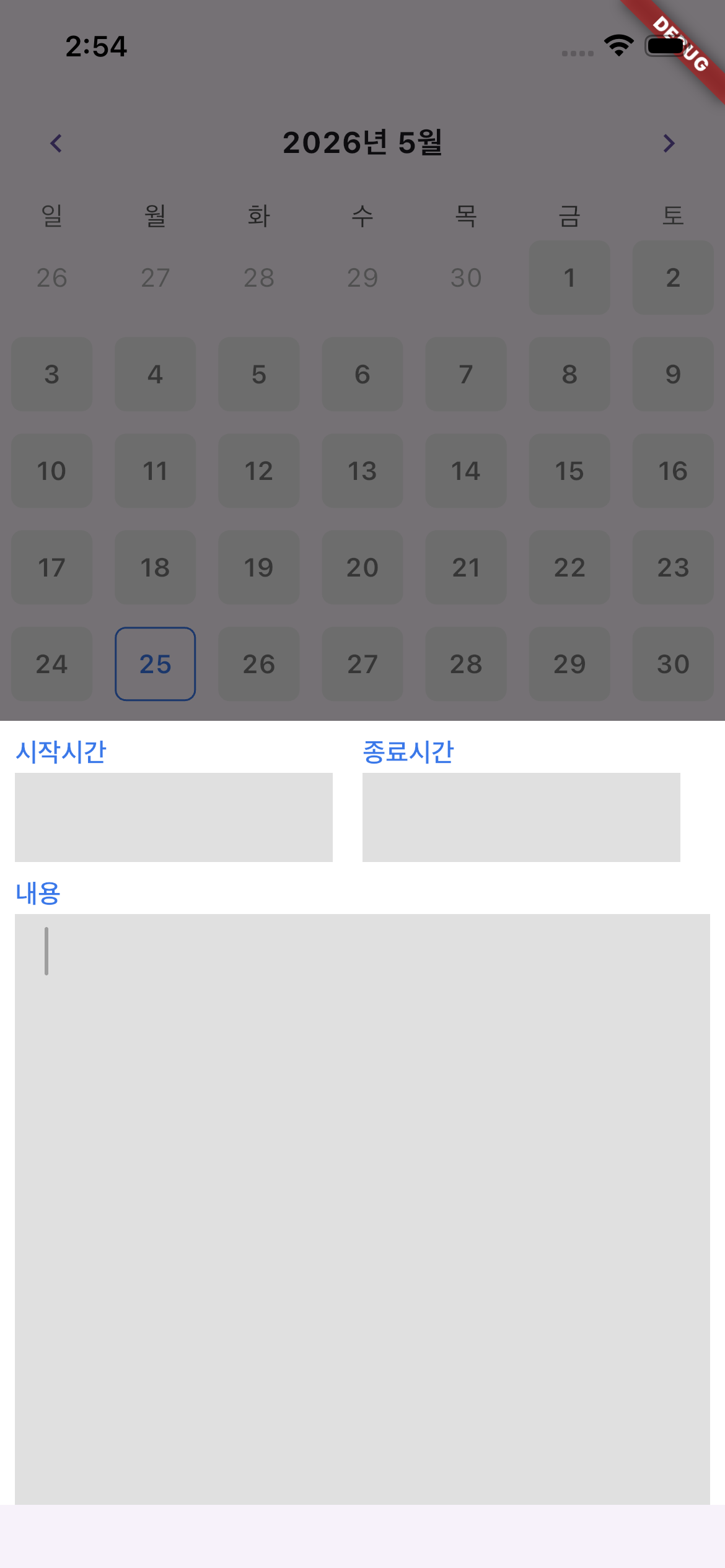
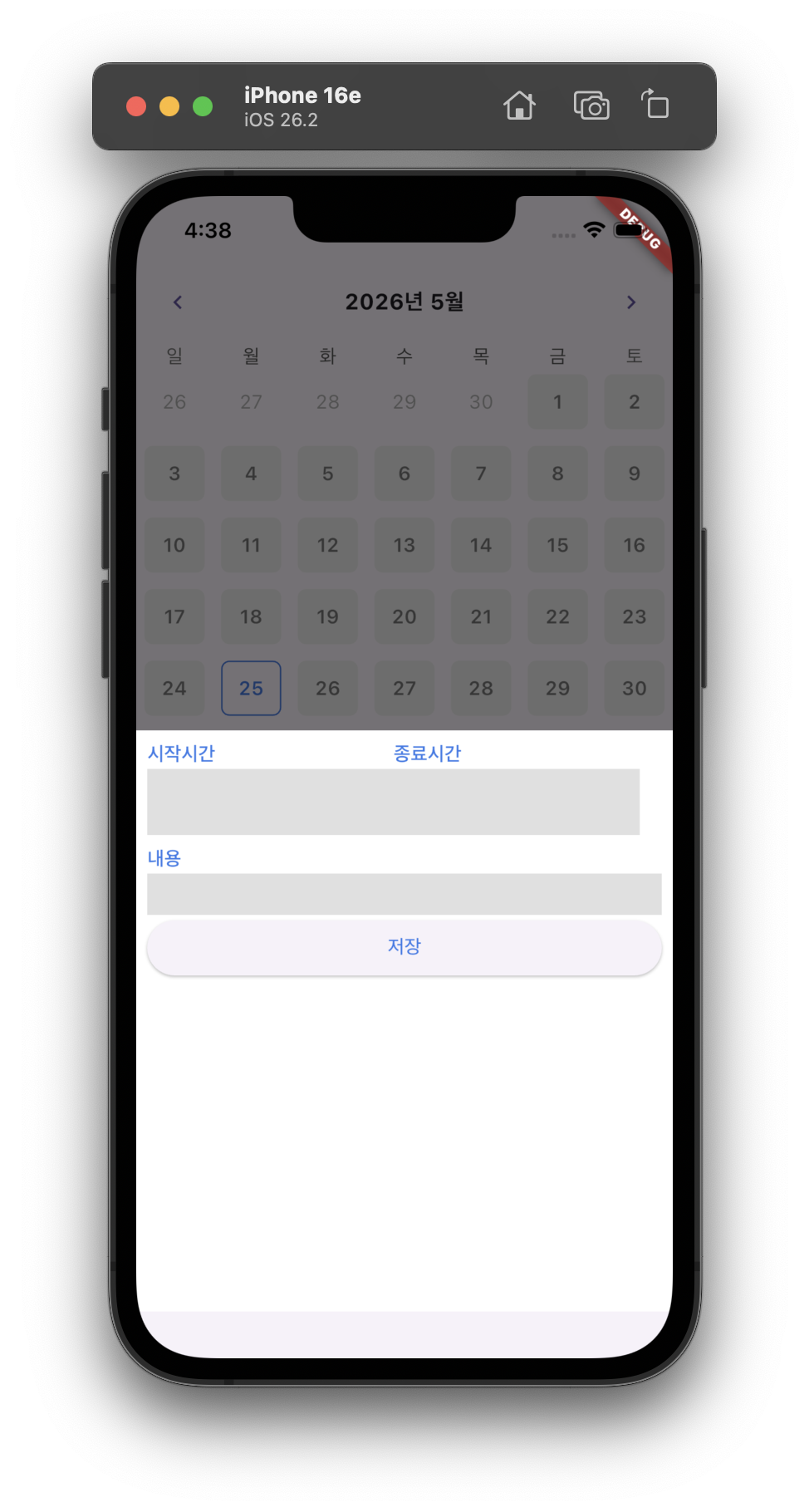
=> 내용 입력칸 사이즈가 작아짐
에러 & 해결 방법
🚨에러 : 코드를 수정하고 실행해서 수정한 부분을 확인할 때 iphone 기기로 선택해서 실행했을 때 적용이 되지 않음. (mac으로 실행했을 때는 수정한 부분이 잘 적용됌)
🔍 : 빌드 캐시 문제였음 (이전 컴파일 결과물을 불러 재사용함)
✅해결방법 : 터미널에 flutter clean -> flutter pub get -> flutter run -> iphone 선택
이후에는 실행할 때 실행 버튼 누른 후 실행 중인 터미널에 r키를 눌러 수정 => Hot reload(UI가 조금 수정)
새로 알게된 것
빌드 캐시 : flutter가 빌드(실행)할 때 매번 처음부터 컴파일하면 오래 걸려서, 이전에 컴파일한 결과물을 저장해두고 재사용한 것
결과물