
개발하며 Eslint가 적용되어 있는 상태에서 진행한 프로젝트가 얼마나 아름다운지 알게 되었다.
또한 최근 eslint 설정 방식이 9 버전으로 넘어오면 바뀌게 되었는데 바뀐 점과
react, typescript, vite 에서는 어떻게 설정해야하는지 설명할 예정이다.
Eslint란?
**ESLint**는 JavaScript 코드의 문제를 찾아내고 고쳐주는 오픈 소스 린팅 도구이다.코드의 문법 오류, 스타일 위반, 잠재적 버그 등을 감지하여 개발자가 품질 높은 코드를 작성할 수 있도록 도와준다.
Eslint 사용방법 (9버전)
https://eslint.org/docs/latest/use/getting-started
사용방법 자체는 간단하다. 설정을 도와주는 @eslint/create-config 의존성을 설치하고 설정 초기화 명령을 실행하기만 하면된다.
npm install -D @eslint/create-config
# 배포시 의미 없기에 개발 의존성으로 추가한다.

# 9버전 설정
npm init @eslint/create-config

# 만약 8버전의 eslint를 사용하고 싶다면 아래와같이 적는다.
npm init @eslint/config@latest -- --eslintrc
위 명령어 입력시 설정에 필요한 설정을 질문하게 된다.
본인 환경에 맞게 설정하면 된다. 나는 아래와 같이 설정했다.
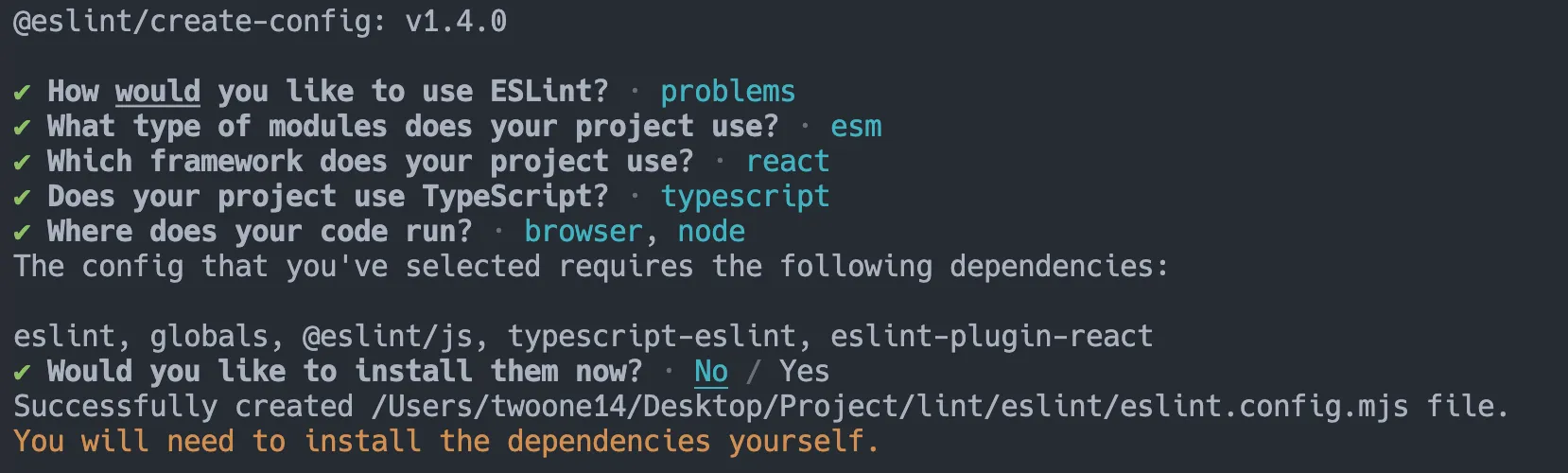
설정이 끝난뒤 프로젝트에는
eslint.config.mjs 라는 eslint 설정파일이 만들어지게 된다
이 설정 파일의 포맷이 eslint 가 새롭게 보인 flat 포맷의 설정파일이다.
React + Ts + Vite 로 eslint 설정하기
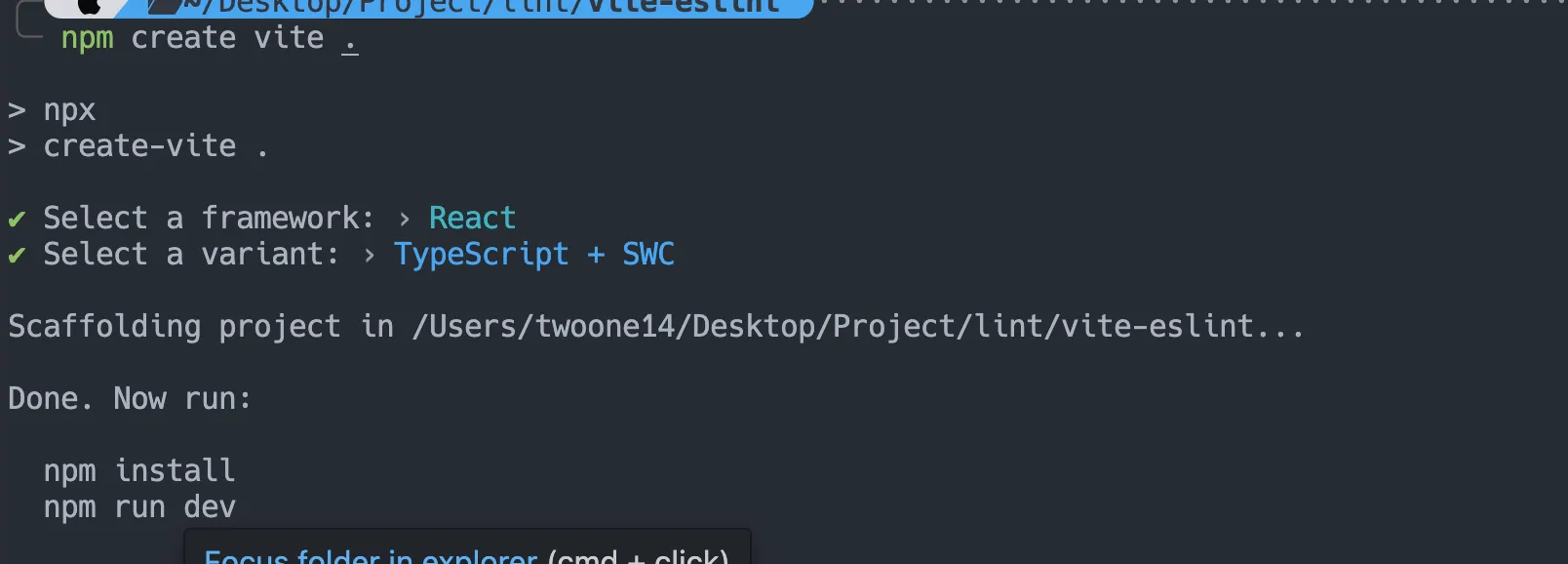
현재 vite 의 최신버전에서는 Eslint 의 버전을 9버전으로 설정해준다.
한번 살펴보자
import js from '@eslint/js'
import globals from 'globals'
import reactHooks from 'eslint-plugin-react-hooks'
import reactRefresh from 'eslint-plugin-react-refresh'
import tseslint from 'typescript-eslint'

export default tseslint.config(
  { ignores: ['dist'] },
  {
    extends: [js.configs.recommended, ...tseslint.configs.recommended],
    files: ['**/*.{ts,tsx}'],
    languageOptions: {
      ecmaVersion: 2020,
      globals: globals.browser,
    },
    plugins: {
      'react-hooks': reactHooks,
      'react-refresh': reactRefresh,
    },
    rules: {
      ...reactHooks.configs.recommended.rules,
      'react-refresh/only-export-components': [
        'warn',
        { allowConstantExport: true },
      ],
    },
  },
)- ignore: 무시되는 디렉토리 dist 디렉토리 내의 파일의 linting을 무시한다.
- extends 기본 설정 확장
- files: 파일 대상 확장자가 .ts 또는 .tsx인 모든 파일에 이 설정이 적용
- languageOptions: 언어 옵션
ecmaVersion: 2020:ECMAScript2020 문법을 사용하도록 설정합니다.
- globals: 코드의 실행 환경 설정 브라우저 환경에서 제공되는 전역 변수(window, document 등)를 인식하도록 설정
- plugins: 플러그인 플러그인을 먼저 적용하고 extends나 rules 에서 직접 적용한다.
- rules: 규칙 설정 규칙을 설정하여 코드 스타일을 강제하거나 경고를 띄운다.
위에서 본 플러그인 별 설정을 분리해보면 아래와같은 파일이 된다.
export default tseslint.config(
  // eslint 설정
  eslint.configs.recommended,

  // typescript-eslint 설정
  ...tseslint.configs.recommended,

  // 전역 환경 설정
  {
    ignores: ['dist'],
    files: ['**/*.{js,jsx,ts,tsx}'],
    languageOptions: {
      ecmaVersion: 2020,
      globals: globals.browser,
    },
  },

  // react-refresh 설정
  {
    plugins: {
      'react-refresh': reactRefresh,
    },
    rules: {
      'react-refresh/only-export-components': [
        'warn',
        { allowConstantExport: true },
      ],
    },
  },

  // react-hooks 설정
  {
    plugins: {
      'react-hooks': reactHooks
    },
    rules: reactHooks.configs.recommended.rules
  },
)
정확한 각 설정 방식은 공식문서에서 확인하자
https://www.npmjs.com/package/eslint-plugin-react-hooks
https://www.npmjs.com/package/eslint-plugin-react-refresh
https://typescript-eslint.io/users/configs
Flat 형식의 바뀐점 및 좋은점
8버전의 eslint에 익숙한 사람들은 당황할수도 있다.
왜냐하면 8버전에서 사용하는 eslintrc 포맷의 eslint 설정파일은 deprecate 되었기 때문이다…
하지만 flat 파일과 eslintrc 파일의 비교를 해보자면 flat이 상당히 편한것을 확인할수있다.
-
일단 eslintrc 에서 사용하던 json, yaml 형식이 사라졌다.
yml , json에 익숙하다면 어쩔수없지만 역시 사람들은 js, ts 에 익숙할 것이다.
-
어떤 라이브러리를 설치해야하는지 명확해 졌다.
아래는 eslintrc 파일의 일부분이다.
module.exports = {
	extends: [
		"eslint:recommended",
	]
}
아래는 flat 형식의 일부분이다.
import importPlugin from 'eslint-plugin-import';

export default [
  importPlugin.configs.recommended,
];
같은 설정이지만 어떤 라이브러리를 설치해야하는지 명확해졌다.
npm install -D eslint-plugin-import -
설정의 분리가 쉽게 가능하다.
아래는 eslintrc 의 설정파일이다.
extends: [
  "eslint:recommended",
  "plugin:react-hooks/recommended",
],
plugins: [
  'react-hooks',
  'react-refresh',
  '@typescript-eslint',
],
rules: {
  "react-refresh/only-export-components": "warn",
  "prettier/prettier": "error",
  "react/react-in-jsx-scope": "off",
},
tseslint, eslint, reat-hooks, react-refresh 등의 플러그인 설정을 하는 모습이다.
조금 보기 힘들다
아래는 flat 형식의 설정파일이다.
export default tseslint.config(
	// eslint 설정
  eslint.configs.recommended,

  // tseslint 설정
  ...tseslint.configs.recommended,

  // react-refresh 설정
  {
    plugins: {
      'react-refresh': reactRefresh,
    },
    rules: {
      'react-refresh/only-export-components': [
        'warn',
        { allowConstantExport: true },
      ],
    },
  },
  // react-hooks 설정
  {
    plugins: {
      'react-hooks': reactHooks
    },
    rules: reactHooks.configs.recommended.rules
  },
)
주석을 달며 더욱 보기 좋아졌지만 각 플러그인 마다 다른 객체를 이용해 설정이 가능하다.
규칙을 설정할 대상 파일도 각 객체에 따로 설정가능하며 적지 않을시 모든설정 객체의 대상파일을 대상파일로 설정한다.
이 외에도 많은 변경점이 있을 테지만 내가 발견한건 이정도 이다…
Vscode 에서 eslint 잘 활용하기
vscode의 확장 프로그램중 eslint가 존재하는건 다들 알것이다.
eslint 가 설치되어있다면 eslint 에 걸리는 문법들은 오류표시가 날터인데
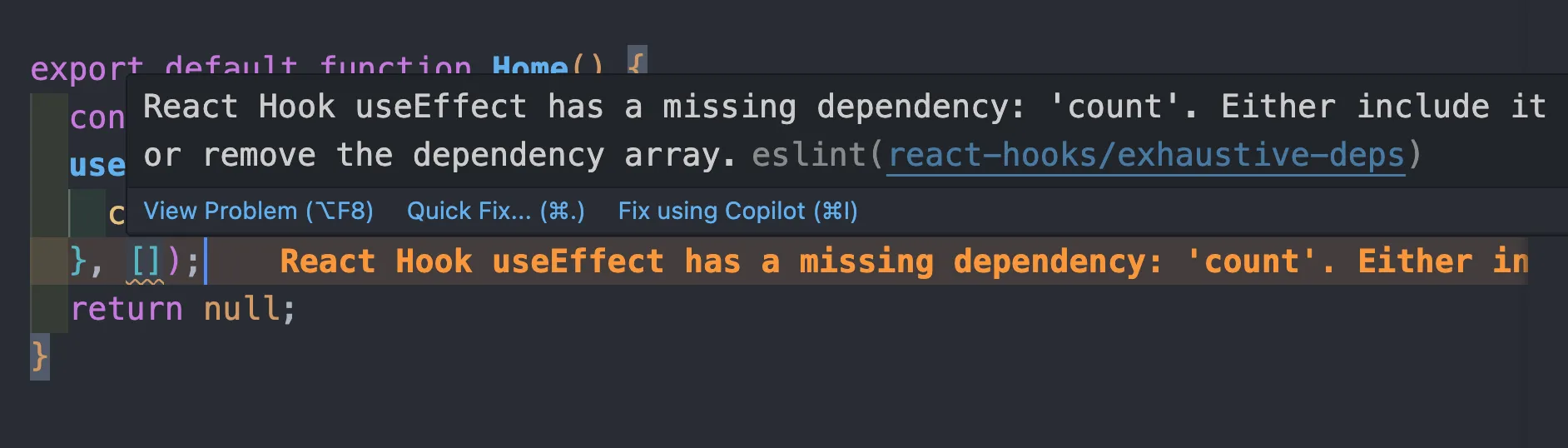
Eslint 설정파일이 바뀐뒤 가끔 먹통이 될때가 있다.
이럴때는 어김없이 eslint 를 실행해보면 알수 있다.
package.json/script에 eslint 실행을 설정하고
"script" : {
	"lint": "eslint 'src/**/*.{js,jsx,ts,tsx}'",
}
터미널에 eslint 명령을 수행해보면 오류를 알수있다.
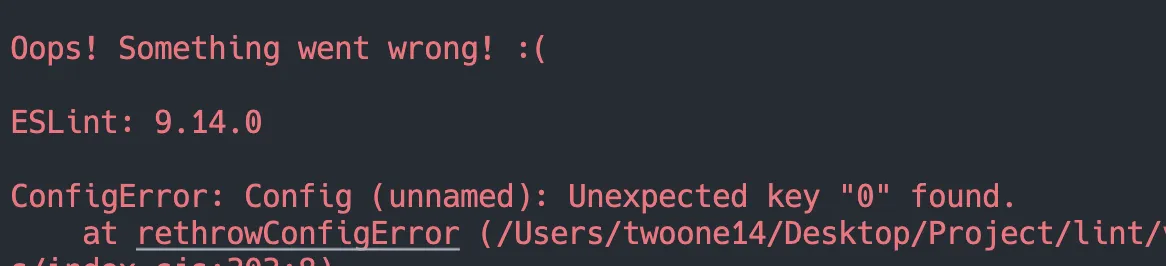
하지만 오류를 수정하고 linting을 확인해도 vscode에 띄워지는 기능이 활성화 되지 않는데…
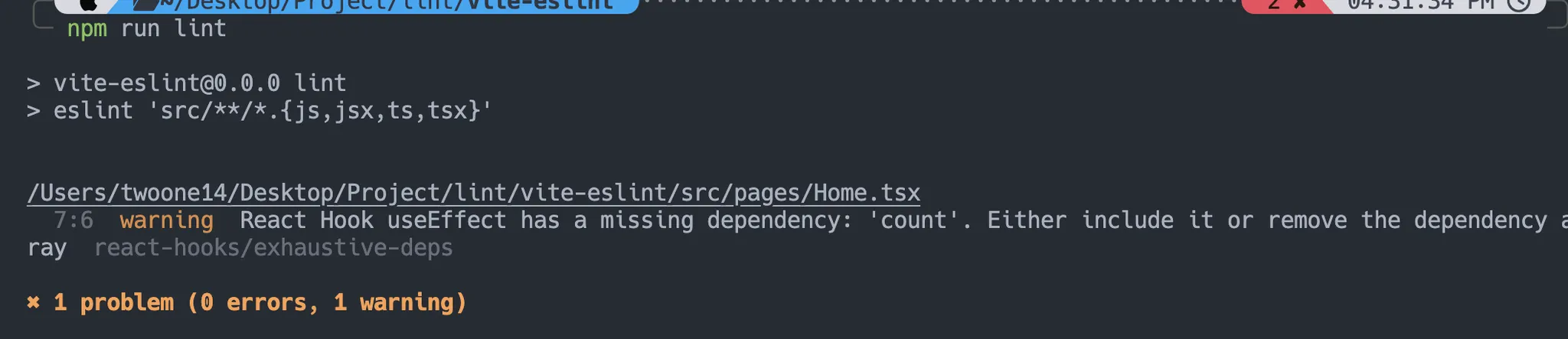
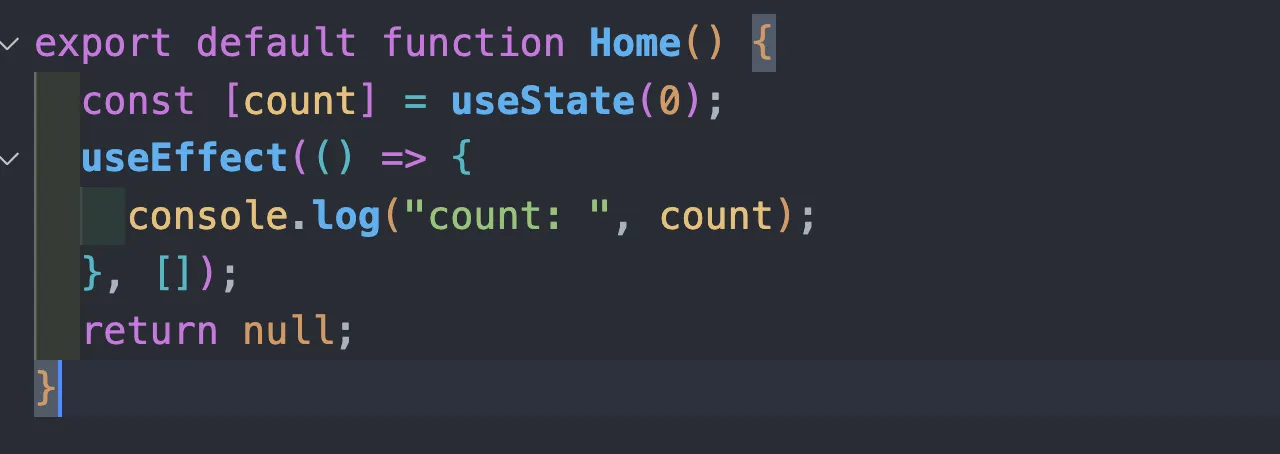
이 오류는 Eslint 서버가 오류로 꺼져있어서 linting이 비활성화 된것으로 설정파일이 올바르다면 Eslint 서버를 다시 시작하는것으로 해결 가능하다.
하단 패널을 열어 OUTPUT 의 Eslint 출력을 확인해보자
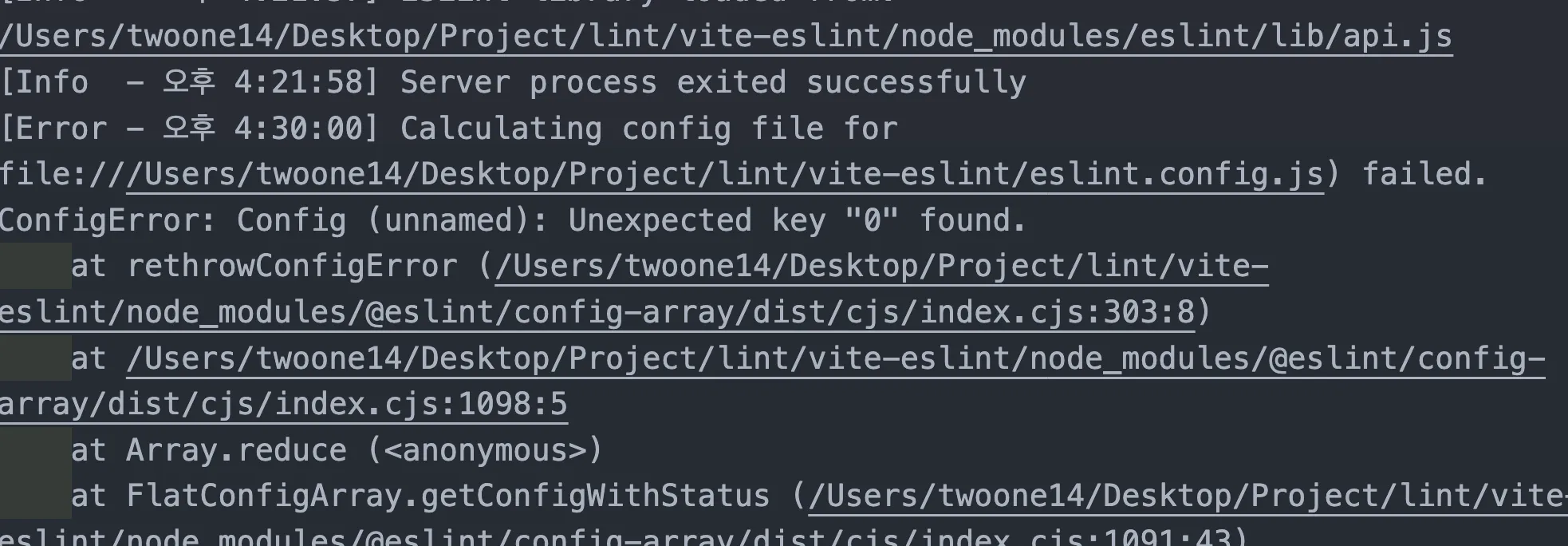
어김없이 에러를 뿜고 있다.
이때 Vscode 명령창 (Crtl(CMD) + Shift + P) 에서
Eslint: Restart를 검색하고 실행해보면

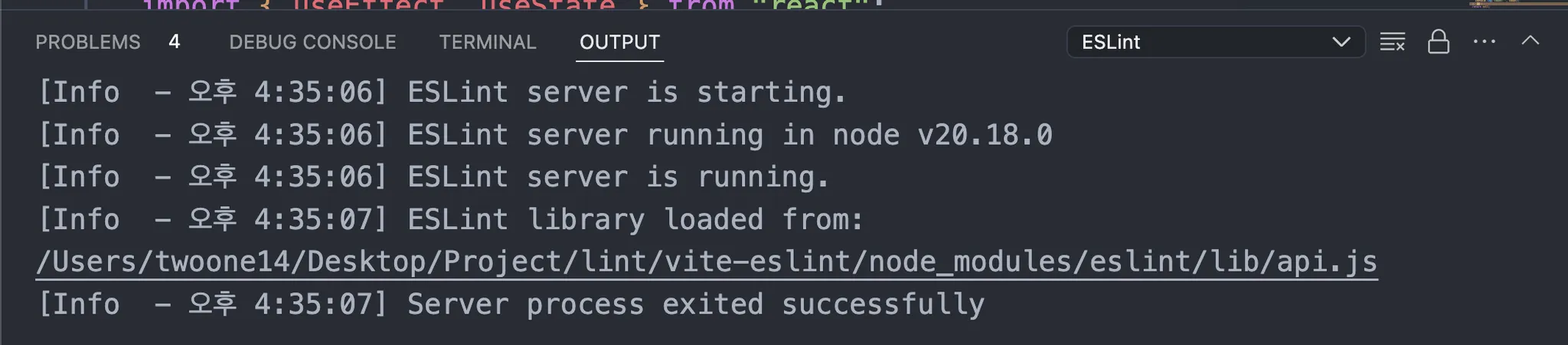
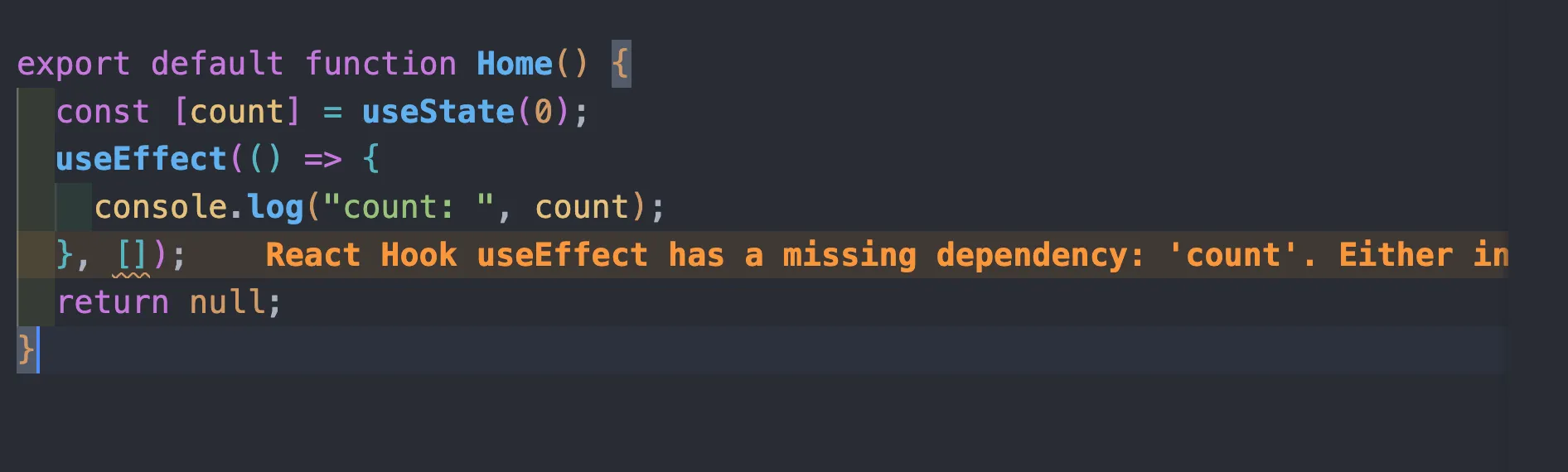
이제 linting 이 잘 되는걸 확인 가능하다.