현재 진행중인 팀 프로젝트 중 하나가 xml로 작업한 건이었는데
이번에 리팩토링을 진행하면서 Compose로 천천히 바꿔보자는 의견이 나왔다.
처음부터 Compose로 프로젝트를 시작한 적은 있지만 xml에서 Compose로 바꾸는 과정을 경험해 본 적은 없기에, 좋은 경험이 될 것 같다.
아래는 내가 작성한 회원가입 화면 중 하나의 xml 파일이다.
<?xml version="1.0" encoding="utf-8"?>
<layout xmlns:android="http://schemas.android.com/apk/res/android"
    xmlns:app="http://schemas.android.com/apk/res-auto"
    xmlns:tools="http://schemas.android.com/tools">

    <data>
        <variable
            name="viewModel"
            type="kr.co.ViewModel" />
    </data>

    <ScrollView
        android:layout_width="match_parent"
        android:layout_height="match_parent">

        <LinearLayout
            android:layout_width="match_parent"
            android:layout_height="wrap_content"
            android:orientation="vertical"
            android:paddingLeft="16dp"
            android:paddingTop="40dp"
            android:paddingRight="16dp"
            android:transitionGroup="true"
            tools:context=".ui.join.JoinStep1EmailAndPwFragment">

            <TextView
                android:layout_width="match_parent"
                android:layout_height="wrap_content"
                android:text="사용하실 이메일과 \n비밀번호를 입력해주세요"
                android:textSize="26dp" />

            <TextView
                android:layout_width="match_parent"
                android:layout_height="wrap_content"
                android:layout_marginTop="40dp"
                android:text="이메일"
                android:textSize="16dp"
                android:textStyle="bold" />

            <com.google.android.material.textfield.TextInputLayout
                android:id="@+id/textInputLayout_join_userEmail"
                android:layout_width="match_parent"
                android:layout_height="wrap_content"
                app:endIconMode="clear_text"
                app:errorTextAppearance="@style/dialogText"
                app:hintAnimationEnabled="false"
                app:hintEnabled="false">

                <com.google.android.material.textfield.TextInputEditText
                    android:id="@+id/textInput_join_userEmail"
                    android:layout_width="match_parent"
                    android:layout_height="wrap_content"
                    android:hint="이메일 입력"
                    android:inputType="text|textEmailAddress"
                    android:text="@={viewModel.userInputEmail}"
                    android:textSize="16dp" />
            </com.google.android.material.textfield.TextInputLayout>

            <TextView
                android:layout_width="match_parent"
                android:layout_height="wrap_content"
                android:layout_marginTop="16dp"
                android:text="비밀번호"
                android:textSize="16dp"
                android:textStyle="bold" />

            <com.google.android.material.textfield.TextInputLayout
                android:id="@+id/textInputLayout_join_userPassword"
                android:layout_width="match_parent"
                android:layout_height="wrap_content"
                app:endIconMode="password_toggle"
                app:errorTextAppearance="@style/dialogText"
                app:hintAnimationEnabled="false"
                app:hintEnabled="false">

                <com.google.android.material.textfield.TextInputEditText
                    android:id="@+id/textInput_join_userPassword"
                    android:layout_width="match_parent"
                    android:layout_height="wrap_content"
                    android:hint="비밀번호 입력"
                    android:inputType="text|textPassword"
                    android:text="@={viewModel.userInputPassword}"
                    android:textSize="16dp" />
            </com.google.android.material.textfield.TextInputLayout>
            <TextView
                android:id="@+id/textView"
                android:layout_width="match_parent"
                android:layout_height="wrap_content"
                android:layout_marginTop="5dp"
                android:layout_marginLeft="15dp"
                android:breakStrategy="simple"
                android:text="8~20자리, 영문, 숫자, 특수문자 포함 입력"
                android:textSize="16dp"
                android:textColor="#FF0000" />

            <TextView
                android:layout_width="match_parent"
                android:layout_height="wrap_content"
                android:layout_marginTop="16dp"
                android:text="비밀번호 확인"
                android:textSize="16dp"
                android:textStyle="bold" />

            <com.google.android.material.textfield.TextInputLayout
                android:id="@+id/textInputLayout_join_userPasswordCheck"
                android:layout_width="match_parent"
                android:layout_height="wrap_content"
                app:errorTextAppearance="@style/dialogText"
                app:endIconMode="password_toggle"
                app:hintAnimationEnabled="false"
                app:hintEnabled="false">

                <com.google.android.material.textfield.TextInputEditText
                    android:id="@+id/textInput_join_userPasswordCheck"
                    android:layout_width="match_parent"
                    android:layout_height="wrap_content"
                    android:hint="비밀번호 확인 입력"
                    android:imeOptions="actionDone"
                    android:inputType="text|textPassword"
                    android:text="@={viewModel.userInputPasswordCheck}"
                    android:textSize="16dp" />
            </com.google.android.material.textfield.TextInputLayout>
        </LinearLayout>
    </ScrollView>

</layout>
이메일 주소와 비밀번호를 입력받는 edittext가 단순히 나열되어 있는 화면 구조이다.
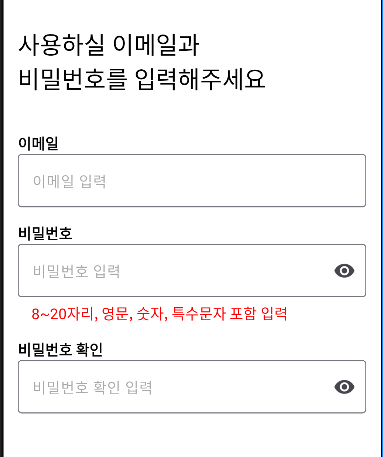
위의 xml에서 감싸주고 있는 최상단 레이아웃을 ComposeView로 교체해 Compose를 사용하려고 한다.
<?xml version="1.0" encoding="utf-8"?>
<layout xmlns:android="http://schemas.android.com/apk/res/android">

    <androidx.compose.ui.platform.ComposeView
        android:id="@+id/composeViewJoinStep1EmailAndPw"
        android:layout_width="match_parent"
        android:layout_height="match_parent">
    </androidx.compose.ui.platform.ComposeView>

</layout>
ComposeView를 xml에 넣어주고 id를 지정해주면 된다.
그리고 Fragment에서 ComposeView를 찾아서 컴포저블 함수를 setContent해주면 된다!
변경 전 Fragment 코드
class JoinStep1EmailAndPwFragment : DBBaseFragment<FragmentJoinStep1EmailAndPwBinding>(R.layout.fragment_join_step1_email_and_pw) {

    private val joinStep1EmailAndPwViewModel: JoinStep1EmailAndPwViewModel by activityViewModels()

    override fun onCreateView(
        inflater: LayoutInflater, container: ViewGroup?,
        savedInstanceState: Bundle?
    ): View? {
        // Inflate the layout for this fragment
        super.onCreateView(inflater, container, savedInstanceState)
        binding.viewModel = joinStep1EmailAndPwViewModel
        return binding.root
    }
변경 후 Fragment 코드
class JoinStep1EmailAndPwFragment : VBBaseFragment<FragmentJoinStep1EmailAndPwBinding>(FragmentJoinStep1EmailAndPwBinding::inflate) {

    private val joinStep1EmailAndPwViewModel: JoinStep1EmailAndPwViewModel by activityViewModels()

    override fun onCreateView(
        inflater: LayoutInflater, container: ViewGroup?,
        savedInstanceState: Bundle?
    ): View? {
        // Inflate the layout for this fragment
        super.onCreateView(inflater, container, savedInstanceState)

        binding.composeViewJoinStep1EmailAndPw.apply {
            setViewCompositionStrategy(ViewCompositionStrategy.DisposeOnViewTreeLifecycleDestroyed)
            setContent {
                JoinStep1EmailAndPwScreen(joinStep1EmailAndPwViewModel)
            }
        }
        return binding.root
    }

}
이전에는 데이터 바인딩을 사용했지만 그것도 이제 필요없기에 베이스프래그먼트를 뷰바인딩용도로 교체해줬다.
JoinStep1EmailAndPwScreen은 이제 이전의 xml뷰의 내용에 맞추어 컴포저블 함수를 작성해주면 된다.
setContent를 하기 전에 setViewCompositionStrategy로 composition을 discompose하는 시점을 정해줄 수 있다.
ViewCompositionStrategy.Default는 ComposeView가 window에서 분리될 때 discompose된다.
여기서는 DisposeOnViewTreeLifecycleDestroyed를 사용했는데,
View가 attach된 다음 window의 ViewTreeLifecycleOwner가 destroy될 때 dispose된다고 보면 된다.
Fragment View와 같이 ViewTreeLifecycleOwner와 일대일 관계일 때 적합하다고 한다.
참조 : https://developer.android.com/reference/kotlin/androidx/compose/ui/platform/ViewCompositionStrategy