Why Should You Split Your Outlook PST File?
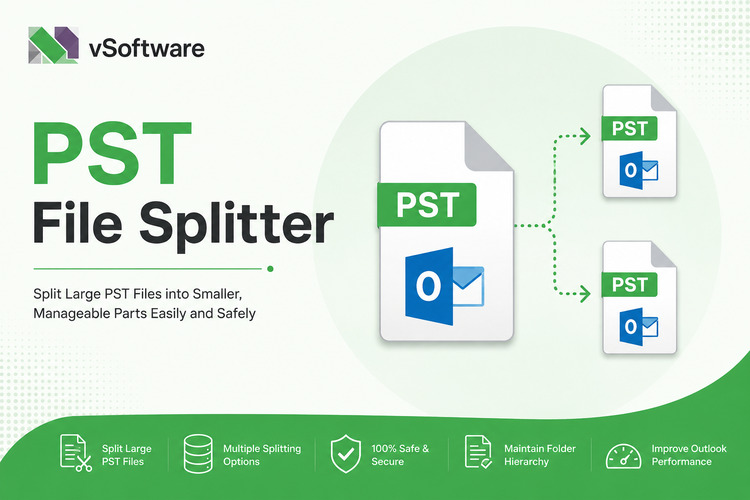
Introduction to Outlook PST Files
Outlook users often rely on PST files to manage their emails, calendars, and contacts. These files are essential for keeping everything organized. However, as your digital life expands, so too can these PST files. You might find yourself staring at a hefty file that seems almost unwieldy. This is where the idea of splitting your Outlook PST file comes into play.
Why should you care? Well, just like a cluttered desk makes it hard to focus, a large PST file can lead to performance issues and headaches down the line. Understanding how to break this massive file into manageable pieces can save you time and frustration in the long run. Dive in with us as we explore not only what large PST files are but also how splitting them can benefit you immensely!
What is a Large PST File?
A large PST file refers to a Personal Storage Table file used by Microsoft Outlook. It stores emails, contacts, calendar events, and more in one single database.
Generally, a PST file can grow quite substantial over time. When it surpasses 2 GB, you may encounter issues like slow performance or even corruption. Managing your data becomes increasingly challenging as the size increases.
Large PST files often lead to error messages that disrupt your workflow. Sometimes they simply won't open due to their size.
Understanding when your PST file is considered large is essential for maintaining efficiency in email management. Keeping an eye on its growth can save you from potential headaches down the road.
Common Issues with Large PST Files
Large PST files can cause various headaches for users. One of the most common issues is slowed performance. When your file grows too big, Outlook struggles to retrieve and display data.
Corruption is another serious concern. Large files are more prone to damage during unexpected shutdowns or crashes. This may lead to lost emails and important contacts, causing frustration.
Searching through a bulky PST becomes tedious as well. Locating specific emails or attachments takes longer when dealing with extensive archives.
You might face difficulties backing up large files. Many backup tools have size limitations that don’t accommodate hefty PST sizes, leaving your valuable data at risk if something goes wrong.
Managing these problems effectively requires proactive measures like splitting your Outlook PST file before it spirals out of control.
Benefits of Splitting Your Outlook PST File
Splitting your Outlook PST file can significantly enhance performance. A smaller file means quicker access to emails, contacts, and calendars. You’ll notice faster search results and smoother navigation.
Another advantage is improved stability. Large PST files are prone to corruption, leading to data loss or errors. By dividing the file, you reduce the risk of these issues occurring.
Organization also benefits from a split PST file. You can categorize emails by project or client more easily, making it simpler to find what you need when you need it.
Moreover, managing backups becomes less cumbersome with smaller files. It’s easier and faster to create backups regularly without straining system resources.
Splitting allows for better collaboration in team environments. Team members can share relevant portions of their work without overwhelming others with unnecessary information.
How to Split Your Outlook PST File
Splitting your Outlook PST file is a straightforward process that can save you from headaches down the line. Start by ensuring that you've backed up your entire PST file to avoid any data loss.
Open Microsoft Outlook and go to the File menu. Select “Account Settings,” then choose “Data Files.” Here, you'll see all your existing PST files.
Next, create a new PST file by clicking on "Add" and give it an appropriate name. This will serve as the destination for your split data.
Now comes the fun part: drag and drop emails or folders from your large PST into this new one. You can also use the Archive feature under “File” to move older items automatically.
After transferring everything necessary, remember to compact both files through Account Settings to reclaim space on your hard drive.
Best Practices for Maintaining a Healthy PST File
Maintaining a healthy PST file is crucial for smooth Outlook performance. Start by regularly archiving old emails. This keeps your primary PST file manageable and organized.
Another key practice is to compact your PST files periodically. This reduces their size and improves efficiency, making it easier to access essential data.
Regularly run the Inbox Repair Tool (scanpst.exe) to fix any corruption issues that may arise over time. It’s a simple yet effective way to prevent future headaches.
Additionally, keep backups of your important data. Cloud storage or an external hard drive can save you from potential loss during unexpected crashes or system failures.
Avoid exceeding the size limit set by Outlook for your version. Staying mindful of this helps prevent sluggishness and operational hitches in managing your email tasks efficiently.
Conclusion
Managing your Outlook PST files is crucial for optimal performance. By understanding the nature of large PST files and their common issues, you can take proactive steps to ensure smoother operation. Splitting your Outlook PST file offers numerous benefits, such as improving access speed and reducing the risk of data corruption.
Employing effective methods to split your PST file can make a significant difference in how efficiently you work with emails and other data. Additionally, adhering to best practices for maintaining a healthy PST file will further safeguard against potential problems down the line.
Taking these steps not only enhances productivity but also helps in managing your digital workspace more effectively. Embracing these strategies will enable you to enjoy a seamless experience with Microsoft Outlook moving forward.