1. 프로젝트 구조 이해
1) 프로젝트를 구성하는 폴더
- .idea : 개발 도구에 필요하 설정
- android : 안드로이드 네이티브 코드를 작성하는 부분
- build : 빌드 시 생성되는 파일
- ios : ios 네이티브 코드를 작성하는 부분
- lib : 다트 코드를 작성하는 부분
- test : 테스트 코드를 작성하는 부분
2) 프로젝트를 구성하는 파일
- .gitignore : git 설정 파일, 버전 관리시 무시할 파일 규칙 작성
- .metadata : 프로젝트가 관리하는 파일. 임의로 수정하지 않는다.
- pubspec.yaml : 패키지 매니저가 이용하는 파일
- README.md : 프로젝트 설명을 작성하는 파일
- analysis_options.yaml : 코드 정적 분석 규칙을 정의하고 커스터마이징하는 데 사용
.gitigmore, pubspec.yaml.README.md 파일을 제외한 나머지 파일 임의로 수정 X
2. 기본 위젯
1) StatelessWidget
변하지 않는 속성을 가진 위젯
- 스크린상에 존재만 할 뿐 아무것도 하지 않는다
- 어떠한 실시간 데이터도 저장하지 않는다
class MyApp extends StatelessWidget {
const MyApp({super.key});
// This widget is the root of your application.
Widget build(BuildContext context) {
return MaterialApp(
title: 'Flutter Demo',
theme: ThemeData(
colorScheme: ColorScheme.fromSeed(seedColor: Colors.deepPurple),
useMaterial3: true,
),
home: const MyHomePage(title: 'Flutter Demo Home Page'),
);
}
}statelessWidget을 클래스에서 상속받아 bulid() 함수를 override해서 사용해야한다. 이 bulid()함수를 통해 위젯을 생성하게 된다. 변하지않는 속성을 가진 위젯을 정의 할 때 사용한다.
2) statefulWidget
- 런타임 중에 모양과 작동을 변경할 수 있는 위젯
- 상호작용이나 데이터 변경과 같이 외부 요인에 따라 위젯의 UI를 변경해야 할 때 사용
class MyHomePage extends StatefulWidget {
const MyHomePage({super.key, required this.title});
final String title;
State<MyHomePage> createState() => _MyHomePageState();
}StatefulWidget은 StatelessWidget과 반대로 모양과 작동을 변경할 수 있는 위젯이다. 즉 State에 따라 위젯을 변경하도록 도와준다. 클래스 내의 필드는 항상 final로 표시되며, 오버라이드를 통해 상속받은 createState() 함수를 재정의 한다.
3) state, Scaffold 위젯
class _MyHomePageState extends State<MyHomePage> {
int _counter = 0;
void _incrementCounter() {
setState(() {
_counter++;
});
}
Widget build(BuildContext context) {
return Scaffold(
appBar: AppBar(
backgroundColor: Theme.of(context).colorScheme.inversePrimary,
title: Text(widget.title), //Widget통해 접근
),
body: Center(
child: Column(
mainAxisAlignment: MainAxisAlignment.center,
children: <Widget>[
const Text(
'You have pushed the button this many times:',
),
Text(
'$_counter',
style: Theme.of(context).textTheme.headlineMedium,
),
],
),
),
floatingActionButton: FloatingActionButton(
onPressed: _incrementCounter,
tooltip: 'Increment',
child: const Icon(Icons.add),
),
);
}
}state는 런타임 동안 사용자의 상호작용으로 인한 데이터 변경에 따라 위젯을 변경을 해주는 데 도움을 준다.
여기서 Scaffold 위젯을 사용하는 데 이것은 머트리얼 디자인 앱을 만들 때 사용되는 되는 위젯이다. 이 예제는 appBar, body, floatingActionButton으로 구성되어있다.
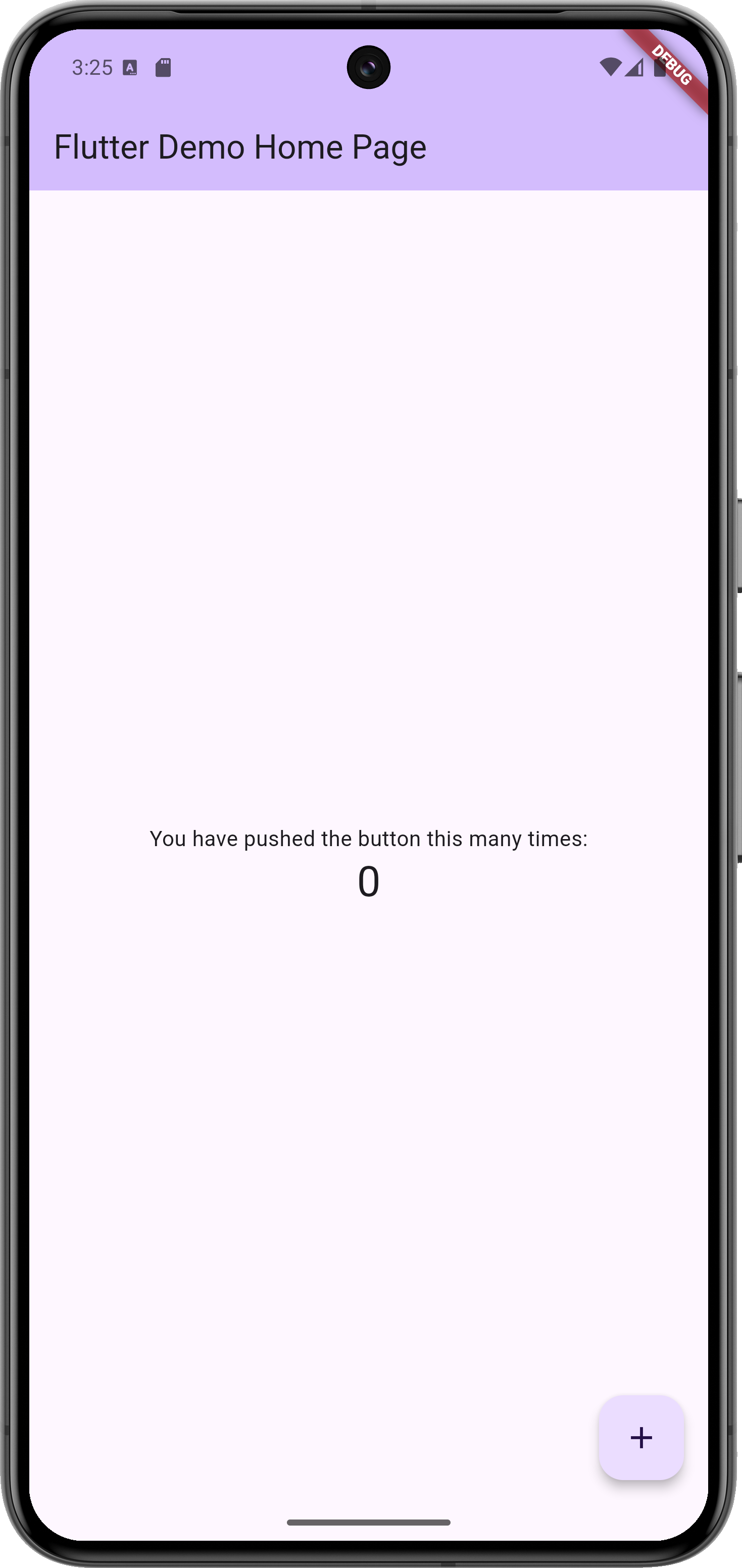
화면 상단에 고정되어 있는 appbar와 화면의 내용을 담은 boby, '+'버튼인 플로팅 액션 버튼을 확인할 수 있다.
이런 Scaffold와 같은 미리 지정된 위젯을 잘 활용하면 편리하게 UI 개발을 진행할 수 있다.
5) widget tree 구조
widget들은 tree 구조로 정리될 수 있으며 한 widget내에 얼마든지 다른 widget들이 포함될 수 있다. widget은 부모 위젯과 자식 위젯으로 구성되며, parent widget을 widget container라고 부르기도 한다.
