코드 정리
파일안에 모든 코드가 있으면 수정 할 떄, 가독성이 떨어진다.
그래서 따로 분리해서 가독성을 올려보자.
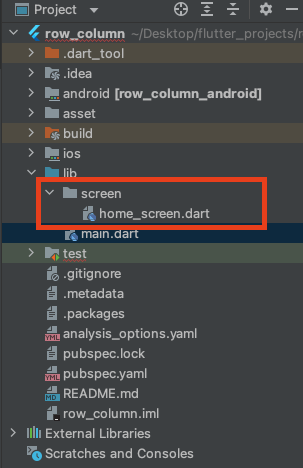
lib 폴더안에 따로 분리하고
main.dart
import 'package:flutter/material.dart';
import 'package:row_column/screen/home_screen.dart';

void main() {
  runApp(
    MaterialApp(
      debugShowCheckedModeBanner: false,
      home: HomeScreen(),
    ),
  );
}
import 'package:row_column/screen/home_screen.dart';: lib폴더 기준 프로젝트이름/폴더/파일이름 으로 불러온다.
import 하기 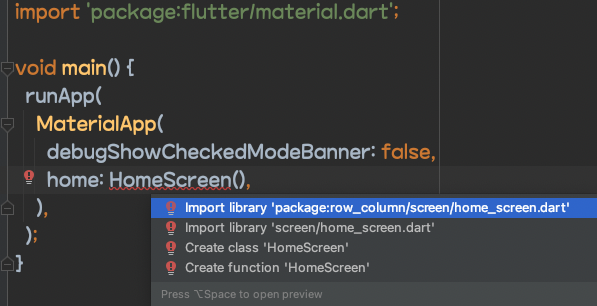
⌥↩ 눌러 임포트한다.
home_screen.dart
import 'package:flutter/material.dart';
class HomeScreen extends StatelessWidget {
const HomeScreen({Key? key}) : super(key: key);
Widget build(BuildContext context) {
return Scaffold(
backgroundColor: Color(0xFF4dceee),
body: Column(
mainAxisAlignment: MainAxisAlignment.center,
children: [
Image.asset(
'asset/img/Artboard 2.png',
),
CircularProgressIndicator(
color: Colors.white,
),
],
),
);
}
}home_screen.dart 파일에 코드를 넣으면 적용됨.
SafeArea
안드로이드와 아이폰은 달라서 두 애뮬레이터를 확인하면서 개발을 해야한다.
SafeArea는 폰의 맨위와 아래를 설정하는 위젯이다.
코드를 보고 이해해보자.
home_screen.dart
import 'package:flutter/material.dart';
class HomeScreen extends StatelessWidget {
const HomeScreen({Key? key}) : super(key: key);
Widget build(BuildContext context) {
return Scaffold(
body: SafeArea(
bottom: false,
child: Container(
color: Colors.black,
child: Column(
children: [
Container(
color: Colors.red,
width: 50.0,
height: 50.0,
),
Container(
color: Colors.orange,
width: 50.0,
height: 50.0,
),
Container(
color: Colors.yellow,
width: 50.0,
height: 50.0,
),
Container(
color: Colors.green,
width: 50.0,
height: 50.0,
),
],
),
),
),
);
}
}
SafeArea: 폰의 맨위 맨 아래를 설정하는 위젯
SafeArea 비교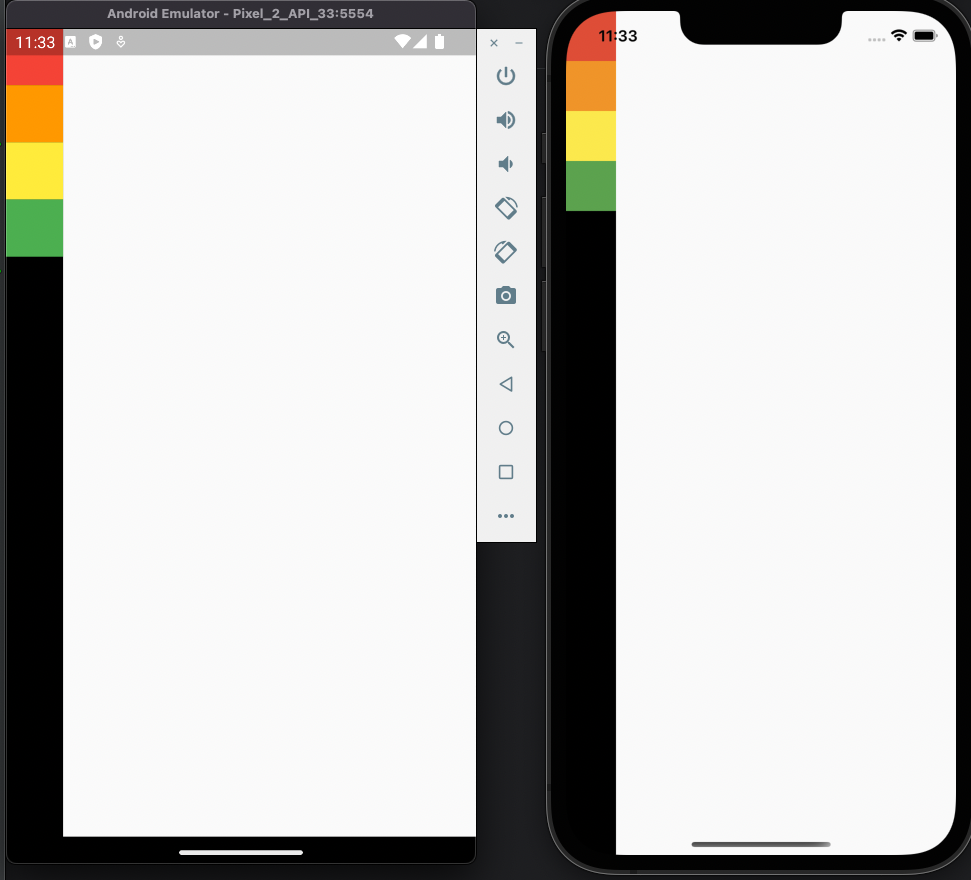
왼쪽은 안드로이드 오른쪽은 아이폰 이다.
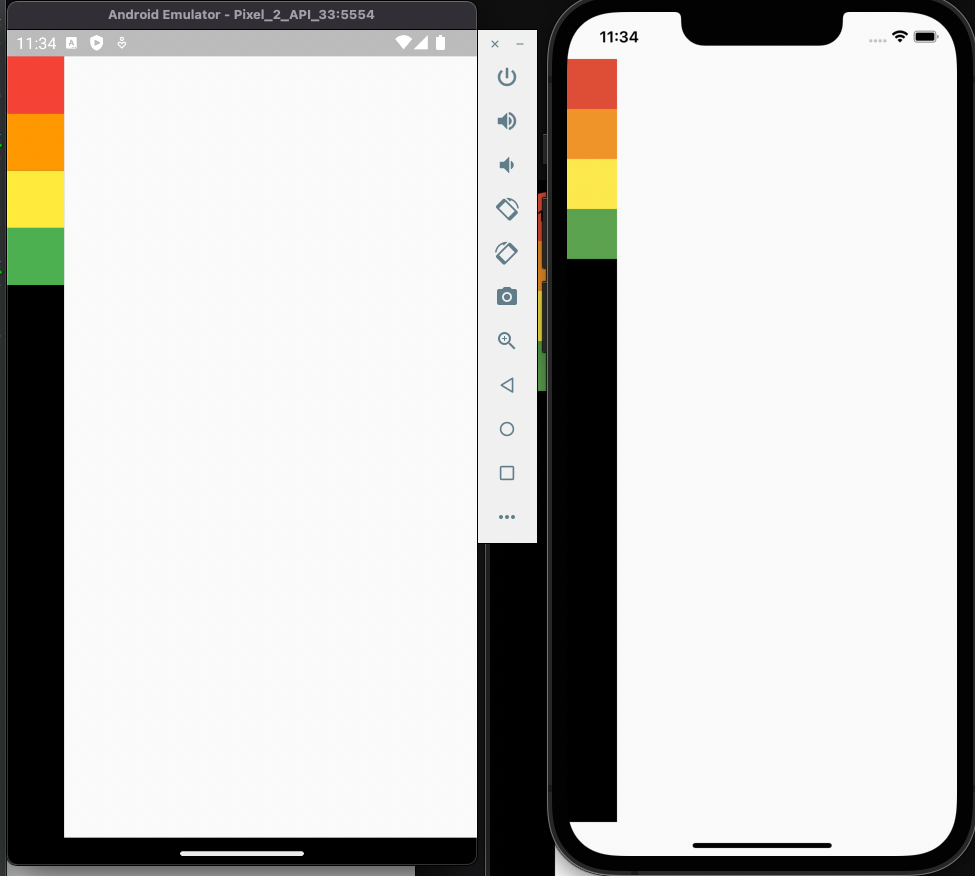
SafeArea만 적용했을 때 모습니다.
그런데 안드로이드에서는 맨아래가 안비워있는데 아이폰에서는 아래가 비워있다.
아이폰의 맨아랴를 채워보자.
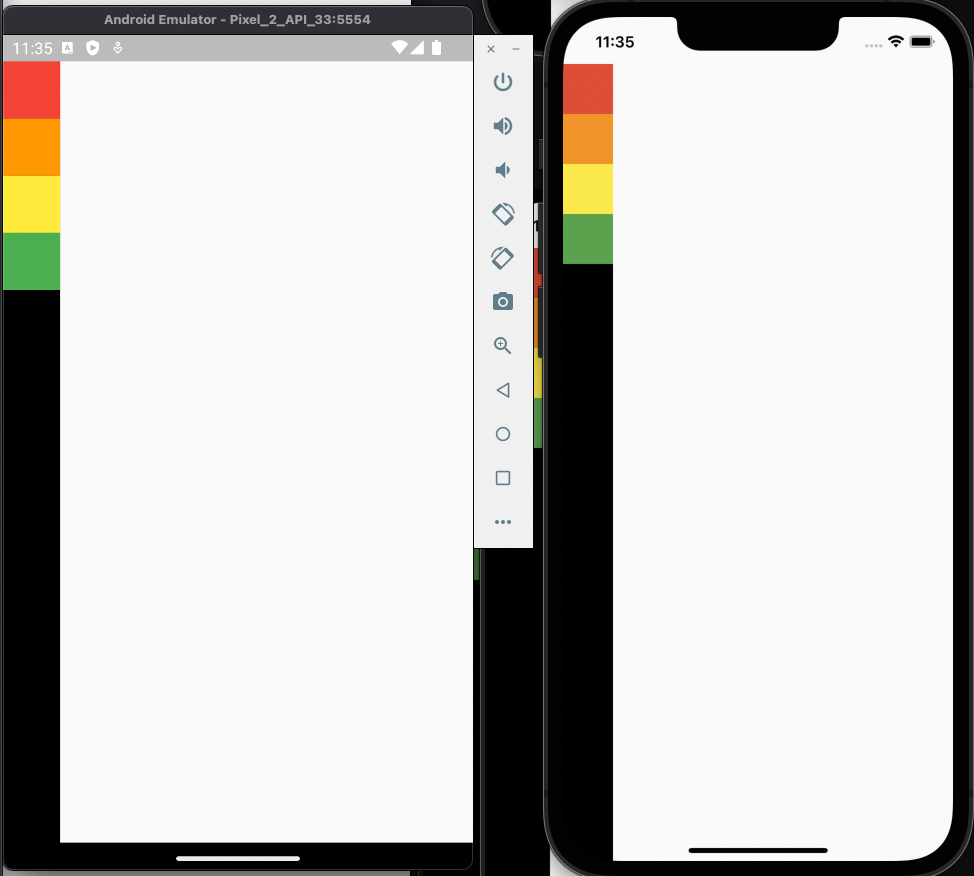
body: SafeArea(
        bottom: false,
  );
bottom: false 하면 아이폰의 애랴가 채워지는 걸볼 수 있다.
bottom 말고도 top, left 등 여러 함수가 있다.
mainAxisAlignment 알아보자
mainAxisAlignment 종류를 알아보자
home_screen.dart
import 'package:flutter/material.dart';
class HomeScreen extends StatelessWidget {
const HomeScreen({Key? key}) : super(key: key);
Widget build(BuildContext context) {
return Scaffold(
body: SafeArea(
bottom: false,
child: Container(
color: Colors.black,
child: Column(
mainAxisAlignment: MainAxisAlignment.start,
children: [
Container(
color: Colors.red,
width: 50.0,
height: 50.0,
),
Container(
color: Colors.orange,
width: 50.0,
height: 50.0,
),
Container(
color: Colors.yellow,
width: 50.0,
height: 50.0,
),
Container(
color: Colors.green,
width: 50.0,
height: 50.0,
),
],
),
),
),
);
}
}
mainAxisAlignment: 주축 정렬
mainAxisAlignment 종류를 알아보자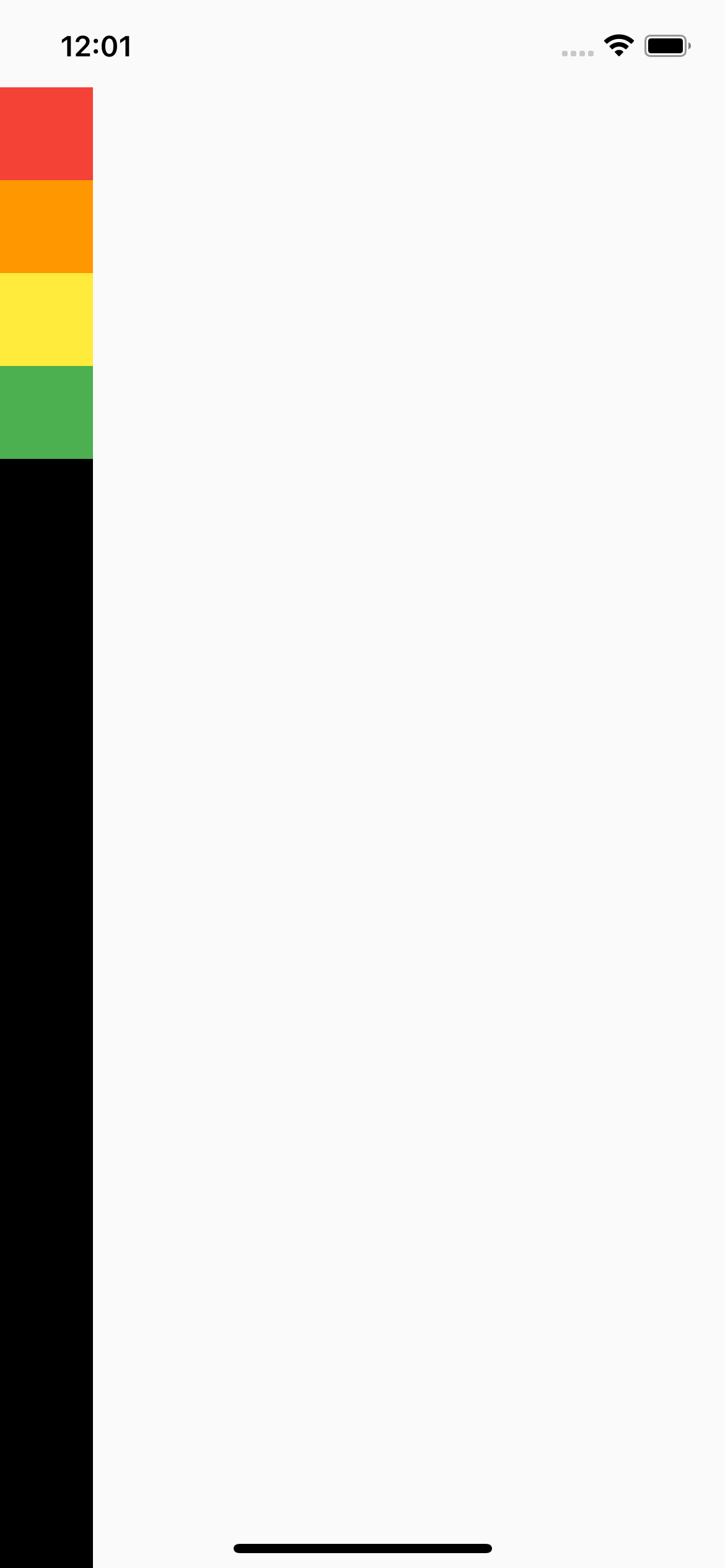 MainAxisAlignment.start 적용(기본값)
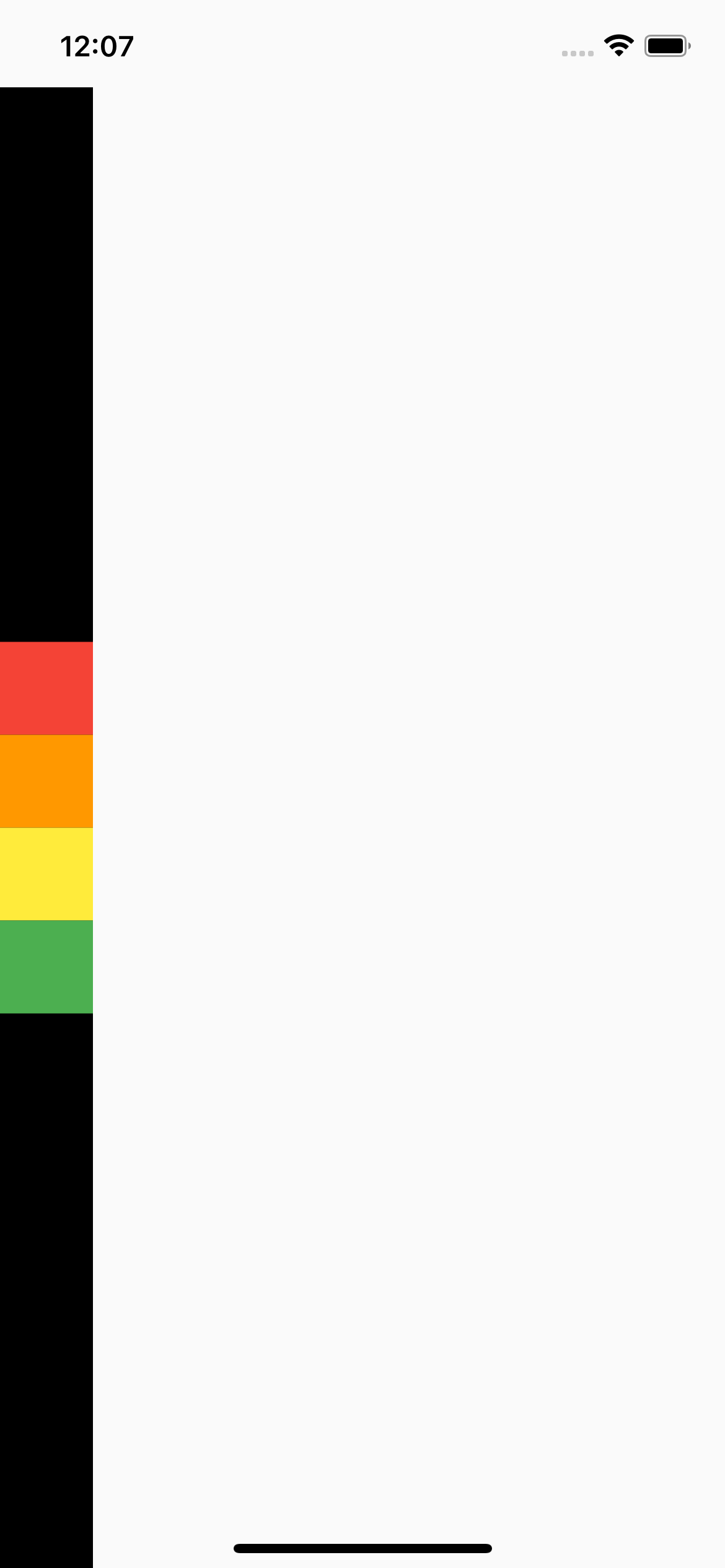 MainAxisAlignment.center 적용
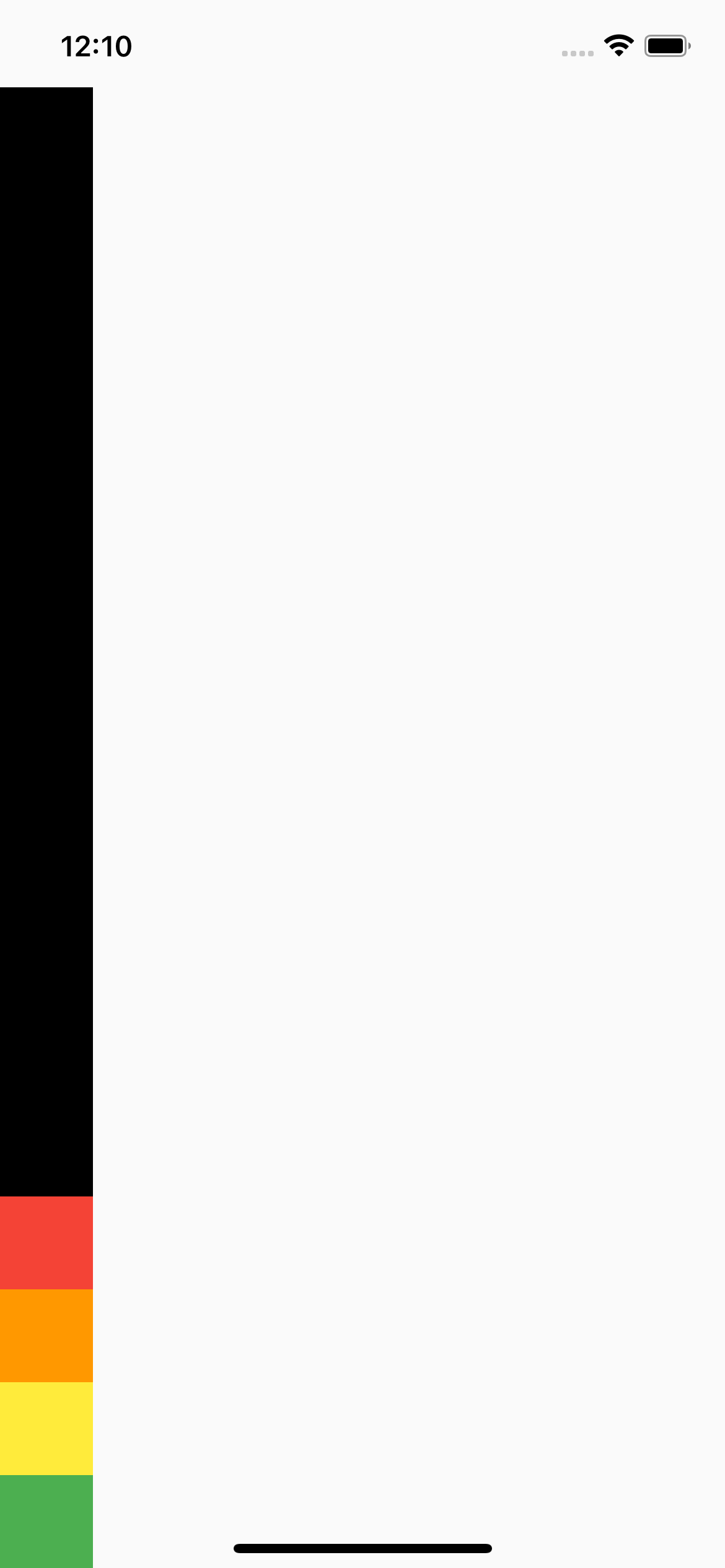 MainAxisAlignment.end 적용
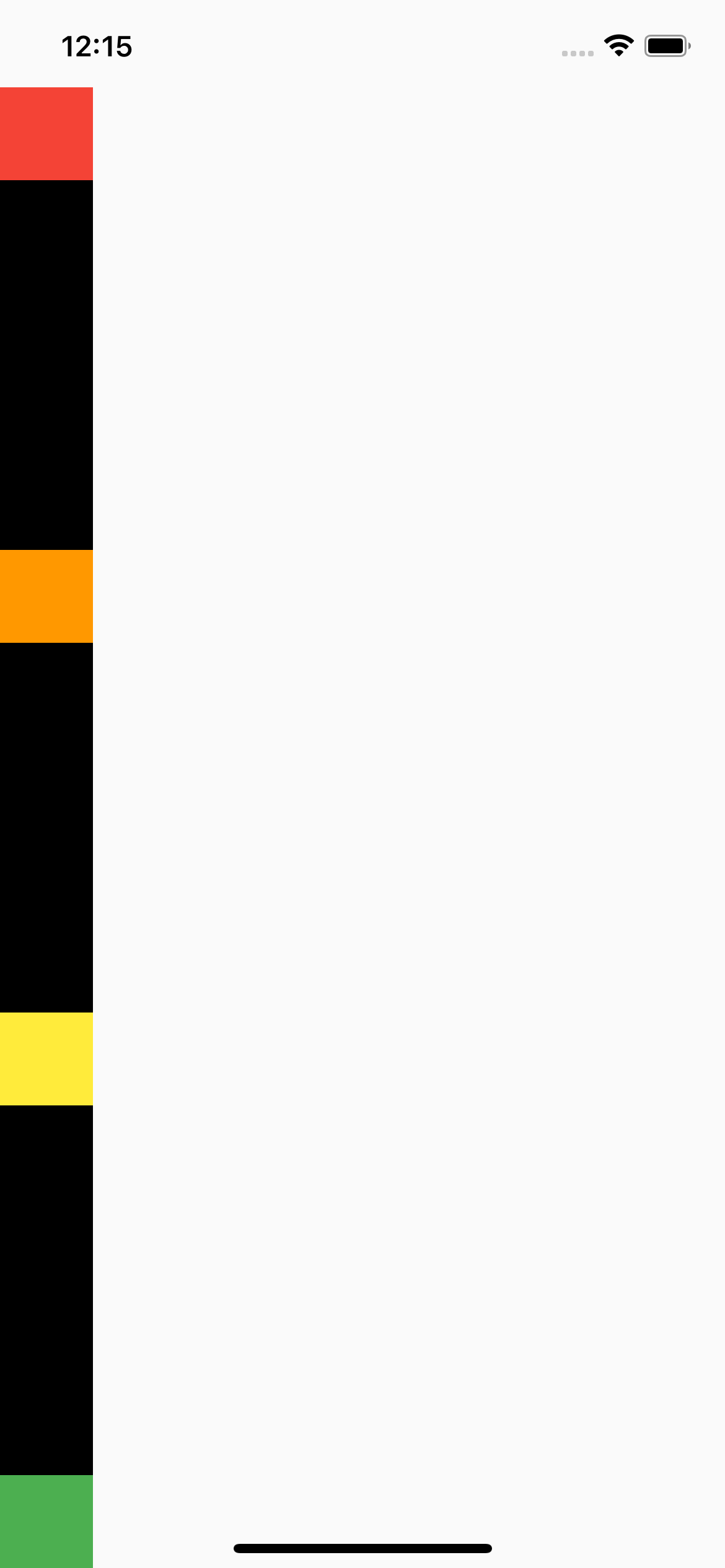 MainAxisAlignment.spaceBetween 적용
위젯과 위젯의 사이가 동일하게 배치
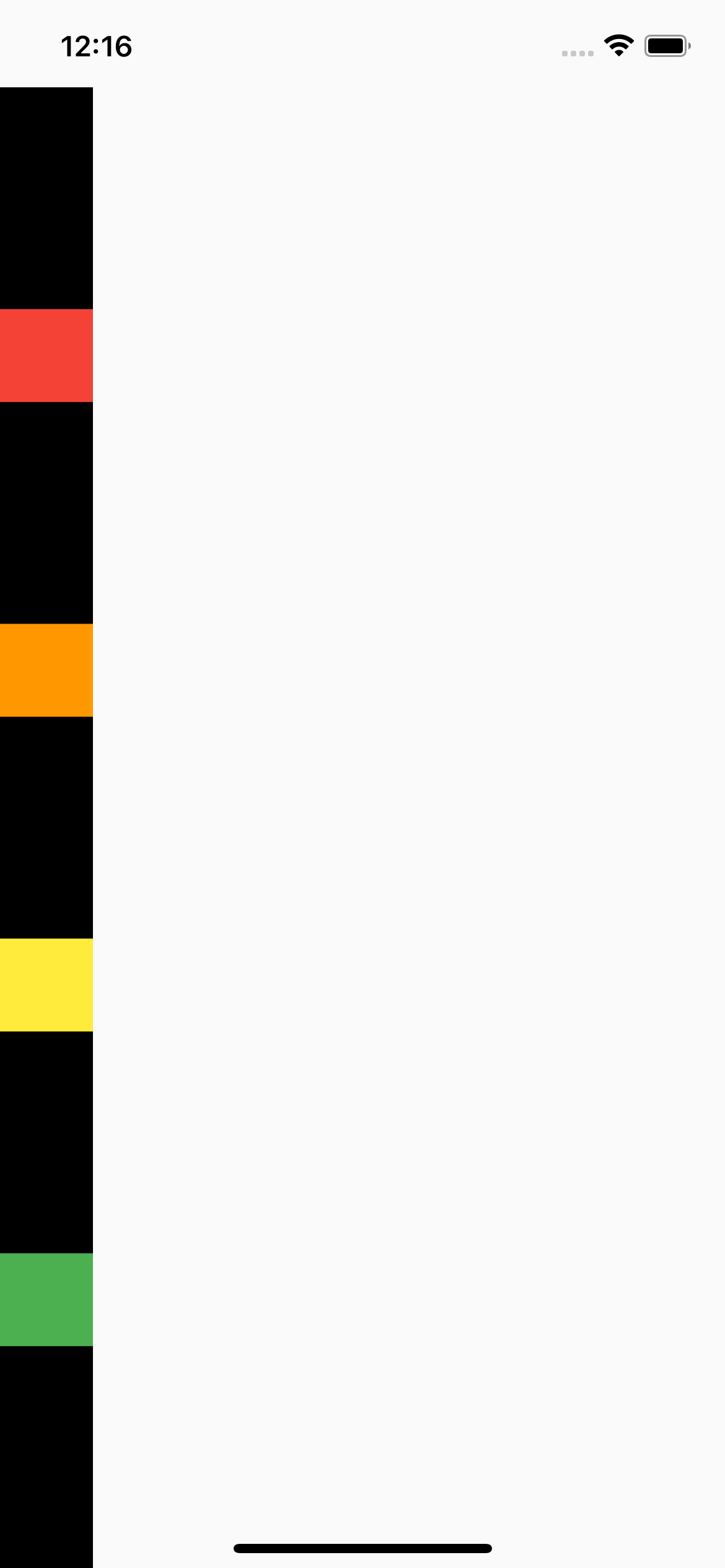 MainAxisAlignment.spaceEvenly 적용
위젯을 같은 간격으로 배치하지만 끝과 끝에도 위젯이 아닌 빈 간격으로 시작한다.
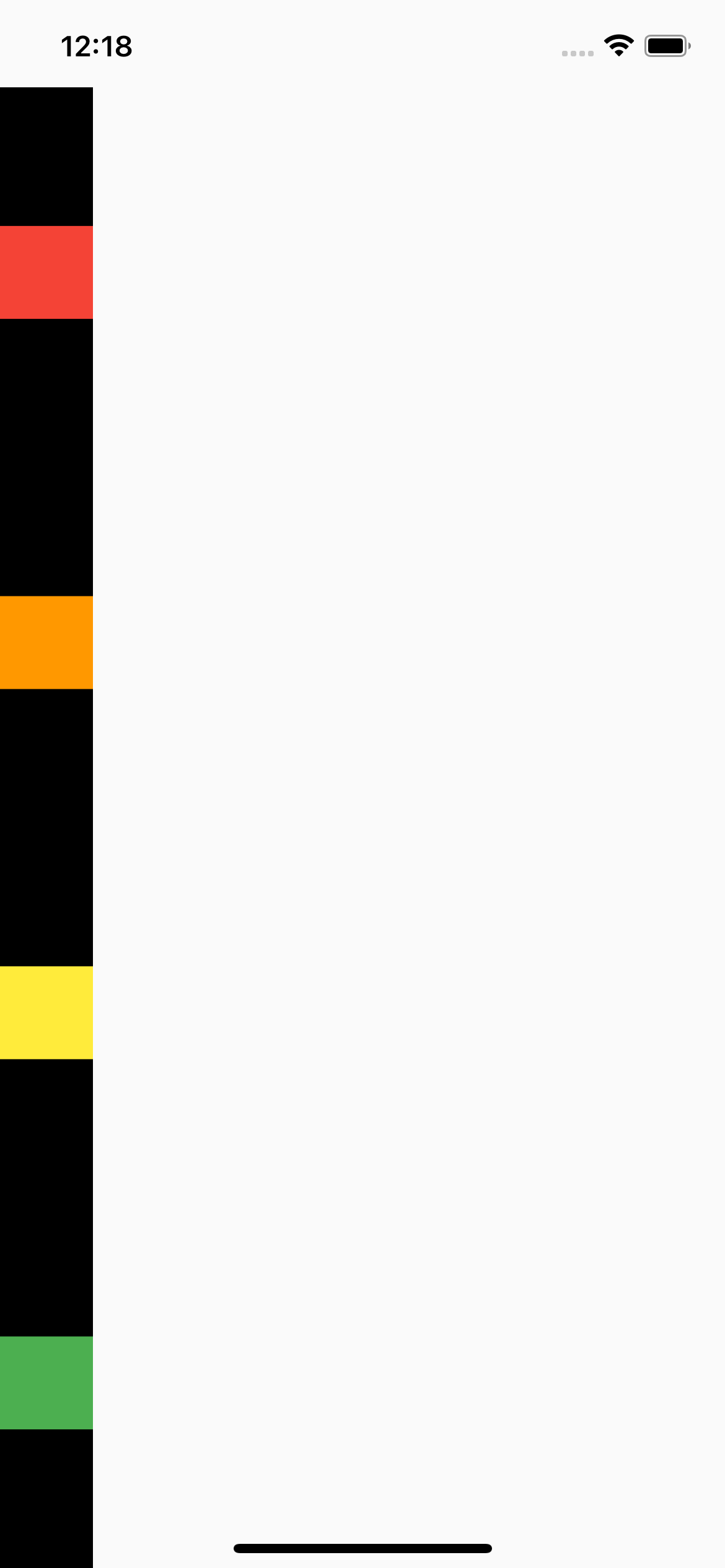 MainAxisAlignment.spaceAround 적용
spaceEvenly + 끝과 끝의 간격은 1/2
CrossAxisAlignment 알아보자
CrossAxisAlignment 종류를 알아보자
home_screen.dart
import 'package:flutter/material.dart';
class HomeScreen extends StatelessWidget {
const HomeScreen({Key? key}) : super(key: key);
Widget build(BuildContext context) {
return Scaffold(
body: SafeArea(
bottom: false,
child: Container(
color: Colors.black,
width: MediaQuery.of(context).size.width,
child: Column(
mainAxisAlignment: MainAxisAlignment.start,
crossAxisAlignment: CrossAxisAlignment.start,
children: [
Container(
color: Colors.red,
width: 50.0,
height: 50.0,
),
Container(
color: Colors.orange,
width: 50.0,
height: 50.0,
),
Container(
color: Colors.yellow,
width: 50.0,
height: 50.0,
),
Container(
color: Colors.green,
width: 50.0,
height: 50.0,
),
],
),
),
),
);
}
}width: MediaQuery.of(context).size.width: 사용자의 디바이스의 사이즈를 가져온다. 참고
crossAxisAlignment: 반대축 정렬
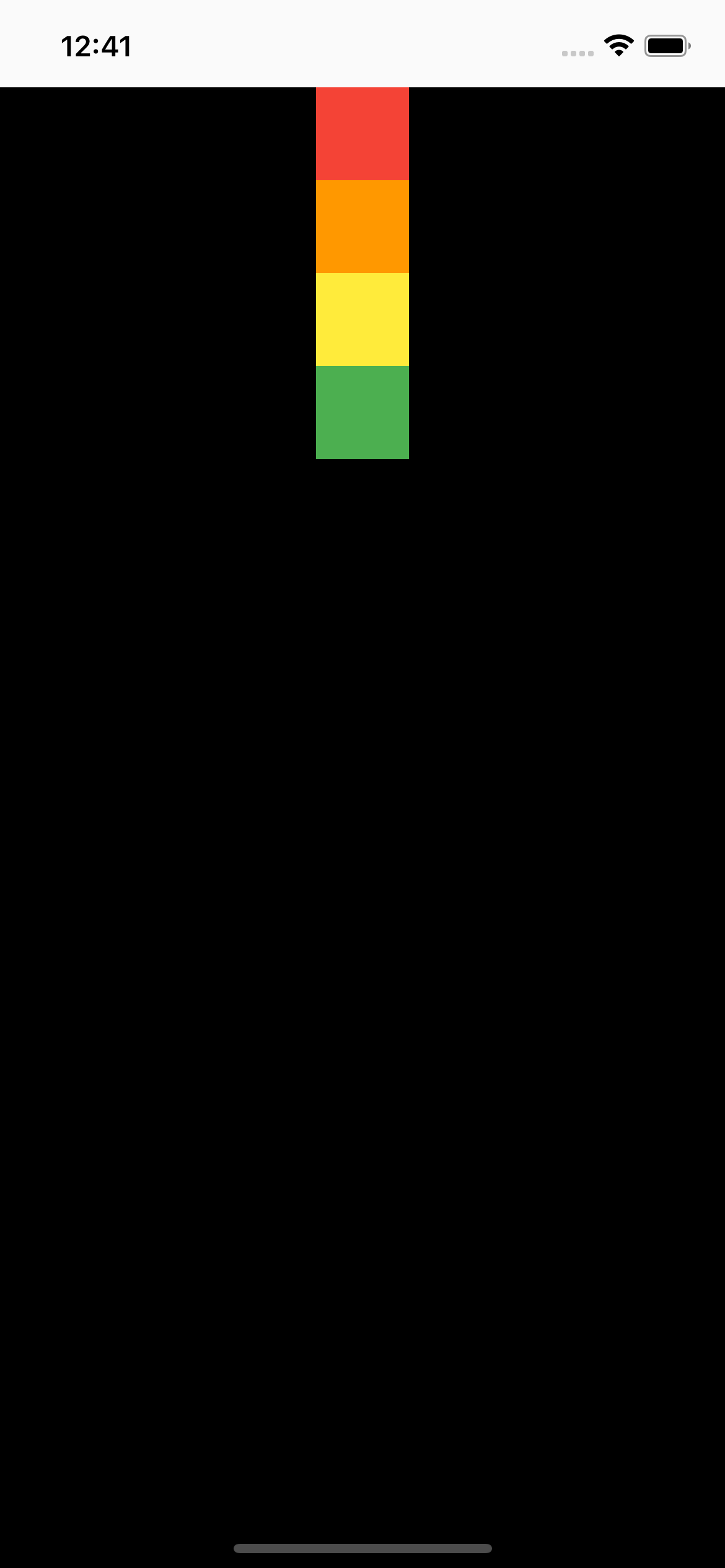 CrossAxisAlignment.center 적용(기본값)
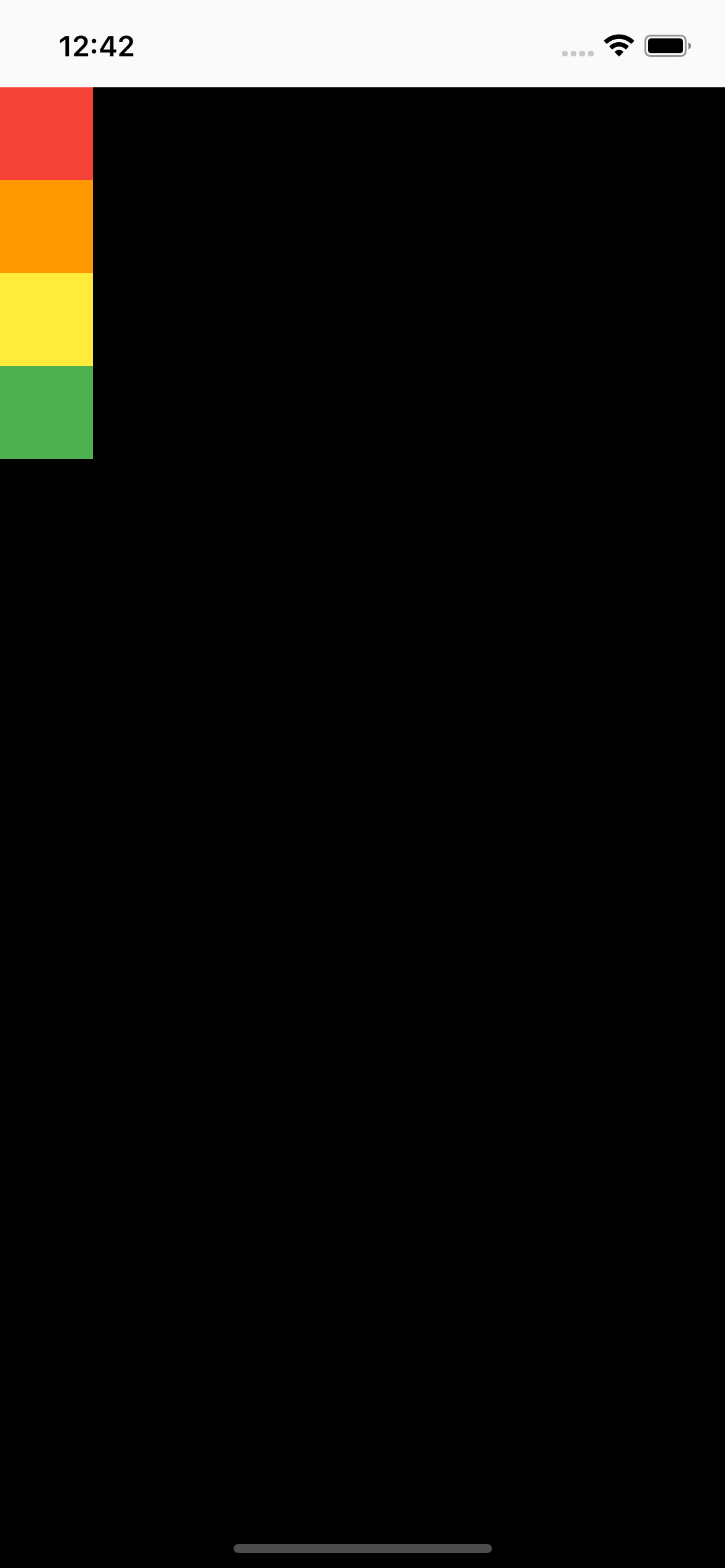 CrossAxisAlignment.start 적용
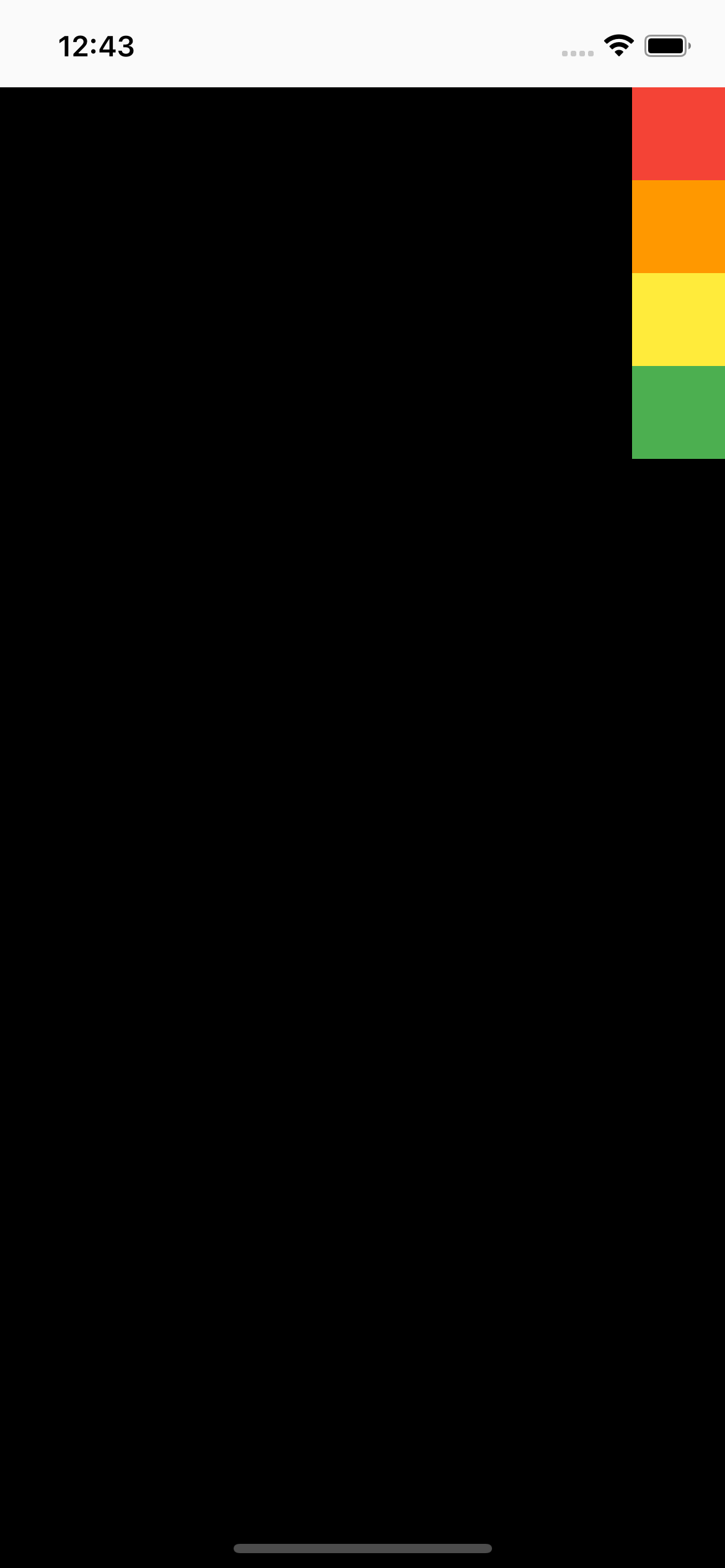 CrossAxisAlignment.end 적용
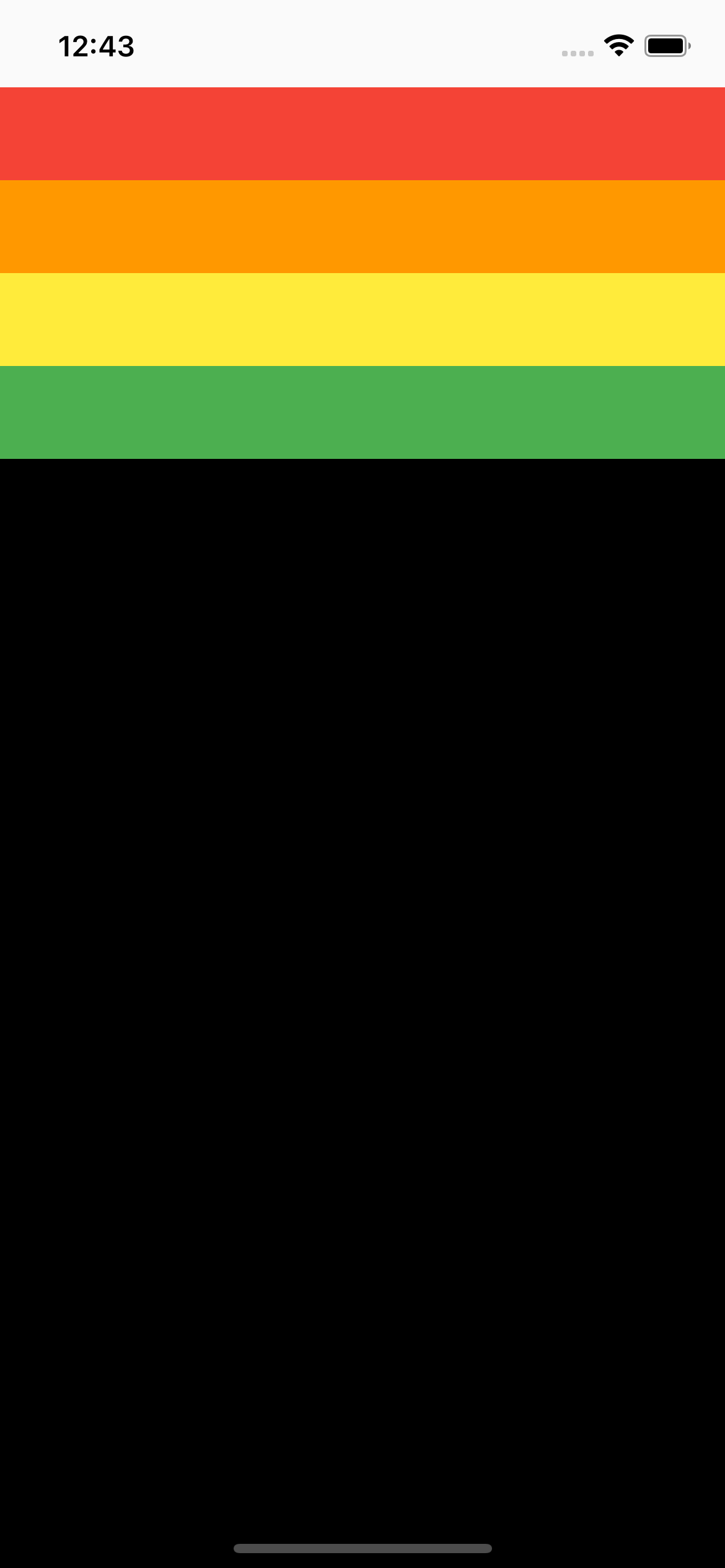 CrossAxisAlignment.stretch 적용
최대한 늘린다.
mainAxisSize 알아보자
mainAxisSize을 종류를 알아보자
home_screen.dart
import 'package:flutter/material.dart';

class HomeScreen extends StatelessWidget {
  const HomeScreen({Key? key}) : super(key: key);

  @override
  Widget build(BuildContext context) {
    return Scaffold(
      body: SafeArea(
        bottom: false,
        child: Container(
          color: Colors.black,
          child: Row(
            mainAxisAlignment: MainAxisAlignment.start,
            crossAxisAlignment: CrossAxisAlignment.start,
            mainAxisSize: MainAxisSize.max,
            children: [
              Container(
                color: Colors.red,
                width: 50.0,
                height: 50.0,
              ),
              Container(
                color: Colors.orange,
                width: 50.0,
                height: 50.0,
              ),
              Container(
                color: Colors.yellow,
                width: 50.0,
                height: 50.0,
              ),
              Container(
                color: Colors.green,
                width: 50.0,
                height: 50.0,
              ),
            ],
          ),
        ),
      ),
    );
  }
}
mainAxisSize: 주축 크기
mainAxisSize을 종류를 알아보자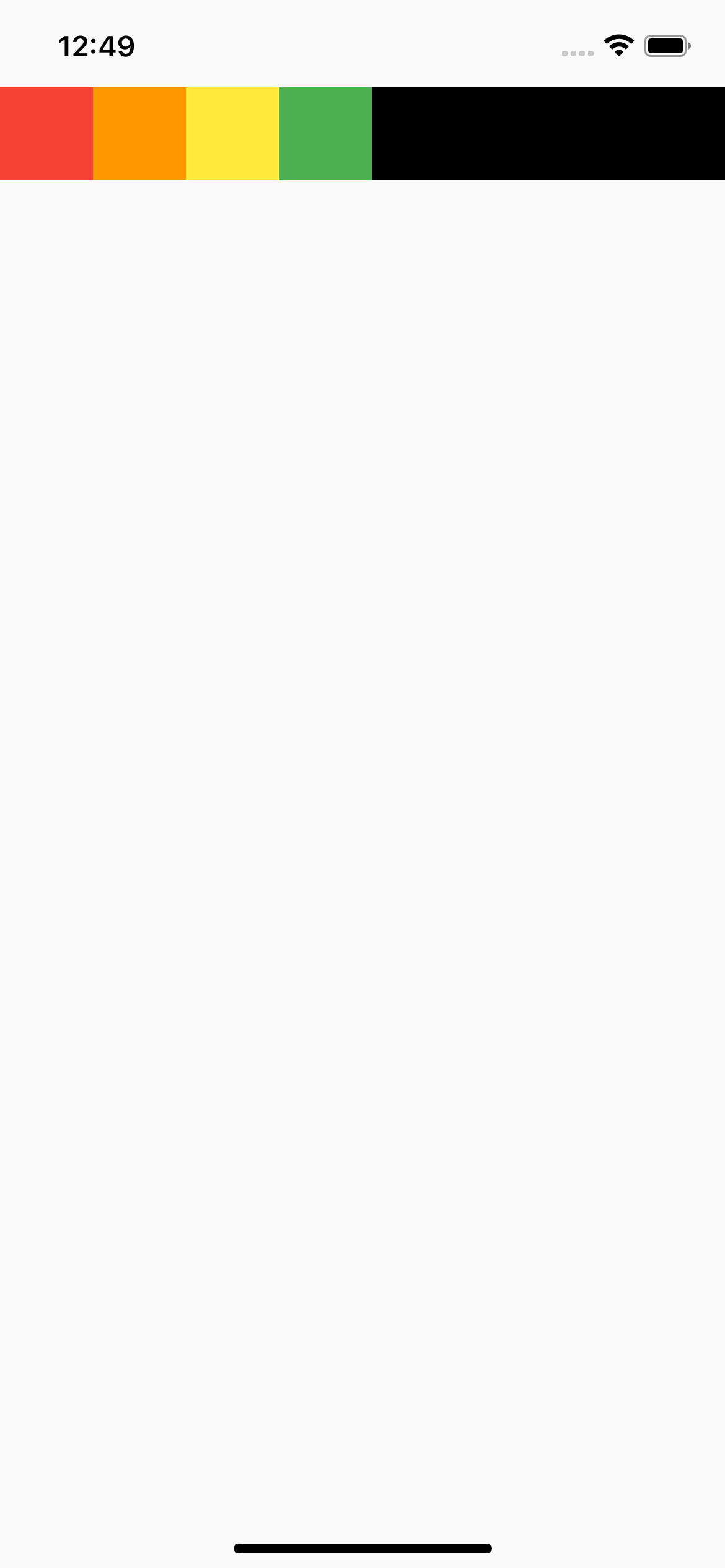 MainAxisSize.max 적용(기본값)
최대로 늘린다.
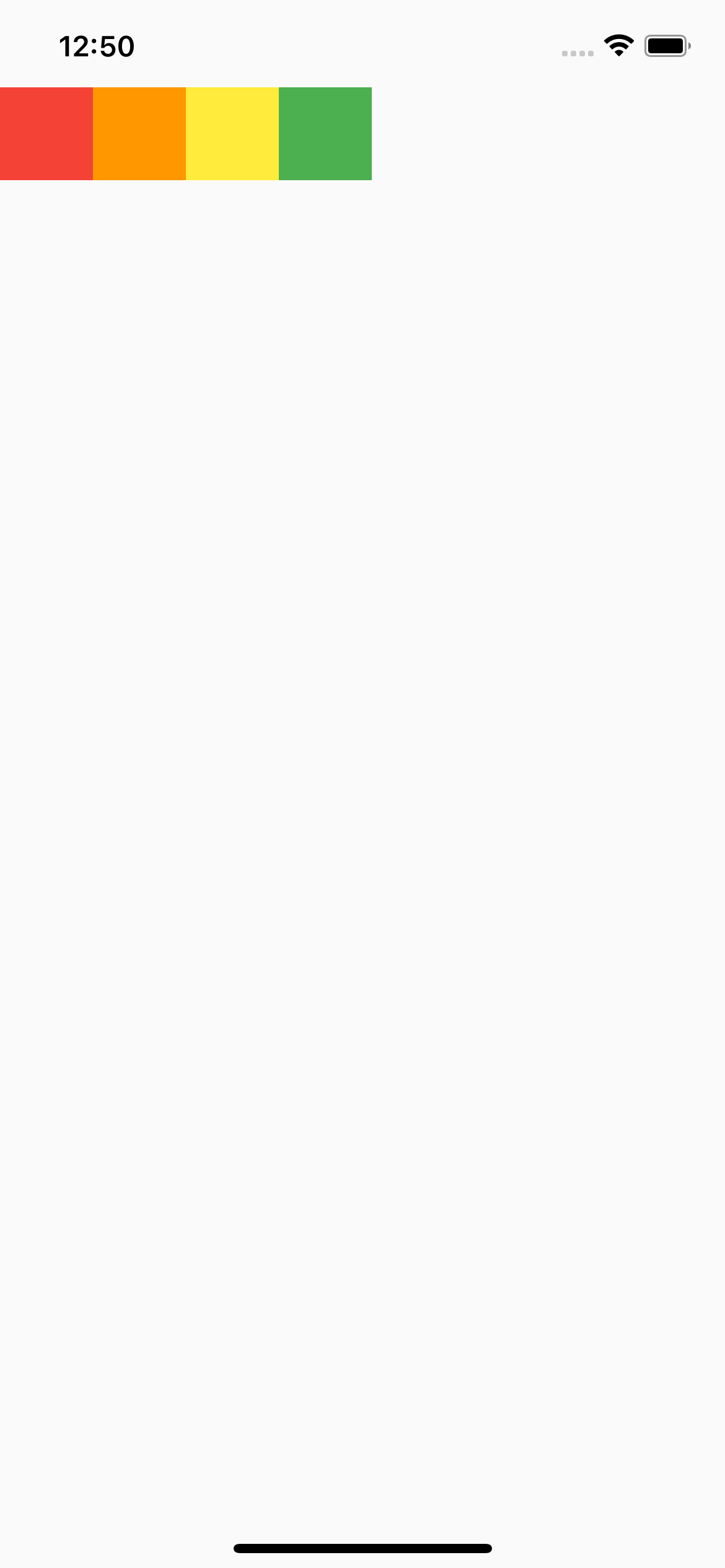 MainAxisSize.min 적용
최소로 줄인다.
Expanded / Flexible 알아보자
Expanded / Flexible는 Row, Column에서만 사용이 가능하다.
다른곳에서 사용하게 되면 오류가 난다.
Expanded
home_screen.dart
import 'package:flutter/material.dart';

class HomeScreen extends StatelessWidget {
  const HomeScreen({Key? key}) : super(key: key);

  @override
  Widget build(BuildContext context) {
    return Scaffold(
      body: SafeArea(
        bottom: false,
        child: Container(
          color: Colors.black,
          child: Column(
            mainAxisAlignment: MainAxisAlignment.start,
            crossAxisAlignment: CrossAxisAlignment.start,
            mainAxisSize: MainAxisSize.max,
            children: [
              Expanded(
                flex: 1,
                child: Container(
                  child: Text(
                    'flex: 1'
                  ),
                  color: Colors.red,
                  width: 50.0,
                  height: 50.0,
                ),
              ),
              Expanded(
                flex: 2,
                child: Container(
                  child: Text(
                      'flex: 2'
                  ),
                  color: Colors.orange,
                  width: 50.0,
                  height: 50.0,
                ),
              ),
              Expanded(
                flex: 3,
                child: Container(
                  child: Text(
                      'flex: 3'
                  ),
                  color: Colors.yellow,
                  width: 50.0,
                  height: 50.0,
                ),
              ),
              Expanded(
                flex: 4,
                child: Container(
                  child: Text(
                      'flex: 4'
                  ),
                  color: Colors.green,
                  width: 50.0,
                  height: 50.0,
                ),
              ),
            ],
          ),
        ),
      ),
    );
  }
}
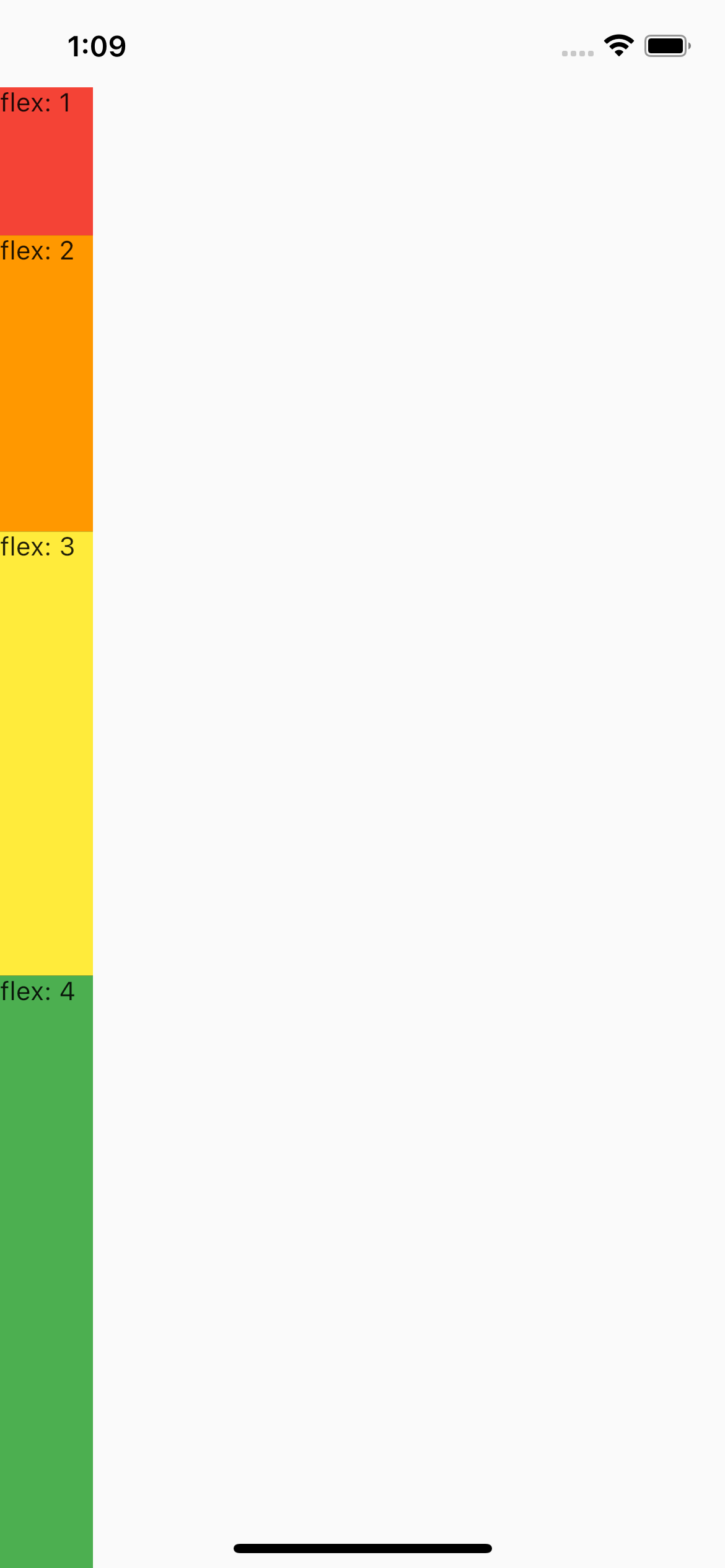
Expanded(flex:1): Row, Column을 최대한 남아있는 사이즈를 모두 차지하고 flex로 비율을 조정한다.(flex 기본값은 1이다.)
Flexible
home_screen.dart
import 'package:flutter/material.dart';
class HomeScreen extends StatelessWidget {
const HomeScreen({Key? key}) : super(key: key);
Widget build(BuildContext context) {
return Scaffold(
body: SafeArea(
bottom: false,
child: Container(
color: Colors.black,
child: Column(
mainAxisAlignment: MainAxisAlignment.start,
crossAxisAlignment: CrossAxisAlignment.start,
mainAxisSize: MainAxisSize.max,
children: [
Flexible(
flex: 2,
child: Container(
child: Text(
'Flexible'
),
color: Colors.red,
width: 60.0,
height: 50.0,
),
),
Flexible(
flex: 3,
child: Container(
child: Text(
'Flexible'
),
color: Colors.orange,
width: 60.0,
height: 50.0,
),
),
Expanded(
child: Container(
child: Text(
'Expanded'
),
color: Colors.yellow,
width: 60.0,
height: 50.0,
),
),
Expanded(
child: Container(
child: Text(
'Expanded'
),
color: Colors.green,
width: 60.0,
height: 50.0,
),
),
],
),
),
),
);
}
}Flexible: Container의 width, height의 크기만큼 설정하고 남는 부분은 버림.(이해가 반밖에 못했다 계속사용해봐야겠다.)