오후부터 최적화와 관련된 리소스 관리 시스템을 배웠습니다.
⭐ 소프트웨어 개발에 필요한 리소스 관리 방법
직접 참조 Direct Reference
- 에디터의 인스펙터 창을 통해 에셋을 씬이나 컴포넌트로 드래그하면 해당 에셋을 직접 참조
- 빌드할 때 이러한 에셋은 씬과 연결된 별도의 파일에 저장
- 씬이 로드되면 Unity 플레이어는 씬보다 먼저 전체 에셋 파일을 메모리에 로드 씬이 직접 참조하는 모든 항목에 엑세스할 수 있도록 합니다.
- 씬을 로드하고 언로드하는 것이 유일한 제어 기능
- 특히 모바일과 같이 메모리가 적은 디바이스에서 느리게 실행되는 큰 빌드 크기의 게임을 빌드하게될 위험이 있습니다.
리소스 폴더 Resource Folder
- 안 씁니다 이제는....
- 간단하고 직관적이면서 전통적인 방법
- API를 사용하여 Resources 폴더에 있는 에셋을 로드하고 언로드하는 스크립트를 작성
- 빌드 프로세스 중에 에디터는 Resources 폴더에서 에셋을 찾아 메타데이터 및 인덱싱 정보와 함께 앱과 함께 패키징되는 직렬화된 파일로 번들링
- 시작 시간이 느려지고 빌드된 앱의 크기가 커질 수 있음
- 메모리 관리에 대한 세분화된 접근 방식을 허용하지 않음
- CDN을 통한 콘텐츠 전송을 지원하지 않음
에셋 번들 Asset Bundle System
- 게임 파일을 여러 개로 나눠서 빌드 가능
- 실행 파일 따로 데이터 파일 따로 나눈 느낌
- 매우 귀찮은 방식
- 에셋들(Assets)을 에셋번들(AssetBundle)이라는 컨테이너로 구성
- 리소스 폴더(Resources)와 마찬가지로 에셋번들 시스템은 에셋들을 별도의 파일로 만듬
- 리소스 폴더와 달리 에셋번들은 로컬로 저장하거나 클라우드 원경에 저장할 수 있음
- API를 통해 네트워크 및 시스템 리소스에 미치는 영향을 최소화
- 필요에 따라 번들을 다운로드할 수 있도록 하여 DLC와 출시 후 콘텐츠 업데이트를 추가할 수 있도록 함
- 번들이 다운로드되면 AssetBundles API는 번들에서 에셋을 로드 및 언로드할 수 있는 방법을 제공
- 에셋번들은 유연한 컨텐츠 관리를 위한 시스템이지만 자체 솔루션을 구현해야함
- 에셋번들 시스템 API는 스크립트에서만 사용할 수 있음
- Unity 에디터에서 에셋 번들을 정의할 수 있는 사용자 인터페이스는 제한적
- 에센 번들을 빌드하려면 스크립팅이 필요
- 에셋 번들 API는 에셋 번들 간의 에셋 종속성을 추적하지 않음
- 가령, 에셋 번들 A에서 프리팹을 로드하려면, 다른 에셋 번들에 있을 수 있는 메시, 메터리얼, 텍스처 등 종속성을 찾아서 런타임에 해당 종속 에셋 번들이 로드되었는지 확인할 후에 프리팹을 로드해야함
- 메모리 할당 및 해제는 수동
- 다른 코드가 해당 에셋에 종속되어 있는 상태에서 에셋 번들에서 에셋을 언로드하면 컨텐츠 누락 문제나 메모리 누수가 발생할 수 있음
- 에셋번들 런타임 API는 빌드한 번들을 로컬에 배치했는지 원격에 배치했는지 인식하지 못함
어드레서블 Addressable
- Asse Bundle System Reference 역할도 해줌
- 어드레서블 시스템은 에셋번들 API를 기반으로 구축
- Unity 에디터에서 사용자 인터페이스 제공
- 에셋번들은 스크립트에서 수동으로만 관리할 수 있었던 프로세스를, 어드레서블은 자동화할 수 있음
- Unity 에디터에서 에셋을 구성하고 종속성, 에셋 위치, 메모리 할당 및 할당을 시스템에서 처리할 수 있음
Addressable이 확실히 이 4가지 중 제일 쓸만하다는건 알 수 있겠네요
이유는?
- 파일 이름이나 번들 위치가 아닌 스크립트에서 참조할 수 있는 주소로 접근
- 주소를 사용하면 어드레서블 시스템에서 많은 세부 사항을 자동화할 수 있음
- 유연성 (Flexibility)
에셋이 호스팅되는 위치를 유연하게 지정할 수 있음
에셋이 로컬에 존재하도록 하거나 원격 웹 서버에서 필요할 때 다운로드 가능- 종속성 관리 (Dependency management)
로드하는 모든 에셋의 모든 종속성을 자동으로 로드하여 요청한 에셋이 로드되기 전에 모든 메시, 셰이더, 애니메이션 및 기타 종속 에셋이 로드되도록 함
가령, 캐릭터 로드를 요청하면 시스템은 캐릭터와 관련된 모든 에셋들을 자동 로드- 메모리 관리 (Memory management)
메모리 관리의 번거로운 작업 대부분을 자동화
스크립트에서 에셋을 게임에 로드하고 언로드할 때 시스템이 메모리 할당을 추적하고, 프로파일러 활용도도 상승- 효율적인 컨텐츠 패킹 (Efficient content packing)
어드레서블 시스템은 복잡한 종속성 체인을 매핑
에셋을 이동하거나 이름을 변경하는 경우에도 에셋을 효율적으로 패킹할 수 있음
에셋을 개별적으로 패킹하거나 그룹으로 패킹하는 등 에셋을 얼마나 세분화할지 선택할 수 있으며, 온디맨드 또는 다운로드 가능한 컨텐츠(DLC)를 지원하기 위해 로컬 및 원격 배포를 위해 에셋을 쉽게 준비할 수 있으므로 앱 크기를 줄일 수 있음- 클라우드 빌드 및 컨텐츠 전송 (Cloud build and content delivery)
클라우드 콘텐츠 전송과 클라우드 빌드 등 Unity 게임 서비스 (UGS)에 통합되어 실시간 게임 업데이트와 앱을 빌드할 수 있는 엔드투엔드 서비스 제공- 스크립터블 빌드 파이프라인 (Scriptable Build Pipeline)
어드레서블 시스템은 에셋번들 빌드 파이프라인보다 더 강력한 스크립터블 빌드 파이프라인(SBP)을 사용
사전 정의된 빌드 플로우(pre-defined build flows)를 사용하거나 더 고급 방법을 사용하려면 분할된 API(divided-up API)를 사용하여 직접 빌드 플로우를 생성할 수 있음
⭐ 구현 시작
-
- 아래 패키지 다운로드
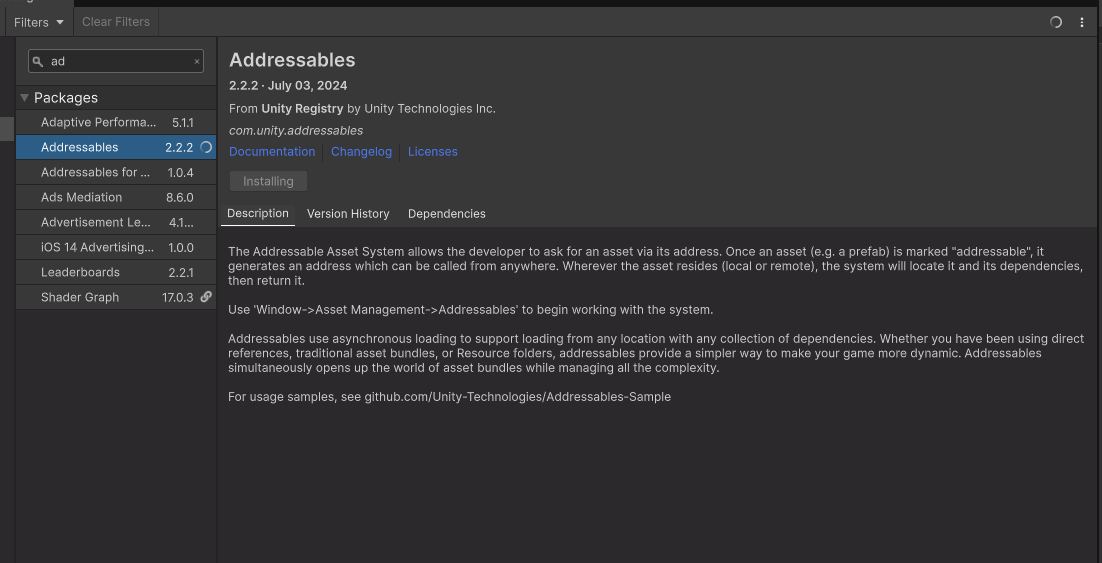
- 아래 패키지 다운로드
-
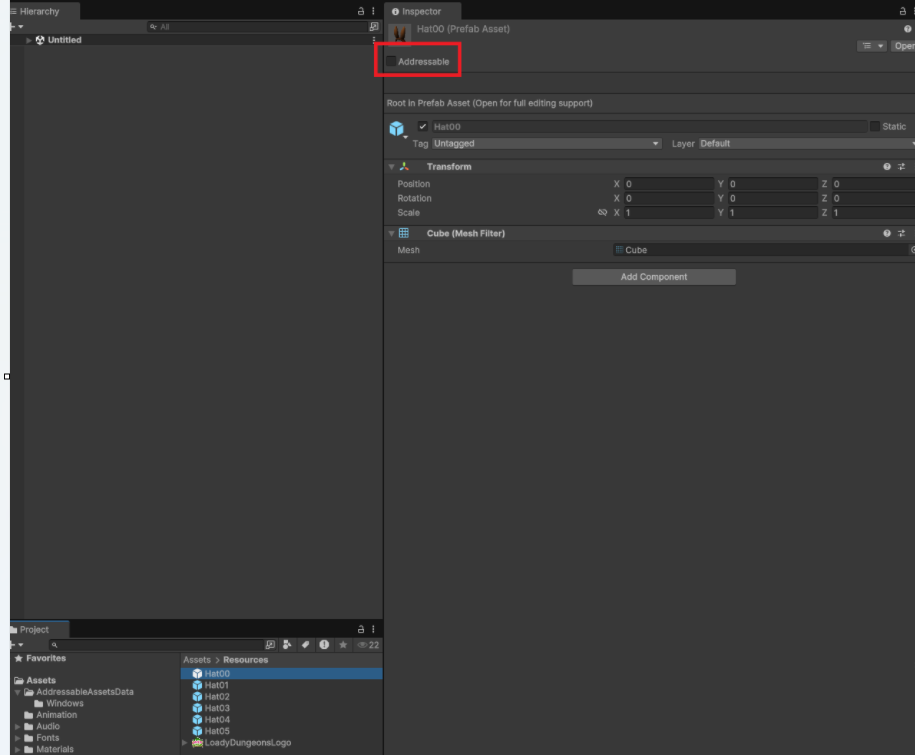
프리펩에 Addresaable 체크하는 란이 나타나는 것을 볼 수 있다.
-
- Hat00 프리펩에 Addresaable 활성화 한다.
- Hat00 프리펩에 Addresaable 활성화 한다.
-
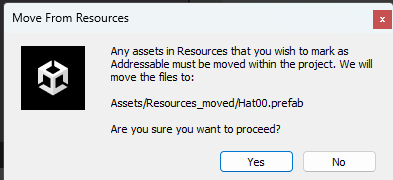
Resources_moved 폴더로 옮길것인지 말것인지 팝업창이 뜨고 yes를 누르면 옮겨진다.
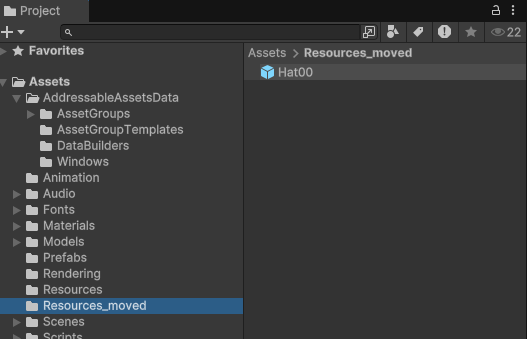
-
- Window -Asset Management - Addressables - Groups 를 열어준다.
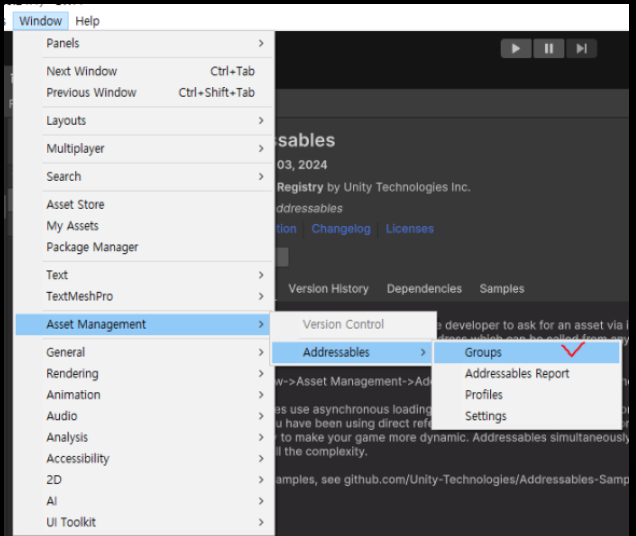
- Window -Asset Management - Addressables - Groups 를 열어준다.
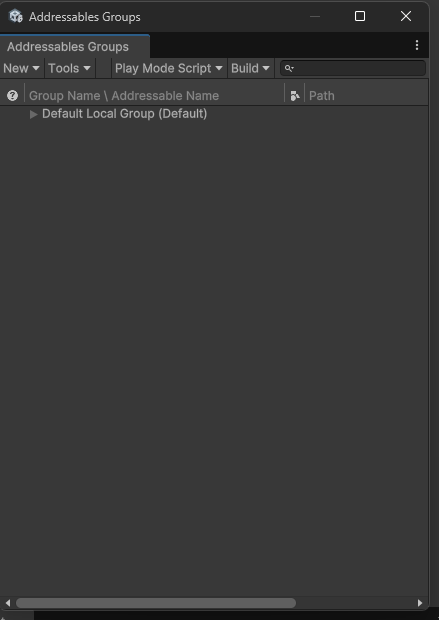
-
아까 Addressalbe 활성화 했던 Hat00 프리펩의 주소가 등록되었다.
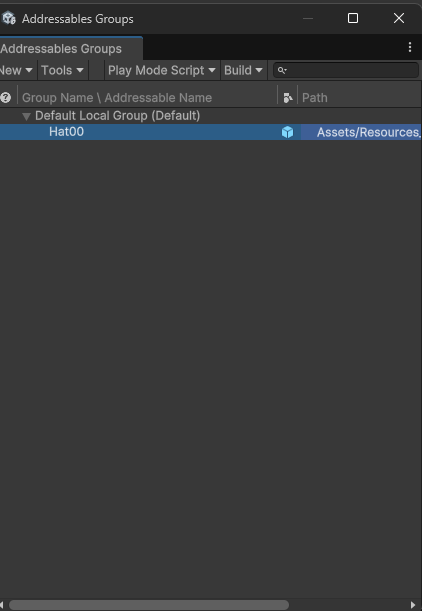
-
- 다른 프리펩들도 Addressable 활성화한다.
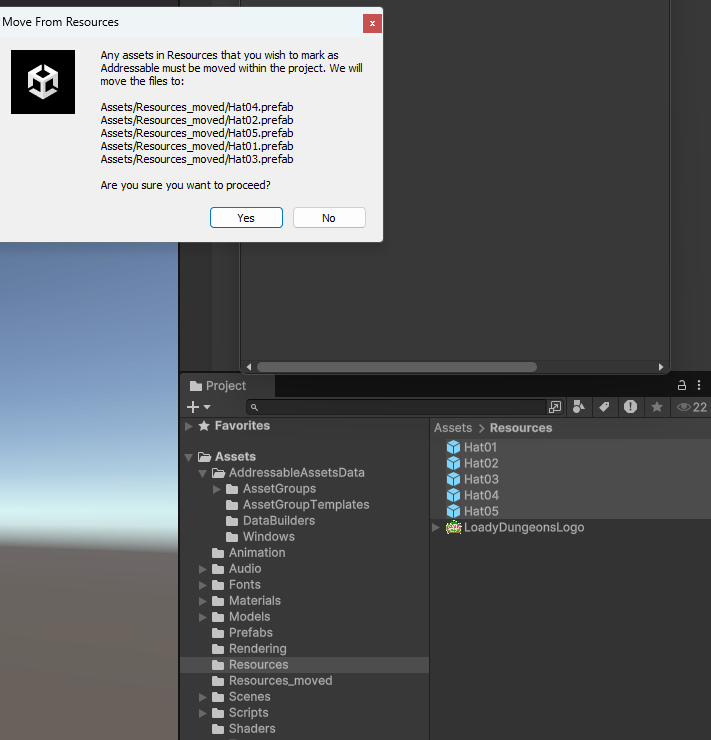
- 다른 프리펩들도 Addressable 활성화한다.
-
다른 프리펩 모두 주소가 등록되었다.
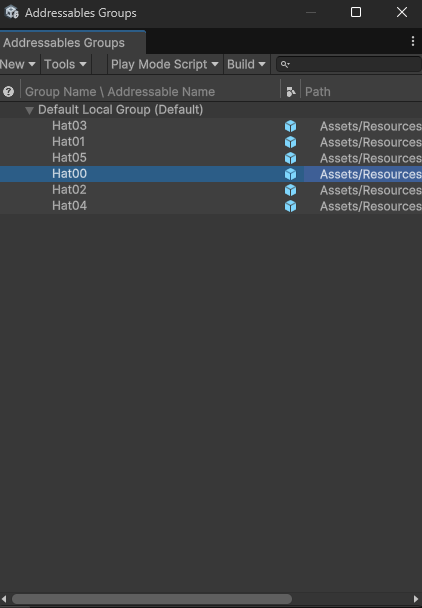
-
- Resources 빈 폴더 삭제한다.
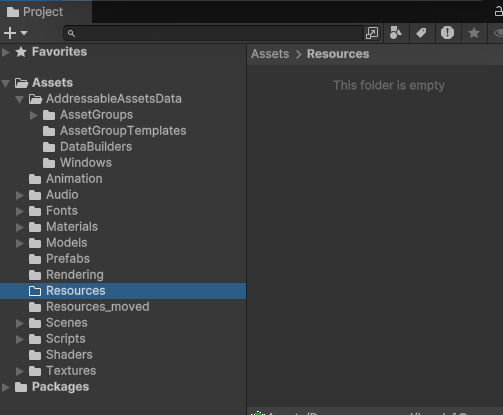
- Resources 빈 폴더 삭제한다.
Addressable을 사용하면 별도의 데이터 파일 만들기가 쉬워집니다.
씬 파일도 넣을 수 있습니다.
-
- 씬 파일도 활성화 해준다.

- 씬 파일도 활성화 해준다.
-
LoadingScene에 Addressable 활성화하자 주소가 등록되었다.
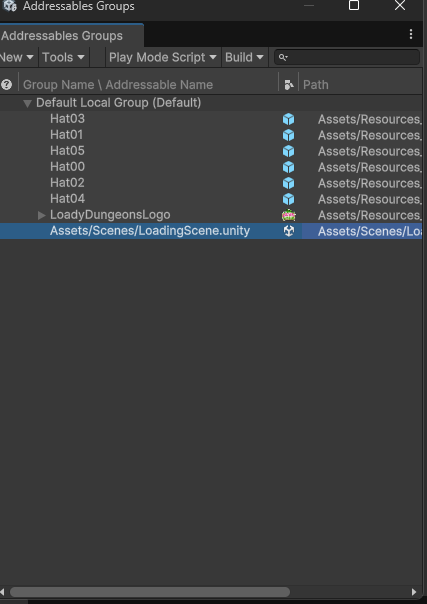
-
- 주소지에 등록된 씬 이름이 너무 길으므로 Simplify Addressable Names 클릭한다.
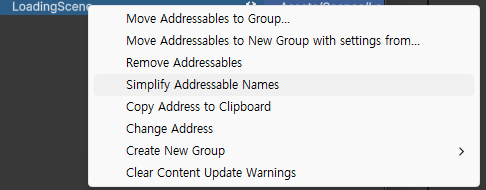
- 주소지에 등록된 씬 이름이 너무 길으므로 Simplify Addressable Names 클릭한다.
-
최종 화면
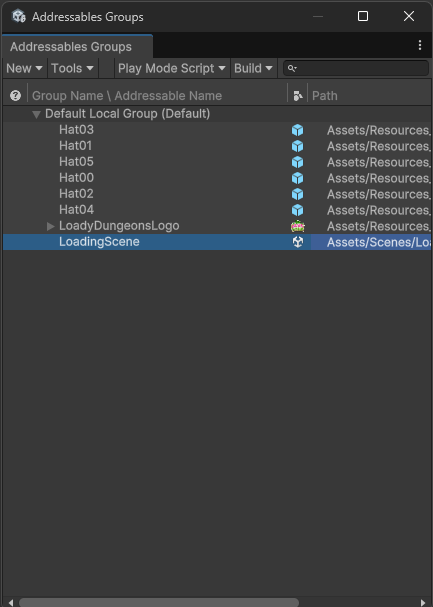
기존 Resource 폴더에 있던걸 Addressable로 주소로 변경했으니 코드를 수정해주어야 합니다.
- PlayerConfigurator.cs 을 열어준다. 코드 수정한다.
using System.Runtime.InteropServices;
using UnityEngine;
using UnityEngine.AddressableAssets;
using UnityEngine.ResourceManagement.AsyncOperations;

// Used for the Hat selection logic
public class PlayerConfigurator : MonoBehaviour
{
    [SerializeField]
    private Transform m_HatAnchor;

    private ResourceRequest m_HatLoadingRequest;

    [SerializeField] string m_Address;//⭐
    AsyncOperationHandle<GameObject> m_HatLoadOpHandle;//⭐


    void Start()
    {
        SetHat(string.Format("Hat{0:00}", GameManager.s_ActiveHat));
    }

    public void SetHat(string hatKey)
    {
        //m_HatLoadingRequest = Resources.LoadAsync(hatKey); //⭐주석
        //m_HatLoadingRequest.completed += OnHatLoaded; //⭐주석

        m_HatLoadOpHandle = Addressables.LoadAssetAsync<GameObject>(m_Address); //⭐
        m_HatLoadOpHandle.Completed += OnHatLoadComplete; //⭐


    }
    void OnHatLoadComplete(AsyncOperationHandle<GameObject> opHandle) //⭐
    {
        Debug.Log(opHandle.Status); //⭐
    }


    private void OnHatLoaded(AsyncOperation asyncOperation)
    {
        Instantiate(m_HatLoadingRequest.asset as GameObject, m_HatAnchor, false);
    }

    private void OnDisable()
    {
        if (m_HatLoadingRequest != null)
            m_HatLoadingRequest.completed -= OnHatLoaded;
    }
}
-
- Level_00 씬으로 이동
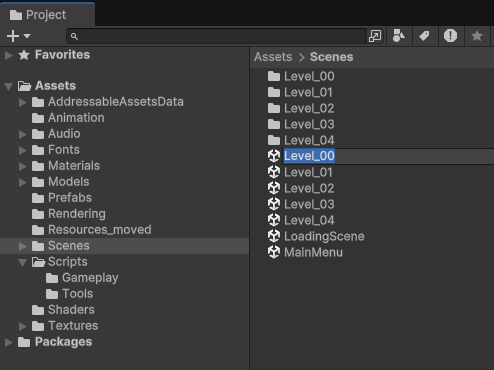
- Level_00 씬으로 이동
-
- Player 오브젝트의 Address 에 등록된 주소들 중 Hat00 입력
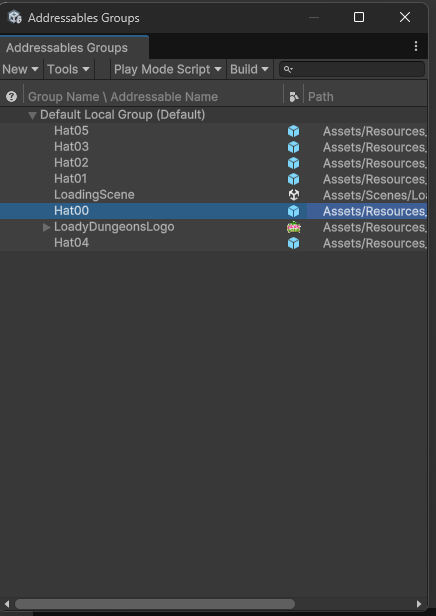
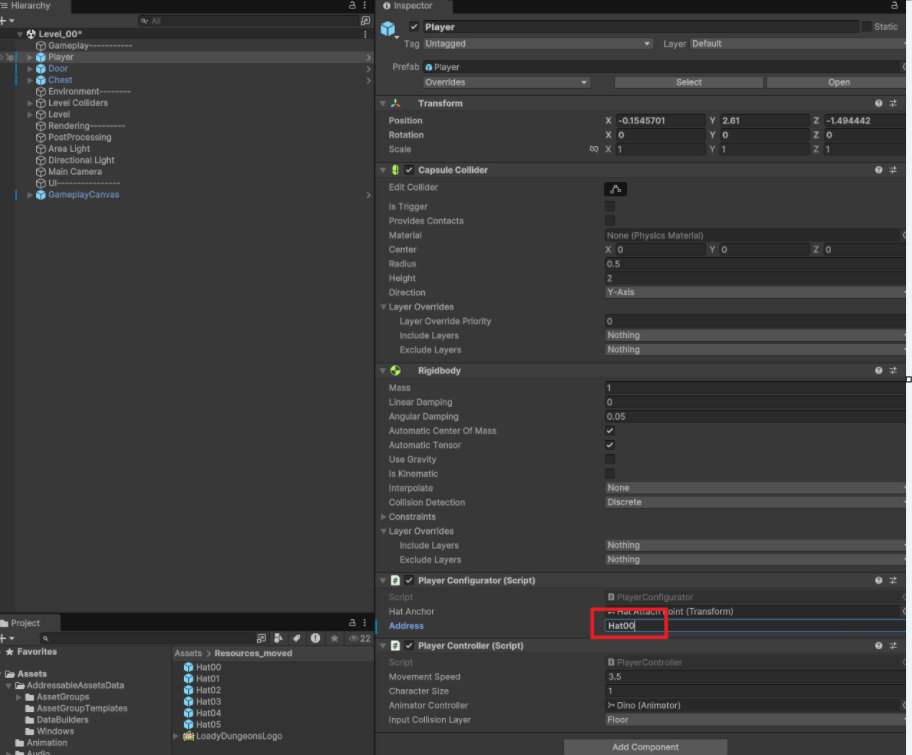
- Player 오브젝트의 Address 에 등록된 주소들 중 Hat00 입력
-
실행 시 , 콘솔창에 Succeeded가 뜨면 성공. Addressable 주소를 정상적으로 불러왔습니다.
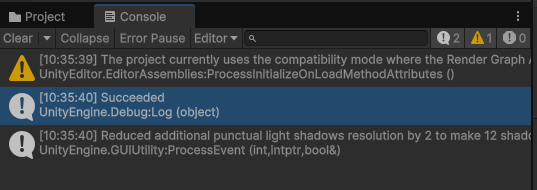
주소가 정상적으로 불러와지는걸 확인했으면 모자를 소환해봅시다.
- PlayereConfigurator.cs 수정
using System.Runtime.InteropServices;
using UnityEngine;
using UnityEngine.AddressableAssets;
using UnityEngine.ResourceManagement.AsyncOperations;

// Used for the Hat selection logic
public class PlayerConfigurator : MonoBehaviour
{
    [SerializeField]
    private Transform m_HatAnchor;

    private ResourceRequest m_HatLoadingRequest;

    [SerializeField] string m_Address;
    AsyncOperationHandle<GameObject> m_HatLoadOpHandle;


    void Start()
    {
        SetHat(string.Format("Hat{0:00}", GameManager.s_ActiveHat));
    }

    public void SetHat(string hatKey)
    {
        //m_HatLoadingRequest = Resources.LoadAsync(hatKey);
        //m_HatLoadingRequest.completed += OnHatLoaded;

        m_HatLoadOpHandle = Addressables.LoadAssetAsync<GameObject>(m_Address);
        m_HatLoadOpHandle.Completed += OnHatLoadComplete;


    }
    void OnHatLoadComplete(AsyncOperationHandle<GameObject> opHandle)
    {
        //Debug.Log(opHandle.Status);

        if (opHandle.Status == AsyncOperationStatus.Succeeded) //⭐
        {   // 주소를 찾아 불러오는데 성공한 경우
            Instantiate(opHandle.Result, m_HatAnchor); //⭐ 모자를 정해진 위치에 소환
        }


    }


    private void OnHatLoaded(AsyncOperation asyncOperation)
    {
        Instantiate(m_HatLoadingRequest.asset as GameObject, m_HatAnchor, false);
    }

    private void OnDisable()
    {
        if (m_HatLoadingRequest != null)
            m_HatLoadingRequest.completed -= OnHatLoaded;
    }
}
- 실행 결과. Hat00이 정상적으로 소환되었다.
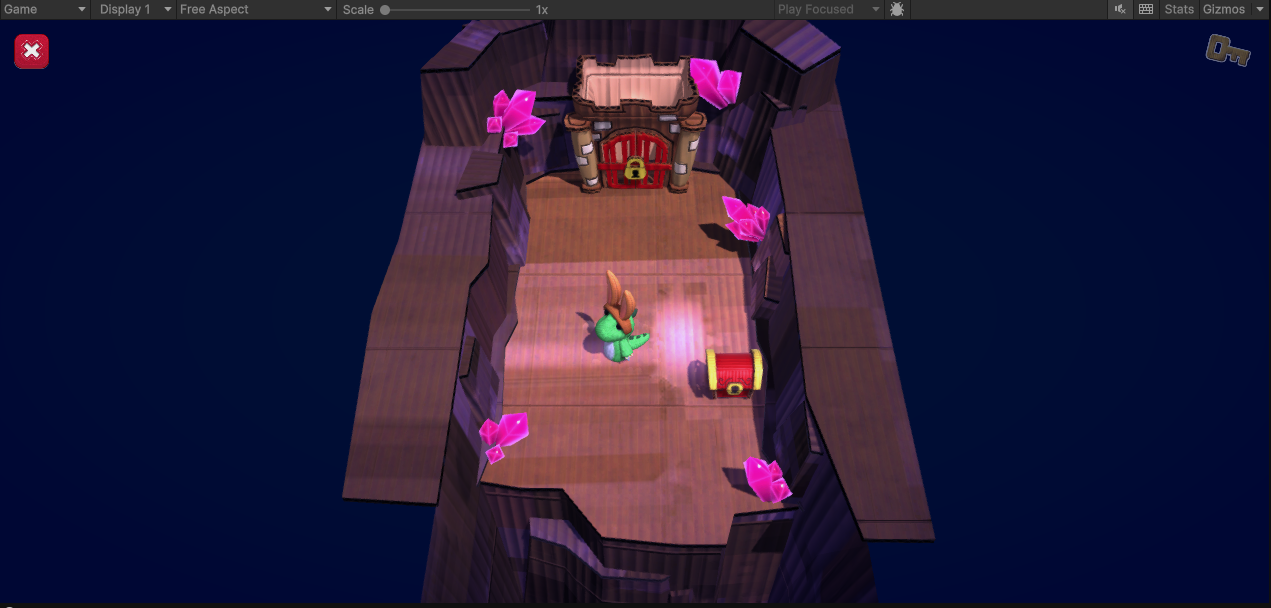
⭐ Assressable 02
- 등록은 했지만 사용하지 않을 때는 메모리 할당을 부여하지 않는 기능. -> AssetReference 기능
시작
- PlayerConfigurator.cs 수정한다.
using System.Runtime.InteropServices;
using UnityEditor.EditorTools;
using UnityEngine;
using UnityEngine.AddressableAssets;
using UnityEngine.ResourceManagement.AsyncOperations;

// Used for the Hat selection logic
public class PlayerConfigurator : MonoBehaviour
{
    [SerializeField]
    private Transform m_HatAnchor;

    private ResourceRequest m_HatLoadingRequest;

    [SerializeField] string m_Address; //Addressable 주소
    [SerializeField] AssetReference m_HatAssetReference; // 프리팹의 주소

    AsyncOperationHandle<GameObject> m_HatLoadOpHandle; //⭐


    void Start()
    {
        SetHat(string.Format("Hat{0:00}", GameManager.s_ActiveHat));
    }

    public void SetHat(string hatKey)
    {
        //m_HatLoadingRequest = Resources.LoadAsync(hatKey);
        //m_HatLoadingRequest.completed += OnHatLoaded;

        //m_HatLoadOpHandle = Addressables.LoadAssetAsync<GameObject>(m_Address);
        //m_HatLoadOpHandle.Completed += OnHatLoadComplete;

        //잔뜩 프리팹을 등록해도 부르기 전까지는 메모리 할당이 되지 않는다.
        m_HatLoadOpHandle = m_HatAssetReference.LoadAssetAsync<GameObject>(); //⭐ 씬이 로딩되고 나서 비동기로 로딩
        m_HatLoadOpHandle.Completed += OnHatLoadComplete; //⭐


    }
    void OnHatLoadComplete(AsyncOperationHandle<GameObject> opHandle)
    {
        //Debug.Log(opHandle.Status);

        if (opHandle.Status == AsyncOperationStatus.Succeeded)
        {   // 주소를 찾아 불러오는데 성공한 경우
            Instantiate(opHandle.Result, m_HatAnchor); // 모자를 정해진 위치에 소환
        }


    }


    private void OnHatLoaded(AsyncOperation asyncOperation)
    {
        Instantiate(m_HatLoadingRequest.asset as GameObject, m_HatAnchor, false);
    }

    private void OnDisable()
    {
        if (m_HatLoadingRequest != null)
            m_HatLoadingRequest.completed -= OnHatLoaded;
    }
}
-
- Hat01 프리펩 할당
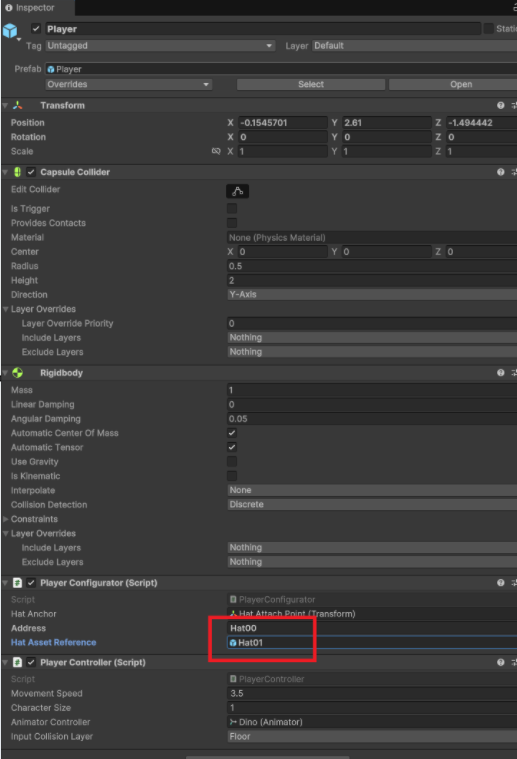
- Hat01 프리펩 할당
-
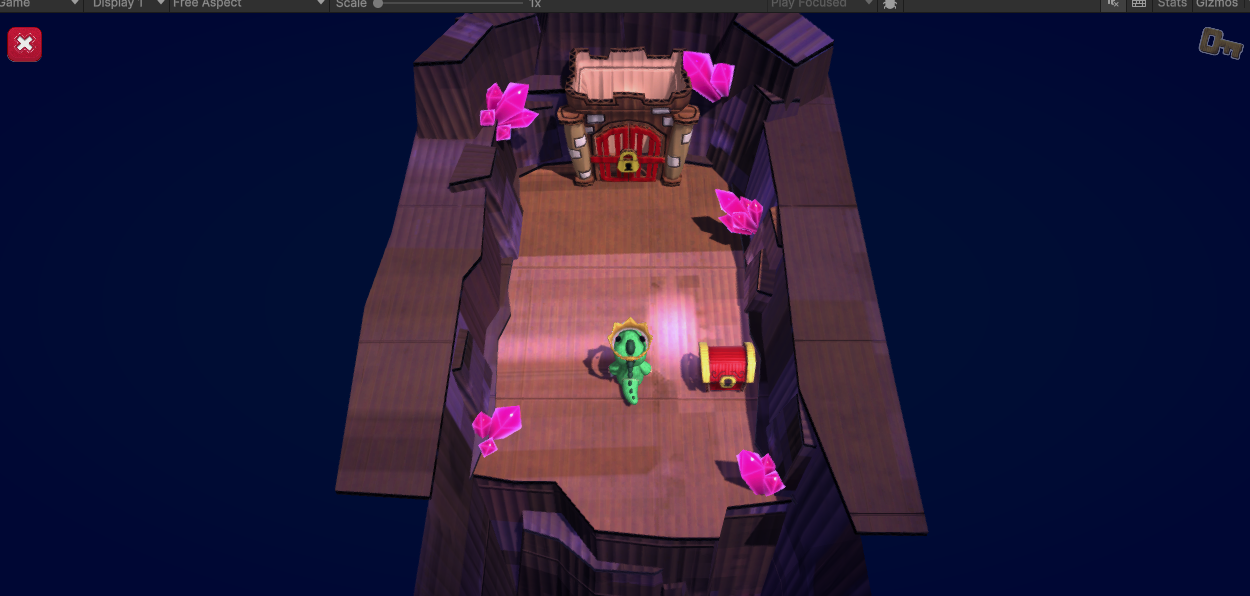
실행 결과 Hat01 모자가 씌어졌다.
AssetReference 타입에 제한을 걸 수 도 있다. AssetReferenceGameObject을 사용해 GameObject 타입만 등록되게 할 수 있음.
- 기존에 Sprite도 주소를 등록할 수 있게 되었는데, 제한을 걸어보자.
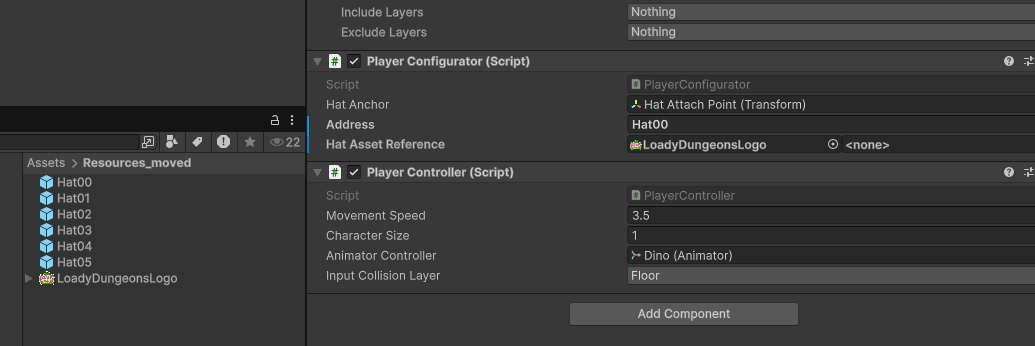
- PlayerConfigurator.cs 수정한다.
using System.Runtime.InteropServices;
using UnityEditor.EditorTools;
using UnityEngine;
using UnityEngine.AddressableAssets;
using UnityEngine.ResourceManagement.AsyncOperations;

// Used for the Hat selection logic
public class PlayerConfigurator : MonoBehaviour
{
    [SerializeField]
    private Transform m_HatAnchor;

    private ResourceRequest m_HatLoadingRequest;

    [SerializeField] string m_Address; //Addressable 주소
    [SerializeField] AssetReferenceGameObject m_HatAssetReference; //⭐ AssetReferenceGameObject 추가

    AsyncOperationHandle<GameObject> m_HatLoadOpHandle;


    void Start()
    {
        SetHat(string.Format("Hat{0:00}", GameManager.s_ActiveHat));
    }

    public void SetHat(string hatKey)
    {
        //m_HatLoadingRequest = Resources.LoadAsync(hatKey);
        //m_HatLoadingRequest.completed += OnHatLoaded;

        //m_HatLoadOpHandle = Addressables.LoadAssetAsync<GameObject>(m_Address);
        //m_HatLoadOpHandle.Completed += OnHatLoadComplete;

        m_HatLoadOpHandle = m_HatAssetReference.LoadAssetAsync<GameObject>(); // 씬이 로딩되고 나서 비동기로 로딩
        m_HatLoadOpHandle.Completed += OnHatLoadComplete;


    }
    void OnHatLoadComplete(AsyncOperationHandle<GameObject> opHandle)
    {
        //Debug.Log(opHandle.Status);

        if (opHandle.Status == AsyncOperationStatus.Succeeded)
        {   // 주소를 찾아 불러오는데 성공한 경우
            Instantiate(opHandle.Result, m_HatAnchor); // 모자를 정해진 위치에 소환
        }


    }


    private void OnHatLoaded(AsyncOperation asyncOperation)
    {
        Instantiate(m_HatLoadingRequest.asset as GameObject, m_HatAnchor, false);
    }

    private void OnDisable()
    {
        if (m_HatLoadingRequest != null)
            m_HatLoadingRequest.completed -= OnHatLoaded;
    }
}
-
- 아무런 타입이나 못 등록시키게 제한에 성공하였다.
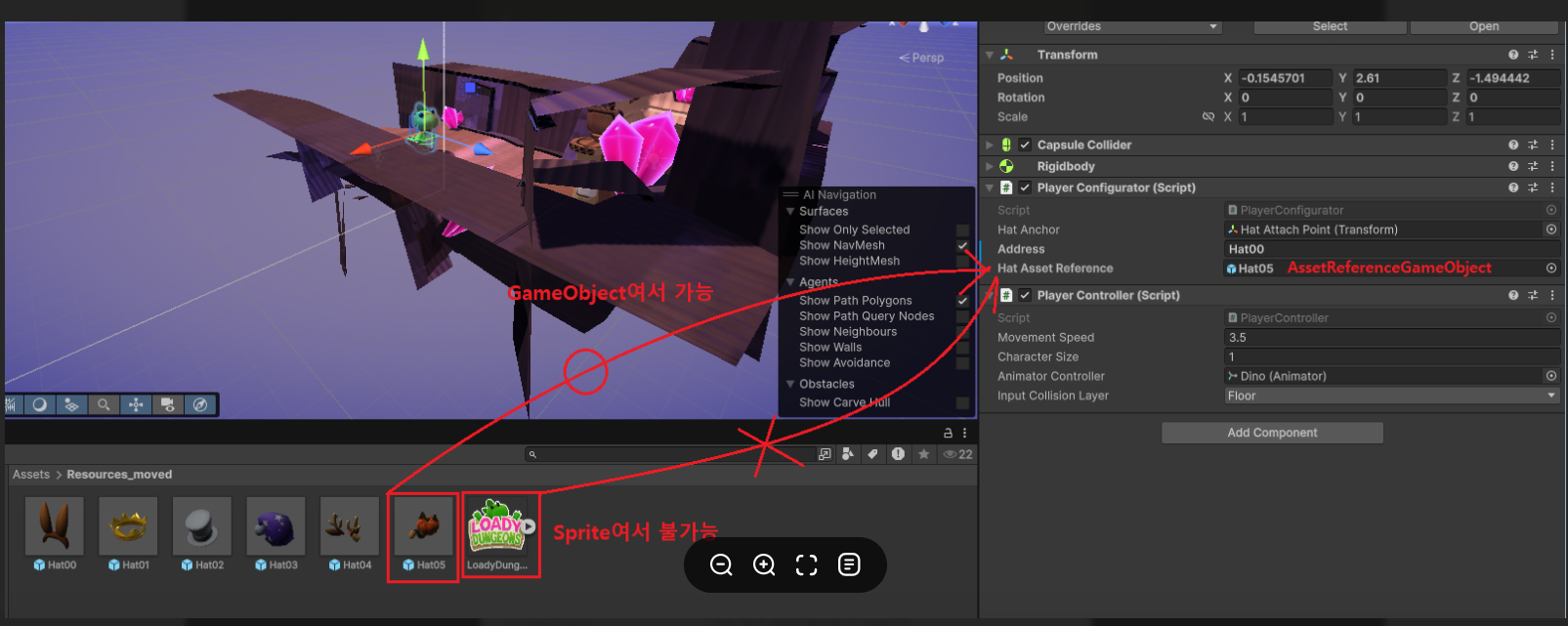
- 아무런 타입이나 못 등록시키게 제한에 성공하였다.
-
AssetReference의 타입제한 유형이다.
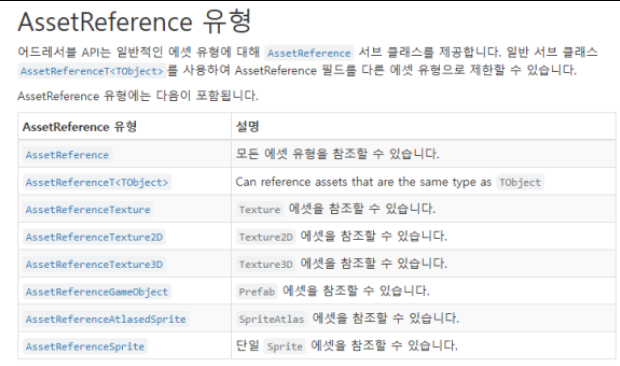
GameManager 스크립트에서도 Logo도 Addressable 코드로 수정해보자.
- GameManager.cs 수정
using UnityEngine;
using UnityEngine.UI;
using UnityEngine.SceneManagement;
using UnityEngine.AddressableAssets;
using System.Runtime.InteropServices;
using UnityEngine.ResourceManagement.AsyncOperations;
using UnityEditor.EditorTools;

public class GameManager : MonoBehaviour
{
    public static GameManager Instance {get; private set;}

    public static int s_CurrentLevel = 0;

    public static int s_MaxAvailableLevel = 5;

    // The value of -1 means no hats have been purchased
    public static int s_ActiveHat = 0;

    [SerializeField] private Image m_gameLogoImage;

    [SerializeField] string m_LogoAddress; //⭐ 추가

    AsyncOperationHandle<Sprite> m_LogoLoadOpHandle; //⭐ 추가


    public void Awake()
    {
        if (Instance == null)
        {
            Instance = this;
        }
        else
        {
            Destroy(gameObject);
        }
    }

    public void OnEnable()
    {
        // When we go to the
        s_CurrentLevel = 0;

        //var logoResourceRequest = Resources.LoadAsync<Sprite>("LoadyDungeonsLogo"); //⭐ 주석
        //logoResourceRequest.completed += (asyncOperation) => //⭐ 주석
        //{
        //    m_gameLogoImage.sprite = logoResourceRequest.asset as Sprite; //⭐ 주석
        //}; //⭐ 주석

        m_LogoLoadOpHandle = Addressables.LoadAssetAsync<Sprite>(m_LogoAddress); //⭐Logo 비동기로딩
        m_LogoLoadOpHandle.Completed += OnLogoLoadComplete; //⭐


    }
    private void OnDisable() //⭐
    {
        m_LogoLoadOpHandle.Completed -= OnLogoLoadComplete; //⭐
    }

    void OnLogoLoadComplete(AsyncOperationHandle<Sprite> opHandle) //⭐
    {
        if (opHandle.Status == AsyncOperationStatus.Succeeded) //⭐
        {
            m_gameLogoImage.sprite = opHandle.Result; //⭐
        }
    }


    public void ExitGame()
    {
        s_CurrentLevel = 0;
    }

    public void SetCurrentLevel(int level)
    {
        s_CurrentLevel = level;
    }

    public static void LoadNextLevel()
    {
        SceneManager.LoadSceneAsync("LoadingScene");
    }

    public static void LevelCompleted()
    {
        s_CurrentLevel++;

        // Just to make sure we don't try to go beyond the allowed number of levels.
        s_CurrentLevel = s_CurrentLevel % s_MaxAvailableLevel;

        LoadNextLevel();
    }

    public static void ExitGameplay()
    {
        SceneManager.LoadSceneAsync("MainMenu");
    }
}
-
- Logo의 Addressable 주소 이름을 명확히 작성한다. MainMenu씬에 게임매니저가 있으므로 해당 씬으로 이동
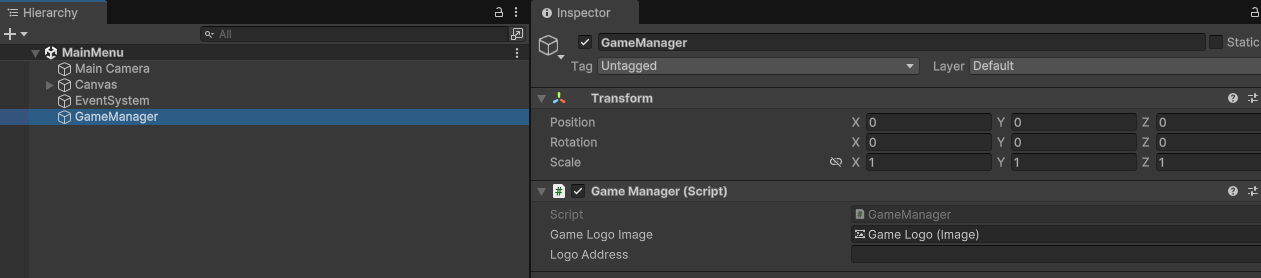
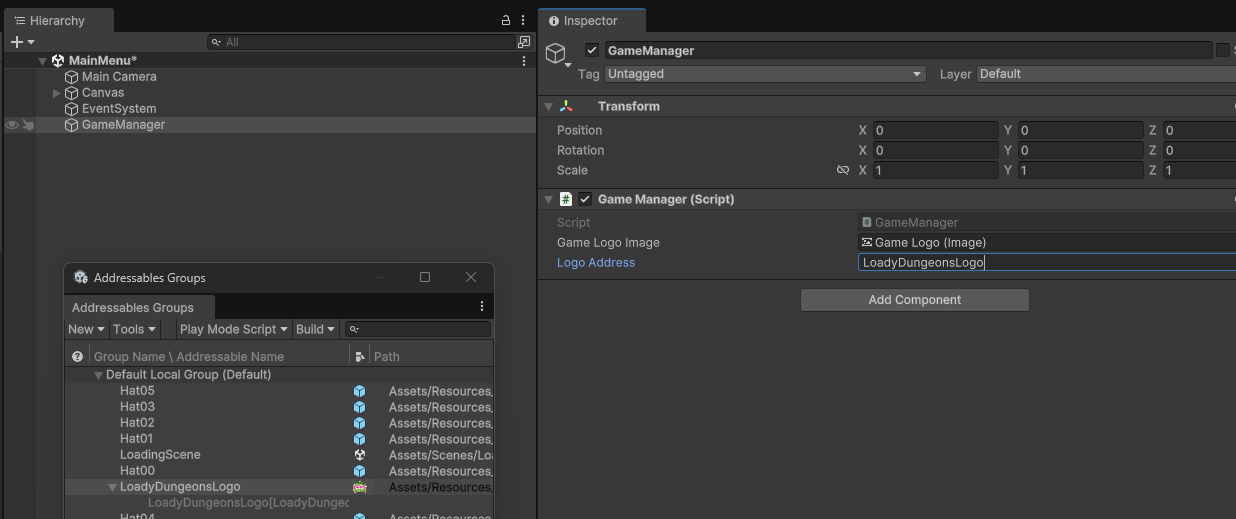
- Logo의 Addressable 주소 이름을 명확히 작성한다. MainMenu씬에 게임매니저가 있으므로 해당 씬으로 이동
-
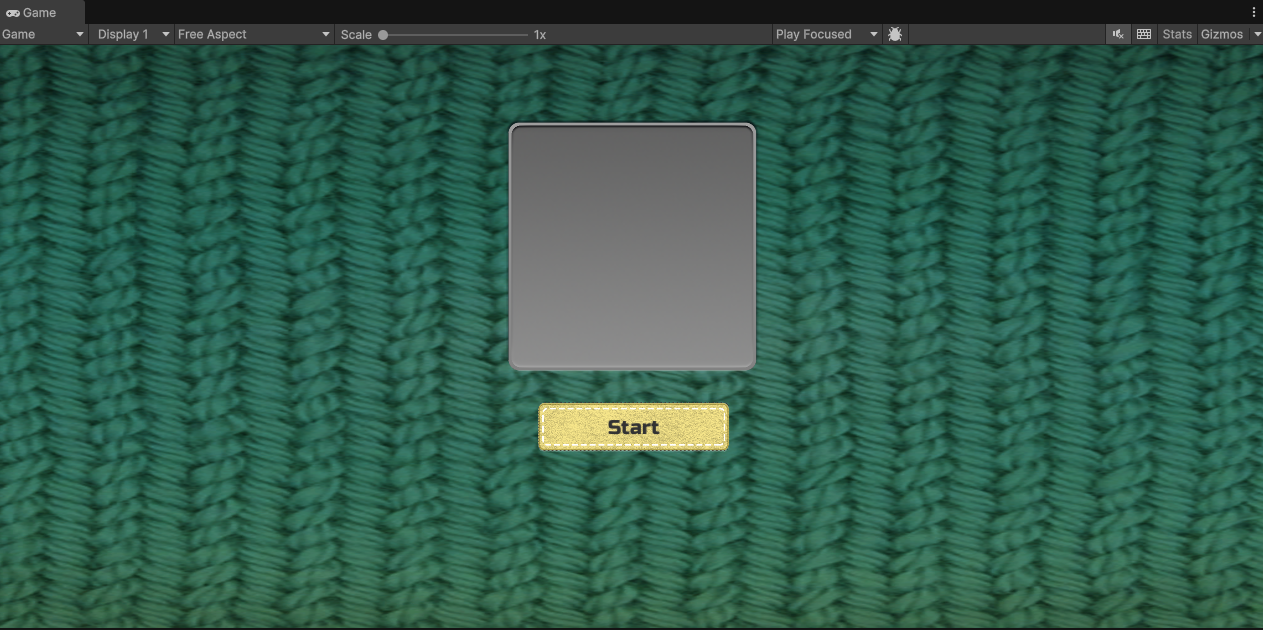
실행 전 화면
-
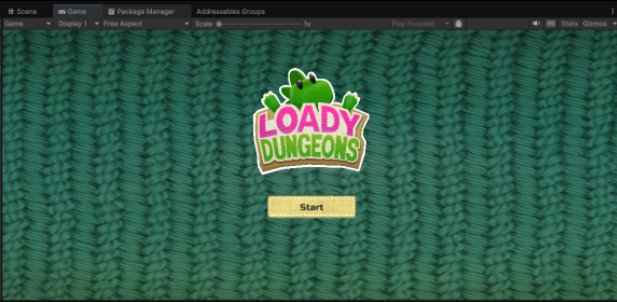
실행 후 화면. 정상적으로 로고가 나타났다.
string 타입으로 주소이름을 작성하지 않고 AssetReference를 또 사용해보자.
- GameManager.cs 수정
using UnityEngine;
using UnityEngine.UI;
using UnityEngine.SceneManagement;
using UnityEngine.AddressableAssets;
using System.Runtime.InteropServices;
using UnityEngine.ResourceManagement.AsyncOperations;
using UnityEditor.EditorTools;

public class GameManager : MonoBehaviour
{
    public static GameManager Instance {get; private set;}

    public static int s_CurrentLevel = 0;

    public static int s_MaxAvailableLevel = 5;

    // The value of -1 means no hats have been purchased
    public static int s_ActiveHat = 0;

    [SerializeField] private Image m_gameLogoImage;

    [SerializeField] string m_LogoAddress;
    [SerializeField] AssetReferenceSprite m_LogoAssetReference; //⭐추가

    AsyncOperationHandle<Sprite> m_LogoLoadOpHandle;


    public void Awake()
    {
        if (Instance == null)
        {
            Instance = this;
        }
        else
        {
            Destroy(gameObject);
        }
    }

    public void OnEnable()
    {
        // When we go to the
        s_CurrentLevel = 0;

        //var logoResourceRequest = Resources.LoadAsync<Sprite>("LoadyDungeonsLogo");
        //logoResourceRequest.completed += (asyncOperation) =>
        //{
        //    m_gameLogoImage.sprite = logoResourceRequest.asset as Sprite;
        //};

        if (!m_LogoAssetReference.RuntimeKeyIsValid()) //⭐추가
        {
            return; //⭐추가
        }


        m_LogoLoadOpHandle = Addressables.LoadAssetAsync<Sprite>(m_LogoAssetReference); //⭐ 인자 넘길 때 m_LogoAssetReference 을 추가
        m_LogoLoadOpHandle.Completed += OnLogoLoadComplete;


    }
    private void OnDisable()
    {
        m_LogoLoadOpHandle.Completed -= OnLogoLoadComplete;
    }

    void OnLogoLoadComplete(AsyncOperationHandle<Sprite> opHandle)
    {
        if (opHandle.Status == AsyncOperationStatus.Succeeded)
        {
            m_gameLogoImage.sprite = opHandle.Result;
        }
    }


    public void ExitGame()
    {
        s_CurrentLevel = 0;
    }

    public void SetCurrentLevel(int level)
    {
        s_CurrentLevel = level;
    }

    public static void LoadNextLevel()
    {
        SceneManager.LoadSceneAsync("LoadingScene");
    }

    public static void LevelCompleted()
    {
        s_CurrentLevel++;

        // Just to make sure we don't try to go beyond the allowed number of levels.
        s_CurrentLevel = s_CurrentLevel % s_MaxAvailableLevel;

        LoadNextLevel();
    }

    public static void ExitGameplay()
    {
        SceneManager.LoadSceneAsync("MainMenu");
    }
}
-
- GameManager 인스펙터에서 LogoSprite 등록한다.
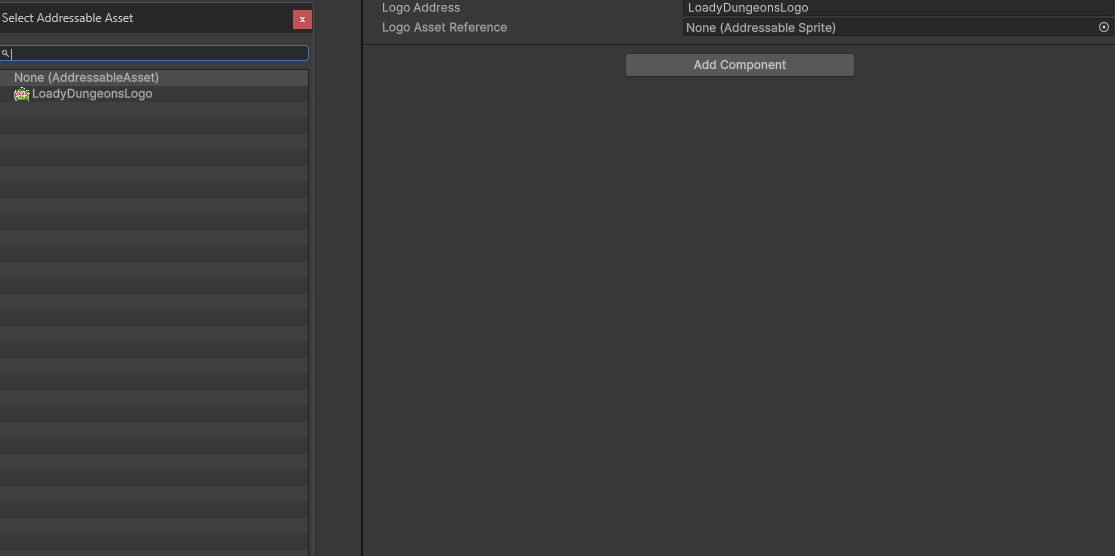
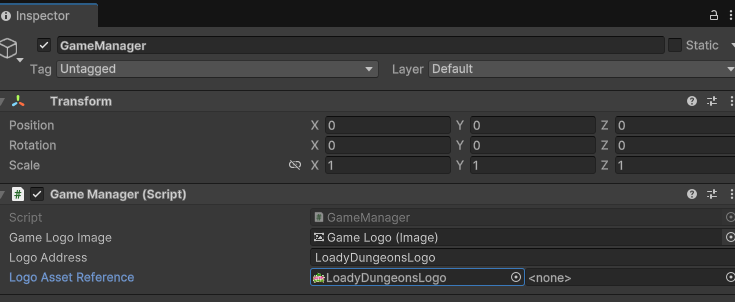
- GameManager 인스펙터에서 LogoSprite 등록한다.
-
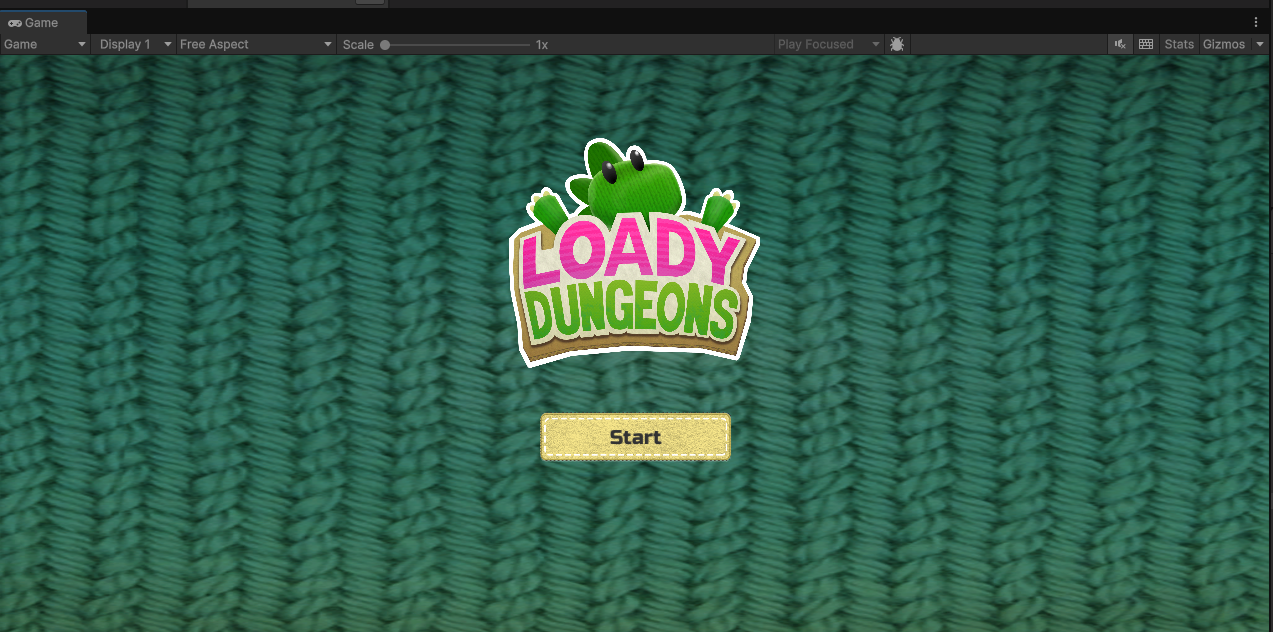
실행 화면. 정상적으로 로고가 나타난다.
로딩 씬 Addressable 방식 비동기로딩 방법
- 9 . GameManager.cs 수정
using UnityEngine;
using UnityEngine.UI;
using UnityEngine.SceneManagement;
using UnityEngine.AddressableAssets;
using System.Runtime.InteropServices;
using UnityEngine.ResourceManagement.AsyncOperations;
using UnityEditor.EditorTools;
using UnityEngine.ResourceManagement.ResourceProviders;

public class GameManager : MonoBehaviour
{
    public static GameManager Instance {get; private set;}

    public static int s_CurrentLevel = 0;

    public static int s_MaxAvailableLevel = 5;

    // The value of -1 means no hats have been purchased
    public static int s_ActiveHat = 0;

    [SerializeField] private Image m_gameLogoImage;

    [SerializeField] string m_LogoAddress;
    [SerializeField]
    AssetReferenceSprite m_LogoAssetReference;

    AsyncOperationHandle<Sprite> m_LogoLoadOpHandle;

    static AsyncOperationHandle<SceneInstance> m_SceneLoadOpHandle; //⭐ 추가


    public void Awake()
    {
        if (Instance == null)
        {
            Instance = this;
        }
        else
        {
            Destroy(gameObject);
        }
    }

    public void OnEnable()
    {
        // When we go to the
        s_CurrentLevel = 0;

        //var logoResourceRequest = Resources.LoadAsync<Sprite>("LoadyDungeonsLogo");
        //logoResourceRequest.completed += (asyncOperation) =>
        //{
        //    m_gameLogoImage.sprite = logoResourceRequest.asset as Sprite;
        //};

        if (!m_LogoAssetReference.RuntimeKeyIsValid())
        {
            return;
        }


        m_LogoLoadOpHandle = Addressables.LoadAssetAsync<Sprite>(m_LogoAssetReference); // Logo 비동기로딩
        m_LogoLoadOpHandle.Completed += OnLogoLoadComplete;


    }
    private void OnDisable()
    {
        m_LogoLoadOpHandle.Completed -= OnLogoLoadComplete;
    }

    void OnLogoLoadComplete(AsyncOperationHandle<Sprite> opHandle)
    {
        if (opHandle.Status == AsyncOperationStatus.Succeeded)
        {
            m_gameLogoImage.sprite = opHandle.Result;
        }
    }


    public void ExitGame()
    {
        s_CurrentLevel = 0;
    }

    public void SetCurrentLevel(int level)
    {
        s_CurrentLevel = level;
    }

    public static void LoadNextLevel()
    {
       //  SceneManager.LoadSceneAsync("LoadingScene"); //⭐ 주석

        m_SceneLoadOpHandle = Addressables.LoadSceneAsync("LoadingScene"); //⭐ 추가
    }

    public static void LevelCompleted()
    {
        s_CurrentLevel++;

        // Just to make sure we don't try to go beyond the allowed number of levels.
        s_CurrentLevel = s_CurrentLevel % s_MaxAvailableLevel;

        LoadNextLevel();
    }

    public static void ExitGameplay()
    {
        SceneManager.LoadSceneAsync("MainMenu");
    }
}- 10 . Loading.cs에서 Loading 관련 코드도 Addressable 코드로 바꿔주자.
using System.Collections;
using System.Runtime.InteropServices;
using UnityEngine;
using UnityEngine.AddressableAssets;
using UnityEngine.ResourceManagement.AsyncOperations;
using UnityEngine.ResourceManagement.ResourceProviders;
using UnityEngine.SceneManagement;
using UnityEngine.UI;

public class Loading : MonoBehaviour
{
    private AsyncOperation m_SceneOperation;
    AsyncOperationHandle<SceneInstance> m_SceneLoadOpHandle; //⭐ 추가

   [SerializeField]
    private Slider m_LoadingSlider;

    [SerializeField]
    private GameObject m_PlayButton, m_LoadingText;

    private void Awake()
    {
        StartCoroutine(loadNextLevel("Level_0" + GameManager.s_CurrentLevel));
    }

    private IEnumerator loadNextLevel(string level)
    {
       // m_SceneOperation = SceneManager.LoadSceneAsync(level); //⭐ 주석
       // m_SceneOperation.allowSceneActivation = false; //⭐ 주석

        m_SceneLoadOpHandle = Addressables.LoadSceneAsync(level, activateOnLoad: true); //⭐ 추가


        while (!m_SceneOperation.isDone)
        {
            //m_LoadingSlider.value = m_SceneOperation.progress; //⭐ 주석

            m_LoadingSlider.value = m_SceneLoadOpHandle.PercentComplete; //⭐ 추가

          //  if (m_SceneOperation.progress >= 0.9f && !m_PlayButton.activeInHierarchy) //⭐ 주석
           //     m_PlayButton.SetActive(true); //⭐ 주석

            yield return null;
        }

        Debug.Log($"Loaded Level {level}");
    }

    // Function to handle which level is loaded next
    public void GoToNextLevel()
    {
        m_SceneOperation.allowSceneActivation = true;
    }
}
- Level_00~ Level_04 씬들의 주소를 등록한다. 그리고 이름이 길어서 Simplify Addressable Names 클릭
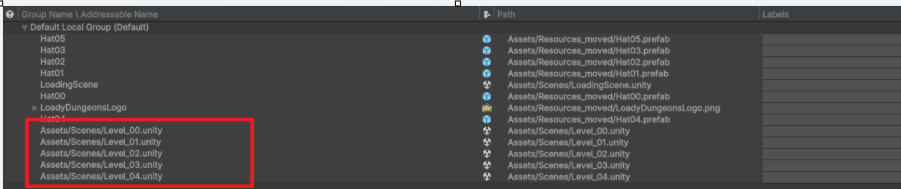
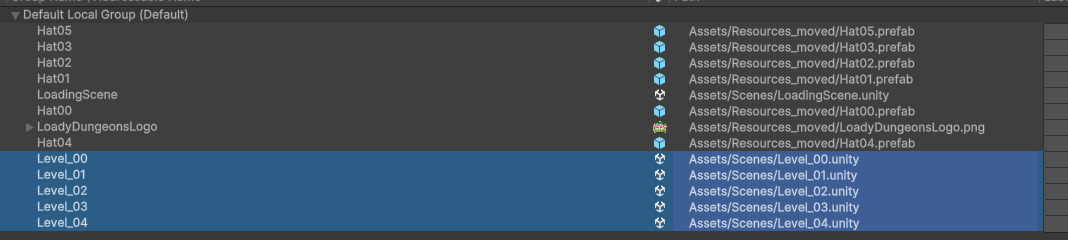
- Level_00~ Level_04 씬들의 주소를 등록한다. 그리고 이름이 길어서 Simplify Addressable Names 클릭
랜덤으로 모자 쓰기
- PlayerConfigurator .cs 수정
using System.Runtime.InteropServices;
using UnityEditor.EditorTools;
using UnityEngine;
using UnityEngine.AddressableAssets;
using UnityEngine.ResourceManagement.AsyncOperations;

// Used for the Hat selection logic
public class PlayerConfigurator : MonoBehaviour
{
    [SerializeField]
    private Transform m_HatAnchor;

    private ResourceRequest m_HatLoadingRequest;

    [SerializeField] string m_Address; //Addressable 주소
    [SerializeField]
    AssetReferenceGameObject m_HatAssetReference; // 프리팹의 주소

    AsyncOperationHandle<GameObject> m_HatLoadOpHandle;


    GameObject m_HatInstance; //⭐ 추가


    void Start()
    {
        //SetHat(string.Format("Hat{0:00}", GameManager.s_ActiveHat)); //⭐ 주석

        LoadRandomHat(); //⭐ 추가
    }
    void LoadRandomHat() //⭐ 추가
    {
        int rnd = Random.Range(0, 5); //⭐ 추가
        string hatAddress = string.Format("Hat{0:00}", rnd); //⭐ 추가

        m_HatLoadOpHandle = Addressables.LoadAssetAsync<GameObject>(hatAddress); //⭐ 추가
        m_HatLoadOpHandle.Completed += OnHatLoadComplete; //⭐ 추가
    }


    public void SetHat(string hatKey)
    {
        //m_HatLoadingRequest = Resources.LoadAsync(hatKey);
        //m_HatLoadingRequest.completed += OnHatLoaded;

        //m_HatLoadOpHandle = Addressables.LoadAssetAsync<GameObject>(m_Address);
        //m_HatLoadOpHandle.Completed += OnHatLoadComplete;

        m_HatLoadOpHandle = m_HatAssetReference.LoadAssetAsync<GameObject>(); // 씬이 로딩되고 나서 비동기로 로딩
        m_HatLoadOpHandle.Completed += OnHatLoadComplete;


    }
    void OnHatLoadComplete(AsyncOperationHandle<GameObject> opHandle)
    {
        //Debug.Log(opHandle.Status);

        if (opHandle.Status == AsyncOperationStatus.Succeeded)
        {   // 주소를 찾아 불러오는데 성공한 경우
            m_HatInstance  = Instantiate(opHandle.Result, m_HatAnchor); //⭐ m_HatInstance = 추가
        }


    }


    private void OnHatLoaded(AsyncOperation asyncOperation)
    {
        Instantiate(m_HatLoadingRequest.asset as GameObject, m_HatAnchor, false);
    }

    private void OnDisable()
    {
        if (m_HatLoadingRequest != null)
            m_HatLoadingRequest.completed -= OnHatLoaded;

        m_HatLoadOpHandle.Completed -= OnHatLoadComplete; //⭐ 추가


    }
}
- 실행 결과
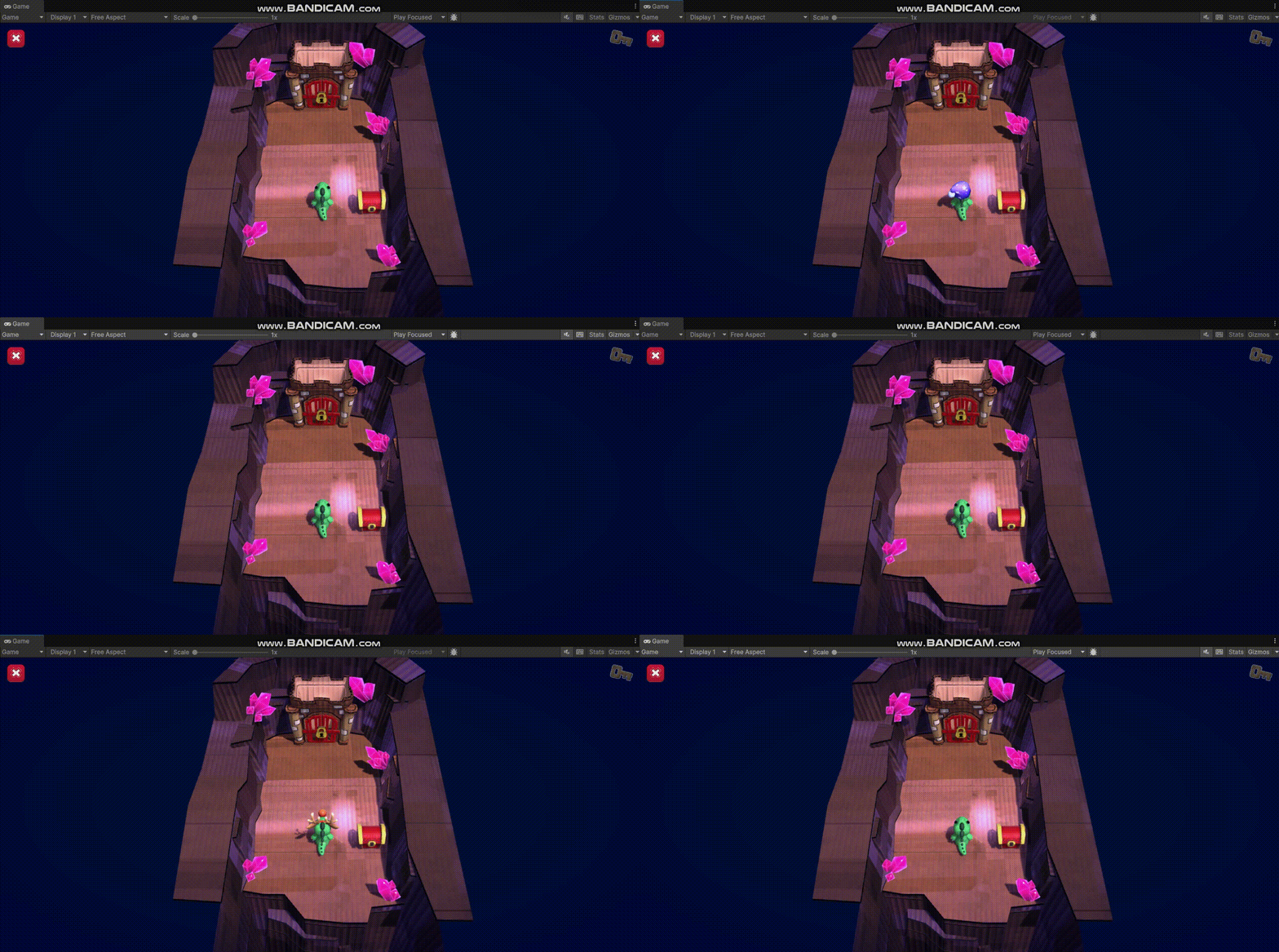
랜덤으로 모자 쓰기 - 마우스 클릭을 통해
-
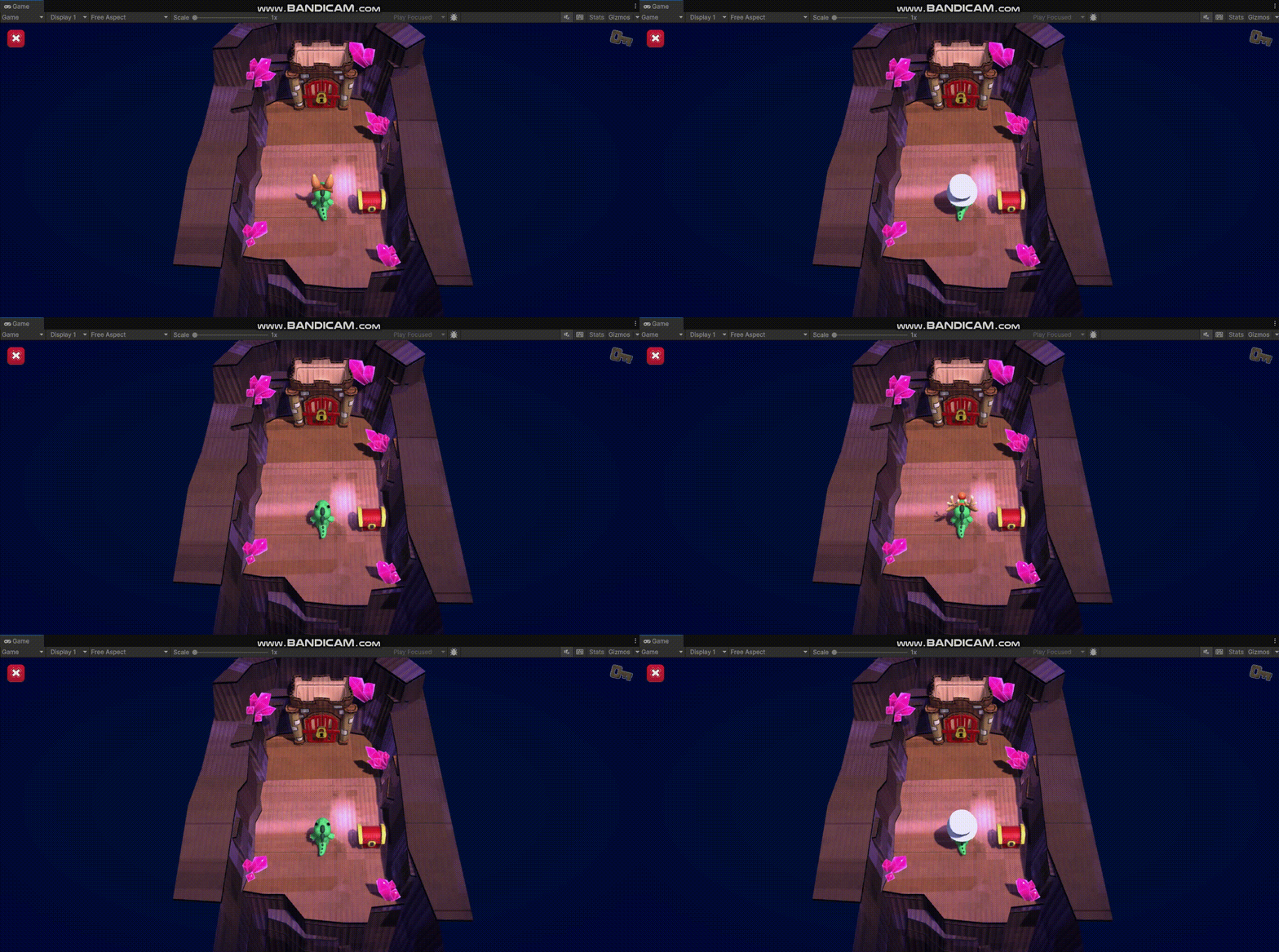
오른쪽 마우스 클릭을 할 때마다 모자를 바꾸는 방법
-
Addressables.ReleaseInstance를 하면 Destroy된 오브젝트는 메모리에 남지 않고 아예 사라지게 됩니다. (메모리 사용량 감소)
-
ReleaseInstance를 사용하지 않을 경우 한번 사용했던 프리팹은 Destroy 되어도 메모리에 정보가 남아있어 다시 생성할 때 로딩 시간이 빨라집니다.
-
- PlayerConfigurator.cs 수정
using System.Runtime.InteropServices;
using UnityEditor.EditorTools;
using UnityEngine;
using UnityEngine.AddressableAssets;
using UnityEngine.ResourceManagement.AsyncOperations;

// Used for the Hat selection logic
public class PlayerConfigurator : MonoBehaviour
{
    [SerializeField]
    private Transform m_HatAnchor;

    private ResourceRequest m_HatLoadingRequest;

    [SerializeField] string m_Address; //Addressable 주소
    [SerializeField]
    AssetReferenceGameObject m_HatAssetReference; // 프리팹의 주소

    AsyncOperationHandle<GameObject> m_HatLoadOpHandle;


    GameObject m_HatInstance;


    private void Update() //⭐ 추가
    {
        if (Input.GetMouseButtonUp(1)) //⭐ 추가
        {
            Destroy(m_HatInstance); //⭐ 추가
            // ReleaseInstance를 쓰면 Destroy한 오브젝트는 메모리에서 아예 사라져서 메모리를 아낄 수 있다.
            // 안 쓸 경우 메모리에 남아있어서 한번 사용했던 오브젝트는 빠르게 소환된다.(로딩이 빠르다)
            // 메모리를 아끼고 싶으면 ReleaseInstance를 쓰고 같은 프리팹을 자주 쓰면 안쓰는게 낫다.
            Addressables.ReleaseInstance(m_HatLoadOpHandle); //⭐ 추가

            LoadRandomHat(); //⭐ 추가
        }
    }


    void Start()
    {
        //SetHat(string.Format("Hat{0:00}", GameManager.s_ActiveHat));

        LoadRandomHat();
    }
    void LoadRandomHat()
    {
        int rnd = Random.Range(0, 5);
        string hatAddress = string.Format("Hat{0:00}", rnd);

        m_HatLoadOpHandle = Addressables.LoadAssetAsync<GameObject>(hatAddress);
        m_HatLoadOpHandle.Completed += OnHatLoadComplete;
    }


    public void SetHat(string hatKey)
    {
        //m_HatLoadingRequest = Resources.LoadAsync(hatKey);
        //m_HatLoadingRequest.completed += OnHatLoaded;

        //m_HatLoadOpHandle = Addressables.LoadAssetAsync<GameObject>(m_Address);
        //m_HatLoadOpHandle.Completed += OnHatLoadComplete;

        m_HatLoadOpHandle = m_HatAssetReference.LoadAssetAsync<GameObject>(); // 씬이 로딩되고 나서 비동기로 로딩
        m_HatLoadOpHandle.Completed += OnHatLoadComplete;


    }
    void OnHatLoadComplete(AsyncOperationHandle<GameObject> opHandle)
    {
        //Debug.Log(opHandle.Status);

        if (opHandle.Status == AsyncOperationStatus.Succeeded)
        {   // 주소를 찾아 불러오는데 성공한 경우
            m_HatInstance  = Instantiate(opHandle.Result, m_HatAnchor); // 모자를 정해진 위치에 소환
        }


    }


    private void OnHatLoaded(AsyncOperation asyncOperation)
    {
        Instantiate(m_HatLoadingRequest.asset as GameObject, m_HatAnchor, false);
    }

    private void OnDisable()
    {
        if (m_HatLoadingRequest != null)
            m_HatLoadingRequest.completed -= OnHatLoaded;

        m_HatLoadOpHandle.Completed -= OnHatLoadComplete;


    }
}
- 실행 결과. 마우스 클릭을 통해 모자가 변경됨.
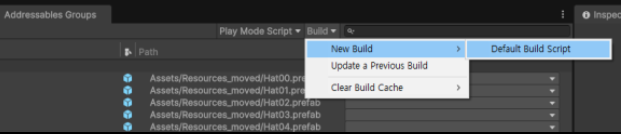
Addressable을 빌드 한다.
- 서버에 올릴 데이터를 만들 수 있다.
- 빌드가 완료된 뒤 Window - Asset Management - Addressables - Profiles
- Addressable Pipeline열면 이렇게 되는데
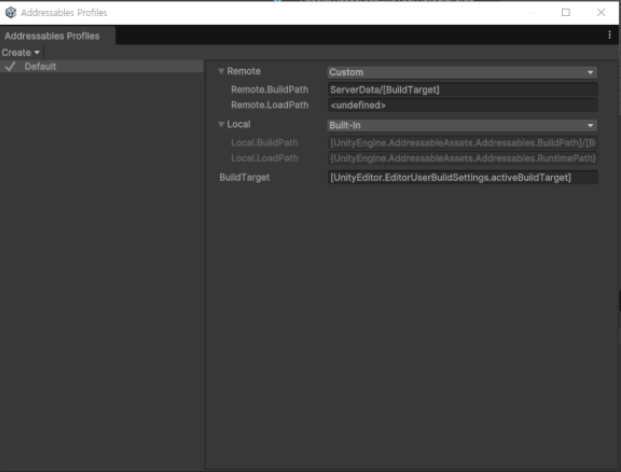
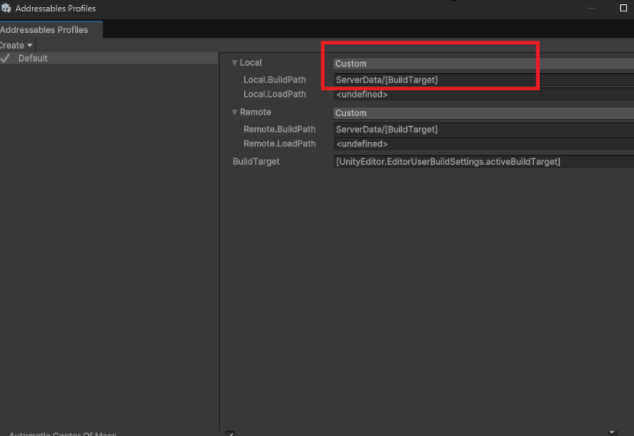
- Custom이 유니티 서버 뿐만이 아닌 다른 서버에서도 사용
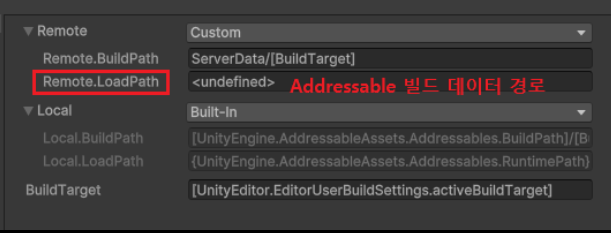
- Remote.LoadPath는 서버 주소를 적으면 됩니다. Remote는 서버에서 DLC를 받아올 수 있게 해주는 것입니다.
- remote를 사용하고 싶은 경우 Addressable Group을 선택해 인스펙터에서 Build & Load Paths를 Remote로 변경해주시면 됩니다.
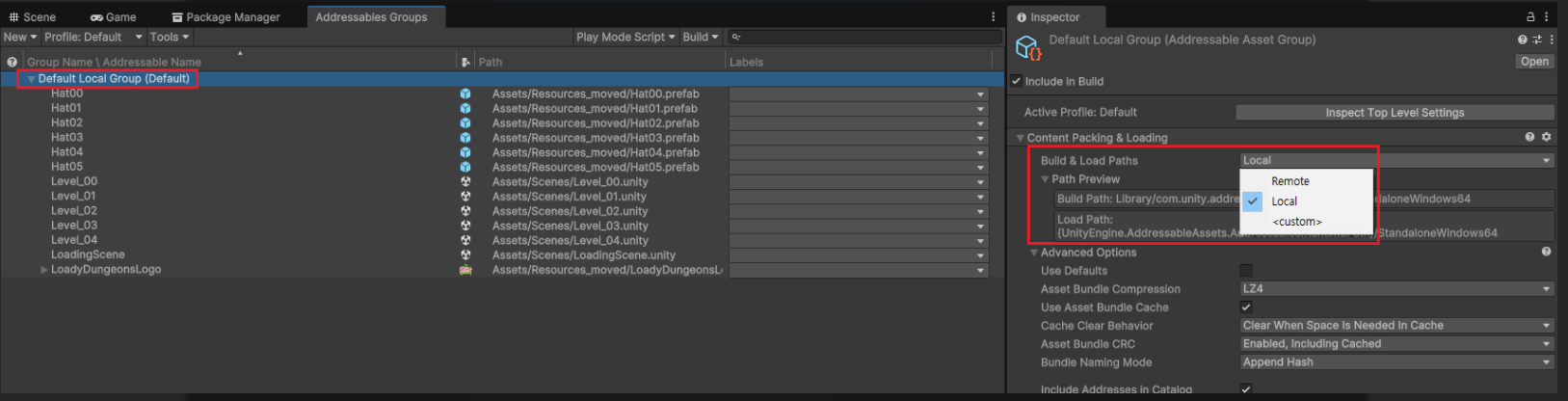
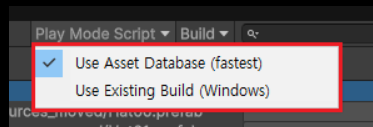
- Play Mode Script 클릭하면 UseAssetDatabase와 UseExitstingBuild 가 보인다.
- Use Asset Database가 게임개발시 로컬에서 작업할 때 쓰이고 Use Existing Build는 빌드된 데이터를 가져와서 사용할 때 씁니다.(remote를 설정시 서버에서 받아와서 사용)