문제 상황
- IntelliJ에서 TypeScript로 작성된 React app 작업을 하는데,
코드를 수정할 때 IntelliJ의 Auto-Formatting이 프로젝트의 lint rule을 무시하는 문제가 발생했다. - 프로젝트의
eslint.config.js파일에 lint rule이 작성되어 있고
IntelliJ가 이를 인식하여 lint error를 표시하고 있는데도 멋대로 auto-formatting을 하는 것이다. - 매번 lint 실행하기 번거롭다.
소스코드 저장 시 자동으로 lint problem을 fix하는 방법이 필요했다.
해결한 방법
ESLint를 formatter로 설정
- File > Settings > Languages & Frameworks > JavaScript > Code Quality Tools > ESLint로 진입한다.
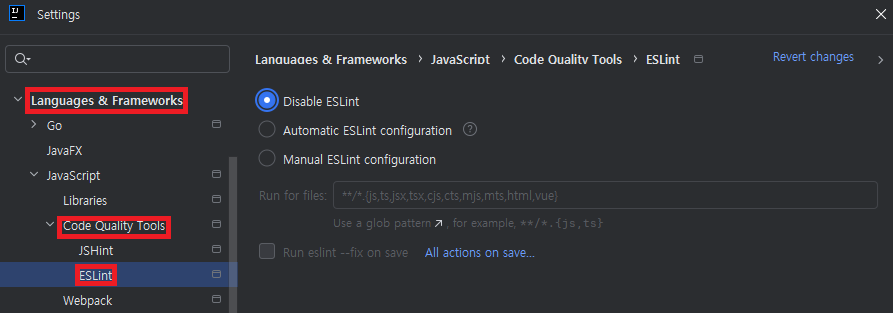
Disable ESLint가 선택되어 있다면Automatic ESLint configuration이나Manual ESLint configuration을 선택한다.- 내 프로젝트에선
automatic도 문제 없어서automatic을 선택했지만, 세부적인 configuration이 필요한 경우manual을 선택하면 될 것 같다.
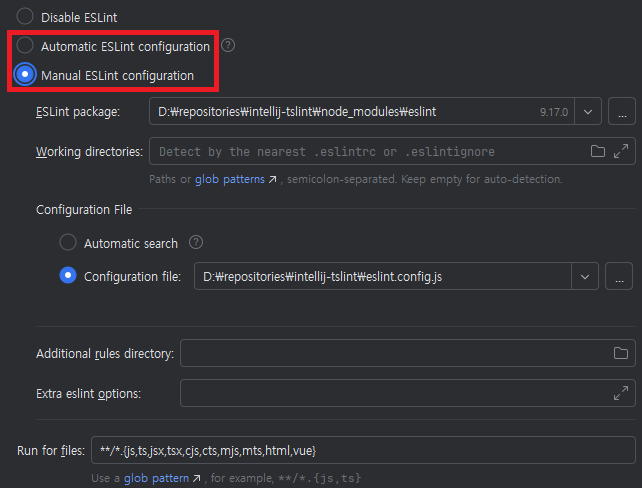
- 내 프로젝트에선
Run eslint --fix on save를 체크한다.- 코드 저장 시 자동으로
eslint --fix를 실행하여 lint rule에 맞게 linting을 수행한다.

- 코드 저장 시 자동으로
테스트
Vite를 이용해 React 프로젝트를 생성
$ cd path/to/your/prj
$ npm create vite@latest . --template react-ts
의존성 설치
$ npm installLint rule 추가
eslint.config.js에 테스트용 룰 추가object-curly-spacingrule은 중괄호{}내부에 공백을 강제하거나 금지한다.
❌{key: "value"}
✔️{ key: "value" }
rules: {
      ...reactHooks.configs.recommended.rules,
      'react-refresh/only-export-components': [
        'warn',
        {allowConstantExport: true},
      ],
      'object-curly-spacing': ['error', 'always'],  // 중괄호 공백 rule 추가
    },
테스트용 코드 작성
test.js에 다음 코드 작성
const obj = {value: "key"};- Auto-format (
Ctrl+Alt+L)
Lint Error가 발생한다.

- 소스 코드 저장 (
Ctrl+S)
eslint --fix돌면서 linting됨.

Fix problems automatically on save
https://www.jetbrains.com/help/idea/eslint.html#ws_eslint_configure_run_eslint_on_save

우몽가의 노트