Jetson Nano 보드에서 MobileNet 모델을 사용한 객체인식 수행하는 것을 포스트 하겠습니다!
참고한 깃허브는 다음과 같습니다.
📌Custom Dataset 만들기
우선 위 리포지토리에서 깃허브를 클론합니다.
이후 아래의 경로로 디렉토리를 변경.
cd jetson-inference/python/training/detection/ssd이후 카메라의 디바이스 명을 확인 후 다음과 같이 명령어 실행.
해당 카메라의 경우 /dev/video0
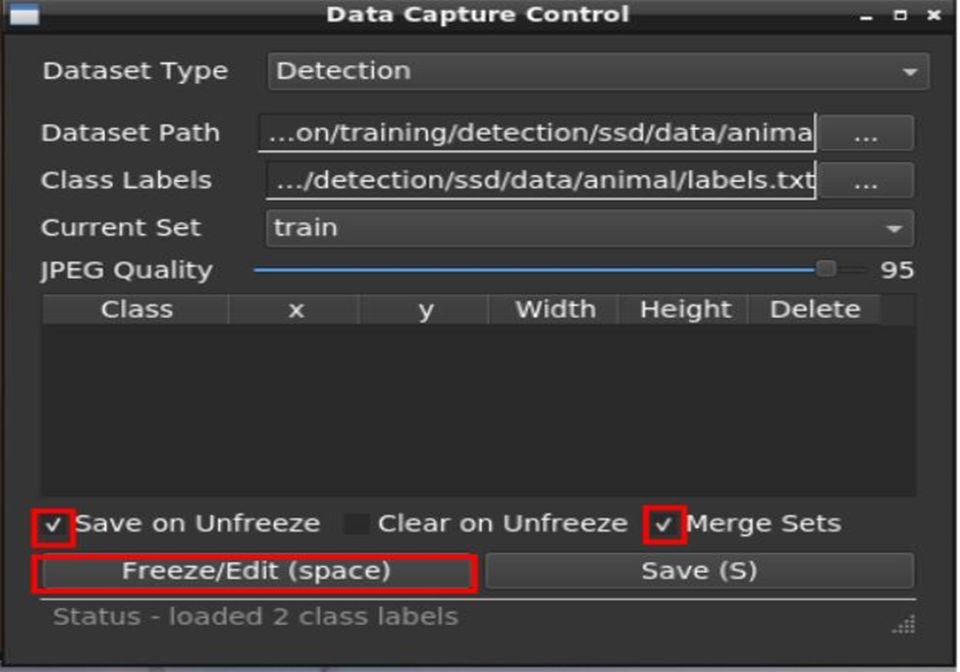
camera-capture /dev/video0 다음과 같은 Data Capture Control 창이 뜨게 되고, 이때 Dataset Type을 'Detection'으로 선택. 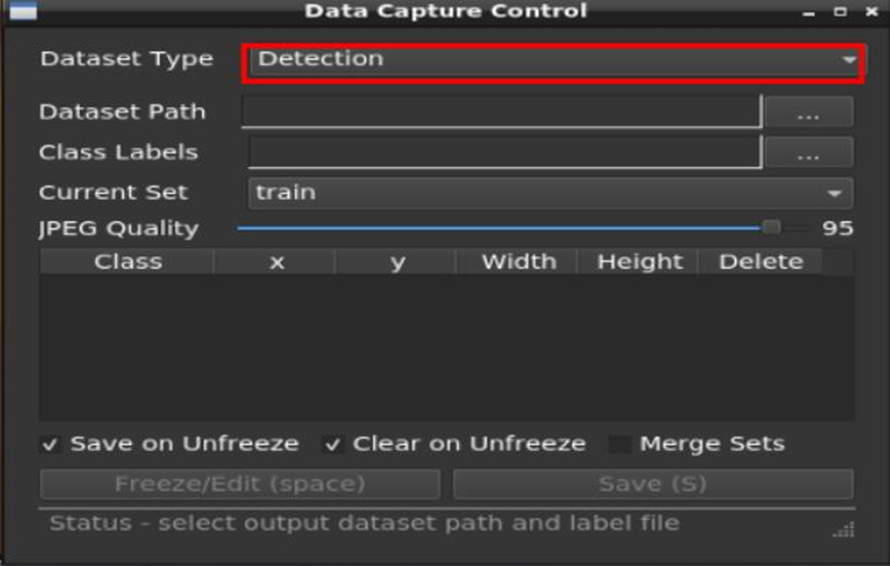
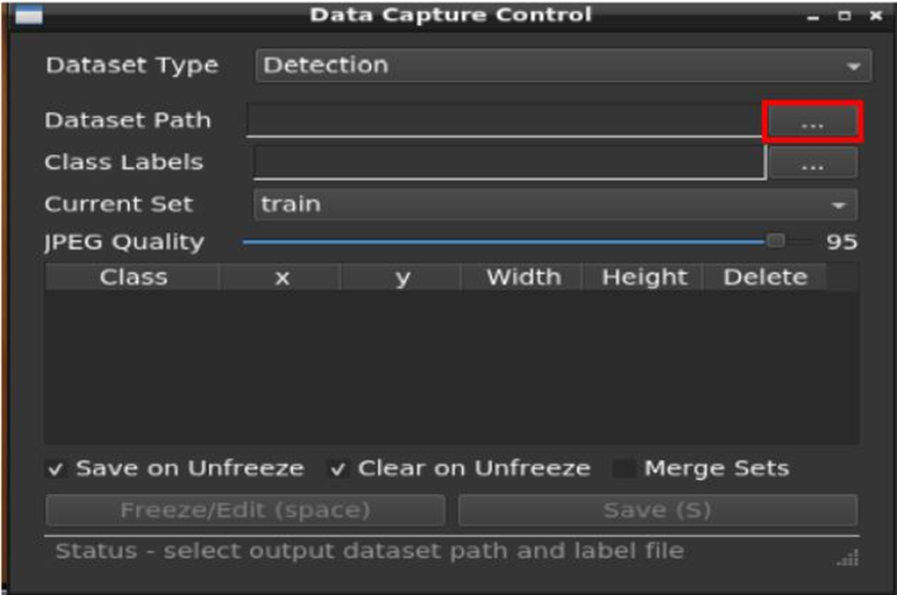
이후 데이터셋 디렉토리를 ~/jetson-inference/python/training/detection/ssd/data 경로에 생성, 다음 박스를 클릭하여 경로를 지정.
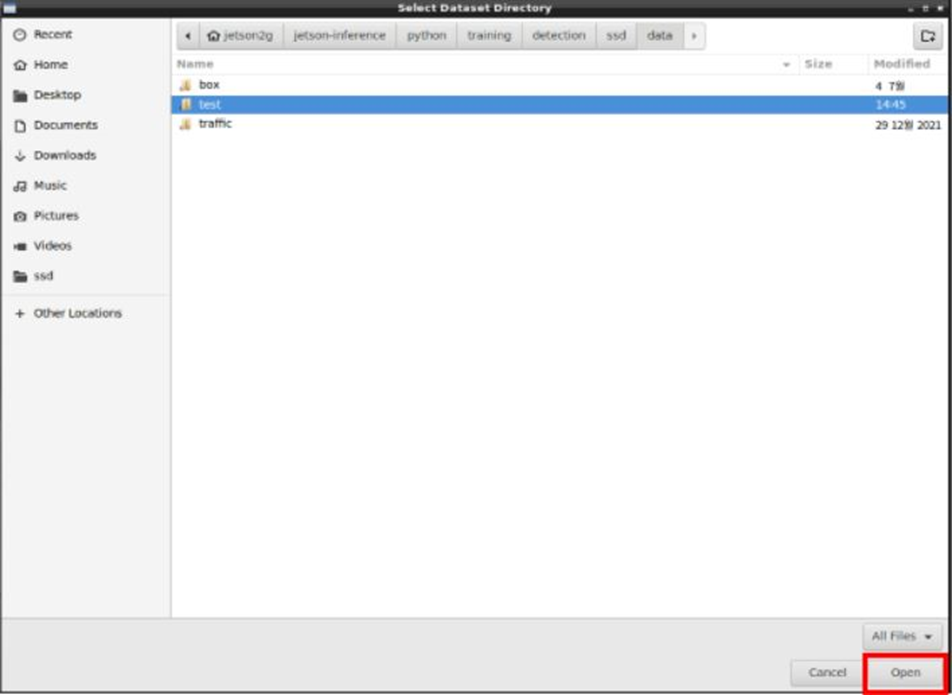
다음으로는 label.txt 파일을 만들고 경로를 지정. 경로는 아래와 같은 경로에 생성. 텍스트 파일에는 아래 사진처럼 'phone', 'mouse'와 같이 라벨이름을 입력.
~/jetson-inference/python/training/detection/ssd/data/test
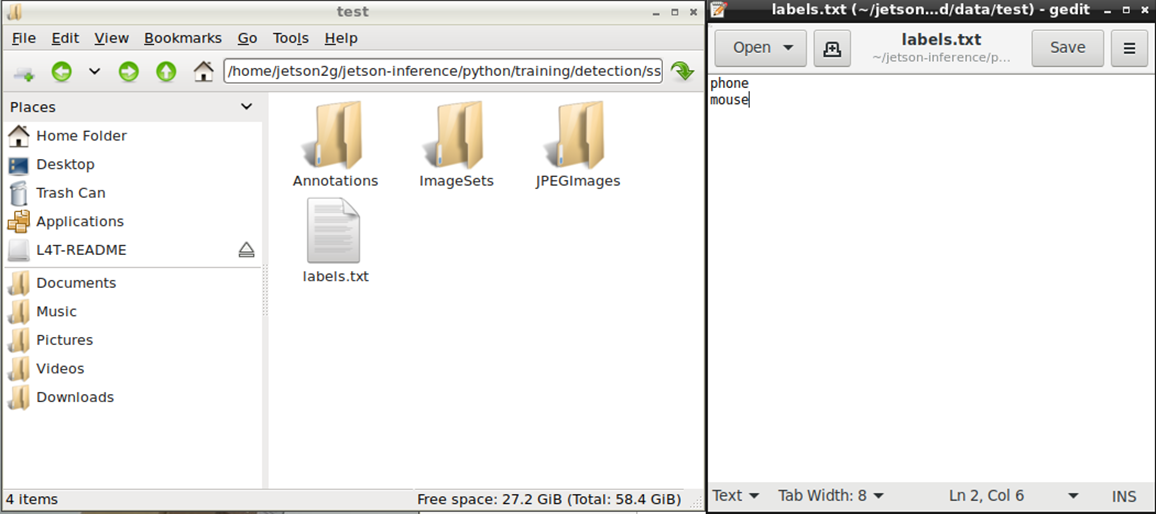
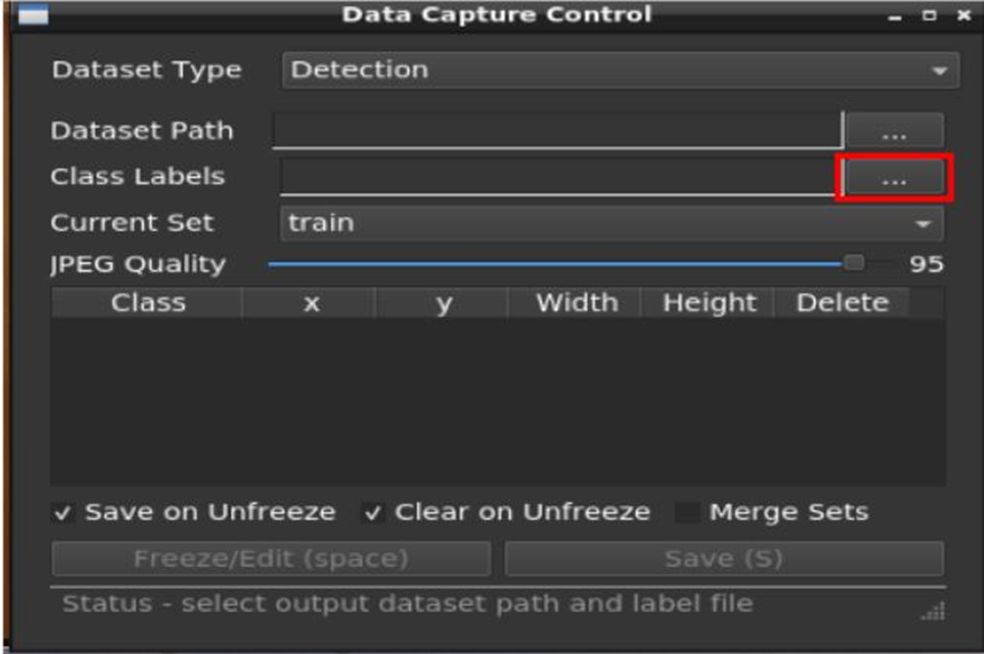
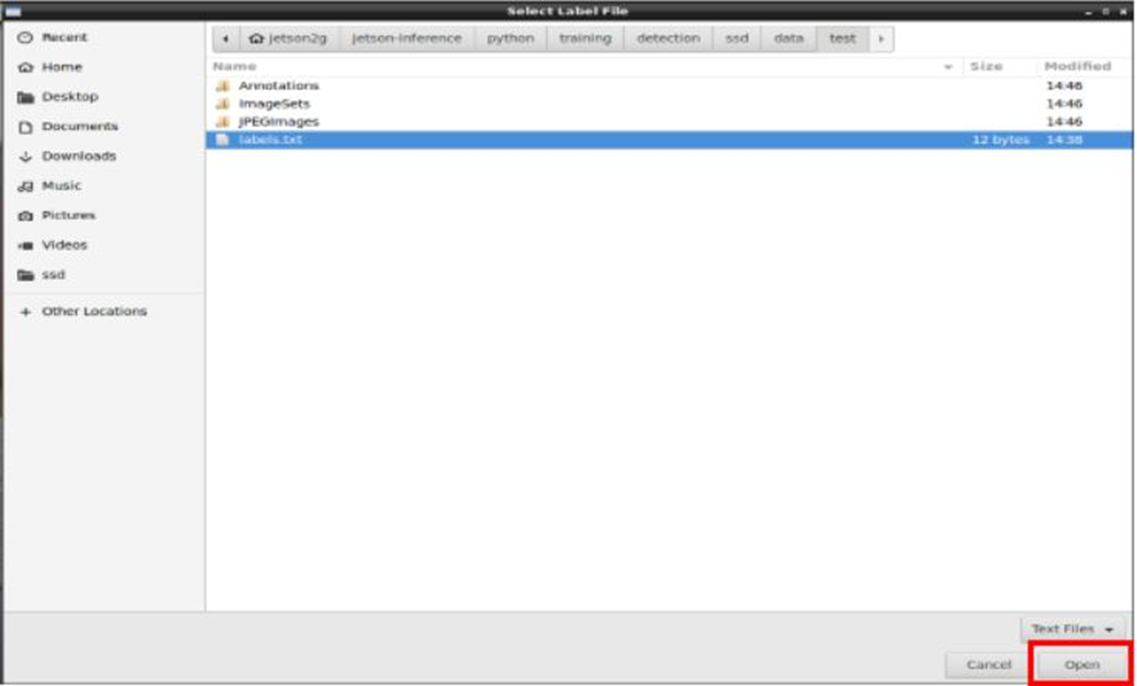
이후 다음과 같이 옵션을 선택해주고 Freeze/Edit을 눌러 캡처를 시작.
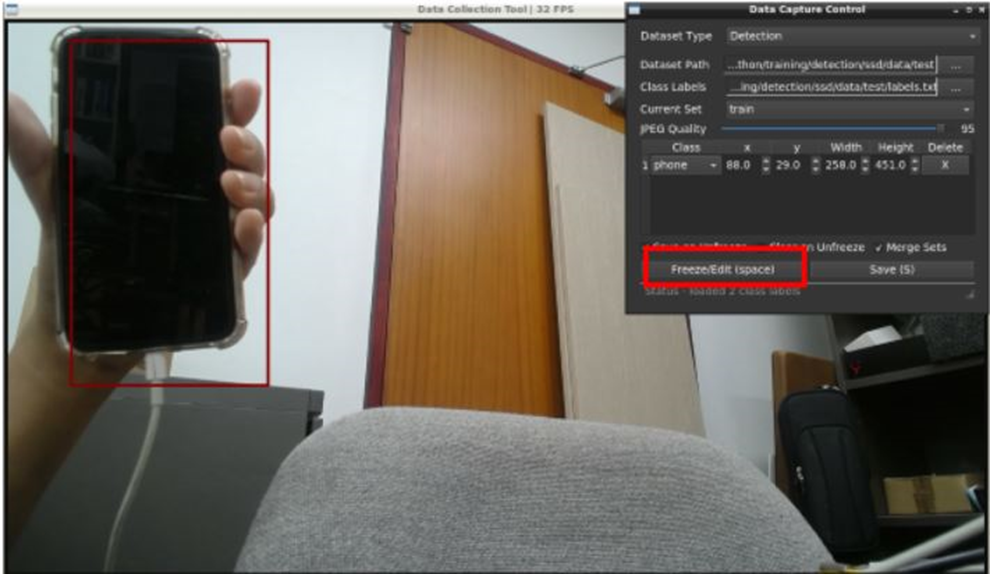
객체를 드래그 한 후, Freeze/Edit를 눌러 캡처하고 저장.
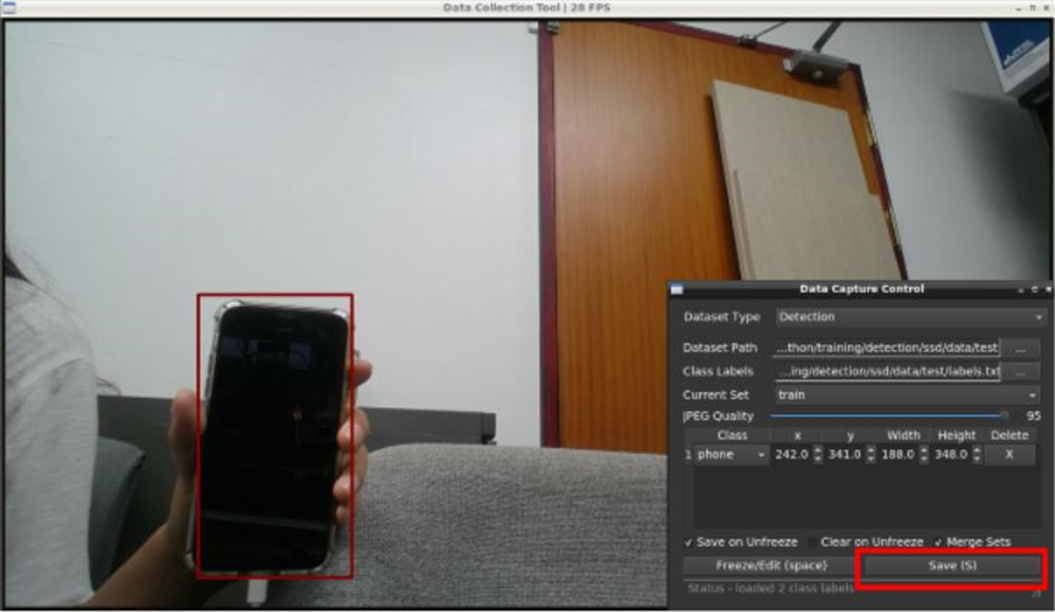
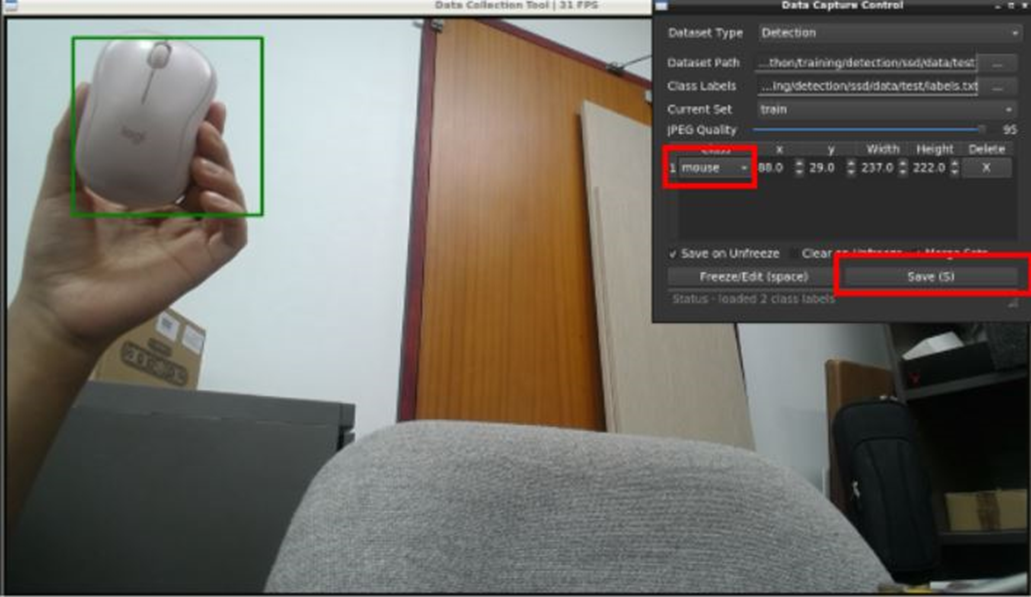
첫번째 객체가 끝나면 1번을 눌러 객체의 label을 변경해주고 위의 과정을 반복.
📌Training
다음은 수집한 데이터셋을 이용하여 학습을 하는 과정이다.
cd ~/jetson-inference/python/training/detection/ssd
python3 train_ssd.py --dataset-type=voc --data=data/test --model-dir=models/test --batch-size=2 --workers=1 --epochs=30
📌Conver to ONNX model
위 과정에서 학습한 모델은 onnx로 변환이 필요하다.
cd ~/jetson-inference/python/training/detection/ssd
python3 onnx_export.py --model-dir=models/test
📌Inference
다음은 추론과정이다. 기존의 레퍼지토리는 c++로 복잡하게 되어있어, python으로
필요한 것만 불러오고 추론하도록 스크립트를 재작성한 것이다.
여기서 수정해야 할 것은 detection 모델의 경로, 카메라 디바이스 명, 출력으로 display할 모니터 번호이다.
detectnet.py
#!/usr/bin/env python3

import jetson.inference
import jetson.utils


# load the object detection model
net = jetson.inference.detectNet(argv=['--model=/home/yy/jetson-inference/python/training/detection/ssd/mobilenet/ssd-mobilenet.onnx', '--labels=/home/yy/jetson-inference/python/training/detection/ssd/mobilenet/labels.txt', '--input-blob=input_0', '--output-cvg=scores', '--output-bbox=boxes'])  #, '--threshold=0.8'


# set up camera
camera = jetson.utils.videoSource("/dev/video0")      # '/dev/video0' or 'csi://0'

# set up display for output to screen
display = jetson.utils.videoOutput("display://0")


while True: #display.IsStreaming():		# while display window is open
	img = camera.Capture()		# take incoming video frame
	detections = net.Detect(img)	# detect objects in the frame and save to detection variable
	display.Render(img)		# show the frame
	display.SetStatus("Object Detection | Network {:.0f} FPS".format(net.GetNetworkFPS()))	# show FPS of camera
    print(detections)
📍python3으로 실행할 경우,
python3 detectnet.py
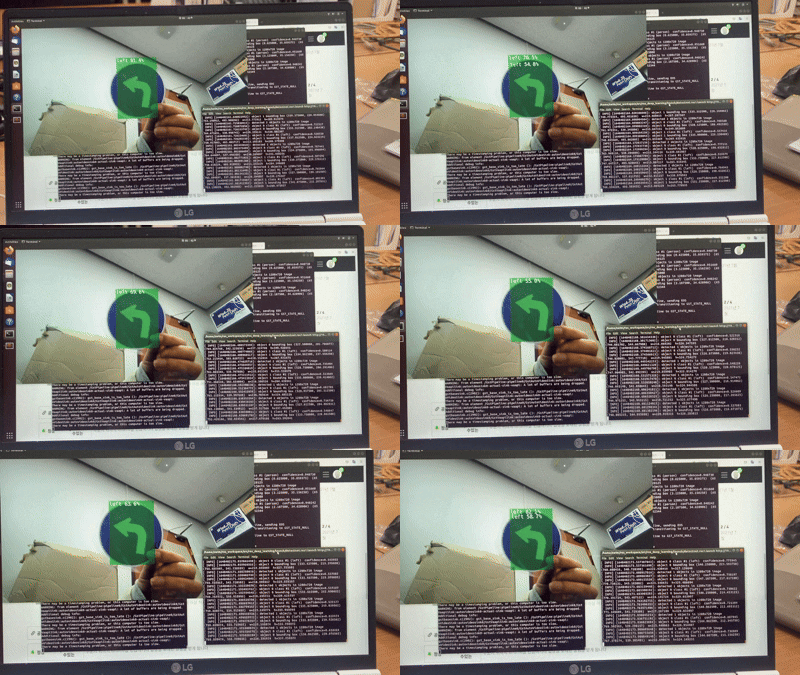
결과 동영상은 다음과 같다.