01 : Declaring Variables
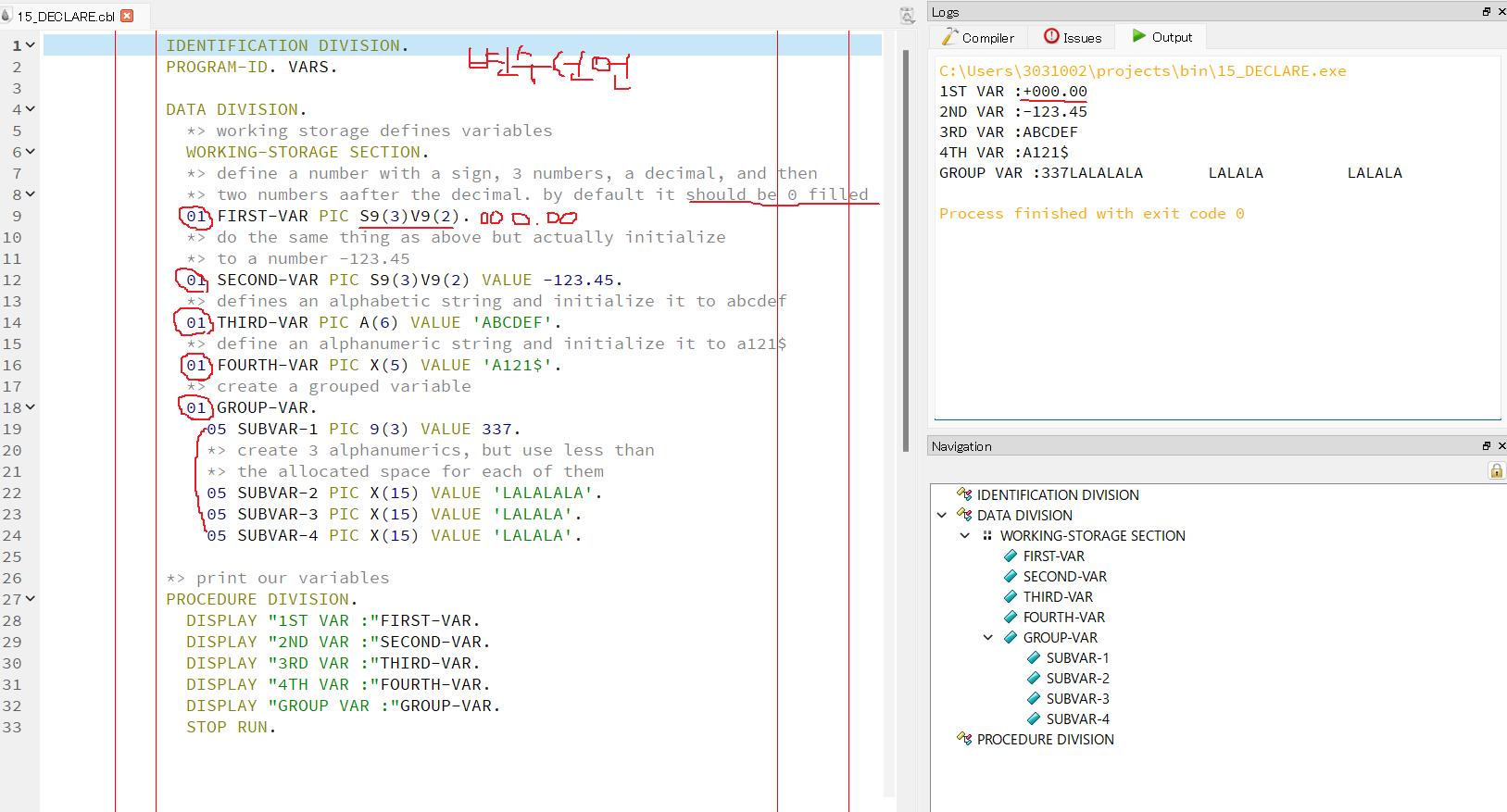
- PIC stands for picture (not sure why it is called this) and it is a keyword we use to define a variable.
9 — numeric
A — alphabetic
X — alphanumeric
V — decimal
S — sign
02 : Common Verbs
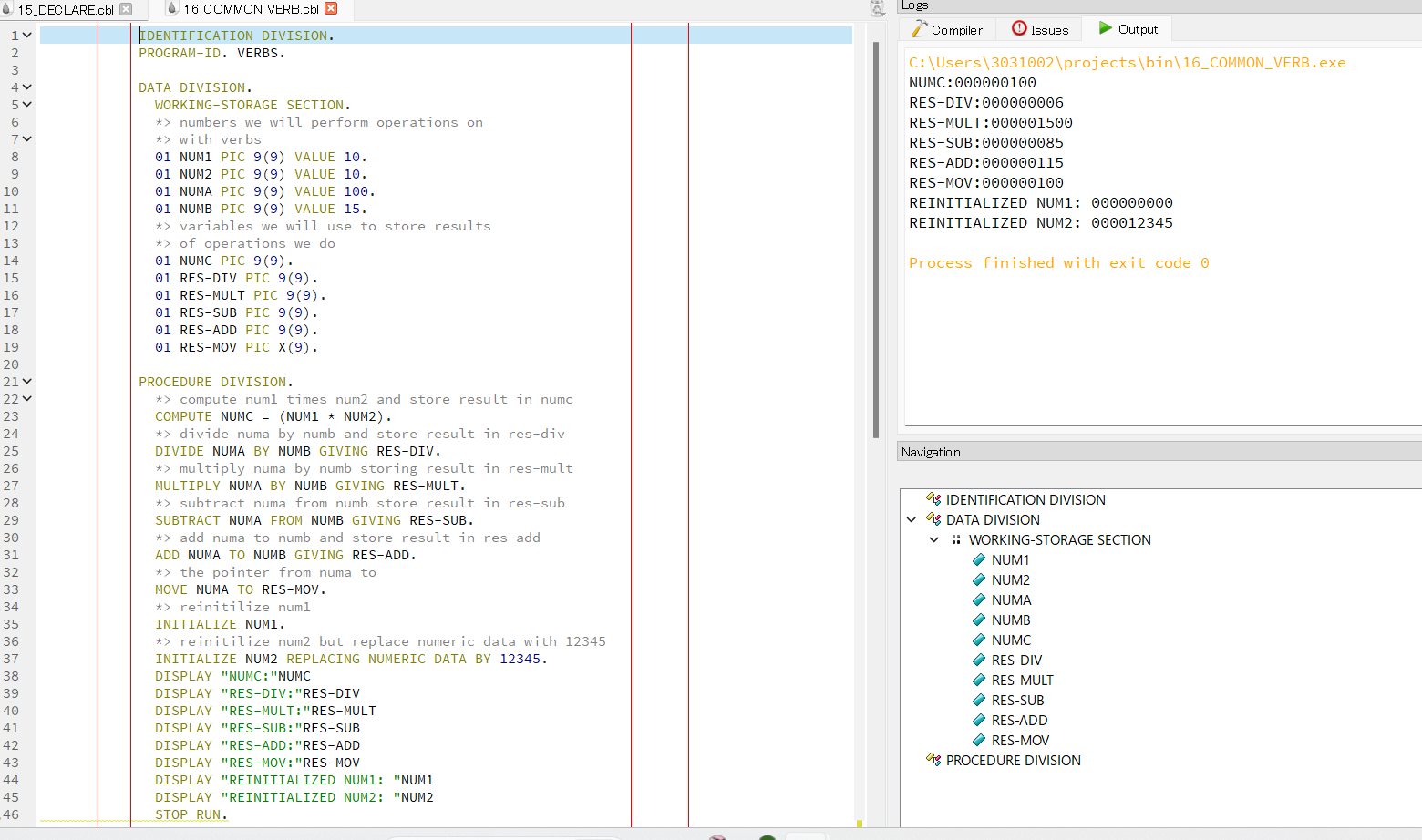
compute — can be used to do arithmetic and store the result in a variable
divide — can be used to divide two numbers
multiply — can be used to you guessed it, multiply
add — adds two variables/numbers
move — moves a value or reference from a variable into another variable.
initialize — this is used above to reset a variable after its been set
03 : Conditionals
            IDENTIFICATION DIVISION.
            PROGRAM-ID. CONDITIONALS.

            DATA DIVISION.
              WORKING-STORAGE SECTION.
              *> setting up places to store values
              *> no values set yet
              01 NUM1 PIC 9(9).
              01 NUM2 PIC 9(9).
              01 NUM3 PIC 9(5).
              01 NUM4 PIC 9(6).
              *> create a positive and a negative
              *> number to check
              01 NEG-NUM PIC S9(9) VALUE -1234.
              *> create variables for testing classes
              01 CLASS1 PIC X(9) VALUE 'ABCD '.
              *> create statements that can be fed
              *> into a cobol conditional
              01 CHECK-VAL PIC 9(3).
                88 PASS VALUES ARE 041 THRU 100.
                88 FAIL VALUES ARE 000 THRU 40.

            PROCEDURE DIVISION.
              *> set 25 into num1 and num3
              *> set 15 into num2 and num4
              MOVE 25 TO NUM1 NUM3.
              MOVE 15 TO NUM2 NUM4.

              *> comparing two numbers and checking for equality
              IF NUM1 > NUM2 THEN
                DISPLAY 'IN LOOP 1 - IF BLOCK'
                IF NUM3 = NUM4 THEN
                  DISPLAY 'IN LOOP 2 - IF BLOCK'
                ELSE
                  DISPLAY 'IN LOOP 2 - ELSE BLOCK'
                END-IF
              ELSE
                DISPLAY 'IN LOOP 1 -ELSE BLOCK'
              END-IF

              *> use a custom pre-defined condition
              *> which checks CHECK-VAL
              MOVE 65 TO CHECK-VAL.
              IF PASS
                DISPLAY 'PASSED WITH 'CHECK-VAL' MARKS.'.
              IF FAIL
                DISPLAY 'FAILED WITH 'CHECK-VAL' MARKS.'.

              *> a switch statment
              EVALUATE TRUE
                WHEN NUM1 < 2
                  DISPLAY 'NUM1 LESS THAN 2'
                WHEN NUM1 < 19
                  DISPLAY 'NUM1 LESS THAN 19'
                WHEN NUM1 < 1000
                  DISPLAY 'NUM1 LESS THAN 1000'
              END-EVALUATE.
            STOP RUN.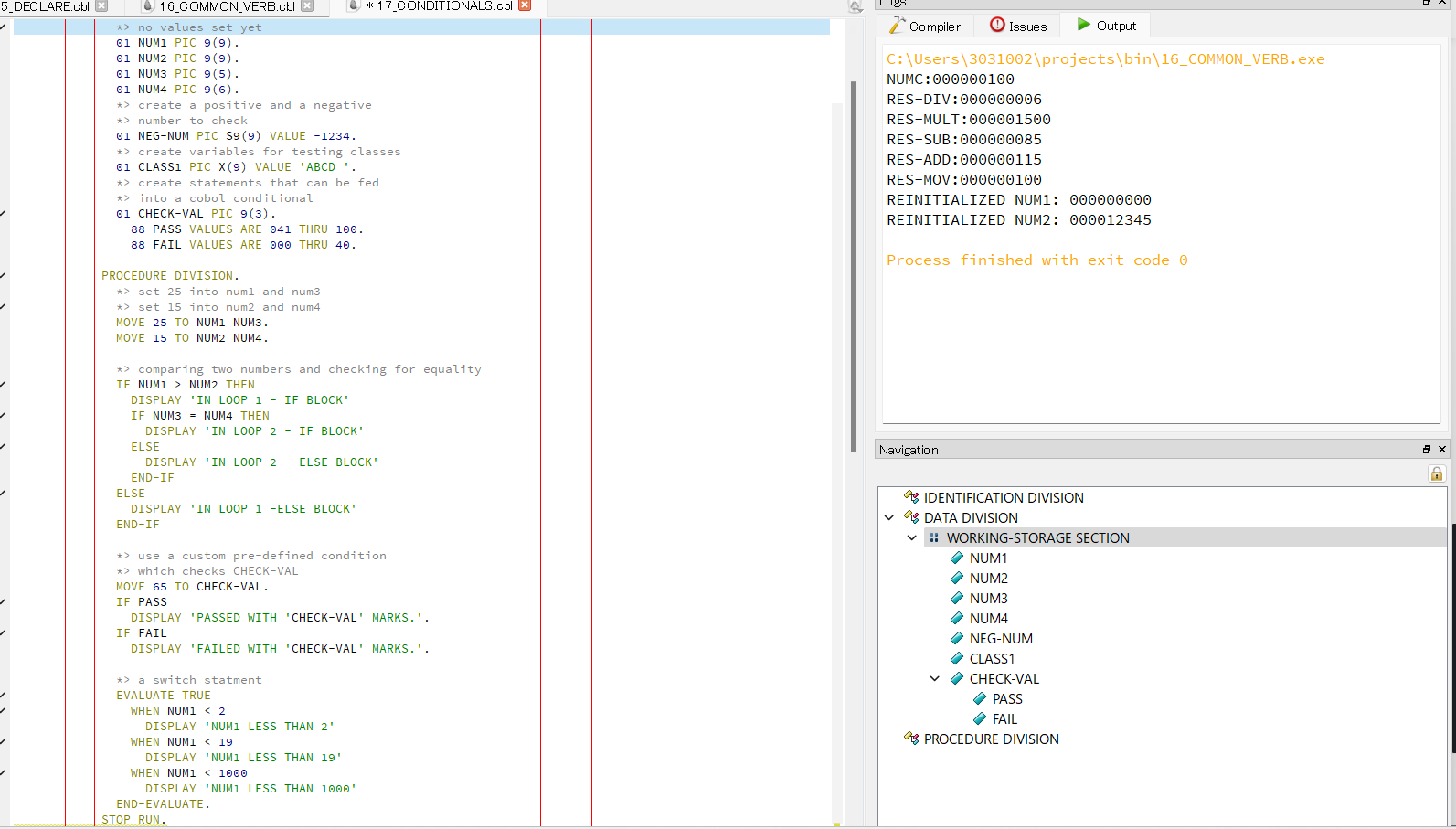
- All this should be familiar to you if you have done any programming. You have your standard if/else, not/and/or operators, type comparisons, and switch statements.
- The only thing that might be a little weird are the pre-defined statements. What has essentially happened here is that the variable CHECK-VAL has these two conditions that depend on it (hence why PASS/FAIL are indented underneath CHECK-VAL) 88 is a special level number (like 01) for indicating that a statement is a custom conditional that depends on the 01 variable above it.
- You will also notice our STOP RUN is not indented here. This exits the whole program which is why you can indent or un-indent it from the procedure division.
              *> NOT, negating a conditional
              MOVE 50 TO NUM1.
              MOVE 60 TO NUM2.
              IF NOT NUM2 IS LESS THAN NUM1 THEN
                DISPLAY NUM2' IS NOT LESS THAN 'NUM1
              END-IF

              *> AND, having multiple conditionals
              IF NUM1 IS LESS THAN NUM2 AND NUM1 IS LESS THAN 100 THEN
                DISPLAY 'COMBINED CONDITION'
              ELSE
                DISPLAY 'NAH'
              END-IF

              *> checking for negative or positive values
              IF NEG-NUM IS POSITIVE OR NEG-NUM IS NEGATIVE THEN
                DISPLAY 'A NUMBER IS POSITIVE'.

              *> checking for negative or positive values
              IF NEG-NUM IS NEGATIVE THEN
                DISPLAY 'A NUMBER IS NEGATIVE'.

              *> checking if a variable is a certain
              *> data type
              IF CLASS1 IS ALPHABETIC OR CLASS1 IS NUMERIC THEN
DISPLAY 'CLASS1 IS ALPHABETIC or numeric'.- Here are some examples using NOT/AND/OR as well as some other extras (imagine putting these into the procedure division above)
- One last thing to notice: IF statements that do not have END-IF need a period to end them inside their last ‘sub statement.’
04 : String Handling
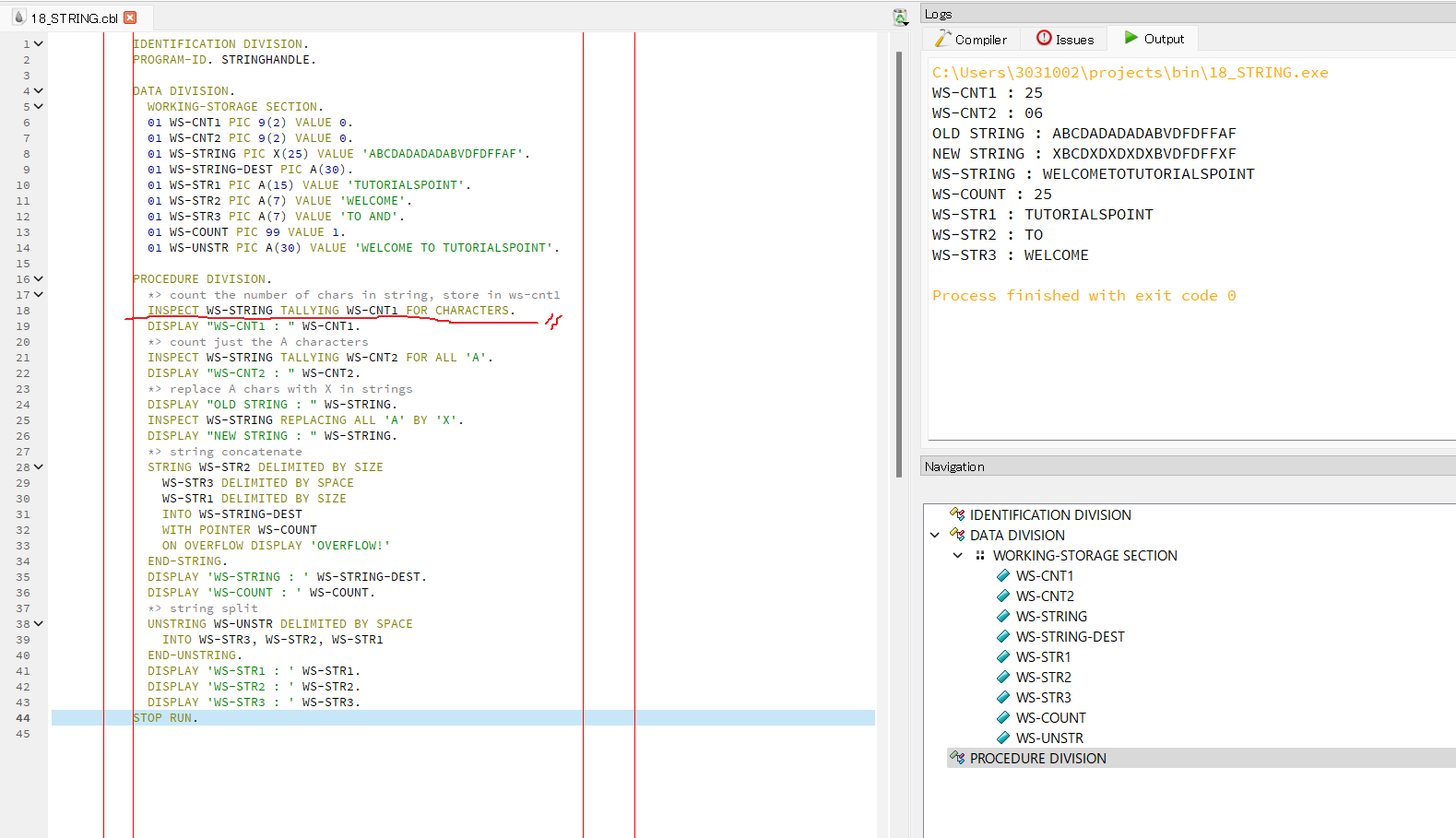
- 위 코드에서
INSPECT WS-STRING TALLYING WS-CNT1 FOR CHARACTERS는 COBOL 프로그램에서 문자열 내의 문자 수를 세는 작업을 수행합니다. - INSPECT: 이것은 COBOL에서 문자열 처리를 위한 명령입니다. 주어진 문자열을 검사하고 다양한 연산을 수행할 수 있도록 해줍니다.
- TALLYING: 이것은 INSPECT 명령어 내에서 사용되는 키워드로, 특정 연산을 수행한 결과를 저장할 변수를 지정합니다.
- WS-STRING: 이것은 문자열을 저장하는 변수입니다. 여기에 있는 문자들을 검사하고 연산을 수행할 대상 문자열입니다.
- WS-CNT1: TALLYING 다음에 나오는 변수로, 문자열 내의 문자 수를 저장하는 데 사용됩니다.
- FOR CHARACTERS: TALLYING 다음에 오는 FOR CHARACTERS 부분은 INSPECT 명령이 어떤 종류의 연산을 수행할지 지정합니다. 이 경우, "CHARACTERS"는 문자열 내의 모든 문자를 세라는 것을 의미합니다.
- 따라서 이 코드는 "WS-STRING" 변수에 저장된 문자열 내의 모든 문자를 세고, 그 결과를 "WS-CNT1" 변수에 저장하라는 의미를 가지고 있습니다. 이 명령이 실행된 후에 "WS-CNT1" 변수에는 "WS-STRING" 변수에 있는 문자열의 문자 수가 저장됩니다.
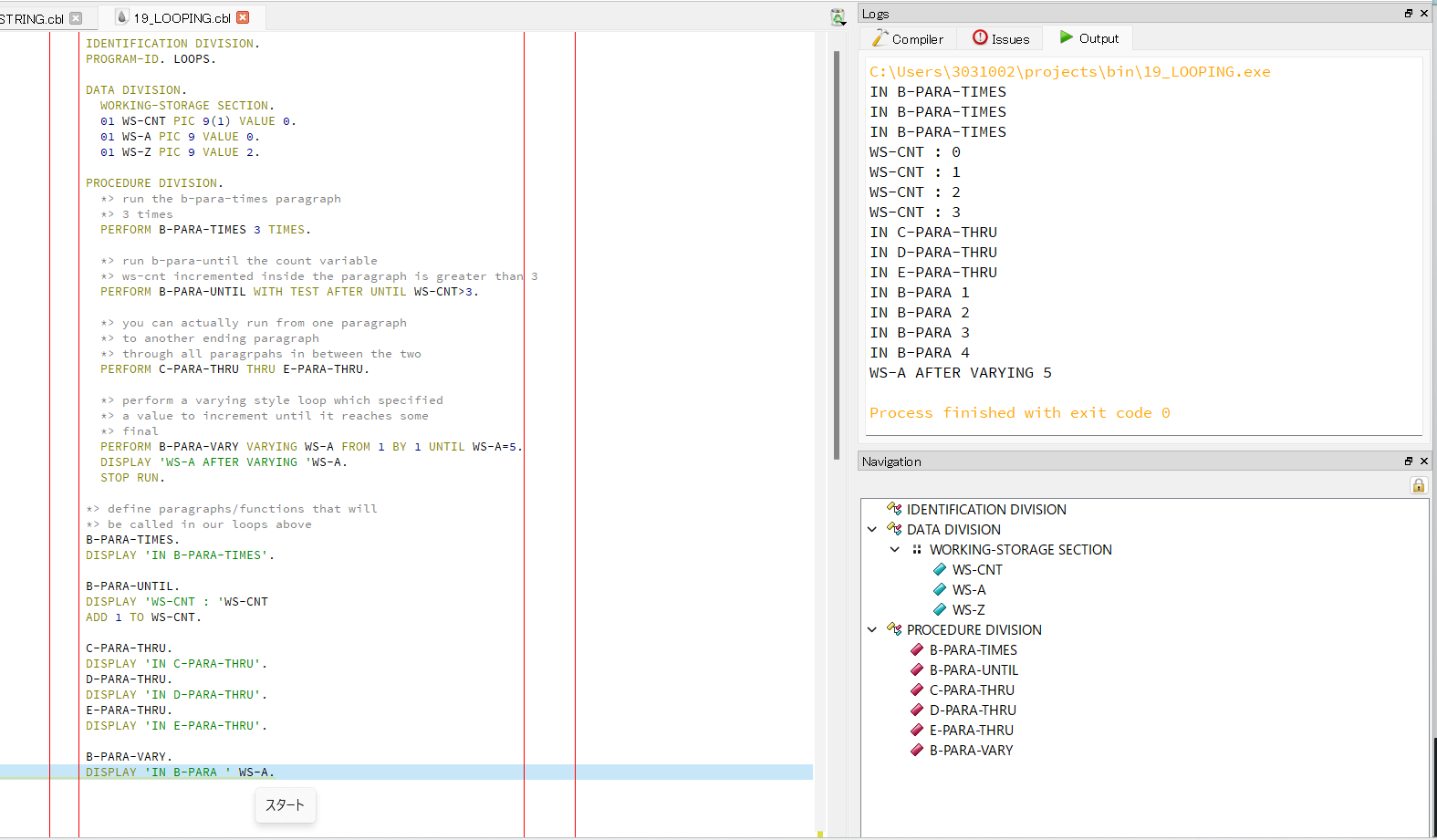
05 : Looping
06 : Files
- Files in cobol usually have a rigid structure like a table.
- This is because of what they were created for dealing with: well organized business data.
- There are a few kinds of files in cobol (docs, another example); we are going to deal with sequential files as they are the most basic.
- A sequential file consists of records (rows) and each record contains some number of fields (columns). Let’s get to the code.
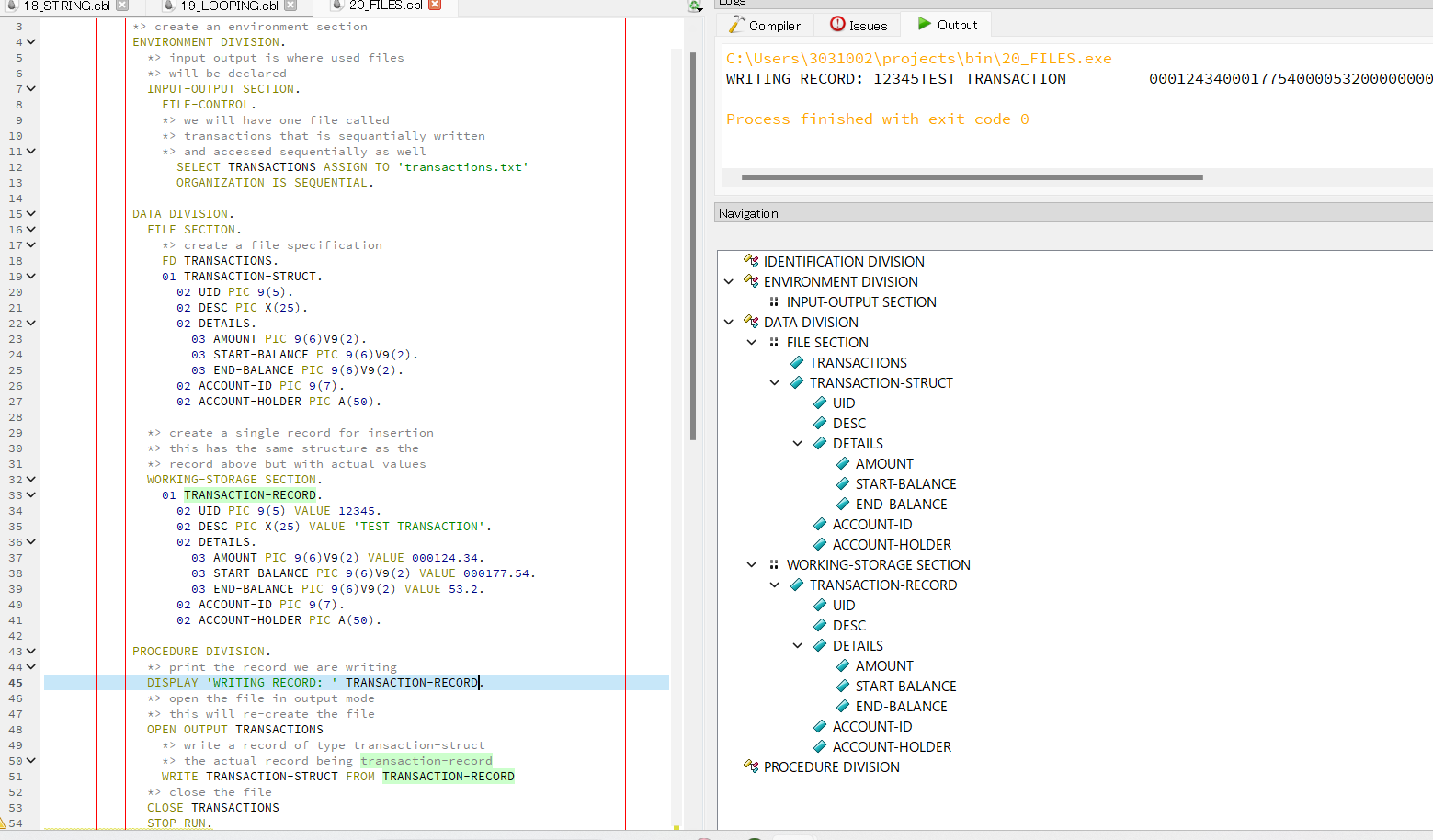
- So in cobol you need to specify the file and what kind of file it is in the INPUT-OUTPUT SECTION.
- Then you need to specify what kind of records are in your file.
- Then you need to create such a record with the exact same structure. Then in the PROCEDURE DIVISION you open the file (see open modes for details).
- Then you when writing you specify what kind of record you are adding and the record itself.
- Here we have opened our file in OUTPUT mode which always re-creates a file when you open it even if it already exists.
- You can make writing a file take 100 lines of code in cobol so I tried to keep it as tight as I know how. This is a nice guide on sequential files in cobol.
07 : Mainframe
- 다음 기회에 ...^_^


Working Abroad ...