Virtual Machine Make
> install
[root@station14 ~]# yum -y install qemu-kvm libvirt virt-manager virt-viewer libvirt-daemon-kvm
Loaded plugins: fastestmirror, langpacks
base                                                                             | 3.6 kB  00:00:00
classRPMs                                                                        | 2.5 kB  00:00:00
errataRPMs                                                                       | 2.5 kB  00:00:00
mysql-connectors-community                                                       | 2.6 kB  00:00:14
http://repo.mysql.com/yum/mysql-tools-community/el/7/x86_64/repodata/repomd.xml: [Errno 12] Timeout on http://repo.mysql.com/yum/mysql-tools-community/el/7/x86_64/repodata/repomd.xml: (28, 'Operation too slow. Less than 1000 bytes/sec transferred the last 30 seconds')
Trying other mirror.
mysql-tools-community                                                            | 2.6 kB  00:00:00
mysql80-community                                                                | 2.6 kB  00:00:00
Loading mirror speeds from cached hostfile
Resolving Dependencies
--> Running transaction check
---> Package libvirt.x86_64 0:2.0.0-10.el7_3.9 will be installed
--> Processing Dependency: libvirt-daemon-driver-storage = 2.0.0-10.el7_3.9 for package: libvirt-2.0.0-10.el7_3.9.x86_64
...
...
...
Complete!


> 디스크 공간 확인
[root@station14 ~]# df -h
Filesystem                   Size  Used Avail Use% Mounted on
/dev/mapper/vg0-root         8.0G  4.0G  4.1G  50% /
devtmpfs                     7.8G     0  7.8G   0% /dev
tmpfs                        7.8G   56M  7.8G   1% /dev/shm
tmpfs                        7.8G  8.7M  7.8G   1% /run
tmpfs                        7.8G     0  7.8G   0% /sys/fs/cgroup
/dev/sda1                    494M  151M  344M  31% /boot
/dev/mapper/vg0-tmp         1014M   34M  981M   4% /tmp
/dev/mapper/vg0-var          2.0G  237M  1.8G  12% /var
tmpfs                        1.6G  8.0K  1.6G   1% /run/user/0
server1:/export/netinstall   931G   14G  917G   2% /net/server1/export/netinstall
server1:/export/courserepos  931G   14G  917G   2% /net/server1/export/courserepos

[root@station14 ~]# lsblk
NAME         MAJ:MIN RM   SIZE RO TYPE MOUNTPOINT
sda            8:0    0 931.5G  0 disk
├─sda1         8:1    0   500M  0 part /boot
└─sda2         8:2    0  34.2G  0 part
  ├─vg0-root 253:0    0     8G  0 lvm  /
  ├─vg0-swap 253:1    0   512M  0 lvm  [SWAP]
  ├─vg0-tmp  253:2    0     1G  0 lvm  /tmp
  └─vg0-var  253:3    0     2G  0 lvm  /var
sr0           11:0    1  1024M  0 rom


> fdisk로 disk에 적용
[root@station14 ~]# fdisk /dev/sda

The device presents a logical sector size that is smaller than
the physical sector size. Aligning to a physical sector (or optimal
I/O) size boundary is recommended, or performance may be impacted.
Welcome to fdisk (util-linux 2.23.2).

Changes will remain in memory only, until you decide to write them.
Be careful before using the write command.


Command (m for help): n
Partition type:
   p   primary (2 primary, 0 extended, 2 free)
   e   extended
Select (default p): p
Partition number (3,4, default 3): 3
First sector (72706048-1953525167, default 72706048):
Using default value 72706048
Last sector, +sectors or +size{K,M,G} (72706048-1953525167, default 1953525167): +100G
Partition 3 of type Linux and of size 100 GiB is set

Command (m for help): p

Disk /dev/sda: 1000.2 GB, 1000204886016 bytes, 1953525168 sectors
Units = sectors of 1 * 512 = 512 bytes
Sector size (logical/physical): 512 bytes / 4096 bytes
I/O size (minimum/optimal): 4096 bytes / 4096 bytes
Disk label type: dos
Disk identifier: 0x0008166c

   Device Boot      Start         End      Blocks   Id  System
/dev/sda1   *        2048     1026047      512000   83  Linux
/dev/sda2         1026048    72706047    35840000   8e  Linux LVM
/dev/sda3        72706048   282421247   104857600   83  Linux

Command (m for help): w
The partition table has been altered!

Calling ioctl() to re-read partition table.

WARNING: Re-reading the partition table failed with error 16: Device or resource busy.
The kernel still uses the old table. The new table will be used at
the next reboot or after you run partprobe(8) or kpartx(8)
Syncing disks.


> lsblk로 확인
[root@station14 ~]# lsblk
NAME         MAJ:MIN RM   SIZE RO TYPE MOUNTPOINT
sda            8:0    0 931.5G  0 disk
├─sda1         8:1    0   500M  0 part /boot
└─sda2         8:2    0  34.2G  0 part
  ├─vg0-root 253:0    0     8G  0 lvm  /
  ├─vg0-swap 253:1    0   512M  0 lvm  [SWAP]
  ├─vg0-tmp  253:2    0     1G  0 lvm  /tmp
  └─vg0-var  253:3    0     2G  0 lvm  /var
sr0           11:0    1  1024M  0 rom

> partprobe후 파티션한 데이터가 반영되어 보임
[root@station14 ~]# partprobe /dev/sda
[root@station14 ~]# lsblk
NAME         MAJ:MIN RM   SIZE RO TYPE MOUNTPOINT
sda            8:0    0 931.5G  0 disk
├─sda1         8:1    0   500M  0 part /boot
├─sda2         8:2    0  34.2G  0 part
│ ├─vg0-root 253:0    0     8G  0 lvm  /
│ ├─vg0-swap 253:1    0   512M  0 lvm  [SWAP]
│ ├─vg0-tmp  253:2    0     1G  0 lvm  /tmp
│ └─vg0-var  253:3    0     2G  0 lvm  /var
└─sda3         8:3    0   100G  0 part    	--this one!!
sr0           11:0    1  1024M  0 rom

> 세번째 파티션을 xfs로 format
[root@station14 ~]# mkfs -t xfs /dev/sda3
meta-data=/dev/sda3              isize=512    agcount=4, agsize=6553600 blks
         =                       sectsz=4096  attr=2, projid32bit=1
         =                       crc=1        finobt=0, sparse=0
data     =                       bsize=4096   blocks=26214400, imaxpct=25
         =                       sunit=0      swidth=0 blks
naming   =version 2              bsize=4096   ascii-ci=0 ftype=1
log      =internal log           bsize=4096   blocks=12800, version=2
         =                       sectsz=4096  sunit=1 blks, lazy-count=1
realtime =none                   extsz=4096   blocks=0, rtextents=0


> 특정 디렉토리와 연결해주기 위한 mount 필요
[root@station14 ~]# vi /etc/fstab
--vi /etc/fstab 파일 가장 밑에 아래와 같이 입력 추가!
/dev/sda3               /var/lib/libvirt/images xfs     defaults        0 0

> mount -a(자동으로)
[root@station14 ~]# mount -a


> df- h 로 디스크 영역 확인
[root@station14 ~]# df -h
Filesystem                   Size  Used Avail Use% Mounted on
/dev/mapper/vg0-root         8.0G  4.0G  4.1G  50% /
devtmpfs                     7.8G     0  7.8G   0% /dev
tmpfs                        7.8G   40M  7.8G   1% /dev/shm
tmpfs                        7.8G  8.7M  7.8G   1% /run
tmpfs                        7.8G     0  7.8G   0% /sys/fs/cgroup
/dev/sda1                    494M  151M  344M  31% /boot
/dev/mapper/vg0-tmp         1014M   34M  981M   4% /tmp
/dev/mapper/vg0-var          2.0G  237M  1.8G  12% /var
tmpfs                        1.6G  8.0K  1.6G   1% /run/user/0
server1:/export/netinstall   931G   14G  917G   2% /net/server1/export/netinstall
server1:/export/courserepos  931G   14G  917G   2% /net/server1/export/courserepos
/dev/sda3                    100G   33M  100G   1% /var/lib/libvirt/images

> 재부팅필요 ( qemu-kvm 커널 모듈이기 때문에)
[root@station14 ~]# reboot

> 재부팅 후 kvm 보임
[root@station14 ~]# lsmod | grep kvm
kvm_intel             170181  0
kvm                   554609  1 kvm_intel
irqbypass              13503  1 kvm

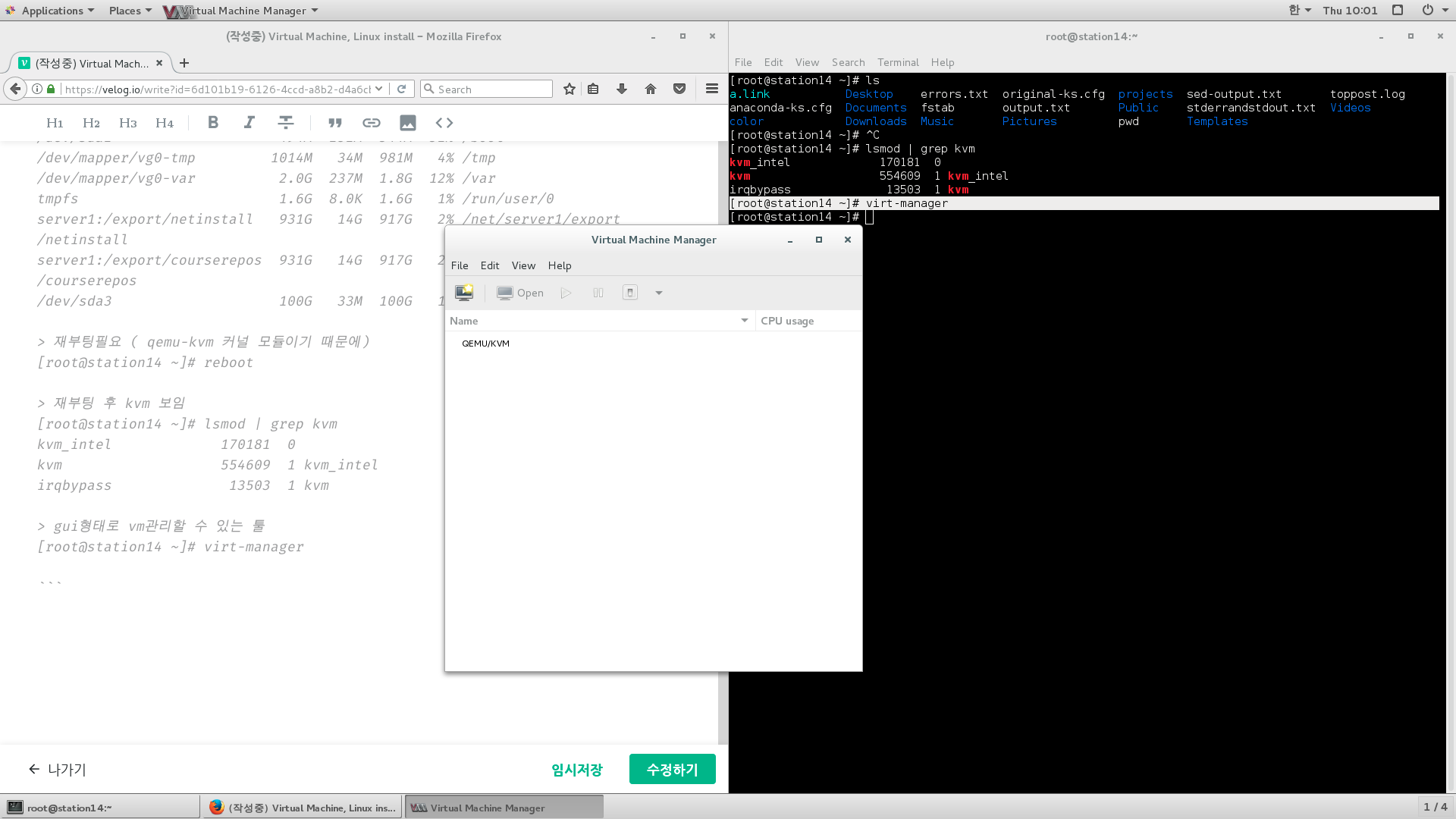
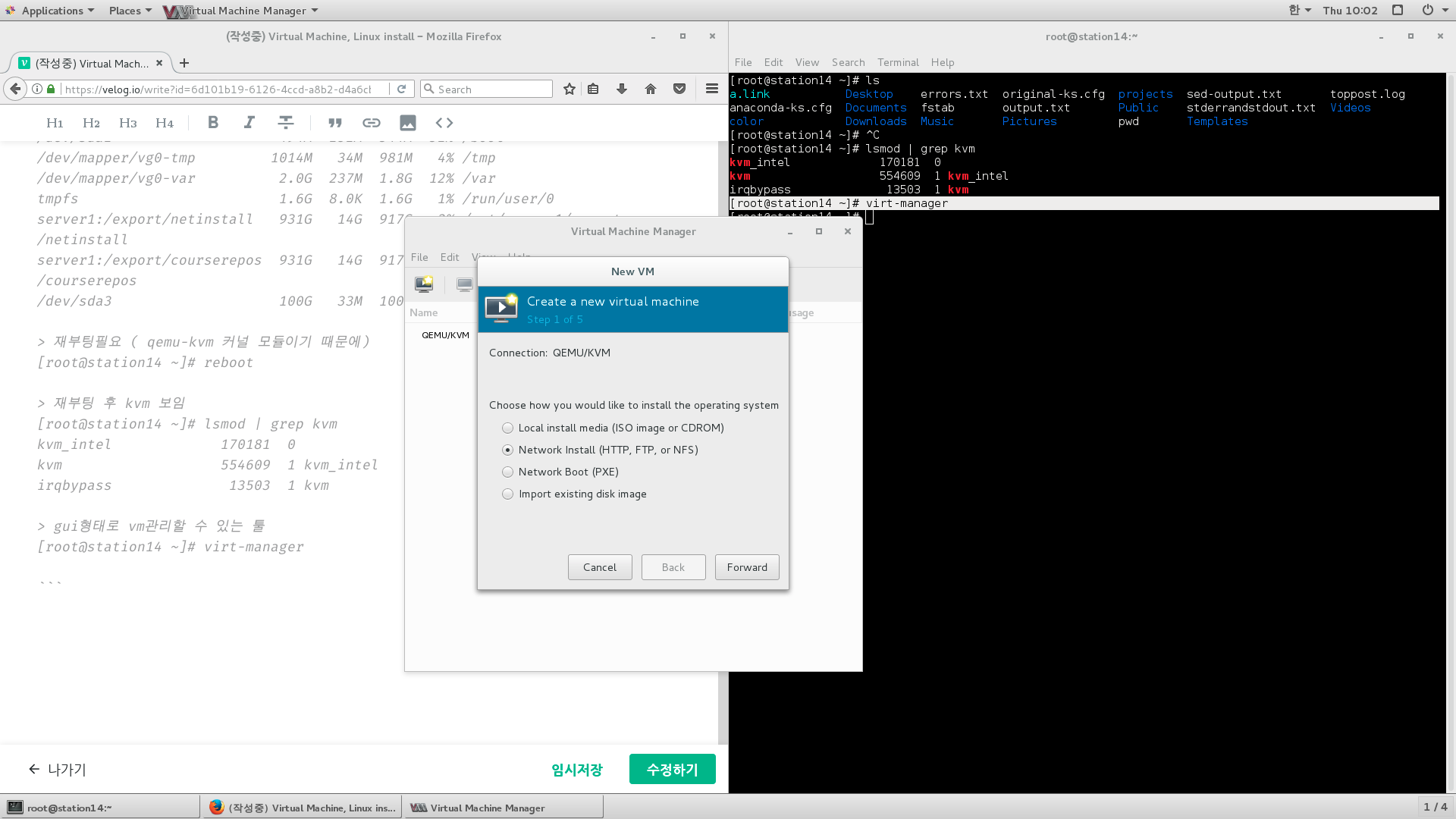
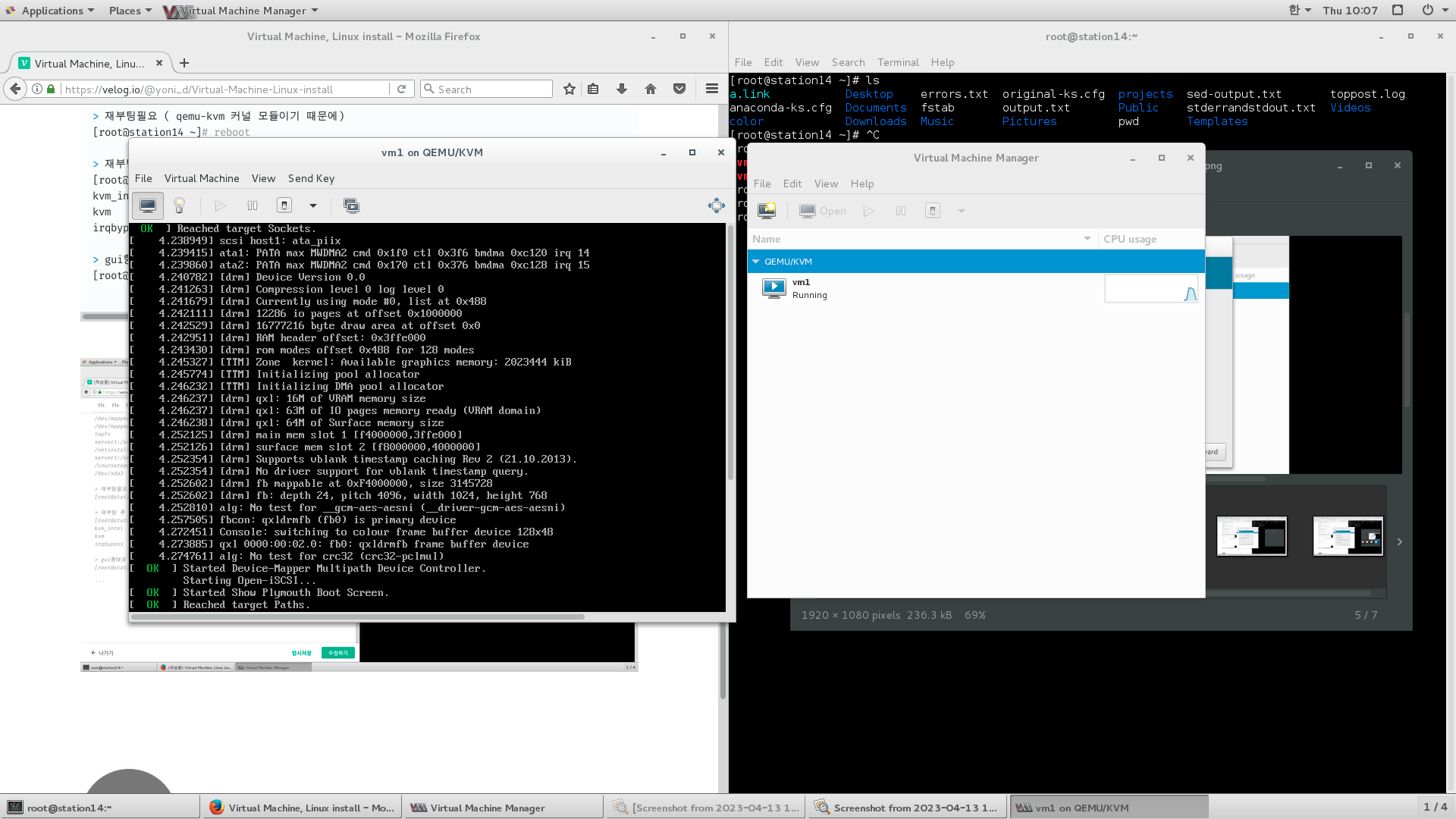
> gui형태로 vm관리할 수 있는 툴
[root@station14 ~]# virt-manager
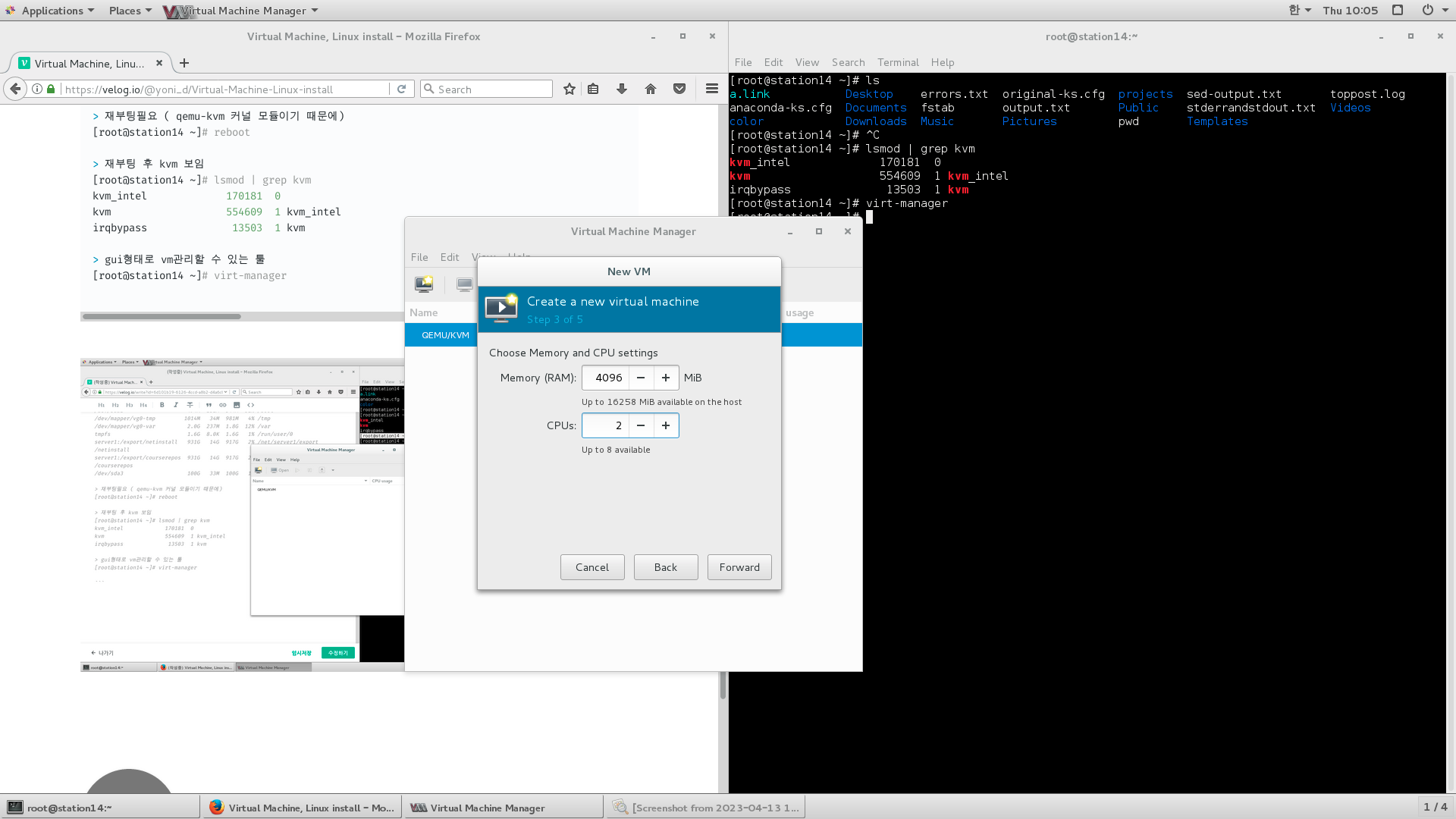
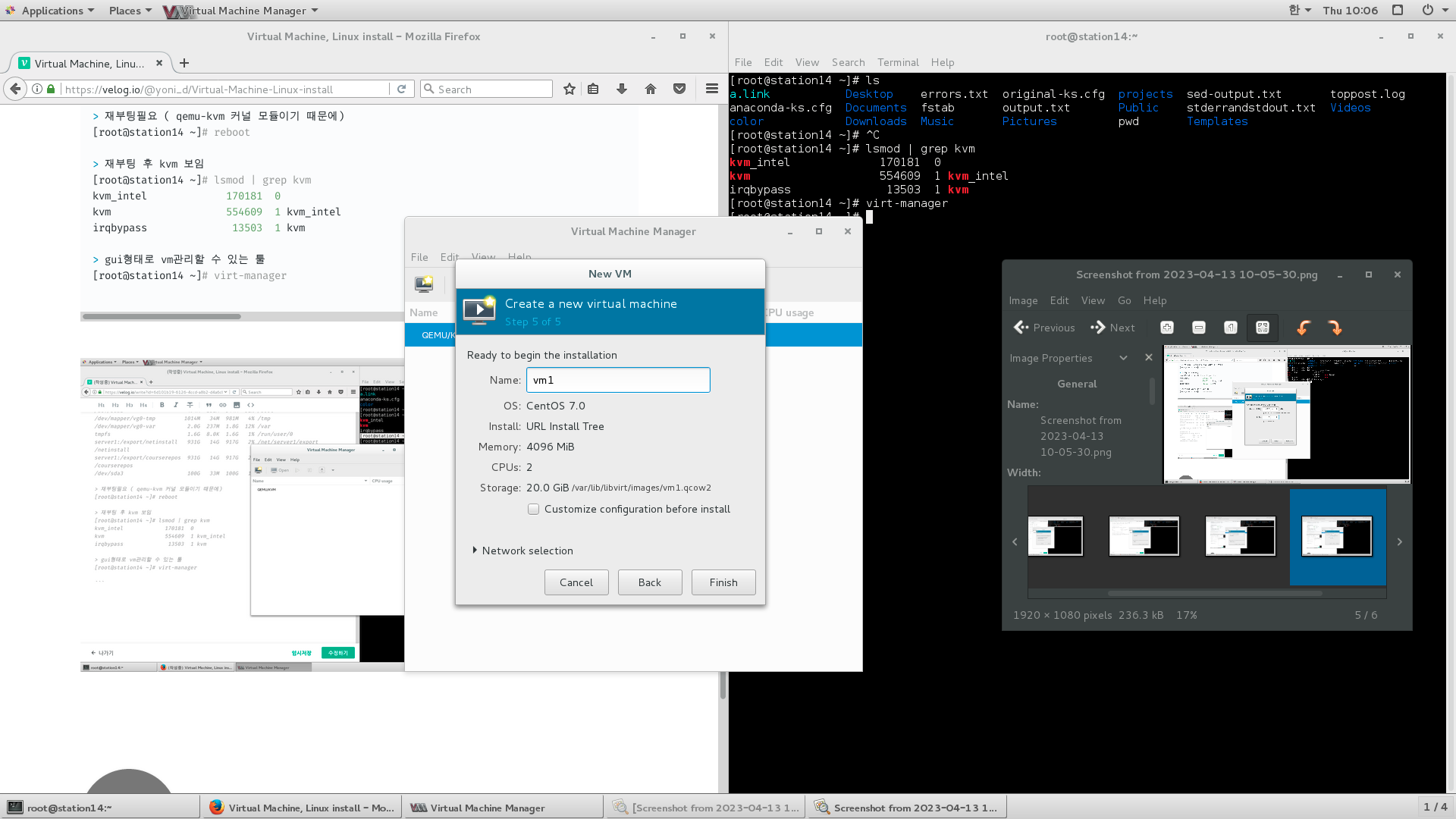
virt-manager

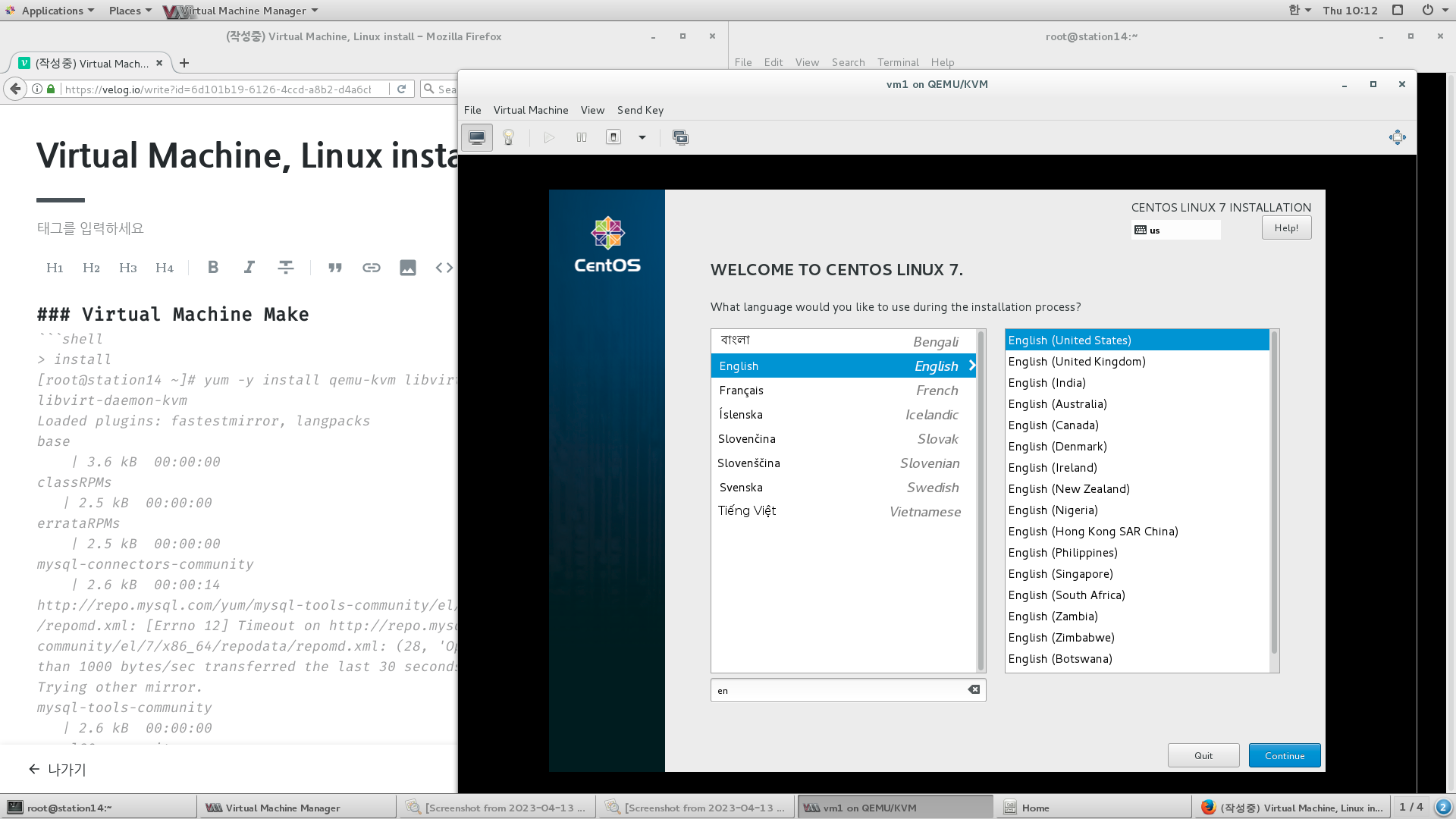
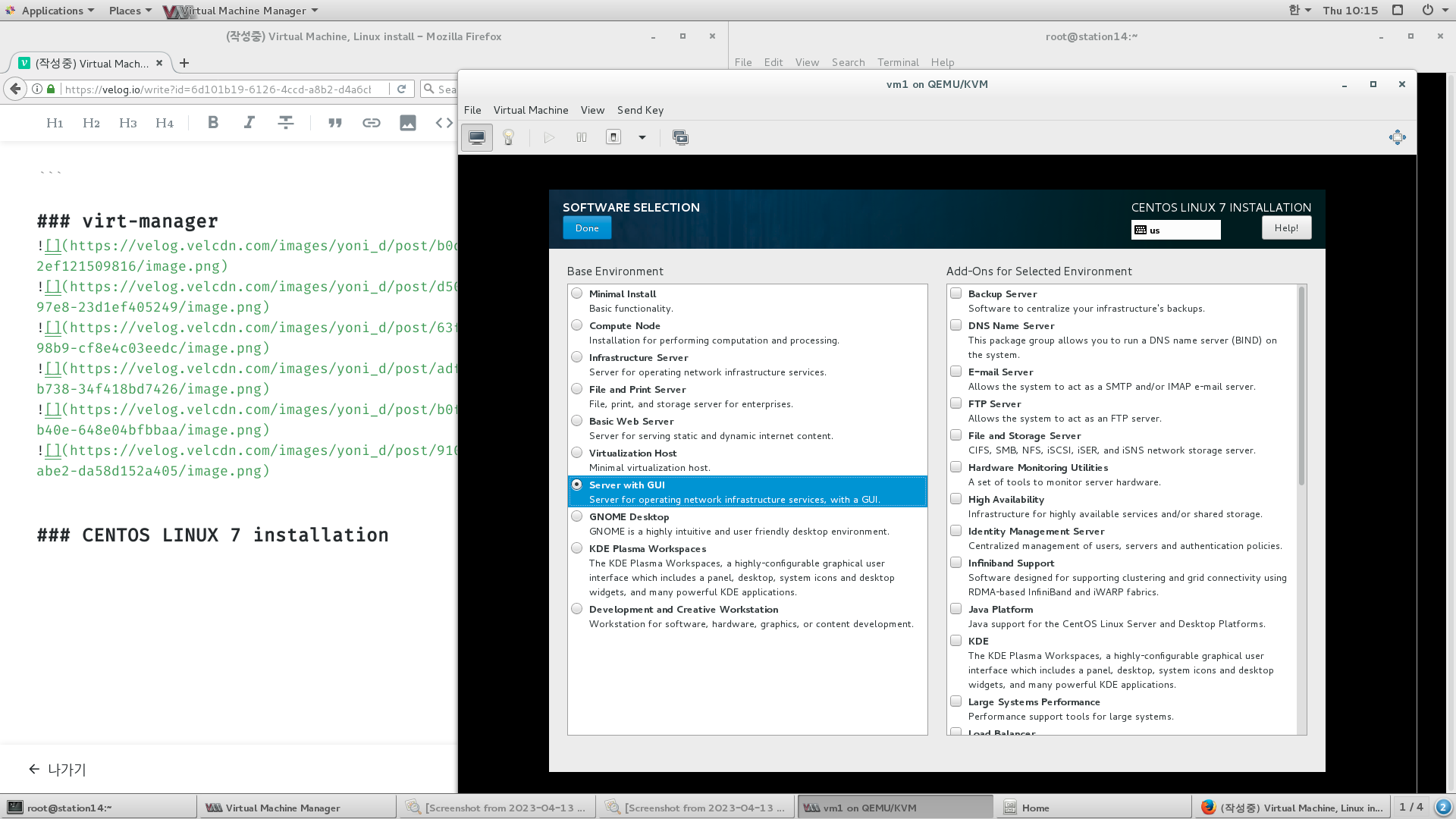
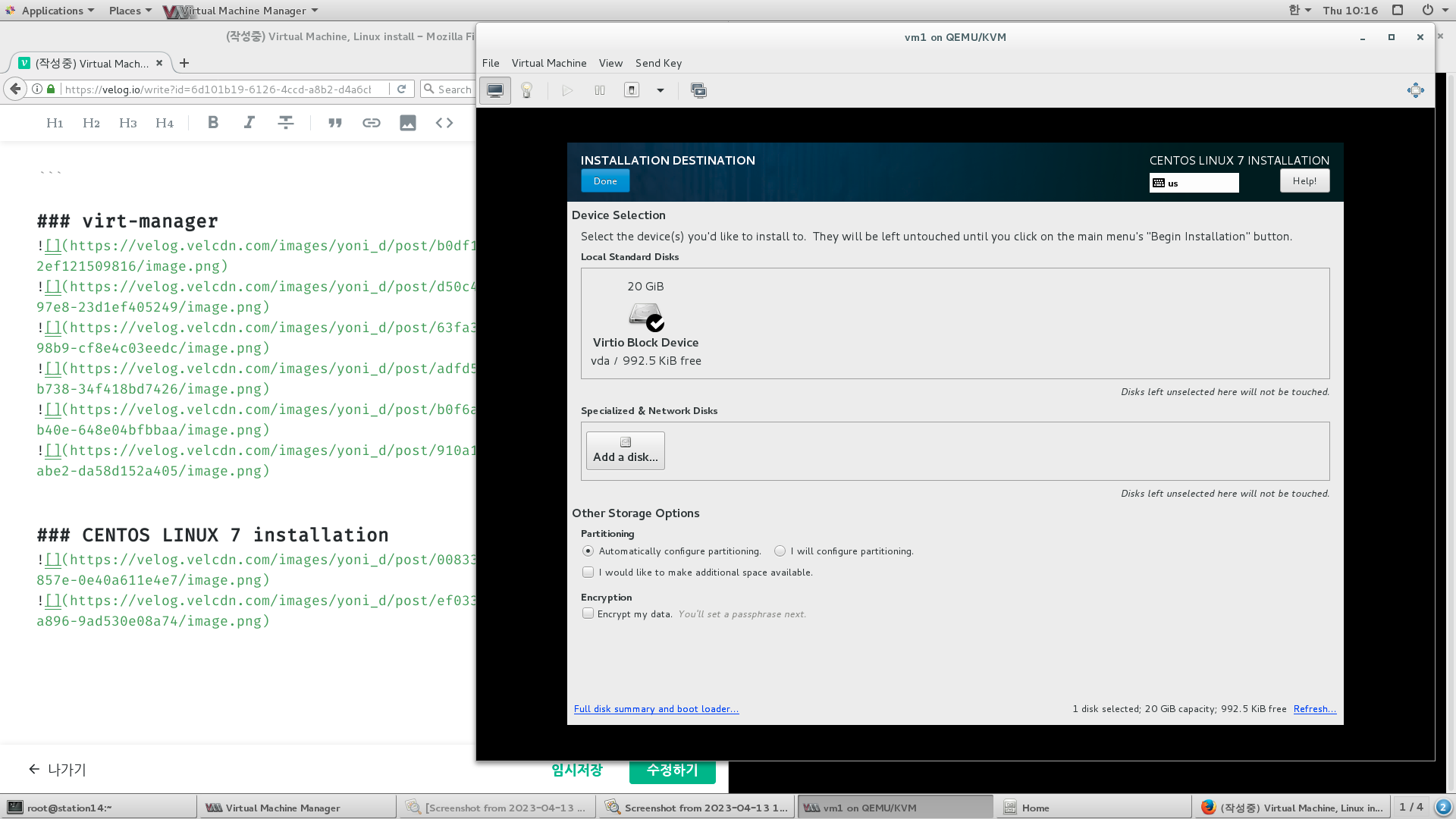
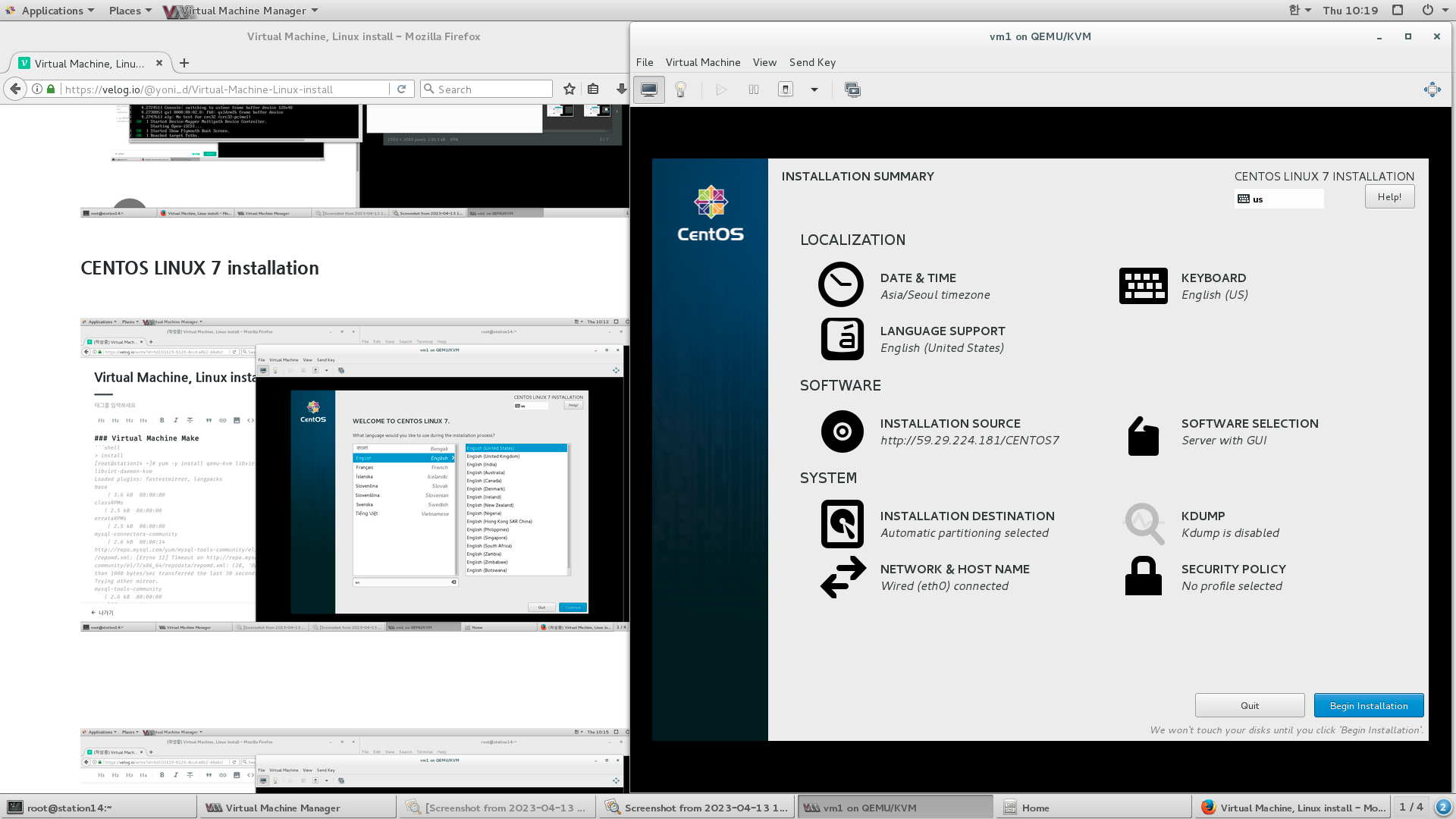
CENTOS LINUX 7 installation
SecureShell
원격접속 telnet(systemV) , rlogin(BSD), ssh-> 보안강화(암호문)
파일전송 ftp(systemV) , rcp(BSD), sftp/scp-> 보안강화(암호문)
보안강화(암호문): 공개키 - 암호화, 개인키 - 복호화
OpenSSH
> .pub가 있는건 공개키, 없는건 개인키
암호화 알고리즘에 따라 여러가지 키쌍이 존재
[root@station14 ~]# ls -l /etc/ssh
total 292
-rw-r--r--. 1 root root     242153 Apr 12  2017 moduli
-rw-r--r--. 1 root root       2208 Apr 12  2017 ssh_config
-rw-------. 1 root root       4361 Apr 12  2017 sshd_config
-rw-r-----. 1 root ssh_keys    668 Apr  8 05:41 ssh_host_dsa_key
-rw-r--r--. 1 root root        590 Apr  8 05:41 ssh_host_dsa_key.pub
-rw-r-----. 1 root ssh_keys    227 Apr  8 05:41 ssh_host_ecdsa_key
-rw-r--r--. 1 root root        162 Apr  8 05:41 ssh_host_ecdsa_key.pub
-rw-r-----. 1 root ssh_keys    387 Apr  8 05:41 ssh_host_ed25519_key
-rw-r--r--. 1 root root         82 Apr  8 05:41 ssh_host_ed25519_key.pub
-rw-r-----. 1 root ssh_keys    965 Apr  8 05:41 ssh_host_key
-rw-r--r--. 1 root root        630 Apr  8 05:41 ssh_host_key.pub
-rw-r-----. 1 root ssh_keys   1675 Apr  8 05:41 ssh_host_rsa_key
-rw-r--r--. 1 root root        382 Apr  8 05:41 ssh_host_rsa_key.pub
You have new mail in /var/spool/mail/root
Virtual Machine snapshot
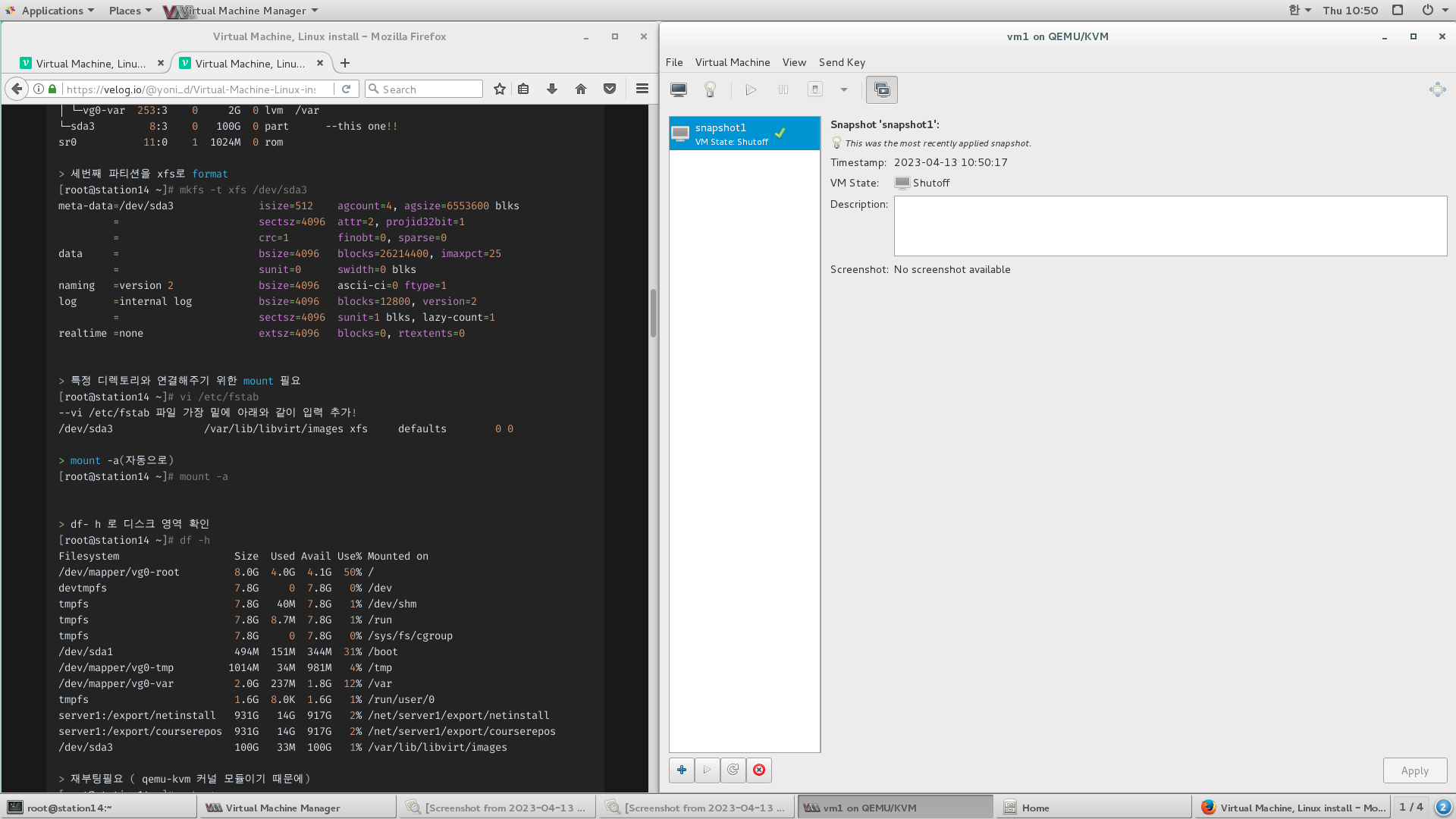
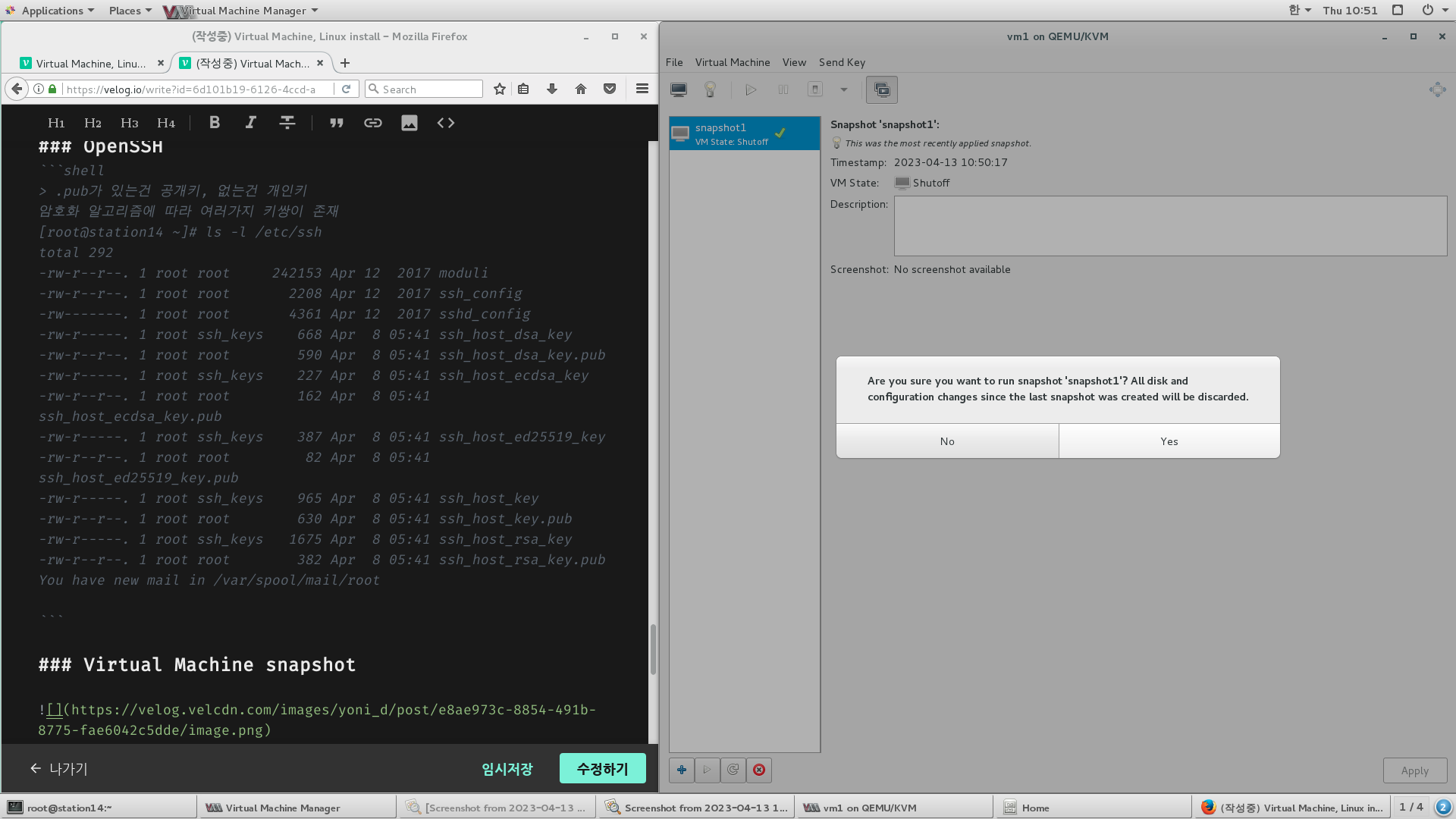
VM shutdown 후,dual monitor 아이콘 클릭을 통해 snapshot
virtual Machine 문제가 생기면 snapshot 선택 후, 왼쪽 하단 play 버튼 클릭
전구 버튼을 통해 다시 실행
in virtual Machine Terminal
vi /etc/ssh/sshd_config
#PermitRootLogin yes -- root 에 ssh로 접속 가능 여부 (보안 취약!주석 해제 후 no로 바꾸기)
[root@localhost ~]# vi /etc/ssh/sshd_config
     46 # Authentication:
     47
     48 LoginGraceTime 10m
     49 PermitRootLogin no
     50 #StrictModes yes
     51 MaxAuthTries 2
     52 #MaxSessions 10

    137 Banner /etc/issue
    138 AllowUsers aaa , yoni


[root@localhost ~]# vi /etc/issue
[root@localhost ~]# systemctl restart sshd
[root@localhost ~]# useradd aaa
pa[root@localhost ~]# passwd aaa
Changing password for user aaa.
New password: bbb
BAD PASSWORD: The password is a palindrome
Retype new password:
passwd: all authentication tokens updated successfully.
[root@localhost ~]# ifconfig eth0
eth0: flags=4163<UP,BROADCAST,RUNNING,MULTICAST>  mtu 1500
        inet 192.168.122.253  netmask 255.255.255.0  broadcast 192.168.122.255
        inet6 fe80::5054:ff:fe10:511b  prefixlen 64  scopeid 0x20<link>
        ether 52:54:00:10:51:1b  txqueuelen 1000  (Ethernet)
        RX packets 643  bytes 37393 (36.5 KiB)
        RX errors 0  dropped 5  overruns 0  frame 0
        TX packets 146  bytes 13863 (13.5 KiB)
        TX errors 0  dropped 0 overruns 0  carrier 0  collisions 0

> root 접속은 막아두어서 접속 안됨
[root@localhost ~]# ssh root@192.168.122.253
The authenticity of host '192.168.122.253 (192.168.122.253)' can't be established.
ECDSA key fingerprint is d3:2b:d4:c6:8a:41:dd:d3:ea:00:87:33:f7:69:94:4e.
Are you sure you want to continue connecting (yes/no)? yes
Warning: Permanently added '192.168.122.253' (ECDSA) to the list of known hosts.
Warning

root@192.168.122.253's password:
Permission denied, please try again.
root@192.168.122.253's password:
Received disconnect from 192.168.122.253: 2: Too many authentication failures for root


> 일반 유저 aaa, yoni는 접속 됨
[root@localhost ~]# ssh aaa@192.168.122.253
Welcome

aaa@192.168.122.253's password: bbb
Last login: Thu Apr 13 11:17:13 2023 from 192.168.122.253
[aaa@localhost ~]$ exit
logout
Connection to 192.168.122.253 closed.

[root@localhost ~]# ssh yoni@192.168.122.253
Welcome

yoni@192.168.122.253's password: kabang
Last login: Thu Apr 13 11:17:06 2023 from 192.168.122.253
[yoni@localhost ~]$


> sftp
[root@localhost ~]# sftp yoni@192.168.122.253
Welcome

yoni@192.168.122.253's password:
Connected to 192.168.122.253.
sftp> pwd
Remote working directory: /home/yoni
sftp> put /etc/fstab	-- 파일 업로드
Uploading /etc/fstab to /home/yoni/fstab
/etc/fstab                                                                    100%  465     0.5KB/s   00:00
sftp> ls
fstab
sftp> cd /etc
sftp> get yum.conf   	--접속했을 당시 디렉토리로 다운로드
Fetching /etc/yum.conf to yum.conf
/etc/yum.conf                                                                 100%  970     1.0KB/s   00:00
sftp> quit				-- 접속 끊음


> yum.conf 다운한거 확인
[root@localhost ~]# ll
total 12
-rw-------. 1 root root 1672 Apr 13 10:43 anaconda-ks.cfg
drwxr-xr-x. 2 root root    6 Apr 13 10:46 Desktop
drwxr-xr-x. 2 root root    6 Apr 13 10:46 Documents
drwxr-xr-x. 2 root root    6 Apr 13 10:46 Downloads
-rw-r--r--. 1 root root 1720 Apr 13 10:46 initial-setup-ks.cfg
drwxr-xr-x. 2 root root    6 Apr 13 10:46 Music
drwxr-xr-x. 2 root root    6 Apr 13 10:46 Pictures
drwxr-xr-x. 2 root root    6 Apr 13 10:46 Public
drwxr-xr-x. 2 root root    6 Apr 13 10:46 Templates
drwxr-xr-x. 2 root root    6 Apr 13 10:46 Videos
-rw-r--r--. 1 root root  970 Apr 13 11:21 yum.conf --This one!!!
ssh-keygen 설정
[root@localhost .ssh]# ssh-keygen
Generating public/private rsa key pair.
Enter file in which to save the key (/root/.ssh/id_rsa):
Enter passphrase (empty for no passphrase):
Enter same passphrase again:
Your identification has been saved in /root/.ssh/id_rsa.
Your public key has been saved in /root/.ssh/id_rsa.pub.
The key fingerprint is:
56:47:e4:0f:45:ec:d4:3d:84:8a:84:49:de:b4:12:34 root@localhost.localdomain
The key's randomart image is:
+--[ RSA 2048]----+
|      oEo. .oo=o.|
|      .o=..o oo.o|
|       o.oo =o  .|
|        .o o o.  |
|        S     .  |
|       .         |
|                 |
|                 |
|                 |
+-----------------+
[root@localhost .ssh]# ll
total 12
-rw-------. 1 root root 1675 Apr 13 11:55 id_rsa
-rw-r--r--. 1 root root  408 Apr 13 11:55 id_rsa.pub
-rw-r--r--. 1 root root  177 Apr 13 11:10 known_hosts

> Virtual Machine의 yoni 계정에 ssh 접속 key설정
[root@localhost .ssh]# ssh-copy-id yoni@192.168.122.253
/usr/bin/ssh-copy-id: INFO: attempting to log in with the new key(s), to filter out any that are already installed
/usr/bin/ssh-copy-id: INFO: 1 key(s) remain to be installed -- if you are prompted now it is to install the new keys
Welcome

yoni@192.168.122.253's password:

Number of key(s) added: 1

Now try logging into the machine, with:   "ssh 'yoni@192.168.122.253'"
and check to make sure that only the key(s) you wanted were added.

[root@localhost .ssh]# ssh yoni@192.168.122.253
Welcome

Last failed login: Thu Apr 13 11:56:01 KST 2023 from 192.168.122.253 on ssh:notty
There was 1 failed login attempt since the last successful login.
Last login: Thu Apr 13 11:19:32 2023 from 192.168.122.253
[yoni@localhost ~]$ ls -ld .ssh/
drwx------. 2 yoni yoni 29 Apr 13 11:56 .ssh/
[yoni@localhost ~]$ cd .ssh/
[yoni@localhost .ssh]$ ll
total 4
-rw-------. 1 yoni yoni 408 Apr 13 11:56 authorized_keys
aaa 일반 계정에서 vm의 yoni계정으로 ssh 접속 설정
> key 생성
[aaa@localhost .ssh]$ ssh-keygen
Generating public/private rsa key pair.
Enter file in which to save the key (/home/aaa/.ssh/id_rsa):
Enter passphrase (empty for no passphrase):
Enter same passphrase again:
Your identification has been saved in /home/aaa/.ssh/id_rsa.
Your public key has been saved in /home/aaa/.ssh/id_rsa.pub.
The key fingerprint is:
36:17:52:b3:25:bd:6e:dd:b8:ba:12:e7:0e:ad:1f:df aaa@localhost.localdomain
The key's randomart image is:
+--[ RSA 2048]----+
|          +..    |
|         . =.    |
|        . o  .   |
|         . ..    |
|        S .. . o |
|       . o..+ o .|
|          .=o  . |
|          .o.o.. |
|          .+=o. E|
+-----------------+


> vm의 yoni계정에 ssh 등록
[aaa@localhost .ssh]$ ssh-copy-id yoni@192.168.122.253
/usr/bin/ssh-copy-id: INFO: attempting to log in with the new key(s), to filter out any that are already installed
/usr/bin/ssh-copy-id: INFO: 1 key(s) remain to be installed -- if you are prompted now it is to install the new keys
Welcome

yoni@192.168.122.253's password:

Number of key(s) added: 1

Now try logging into the machine, with:   "ssh 'yoni@192.168.122.253'"
and check to make sure that only the key(s) you wanted were added.


> ssh 로 vm의 yoni 계정 접속
[aaa@localhost .ssh]$ ssh yoni@192.168.122.253
Welcome

Enter passphrase for key '/home/aaa/.ssh/id_rsa':  --비번 적으라고 함
Last failed login: Thu Apr 13 13:47:41 KST 2023 from 192.168.122.253 on ssh:notty
There were 2 failed login attempts since the last successful login.
Last login: Thu Apr 13 12:23:18 2023 from 192.168.122.253
[yoni@localhost ~]$ exit
logout
Connection to 192.168.122.253 closed함

> ssh-agent를 통해 passphrase 비밀번호를 자동 등록해보자.
[aaa@localhost .ssh]$ eval `ssh-agent`
Agent pid 6458
[aaa@localhost .ssh]$ ssh-add ~/.ssh/id_rsa
Enter passphrase for /home/aaa/.ssh/id_rsa:
Identity added: /home/aaa/.ssh/id_rsa (/home/aaa/.ssh/id_rsa)

> 자동 로그인 됨 (비밀번호 생략)
[aaa@localhost .ssh]$ ssh yoni@192.168.122.253
Welcome

Last login: Thu Apr 13 13:48:40 2023 from 192.168.122.253
[yoni@localhost ~]$

study log