
- 기본 css
- 인라인 스타일
- 글로벌 스타일
- CSS Modules
- CSS-in-JS
- Styled-Components
- Emotion
- Vanilla Extract
- Tailwind CSS
💡 인라인+글로벌: 같이 사용되는 경우가 많음(메인 ❌)
css모듈, 테일윈드, css-in-js(택1) 메인으로 쓰일 확률이 높음
기본 CSS 작성 방법
인라인 스타일
컴포넌트 내부에서 스타일을 정의하는 방식으로, 객체 형태와 카멜케이스 표기법 사용
예제
function App() {
  const styles = {
    container: {
      color: 'white',
      padding: '10px',
    },
  };

  return <div style={styles.container}>Hello React!</div>;
}
💡이메일 시스템처럼 외부 CSS를 사용할 수 없는 환경에서 필수적 사용
but, 대규모 프로젝트에서는 유지보수가 어려워 잘 사용하지 않음
글로벌 스타일
외부 CSS 파일을 만들어 import하여 사용하는 방식
전역으로 스타일이 적용되어 모든 컴포넌트에 영향을 미침
예제
// App.css
.container {
  background-color: #f0f0f0;
  padding: 20px;
}

// App.js
import './App.css';

function App() {
  return <div className="container">Hello React!</div>;
}
💡 Tip: globals.css(공통 스타일)와 reset.css(기본 스타일 초기화) 사용하고, index.css에서 관리하는 것이 좋음
/* index.css
css의 진입점 */
@import "./globals.css";
@import "./reset.css";
CSS Modules
특정 컴포넌트에만 스타일을 적용하고 싶을 때 사용하는 방법으로, 클래스 이름 충돌을 방지
파일 이름은.module.css로 끝나야 하며, 보통 컴포넌트 이름과 동일하게 작성
✅ 반드시 클래스 이름으로만 스타일을 작성
⇒ 클래스명으로 안 하면 글로벌시스템처럼 동작
예제
// Button.module.css
.button {
  background-color: blue;
  color: white;
  padding: 10px 20px;
}

// Button.js
import styles from './Button.module.css';

function Button() {
  return <button className={styles.button}>Click me</button>;
}
클래스를 여러 개 적용할 때는 템플릿 리터럴 사용
// 템플릿 리터럴 사용
<button className={`${styles.button} ${styles.primary}`}>
조건부 스타일링
자바스크립트 문법 이용
&& 연산자
function Button({ primary, disabled }) {
  return (
    <button
      className={`button ${primary && 'primary'} ${disabled && 'disabled'}`}
    >
      Click me
    </button>
  );
}
삼항 연산자
function Button({ primary, disabled }) {
  return (
    <button
      className={`button ${primary ? 'primary' : ''} ${disabled ? 'disabled' : ''}`}
    >
      Click me
    </button>
  );
}
classNames 라이브러리
classnames는 조건부로 클래스명을 결합할 수 있게 해주는 유틸리티 라이브러리
특히 여러 클래스를 동적으로 적용해야 할 때 유용
// const classNames = require('classnames'); // Node.js 사용법

// 프론트엔드에서는 import 사용
import classNames from "classnames/bind";

// cx(classnames extensions)
const cx = classNames.bind(styles);
// classNames의 bind 메서드에 styles 객체를 바인딩하여 cx에 할당
// cx는 전달받은 클래스명들을 하나의 문자열로 조합하여 반환

// 클래스를 여러 개 적용할 때는 콤마로 구분
<h1 className={cx("title")}>내 웹사이트</h1>
// 라이브러리 미사용 시 비교 코드
<h1 className={styles.title}>내 웹사이트</h1>
decorated 클래스는 isDecorated가 true일 때만 적용
function Header() {
  const isDecorated = true;

  return (
    <h1 className={cx('title', { decorated: isDecorated })}>
      내 웹사이트
    </h1>
  );
}
가장 많이 사용되는 패턴
classNames('foo', 'bar'); // => 'foo bar'
classNames('foo', { bar: true }); // => 'foo bar'
classNames({ 'foo-bar': true }); // => 'foo-bar'
classNames({ 'foo-bar': false }); // => ''
classNames({ foo: true }, { bar: true }); // => 'foo bar'
classNames({ foo: true, bar: true }); // => 'foo bar'
스타일링 도구
CSS-in-JS(라이브러리)
CSS 코드를 자바스크립트 파일에서 작성하는 방식으로, 스타일과 컴포넌트를 하나의 파일로 관리 가능
Styled-Components
- 스타일을 적용한 컴포넌트를 생성할 수 있는 라이브러리
- 자바스크립트와 템플릿 리터럴을 사용해 styled 객체로 컴포넌트 생성
- 일반 문자열로 처리되어 CSS 자동완성 불가능. 이를 해결하기 위한 익스텐션
- IE 지원 ❌
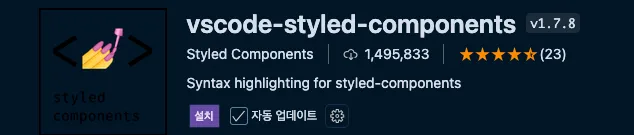
설치
npm install styled-components예제
import styled from "styled-components";

const Title = styled.h1`
  font-size: 30px;
  color: blue;
`;

function App() {
  return <Title>Hello, styled-components!</Title>;
}
💡 CSS-in-JS의 단점
런타임 CSS 생성으로 인해 큰 프로젝트에서 초기 로딩이 느려질 수 있음
태그가 직관적이지 않음 ⇒ 구조 확인이 어려움
Emotion 👩🎤
Styled-Components와 유사하지만 IE 지원 ✅ (후발주자 특, 단점보완)
설치
npm i @emotion/css예제
import { css } from "@emotion/react";

function App() {
  return (
    <h1
      css={css`
        font-size: 30px;
        color: purple;
      `}
    >
      Hello, Emotion!
    </h1>
  );
}
html 구조를 Styled-Components보다 명확하게 알 수 있음
Emotion 전략
npm i @emotion/styled @emotion/react이거 공홈에 있는 건데 이거 설치하고
import styled from "@emotion/styled";스타일드 컴포넌트 그대로 이모션에서 사용할 수 있음
Emotion은 스타일드 컴포넌트 문법도 100% 똑같이 지원함 🤣 (퍼가요~)
Vanilla Extract
셋 중 가장 최신기술
✅ 선주자를 이기는 매력포인트
- zero-runtime(런타임 비용이 0에 수렴한다는 의미)
- 기존 css in js 라이브러리보다 성능향상
- 타입스크립트 완벽지원
- 설치
npm install @vanilla-extract/css- 비트기반 설치 명령어
npm install --save-dev @vanilla-extract/vite-plugin- vanilla라는 폴더 생성
그 안에 style.css.ts 타입스크립트 파일 생성
import { style } from "@vanilla-extract/css";

export const h1Style = style({
  fontSize: "30px",
  color: "pink",
});
여기 설정법대로 vite.config.ts에 적용
import { defineConfig } from "vite";
import { vanillaExtractPlugin } from "@vanilla-extract/vite-plugin";
import react from "@vitejs/plugin-react-swc";

// https://vite.dev/config/
export default defineConfig({
  plugins: [react(), vanillaExtractPlugin()],
});
사용
//App.tsx
import { h1Style } from "./vanilla/style.css";

export default function App() {
  return (
    <>
      <h1 className={h1Style}>hello, vanilla extract</h1>
    </>
  );
}
Tailwind CSS
Tailwind는 유틸리티 퍼스트 방식을 제공하며, 미리 정의된 클래스를 조합해 스타일 적용
- 유틸리티퍼스트 장점
- 코드의 이식성 높음 ⇒ 복사 붙여넣기만 하면 똑같은 ui 구현
- 퍼블리셔와의 협업 효율성 높음
💡
유틸리티 클래스하나의 클래스가 하나의 CSS 속성을 담당하는 1:1 관계
✅ 설치 가이드 참고
- 설치
npm install -D tailwindcss postcss autoprefixer⚠️ CLI 말고 framework Guides에서 vite로 설치 필요
- 테일윈드 초기화
⇒ tailwind.config.js와 postcss.config.js 파일 생성
npx tailwindcss init -p- tailwind.config.js 파일에서 content 부분 수정
/** @type {import('tailwindcss').Config} */
export default {
  content: [
    "./index.html",
    "./src/**/*.{js,ts,jsx,tsx}",
  ],
  theme: {
    extend: {},
  },
  plugins: [],
}- tailwind.css 파일 생성 후 추가
@tailwind base;
@tailwind components;
@tailwind utilities;- app.tsx
export default function App() {
  return (
    <h1 className="text-3xl font-bold underline">
      Hello world!
    </h1>
  )
}
⚠️ 테일윈드 스타일 적용 확인 가능
개발 서버 재시작 필요할 수 있음
예제
export default function App() {
  return <h1 className="text-3xl font-bold underline">Hello, Tailwind!</h1>;
}
커스텀 설정 (tailwind.config.js)
export default {
  theme: {
    extend: {
      colors: {
        'main': '#ff0000',
      },
      spacing: {
        'big': '5rem',
      }
    }
  }
}
사용 예시
function App() {
  return (
    <div className="text-main mt-big">
      빨간색 글자에 위쪽 마진 5rem
    </div>
  );
}
💡 VS Code용
Tailwind IntelliSense확장 프로그램으로 클래스 자동 완성과 정렬 가능
테일윈드 추가설정
@tailwind 밑줄 없애기
settings.json에서 아래 설정 추가로 @tailwind 지시자 경고 무시 가능
{
  "css.lint.unknownAtRules": "ignore"
}
VS Code에서 테일윈드의 @tailwind 구문 경고 표시 제거
모바일에서 hover 스타일 막기
tailwind.config.js에 아래 설정 추가로 모바일 기기에서 hover 효과 방지 ⇒ 최적화
/** @type {import('tailwindcss').Config} */
exports = {
  future: {
    hoverOnlyWhenSupported: true,
  },
}
테일윈드 머지패키지
테일윈드 CSS 클래스를 JS로 효율적으로 병합하는 유틸리티 함수로, 스타일 충돌 시 마지막 스타일 적용
classnames 라이브러리와 유사하나 테일윈드에 최적화된 도구
1. twMerge 사용법
import { twMerge } from "tailwind-merge";

export default function App() {
  return (
    <>
      {/* 스타일충돌 */}
      {/* <h1 className="text-3xl underline text-2xl">App</h1> */}

      {/* 방법1 */}
      <h1 className={twMerge(`text-3xl underline text-2xl`)}>App</h1>

      {/* 방법2 */}
      <h1 className={twMerge("text-3xl", "underline", "text-2xl")}>App</h1>
    </>
  );
}
2. twJoin ❌ 활용도 낮음
조건부 클래스 결합 시 falsy 값 자동 필터링, 여러 클래스 안전한 결합
import { twJoin } from "tailwind-merge";

// 조건부로 클래스 적용
const isActive = true;
const className = twJoin(
  "text-lg",
  isActive && "bg-blue-500",
  isActive ? "text-white" : "text-gray-500"
);
머지 vs 조인
머지: 결합, 중복제거
조인: 중복제거
tailwind-forms
필요성
- 테일윈드의 css 자동 리셋으로 인해 form 요소 미표시 문제 해결
- 개념 학습 단계에서 시각적 확인 용이
설치
npm install -D @tailwindcss/formstailwind.config.js 설정
module.exports = {
  plugins: [
    require('@tailwindcss/forms'),
  ],
}
CSS 정렬 플러그인
Prettier Tailwind 플러그인으로 Tailwind 클래스 자동 정렬 가능
테일윈드의 공식 프리티어 플러그인으로, 테일윈드에서 지정한 순서대로 클래스 정렬
설치 순서
- 테일윈드 사용 중인 디렉토리에서 터미널 실행
- 설치
npm install -D prettier prettier-plugin-tailwindcss- 디렉토리 최상단에 '.prettierrc' 파일 생성 후 내용 작성
.prettierrc 설정:
{
  "plugins": ["prettier-plugin-tailwindcss"]
}- 코드 작성 후 저장 시 프리티어 적용되어 클래스 정렬됨
출처: 수코딩