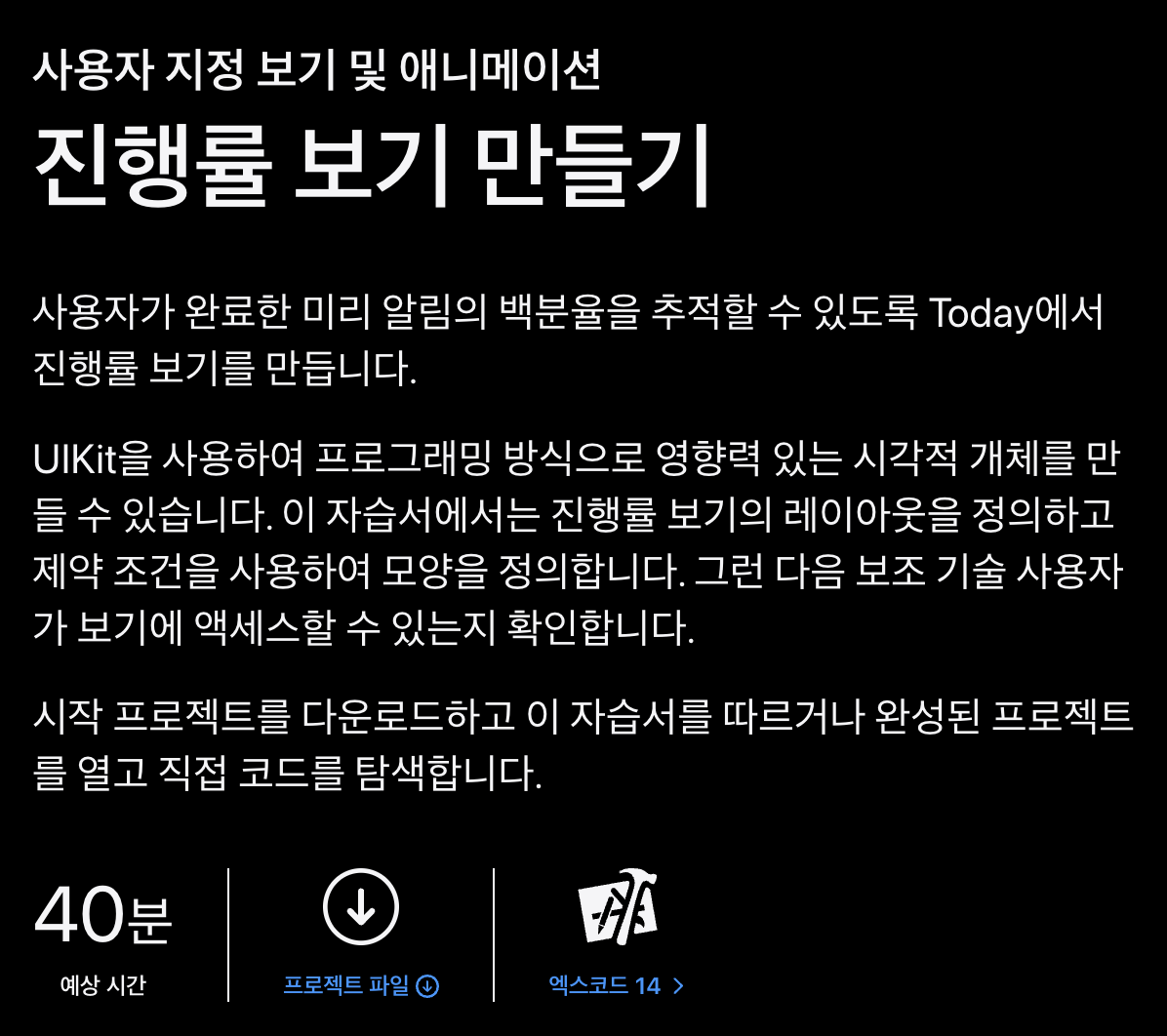
애플 공식 문서
https://developer.apple.com/tutorials/app-dev-training/creating-a-progress-view/
애플 공식문서에서는 원형의 애니메이션의 채워지는 형식의 코드를 사용했지만 일자의 바가 채워치는 형식의 애니메이션으로도 사용가능하다.
// 예제 코드

import UIKit

class ProgressViewController: UIViewController {

    @IBOutlet weak var progressView: UIProgressView!
    @IBOutlet weak var updateButton: UIButton!

    override func viewDidLoad() {
        super.viewDidLoad()
        // 초기 진행률 설정
        progressView.progress = 0.0
    }

    // 버튼을 누를 때마다 10% 진행률 증가
    @IBAction func updateProgress(_ sender: UIButton) {
        if progressView.progress < 1.0 {
            progressView.setProgress(progressView.progress + 0.1, animated: true)
        } else {
            // 이미 100%일 경우 초기화
            progressView.setProgress(0.0, animated: true)
        }
    }
}

/*
이 코드는 "Update Progress" 버튼을 누를 때마다
UIProgressView의 진행률을 10%씩 증가시킵니다.
만약 진행률이 100% (1.0)에 도달하면 버튼을 다시 누를 때 진행률을 0%로 초기화합니다.

이를 통해 사용자는 UIProgressView의 애니메이션 효과와
함께 진행률이 어떻게 증가하는지 확인할 수 있습니다.
*/
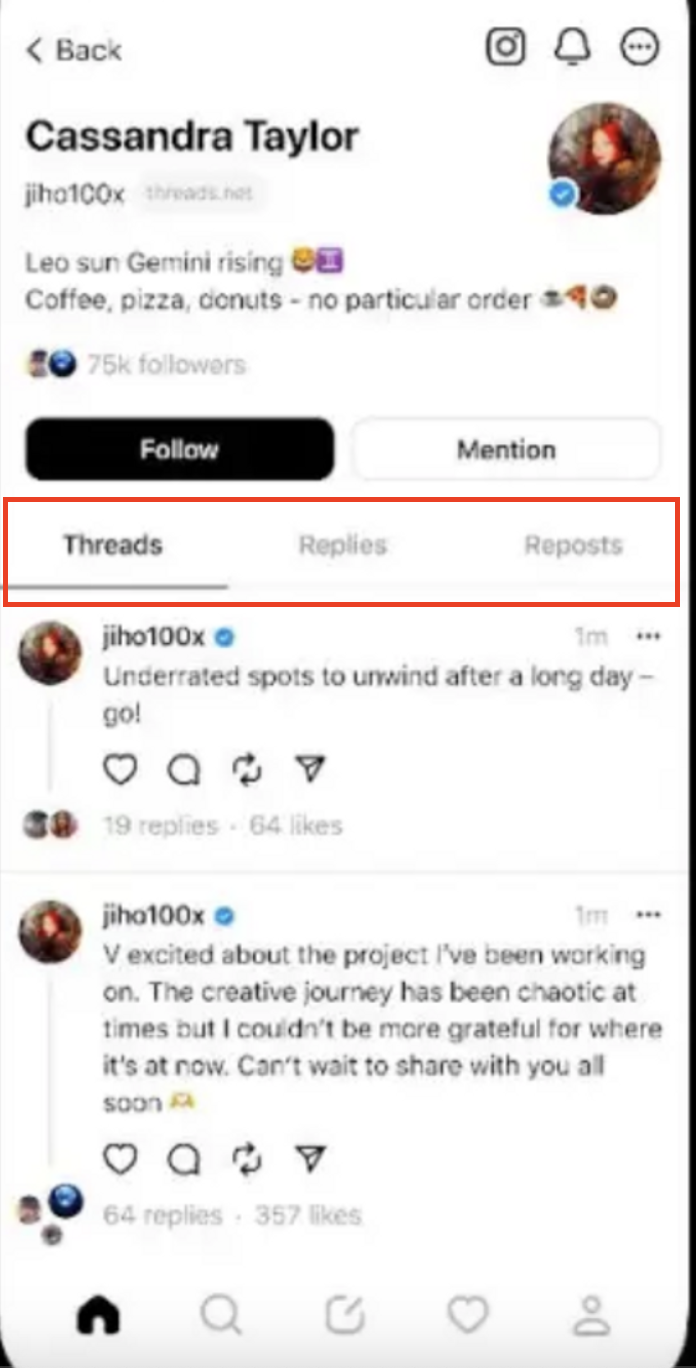
이 코드를 사용해 메뉴 선택 창 밑에 현재 어떤 메뉴를 선택 중인지 표시해주는 바를 만들수 있다.
// 예제코드

@IBAction func firstButtonTapped(_ sender: UIButton) {
    // 0% ~ 33% 진행률 설정
    animateProgress(from: progressView.progress, to: 0.33)
}

@IBAction func secondButtonTapped(_ sender: UIButton) {
    // 33% ~ 66% 진행률 설정
    animateProgress(from: progressView.progress, to: 0.66)
}

@IBAction func thirdButtonTapped(_ sender: UIButton) {
    // 66% ~ 100% 진행률 설정
    animateProgress(from: progressView.progress, to: 1.0)
}

func animateProgress(from start: Float, to end: Float) {
    let duration: TimeInterval = 0.5 // 애니메이션 지속 시간
    let animationStep: TimeInterval = 0.01
    var currentProgress = start

    let increment = (end - start) * Float(animationStep / duration)

    Timer.scheduledTimer(withTimeInterval: animationStep, repeats: true) { timer in
        currentProgress += increment
        if (increment > 0 && currentProgress >= end) || (increment < 0 && currentProgress <= end) {
            currentProgress = end
            timer.invalidate()
        }

        self.progressView.setProgress(currentProgress, animated: false)
    }
}

/*
각 버튼을 누르면 0% ~ 33%, 33% ~ 66%, 66% ~ 100% 바가 채워지면서 어떤 메뉴가 선택 중인지 확인 할 수 있다.
*/
영덕은 영덕이다.
좋은 글이네요. 공유해주셔서 감사합니다.