제이쿼리 활용 간단한 게임 만들기
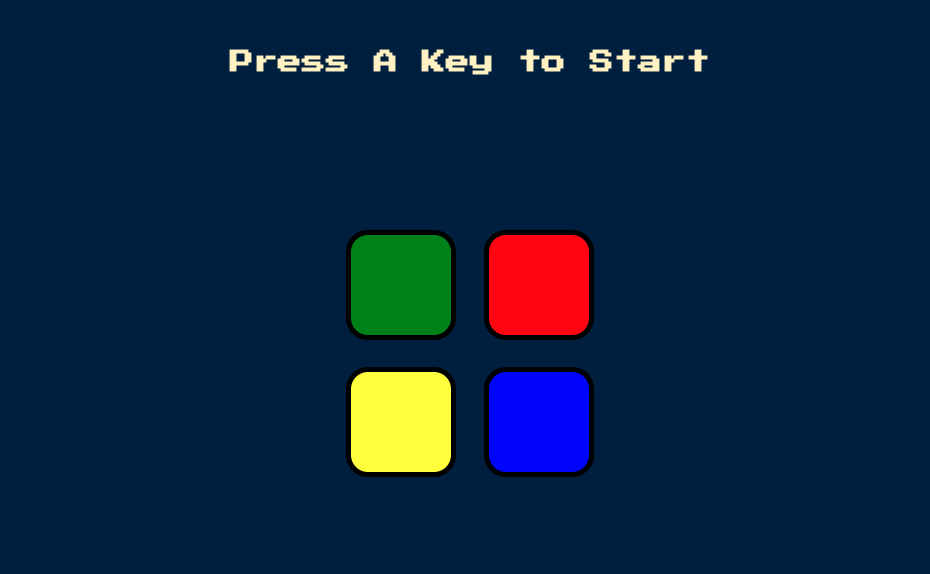
프로젝트 구조
디렉터리 구조
.
├── game.js
├── index.html
├── sounds
│   ├── blue.mp3
│   ├── green.mp3
│   ├── red.mp3
│   ├── wrong.mp3
│   └── yellow.mp3
└── styles.css
🪜 index.html
<!DOCTYPE html>
<html lang="en" dir="ltr">
  <head>
    <meta charset="utf-8" />
    <title>Simon</title>
    <link rel="stylesheet" href="styles.css" />
    <link
      href="https://fonts.googleapis.com/css?family=Press+Start+2P"
      rel="stylesheet"
    />
  </head>

  <body>
    <h1 id="level-title">Press A Key to Start</h1>
    <div class="container">
      <div lass="row">
        <div type="button" id="green" class="btn green"></div>

        <div type="button" id="red" class="btn red"></div>
      </div>

      <div class="row">
        <div type="button" id="yellow" class="btn yellow"></div>
        <div type="button" id="blue" class="btn blue"></div>
      </div>
    </div>
  </body>
</html>
1. HTML - JS, JQuery 추가
    <script src="https://cdn.jsdelivr.net/npm/jquery@3.6.0/dist/jquery.min.js"></script>
    <script src="./game.js"></script>
2. JS - 게임 로직
난수를 통해 게임 패턴 생성
const gamePattern = [];
const buttonColours = ['red', 'blue', 'green', 'yellow'];

function nextSequence() {
  const randomNumber = Math.floor(Math.random() * 4);	// 0~3까지 정수 난수
  const randomChosenColour = buttonColours[randomNumber];

  gamePattern.push(randomChosenColour);

}
애니메이션, 사운드 추가
- 제이쿼리를 사용하여
randomChosenColour와 동일한 id를 가진 버튼 선택 - 선택된 버튼에 해당하는 사운드 재생
// ...

  $("#" + randomChosenColour).fadeIn(100).fadeOut(100).fadeIn(100);

  const audio = new Audio("./sounds/" + randomChosenColour + ".mp3");
  audio.play();
}
버튼 클릭 핸들러
- 버튼 클릭 시 핸들러 함수 실행하는 제이쿼리
- 핸들러 내부에 사용자가 클릭한 버튼의 아이디를 검색하여 저장하는 변수 생성 (
userChosenColour) userClickedPattern배열에 사용자가 클릭한 내용 저장
const userClickedPattern = [];

$(".btn").click(function() {
  const userChosenColour = $(this).attr("id");

  userClickedPattern.push(userChosenColour);

});
사용자 클릭 시 애니메이션 추가
animatePress()함수 생성, 매개변수currentColour- 클릭된 버튼에
pressed클래스 속성 추가하기
function clickHandler() {
  const userChosenColour = $(this).attr('id');
  userClickedPattern.push(userChosenColour);
  playSound(userChosenColour);
  animatePress(userChosenColour);
}

function animatePress(currentColour) {
  $('#' + currentColour).addClass('pressed');
  setTimeout(() => {
    $('#' + currentColour).removeClass('pressed');
  }, 100);
}
게임 시작 컨트롤
- 키보드 입력 인식
최초의 키보드 입력 ->nextSequence호출 - 레벨 변수 추가,
<h2>내용 변경
let level = 0;
let started = false;

$(document).keypress(function () {
  if (!started) {
    $('#level-title').text('Level ' + level);
    started = true;
    nextSequence();
  }
});

function nextSequence() {
  level++;
  $('#level-title').text('Level ' + level);
	// 생략
}
사용자 입력과 게임 패턴 비교
1.checkAnswer(currentLevel) 함수 선언
2. 사용자 입력 패턴이 게임 패턴과 일치할 경우 nextSequence 호출
3. nextSequence 이 트리거되면 userClickedPattern 초기화
4. 오답 시 게임오버
function nextSequence() {
  userClickedPattern = [];
  // 생략
}

function clickHandler() {
	// 생략
  checkAnswer(userClickedPattern.length - 1);
}

function checkAnswer(currentLevel) {
  if (gamePattern[currentLevel] === userClickedPattern[currentLevel]) {
    console.log('success');

    if (userClickedPattern.length === gamePattern.length) {
      setTimeout(function () {
        nextSequence();
      }, 1000);
    }
  } else {
    $('body').addClass('game-over');
    setTimeout(function () {
      $('body').removeClass('game-over');
    }, 1000);
    $('#level-title').text('GAME OVER, Rress Any Key to Restart');
  }
}
학생 점심을 좀 차리시길 바랍니다