Flipper? 모바일 앱 디버깅을 위한 라이브러리
1. Flipper 설치
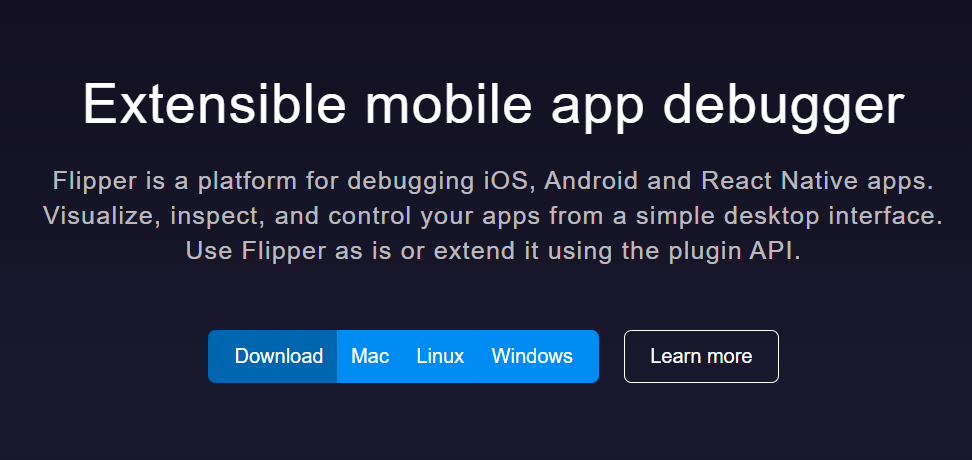
1) https://fbflipper.com/ 자신의 운영체제에 맞추어 다운로드
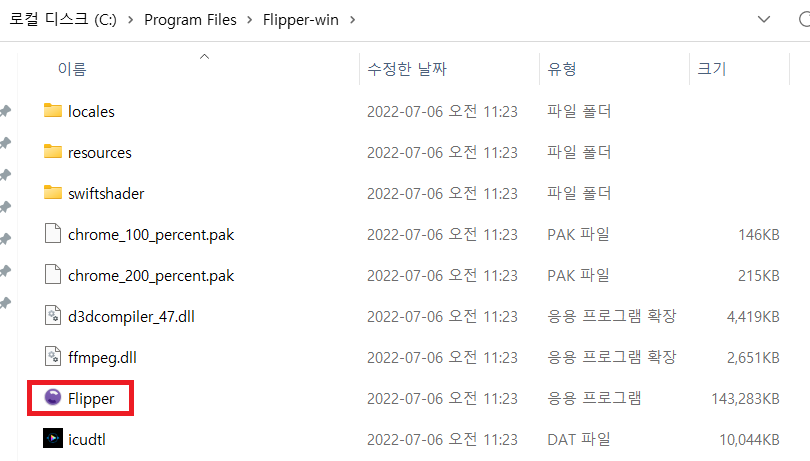
2) 압축을 해제하고 Flipper 실행
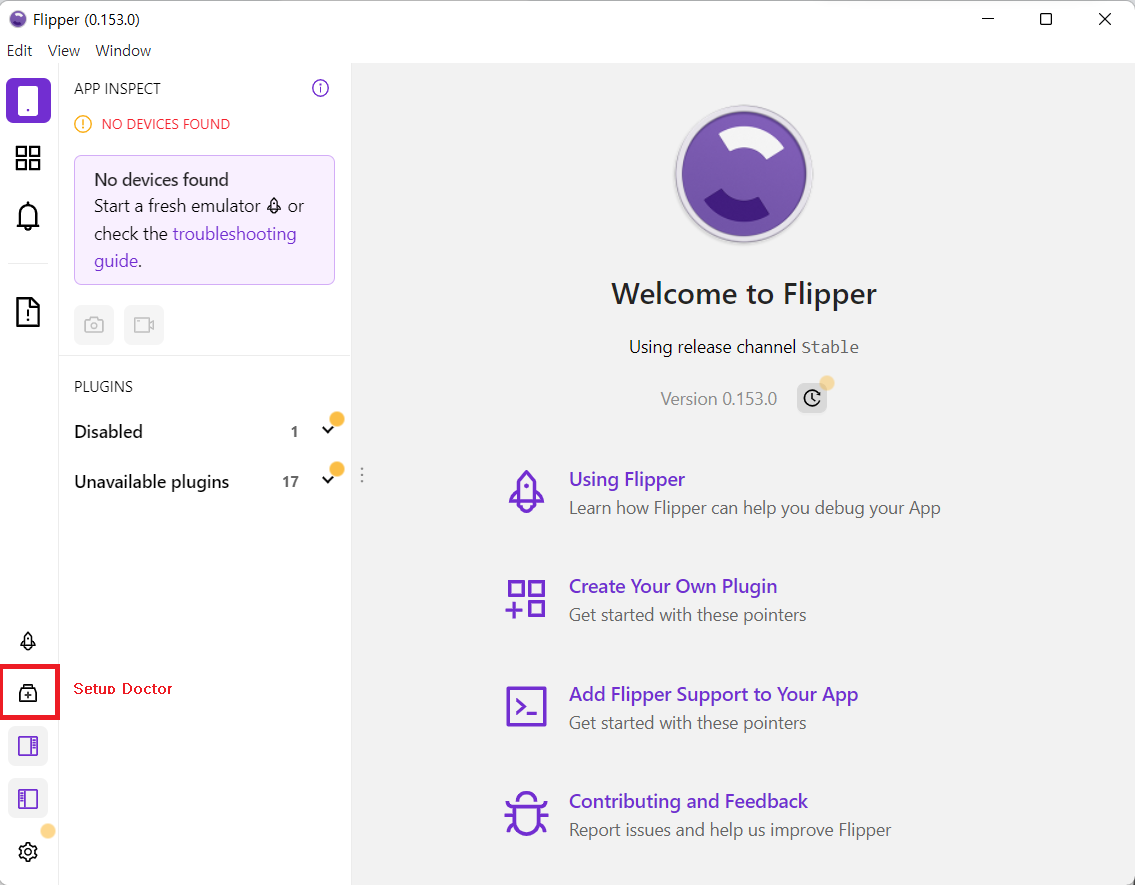
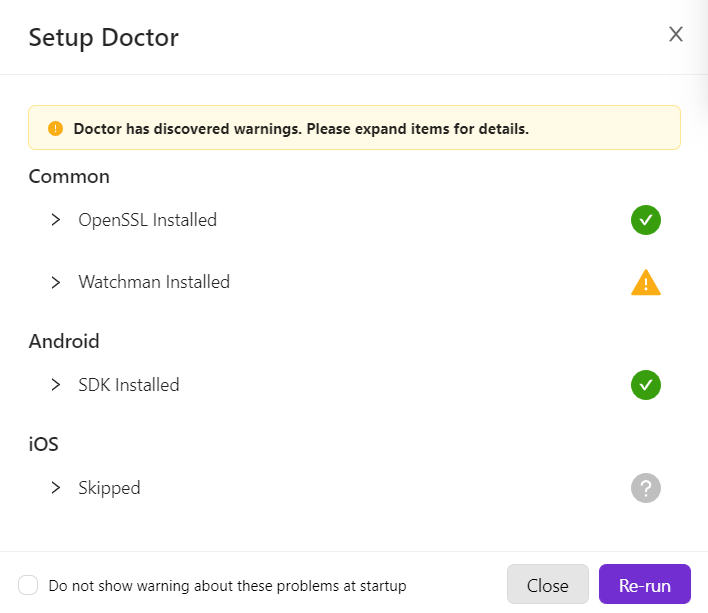
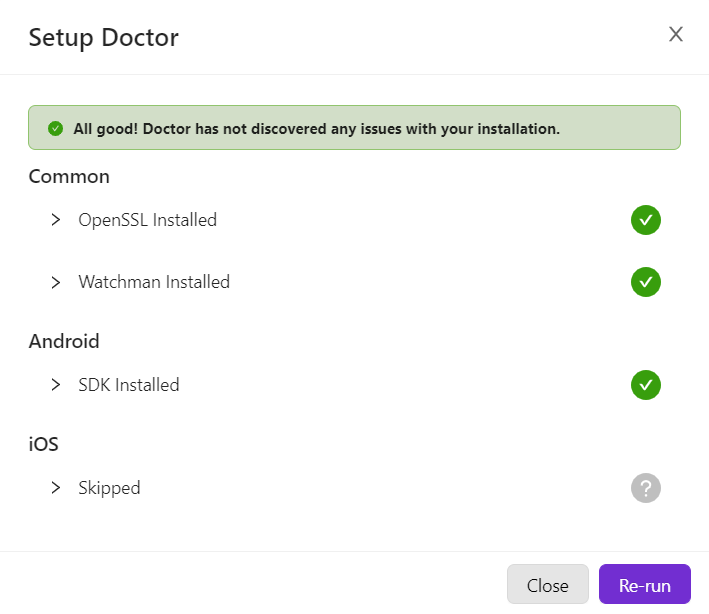
3) Setup Doctor를 확인하고 Common과 Android 를 모두 초록 체크✅로 만들어 주어야함
2. Watchman 설치
1-1) chocolatey 설치
- ⬇️ 아래를 복사하여 cmd창에 붙여넣기
@"%SystemRoot%\System32\WindowsPowerShell\v1.0\powershell.exe" -NoProfile -InputFormat None -ExecutionPolicy Bypass -Command "[System.Net.ServicePointManager]::SecurityProtocol = 3072; iex ((New-Object System.Net.WebClient).DownloadString('https://community.chocolatey.org/install.ps1'))" && SET "PATH=%PATH%;%ALLUSERSPROFILE%\chocolatey\bin"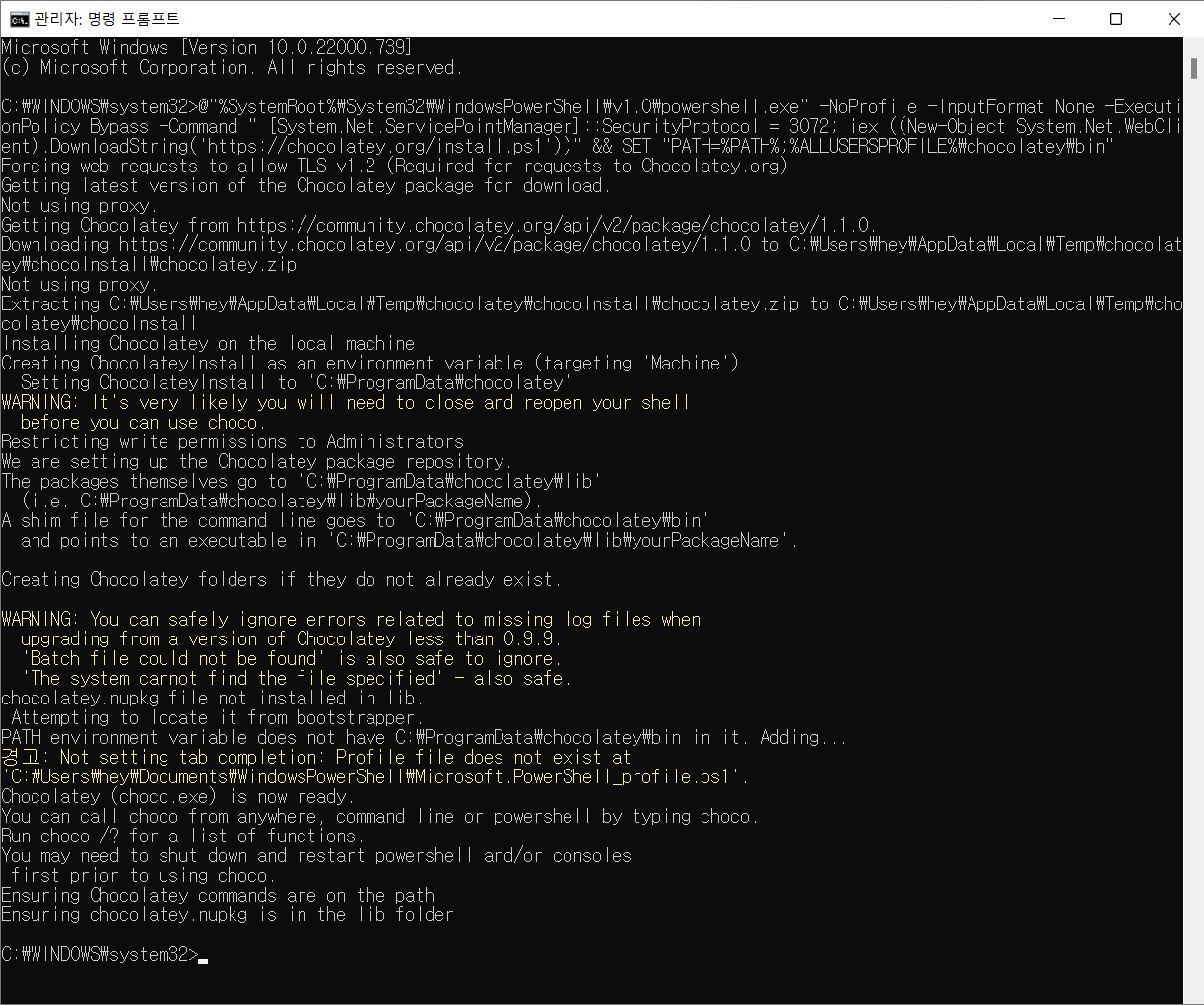
1-2) chocolatey 가 제대로 설치되었는지 확인하기
- Windows PowerShell을 관리자 권한으로 실행
choco -version입력 후 아래와 같이 나오면 정상 설치

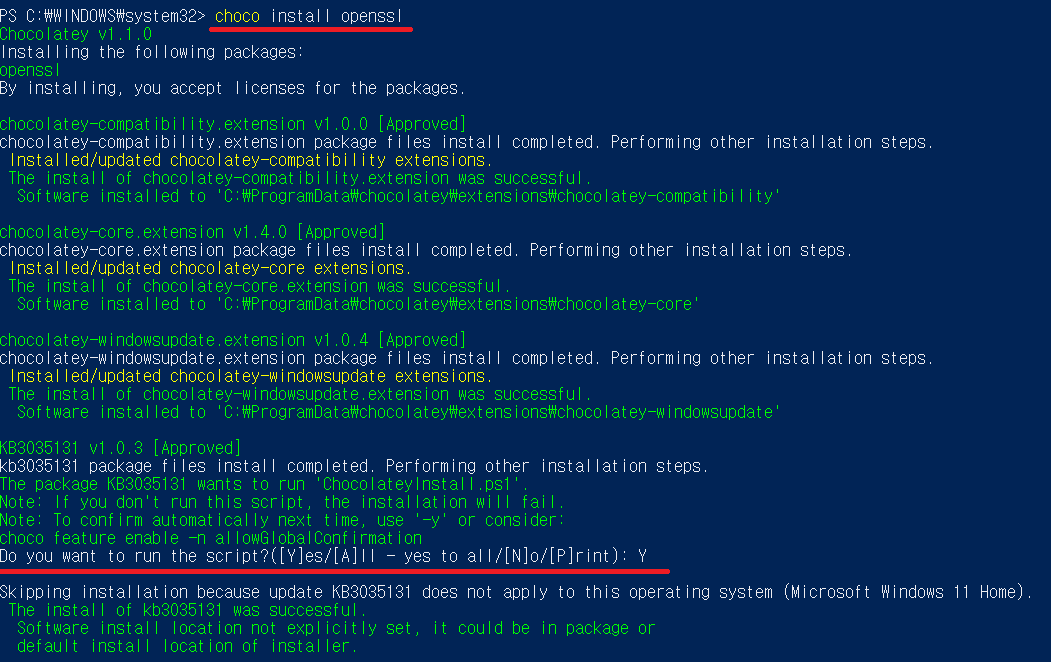
2) openssl install
- Windows PowerShell을 관리자 권한으로 실행
choco install openssl입력- 아래처럼 설정을 물을 때 Y 입력
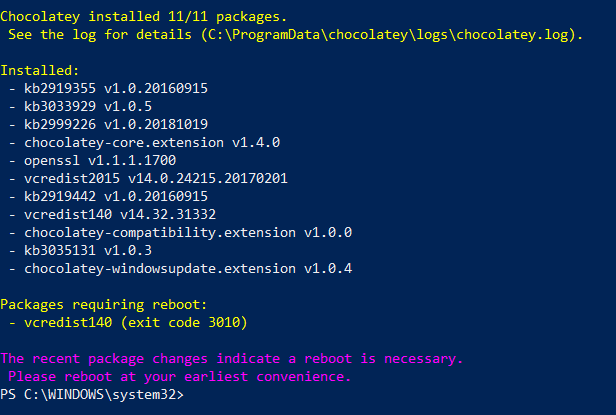
- 설치 완료시 powershell 화면
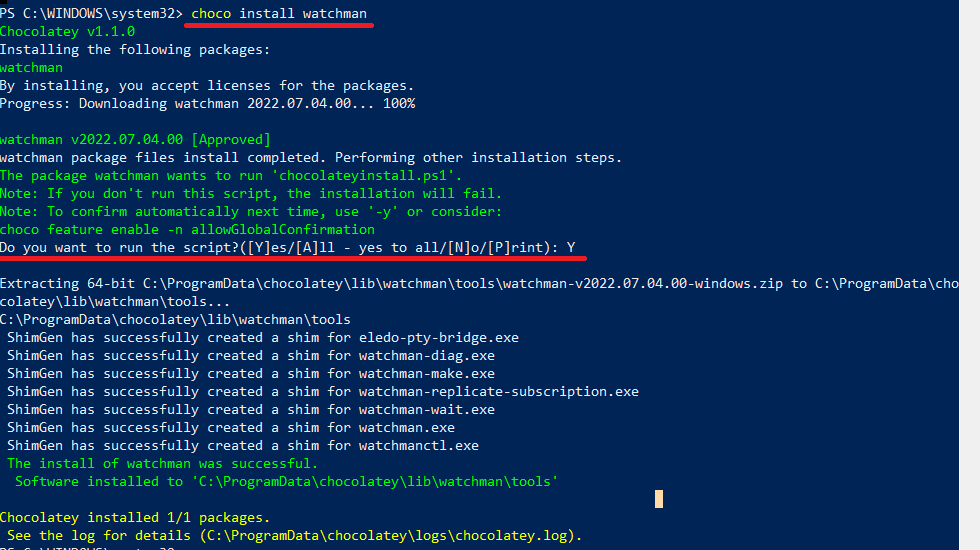
3) Watchman Install
- Windows PowerShell을 관리자 권한으로 실행
choco install watchman입력- 아래처럼 설정을 물을 때 Y 입력
4) Watchman Install 완료
- Re-run 을 눌러도 초록체크로 바뀌지 않으면 pc 재부팅
3. 안드로이드 프로젝트 설정
- 공식문서 참고
1. build.gradle(Module)
dependencies {
  debugImplementation 'com.facebook.flipper:flipper:0.153.0'
  debugImplementation 'com.facebook.soloader:soloader:0.10.1'

  releaseImplementation 'com.facebook.flipper:flipper-noop:0.153.0'
}
2. MyApplication.kt
class MyApplication : Application {
  override fun onCreate() {
    super.onCreate()
    SoLoader.init(this, false)

    if (BuildConfig.DEBUG && FlipperUtils.shouldEnableFlipper(this)) {
      val client = AndroidFlipperClient.getInstance(this)
      client.addPlugin(InspectorFlipperPlugin(this, DescriptorMapping.withDefaults()))

      // 추가로 사용할 플러그인은 여기에서 추가

      client.start()
    }
  }
}- plugin 관련 공식문서 (Setup -> Plugin Setup)
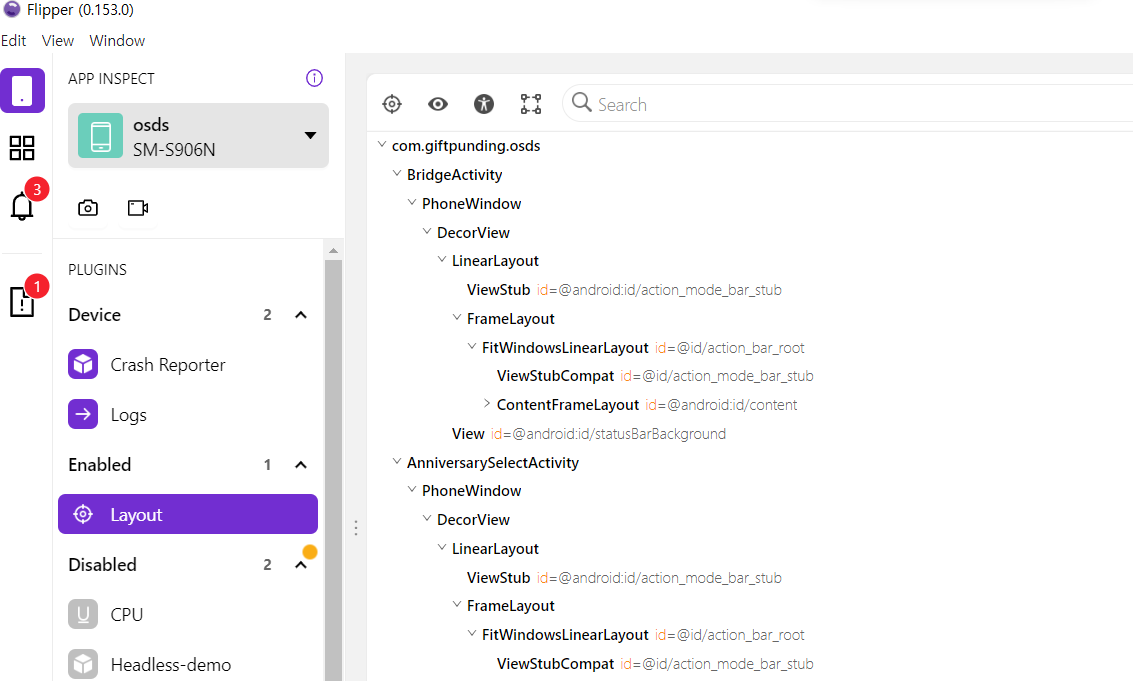
3. 안드로이드 프로젝트를 디버깅하면 아래와 같이 레이아웃 구조 확인 가능

장똑대와 안드로이드