Ansys Mechanical APDL
1. Dynamic Substructuring
1) Preprocessing (Command Prompt)
- 단위계 설정
/units,si<< Command prompt에 입력
- Preprocessor tab 이동
/prep7
- Element Type 지정
et,1,solid185
- Material Props 설정
mp,ex,1,2e11
mp,dens,1,7870
mp,prxy,1,0.291
2) Import Cad File (.iges)
- 상단 탭에서
[File] > [Import] > [IGES ...] 클릭
3) Meshing
- Mesh 짜주기
4) Divide & Select Components
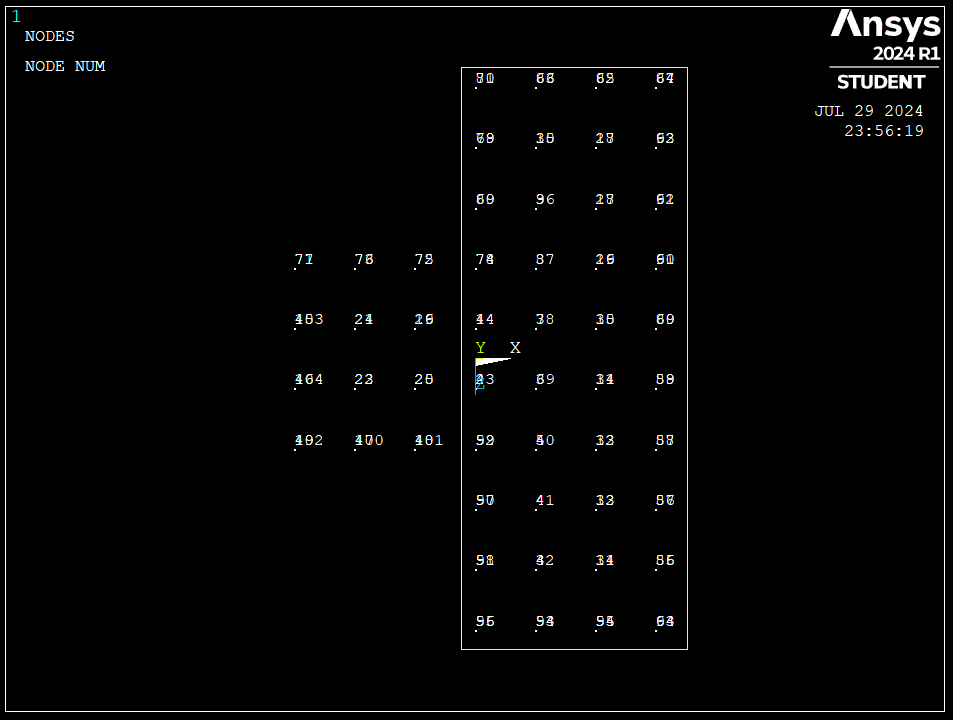
- 노드 선택하기 좋은 view 설정 후 노드 plot
nplot
- 상단 탭에서
[Select] > [Entities ...] 클릭
"Nodes" 선택 후 "OK"
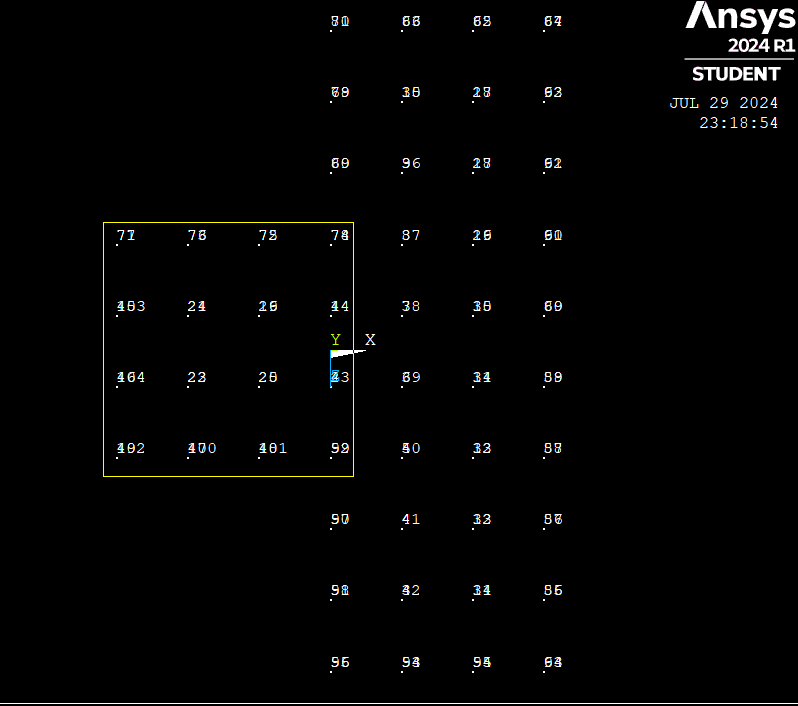
"Box" 선택 후 마우스 drag 하여 substructure에 해당하는 노드 선택 후 "OK"
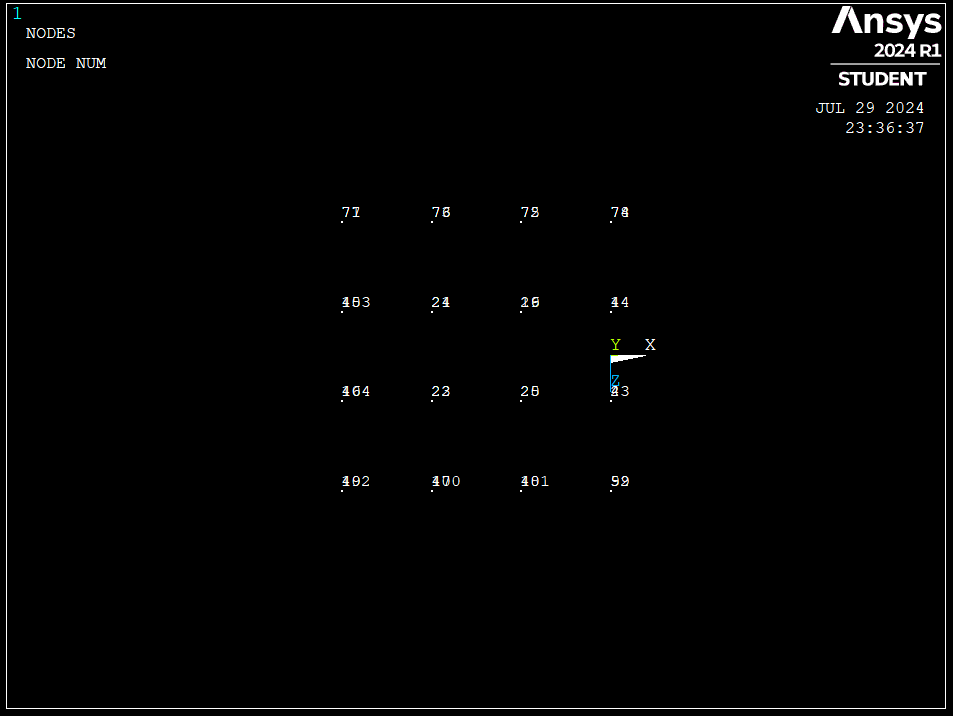
- 선택한 노드들 활성화하여 잘 선택 되었는지 확인
nplot
- 해당 노드들 component로 묶어주기
cm,{desired component name},node
ex) cm,part1,node
- [Select] > [Component Manager ...] 에서 컴포넌트 생성되었는지 확인 (PART1이 생성된 것 확인 가능)
*해당 버튼(연필 모양)을 누르면 selected component를 display 해줌
- 해당 component 선택
cmsel,s,{component name},node
ex) cmsel,s,part1,node
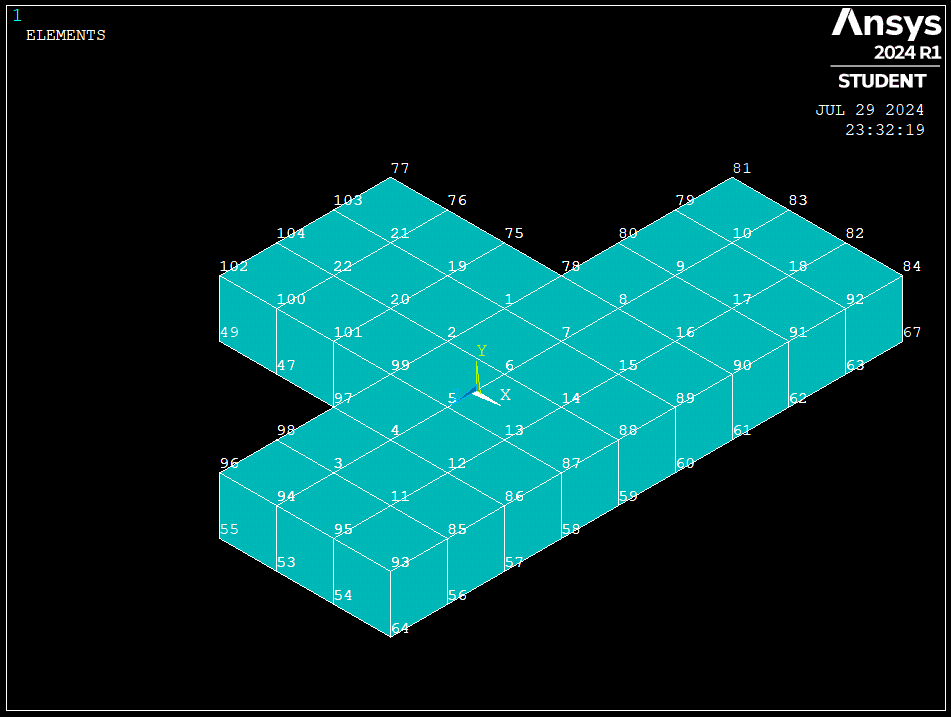
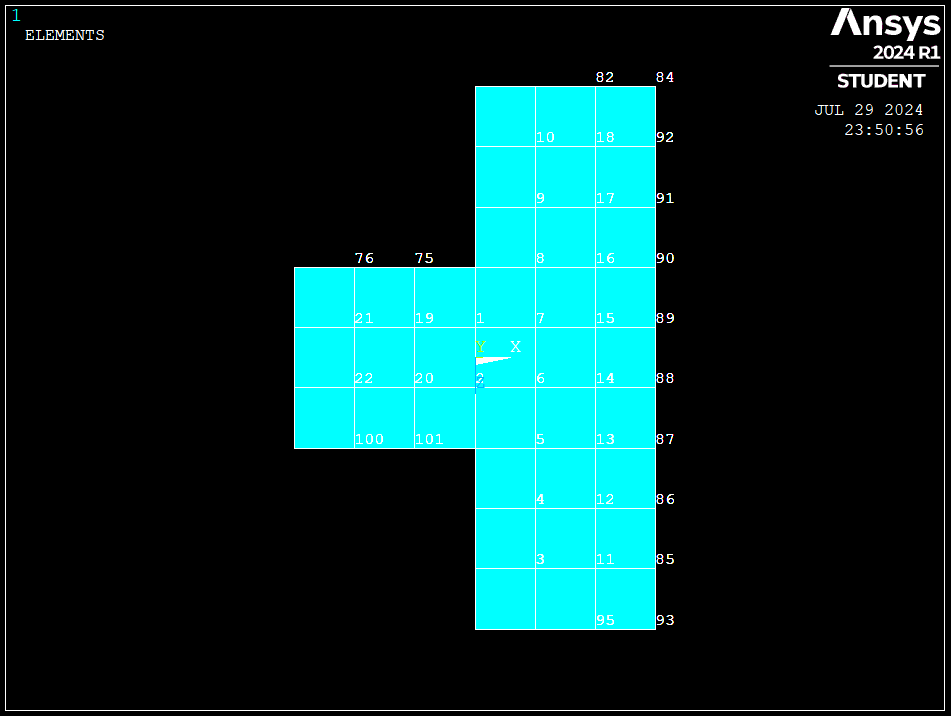
- Component의 노드들로 이루어진 Element 생성
esln,s,1,all
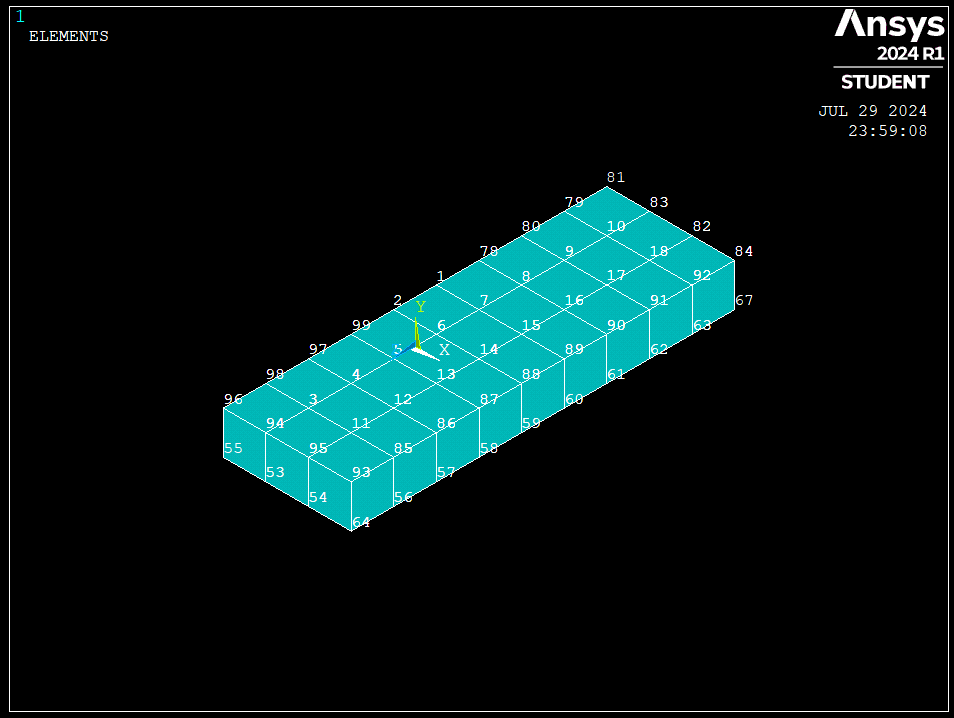
eplot선택한 노드들로 이루어진 element 확인 가능
- cdb 파일 생성하여 element 저장
cdwrite,db,{filename},cdb
두번째 컴포넌트 선택
- 다시 모든 node 및 element 선택
allsel,all
nplot
eplot
- 위와 같은 방식으로 나머지 substructure 선택
nplot
cm,part2,node
cmsel,s,part2,node
esln,s,1,all
eplot
- cdb 파일 생성 및 저장
cdwrite,db,{filename2},cdb

5) Extract M,K matrices (Harwell-Boeing format) from each components
- "cdread" command로 파일 불러오기
cdread,db,{filename.cdb}
eplot
- modal 해석돌리고 full file 생성
[Analysis Type] > [New Analysis] > [Maodal] > [OK] 후 Solve
해당 디렉토리에 full file (filename.full) 생성되는지 확인
(생성이 안되면 Analysis Options에서 추출 모드 개수 설정 해줘야 할 수도 있음)
- M,K Harwell-Boeing format 뽑기
/aux2
file,{fullfilename},full
*{ }위치에 fullfile이름이 들어가면 됨.
ex) fullfile이 component1.full 이면 -> file,component1,full
hbmat,{desired filename},matrix,,ascii,mass,1,1
hbmat,{desired filename},matrix,,ascii,stiff,1,1
- mapping file과 matrix file 생성 확인

System_Dynamics_Lab