
프로젝트 배포 관련 때문에 AWS 홈페이지에 자주 들어가는데
AWS CLI 서비스가 존재한다는 사실을 뒤늦게 알았다.
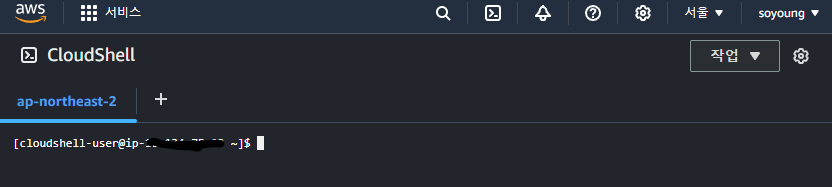
정확히는 CloudShell의 존재는 알았는데, 브라우저 기반이라서 GUI로 조작하는 것이 편하다고 판단했다.
그런데 AWS가 데스크톱 애플리케이션을 제공하고 있어서 브라우저를 사용하지 않고도 AWS를 사용할 수 있다는 것.
이제 데스크톱 애플리케이션을 설치하러 가보자.
AWS 공식 문서에 간단한 설치 방법이 나와있다.
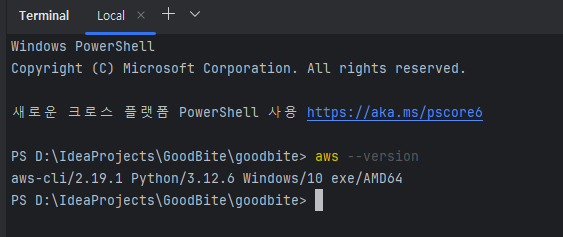
나는 2.19.1 버전이 잘 설치되었다. 앞으로 인텔리제이 창에서 개발 중에 원하는 아마존 웹 서비스를 사용할 수 있게 되었다! 너무 편할 것 같음.
CLI를 사용하려면 사용할 계정을 설정해줘야 한다. AWS는 시스템이 거대해서 계정 종류가 다양하고 복잡하다. 😨 그래서 먼저 어떤 것들이 있는지 공부해보기로 하였다.
AWS 계정 유형
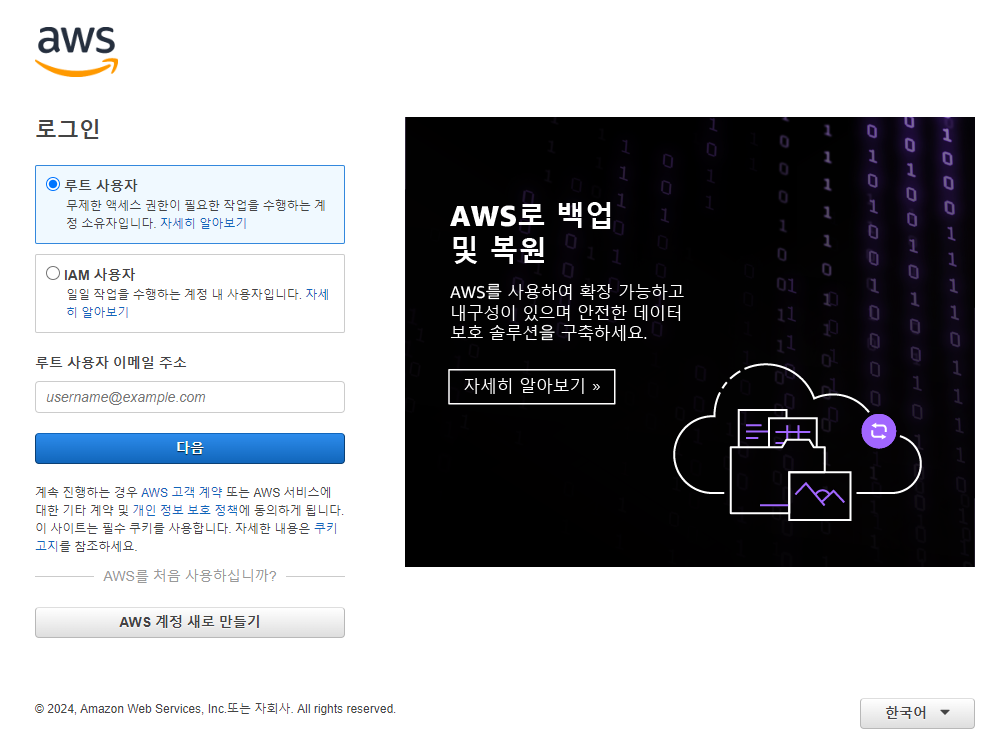
나는 AWS에서 제공하는 [AWS 계정 새로 만들기]를 통해 만든 루트 사용자 계정(root user)만을 사용하고 있었다.
로그인 때마다 보았던 IAM 사용자 로그인은 무엇이 다른지? 왜 사용되는지? 궁금했다.
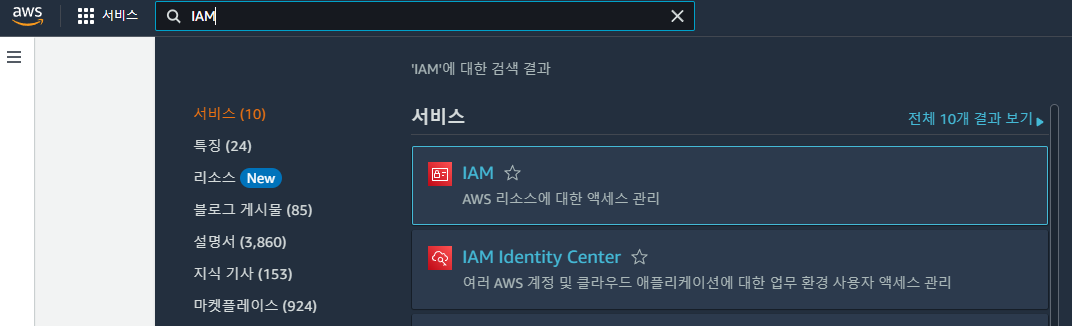
개발 팀 프로젝트를 진행하며 여러 사람과 AWS 리소스를 공유해야했는데 방법을 찾아보다가 IAM을 활용해야한다는 사실을 깨닫고 관리 콘솔에 IAM 서비스를 검색해보았다.
관리 콘솔에는 IAM과 IAM Identity Center 두 가지 서비스가 있는데 차이를 몰라 많이 헤맸었다. 😅 (계정 유형을 찾아보게 된 큰 계기.)
내가 조사한 각 계정의 특징을 나열하면 다음과 같다.
특징
- 루트 계정
- 회사나 같은 팀, 외부 파트너 등 다른 사람으로부터 계정 정보를 받은게 아니라면, 회원가입 시 처음 만들게 되는 유형
- 모든 AWS 리소스의 최고 권한
- 보안 강화 필수
루트 사용자는 해킹 위험이 크니까 필요할 때만 접속을 권장하는 듯하다.
내가 계정 주인이라 하더라도 나를 위한 또 다른 IAM 사용자나 역할을 만들어서 그것으로 접속하는 것을 추천하더라.
- IAM 사용자
- 루트 계정의 리소스에 접근할 수 있는 사용자 계정
- 각 사용자에게 권한을 할당하여 개별 관리하는 용도
- 개발자, 관리자, 팀원 등 개인적으로 사용 가능하도록 각자의 자격 증명을 발급하여 사용(최소 권한 정책, 필요한 권한만 부여)
- IAM에서 설정 가능
- 소규모에서 가장 일반적이고 자주 사용됨
- IAM 역할 (=임시 자격 증명)
- 크게 두 가지 용도가 있음
- AWS 리소스가 다른 AWS 리소스에 접근하기 위한 용도(예시: EC2 인스턴스에서 S3 버킷 이미지 필요)
- 계정 간 접근, 외부 엔터티(다른 AWS 계정, 제3자 서비스, 외부 사용자 및 게스트)가 AWS 리소스에 임시 접근하기 위한 용도
- 사람에게 IAM 사용자를 부여하는 것보다 비교적 높은 보안성
- STS를 통해 해당 역할의 임시 자격 증명 발급
- IAM에서 설정 가능
IAM 사용자와 역할, 언제 쓰면 좋을까?
- IAM 사용자
- AWS 리소스를 장기적이고 지속적으로 사용하는 팀원, 개발자, 운영자가 사용
- 고정된 권한, 일관된 접근, 자격 증명을 자주 변경하지 않음
- IAM 역할
- (예시)개발자가 특정 작업을 수행하기 위해 임시로 더 높은 권한이 필요할 때
- 다른 AWS 계정에 일시적으로 접근해야할 때
- AWS SSO (IAM Identity Center)
- 여러 AWS 계정, 외부 ID 공급 애플리케이션(Azure AD, Okta 등)의 접근을 통합하고 한 번에 관리하는 기능
- 즉, 한 번의 로그인으로 권한을 부여받은 모든 AWS 계정, 리소스에 접근 가능
- IAM Identity Center에서 설정 가능
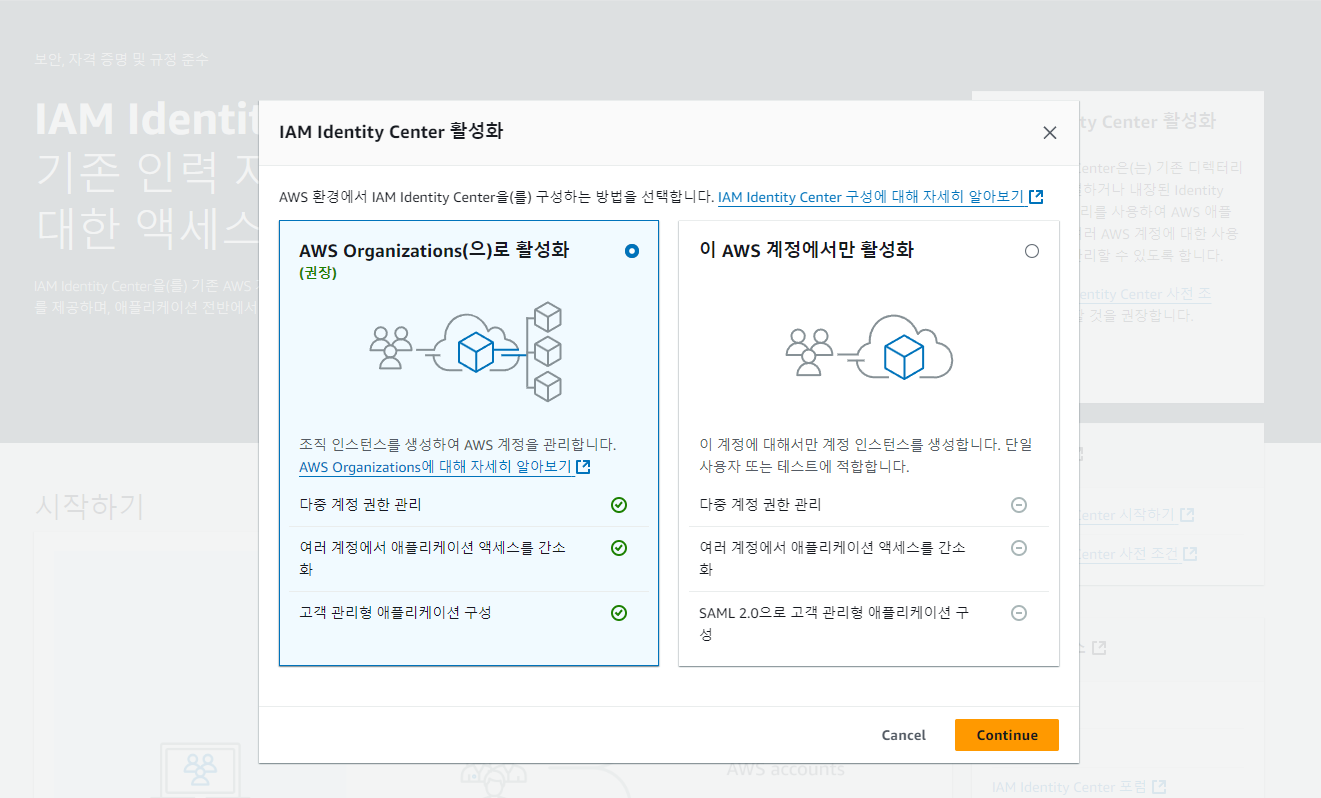
- SSO 생성 시 선택 - Organization 연동 / 단일 계정
- AWS Organizations: 여러 AWS 계정 리소스 접근 가능
- 이 계정에서 활성화: 현재 AWS 계정의 리소스에만 접근 가능
- 관리자는 사용자별, 역할별, 그룹별 AWS SSO 계정을 생성하고 관리
- AWS SSO 포털이 별도로 존재
- SSO 포털에서만 사용할 수 있는 계정으로, AWS 계정과는 다름
IAM(사용자/역할) & SSO 사용 사례 비교
개발자 A, B, C가 한 팀이고 A는 개발, B가 테스트, C가 프로덕션을 맡고 있으며 각자 AWS 계정을 사용 중.
프로젝트 매니저인 나(D)는 모든 리소스를 확인할 권리가 있다.
- IAM을 사용할 경우
A, B, C가 각각 자신의 계정에서 사용자 D를 등록해야 한다.
나는 개발, 테스트, 프로덕션 각 리소스 접근마다 다른 로그인을 해야한다.- SSO를 사용할 경우
Organizations로 A, B, C 계정을 그룹화하고 단일 SSO 포털에 등록한다.
SSO 포털에 사용자 D를 등록한다.
나는 SSO 포털에 로그인하면 모든 리소스에 접근할 수 있다.
나의 사례
내 루트 계정의 리소스를 팀원들과 공유하려고 할 때, 나에게는 세 가지 선택권이 있었다고 본다.
①IAM 사용자 ②IAM 역할 ③SSO
초보자인 내가 선택한 것은 ①IAM 사용자를 생성하고 팀원들에게 부여하기로 하였다.
5명 미만의 소규모 팀이고 내 AWS 계정으로 모든 리소스가 이뤄지고 있기 때문이다.
그리고 팀원들이 원하는 때에 지속적으로 리소스에 접근가능하도록 하고 싶었다. (②IAM 역할 탈락)
③SSO의 경우 처음에는 대규모 프로젝트에 맞다고 보였고 복잡하다고 생각하여...😅 순위에서 미뤘으나
자세히 알아보니 소규모 프로젝트에도 적용해서 보안성을 강화하고(임시 자격 증명) 한 번의 로그인으로 접근할 수 있다는 편의성을 가져가기에 채택하는 것이 좋아보인다고 판단.
먼저 ①IAM 사용자를 사용해본 후 차후 ③SSO로 중앙관리하는 방법으로 바꿔야겠다!
이렇게 하면 둘 다 사용해보며 편의성을 체감할 수 있을 것이다.
AWS CLI 초기 설정
AWS CLI 명령어를 사용하기 전, 사용하려는 계정 유형에 따라 초기 설정이 달라질 수 있다.
나는 지속적으로 EC2와 S3에 접근할 IAM 사용자 계정으로 접근하기로 했다.
- IAM 사용자 & 루트 계정의 경우
- Access Key, Secret Key 필요 -> 없다면 aws 사이트 관리 콘솔에서 생성해야 함
- CLI
aws configure - Region:
ap-northeast-2(서울) - Output Format:
jsonyamltexttable중 하나
- SSO의 경우
- IAM Identity Center 콘솔에서 제공되는 URL 필요
https://your-sso-portal.awsapps.com/start형식 -> 없다면 aws 사이트 관리 콘솔에서 생성해야 함 - CLI
aws configure sso - Region:
ap-northeast-2(서울) - 접근하려는 AWS 계정 ID
- STS의 경우
aws sts assume-role --role-arn "arn:aws:iam::123456789012:role/ExampleRole" --role-session-name "SessionName"
자주 사용하는 명령어
이하 내가 보려고 만든 명령어 모음
기본 명령어 형태
aws <서비스> <명령어> [옵션]
예시:aws s3 ls
원하는 값 필터링하기
jq (JSON 파싱 도구) 와 파이프(|) 사용
계정
- 계정 설정 및 확인
aws configure또는aws configure sso - 프로파일 목록
aws configure list-profiles - 특정 프로파일 설정 정보
aws configure list --profile <profile-name> - 특정 프로파일로 명령어 사용하기 옵션
--profile <profile-name> - 특정 프로파일을 기본으로 사용하기 (환경변수 설정. 해당 세션 동안 적용)
Windows$env:AWS_PROFILE="profile-name"
macOS / Linuxexport AWS_PROFILE="profile-name" - 프로파일 초기화 (전체 삭제)
rm ~/.aws/config,rm ~/.aws/credentials(둘 다 실행) - 프로파일 삭제 (편집기로 수동 삭제)
nano ~/.aws/config - sso 캐시 삭제
rm -rf ~/.aws/sso/cache - sso 프로파일 만료 리프레시
aws sso login
EC2 인스턴스 ID와 이름 목록
aws ec2 describe-instances --query "Reservations[*].Instances[*].{Name: Tags[?Key=='Name'].Value | [0], InstanceId: InstanceId}" --output table
EC2 인스턴스 이름으로 정보 확인
aws ec2 describe-instances --filters "Name=tag:Name,Values=MyInstanceName" --output table --no-cli-pager
ID로 정보 확인
aws ec2 describe-instances --instance-ids i-1234567890abcdef0 --output table --no-cli-pager
--output table보기 편한 table 형식--no-cli-pager한 번에 모두 출력됨
EC2
- AMI 목록 조회
aws ec2 describe-images --owners self(*self = 현재 계정) - 키 페어 생성
aws ec2 create-key-pair --key-name MyKeyPair - 키 페어 삭제
aws ec2 delete-key-pair --key-name MyKeyPair - 인스턴스 생성 및 시작
aws ec2 run-instances --image-id ami-xxxxxxxx --instance-type t2.micro --key-name MyKeyPair --security-group-ids sg-xxxxxxxx --subnet-id subnet-xxxxxxxx - 인스턴스 시작
aws ec2 start-instances --instance-ids i-xxxxxxxxxxxx - 인스턴스 중지
aws ec2 stop-instances --instance-ids i-xxxxxxxxxxxx - 인스턴스 확인
aws ec2 describe-instances --instance-ids i-xxxxxxxxxxxx - 인스턴스 종료
aws ec2 terminate-instances --instance-ids i-xxxxxxxxxxxx - VPC 목록 조회
aws ec2 describe-vpcs - 보안 그룹 조회
aws ec2 describe-security-groups --filters Name=vpc-id,Values=vpc-xxxxxxxx - 보안 그룹 생성
aws ec2 create-security-group --group-name MySecurityGroup --description "My security group" - 보안 그룹 인바운드 규칙 추가
aws ec2 authorize-security-group-ingress --group-id sg-xxxxxxxx --protocol tcp --port 22 --cidr 0.0.0.0/0 - 아웃바운드 규칙 추가
aws ec2 authorize-security-group-egress --group-id sg-xxxxxxxx --protocol tcp --port 80 --cidr 0.0.0.0/0 - EBS 볼륨 생성
aws ec2 create-volume --size 10 --availability-zone us-west-2a - EBS 볼륨 삭제
aws ec2 delete-volume --volume-id vol-xxxxxxxx - 볼륨에 인스턴스 연결
aws ec2 attach-volume --volume-id vol-xxxxxxxx --instance-id i-xxxxxxxxxxxx --device /dev/sdf - EBS 볼륨 스냅샷 생성
aws ec2 create-snapshot --volume-id vol-xxxxxxxx --description "My snapshot" - 스냅샷 삭제
aws ec2 delete-snapshot --snapshot-id snap-xxxxxxxx - 가용 영역 확인
aws ec2 describe-availability-zones
S3
s3api와 s3가 존재함
s3api는 정책, 권한 등 세부 제어시 필요
s3는 간단함
- 버킷 생성
aws s3 mb s3://my-bucket-name --region ap-northeast-2 - 버킷 삭제
aws s3 rb s3://bucket-name [--force] - 버킷 목록
aws s3 ls - 버킷 내 파일 목록
aws s3 ls s3://bucket-name/path/ - 버킷 간 복사
aws s3 cp s3://source-bucket/source-path s3://destination-bucket/destination-path - 파일 삭제
aws s3 rm s3://bucket-name/path/to/file - 경로 파일 모두 삭제
aws s3 rm s3://bucket-name/path/ --recursive - 로컬을 버킷과 동기화
aws s3 sync local-directory/ s3://bucket-name/path/ - 버킷을 로컬과 동기화
aws s3 sync s3://bucket-name/path/ local-directory/ - 파일 단일 업로드
aws s3 cp path/to/local-file s3://bucket-name/path/to/destination - 디렉터리 전체 업로드
aws s3 cp path/to/local-directory s3://bucket-name/path/to/destination --recursive - 동기화 업로드(변경된 파일만)
aws s3 sync path/to/local-directory s3://bucket-name/path/to/destination - 파일 단일 다운로드
aws s3 cp s3://bucket-name/path/to/file path/to/local-destination - 디렉터리 전체 다운로드
aws s3 cp s3://bucket-name/path/to/directory path/to/local-directory --recursive - 동기화 다운로드
aws s3 sync s3://bucket-name/path/to/directory path/to/local-directory - 다운로드/업로드 시 특정 파일 제외 옵션
--exclude "*.tmp"예시(tmp)
IAM
- 사용자 및 역할 관리
- 관한 정책 설정
RDS
- 데이터베이스 인스턴스 생성
- 인스턴스 삭제
- 백업
참조 페이지
https://aws.amazon.com/ko/cli/
https://docs.aws.amazon.com/cli/latest/