Ubuntu에 Matlab 설치하기
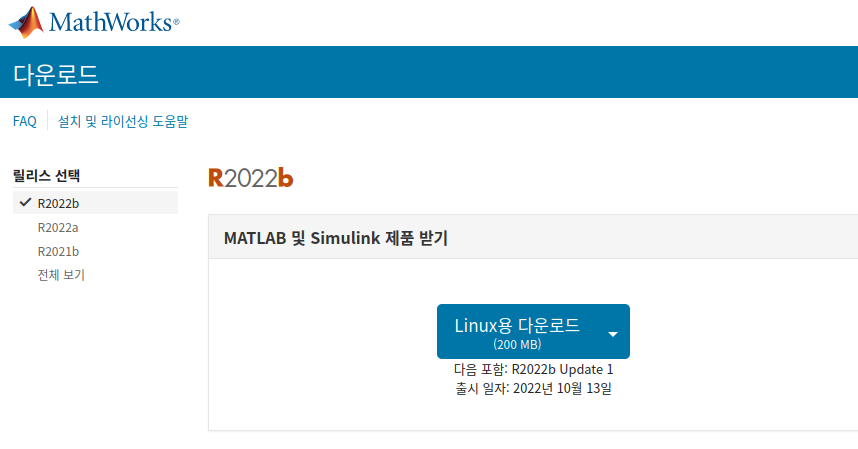
1. 설치파일 다운로드
로그인 후 사이트에서 설치파일 다운로드
2. 압축 해제 후 설치
- 압축 해제 후 해당 폴더에서 터미널 열기
$ sudo ./install명령어 입력 후 설치 완료하기
License checkout failed 에러
설치 후 matlab 명령어 입력하니까 아래와 같은 에러 발생
License checkout failed.
License Manager Error -9
Your username does not match the username in the license file.
To run on this computer, you must run the Activation client to reactivate your license.

Troubleshoot this issue by visiting:
https://www.mathworks.com/support/lme/R2022b/9

Diagnostic Information:
Feature: MATLAB
License path: /home/smha/.matlab/R2022b_licenses:/usr/local/MATLAB/R2022b/licenses/license.dat:/usr/local/MATLAB/R
2022b/licenses/license_smha-B560M-DS3H-PLUS_650399_R2022b.lic
Licensing error: -9,57.
이를 해결하기 위해 먼저 아래의 명령어를 입력
$ /usr/local/MATLAB/R2022b/bin/activate_matlab.sh그러면 아래의 창이 뜬다. 순서대로 진행해주자!
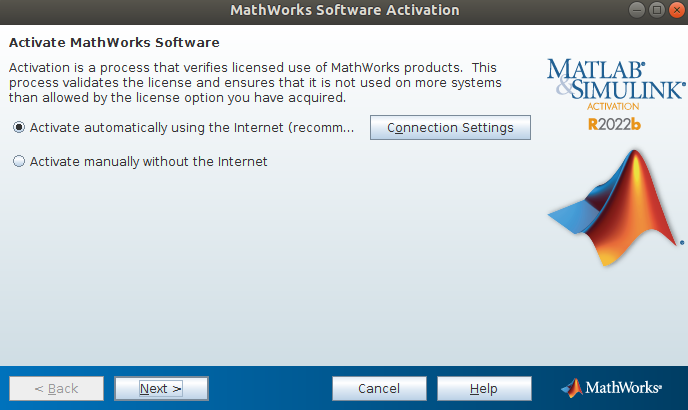
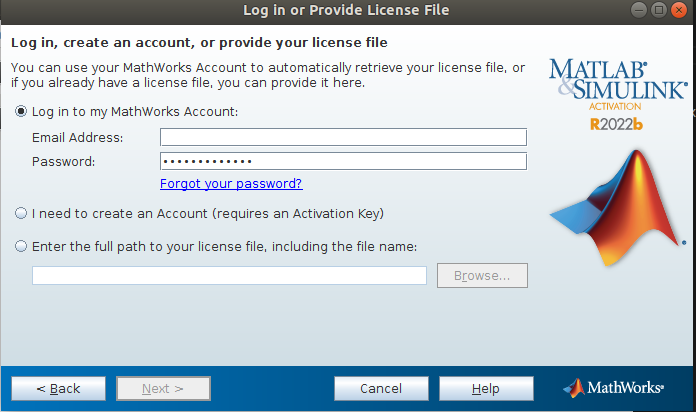
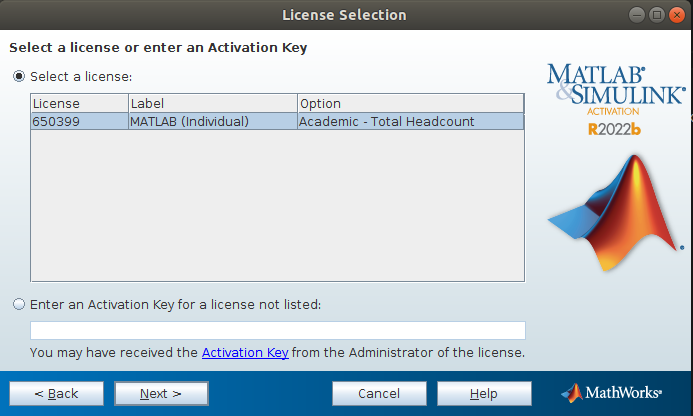
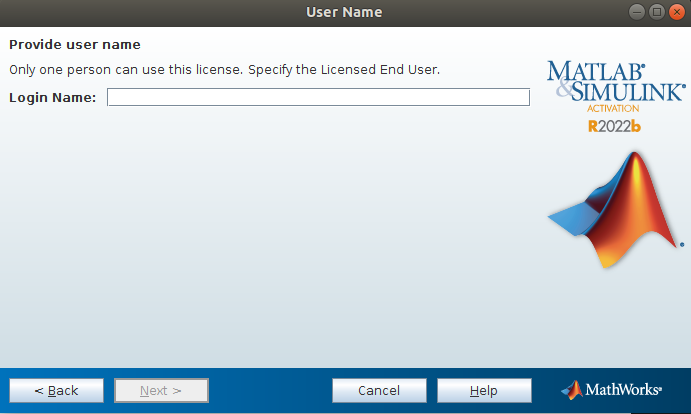
자동으로 입력되는 Login name 절대 바꾸지 말기!
바꾸면 또다시 License checkout failed 에러 발생
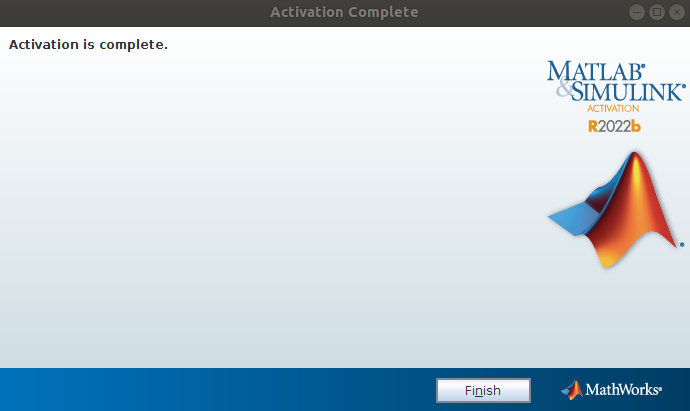
Confirmation 완료하면 Activation 완료!
3. matlab 실행
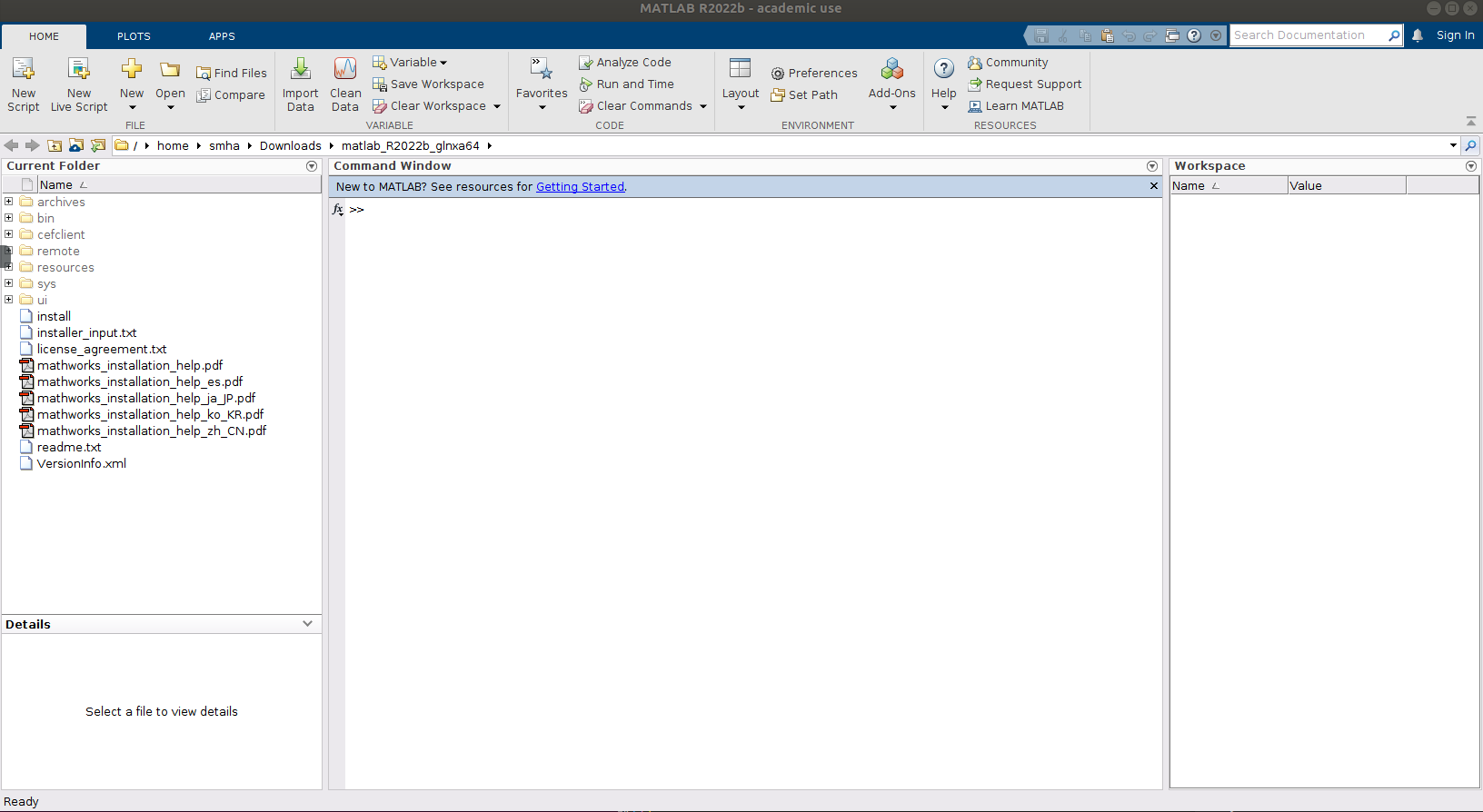
터미널에 $ matlab을 입력 후 로그인하면 아래처럼 matlab이 잘 실행되는 것을 볼 수 있다.
참고)
https://kr.mathworks.com/matlabcentral/answers/485606-license-manager-error-9