개요
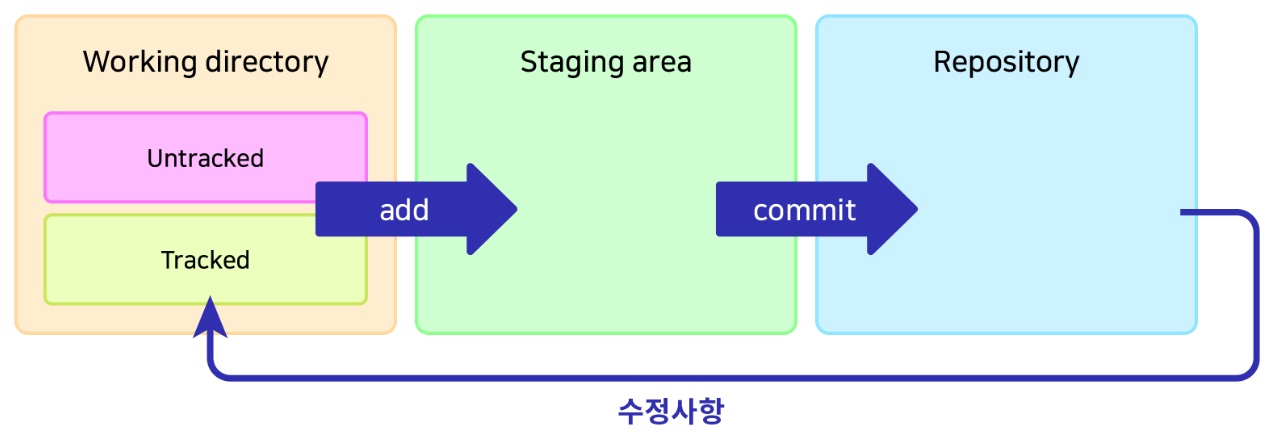
📌 Git의 3 공간
-
Working directory
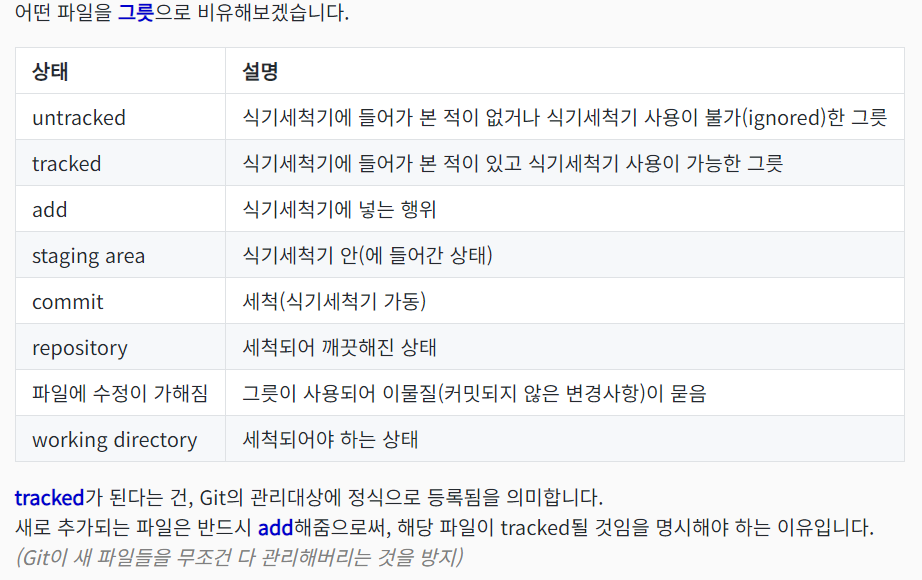
untracked: Add된 적 없는 파일, ignore 된 파일
tracked: Add된 적 있고 변경내역이 있는 파일
git add 명령어로 Staging area로 이동 -
Staging area
커밋을 위한 준비 단계
예시: 작업을 위해 선택된 파일들
git commit 명령어로 repository로 이동 -
Repository
.git directory라고도 불림
커밋된 상태
-
파일의 삭제와 이동
-
삭제 -
git rm
tigers.yaml를 삭제해본 뒤git status로 살펴보기
파일의 삭제가working directory에 있음
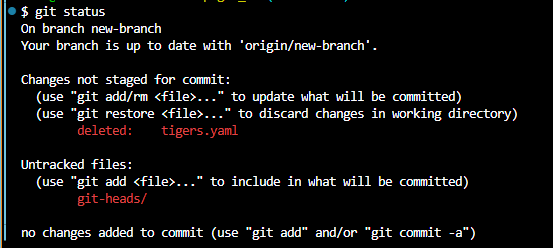
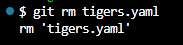
git rm tigers.yaml로 삭제하고git status로 살펴보기
파일의 삭제가Staging area에 있음
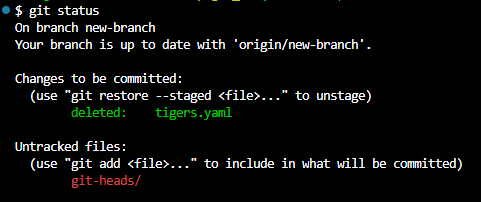
git reset --hard로 복원
- 이동 -
git mv
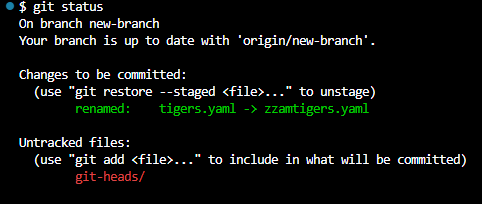
tigers.yaml를zzamtigers.yaml로 이름변경 뒤git status로 살펴보기
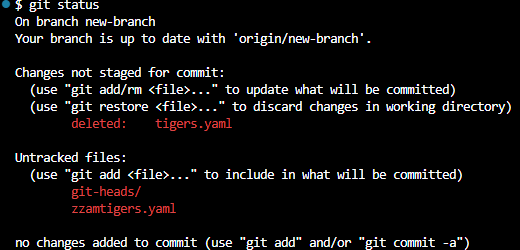
git mv tigers.yaml zzamtigers.yaml로 실행 뒤 비교
- 파일을
staging area에서working directory로git restore --staged (파일명)--staged를 빼면working directory에서도 제거
reset의 세 가지 옵션--soft: repository에서 staging area로 이동--mixed (default): repository에서 working directory로 이동--hard: 수정사항 완전히 삭제
📌 HEAD

- Git의
HEAD
현재 속한 브랜치의 가장 최신 커밋
checkout으로 앞, 뒤 이동해보기
^ 또는 ~ : 갯수만큼 이전으로 이동
git checkout HEAD^예) git checkout HEAD^^^, git checkout HEAD~5
.
+) 커밋해시를 사용해서도 이동 가능
git checkout (커밋해시).
git checkout - : (이동을) 한 단계 되돌리기
git reset HEAD(원하는 단계) (옵션) : HEAD 사용하여 reset 하기
📌 FETCH / PULL
fetch와pull의 차이
fetch : 원격 저장소의 최신 커밋을 로컬로 가져오기만 함
pull : 원격 저장소의 최신 커밋을 로컬로 가져와 merge 또는 rebase
.
fetch한 내역 적용 전 살펴보기
원격의 main 브랜치에 커밋 추가
- git checkout origin/main으로 확인해보기
.
원격의 변경사항 fetch
- git checkout origin/main으로 확인해보기
- pull로 적용
.
원격의 새 브랜치 확인
git checkout origin/(브랜치명)
git switch -t origin/(브랜치명)