git log
Branch 별 변경이력을 볼 수 있음
해당 브런치에서 로그 확인
git log
git editor
vscode로 editor 설정
git config --global core.editor "code --wait" (wait 옵션: vscode 실행 중엔 다른건 실행 안됨)
git diff
diff 설정
git config --global -e
설정 추가
[diff]
tool = vscode
[difftool "vscode"]
cmd = "code --wait --diff $LOCAL $REMOTE
Local Branch 간 비교
git diff main deb
git difftool main deb
Commit 간 비교
git difftool commithash commithash (앞자리 7자리만 해도 되긴함)
마지막 Commit 과 이전 Commit 비교
git difftool HEAD HEAD^
마지막 Commit 과 현재 수정사항 확인
git difftool HEAD
Local and Remote 간 비교
git difftool main origin/main
Merge
현재 위치한 Branch 에 다른 Branch 를 병합
merge 설정
git config --global -e
Git Merge 설정 추가
[merge]
tool = vscode
[mergetool "vscode"]
cmd = "code --wait $MERGED"
main branch 에서 dev branch 를 merge
git merge dev
Conflict
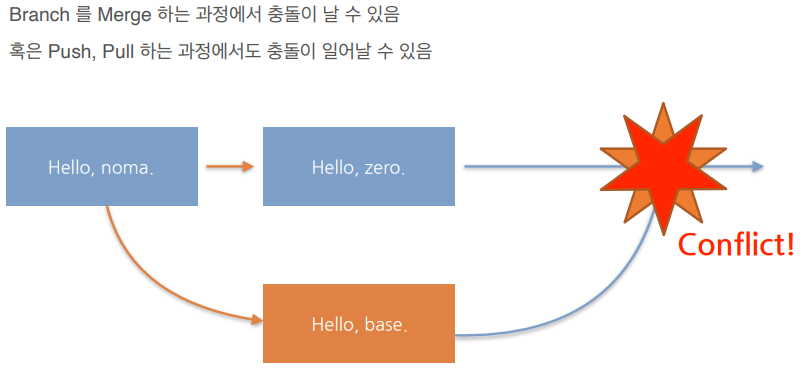
conflict 상황에서 merge 시도
git merge dev2
conflict 발생 후 MergeTool 을 실행하면 Conflict 난 파일들이 차례로 열림
git mergetool
Main Branch 와 Dev2 Branch 의 Diff 를 <<<<, ====, >>>> 로 표시
둘 중 맞는 코드를 선택하여 수정하고 저장.(Diff 표시 부분도 삭제)
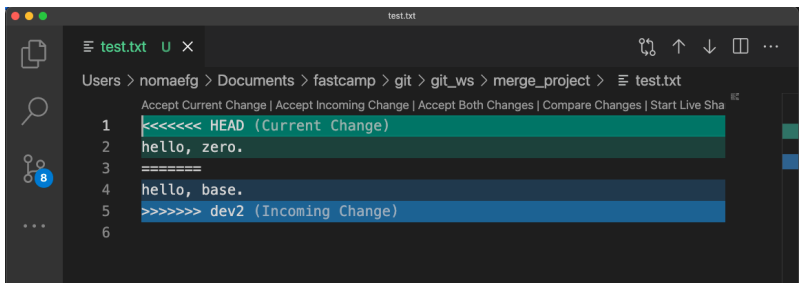
Conflict 해제
git add test.txt
git commit
Commit Message 저장 후 완료
Git Log 로 확인
Tag
특정 버전 (Commit) 에 Tag 를 달아놓을 필요가 있을 때 사용 (예 - 버전 릴리즈)
현재 버전에 Tag 달기
git tag tagname
현재 버전 (Commit3) 에 Tag (v0.3) 달기
git tag v0.3
git log 로 tag 확인가능
특정 버전에 Tag 달기
git tag tagname commithash
Tag 를 Remote Repository 에 Push
git push origin tagname
tag 목록보기
git tag
tag 상세정보
git show tagname
tag 삭제 (local)
git tag --delete tagname
tag 삭제 (remote)
git push --delete origin tagname
이글은 제로베이스 데이터 취업스쿨의 강의자료 일부를 발췌하여 작성되었습니다.