1. 학습한 내용
사이트 연습
-
HTML
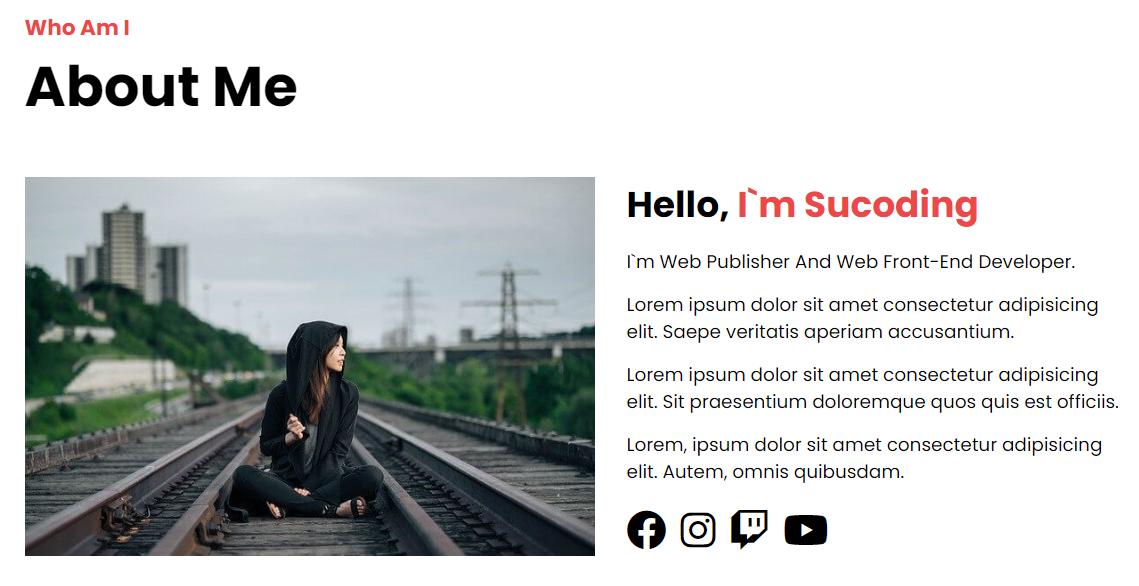
<!DOCTYPE html> <html> <head> <meta charset="UTF-8"> <meta http-equiv="X-UA-Compatible" content="IE=edge"> <meta name="viewport" content="width=device-width, initial-scale=1.0"> <title>Final Project</title> <link rel="stylesheet" href="https://cdnjs.cloudflare.com/ajax/libs/font-awesome/6.1.1/css/all.min.css" integrity="sha512-KfkfwYDsLkIlwQp6LFnl8zNdLGxu9YAA1QvwINks4PhcElQSvqcyVLLD9aMhXd13uQjoXtEKNosOWaZqXgel0g==" crossorigin="anonymous" referrerpolicy="no-referrer" /> <link rel="stylesheet" href="./css/init.css"> <link rel="stylesheet" href="./css/style.css"> </head> <body> <!-- header --> <header> <div class="container"> <h1> <!-- <button>LOGO</button> --> <button data-animation-scroll="true" data-target="#main">LOGO</button> </h1> <nav> <!-- <ul> <li> <button>About</button> </li> <li> <button>Features</button> </li> <li> <button>Portfolio</button> </li> <li> <button>Contact</button> </li> </ul> --> <ul> <li> <button data-animation-scroll="true" data-target="#about">About</button> </li> <li> <button data-animation-scroll="true" data-target="#features">Features</button> </li> <li> <button data-animation-scroll="true" data-target="#portfolio">Portfolio</button> </li> <li> <button data-animation-scroll="true" data-target="#contact">Contact</button> </li> </ul> </nav> </div> </header> <!-- //end header --> <!-- main --> <main id="main"> <div class="container"> <h4>Welcome</h4> <!-- 13.10.1에서 span 태그의 내용이 비워집니다. --> <h2>I`M A <span>Front-End Developer</span></h2> <p>Lorem ipsum dolor sit amet consectetur adipisicing elit. Praesentium dolor quas nulla unde ea officiis?</p> <button class="download">DOWNLOAD CV</button> <button class="mouse"><i class="fa-solid fa-computer-mouse"></i></button> </div> </main> <!-- //end Main --> <!-- About Me --> <section id="about" class="about"> <div class="container"> <div class="title"> <h4>Who Am I</h4> <h2>About Me</h2> </div> <div class="about-self"> <div class="left"> <img src="./images/me_alone.jpg" alt=""> </div> <div class="right"> <h3>Hello, <strong>I`m Sucoding</strong></h3> <p>I`m Web Publisher And Web Front-End Developer.</p> <p>Lorem ipsum dolor sit amet consectetur adipisicing elit. Saepe veritatis aperiam accusantium.</p> <p>Lorem ipsum dolor sit amet consectetur adipisicing elit. Sit praesentium doloremque quos quis est officiis.</p> <p>Lorem, ipsum dolor sit amet consectetur adipisicing elit. Autem, omnis quibusdam.</p> <div class="social"> <a href="#"> <i class="fa-brands fa-facebook"></i> </a> <a href="#"> <i class="fa-brands fa-instagram"></i> </a> <a href="#"> <i class="fa-brands fa-twitch"></i> </a> <a href="#"> <i class="fa-brands fa-youtube"></i> </a> </div> </div> </div> </div> </section> <!-- end About Me --> <!-- What I Do --> <section id="features" class="do"> <div class="container"> <div class="title"> <!-- title 영역 앞이랑 유사 --> <h4>Features</h4> <h2>What I Do</h2> </div> <!-- 사각형 모양으로 3단 분리된 본문 --> <div class="do-me"> <div class="do-inner"> <!-- 하나의 사각형을 나타내는 do-inner 클래스--> <div class="icon"> <i class="fa-brands fa-html5"></i> </div> <div class="content"> <h3>HTML5</h3> <p>Lorem ipsum dolor sit amet consectetur adipisicing elit. Illo culpa magni laboriosam sit excepturi quibusdam adipisci, vero debitis?</p> </div> </div> <div class="do-inner"> <!-- 하나의 사각형을 나타내는 do-inner 클래스--> <div class="icon"> <i class="fa-brands fa-css3-alt"></i> </div> <div class="content"> <h3>CSS3</h3> <p>Lorem ipsum dolor sit amet consectetur adipisicing elit. Illo culpa magni laboriosam sit excepturi quibusdam adipisci, vero debitis?</p> </div> </div> <div class="do-inner"> <!-- 하나의 사각형을 나타내는 do-inner 클래스--> <div class="icon"> <i class="fa-brands fa-bootstrap"></i> </div> <div class="content"> <h3>BootStrap v5.0</h3> <p>Lorem ipsum dolor sit amet consectetur adipisicing elit. Illo culpa magni laboriosam sit excepturi quibusdam adipisci, vero debitis?</p> </div> </div> </div> </div> </section> <!-- //end What I Do --> <div class="bg"></div> <!-- //end Background--> <!-- PortFolio --> <!-- what_i_do 영역과 유사 --> <section id="portfolio" class="portfolio"> <div class="container"> <div class="title"> <h4>PORTFOLIOBACK</h4> <h2>PortFolio</h2> </div> <div class="portfolio-me"> <div class="portfolio-inner"> <img src="images/mock1.png" alt=""> <strong>BRANDING</strong> <h3>Package Design</h3> </div> <div class="portfolio-inner"> <img src="images/mock2.png" alt=""> <strong>DEVELOPMENT</strong> <h3>Tablet App Dev</h3> </div> <div class="portfolio-inner"> <img src="images/mock3.png" alt=""> <strong>MARKETING</strong> <h3>Coka Cola </h3> </div> <div class="portfolio-inner"> <img src="images/mock4.png" alt=""> <strong>APP</strong> <h3>FaceBook Clone</h3> </div> <div class="portfolio-inner"> <img src="images/mock5.png" alt=""> <strong>APP</strong> <h3>Netflix Clone</h3> </div> <div class="portfolio-inner"> <img src="images/mock6.png" alt=""> <strong>WEB</strong> <h3>FirmBee Web</h3> </div> </div> </div> </section> <!-- //end PortFolio --> <!-- Contact With Me --> <section id="contact" class="contact"> <div class="container"> <div class="title"> <h4>CONTACT</h4> <h2>Contact With Me</h2> </div> <!-- Contact With Me 영역의 본문은 크게 왼쪽(phone, email, address)과 오른쪽(입력 양식 폼)으로 나눌 수 있습니다. 그래서 다음과 같이 contact-me 클래스를 가지는 div 태그 안에 left 클래스를 가지는 div 태그와 right 클래스를 가지는 div 태그로 영역을 구분합니다. --> <div class="contact-me"> <div class="left"> <div class="card"> <div class="icon"> <i class="fa-solid fa-phone-volume"></i> </div> <div class="info-text"> <h3>phone</h3> <p>010-2222-1111</p> </div> </div> <div class="card"> <div class="icon"> <i class="fa-solid fa-envelope-open-text"></i> </div> <div class="info-text"> <h3>email</h3> <p>sucoding@naver.com</p> </div> </div> <div class="card"> <div class="icon"> <i class="fa-solid fa-location-crosshairs"></i> </div> <div class="info-text"> <h3>address</h3> <p>Samseong-ro, Gangnam-gu, Seoul, Republic of Korea</p> </div> </div> </div> <div class="right"> <form action="#"> <div class="form-group"> <label for="name">name</label> <input type="text" id="name"> </div> <div class="form-group"> <label for="email">email</label> <input type="text" id="email"> </div> <div class="form-group"> <label for="msg">message</label> <textarea id="msg"></textarea> </div> <button>send</button> </form> </div> </div> </div> </section> <!-- end Contact With Me --> <script src="./js/script.js"></script> </body> </html> -
CSS
/* import 구문은 항상 CSS 파일의 맨 윗줄에 작성  */
@import url('https://fonts.googleapis.com/css2?family=Poppins:wght@400;700&family=Varela+Round&display=swap');
/* header css */
*{
    margin:0;
    padding:0;
    box-sizing:border-box;
  }
  a, a:link, a:visited{
    color:inherit;
    text-decoration:none;
  }
  li{
    list-style:none;
  }
.container{
    width: 1140px;
    margin: 0 auto;
}

/* 스크롤 내리더라도 헤더 상단 고정 */
header{
    position: fixed;
    color: white;
    top: 0;
    z-index: 1; /* 3차원화 해서 헤더가 다른 요소들 위로 오도록 */
    width: 100%;
    padding: 1rem; /* 반응형에서 사용하는 비율적 구성 */
}

header .container{
    display: flex;
    justify-content: space-between; /* 양 끝으로 배치 */
    align-items: center;
    width: 100%;
}

header nav ul{
    display: flex; /* 메뉴 가로 배치 */
}

header nav ul li{
    padding: 10px;
}

header button{
    background: transparent;
    border: 0;
    cursor: pointer;
    color: white;
}

/* 로고 */
header h1 button{
    font-size: 2rem;
    font-weight: bold;
    color: white;
}

/* 메뉴 */
header nav ul li button{
    font-size: 1.2rem;
}

/* 애니메이션 */
header.active{
    background-color:rgba(0,0,0);
    animation:fadeIn 0.5s ease-in-out;
  }
  @keyframes fadeIn{
    0%{
      opacity:0;
    }
    100%{
      opacity:1;
    }
  }

/* --------------------------------------------------------------------------------- */

/* Main css */
main{
    width: 100%;
    height: 100vh; /* 내가 보는 화면 상에서 전체 높이를 가진다 */
    background: linear-gradient(rgba(0,0,0,0.8), rgba(0,0,0,0.8)), url(../images/me.jpg) center center;
    background-size: cover;
    display: flex;
    justify-content: center;
    align-items: center;
    text-align: center;
    color: white;
}

main h4{
    font-size: 2rem;
}

main h2{
    font-size: 3.5rem;
    margin: 2rem 0;
    letter-spacing: 3px;
    font-family: 'Varela Round', sans-serif;
}

main p{
    max-width: 500px;
    margin: 0 auto;
    font-size: 1.25rem;
}

main button.download{
    background-color: transparent;
    color: white;
    border: 3px solid white;
    padding: 1rem 2rem;
    border-radius: 20px;
    margin-top: 3rem;
    font-weight: bold;
    cursor: pointer;
}

/* 아이콘 폰트로 추가한 마우스 모양의 버튼에 스타일 속성 추가, 애니메이션 추가 */
main button.mouse{
    background-color: transparent;
    border: none;
    color: white;
    font-size: 2rem;
    position: absolute;
    bottom: 1rem;
    left: 50%;
    transform: translateX(-50%);
    animation: upDown 1s ease-in-out infinite;
    cursor: pointer;
}

@keyframes upDown{
    0%{bottom: 1rem;}
    50%{bottom: 1.5rem;}
    100%{bottom: 1rem;}
}

/*  텍스트 타이핑 효과 구현하기-메인 화면의 글자가 지워졌다가 다시 채워지는 기능
 ::after 가상 요소 선택자로 텍스트 마지막에 너비 3px, 높이 40px 크기의 배경색이 투명한 막대(bar)를 만듭니다.
 그리고 애니메이션을 넣어서 막대 부분이 커서가 깜빡이는 것처럼 보이게 구현합니다.
*/
main h2 span::after{
    content: "";
    height: 40px;
    width: 3px;
    background-color: white;
    display: inline-block;
    animation: blink .7s ease-in-out infinite;
}

@keyframes blink{
    0%{opacity: 1;}
    100%{opacity: 0;}
}

/* --------------------------------------------------------------------------------- */

/* about me css */
/* 전체 글꼴, 배경색 */
section{
    font-family: 'Poppins', sans-serif;
    padding: 5rem 0;
}

section:nth-child(2n){
    background-color: #f8f8f8;
}

/* 제목 영역 */
section .title{
    margin-bottom: 3rem;
}

section .title h4{
    font-size: 1.35rem;
    color: #ed4848;
    position: relative;
}

section .title h2{
    font-size: 3.5rem;
}

section .title p{
    font-size: 1.1.5rem;
}

/* about-self 클래스 안에서 left, rifght 클래스 구성, width:50% */
section .about-self::after{
    content: "";
    clear: both;
    display: block;
}

section .about-self .left{
    width: 50%;
    float: left;
}

section .about-self .left img{
    max-width: 100%;
}

section .about-self .right{
    width: 50%;
    float: left;
    padding: 0 2rem;
}

section .about-self .right h3{
    font-size: 2.25rem;
    margin-bottom: 1rem;
}

section .about-self .right h3 strong{
    color: #ed4848;
}

section .about-self .right p{
    font-size: 1.15rem;
    margin: 1rem 0;
}

section .about-self .right .social a{
    font-size:2.5rem;
    margin-right:0.2rem;
}

/* --------------------------------------------------------------------------------- */

/* what i do */
section .do-me::after{
    content: "";
    clear: both;
    display: block;
}

/* 사각형 */
section .do-me .do-inner{
    background-color: white;
    width: 30%;
    padding: 2rem;
    float: left;
    margin-right: 5%;
    cursor: pointer;
}

section .do-me .do-inner:last-child{
    margin-right: 0;
}

section .do-me .do-inner .icon i{
    font-size: 2.5rem;
    color: #ff6a6a;
}

section .do-me .do-inner .content h3{
    font-size: 2rem;
    margin: 1rem 0;
}

section .do-me .do-inner:hover{
    background-color: lightcoral;
    color: white;
}

section .do-me .do-inner:hover i{
    color: white;
}

/* --------------------------------------------------------------------------------- */

/* background-image 고정 */
.bg{
    background: url('../images/background.jpg') center center;
    background-size: cover;
    background-attachment: fixed;
    height: 650px;
}

/* --------------------------------------------------------------------------------- */

/* portfolio */
section.portfolio::after{
    content: "";
    display: block;
    clear: both;
}

/* 사각형 꾸미기 */
section.portfolio .portfolio-inner{
    width: 30%;
    margin-right: 5%;
    padding: 1rem 1rem 1.5rem 1rem;
    float: left;
    background-color: #f8f8f8;
    border: 1px solid #ccc;
    margin-bottom: 3rem;
}

section.portfolio .portfolio-inner:nth-child(3n){
    margin-right: 0;
}

section.portfolio .portfolio-inner img{
    width: 100%;
    display: block;
}

section.portfolio .portfolio-inner strong{
    color: #ff6a6a;
    margin: 0.5rem 0;
    display: block;
}

section.portfolio .portfolio-inner h3{
    font-size: 1.75rem;
}

/* --------------------------------------------------------------------------------- */

/* contact with me css */
section.contact .contact-me::after{
    content: "";
    clear: both;
    display: block;
}

section.contact .contact-me .left{
    width: 30%;
    float: left;
}

section.contact .contact-me .right{
    width: 65%;
    float: left;
    margin-left: 5%;
    margin-bottom: 2rem;
    border: 1px solid #ccc;
    padding: 1rem;
}
/* form-group 사이 간격 지정 */
section.contact .contact-me .right .form-group{
    margin-bottom:1.25rem;
  }
  /* label 태그가 인라인 성격이어서 외부 여백을 적용하기 위해 block으로 변경 */
  section.contact .contact-me .right .form-group label{
    display:block;
    margin-bottom:0.85rem;
  }
  /* input 요소 꾸미기 */
  section.contact .contact-me .right .form-group input{
    padding:0.625rem;
    width:100%;
    outline:none;
    border:1px solid #ccc;
    border-radius:10px;
  }
  /* :focus 가상 클래스 선택자로 입력 요소에 커서가 활성화되면 파란색 테두리와 그림자 효과 추가 */
  section.contact .contact-me .right .form-group input:focus{
    border:1px solid #719ECE;
    box-shadow:0 0 10px #719ECE;
  }
  /* textarea 요소 꾸미기 */
  section.contact .contact-me .right .form-group textarea{
    height:300px;
    width:100%;
    resize:none;
    border:1px solid #ccc;
    border-radius:10px;
  }
  /* textarea 요소에 커서 활성화가 되면 파란색 테두리와 그림자 효과 추가 */
  section.contact .contact-me .right .form-group textarea:focus{
    outline:none;
    border:1px solid #719ECE;
    box-shadow:0 0 10px #719ECE;
  }
  /* 버튼 요소 꾸미기 */
  section.contact .contact-me .right button{
    width:100%;
    padding:1rem;
    background-color:#f78b00;
    border:none;
    color:white;
  }

  /* End contact_with_me.css */
  /* media.css */
  @media screen and (max-width: 1140px){

    /* 메인 container 기준 1140 -> 992px */
    main .container{
      width: 992px;
    }

    /* 섹션 container 기준 1140 -> 600px */
    section .container{
      width:600px;
    }

    /* About me 영역 왼쪽을 너비를 50% -> 100% 변경 */
    section .about-self .left{
      width:100%;
      margin-bottom: 1.5rem;
    }
    /* About me 영역 오른쪽 너비를 50% -> 100% 변경 */
    section  .about-self .right{
      width:100%;
      padding:0;
    }

    /* What I Do 영역의 콘텐츠 박스의 너비를 30% -> 48% 변경 */
    section .do-me .do-inner{
      width:48%;
      margin-bottom: 1.5rem;
      margin-right: 0;
    }

    section .do-me .do-inner:nth-child(2n+1){
      margin-right:4%; /* 1, 3, 5...번째 본문 사각형에 margin-right 4% 적용 */
    }

    /* PortFolio 영역의 콘텐츠 박스 너비를 30% ->  48% 변경 */
    section .portfolio-me .portfolio-inner{
      width:48%;
      margin-right: 0;
    }

    section .portfolio-me .portfolio-inner:nth-child(2n+1){
      margin-right:4%;
    }

    /* Contact With Me 영역 */
    section.contact .contact-me .left{
      width:100%; /* 너비 변경 30% -> 100% */
    }

    section.contact .contact-me .right{
      width:100%;/* 너비 변경 65% -> 100% */
      margin-left: 0; /* margin 초기화 */

    }
  }

  @media (max-width: 992px){
    html{
      font-size: 14px;
    }

    /* 메인 영역 container 기준 너비 변경 */
    main .container{
      width: 768px; /* 992px -> 768px */
    }

    /* PortFolio 영역 */
    section .portfolio-me .portfolio-inner{
      width:100%; /* 48% -> 100% 변경 */
    }
  }

  @media (max-width: 768px){
    html{
      font-size: 13px;
    }

    /* 메인 영역 container 기준 너비 변경 */
    main .container{
      width: 576px; /* 768px -> 576px */
    }

    section .container{
      width:400px; /* 600px -> 400px */
    }

    section .do-me .do-inner{
      width:100%; /* 48% -> 100% */
      margin-right: 0; /* margin 초기화 */
    }
  }

  @media (max-width: 576px){

    html{
      font-size: 12px;
    }

    main .container{
      width: 400px; /* 576px -> 400px */
    }

    section .container{
      width:360px; /* 400px -> 360px */
    }
  }

  @media (max-width: 400px){

    html{
      font-size: 11px;
    }
    main .container{
      width: 320px;/* 400px -> 320px */
    }

    main h4{
      font-size: 1.5rem;
    }
    section .container{
      width: 320px;/* 360px -> 320px */
    }
    section .title h2{
      font-size: 3rem; /* 3.5rem -> 3rem */
    }
  }
  /* End media.css */
  header.active{
    background-color:rgba(0,0,0);
    animation:fadeIn 0.5s ease-in-out;
  }
  @keyframes fadeIn{
    0%{
      opacity:0;
    }
    100%{
      opacity:1;
    }
}- Javascript
// 첫 번째는 메인 영역의 텍스트 타이핑 효과입니다. 화면에 보여 줄 텍스트 데이터를 배열로 저장하고 일정 시간마다 반복하면 타이핑하듯이 화면에 출력합니다.

// 두 번째는 헤더 영역의 디자인 변경 효과입니다. 웹 브라우저를 스크롤하면 헤더 영역에 새로운 클래스를 추가해 디자인을 변경합니다.

// 세 번째는 스크롤 이동 효과입니다. 헤더 메뉴를 클릭하면 페이지 내부의 다른 영역으로 부드럽게 스크롤이 이동합니다.

// 텍스트 타이핑 효과
// 먼저 메인 영역의 h2 태그 안에 있는 span 태그의 텍스트를 지웁니다.
// span 요소 노드 가져오기
const spanEl = document.querySelector("main h2 span");
// 화면에 표시할 문장 배열
const txtArr = ['Web Publisher', 'Front-End Developer', 'Web UI Designer', 'UX Designer', 'Back-End Developer'];
// 배열의 인덱스 초깃값
let index = 0;
// 화면에 표시할 문장 배열에서 요소를 하나 가져온 뒤, 배열로 만들기
let currentTxt = txtArr[index].split("");
// 실행결과  ['W', 'e', 'b', ' ', 'P', 'u', 'b', 'l', 'i', 's', 'h', 'e', 'r']
// 텍스트가 입력되는 효과의 핵심은 currentTxt 변수에 할당된 배열 요소를 앞에서부터 한 개씩 출력하는 것입니다. 그러면 마치 텍스트가 한 글자씩 작성되는 것처럼 보이게 됩니다. 이를 위해 다음처럼 writeTxt() 함수를 만들어 배열 요소를 한 개씩 출력하게 합니다.

function writeTxt(){
    spanEl.textContent += currentTxt.shift(); // ①
    if(currentTxt.length !== 0){ // ②
       setTimeout(writeTxt, Math.floor(Math.random() * 100));
    }else{ // ③
      currentTxt = spanEl.textContent.split("");
      setTimeout(deleteTxt, 3000);
    }
  }
  writeTxt();
// ① 배열의 요소를 앞에서부터 한 개씩 출력해야 합니다. 이럴 때 사용하는 메서드가 Array 객체의 shift()입니다. shift() 메서드는 파괴적 메서드로, 배열에서 맨 앞의 요소를 추출하고 추출한 요소를 원본 배열에서 삭제합니다. 만약 currentTxt 변수에 ['W', 'e', 'b', ' ', 'P', 'u', 'b', 'l', 'i', 's', 'h', 'e', 'r'] 배열이 할당된 상태라면 배열의 첫 번째 요소인 W를 배열에서 추출하고, 배열에서 W를 삭제합니다.
// ② if 문으로 currentTxt 변수에 할당된 배열의 길이가 0인지 확인합니다. 확인하는 이유는 배열의 길이가 0이 아니라면 아직 출력해야 하는 단어가 남아 있다는 뜻이어서 배열 요소를 모두 출력할 때까지 writeTxt() 함수를 반복 호출하기 위해서입니다. 그래서 if 문의 코드를 보면 setTimeout() 메서드로 일정 시간이 흐른 뒤에 writeTxt() 함수를 다시 호출합니다. 여기서 setTimeout() 메서드의 두 번째 인자는 시간(밀리초)을 의미합니다. 이 값은 호출할 때마다 Math 객체의 random() 메서드로 0부터 100 사이의 숫자가 무작위로 구해져, 작성되는 글자 속도를 매번 달라지게 합니다.
// ③ else 문이 실행된다는 건 결국 currentTxt 배열이 비었다는 뜻입니다. 다르게 말하면 배열 안의 모든 텍스트가 전부 화면에 출력됐다는 의미죠. 그러면 텍스트 작성 함수를 끝내기 전에 텍스트를 지우기 위해 화면에 표시된 텍스트를 가져와서 split() 메서드로 다시 단어 단위로 분리해 배열에 할당합니다. 그리고 3초 뒤에 텍스트를 지우는 함수인 deleteTxt() 함수를 호출하는 것까지가 텍스트를 입력하는 writeTxt() 함수의 역할입니다.


// 텍스트 삭제는 입력 과정과 비슷합니다. 텍스트를 입력할 때는 배열의 앞에서부터 요소를 추출해 한 글자씩 출력했는데, 텍스트를 삭제할 때는 뒤에서부터 요소를 추출해 한 글자씩 줄어드는 것처럼 표현
function deleteTxt(){
    currentTxt.pop(); // ①
    spanEl.textContent = currentTxt.join("");// ②
    if(currentTxt.length !== 0){ // ③
      setTimeout(deleteTxt, Math.floor(Math.random() * 100));
    }else{ // ④
      index = (index + 1) % txtArr.length;
      currentTxt = txtArr[index].split("");
      writeTxt();
    }
  }
//   ① 가장 먼저 currentTxt 변수에서 pop() 메서드를 실행합니다. 현재 currentTxt 변수에는 deleteTxt() 함수를 실행하기 전에 화면에 표시된 텍스트를 가져와서 split() 메서드로 분리한 배열이 할당되어 있습니다. 지금 작성하는 코드를 기준으로 첫 번째 문장인 ‘Web Publisher’를 출력했으니 현재 currentTxt 변수에는 ['W', 'e', 'b', ' ', 'P', 'u', 'b', 'l', 'i', 's', 'h', 'e', 'r']이 할당되어 있습니다.

// 이 상태에서 Array 객체의 pop() 메서드로 배열 요소를 끝에서부터 한 개씩 삭제합니다. pop() 메서드는 파괴적 메서드라서 원본 배열에서 요소가 삭제됩니다. 그래서 변수에 할당된 배열은 끝에서 요소가 하나 삭제되고 변수에는 ['W', 'e', 'b', ' ', 'P', 'u', 'b', 'l', 'i', 's', 'h', 'e']가 할당된 상태가 됩니다.

// ② 다음으로 Array 객체의 join() 메서드로 현재 배열에 있는 요소를 하나의 문자열로 합칩니다. 그러면 ‘Web Publishe’라는 문자열이 span 요소의 텍스트로 할당됩니다. 따라서 사용자 눈에는 한 글자가 삭제된 것처럼 보입니다.

// ③ 그러고 나서 writeTxt() 함수처럼 if 문으로 currentTxt 변수에 할당된 배열이 비었는지 확인합니다. 만약 값이 남아 있으면 다시 deleteTxt() 함수를 호출합니다. 이때 호출되는 시간은 0에서 0.1초(0~100) 사이에서 무작위로 설정합니다.

// ④ 모든 배열이 pop() 메서드에 의해 삭제되면 else 문이 실행됩니다. else 문에서는 다음 문장을 출력하기 위해 배열에 다시 접근합니다. 이때 index 숫자를 1 증가시키는데, 그 이유는 index 숫자가 문장이 담긴 배열(txtArr)의 길이를 넘지 않게 하기 위해서입니다. index 숫자를 1 증가시키고 나면 문장 배열에 접근해 새로운 문장을 가져옵니다. 작성된 순서대로라면 ‘Front-End Developer’에 접근합니다. 이를 split() 메서드를 사용해 배열로 만드므로 currentTxt 변수에는 ['F', 'r', 'o', 'n', 't', '-', 'E', 'n', 'd', ' ', 'D', 'e', 'v', 'e', 'l', 'o', 'p', 'e', 'r'] 배열이 할당됩니다. 그러면 다시 할당된 currentTxt 변수의 배열로 writeTxt() 메서드를 호출해 지금까지 한 과정을 무한히 반복합니다.

// ********************************************************
// 웹 브라우저의 수직 스크롤 위치는 window 객체의 pageYOffset 속성으로 참조할 수 있습니다.
// 속성값이 0보다 크면 스크롤됐다고 볼 수 있으므로 이를 조건으로 처리해서 if 문으로 active 클래스를 추가하거나 삭제하면 됩니다.
// pageYOffset : 스크롤했을 때 화면이 수직으로 이동하는 픽셀 수

const headerEl = document.querySelector("header");
window.addEventListener('scroll', function(){
 const browerScrollY = window.pageYOffset;
  if(browerScrollY > 0){
    headerEl.classList.add("active");   //명시된 클래스를 추가하는 메서드
  }else{
    headerEl.classList.remove("active");  //명시된 클래스를 제거하는 메서드
  }
});


// ********************************************************
// 이번에는 헤더 영역의 메뉴를 클릭하면 메뉴 영역으로 스크롤이 부드럽게 이동하는 효과를 자바스크립트로 작성해 보겠습니다.

// Window 객체의 scrollTo() 메서드에서 behavior 속성을 사용하면 애니메이션 효과를 적용해 스크롤을 부드럽게 이동할 수 있습니다. 단, IE나 iOS 모바일에서는 제대로 동작하지 않습니다. 이 외의 웹 브라우저에서는 정상적으로 작동합니다.

// 일단 이동할 대상 요소를 가리키는 선택자(selector)를 매개변수에 전달받아 이동하려는 대상의 현재 위칫값을 구하는 코드를 작성합니다.
/* 애니메이션 스크롤 이동 */
const animationMove = function(selector){
    // ① selector 매개변수로 이동할 대상 요소 노드 가져오기
    const targetEl = document.querySelector(selector);
    // ② 현재 웹 브라우저의 스크롤 정보(y 값)
    const browserScrollY = window.pageYOffset;
    // ③ 이동할 대상의 위치(y 값) https://developer.mozilla.org/ko/docs/Web/API/Element/getBoundingClientRect
    //getBoundingClientRect(): 윈도우(window)룰 기준으로 특정 엘리먼트의 위치 값을 구하는 방법
    const targetScorllY = targetEl.getBoundingClientRect().top + browserScrollY;
    // ④ 스크롤 이동 https://salgum1114.github.io/css/2019-04-28-scroll-behavior-smooth/
    window.scrollTo({ top: targetScorllY, behavior: 'smooth' });
  };

//   코드가 조금 복잡해 보일 수 있지만, 부드러운 스크롤 이동 효과를 구현하는 데 꼭 필요한 값들입니다. 웹 브라우저의 스크롤 이동을 처리하려면 이동할 대상의 스크롤 위치(y 값)를 당연히 알아야 합니다. 그러려면 이동할 대상의 노드를 가져올 수 있어야 하고(①), 현재 웹 브라우저의 스크롤 위치를 구해야 합니다(②). 그래야 가져온 요소 노드로 구하는 위치의 정확한 y 값을 구할 수 있습니다(③). 그리고 window 객체의 scrollTo() 메서드를 사용해 해당 위치로 이동합니다(④).

// 이제 기존 헤더 영역에서 메뉴에 해당하는 button 태그에 클릭 이벤트를 연결해 앞에서 만든 animationMove() 함수를 실행하겠습니다. 헤더 영역의 메뉴에 사용된 button 태그에 click 이벤트를 연결하기 위해 다음처럼 코드를 수정합니다.
// https://developer.mozilla.org/ko/docs/Learn/HTML/Howto/Use_data_attributes
// https://developer.mozilla.org/en-US/docs/Web/API/HTMLElement/dataset

// 스크롤 이벤트 연결하기
const scollMoveEl = document.querySelectorAll("[data-animation-scroll='true']");
for(let i = 0; i < scollMoveEl.length; i++){
  scollMoveEl[i].addEventListener('click', function(e){
    const target = this.dataset.target;
    animationMove(target);
  });
}
2.학습한 내용 중 어려웠던 점
오늘 하루만에 이때까지 배운 모든걸 한꺼번에 모은 사이트 만드는 것을 해보았다. 사실 HTML이나 CSS부분은 이해가 많이 가고 생각보다 어렵다는 생각은 들지 않았다. 물론 따라만가기에 쉬운것이긴 했으나 많은 부분이 이해가 가서 생각보다 수월했다. 하지만 자바스크립트 부분은 설명을 듣고 따로 주석을 달아주신 부분을 보는데도 힘들다.
3.해결방법
자바스크립트 부분이 가장 어려운 부분이라고 들었는데 해보니 역시나 그런 것 같다. 이것도 일단은 반복학습밖엔 방법이 없는데, 주석 부분들이나 PPT를 보고 좀 더 공부해 봐야겠다. HTML이나 CSS처럼 자바스크립트도 하다보면 늘지않을까싶다.
4. 학습소감
사이트 하나를 통째로 배운 모든걸 섞어서 처음 만들어보았다. 따로 따로는 여러가지 시험해봤었는데 이렇게 모아서 만들어보니 뭔가 된 것 같기도 하다. 물론 내가 처음부터 혼자 다 만들고 실행한건 아니지만 각 요소들을 이해하고 있다는 점에서 확실히 고무적이다. 따져보면 이제 겨우 2달을 배웠을 뿐이니 조급해하지말고 이렇게 알고 이해할 수 있는 부분들을 늘려가야겠다.

코딩공부중