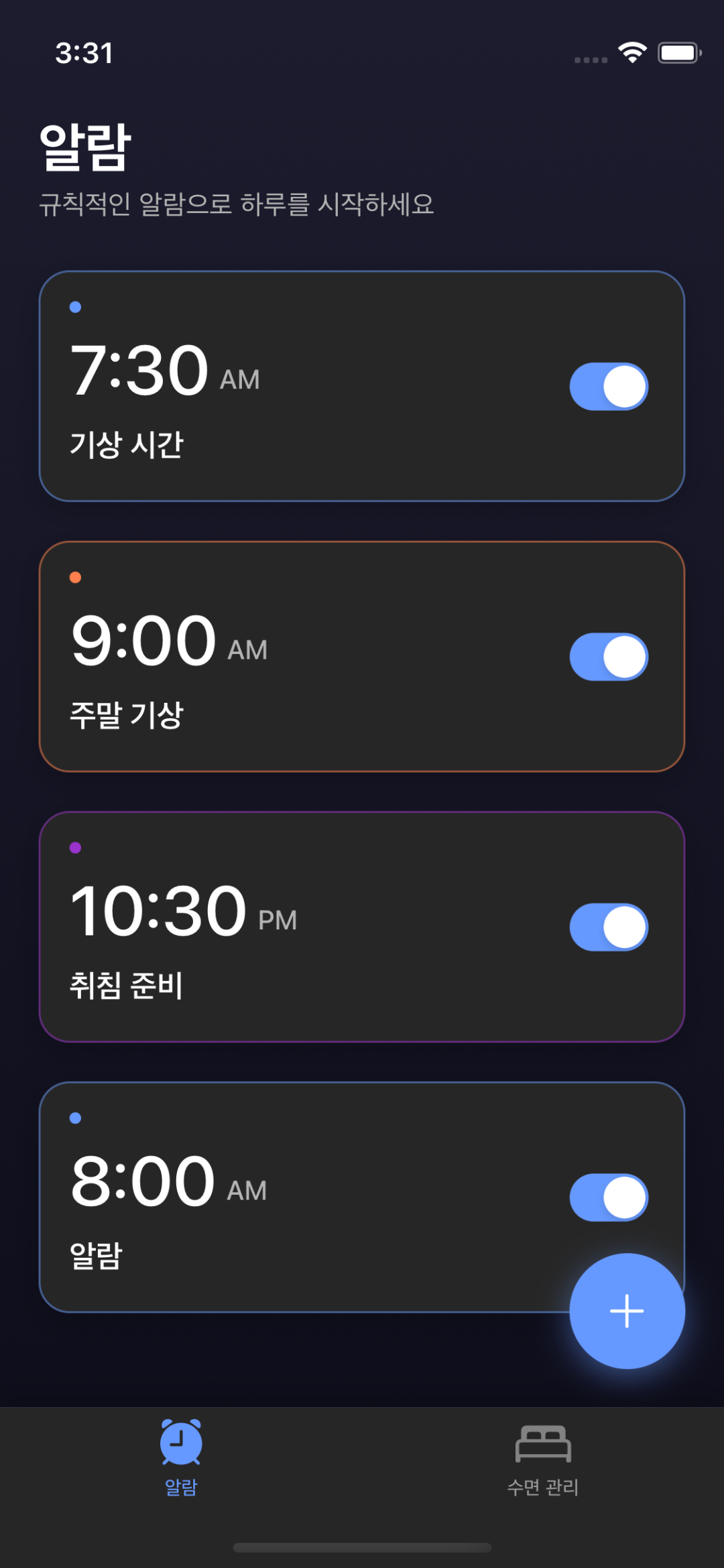
안녕하세요, 여러분! 오늘은 제가 iOS에서 알람 앱을 개발하면서 겪은 작은 깨달음을 나누려고 해요. 개발자로서 우리는 항상 사용자 경험을 높이기 위한 방법에 대해 고민하게 되는데요, 이번에 개인적으로 사용하려고 알람앱을 개발하면서 사운드 트랙과 사용자 경험에 대한 고민을 해결한 내용을 이야기 해보려고 해요!
🔔 알람 앱의 사운드 관리 문제
알람 앱을 개발하면서 가장 중요한 기능 중 하나는 바로 '알람음'이에요. 사용자가 알람을 설정하면 정확한 시간에 소리가 나야 하고, 알람 화면에서도 끊김 없이 소리가 계속 재생되어야 하죠.
하지만 앱을 개발하다 보니 의외의 문제가 발생했어요:
- 알람이 울리면 노티피케이션으로 먼저 소리가 나요
- 사용자가 노티피케이션을 탭하면 알람 화면으로 넘어가는데...
- 이때 알람 소리가 처음부터 다시 재생되는 문제가 발생!
이건 사용자 경험을 해치는 명백한 문제였죠. 알람 소리가 끊겼다가 처음부터 다시 시작하면 사용자는 혼란스러울 수 있으니까요.
🔍 문제 원인 파악하기
코드를 분석해보니 문제는 아주 명확했어요:
private func showAlarmScreen(for alarmId: UUID) {
    // 알람 정보 가져오기
    guard let alarm = AlarmNotificationManager.shared.getAlarmById(alarmId) else {
        return
    }

    // 문제의 원인!
    AlarmNotificationManager.shared.cancelAlarm(alarmId: alarmId)

    // 알람 화면 표시
    // ...
}
여기서 cancelAlarm 메서드는 알람 소리를 중지하는 코드를 포함하고 있었어요:
func cancelAlarm(alarmId: UUID) {
    // 알람 소리 중지
    stopAlarmSound()

    // 알림 취소 및 기타 처리
    // ...
}
그래서 알람 화면으로 전환할 때 소리가 중지되고, 새 화면에서 다시 시작되는 문제가 발생했던 거죠.
💡 해결 방법
해결 방법은 생각보다 간단했어요! 알람 화면으로 전환할 때는 소리를 중지하지 않고, 알림만 취소하는 방식으로 변경했습니다.
private func showAlarmScreen(for alarmId: UUID) {
    // 알람 정보 가져오기
    guard let alarm = AlarmNotificationManager.shared.getAlarmById(alarmId) else {
        return
    }

    // 소리는 유지하고 알림만 취소
    AlarmNotificationManager.shared.cancelAlarmNotifications(alarmId: alarmId) {
        // 알람 화면 표시
        // ...
    }
}
다행히도 기존 코드에 cancelAlarmNotifications 메서드가 이미 존재했어요. 이 메서드는 소리는 중지하지 않고 알림만 취소하는 기능을 수행합니다:
func cancelAlarmNotifications(alarmId: UUID, completion: @escaping () -> Void) {
    // 알림만 취소하는 로직
    UNUserNotificationCenter.current().removeDeliveredNotifications(withIdentifiers: [alarmId.uuidString])

    UNUserNotificationCenter.current().getPendingNotificationRequests { requests in
        let identifiersToRemove = requests
            .filter { $0.identifier.contains(alarmId.uuidString) }
            .map { $0.identifier }

        if !identifiersToRemove.isEmpty {
            UNUserNotificationCenter.current().removePendingNotificationRequests(withIdentifiers: identifiersToRemove)
        }

        DispatchQueue.main.async {
            completion()
        }
    }
}
이렇게 변경하니 알람 소리가 끊기지 않고 자연스럽게 이어서 재생되었어요!
🎵 오디오 트랙 관리 팁
iOS에서 오디오 트랙을 효과적으로 관리하기 위한 몇 가지 팁을 공유할게요:
- AVAudioPlayer 활용하기: 알람 소리처럼 루프 재생이 필요한 경우
AVAudioPlayer를 사용합니다.
func playAlarmSound() {
    guard let soundURL = Bundle.main.url(forResource: "alarm_sound", withExtension: "mp3") else {
        return
    }

    do {
        try AVAudioSession.sharedInstance().setCategory(.playback, mode: .default)
        try AVAudioSession.sharedInstance().setActive(true)

        audioPlayer = try AVAudioPlayer(contentsOf: soundURL)
        audioPlayer?.numberOfLoops = -1 // 무한 반복
        audioPlayer?.play()
    } catch {
        print("알람 소리 재생 오류")
    }
}-
백그라운드 오디오 설정: Info.plist에
UIBackgroundModes배열과audio항목을 추가하면 앱이 백그라운드에 있어도 오디오가 계속 재생됩니다. -
화면 전환 시 오디오 상태 유지: 서로 다른 컨트롤러 간에 오디오 상태를 공유하고 유지하세요.
// 화면 A에서
stopAlarmSound() // 호출하지 않기
// 대신 화면 B로 전환- 오류 처리 및 폴백 메커니즘: 오디오 파일이 없거나 재생할 수 없는 경우를 대비해 시스템 사운드 같은 대체 옵션을 준비하세요.
guard let soundURL = Bundle.main.url(forResource: "alarm_sound", withExtension: "mp3") else {
    // 폴백: 시스템 사운드 사용
    AudioServicesPlaySystemSound(1005)
    return
}
🎁 마무리
작은 코드 변경으로도 사용자 경험을 크게 개선할 수 있다는 것을 다시 한번 깨달았어요. 특히 알람 앱처럼 소리가 중요한 앱에서는 오디오 관리가 핵심입니다.
여러분도 앱 개발 중에 비슷한 상황을 만나셨나요? 다른 개발 팁이 있다면 댓글로 공유해주세요!
다음에 또 유용한 개발 경험을 나눌게요. 그때까지 코딩 즐겁게 하세요! 🚀