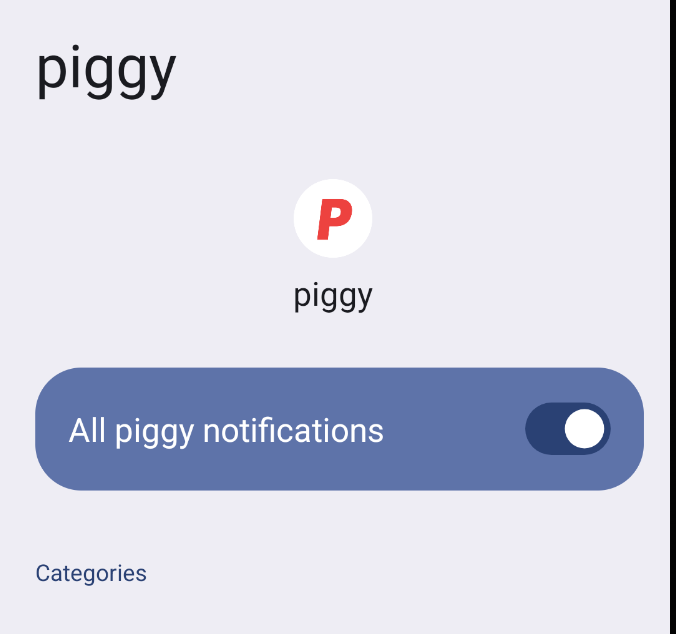
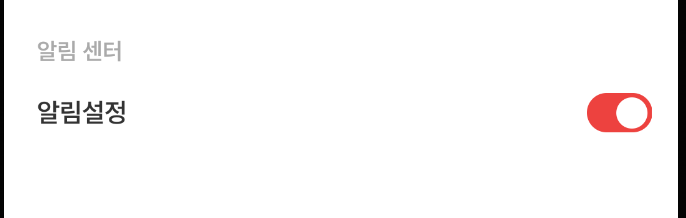
React Native 앱을 개발할 때, 사용자 디바이스의 알림 설정을 확인하고 그에 맞게 알림 설정 상태를 UI에 반영하는 기능이 필요할 때가 있습니다. 특히, 알림 설정이 꺼져 있으면 앱에서 푸시 알림을 받을 수 없기 때문에 이를 UI에서 사용자에게 알려주면 좋을 것 같아 토글 버튼으로 보여주고 싶었습니다.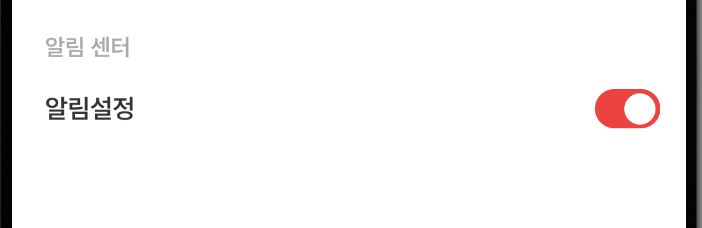
react-native-permissions 라이브러리를 이용해 Android 디바이스에서 알림 설정을 확인하고, 그 상태를 토글 버튼으로 보여주는 방법을 소개하겠습니다.
1. react-native-permissions 설치 및 설정
📌 react-native-permissions 라이브러리를 설치
npm install react-native-permissionsAndroid에서는 알림 권한을 요청하고 상태를 확인할 수 있도록 AndroidManifest.xml 파일에 권한을 추가해야 합니다. POST_NOTIFICATIONS 권한을 추가하여 Android 13 이상에서 알림 권한을 관리할 수 있도록 설정할 수 있습니다.
📌 AndroidManifest.xml 파일 수정
AndroidManifest.xml 파일에 아래 코드를 추가하면 앱에서 알림 설정을 확인할 수 있습니다.
<uses-permission android:name="android.permission.POST_NOTIFICATIONS" />이 권한을 추가하면 앱에서 알림 설정을 확인할 수 있습니다.
2. 알림 설정 상태 확인하기
react-native-permissions 라이브러리에서 제공하는 checkNotifications 함수를 사용하여 Android 디바이스의 알림 설정 상태를 확인할 수 있습니다.
📌 checkNotifications 함수 사용법
비동기로 호출되는 checkNotifications 함수는 디바이스의 알림 설정 상태를 반환하는데 반환되는 값 중 status 필드를 통해 알림 권한이 granted(허용) 상태인지, denied(거부) 상태인지 알 수 있습니다.
다음은 알림 상태를 확인하고, 이를 상태에 반영하는 함수입니다.
import {checkNotifications} from 'react-native-permissions';

const checkNotificationPermission = async () => {
  try {
    const {status} = await checkNotifications();
    console.log('알림 상태 :', status); // granted 또는 denied
    setIsNotificationEnabled(status === 'granted'); // granted면 true, denied면 false
  } catch (error) {
    console.error('알림 권한을 확인하지 못했습니다. :', error);
  }
};
status 값이 granted인 경우 알림이 허용된 상태
denied인 경우 알림이 비활성화된 상태
-> 이 상태를 토글 버튼에 반영
3. 토글 버튼 구현하기
이제 확인된 알림 설정 상태를 UI에서 사용자에게 보여주기 위해 토글 버튼이 필요한데
토글 버튼은 사용자가 직접 조작할 수 없고, 알림 설정 상태에 따라 표시되도록 만들어야 합니다.
📌 ToggleButton 컴포넌트
initialState로 알림 설정 상태를 받아와서, 이를 기준으로 애니메이션 효과와 색상을 변경합니다.
import React, {useEffect, useRef} from 'react';
import {StyleSheet, TouchableOpacity, Animated} from 'react-native';

const ToggleButton = ({initialState}) => {
  const animatedValue = useRef(new Animated.Value(initialState ? 1 : 0)).current;

  useEffect(() => {
    Animated.timing(animatedValue, {
      toValue: initialState ? 1 : 0,
      duration: 400,
      useNativeDriver: true,
    }).start();
  }, [initialState]); // initialState가 변경될 때마다 애니메이션 적용

  const iconTranslateX = animatedValue.interpolate({
    inputRange: [0, 1],
    outputRange: [-2, 13],
  });

  const bgColor = animatedValue.interpolate({
    inputRange: [0, 1],
    outputRange: ['#AAA', '#ED423F'], // 비활성화와 활성화 색상
  });

  return (
    <Animated.View style={[styles.toggleWrapper, {backgroundColor: bgColor}]}>
      <TouchableOpacity disabled={true}> {/* 토글 비활성화 */}
        <Animated.View
          style={[styles.icon, {transform: [{translateX: iconTranslateX}]}]}
        />
      </TouchableOpacity>
    </Animated.View>
  );
};

const styles = StyleSheet.create({
  toggleWrapper: {
    borderRadius: 20,
    padding: 5,
    width: 40,
    height: 24,
    justifyContent: 'center',
  },
  icon: {
    width: 19,
    height: 19,
    backgroundColor: '#FFF',
    borderRadius: 30,
  },
});

export default ToggleButton;
initialState 값에 따라 토글의 상태를 설정하는데 이 토글 버튼은 TouchableOpacity가 비활성화되어 사용자가 직접 조작할 수 없습니다. 단순히 알림 설정 상태를 보여주기만 해야 합니다.
4. 알림 상태를 UI에 반영하기
이제 ToggleButton을 사용하여 알림 설정 상태를 UI에 반영해야 하는데 앱이 백그라운드에서 다시 활성화될 때, 알림 설정 상태를 재확인하고 토글 버튼에 반영해야 하므로, AppState를 사용하여 앱 상태를 관리합니다.
Settings 컴포넌트
import React, {useState, useEffect} from 'react';
import {View, Text, AppState, ScrollView, TouchableOpacity, Linking} from 'react-native';
import {checkNotifications} from 'react-native-permissions';
import DeviceInfo from 'react-native-device-info';
import ToggleButton from './ToggleButton'; // 위에서 만든 ToggleButton 컴포넌트

const Settings = () => {
  const [isNotificationEnabled, setIsNotificationEnabled] = useState(false);
  const [appState, setAppState] = useState(AppState.currentState);

  // 알림 상태를 확인하는 함수
  const checkNotificationPermission = async () => {
    const {status} = await checkNotifications();
    setIsNotificationEnabled(status === 'granted');
  };

  useEffect(() => {
    // 앱이 포그라운드로 돌아올 때마다 알림 상태를 확인
    const subscription = AppState.addEventListener('change', nextAppState => {
      if (appState.match(/inactive|background/) && nextAppState === 'active') {
        checkNotificationPermission();
      }
      setAppState(nextAppState);
    });

    return () => {
      subscription.remove();
    };
  }, [appState]);

  // 알림 설정 페이지로 이동
  const handleAlarmSetting = () => {
    if (Platform.OS === 'android') {
      Linking.openSettings();
    } else if (Platform.OS === 'ios') {
      Linking.openURL('app-settings:');
    }
  };

  return (
    <ScrollView>
      <View>
        <Text>알림 설정</Text>
        {/* 알림 설정 상태를 반영한 ToggleButton */}
        <ToggleButton initialState={isNotificationEnabled} />
        <TouchableOpacity onPress={handleAlarmSetting}>
          <Text>설정으로 이동</Text>
        </TouchableOpacity>
      </View>
    </ScrollView>
  );
};

export default Settings;
checkNotificationPermission함수로 알림 설정 상태를 확인하고, 상태에 따라ToggleButton의initialState를 설정AppState를 사용해 앱이 다시 활성화될 때 알림 설정 상태를 다시 확인- 사용자가 설정 페이지로 이동할 수 있도록
Linking을 통해 Android와 iOS 설정 화면으로 이동시킵니다.
React Native 앱을 개발할 때, 이런 방식으로 사용자 디바이스의 알림 상태를 관리할 수 있습니다. 끝으로 적용한 앱 사진을 첨부합니다.