https://www.youtube.com/watch?v=7VAI73roXaY
요 유뷰트 강의를 요약한 글입니다.
nginx는 웹서버
주요 역할은 serve web content to our browser (물론 이외에도 하는 기능은 다양함)
브라우저가 nginx 서버에 요청을 보내면 nginx 서버가 실제 서버에 요청을 보내는 구조
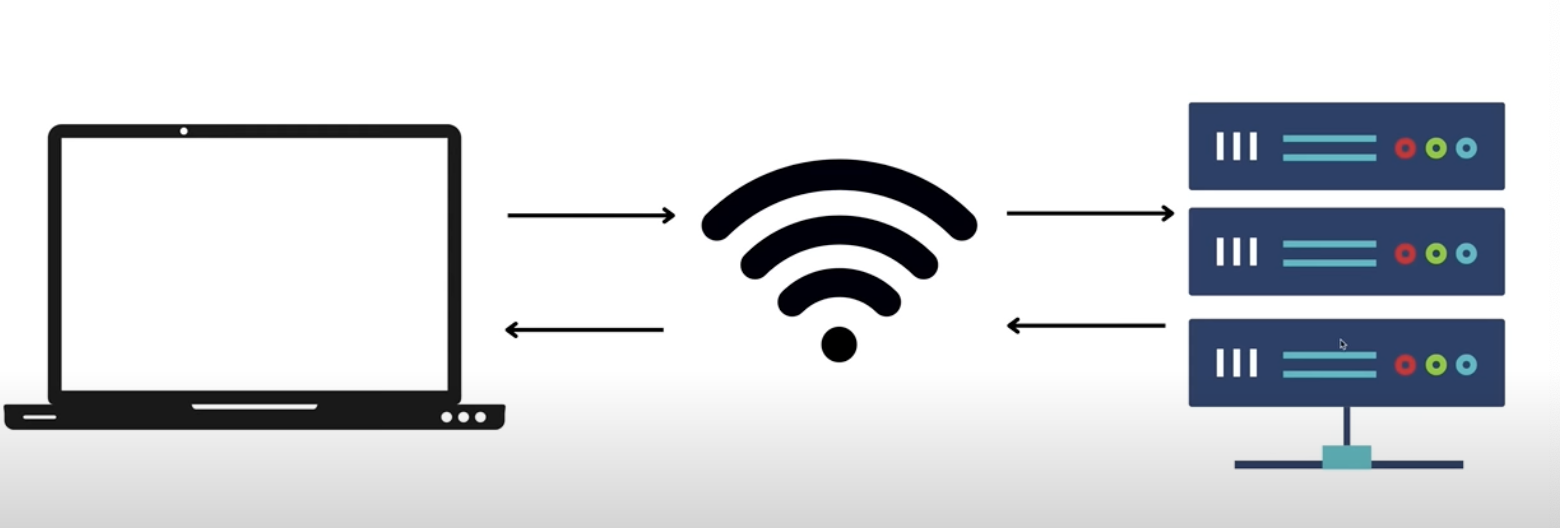
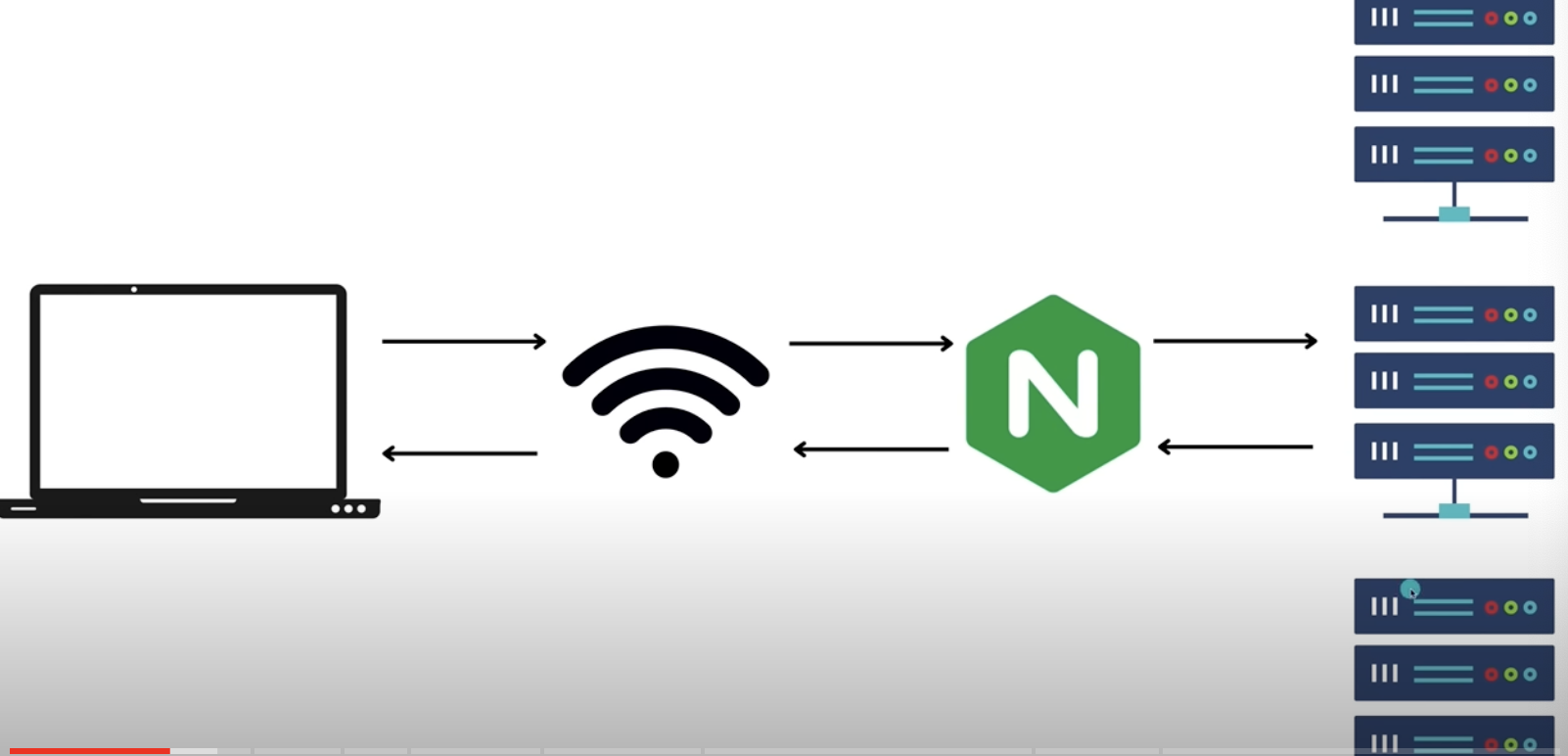
서버의 대수가 1대인 경우에는 nginx와 같은 미들맨이 없어도 괜찮다.
하지만, 서버의 대수가 많아져서 어떠한 서버로 요청을 보내는 것이 효율적일지 결졍해야하는 순간이 생긴다면 nginx와 같은 미들맨이 필요하다.
기본 nginx 설치
$ brew install nginx
$ cd ~
$ cd /usr/local/etc/nginx
$ nginx // nginx 실행
$ nginx -s reload // nginx 재실행
$ nginx -s stop // nginx 종료
"Hello My Friend I serve nginx"를 그리는 간단한 html 파일 작성
해당 파일이 위치한 경로를 root로 삽입한 nginx.conf 파일로 usr/local/etc/nginx/nginx.conf 파일을 수정
http {
    server {
        listen 8080;
        root /Users/kakao/Desktop/nginx;

    }
}

events {}
localhost:8080 으로 접속하면 /Users/kakao/Desktop/nginx/index.html 파일을 서빙하겠다는 의미
이후 $ nginx -s reload 명령어를 통해 nginx 재실행

이번에는 html을 작성한 폴더에 타이틀의 색상을 빨강으로 바꾸는 style.css 작성 및 적용
이후 nginx를 reload 해도 변화가 없는 것을 알 수 있음
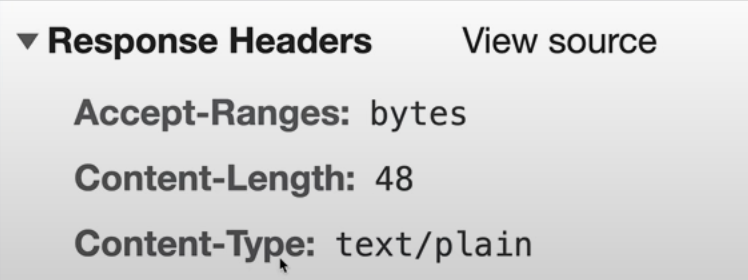
이는 CSS 파일의 타입을 지정해주지 않아서 발생하는 문제
CSS 파일의 Content-Type은 text/plain이 아닌 text/css가 되어야 함
이를 위해 다음과 같이 nginx 파일 수정
http {
    types {
        text/css css;
        text/html html;
    }
    server {
        listen 8080;
        root /Users/kakao/Desktop/nginx;

    }
}

events {}
location
root 뿐만 아니라 특정 폴더의 index.html 파일을 서빙하고 싶은 경우 location을 사용하면 된다
http {
    types {
        text/css css;
        text/html html;
    }
    server {
        listen 8080;
        root /Users/kakao/Desktop/nginx;

        location /fruits {
            root /Users/kakao/Desktop/nginx;
        }
    }
}

events {}
해당 예제의 경우 localhost:8080/fruits 로 요청을 보내면 /Users/kakao/Desktop/nginx/fruits/index.html 이 서빙된다
location의 다음 인자로 들어가는 값이 자동으로 url경로와 파일 경로에 추가된다는 것을 알 수 있다
하지만 url의 경로와 실제 파일 경로의 이름이 다를 수 있다
이 경우 alias 키워드를 사용할 수 있다
http {
    types {
        text/css css;
        text/html html;
    }
    server {
        listen 8080;
        root /Users/kakao/Desktop/nginx;

        location /fruits {
            root /Users/kakao/Desktop/nginx;
        }

        location /carbs {
            alias /Users/kakao/Desktop/nginx/fruits;
        }
    }
}

events {}
localhost:8080/carbs 로 요청을 보내면 /Users/kakao/Desktop/nginx/fruits/index.html이 서빙된다
alias 키워드를 사용하는 경우에는 location 옆에 붙는 인자가 사용되지 않기 때문에 경로를 끝까지 명시해야 한다는 차이점이 있다
지금까지 봐왔던 예제들에서는 경로에 index.html이 생략 가능했다.
하지만 파일명이 index.html이 아닌 경우에는 어떻게 할까?
이런 경우 try_files 키워드를 사용할 수 있다.
http {
    types {
        text/css css;
        text/html html;
    }
    server {
        listen 8080;
        root /Users/kakao/Desktop/nginx;

        location /fruits {
            root /Users/kakao/Desktop/nginx;
        }

        location /carbs {
            alias /Users/kakao/Desktop/nginx/fruits;
        }

        location /vegetables {
            root /Users/kakao/Desktop/nginx;
            try_files /vegetables/vegetables.html /index.html = 404;
        }
    }
}

events {}
localhost:8080/vegetables로 요청을 보내면 /Users/kakao/Desktop/nginx/vegetables/index.html이 서빙된다.
만약 해당 경로의 파일이 존재하지 않는 경우에 try_files 구문이 실행된다.
가장 먼저 /Users/kakao/Desktop/nginx/vegetables/vegetables.html 파일이 존재한다면 해당 파일이 서빙된다
root 키워드와의 차이점은 location의 두번째 인자로 들어가는 요소가 자동으로 추가되느냐 그렇지 않느냐의 차이이다.
해당 파일 마저도 존재하지 않는다면 /Users/kakao/Desktop/nginx/index.html 파일이 서빙된다. 해당 파일도 존재하지 않는다면 nginx에서 정의한 404 페이지가 서빙된다.
redirects
localhost:8080/crops 로 요청이 오는 경우 location:8080/fruits 로 redirect 시키고 싶은 경우라면 다음과 같이 작성해볼 수 있다
http {
    server {
        listen 8080;
        root /Users/kakao/Desktop/nginx;

		location /fruits {
            root /Users/kakao/Desktop/nginx;
        }

        location /crops {
            return 307 /fruits;
        }
    }
}

events {}
redirects 처럼 경로 자체가 바뀌는 것이 아닌, url 경로는 그대로인데 서빙하는 파일만 바꾸고 싶다면 rewrites를 사용할 수 있다
Load Balance
기본 express 프로젝트를 구성하고 다음과 같이 Dockerfile을 작성한 후
FROM node:16

WORKDIR /usr/src/app

COPY package*.json ./

RUN npm install

COPY . .

EXPOSE 7777
CMD ["node", "index.js"]
$ docker build . -t myserver
$ docker run -p 1111:7777 -d myserver
$ docker run -p 2222:7777 -d myserver
$ docker run -p 3333:7777 -d myserver
$ docker run -p 4444:7777 -d myserver
이후 다음과 같이 nginx 파일을 작성하면
서버가 4개 있음 각 포트는 1111, 2222, 3333, 4444
http {
    upstream backendserver {
        server 127.0.0.1:1111;
		    server 127.0.0.1:2222;
    		server 127.0.0.1:3333;
		    server 127.0.0.1:4444;
    }

    server {
        listen 8080;

        location / {
            proxy_pass http://backendserver;
        }
    }
}

events {}
localhost:8080을 여러개 접속하면 nginx가 round robin 알고리즘에 의해 적절히 그 요청을 4개의 서버에 분산해준다