Android에서 WebRTC 기능을 구현할 때 TURN 서버가 필요하게 되어 AWS의 EC2 인스턴스에 Coturn 서버를 설치해 사용해보았다.
https://ap-northeast-2.console.aws.amazon.com/ec2/home?region=ap-northeast-2#Home:
EC2 인스턴스 생성
AWS EC2 인스턴스 생성
EC2 인스턴스를 생성한다.
프리 티어를 사용하고 있기에 프리 티어에서 제공하는 OS 이미지를 사용하였다.

보안그룹 인바운드 설정
Coturn 서버를 사용하는데 필요한 보안그룹 인바운드를 다음과 같이 설정하였다.
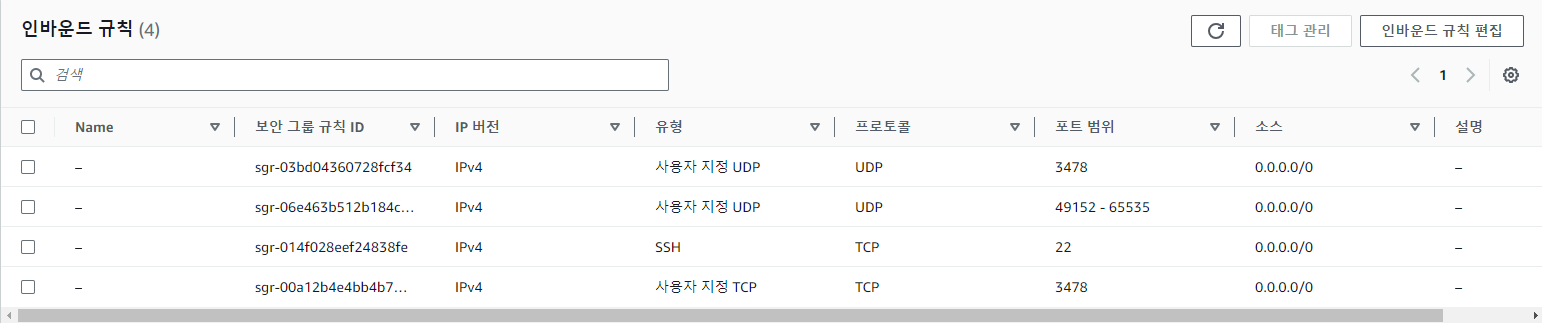
Coturn 서버 설치 & 사용
EC2 인스턴스에 Coturn 서버 설치
생성한 인스턴스에 접속하여 Coturn 서버를 다음 명령어로 설치한다.
sudo apt-get -y update
sudo apt-get install coturn
시스템 시작 시 Coturn 서버 자동 실행 설정
다음 파일을 수정하여 시스템 시작 시 Coturn 서버가 자동으로 실행되도록 설정한다.
sudo nano /etc/default/coturn
Coturn 설정 파일 변경
turnserver.conf 파일을 다음과 같이 변경해주었다.
sudo nano /etc/turnserver.conf# Coturn TURN SERVER configuration file
...
# TURN listener port for UDP and TCP (Default: 3478).
listening-port=3478
...
# Listener IP address of relay server. Multiple listeners can be specified.
listening-ip=<인스턴스 프라이빗 IPv4 주소>
...
# For Amazon EC2 users:
#
# TURN Server public/private address mapping, if the server is behind NAT.
external-ip=<인스턴스 퍼블릭 IPv4 주소>/<인스턴스 프라이빗 IPv4 주소>
...
# Lower and upper bounds of the UDP relay endpoints:
# (default values are 49152 and 65535)
#
min-port=49152
max-port=65535
...
# Uncomment to run TURN server in 'normal' 'moderate' verbose mode.
# By default the verbose mode is off.
verbose
...
# Uncomment to use fingerprints in the TURN messages.
# By default the fingerprints are off.
#
fingerprint
# Uncomment to use long-term credential mechanism.
# By default no credentials mechanism is used (any user allowed).
#
lt-cred-mech
...
# 'Static' user accounts for the long term credentials mechanism, only.
user=<유저 아이디>:<유저 비밀번호>
...
# The default realm to be used for the users when no explicit
# origin/realm relationship is found in the database, or if the TURN
# server is not using any database (just the commands-line settings
# and the userdb file). Must be used with long-term credentials
# mechanism or with TURN REST API.
#
# Note: If the default realm is not specified, then realm falls back to the host domain name.
# If the domain name string is empty, or set to '(None)', then it is initialized as an empty string.
#
realm=myrealm
...
# Option to redirect all log output into system log (syslog).
#
syslog
...
# Disable RFC5780 (NAT behavior discovery).
#
# Originally, if there are more than one listener address from the same
# address family, then by default the NAT behavior discovery feature enabled.
# This option disables the original behavior, because the NAT behavior
# discovery adds extra attributes to response, and this increase the
# possibility of an amplification attack.
#
# Strongly encouraged to use this option to decrease gain factor in STUN
# binding responses.
#
no-rfc5780
# Disable handling old STUN Binding requests and disable MAPPED-ADDRESS
# attribute in binding response (use only the XOR-MAPPED-ADDRESS).
#
# Strongly encouraged to use this option to decrease gain factor in STUN
# binding responses.
#
no-stun-backward-compatibility
# Only send RESPONSE-ORIGIN attribute in binding response if RFC5780 is enabled.
#
# Strongly encouraged to use this option to decrease gain factor in STUN
# binding responses.
#
response-origin-only-with-rfc5780인스턴스의 퍼블릭/프라이빗 ip 주소는 AWS 콘솔의 인스턴스 세부 정보에서 확인 가능하다.
Coturn 서버 실행
다음 명령어로 Coturn 서버를 실행시킬 수 있다.
sudo systemctl start coturnCoturn 서버 동작 확인
Coturn 서버를 실행시켰다면 다음 명령어로 제대로 동작하는지 확인할 수 있다.
sudo service coturn status
동작 확인 사이트
https://webrtc.github.io/samples/src/content/peerconnection/trickle-ice/
이곳에 서버의 주소와 위에서 설정한 유저 아이디/비밀번호로 테스트 해볼 수 있다.

Done으로 나오면 정상 작동중이다.
Android WebRTC Turn Server 사용
Android에서 WebRTC를 사용하며, 위에서 설정한 Turn 서버를 사용하는 코드이다.
    // PeerConnection 설정
    private void initPeerConnection(String clientId) {
        List<PeerConnection.IceServer> iceServers = new ArrayList<>();
        PeerConnection.IceServer turn = PeerConnection.IceServer.builder("<TURN 서버 주소>").setUsername("<유저 아이디>").setPassword("<유저 비밀번호>").createIceServer();
        iceServers.add(turn);
        //PeerConnection.RTCConfiguration rtcConfiguration = new PeerConnection.RTCConfiguration(new ArrayList<>());
        PeerConnection.RTCConfiguration rtcConfiguration = new PeerConnection.RTCConfiguration(iceServers);
        rtcConfiguration.sdpSemantics = PeerConnection.SdpSemantics.UNIFIED_PLAN;

        peerConnection = peerConnectionFactory.createPeerConnection(rtcConfiguration, new CustomPeerConnectionObserver(clientId));
    }
AWS EC2 인스턴스를 중지했다가 다시 실행시키면 퍼블릭 IPv4 주소가 변경되어 Coturn 서버를 재설정 해줄 필요가 있다.
탄력적 IP 주소를 사용하면 이를 막을 수 있지만 비용이 들어 실제로 해보지는 않았다.