초기화/삭제
git은 명령어로 이루어진 간단한 프로그램
git + 명령어 -option
- 깃 저장소 생성 및 파일 확인
- git init
생성이 완료되면 master(작업할 브랜치) 가 붙는다.
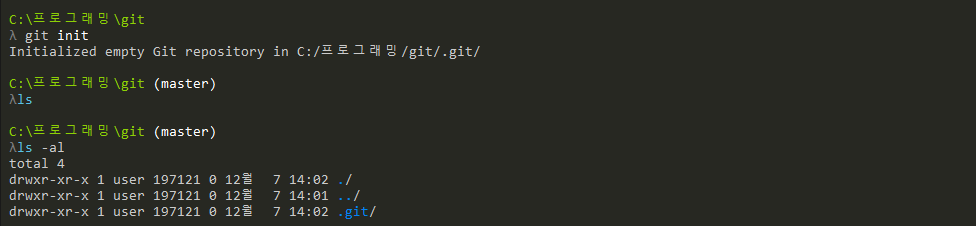
- git init
  ls -al(터미널 명령어 : 숨겨진 파일 확인)
start folder(터미널 명령어 : 해당파일 열기)- 삭제하기
rm -rf .git
파일 업로드해보기
-
git status
Git 작업하고 있는 모든 내용들을 간단하게 확인
git 단축키 설정 : git config --global alias.단축키 명령어 On branch mastermaster에 a,b,c 텍스트 파일을 만든 후 git status 입력
결과 :No commits yet Untracked files: (use "git add <file>..." to include in what will be committed) a.txt b.txt bctxt nothing added to commit but untracked files present (use "git add" to track)track가 안되어 있으니 git add를 사용해달라고 한다.
- git status -h모든 옵션을 확인 가능
-
git add 파일명
git add는 해당 파일을 staging area에 추가해준다.
D:\program\git (master)
λ git add a.txt

D:\program\git (master)
λ git status
On branch master

No commits yet

Changes to be committed:
 (use "git rm --cached <file>..." to unstage)
       new file:   a.txt

Untracked files:
 (use "git add <file>..." to include in what will be committed)
       b.txt
       bctxt
추가한 a파일은 committed이 되고 나머지 b,c파일은 Untracked으로 분류된다.
	`git add *.txt` : txt로 끝나는 모든 파일을 다 추가`


a파일에 내용을 추가 한 후 status를 돌리면
On branch master No commits yet Changes to be committed: (use "git rm --cached <file>..." to unstage) new file: a.txt new file: b.txt Changes not staged for commit: (use "git add <file>..." to update what will be committed) (use "git restore <file>..." to discard changes in working directory) modified: a.txt전과 달리 git이 track 중이라 modified라고 뜬다.
-
git rm --cached <파일>...
use "git rm --cached ..." to unstage을 살펴보면 stage에서 내려갈 수 있다고 한다!λ git rm --cached * rm 'a.txt' rm 'b.txt' D:\program\git (master) λ git status On branch master Changes to be committed: (use "git restore --staged <file>..." to unstage) deleted: a.txt deleted: b.txt Untracked files: (use "git add <file>..." to include in what will be committed) a.txt b.txt bctxt다시 directory로 온것을 볼 수 있다.
-
git ignore
특정 경로에 있거나 파일들을 올리고 싶지 않을 때 사용한다.
echo *.log > .gitignore.log로 끝나는 파일들은 status를 해도 나타나지 않는다.
그 외 특정경로, 특정경로안에 든 파일들도 가능하다.특정 경로+파일 : build/.log 특정 경로 : build/ -
git commit
Repository로 옮겨준다.
git commit을 하면 파일명과 설명을 적어 저장해준다[master 0f4b94e] Title 5 files changed, 4 insertions(+) create mode 100644 .gitignore rename a.txt => bctxt (100%) create mode 100644 c.text create mode 100644 log.log create mode 100644 style.cssMaster 브런치에 hash 값의 앞부분의 id와 제목
5개의 파일이 변경
4개의 파일이 새로 만들어짐-
git commit -m""
메세지와 함께 commit을 하고 싶을 때 쓴다.
    D:\program\git (master)
    λ git add .

    D:\program\git (master)
    λ git commit -m "second commit"
    [master f589b1a] second commit
     1 file changed, 1 insertion(+)
     create mode 100644 c.txt

    D:\program\git (master)
    λ git log
    commit f589b1a23b7edd1dd2120b4b101c8227be027c70 (HEAD -> master)
    Author: Ju <97508841+haruharuganda@gmail.com>
    Date:   Thu Dec 8 16:36:40 2022 +0900

        second commit

    commit 0f4b94eebb91921c80e3ee76bd209c398cdee43f
    Author: Ju <97508841+haruharuganda@gmail.com>
    Date:   Thu Dec 8 16:25:26 2022 +0900

        Title

        Description

    commit ae417740cf8ef972a8061917995500390c61db62
    Author: Ju <97508841+haruharuganda@gmail.com>
    Date:   Thu Dec 8 14:57:38 2022 +0900

        no message
git add를 한 후 git commit -m "message"를 해주면 간단하게 메세지를 넣고 commit이 가능하다.
-
git commit -am""
a는 all을 뜻하며 모든 area에 있는 파일을 전부 메시지와 함께 commit
-
-
git log
git의 history를 확인할 수 있다commit 0f4b94eebb91921c80e3ee76bd209c398cdee43f (HEAD -> master) Author: Ju <97508841+haruharuganda@gmail.com> Date: Thu Dec 8 16:25:26 2022 +0900 Title Description commit ae417740cf8ef972a8061917995500390c61db62 Author: Ju <97508841+haruharuganda@gmail.com> Date: Thu Dec 8 14:57:38 2022 +0900 no messagecommit 전체 hash 값과 작성자, 날자,시간과 설명 등을 볼 수 있다.
커밋을 언제 하는게 좋을까?
version별로 나뉘어서 관리할 수 있다. 그렇기 때문에 세분화해서 기능별로 작은 단위로 나뉘어 저장하는것이 좋다.
예) 프로젝트 초기화, 로그인 모듈, 첫 페이지, ......
단 취지에 엇나가는 무분별한 commit은 하지말자!