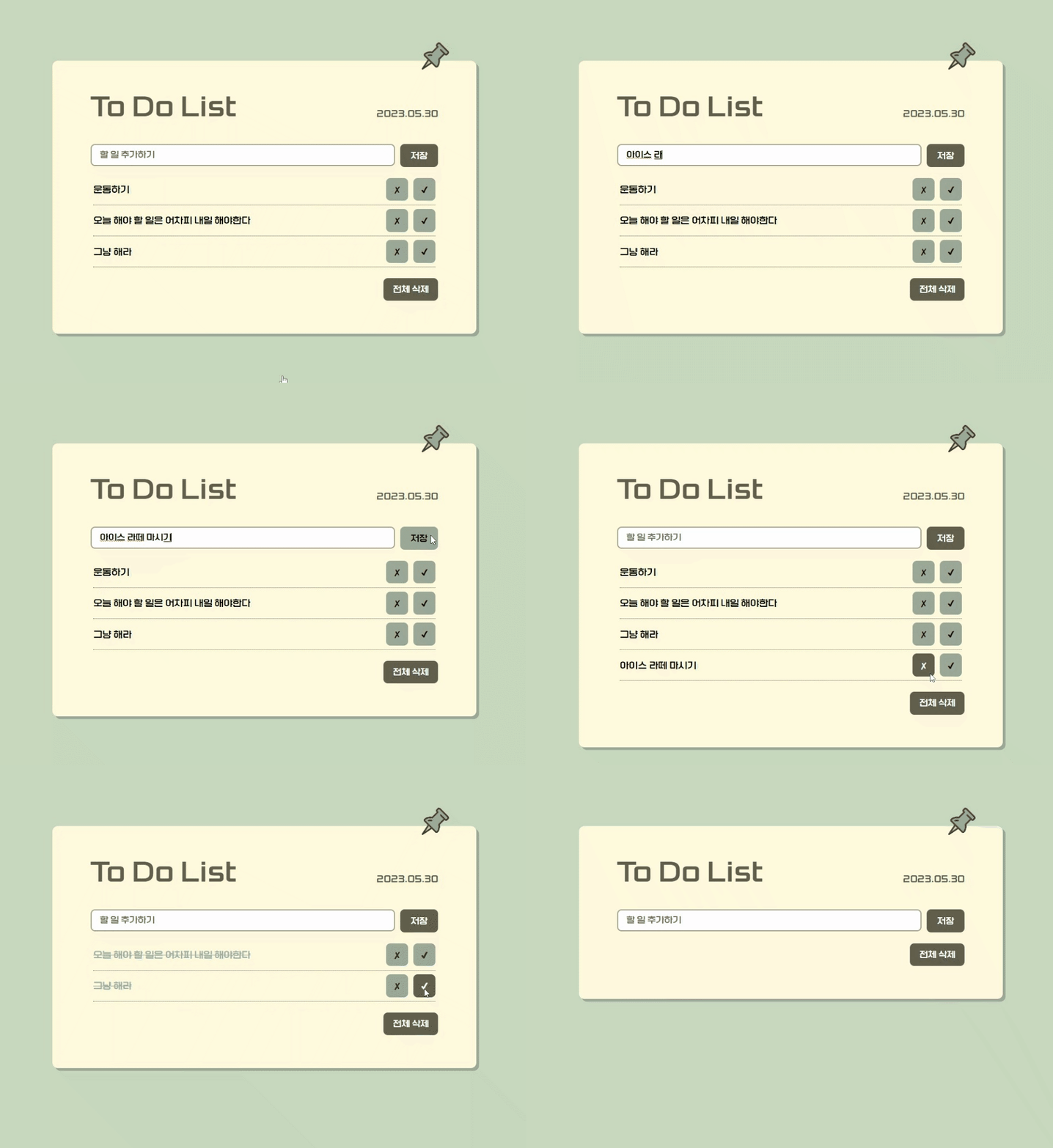
📃 To Do List 만들기
💡 핵심 To Do List
localStorage.setItem(key, value)을 통해 할 일 저장하기localStorage.getItem(key)을 통해 저장된 할 일 읽기localStorage.removeItem()를 통해 할 일 개별 삭제하기localStorage.clear()를 통해 할 일 전체 삭제하기Date()오늘 날짜 가져오기- 완료된 리스트 체크박스 클릭 시 줄 긋기
💡 index.js 코드 블럭 설명
const form = document.querySelector('form');
const input = document.querySelector('input');
const ul = document.querySelector('ul');
const clear = document.querySelector('.clear');
let todos = [];
변수 선언
form, input, ul, clear는 HTML 요소를 선택하기 위한 변수들이다.todos는 할 일 목록을 저장하는 배열이다.
const saveTodo = () => {
  localStorage.setItem('todos', JSON.stringify(todos));
};
saveTodo 함수
todos배열을 로컬 스토리지에 저장하는 함수다.localStorage.setItem('todos', JSON.stringify(todos))를 호출해,todos배열을 JSON 형식으로 변환하여 로컬 스토리지에 저장한다.
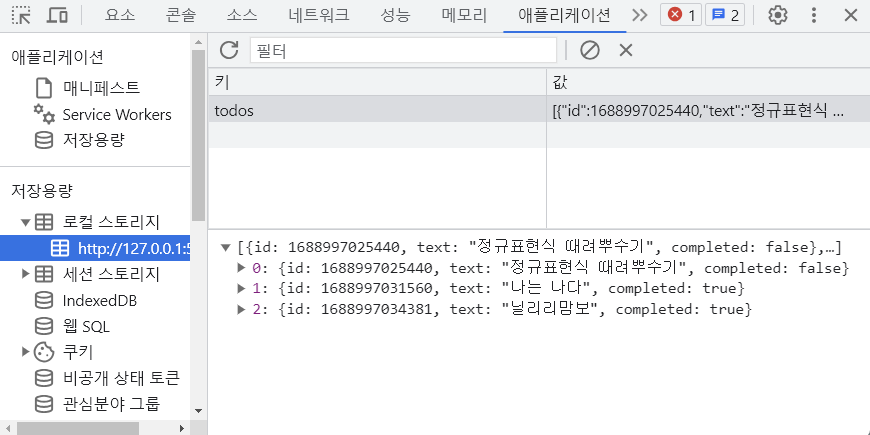
const delTodo = (event) => {
  const target = event.target.parentElement;
  todos = todos.filter((todo) => todo.id !== parseInt(target.id));
  saveTodo();

  target.remove();
};
delTodo 함수
- 할 일 목록을 삭제하는 함수다.
- 클릭한 버튼의 부모 요소인
li를 찾아서 문서에서 삭제한다.todos배열에서 해당id값을 가진 요소를 찾아서 삭제한 후, 변경된todos배열을 다시 저장한다.
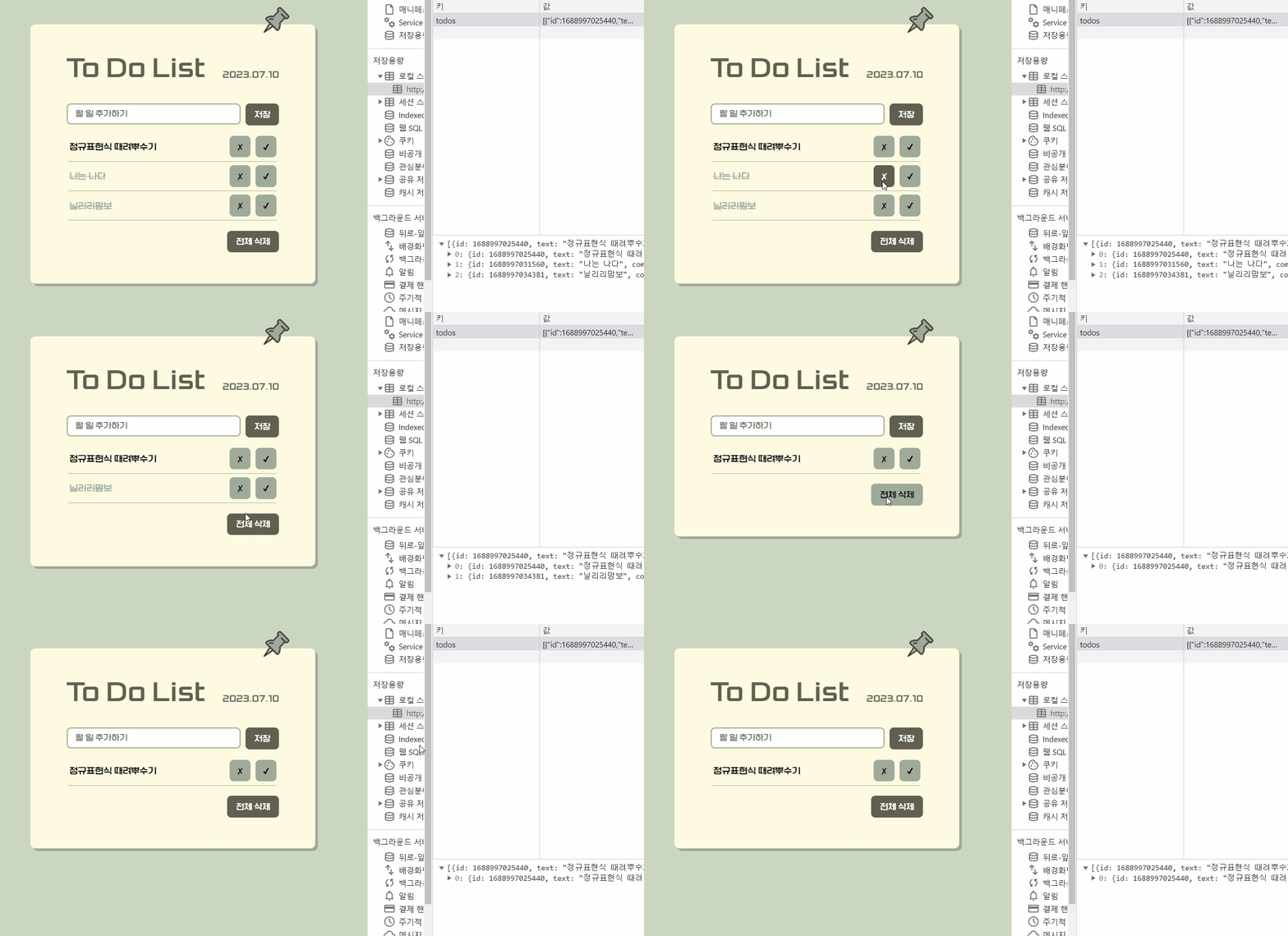
const allClear = () => {
  localStorage.clear('todos', JSON.stringify(todos));
  ul.innerHTML = '';
};
allClear 함수
- 모든 할 일 목록을 삭제하는 함수다.
localStorage.clear('todos', JSON.stringify(todos))를 호출해 로컬 스토리지의todos데이터를 삭제한다.ul.innerHTML을 빈 문자열로 설정해 할 일 목록을 비운다.
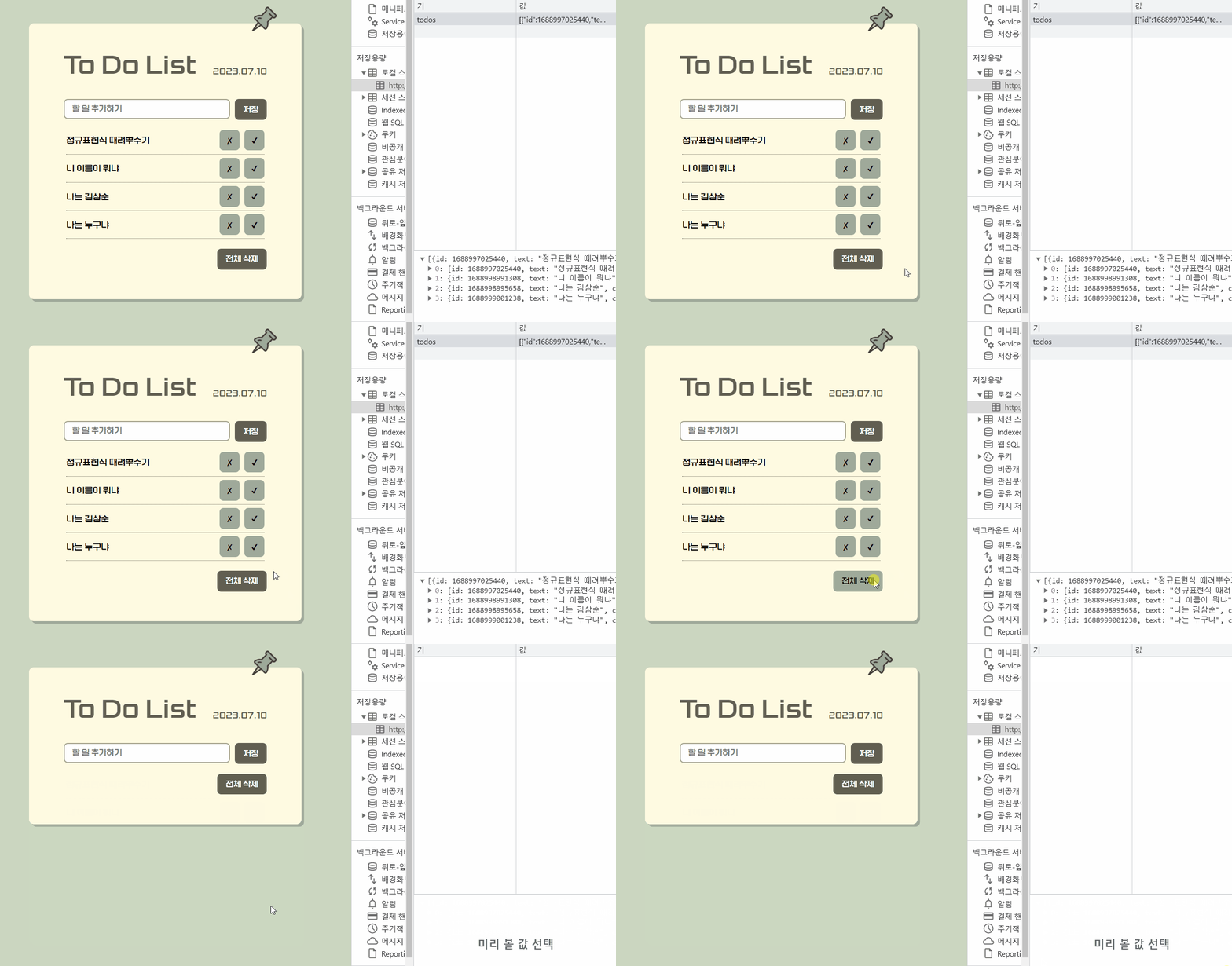
const addTodo = (todo) => {
  if (todo.text !== '') {
    const li = document.createElement('li');
    const button = document.createElement('button');
    const span = document.createElement('span');
    const check = document.createElement('button');

    check.innerText = '✔';
    check.classList.add('btn-check');
    span.innerText = todo.text;
    button.innerText = '✘';
    button.classList.add('btn-x');

    button.addEventListener('click', delTodo);
    clear.addEventListener('click', allClear);
    check.addEventListener('click', () => {
      li.classList.toggle('complete');
      todo.completed = !todo.completed;
      saveTodo();
    });

    li.appendChild(check);
    li.appendChild(span);
    li.appendChild(button);
    ul.appendChild(li);

    li.id = todo.id;

    if (todo.completed) {
      li.classList.add('complete');
    }
  }
};
addTodo 함수
- 새로운 할 일 항목을 화면에 추가하는 함수다.
- 인자로 받은
todo객체를 사용해 HTML요소를 동적으로 생성하고 문서에 추가한다.- 버튼의 클릭 이벤트와 완료 상태 변경을 처리하는 함수를 등록한다.
- 생성한 리스트 요소의
id값을todo객체의id값으로 지정한다.- 완료된 항목인 경우
li요소에complete클래스를 추가해 완료 상태를 시각적으로 표시한다.
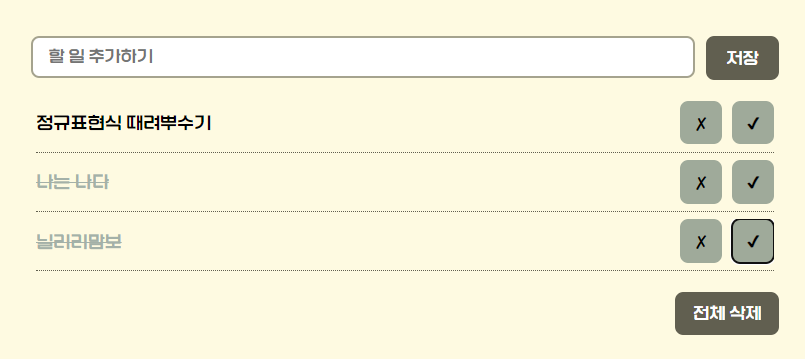
const handleSubmit = (event) => {
  event.preventDefault();
  const todo = {
    id: Date.now(),
    text: input.value,
    completed: false,
  };

  todos.push(todo);
  addTodo(todo);
  saveTodo();
  input.value = '';
};
handleSubmit 함수
- 폼 제출 이벤트를 처리하는 함수다.
event.preventDefault()를 호출해 페이지가 새로고침되는 것을 방지한다.- 입력된 텍스트를 사용해 새로운
todo객체를 생성하고todos배열에 추가한다.addTodo함수를 호출해 새로운 할 일을 화면에 추가한다.saveTodo함수를 호출해 변경된todos배열을 저장한다.- 입력 창을 공백으로 초기화한다.
const init = () => {
  const userTodos = JSON.parse(localStorage.getItem('todos'));

  if (userTodos) {
    userTodos.forEach((todo) => {
      addTodo(todo);
    });

    todos = userTodos;
  }
};
init 함수
- 페이지가 로드될 때 호출되는 함수다.
localStorage.getItem('todos')를 사용해 로컬 스토리지에서todos데이터를 가져온다.- 가져온 데이터는 JSON 형식으로 저장되어 있으므로
JSON.parse를 사용하여 파싱한 후userTodos변수에 저장한다.- 만약
userTodos가 존재한다면, 각todo객체에 대해addTodo함수를 호출해 화면에 할 일을 추가한다.todos배열을, 가져온userTodos로 초기화한다.
init();

form.addEventListener('submit', handleSubmit);

const today = new Date();
const formattedDate = `${today.getFullYear()}.${String(today.getMonth() + 1).padStart(
  2,
  '0'
)}.${String(today.getDate()).padStart(2, '0')}`;

document.getElementById('current-date').textContent = formattedDate;
이벤트 처리와 초기화
init함수를 호출해 페이지가 로드될 때 기존의 할 일 목록을 가져와서 화면에 표시한다.form요소에 submit 이벤트가 발생하면handleSubmit함수가 호출된다.- 오늘 날짜를 가져와서
formattedDate변수에 저장한다.- 해당 날짜를
current-dataid를 가진 HTML요소에textContent를 사용하여 날짜를 설정한다.
💡 index.js 전체 코드
const form = document.querySelector('form');
const input = document.querySelector('input');
const ul = document.querySelector('ul');
const clear = document.querySelector('.clear');
let todos = []; // 할 일 목록을 저장하는 배열

// 로컬 스토리지에 todos 배열을 저장
const saveTodo = () => {
  localStorage.setItem('todos', JSON.stringify(todos));
};

// 할 일 목록을 삭제
const delTodo = (event) => {
  const target = event.target.parentElement;

  // todos 배열에서 해당 id값을 가진 요소를 찾아서 삭제하고 그 요소가 삭제된 새로운 배열을 다시 저장
  todos = todos.filter((todo) => todo.id !== parseInt(target.id));
  saveTodo();

  target.remove();
};

// 할 일 목록 전체 삭제
const allClear = () => {
  localStorage.clear('todos', JSON.stringify(todos));
  ul.innerHTML = '';
};

// 할 일 추가하고, 화면에 표시
const addTodo = (todo) => {
  if (todo.text !== '') {
    const li = document.createElement('li'); //새로운 li 요소를 생성
    const button = document.createElement('button'); // 삭제 버튼을 생성
    const span = document.createElement('span'); // 할 일 텍스트를 감싸기 위한 span 요소를 생성
    const check = document.createElement('button'); // 완료 체크 버튼을 생성

    check.innerText = '✔'; // 완료 체크 버튼의 텍스트를 설정
    check.classList.add('btn-check'); // 완료 체크 버튼에 CSS 클래스를 추가
    span.innerText = todo.text; // 할 일 텍스트를 설정
    button.innerText = '✘'; // 삭제 버튼의 텍스트를 설정
    button.classList.add('btn-x'); // 삭제 버튼에 CSS 클래스를 추가

    button.addEventListener('click', delTodo); // 삭제 버튼에 클릭 이벤트 리스너를 추가
    clear.addEventListener('click', allClear); // 전체 삭제 버튼에 클릭 이벤트 리스너를 추가

    // 할 일 완료 버튼을 클릭했을 때, 완료 상태를 토글하고 저장
    check.addEventListener('click', () => {
      li.classList.toggle('complete');
      todo.completed = !todo.completed; // 완료 상태를 반전시킴
      saveTodo();
    });

    // li 요소의 자식으로 구성
    li.appendChild(check); // li 요소에 완료 체크 버튼을 추가
    li.appendChild(span); // li 요소에 할 일 텍스트를 감싼 span 요소를 추가
    li.appendChild(button); // li 요소에 삭제 버튼을 추가
    ul.appendChild(li); // ul 요소에 li 요소를 추가

    // li 요소의 id 속성에 todo가 가지고 있는 고유 ID를 설정
    li.id = todo.id;

    // 로컬 스토리지에서 완료된 항목인 경우, 클래스를 추가하여 줄 그어진 상태로 표시
    if (todo.completed) {
      li.classList.add('complete');
    }
  }
};

// 폼 제출 이벤트 핸들러
const handleSubmit = (event) => {
  event.preventDefault();

  // 입력된 할 일을 todo 객체로 포장
  const todo = {
    id: Date.now(),
    text: input.value,
    completed: false, // 새로운 할 일은 완료되지 않은 상태로 초기화
  };

  // todos 배열에 추가
  todos.push(todo);

  // 화면에 할 일을 추가
  addTodo(todo);

  // todos 배열을 저장
  saveTodo();

  // 입력 필드를 초기화
  input.value = '';
};

// 초기화 함수
const init = () => {
  const userTodos = JSON.parse(localStorage.getItem('todos'));

  if (userTodos) {
    // 새롭게 페이지를 로드할 때 만약에 로컬스토리지에 저장된 기본 정보가 있다면 해당 정보를 알아서 생성해서 나오도록 하기
    userTodos.forEach((todo) => {
      addTodo(todo);
    });

    todos = userTodos;
  }
};

// 초기화 함수를 실행하여 이전에 저장된 할 일 목록을 화면에 표시
init();

// form이 submit 이벤트가 일어날 때, handleSubmit 함수 동작
form.addEventListener('submit', handleSubmit);

// Date() 오늘 날짜 가져오기
const today = new Date();
const formattedDate = `${today.getFullYear()}.${String(today.getMonth() + 1).padStart(
  2,
  '0'
)}.${String(today.getDate()).padStart(2, '0')}`;

document.getElementById('current-date').textContent = formattedDate;
💡 index.html
<!DOCTYPE html>
<html lang="ko-KR">
  <head>
    <meta charset="UTF-8" />
    <meta http-equiv="X-UA-Compatible" content="IE=edge" />
    <meta name="viewport" content="width=device-width, initial-scale=1.0" />
    <link rel="stylesheet" href="style.css" />
    <title>to do list</title>
  </head>
  <body>
    <!-- pin 이미지 -->
    <h1><img src="./pin.png" /></h1>

    <!-- 투두리스트 -->
    <main>
      <!-- 제목, 날짜 -->
      <article>
        <h2>To Do List</h2>
        <h2 id="current-date"></h2>
      </article>

      <!-- 할 일 입력하기, 저장 버튼 -->
      <form>
        <input type="text" placeholder="할 일 추가하기" />
        <button type="submit">저장</button>
      </form>

      <!-- 입력한 list 보여주기, 삭제 버튼, 체크 버튼 -->
      <ul></ul>

      <!-- 전체 삭제 -->
      <div class="btn-clear">
        <button type="button" class="clear">전체 삭제</button>
      </div>
    </main>

    <script src="./index.js"></script>
  </body>
</html>
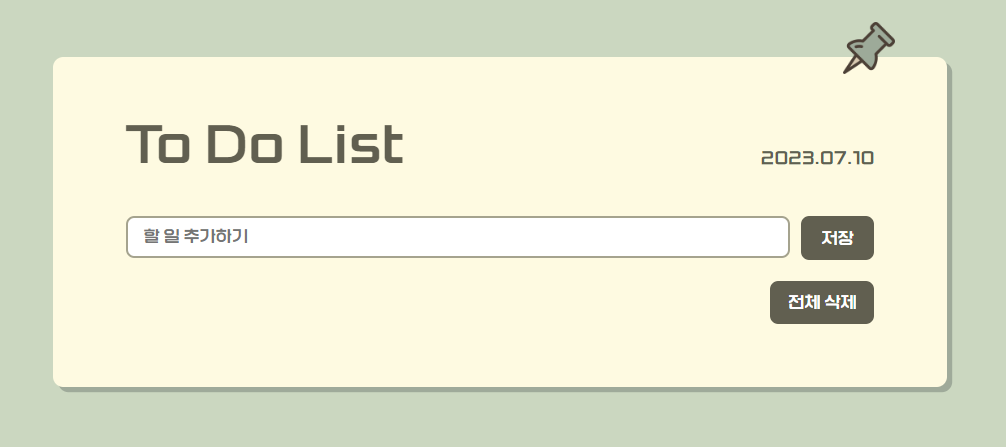
To Do List 구조
<h1>태그는 핀 로고 이미지 표시<article>태그는 제목과 날짜를 담은 섹션<form>태그는 할 일을 입력받는 입력 필드와 저장 버튼<ul>태그는 할 일 목록을 나열하는 목룍 요소<div class="btn-clear">태그는 전체 삭제 버튼
💡 style.css
@font-face {
  font-family: 'KIMM_Bold';
  src: url('https://cdn.jsdelivr.net/gh/projectnoonnu/noonfonts_2212@1.0/KIMM_Bold.woff2')
    format('woff2');
  font-weight: 700;
  font-style: normal;
}

* {
  margin: 0;
  padding: 0;
  box-sizing: border-box;
  font-family: 'KIMM_Bold', sans-serif;
}

body {
  margin: 80px 100px;
  background-color: #c8d7be;
}

main {
  padding: 60px 70px;
  background-color: #fffade;
  box-shadow: 5px 5px #9daa99;
  border-radius: 10px;
}

/* pin 이미지 삽입 */
h1 {
  text-align: right;
}

h1 img {
  width: 50px;
  margin-bottom: -25px;
  margin-right: 50px;
}

/* 투두리스트 제목, 오늘 날짜 */
article {
  display: flex;
  justify-content: space-between;
}

h2 {
  margin-bottom: 40px;
  font-size: 48px;
  color: #615f4e;
}

#current-date {
  margin-top: 28px;
  font-size: 17px;
}

/* 할 일 추가하기, 저장 버튼 */
form {
  width: 100%;
  display: flex;
  column-gap: 10px;
}

input,
button {
  border-radius: 8px;
  font-size: 15px;
}

input {
  width: 100%;
  height: 40px;
  padding: 0 15px;
  outline: none;
  border: 2px solid #a5a38c;
}

button {
  width: 80px;
  height: 42px;
  background-color: #615f4e;
  color: white;
  border: transparent;
}

button:hover {
  background-color: #9daa99;
  color: #000000;
}

/* 전체 삭제 버튼 */
.btn-clear {
  text-align: right;
}

.btn-clear .clear {
  width: 100px;
  background-color: #615f4e;
  color: white;
}

.btn-clear .clear:hover {
  width: 100px;
  background-color: #9daa99;
  color: #000000;
}

/* 저장한 리스트, 삭제 버튼, 체크 버튼 */
ul {
  list-style: none;
  margin: 20px 5px;
}

li {
  /* display: flex;
  justify-content: space-between;
  align-items: center; */
  border-bottom: 1px dotted #615f4e;
  padding-bottom: 7px;
  margin-bottom: 7px;
  overflow: hidden;
}

li span {
  position: relative;
  top: 13px;
}

li button {
  width: 40px;
  float: right;
}

li .btn-x {
  margin-right: 10px;
  background-color: #9daa99;
  color: black;
}

li .btn-x:hover {
  background-color: #615f4e;
  color: white;
}

li .btn-check {
  background-color: #9daa99;
  color: black;
  font-weight: bold;
}

li .btn-check:hover {
  background-color: #615f4e;
  color: white;
}

/* 투두리스트 완료시 줄 긋기 */
ul li.complete {
  text-decoration: line-through;
  color: rgb(161, 178, 167);
}

할 수 있다고 믿는 사람은 결국 그렇게 된다 😄😊