Unity Network with Photon
포톤으로 팀 만들기(Red/Blue)
먼저 팀을 만들 때 포톤에서 제공하는 PhotonTeam을 사용해도 되지만 설정이 까다로워 직접 두개의 커스텀 프로퍼티를 사용해서 만들었다
- 플레이어 커스텀 프로퍼티
- 현재 방의 red , blue Count를 만든 프로퍼티
-> 두개를 조합해서 현재방에 몇명의 red,blue팀이 존재하는지 계산
TeamManager
**  Red/Blue에서 몇명씩 존재하는지 알 수 있기위한 customProperty 기본틀 **
public void SetTeamCount(int red, int blue)
{
    redCount = red;
    blueCount = blue;

    ExitGames.Client.Photon.Hashtable teamCount = new();
    teamCount["RedCount"] = redCount;
    teamCount["BlueCount"] = blueCount;
    PhotonNetwork.CurrentRoom.SetCustomProperties(teamCount);
}
** 플레이어의 팀이 현재방의 Red,Blue의 수를 기반으로 현재 팀이 정해짐(방에 입장 순서대로
Red->Blue->Red 순서로 입장) **
public void SetPlayerTeam(Player player)
{
TeamSetting setting;
int red = (int)PhotonNetwork.CurrentRoom.CustomProperties["RedCount"];
int blue = (int)PhotonNetwork.CurrentRoom.CustomProperties["BlueCount"];
if (red > blue)
{
OnBlueSelect?.Invoke(player);
setting = TeamSetting.Blue;
}
else
{
OnRedSelect?.Invoke(player);
setting = TeamSetting.Red;
}
ExitGames.Client.Photon.Hashtable props = new();
props["Team"] = setting;
player.SetCustomProperties(props);
}** 팀변경과 위의 SetPlayerTeam에 영향을 줄 Red/Blue의 Count를 계산**
public void RedTeamSelect(Player player)
{
if (redCount >= 2)
{
OnCantChangeRed?.Invoke();
return;
}
if (player.CustomProperties.TryGetValue("CurState", out object value))
{
//플레이어 게임상태 가져와서 구분
if ((CurrentState)value == CurrentState.InRoom)
{
if ((TeamSetting)player.CustomProperties["Team"] == TeamSetting.Red)
return;
OnChangeTeam?.Invoke(player,-1,1);
Debug.Log("레드팀으로 바꾸기 시도");
Debug.Log($"BlueCount : {player.ActorNumber} - {PhotonNetwork.CurrentRoom.CustomProperties["BlueCount"].ToString()}");
Debug.Log($"RedCount: {player.ActorNumber} - {PhotonNetwork.CurrentRoom.CustomProperties["RedCount"].ToString()}");
}
else
{
redCount++;
SetTeamCount(redCount, blueCount);
}
}
else
{
Debug.Log($"현재 {player.NickName}에 대한 상태 없음");
}
}레드팀과 블루팀 동일한 스크립트이므로 Blue팀은 생략
NetworkManager
** 방에 입장시 CallPlayer 코루틴을 실행해서 while문을 반복해서 일부러 늦게 값을 받아오는 것이다
   이렇게 실행하는 이유는 SetCustomProperty는 비동기적으로 작동하기 때문에 플레이어가
   그냥 사용되거나 바로 호출될경우 CustomProperty가 적용되지 않고 처리가 되므로
   CustomProperty에 값이 들어올때까지 기다렸다가 다음 메서드를 실행하도록 구현하였다**

public override void OnJoinedRoom()
{
    lobbyPanel.SetActive(false);
    roomPanel.SetActive(true);

    StartCoroutine(CallPlayer());
}

private IEnumerator CallPlayer()
{
    while (!PhotonNetwork.CurrentRoom.CustomProperties.ContainsKey("RedCount") ||
       !PhotonNetwork.CurrentRoom.CustomProperties.ContainsKey("BlueCount"))
    {
        yield return null;
    }

    teamManager.SetPlayerTeam(PhotonNetwork.LocalPlayer);

    while (!PhotonNetwork.LocalPlayer.CustomProperties.ContainsKey("Team"))
    {
        yield return null;
    }

    roomManager.PlayerPanelSpawn();
    StateCustomProperty(CurrentState.InRoom);
}
RoomManager
** 현재 받아온 커스텀프로퍼티의 값을 반환해서 enum값을 비교하고 맞다면 red 아니면 blue로
   설정해서 UI오브젝트는 Canvas가 꼭 있어야하므로 각 팀의 게임오브젝트의 부모를 따로 지정해주었다 **

public Transform SetPanelParent(Player player)
{
    if (player.CustomProperties.TryGetValue("Team", out object value))
    {
        if ((int)value == (int)TeamSetting.Blue)
        {
            return playerBluePanelParent;
        }
        else
        {
            return playerRedPanelParent;
        }
    }
    else
    {
        Debug.Log($"TeamManager SetParentFromCustomProperty 팀 정보 없음 {PhotonNetwork.LocalPlayer.ActorNumber}");
        return null;
    }
}
** 플레이어의 오브젝트(Panel GameObject)를 생성하는데 씬 전환시 모두에게 적용하기 위해
AutomaticallySyncScene을 사용했고, foreach문에서 현재 방의 모든 플레이어를 가져와서
CustomProperty의 "Team"에 해당하는 값을 가져오고 해당 패널들을 생성해줬다 **
public void PlayerPanelSpawn()
{
PhotonNetwork.AutomaticallySyncScene = true;
if (!PhotonNetwork.IsMasterClient)
{
startButton.interactable = false;
}
foreach (Player player in PhotonNetwork.PlayerList)
{
if (player.CustomProperties.TryGetValue("Team", out object team))
{
GameObject obj = Instantiate(playerPanelPrefab);
obj.transform.SetParent(SetPanelParent(player));
JHT_PlayerPanelItem playerPanel = obj.GetComponent<JHT_PlayerPanelItem>();
playerPanel.Init(player);
playerPanelDic.Add(player.ActorNumber, playerPanel);
}
else
{
Debug.Log($"플레이어 {player.NickName}에 대한 정보 없음");
}
Debug.Log($"RoomCount : {PhotonNetwork.PlayerList.Length}");
}
}
구현 영상
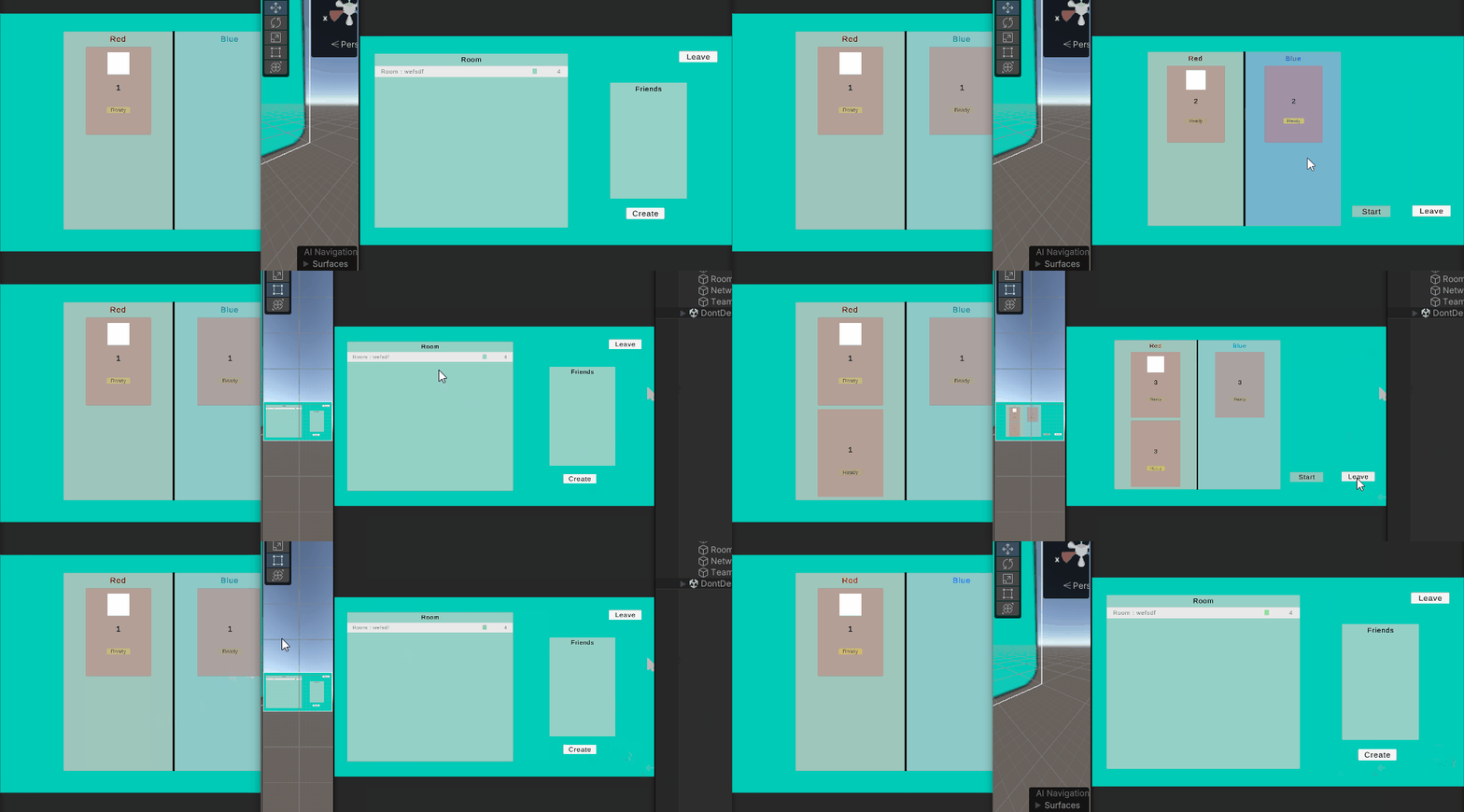
진짜 비동기적으로 동작하는걸 뒤늦게 알아서 오랫동안 시간을 잡아 먹은거같다 다음부턴 동기 비동기적인 부분을 충분히 확인하고 코드 작성을 해야겠다.