Error Tracking with AI: Antigravity-based Crashlytics & Jira MCP Integration
With our app launch right around the corner and our internal testing phase underway, I recently adopted Antigravity, an agent platform and AI-native IDE. In this post, I want to share my experience using it to automate Firebase Crashlytics error analysis and Jira ticket creation, which used to be one of the most time-consuming tasks during QA.
Our project already had Firebase Crashlytics set up with basic configurations and custom error logging. For the AI model, I mostly used Gemini 3.1 pro (High) because it's great at understanding code context and reasoning.
🛠 Basic MCP Server Setup (Connecting Firebase & Jira)
First, I configured the MCP (Model Context Protocol) so that the AI agent within Antigravity could communicate directly with external tools (like Jira and Firebase), going beyond just my local codebase.
1. Connecting Firebase MCP
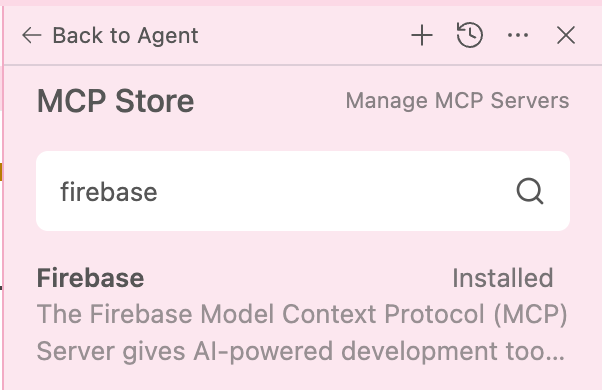
Antigravity has a built-in MCP Store. Instead of dealing with messy config files, I was able to connect the tools I needed super fast with just a few clicks.
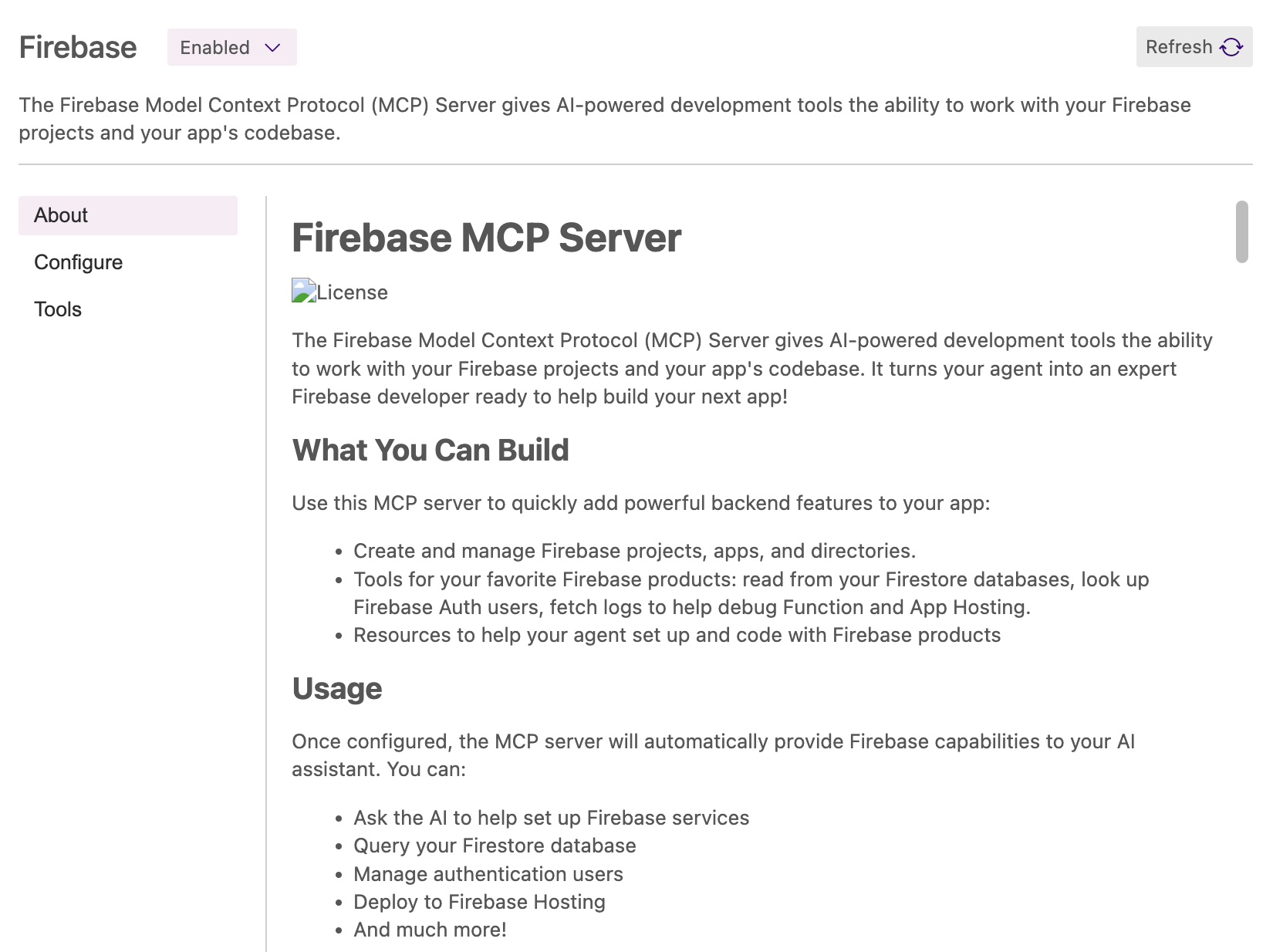
Firebase was one of them. On the installation screen, I just picked the tools I needed and gave the agent access.
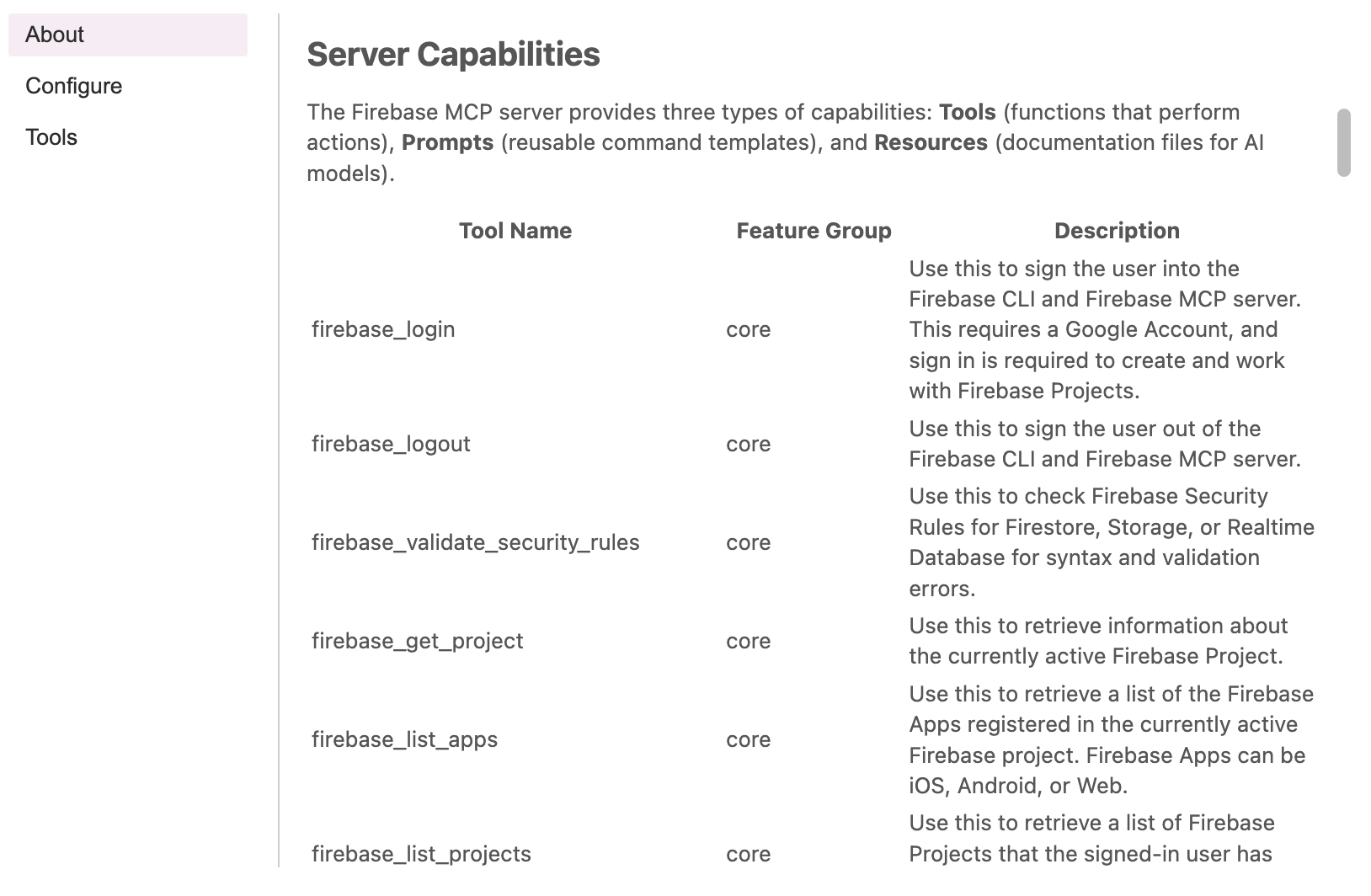
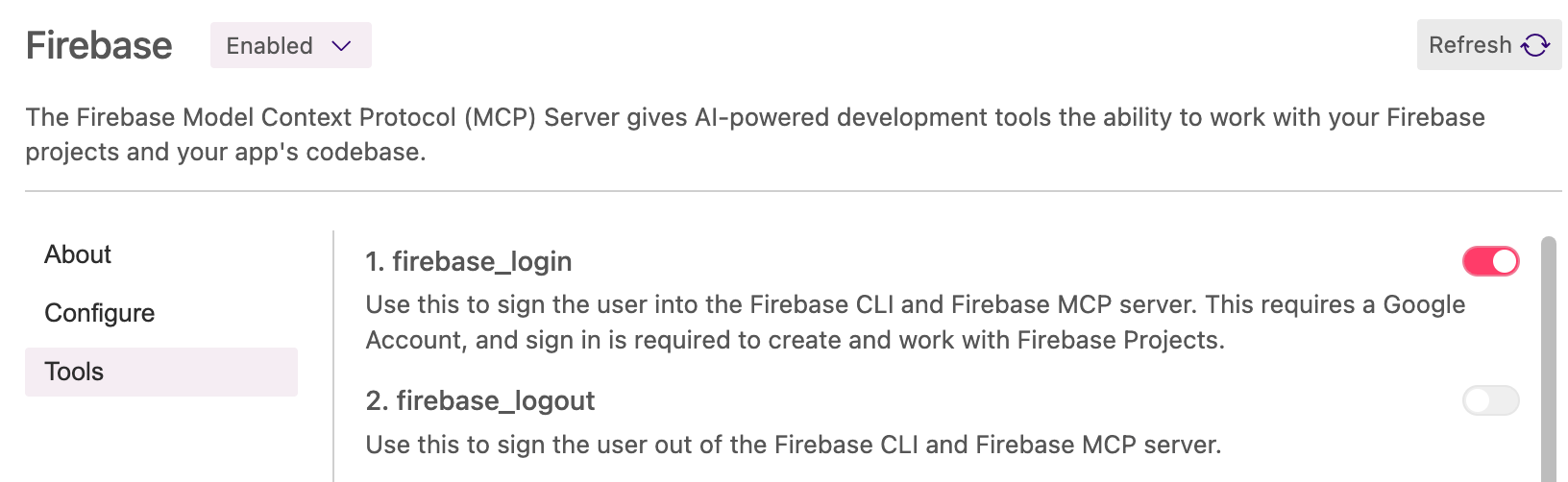
It can access various features like initialization, deployment, and Crashlytics. But unlike other tools, the Crashlytics features didn't immediately show up in the agent's Tools list after the setup. I found out later that I had to manually add the --only core,crashlytics option to the mcp_config.json file. Once I added that, it showed up perfectly.
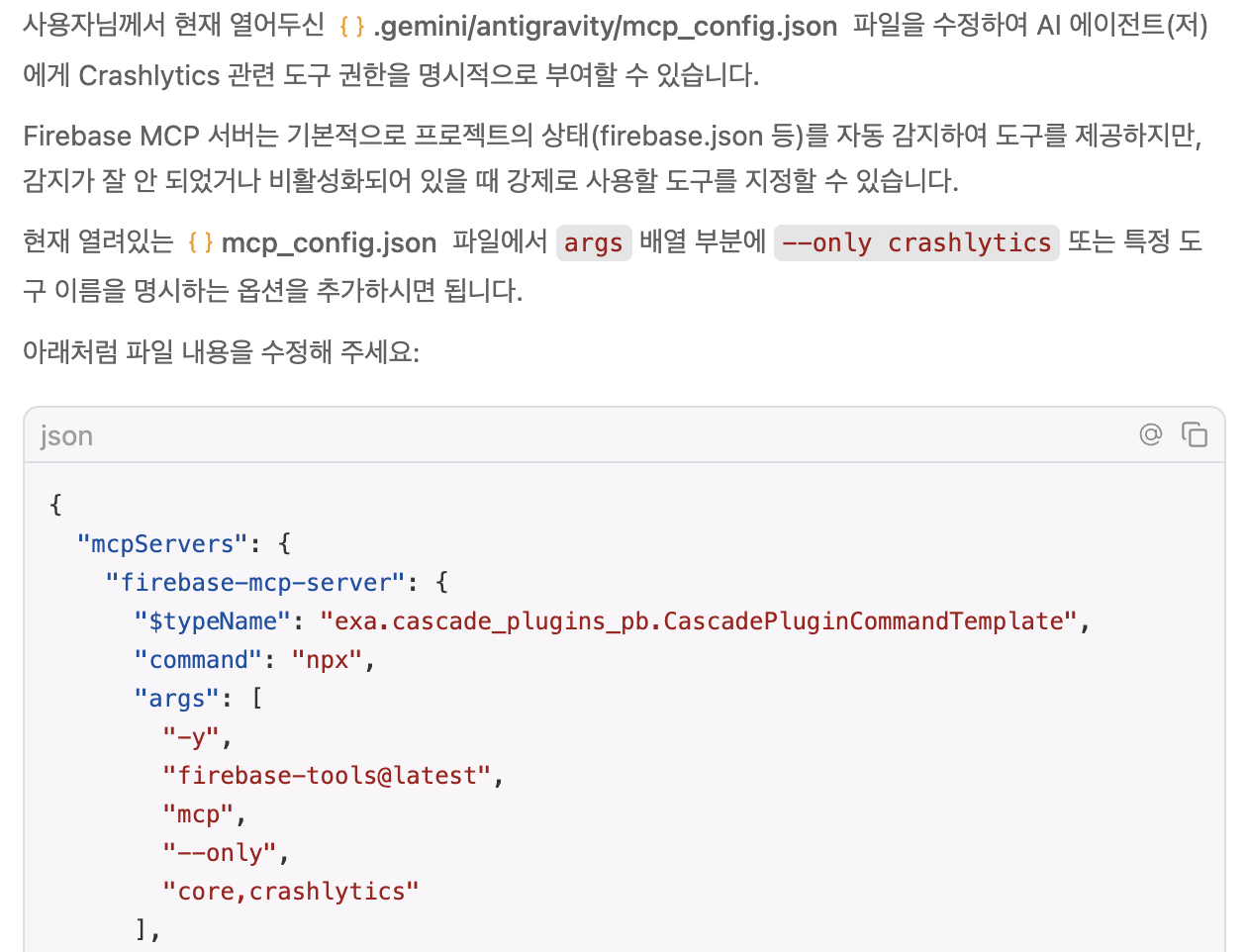
2. Connecting Jira MCP
Currently, Jira MCP integration isn't available in Antigravity's default Store menu. So, I searched the official MCP Servers GitHub directory and used the open-source @sooperset/mcp-atlassian package to wire it up directly.
Luckily, this was really easy. By simply adding a few lines to the mcp_config.json file—including the execution command (uvx) and some environment variables (URL, account email, token)—it worked right away.
🚀 Actual Usage: Workflow Automation
After putting it all together, the error reporting workflow became a lot smoother. Normally, this process meant constantly alt-tabbing between at least three windows: Crashlytics Console ↔ Jira Board ↔ IDE, copy-pasting details, and verifying them. This constantly broke my flow.
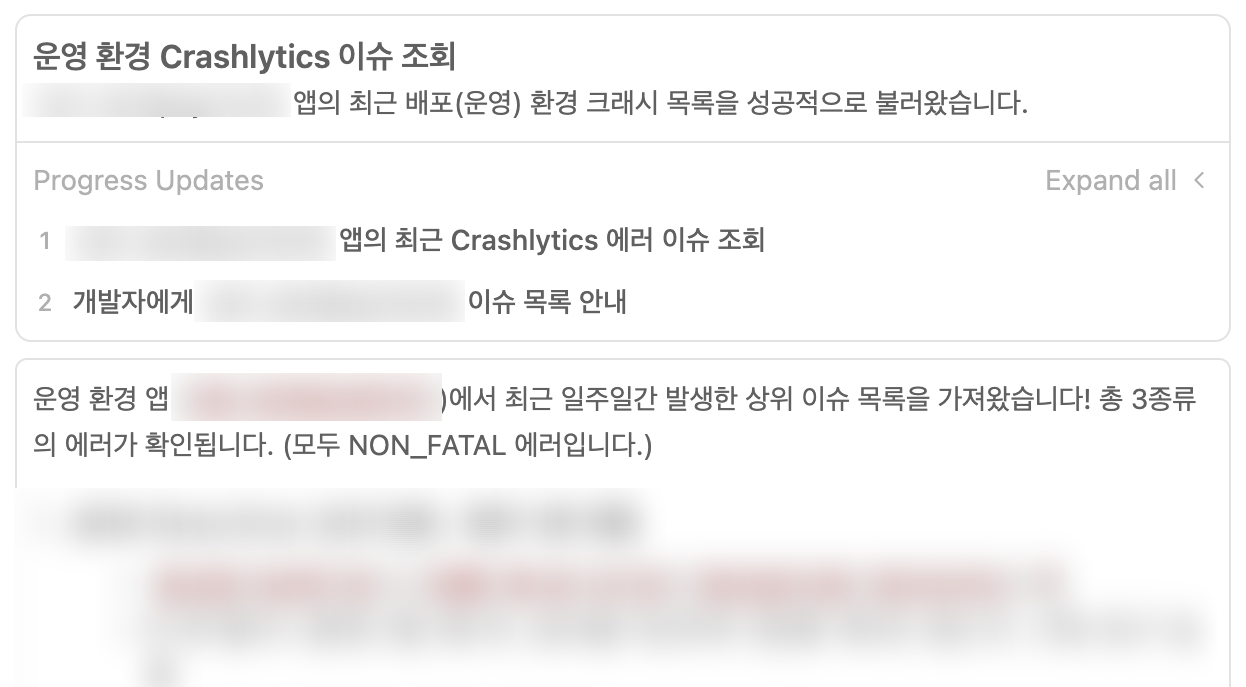
- I tell the agent: "Fetch the crash records from Crashlytics and show me the top issues."
- (If needed) I ask: "Create a bug ticket on Jira based on this issue." The best part here is that if I give it a specific ticket number we usually use and say, "Use this as a template," the agent generates a ticket in the exact same Markdown format.
- Once the formatted ticket is created, the AI automatically scans the project code, finds the root cause, and outlines a fix in an md file within the Agent Manager.
- I review the suggested code and, if it looks good, I apply the changes.
🎯 Case 1: From Error Discovery to Ticket Creation
For example, when the agent read specific runtime exceptions that kept popping up in Crashlytics, I asked it to create a test ticket (KAN-194) based on those logs right then and there.
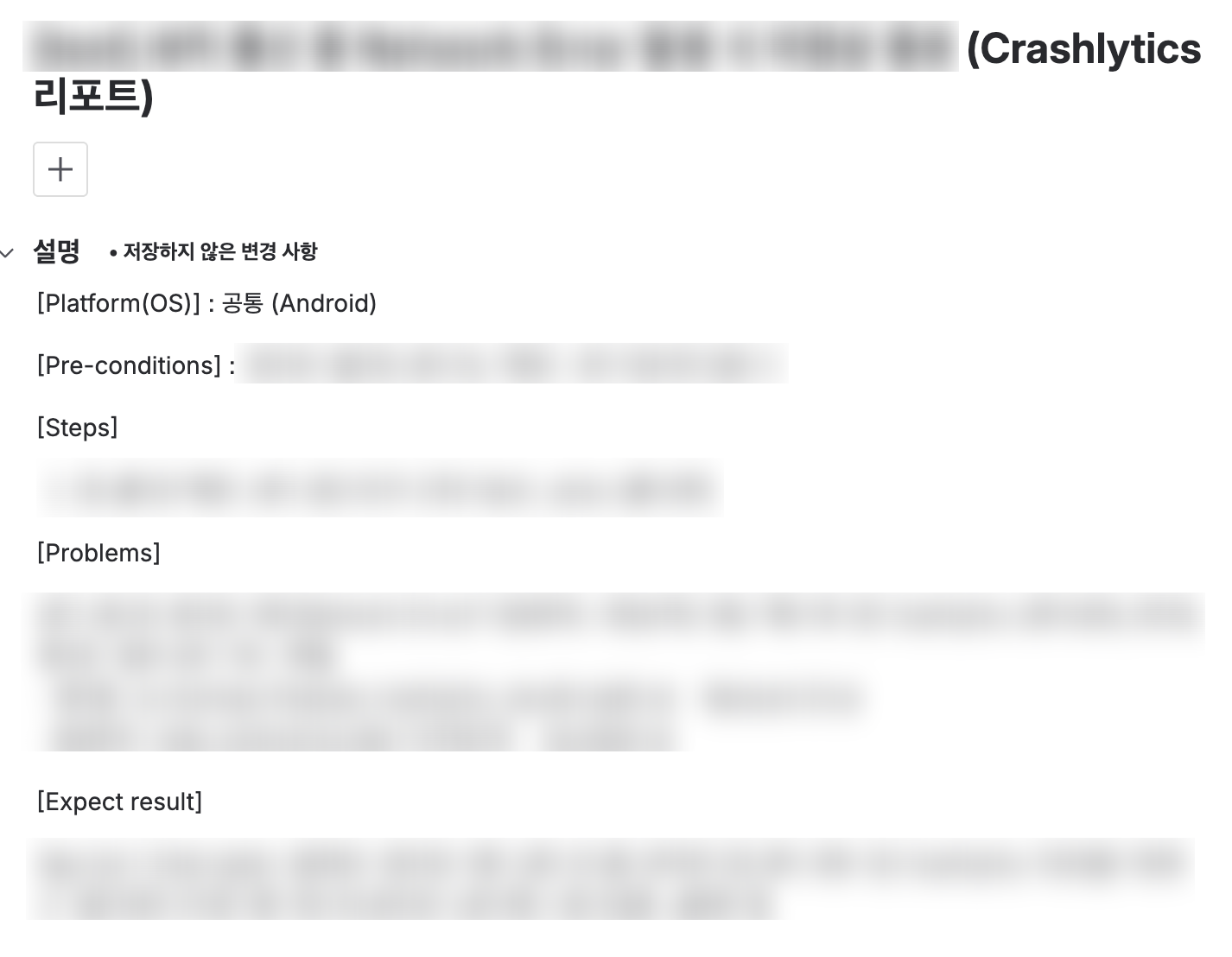 *(A test Jira ticket automatically filled out and generated by AI combining error logs and existing templates)*
I didn't even have to open a web browser to enter Jira. Getting results right inside the chat window kept my rhythm going.
🎯 Case 2: Handing Over a Backlog Ticket for Debugging
This time, I did the opposite. I gave the agent a Jira ticket number that someone else had already created.

- When I say, "Please analyze and fix this ticket issue," the agent automatically goes to Jira and fetches the body text.
- It searches through my project code in the IDE and finds exactly where the crash triggers in a specific edge case of a certain component.
- It writes defensive code and overwrites the file right away. I was pretty amazed because the whole process—from finding the cause to writing the actual code—took less than 3 minutes.
Different Agent Modes (Planning vs. Fast)
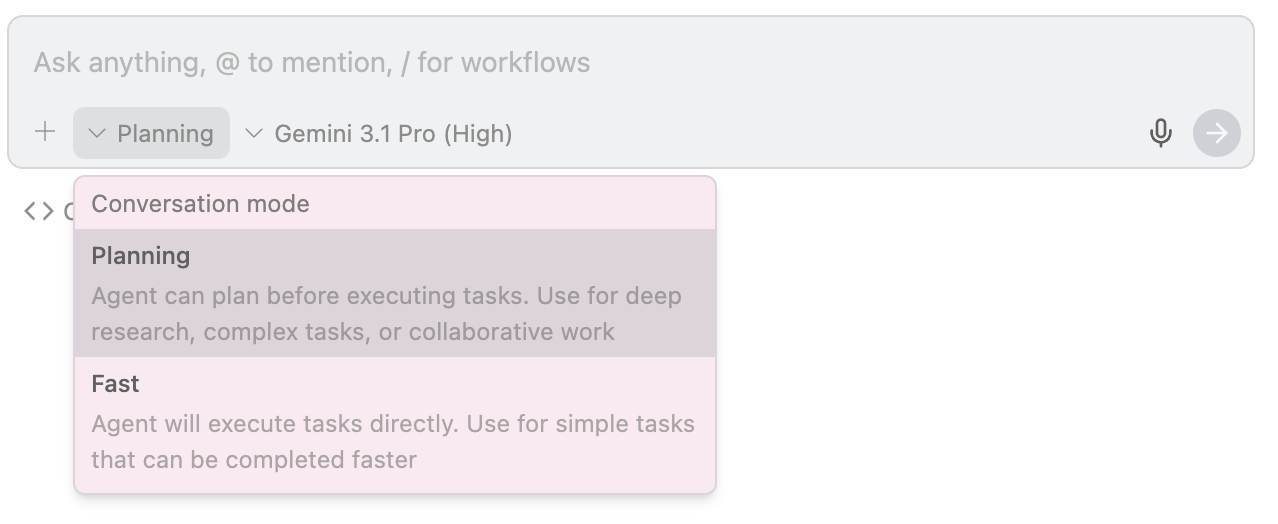
Another cool thing about Antigravity is that it has different agent modes, so you can pick how it works based on what you need.
- Debugging via Planning (Task) Mode: For complex errors rather than just a quick single-file fix, the agent automatically goes into "Task Mode". Instead of changing code straight away, it scans the whole project and gives you the root cause and a step-by-step fix in markdown format. It's basically asking for your okay first. I review the plan, and it only touches the code after I hit 'Accept'. This provides a great sense of stability when tracking tricky bugs or doing major refactoring.
- Fast Mode: But for minor typo fixes or simple tweaks, it skips all the heavy checks and just changes the code right then, meaning no frustrating wait times.
Being able to pause and guide the AI's thought process depending on how big the task is made a lot of sense for day-to-day work.
🏁 Conclusion & Thoughts
My biggest takeaway from setting up Antigravity and MCP is simply realizing "how nice it is when your working context doesn't break."
Looking at code, minimizing the window to copy error logs, opening a browser to write a Jira ticket... Having all this happen inside a single Editor (IDE) window really showed the UX benefits of an integrated setup. The conversation flows naturally while the AI points out my active tabs or highlighted code blocks in real time.
For context, I had previously tried the built-in Gemini Agent in Android Studio on another project. To be honest, there were some frustrating moments back then—the conversational context would frequently break, or requests would get stuck in an endless loop due to errors.
The Antigravity IDE I used this time was a noticeable step up. The chat interface is much smoother, and the stability of code modifications is on another level.
I felt how highly efficient it is—not just for simple code implementation, but for leading the entire workflow from debugging to task management by communicating directly with external tools like Firebase and Jira.
For front-end and mobile devs in startups or small teams who want to cut down on the tedious, time-consuming grind of debugging and ticketing, I highly recommend setting this up and trying it out yourself!