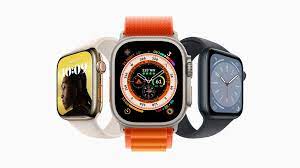
📂Apple Watch Series9
- 사이트명: Apple Watch Series9
- 사용언어: HTML5, CSS3, js
- 라이브러리: jquery , swiper, gsap , lenis lottie
- 유형: pc 반응형
- 💻 https://hyesukhan.github.io/231101_appleWatch/
✅ Check Point
✔ ScrollTriger Lottie animation control
✔ .sc-gesture amination
✔ scrolltriger로 data-scroll 요소 control
✔ hover 메뉴 만들기
✔ 검색메뉴, 마이메뉴 만들기
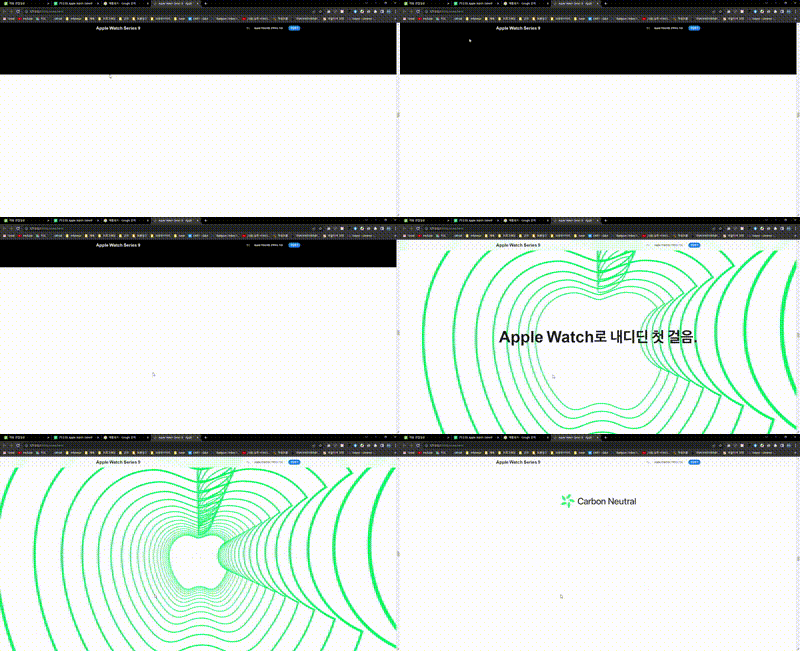
1. ScrollTriger Lottie animation control
javascript
let animation1 = bodymovin.loadAnimation({
    container: $('#lottie_1')[0], // Required
    path: './../assets/json/particle.json',
    renderer: 'svg', // Required
    loop: true, // Optional
    autoplay: true // Optional
    });

    animation1.addEventListener('data_ready', function () {
        total1= animation1.totalFrames;
        ScrollTrigger.create({
            trigger: '.sc-location .sticky-container',
            start: 'top center',
            end: 'bottom center',
            onUpdate: (self) => {
                animation1.goToAndStop(total1*self.progress.toFixed(3),true)
            }
        });
     });
lottie애니메이션을 로드하고 스크롤 트리거를 사용해 스크롤 위치에 따라 애니메이션을 업데이트하고, 특정 부분을 보여주도록 하는 역할을 합니다. ScrollTrigger의 onUpdate 콜백 함수는 스크롤이 변경될 때마다 실행되므로, 사용자가 페이지를 스크롤할 때마다 애니메이션의 특정 부분이 보여지게 됩니다.
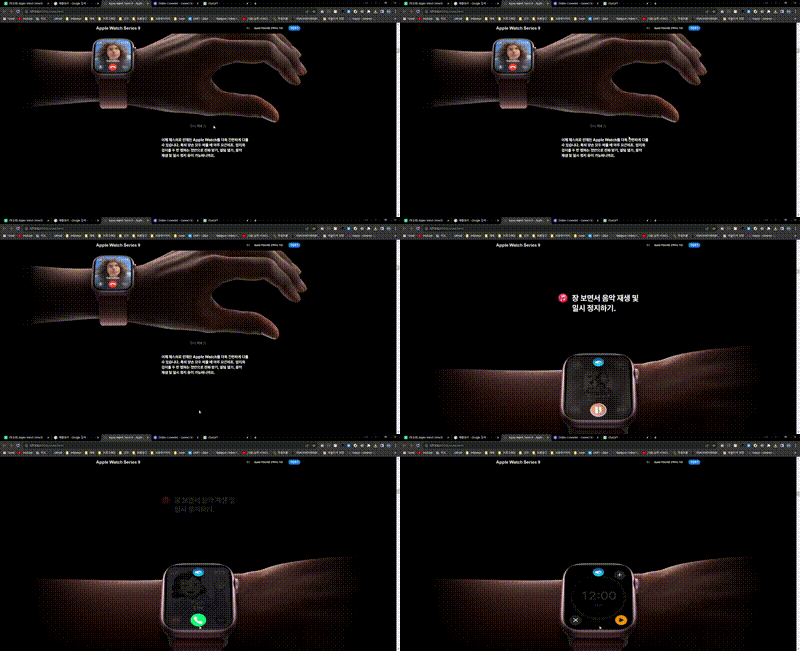
2. .sc-gesture amination
html
                <div class="sticky-container">
                    <div class="sticky-content">
                        <div class="gesture-list">
                            <ul>
                                <li>
                                    <i class="music"></i>
                                    <p class="gesture-desc">장 보면서 음악 재생 및 <br> 일시 정지하기.</p>
                                </li>
                                <li>
                                    <i class="call"></i>
                                    <p class="gesture-desc">패들보드 타는 중에 <br>  전호 받기.</p>
                                </li>
                                <li>
                                    <i class="time"></i>
                                    <p class="gesture-desc">국 젓는 동안 <br> 타이머 중단하기.</p>
                                </li>
                                <li>
                                    <i class="message"></i>
                                    <p class="gesture-desc">반려견 산책시키면서  <br>메세지에 답장하기.</p>
                                </li>
                                <li>
                                    <i class="stack"></i>
                                    <p class="gesture-desc">아기를 안고 있는 상태에서 <br> 스마트 스택 확인하기.</p>
                                </li>
                            </ul>
                        </div>
                        <div class="screen-img">
                            <div class="screen-img-container img1"><img src="./assets/images/screen1.jpg" alt></div>
                            <div class="screen-img-container img2"><img src="./assets/images/screen2.jpg" alt></div>
                            <div class="screen-img-container img3"><img src="./assets/images/screen3.jpg" alt></div>
                            <div class="screen-img-container img4"><img src="./assets/images/screen4.jpg" alt></div>
                            <div class="screen-img-container img5"><img src="./assets/images/screen5.jpg" alt></div>
                        </div>
                        <div class="img-wrapper">
                            <div class="img-container">
                                <img src="./assets/images/sc-gesture-watch.jpg" alt>
                            </div>
                        </div>
                    </div>
                </div>
javascript
gsap.set('.sc-gesture .gesture-list ul li:nth-child(1)',{
    y:'-40vh'
})
const introT2 = gsap.timeline({
    scrollTrigger:{
        trigger:".sc-gesture .sticky-container",
        start:"0% 0%",
        end:"100% 100%",
        scrub:0,
    }
    })
    introT2.to('.sc-gesture .screen-img .img2',{opacity:1,})
    introT2.to('.sc-gesture .gesture-list ul li:nth-child(1)',{
        y:'-45vh',
        scale:0.9,
        opacity:0,
    })

    introT2.to('.sc-gesture .screen-img .img3',{opacity:1,})
    introT2.to('.sc-gesture .gesture-list ul li:nth-child(2)',{
        y:'-35vh',
    })
    introT2.to('.sc-gesture .gesture-list ul li:nth-child(2)',{
        y:'-45vh',
        scale:0.9,
        opacity:0,
    })
    introT2.to('.sc-gesture .screen-img .img4',{opacity:1,})
    introT2.to('.sc-gesture .gesture-list ul li:nth-child(3)',{
        y:'-35vh',
    })
    introT2.to('.sc-gesture .gesture-list ul li:nth-child(3)',{
        y:'-45vh',
        scale:0.9,
        opacity:0,
    })
    introT2.to('.sc-gesture .screen-img .img5',{opacity:1,})
    introT2.to('.sc-gesture .gesture-list ul li:nth-child(4)',{
        y:'-35vh',
    })
    introT2.to('.sc-gesture .gesture-list ul li:nth-child(4)',{
        y:'-45vh',
        scale:0.9,
        opacity:0,
    })
    introT2.to('.sc-gesture .gesture-list ul li:nth-child(5)',{
        y:'-35vh',
    })
    introT2.to('.sc-gesture .gesture-list ul li:nth-child(5)',{
    y:'-45vh',
    scale:0.9,
    opacity:0,
    })


    gsap.to('.sc-gesture .gesture-list ul',{
        scrollTrigger:{
            trigger:".sc-gesture .sticky-container",
            start:"0% 0%",
            end:"100% 100%",
            scrub:0,
        },
        yPercent:-70,
    })
페이지에서 .sc-gesture .sticky-container가 보일 때 스크롤에 따라 이미지의 투명도를 변경하고, 제스처 목록의 각 항목을 아래로 이동 및 크기 조절하여 화면 전환 효과를 만드는 애니메이션을 구현하였다. 여러 애니메이션이 한번에 들어가서 구현하는 것이 쉽지 않았다🤣🤣
3.scrolltriger로 data-scroll 요소 control
$('[data-scroll-1]').each(function(i,el){
    gsap.to($(this),{
        scrollTrigger:{
            trigger:el,
            start:"0% 100%",
            end:"100% 0%",
            toggleClass: "scrollY",
        },
    })
})
html에 data-scroll-1 값을 주고 스크롤 트리거를 이용하여 클래스를 주었다. 이동하는 값이 모두 같지 않았기 때문에 클래스를 주었는데 데이터 값을 활용할 수 있었다면 좋지 않았을까 하는 아쉬움은 있었다.
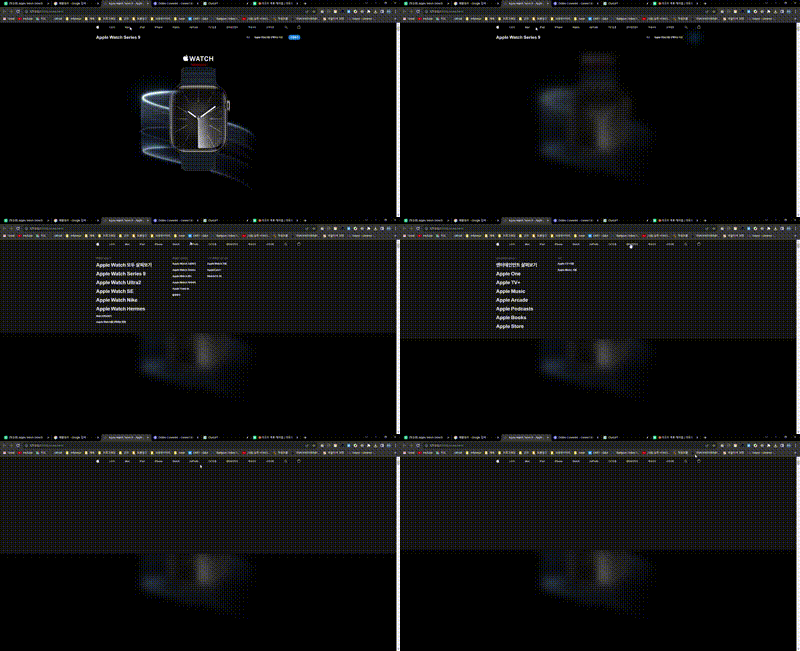
4.hover 메뉴 만들기
css
.header{
    z-index: 2;
    background: #000;
    color: rgba(255, 255, 255, .8);
    letter-spacing: 0em;
    position: sticky;
    top: -44px;
    transition: 0.3s;
    --height : 0;
}
.header::before{
    content: '';
    position: absolute;
    top: 0;
    left: 0;
    width: 100%;
    height: var(--height);
    z-index: 1;
    background: #161617;
    transition: 0.3s;
}
jquery
$('.header .header-top .gnb .item').hover(function(){
    h = $(this).find('.gnb-2dept-wrapper').outerHeight();
    $('.header').css('--height',h+'px');
    $(this).find('.gnb-2dept').addClass('on');
    $('.nav-curtain').addClass('on');
},function(){
    $(this).find('.gnb-2dept').removeClass('on');
    $('.nav-curtain').removeClass('on');
    $('.header').css('--height',0+'px');
})
헤더의 높이를 요소에 호버될 때마다 다르게 주어야했다. 그래서 h 변수를 선언하고 하위 요소인 마우스가 진입한 .gnb-2dept-wrapper의 높이로 저장하였다.
일부 다른 요소들에게 'on' 클래스를 추가하거나 제거하여 스타일을 변경하여 헤더를 완성했다.
