인스턴스, 상태 및 고차함수
파이썬 고차 함수 & 이벤트 리스너
이벤트 리스너: 사용자의 동작, 이벤트를 듣는 수단을 이벤트 리스너라 한다.
turtle.onkey(fun, key)
key를 누르면, fun이 작동한다.
*주의사항 : 함수를 인수로 사용할 때, 즉 함수를 다른 함수에 전달 할 때, 끝에 괄호를 넣지 않는다. 괄호를 사용하면, 함수가 그 자리에서 실행된다.
from turtle import Turtle, Screen

tim = Turtle()
screen = Screen()


def move_forwards():
    tim.forward(10)


screen.listen()
screen.onkey(key="space", fun=move_forwards) #스페이스바를 누를 때, 10칸씩 이동, move_forwards에 괄호를 넣지 않는다.
screen.exitonclick()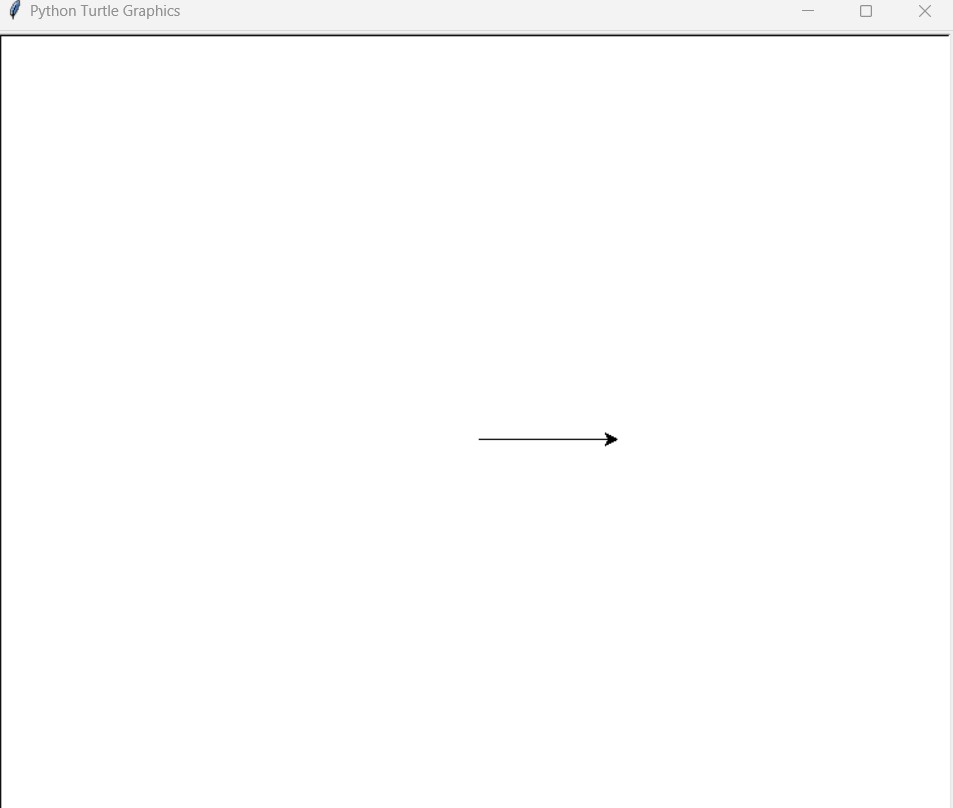
주의사항에 관한 예시.
def add(n1, n2):
	return n1 + n2

def subtract(n1, n2):
	return n1 - n2

def multiply(n1, n2):
	return n1 * n2

def divide(n1, n2):
	return n1 / n2

def calculator(n1, n2, func):
	return func(n1, n2)

result = calculator(2, 3, divide)
print(result) #0
고차함수(Higher Order Functions)란,
다른 함수와 함께 작동하는 함수를 말한다. 윗 경우에는 calculator가 고차함수이다.
이벤트를 듣고 특정한 함수를 실행할 떄, 유용하다
과제: 에치어스케치 앱 만들기
화살표를 누르면서 터틀이 그림을 그리는 것, C를 누르면 Clear 됨.
from turtle import Turtle, Screen

tim = Turtle()
screen = Screen()


def move_forwards():
    tim.forward(10)


def move_backwards():
    tim.backward(10)


def turn_left():
    new_heading = tim.heading() + 10  # 고개만 돌리고 왼쪽으로 가는 건 아니다.
    tim.setheading(new_heading)


def turn_right():
    new_heading = tim.heading() - 10  # 각도만 바꾸고 오른쪽으로 가는 것은 아니다. (자동차 바퀴처럼)
    tim.setheading(new_heading)


def clear():
    tim.clear()
    tim.penup()
    tim.home()
    tim.pendown()


screen.listen()
screen.onkey(move_forwards, "Up")  # 위 화살표
screen.onkey(move_backwards, "Down")  # 아래 화살표
screen.onkey(turn_left, "Left")  # 왼쪽 화살표
screen.onkey(turn_right, "Right")  # 오른쪽 화살표
screen.onkey(clear, "c")

screen.exitonclick()
객체 상태 및 인스턴스
Class는 Turtle() 하나지만, 이것 가지고 여러개의 Object를 만들 수 있다.
timmy = Turtle()
tommy = Turtle()
timmy와 tommy는 별개의 인스턴스라 한다.
서로 다른 속성을 가지고, 다른 동작을 할 수 있다.
예를들면
timmy.color = green
tommy.color = purple
과 같이 다른 상태를 지닐 수 있다.
터틀 좌표계 이해하기
from turtle import Turtle, Screen


screen = Screen()
screen.setup(width=500, height=400)
user_bet = screen.textinput(title="Make your bet", prompt="Which turtle will win the race? Enter a color: ")
colors = ["red", "orange", "yellow", "green", "blue", "purple"]
y_position = [-70, -40, -10, 20, 50, 80]

for turtle_index in range(0, 6):
    tim = Turtle(shape="turtle")
    tim.color(colors[turtle_index])
    tim.penup()
    tim.goto(x=-230, y=y_position[turtle_index])

screen.exitonclick()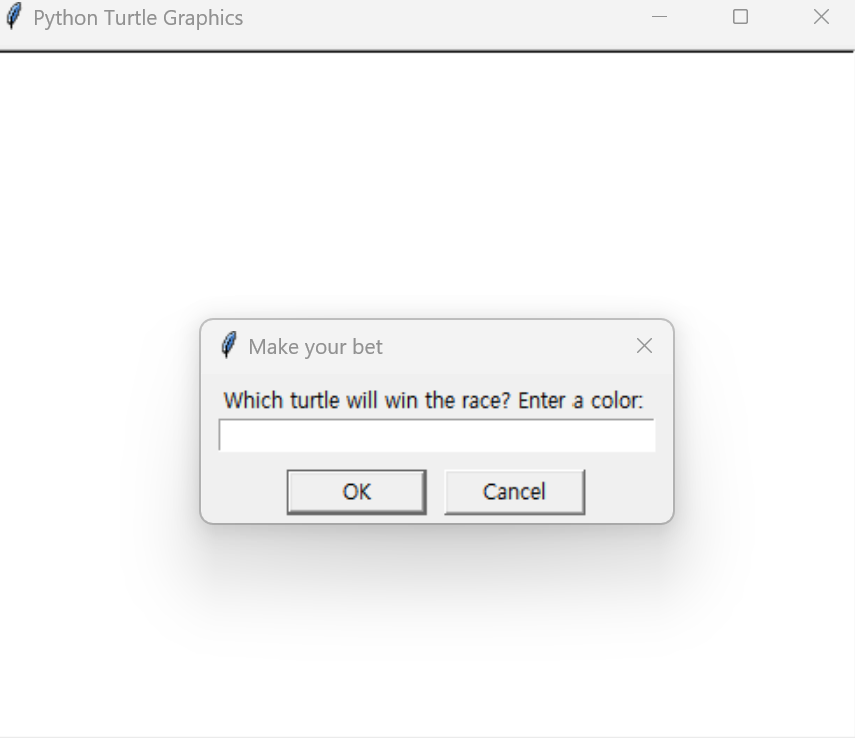
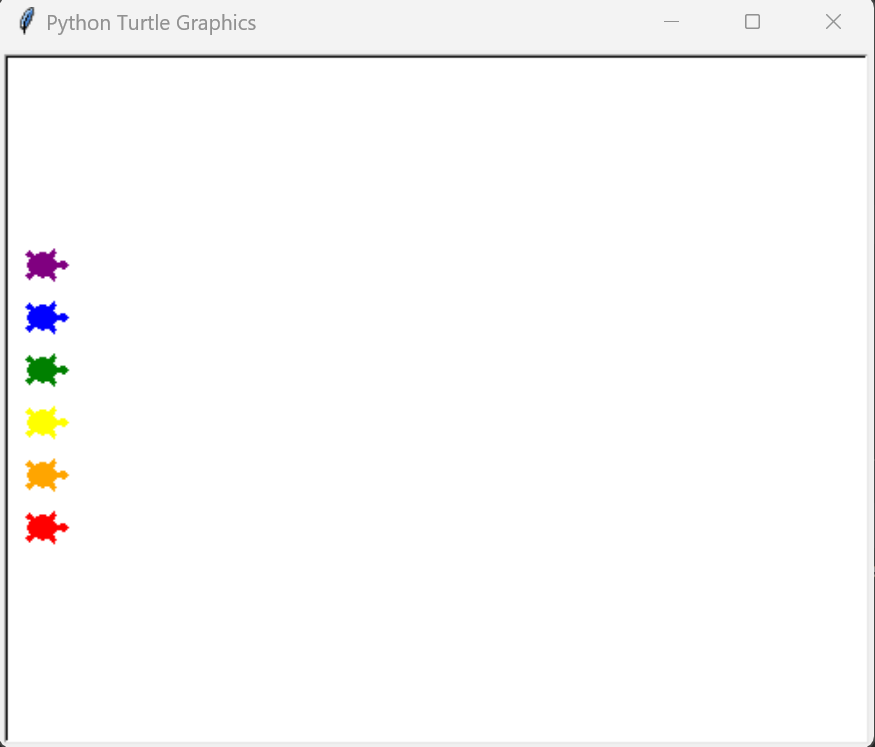
레이싱을 시작합니다!
거북이들이 내딛는 걸음 수는 랜덤하게 정해져야된다.
from turtle import Turtle, Screen
import random

screen = Screen()
screen.setup(width=500, height=400)
user_bet = screen.textinput(title="Make your bet", prompt="Which turtle will win the race? Enter a color: ")
colors = ["red", "orange", "yellow", "green", "blue", "purple"]
y_position = [-70, -40, -10, 20, 50, 80]
all_turtles = []

for turtle_index in range(0, 6):
    new_turtle = Turtle(shape="turtle")
    new_turtle.color(colors[turtle_index])
    new_turtle.penup()
    new_turtle.goto(x=-230, y=y_position[turtle_index])
    all_turtles.append(new_turtle)

if user_bet:
    is_race_on = True

while is_race_on:

    for turtle in all_turtles:
        if turtle.xcor() > 230:
            is_race_on = False
            winning_color = turtle.pencolor()
            if winning_color == user_bet:
                print(f"You've won! The {winning_color} turtle is the winner!")
            else:
                print(f"You've lost! The {winning_color} turtle is the winner!")

        rand_distance = random.randint(0, 10)
        turtle.forward(rand_distance)

screen.exitonclick()
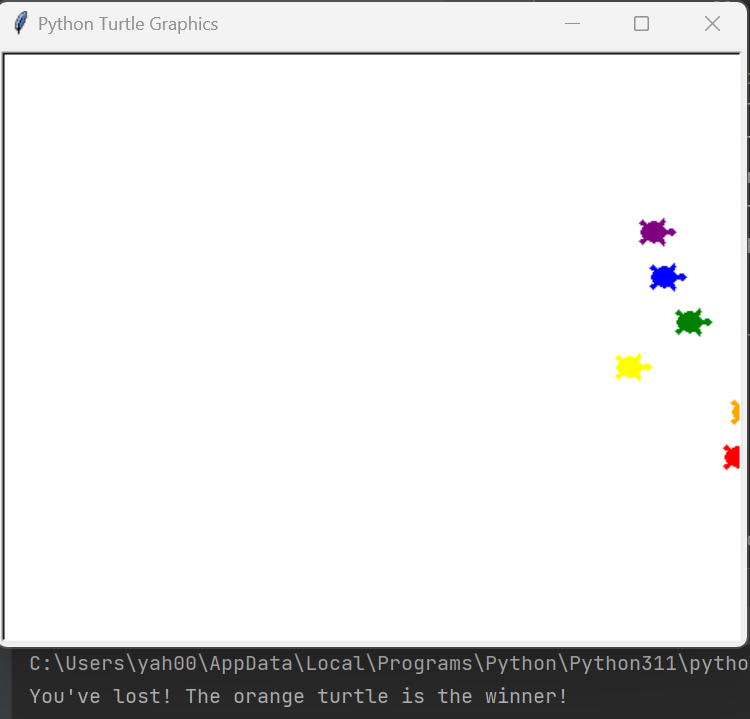
all_turtles 가 어떻게 되어 있는지 궁금해
print(all_turtles)를 해 보았다.
[<turtle.Turtle object at 0x0000017D0AACE0D0>, <turtle.Turtle object at 0x0000017D0C92F150>, <turtle.Turtle object at 0x0000017D0C92ED10>, <turtle.Turtle object at 0x0000017D0C92E390>, <turtle.Turtle object at 0x0000017D0C92EAD0>, <turtle.Turtle object at 0x0000017D0C92F8D0>]
해법 코드 확장하기
솔루션 코드에 다양한 기능을 넣어 수정해보고 연습해 보는게 좋다.