
1. Basics
import * as THREE from 'three'

// Canvas
const canvas = document.querySelector('canvas.webgl')

// Scene
const scene = new THREE.Scene()

/**
 * Objects
 */
const geometry = new THREE.BoxGeometry(1, 1, 1)
const material = new THREE.MeshBasicMaterial({ color: 0xff0000 })
const mesh = new THREE.Mesh(geometry, material)
scene.add(mesh)

/**
 * Sizes
 */
const sizes = {
    width: 800,
    height: 600
}

/**
 * Camera
 */
const camera = new THREE.PerspectiveCamera(75, sizes.width / sizes.height)
camera.position.z = 3 // position은 add 전에 적용해야 반영됨.
scene.add(camera)

/**
 * Renderer
 */
const renderer = new THREE.WebGLRenderer({
    canvas: canvas
})
renderer.setSize(sizes.width, sizes.height)
renderer.render(scene, camera)
2. Position
Object의 위치값 얻기
/**
 * Objects
 */
const geometry = new THREE.BoxGeometry(1, 1, 1)
const material = new THREE.MeshBasicMaterial({ color: 0xff0000 })
const mesh = new THREE.Mesh(geometry, material)
mesh.position.x = 0.7
mesh.position.y = -0.6
mesh.position.z = 1
scene.add(mesh)

/* 공간 중앙에서부터의 거리 */
console.log(mesh.position.length()) // 1.3601470508735443
/* 특정 벡터 지점으로부터의 거리*/
console.log(mesh.position.distanceTo(new THREE.Vector3(0, 1, 2))) // 2.012461179749811

/**
 * Sizes
 */
const sizes = {
	width: 800,
	height: 600,
}

/**
 * Camera
 */
const camera = new THREE.PerspectiveCamera(75, sizes.width / sizes.height)
camera.position.z = 3
scene.add(camera)

/* 카메라 위치에서부터의 거리*/
console.log(mesh.position.distanceTo(camera.position)) // 2.202271554554524
Object 위치를 바꾸는 메소드
/* Object의 중앙에서의 위치를 1로 조정한다. */
mesh.position.normalize()
console.log(mesh.position.length()) // 1

/* Object의 x, y, z 값을 한 번에 조정하는 방법 */
mesh.position.set(0.7, -0.6, 1)
AxesHelper
간단한 방법으로 3개의 축을 시각화하는 축 객체입니다.
X축은 빨간색입니다. Y축은 녹색입니다. Z축은 파란색입니다.
파라미터는 축의 길이를 의미합니다.
const axesHelper = new THREE.AxesHelper( 5 );
scene.add( axesHelper );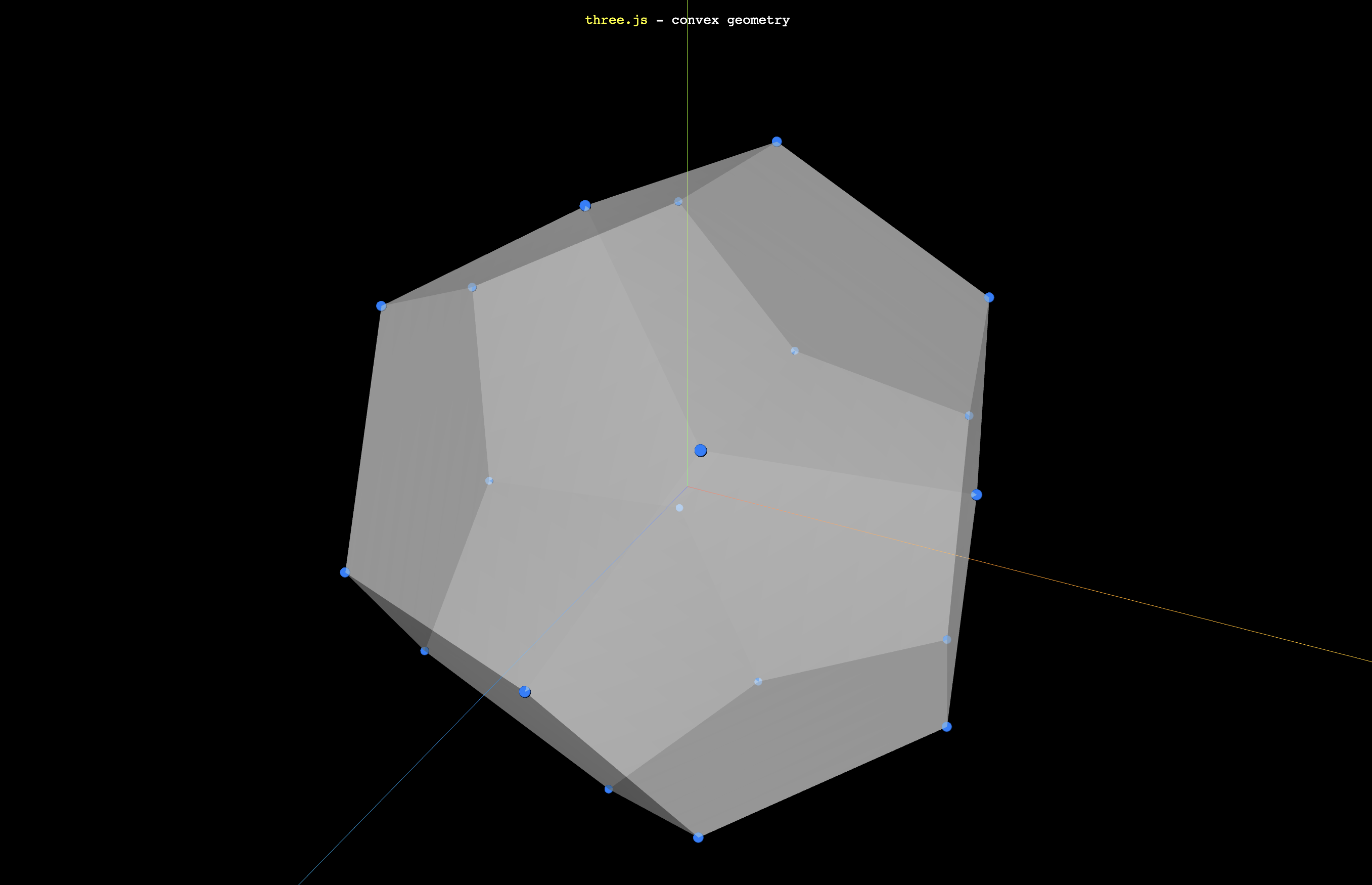
3. Scale
객체의 크기를 조절하는 메서드이다. scale 또는 position의 값은 내가 상상하는 화면의 물체의 크기 단위를 기준으로 생각하면 좋다. 1cm, 1m, 1km 등 내가 만들고자 하는 대상을 고려하여 기준을 잡자.
mesh.scale.x = 2
mesh.scale.y = 3
mesh.scale.z = 4

/* 마찬가지로 아래와 같이 작성 가능 */
mesh.scale.set(2, 3, 4)
4. Rotation
회전(rotation) 속성은 scale이나 position과 달리 Vector3가 아닌 Euler(오일러)를 사용한다. 오일러는 각을 나타내는 클래스로 지정된 축의 순서에 따라 다양한 축을 중심으로 객체를 특정 단위만큼 회전시킨다.
Euler 인스턴스는 (x, y, z, 순서)를 파라미터로 받는다.
const a = new THREE.Euler( 0, 1, 1.57, 'XYZ' );
const b = new THREE.Vector3( 1, 0, 1 );
b.applyEuler(a);
오일러 단위가 사용하기에 까다로울 수 있는데, 자바스크립트의 Math.PI를 사용하면 훨씬 간단해진다. 만일 반바퀴 회전을 하고 싶다면 Math.PI를 적용하면 된다. 마찬가지로 360도를 회전하고 싶다면 Math.PI * 2 값을 사용할 수 있을 것이다.
mesh.rotation.reorder('YXZ')
mesh.rotation.x = Math.PI * 0.25 // 20도 회전?
mesh.rotation.y = Math.PI * 0.25
헷갈리는 x, y, z 축 회전 익숙해지기
- y축 회전 : 캐러셀 이미지를 넘기는 것
- x축 회전 : 내가 타고 있는 차의 바퀴가 회전하는 것
- z축 회전 : 내가 타고 있는 비행기의 프로펠러가 회전하는 것
Quaternion과 Rotaion은 상호연관성을 가지고 있다.. 요건 나중에 더 학습해보자.
Camera의 angle 변경
camera.lookAt(mesh.position) // 특정 객체의 위치를 바라보게 만들자.
camera.lookAt(new THREE.Vector3(0, 0, 0)) // 정확한 벡터 위치를 지정해줄 수 있다.
5. Group
여러 객체에 변경사항 적용하기
특정 객체의 위치, 크기, 회전 값을 조정할 수 있듯이 여러 객체를 하나의 그룹으로 모아 한 번에 변경사항을 적용한다면 훨씬 편할 것이다. 이를 위해 three.js 의 Group 인스턴스를 사용할 수 있다.
/* 그룹 객체 생성 */
const group = new THREE.Group()
scene.add(group)

/* 3가지의 큐브 객체 생성 */
const cube1 = new THREE.Mesh(
	new THREE.BoxGeometry(1, 1, 1),
	new THREE.MeshBasicMaterial({ color: 'red' })
)

const cube2 = new THREE.Mesh(
    new THREE.BoxGeometry(1, 1, 1),
	new THREE.MeshBasicMaterial({ color: 'blue' })
)

cube2.position.x = -2

const cube3 = new THREE.Mesh(
    new THREE.BoxGeometry(1, 1, 1),
	new THREE.MeshBasicMaterial({ color: 'green' })
)

cube2.position.x = 2

/* 그룹에 3가지 큐브 객체 추가 */
group.add(cube1)
group.add(cube2)
group.add(cube3)

/* 일괄 수정 가능 ! */
group.position.y = 1
group.scale.y = 2
group.rotation.y = 1
🌙`、、`ヽ`ヽ`、、ヽヽ、`、ヽ`ヽ`ヽヽ` ヽ`、`ヽ`、ヽ``、ヽ`ヽ`、ヽヽ`ヽ、ヽ `ヽ、ヽヽ`ヽ`、``ヽ`ヽ、ヽ、ヽ`ヽ`ヽ 、ヽ`ヽ`ヽ、ヽ、ヽ`ヽ`ヽ 、ヽ、ヽ、ヽ``、ヽ`、ヽヽ 🚶♀ ヽ``ヽ``、ヽ`、