
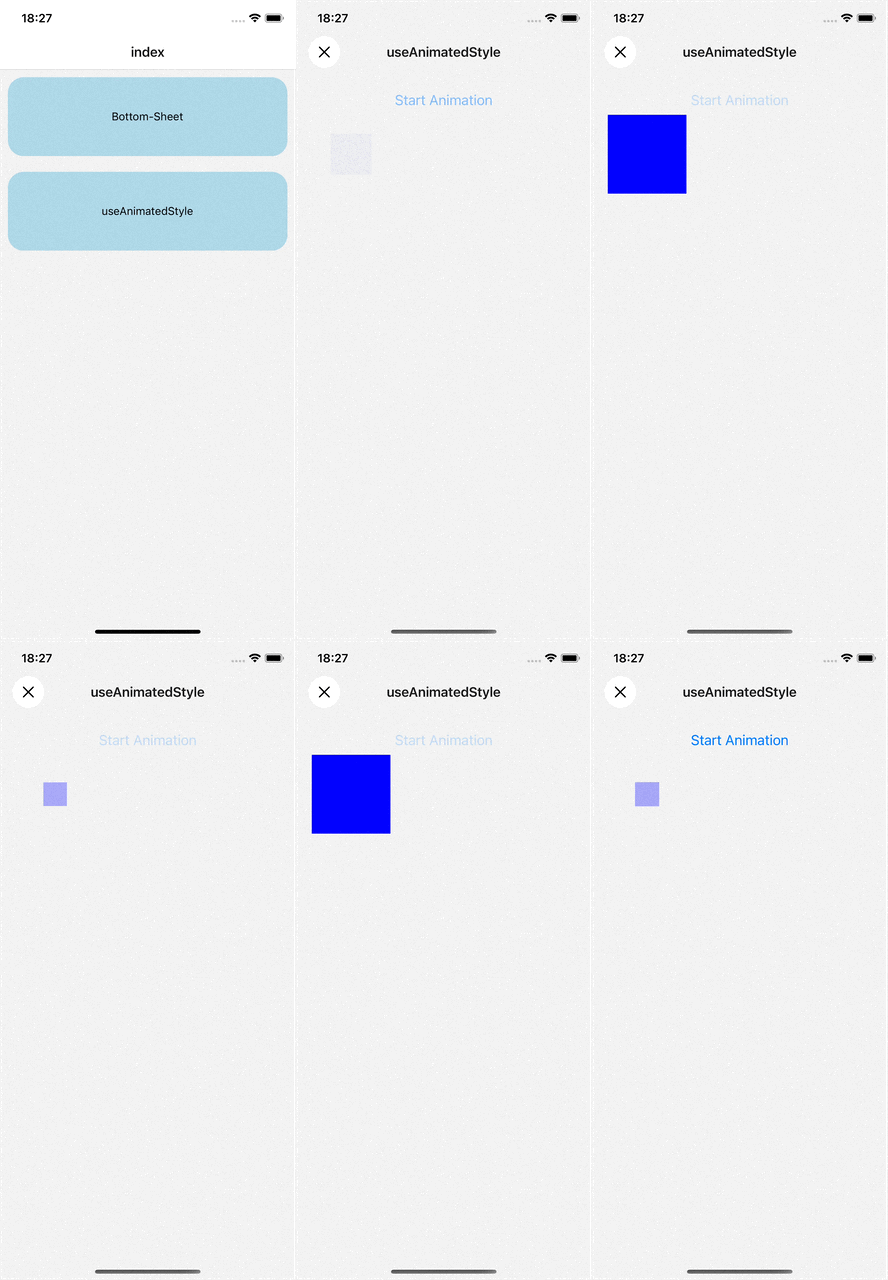
이 녀석들을 사용하면 컴포넌트의 스타일을 애니메이션으로 적용할 수 있습니다.
-
useAnimatedStyle: 컴포넌트의 스타일을 애니메이션으로 적용하기 위해 사용됩니다. 애니메이션 값에 따라 스타일을 동적으로 변경할 수 있습니다.
-
useSharedValue: 상태관리를 하기 위한 애니메이션의 상태값을 지정해줄 수 있습니다.
-
withTiming: 값이 일정 시간에 걸쳐 천천히 변화하도록 하는 애니메이션 함수입니다. transition과 유사하게 시간에 따라 값을 변화시킵니다.
-
Animated: 애니메이션 컴포넌트를 만드는 데 사용되는 기본 객체입니다. Animated.View와 같이 사용하여 뷰 컴포넌트에 애니메이션을 적용할 수 있습니다.
react-native-reanimated 이 패키지를 설치 해야만 사용 할 수 있습니다.
const Filter = () => {
  const opacity = useSharedValue(0);
  const scale = useSharedValue(0.5);
  const [selected, setSelected] = useState<boolean>(false);

  const animatedStyle = useAnimatedStyle(() => {
    return {
      opacity: withTiming(opacity.value, { duration: 1000 }),
      transform: [{ scale: withTiming(scale.value, { duration: 1000 }) }],
    };
  });

  // 애니메이션 시작 예시
  const onClick = () => {
    setSelected(!selected);
    opacity.value = selected ? 0.3 : 1;
    scale.value = selected ? 0.3 : 1;
  };

  return (
    <SafeAreaView>
      <View style={{ padding: 20 }}>
        <Button title='Start Animation' onPress={onClick} />
        <Animated.View
          style={[
            { width: 100, height: 100, backgroundColor: "blue" },
            animatedStyle,
          ]}
        />
      </View>
    </SafeAreaView>
  );
};

export default Filter;
코드를 대충 작성해봤습니다.
const opacity = useSharedValue(0);
const scale = useSharedValue(0.5);

const animatedStyle = useAnimatedStyle(() => {
  return {
    opacity: withTiming(opacity.value, { duration: 1000 }),
    transform: [{ scale: withTiming(scale.value, { duration: 1000 }) }],
  };
});
상태관리를 위한 값을 useSharedValue()를 이용해서 지정해주고
useAnimatedStyle 이건 css에 사용하기 위한 값을 만들어주는 틀 같은겁니다.
withTiming 이것이 transition 처럼 값이 변화하면 애니메이션을 걸어주는 역할입니다.
View는 Animated.View로 사용해야 합니다.
opacity.value = selected ? 0.3 : 1;
scale.value = selected ? 0.3 : 1;
그리고 값이 변경되면, recoil이나 redux처럼 값의 변화에 따라 애니메이션이 시작됩니다.
const flexWidth = useSharedValue(0);
const scale = useSharedValue(0);

useEffect(() => {
  const hasSelected = selected.length > 0;
  const selectedItems = items.filter((item) => item.checked);
  const newSelected = selectedItems.length > 0;

  if (hasSelected !== newSelected) {
    flexWidth.value = withTiming(newSelected ? 150 : 0);
    scale.value = withTiming(newSelected ? 1 : 0);
  }
}, [items]);

const animatedStyles = useAnimatedStyle(() => {
  return {
    width: flexWidth.value,
    opacity: flexWidth.value > 0 ? 1 : 0,
    display: flexWidth.value > 0 ? "flex" : "none",
  };
});
const animatedText = useAnimatedStyle(() => {
  return {
    transform: [{ scale: scale.value }],
  };
});


<Animated.View style={[animatedStyles, styles.outlineButton]}>
이 코드는 처음에 사용할때 만들었던 코드인데 전부 다 따로따로 나누어서 사용해도 잘 동작하는것을 확인 할 수 있습니다.
이렇게 되어 버리면 코드를 해석할때 복잡해지니까, useAnimatedStyle과 withTiming는 같이 쓰는게 좋을 것 같네요. 테스트를 해봤는데 문제없이 작동했습니다.
useSharedValue의 값으로 상태관리되기 때문에 괜찮을 거라 생각됩니다.
if (hasSelected !== newSelected) {
  // 값의 변경을 감지하여 애니메이션을 적용합니다.
  flexWidth.value = newSelected ? 150 : 0;
  scale.value = newSelected ? 1 : 0;
}

const animatedStyles = useAnimatedStyle(() => {
  return {
    width: withTiming(flexWidth.value),
    opacity: withTiming(flexWidth.value > 0 ? 1 : 0),
    display: withTiming(flexWidth.value > 0 ? "flex" : "none"),
  };
});
이렇게 사용하면 될 것 같습니다만, 혹시 이방식이 문제가 있으면 댓글로 꼭 알려주시면 감사하겠습니다 !
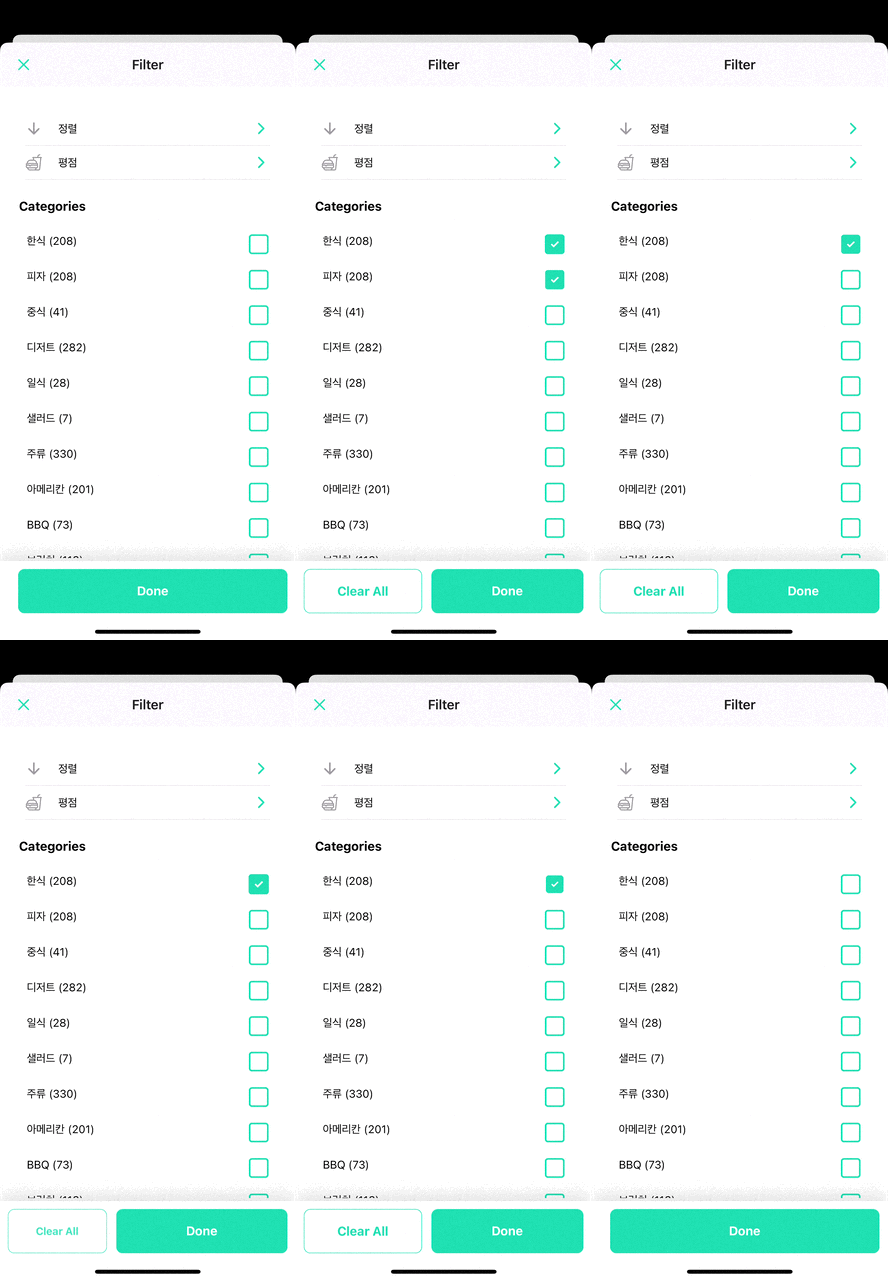
위와같은 방식으로의 응용도 가능합니다.
useEffect의 의존성배열의 값으로 체크된 값을 판단하여 간단하게 만들 수 있습니다.