After conducting several user tests, we discovered that many users prefer signing in with Google. Based on this insight, and to enhance user experience, we decided to integrate Google Sign-In into our website. Here's how we implemented it.
First, navigate to the Google Auth Platform. Once there, go to the Credentials section and create a new project if necessary. After selecting your project, move to the OAuth consent screen to configure necessary details (like application name, authorized domains, etc.).
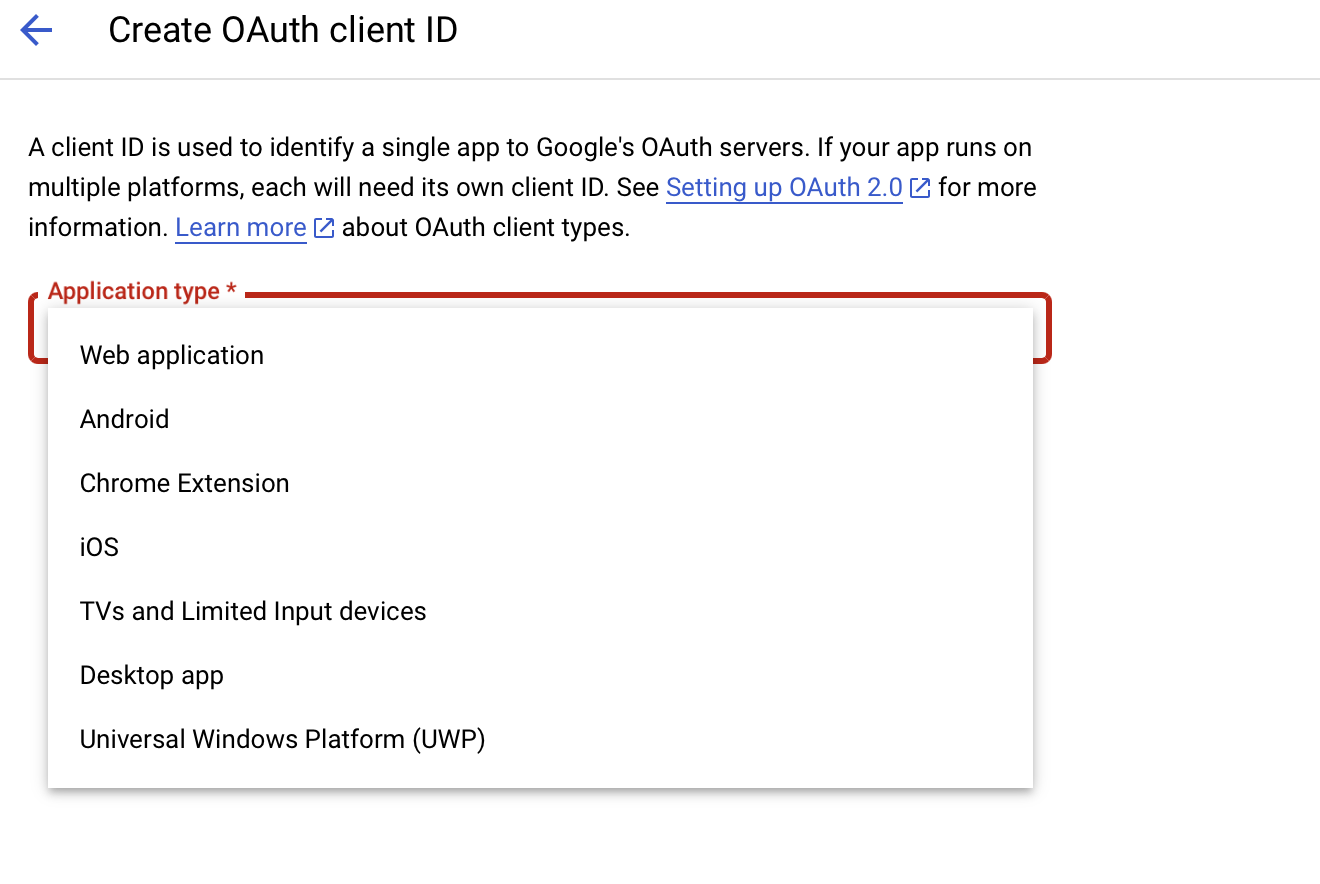
Next, navigate to the Credentials tab, then click Create Credentials → OAuth client ID. Select Web Application as the application type. For development purposes, I added http://localhost to the authorized redirect URIs to successfully establish a connection with Google Auth.
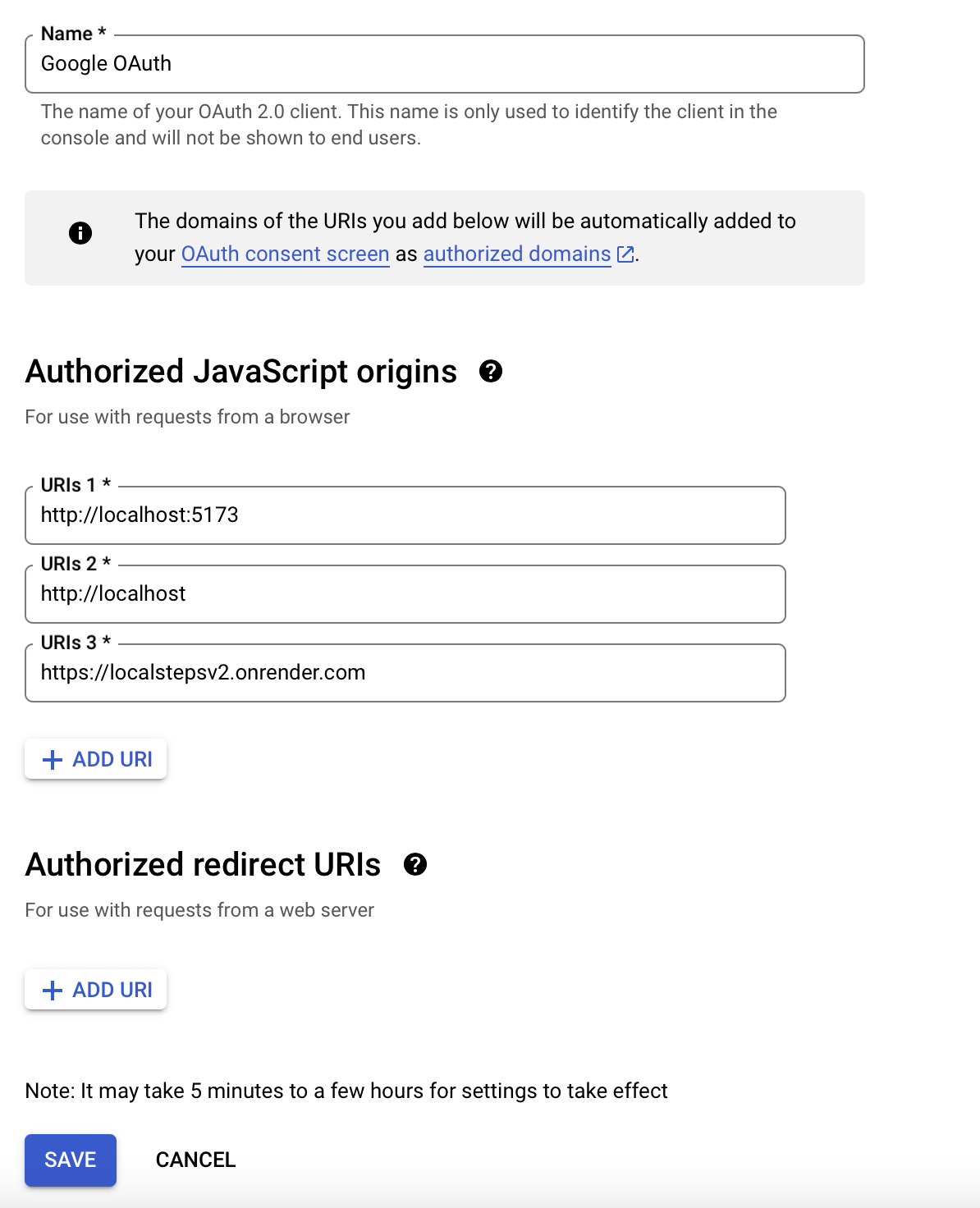
Initially, I encountered several connection errors. After researching, I found that if you're using VSCode, you might need to adjust the Live Server host settings. Specifically, in VSCode, navigate to Preferences → Settings → Live Server: Settings, and set the host to localhost.
By default, Live Server may bind to 127.0.0.1, causing issues with Google OAuth. Changing it to localhost resolved this issue for me.
If you're using VSCode and experience similar issues, adjusting this setting might help you as well.
Now let's start coding on the backend.
To integrate Google authentication, I modified the existing sign-in controller. First, ensure you've installed the necessary dependencies for Google authentication. Since I wanted users to sign in using Google, I added a field named googleId to the user schema to store Google's unique user ID.
Before you need to install google-auth-library in backend.
npm i google-auth-libraryMy logic is straightforward: when a user attempts to sign in via Google, the backend checks if the user already exists. If the user doesn't exist, it immediately creates a new account using the information retrieved from Google's OAuth response.
// signincontroller.js

const jwt=require('jsonwebtoken');
const bcrypt=require('bcryptjs');
const User=require('../models/User');

// Google OAuth
const { Oauth2Client } = require('google-auth-library');
const googleClient = new OAuth2client('process.env.GOOGLE_CLIENT_ID');

const signin = async (req, res) => {
  const {email, password} = req.body;
  try {
  // Sign in via Google
    if(req.body.googleToken) {
    	const ticket = await googleClient.verfiyIdToken({
        	idToken: req.body.googleToken,
          	audience: process.env.GOOGLE_CLIENT_ID
        });
      const payload = ticket.getPayload();

      // Find user by email
      let user = await User.findOne({ email: payload.email })

      if(!user){
      // if user doesn't exist, create one
        user = new User({
        // depends on User Schema
          fname: payload.given_name,
          lname: payload.family_name,
          email: payload.email,
          password: '', // No password required for Google users
          profil_photo: payload.picture || '',
          googleId: payload.sub
        });
        await user.save();
      }
      const jwtPayload = { id: user._id };
      const token = jwt.sign(jwtPayload, process.env.JWT_SECRET, { expiresIn: '24h'});
    }

    // traditional signin method
    //...

  } catch (error) {
    console.error("Signin Error:", error);
    res.status(500).json({ message: "Server error." });
  }
};
Here, I stored the Google Client ID which I obtained from the Google Auth Platform securely in environment variables.
I have the sign-in route separately for improved organization and maintainability. The route is structured clearly by integrating the sign-in controller like this:
const signinController = require('./signinController');

router.post('/', signinController);
Switching to the frontend, I also integrated Google authentication.
First, I created an api.js file to centralize all API requests to the backend. In this file, I included the function responsible for handling the Google sign-in API call.
// ... using axios, setting api

export const signInGoogle = async (googleToken) => {
	try{
    const response = await api.post('/signin', credentials);
    // store token in local Storage
    localStorage.setItem('token', response.data.token);
    // Optional: if you stored isAuthenticated status in local Storage
    localStorage.setItem('isAuthenticated','true');
    return response.data;
    } catch (error) {
    // .. if there's error..
    }
};
On the sign-in page, I'll show only the portion of the code related specifically to Google authentication.
One important thing to note when working with environment variables in Vite is that the variables must start with the prefix VITE_. For example, I named my variable VITE_GOOGLE_CLIENT_ID.
You can then access these variables in your React components using the following syntax:
const googleClientId = import.meta.env.VITE_GOOGLE_CLIENT_ID;
Make sure your .env file includes a line similar to:
VITE_GOOGLE_CLIENT_ID=your_google_client_id_hereFinally, your sign-in page will look something like this, utilizing the environment variable mentioned earlier.
import { useEffect } from 'react';
import { signInGoogle } from './api.js';

const SignIn = () => {

  // initialize google identity service for sign-in
  useEffect(()=>{
  	const googleClient = import.meta.env.VITE_GOOGLE_CLIENT_ID;
     if (!googleClientId) {
    console.error("Google Client ID not found in .env file.");
    return;
  }

  const initializeGoogle = () => {
    if (window.google && window.google.accounts && window.google.accounts.id) {
      window.google.accounts.id.initialize({
        client_id: googleClientId,
        callback: handleGoogleResponse,
      });
    } else {
      console.error("Google API not available yet.");
    }
  };

  if (window.google && window.google.accounts && window.google.accounts.id) {
    initializeGoogle();
  } else {
    const interval = setInterval(() => {
      if (window.google && window.google.accounts && window.google.accounts.id) {
        initializeGoogle();
        clearInterval(interval);
      }
    }, 100);
  }
  },[]);

};

const handleGoogleResponse = async (response) => {
  console.log("Google Response:", response);
  if (response.error) {
    console.error("Google sign-in error:", response.error);
    return;
  }

  const token = response.credential;
  try {
    const data = await signInGoogle(token);
    localStorage.setItem("token", data.token);
    setIsAuthenticated(true);
    navigate("/");
  } catch (error) {
    console.error("Google sign-in error:", error);
    if (error.name === "AbortError") {
        alert("Sign-in was canceled. Please try again.");
    } else {
        alert("Google sign-in failed. Please try again later.");

    }
  }
};

const handleGoogleSignIn = () => {
  if (window.google && window.google.accounts && window.google.accounts.id) {
    window.google.accounts.id.prompt();
  } else {
    console.error("Google API not loaded.");
  }
};
Before starting, I assumed it would be simple, given the numerous articles available on this method. However, I became very frustrated due to repeatedly encountering errors. After several adjustments and debugging efforts, it now works smoothly.

Some users who register via Google haven't saved their mobile phone number on their Google account. To handle such cases smoothly, I added a default value to the mobile field:
mobile: payload.email