A Cross-Device Language Setup Playbook for Multilingual Messaging Teams
|
A practical method for separating interface language, message language, translation, and device locale so that support teams can document one repeatable setup across phones, desktop clients, and web sessions. |
A messaging account can look completely different depending on the device used to open it. One employee may see Chinese menus on a phone, English labels on a desktop client, and partially translated controls in a browser. The account is the same, but the language behavior is not.
That inconsistency creates more than a cosmetic problem. It slows onboarding, makes screenshots difficult to compare, increases help-desk time, and can push users toward modified installers or unofficial language packages. A better approach is to treat language configuration as a small cross-platform deployment project.
Start by Separating Four Different Language Layers
Teams often use the word “language” for several independent settings. Before changing anything, identify which layer is causing the problem.
- Interface language: the labels, menus, buttons, and settings shown by the client.
- Message language: the language written by participants inside conversations.
- Translation behavior: built-in or external tools used to translate messages.
- Device locale: the operating-system language and region that an app may inherit.
A user asking for a telegram 中文版 experience may only need the interface layer changed. That does not automatically translate incoming messages, alter the language used by bots, or change content displayed inside embedded web pages.

Figure 1. The interface, message, translation, and device-language layers should be diagnosed separately.
Build a Small Platform Inventory Before Writing Instructions
Do not publish one universal instruction based on a single test device. Record the platforms the team actually uses and verify the setup on each one. The inventory can be lightweight; it only needs enough detail to reproduce the result.
|
Platform |
Language source |
Restart needed? |
Validation method |
|
Android |
App setting or device locale |
Sometimes |
Reopen the app and compare menu labels |
|
iPhone/iPad |
App setting or iOS language control |
Sometimes |
Check the same screen after relaunch |
|
Windows desktop |
Client setting or language resource |
Often |
Restart and confirm menus persist |
|
macOS desktop |
Client setting or system preference |
Often |
Quit fully, reopen, and compare |
|
Web browser |
Account setting plus browser behavior |
Varies |
Test in a private window without auto-translate |
Record the client version as well. A screenshot created several months earlier may no longer match the current menu path, while a browser session can be affected by extensions, cached translation rules, or a company-managed language policy.
Use a Staged Configuration Workflow
1. Establish a clean baseline
Choose one reference device for each supported platform. Confirm the installed client came from an approved source, note the current version, and capture the original language state. This baseline makes rollback and comparison much easier.
2. Change one layer at a time
Change the interface setting first, restart the client, and check the main navigation, account settings, privacy screens, notification controls, and update prompts. Only after that should the team test translation or device-locale behavior.
3. Validate persistence
A successful change is not complete until it survives a restart, sign-out and sign-in cycle, and—where practical—a client update. Also verify that changing the language on one device does not unexpectedly change another device used by the same account.
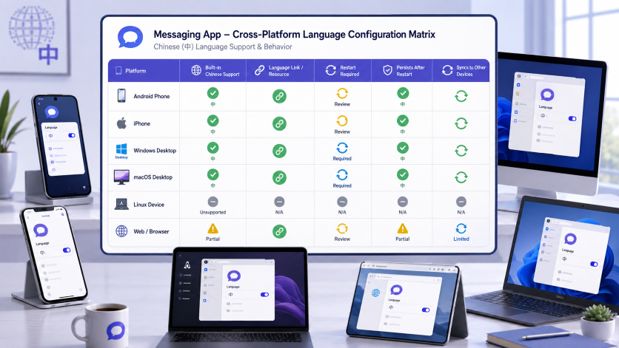
Figure 2. A cross-platform matrix helps teams compare supported language methods and persistence.
Document the Desktop and Mobile Paths Separately
Desktop clients often require a full quit rather than simply closing the window. Mobile clients may rely on operating-system language controls, and browsers may apply automatic translation that changes visible labels without changing the actual account setting.
For a documented walkthrough, keep a single approved Telegram中文设置教程 in the team knowledge base and annotate it with the client version and the date of the most recent verification. This prevents employees from following screenshots copied from unrelated builds or third-party packages.
- Use identical terminology in support tickets and internal guides.
- Show the exact starting screen before listing menu steps.
- Explain whether a full restart or sign-in cycle is required.
- Distinguish built-in language controls from browser translation.
- Include a rollback path to the team’s standard language.
Test the Parts of the Interface That Matter Operationally
A language switch should be tested against business-critical actions, not only the home screen. The team should verify account recovery prompts, security warnings, file-download dialogs, group permissions, notification controls, and any settings used during incident response.
|
Test area |
Expected result |
Common failure |
|
Account and privacy |
Labels remain readable and complete |
Mixed-language labels or clipped text |
|
Notifications |
Categories match the support guide |
Different wording across devices |
|
File handling |
Download and open prompts are clear |
Browser translation hides the real action |
|
Group administration |
Role and permission labels are consistent |
Moderators follow the wrong menu path |
|
Updates |
Selected language survives the update |
Client silently returns to the default |
Avoid Risky “Fixes”
Language problems sometimes lead users to search for modified APK files, repackaged desktop installers, or unknown language packs. Those shortcuts create a source-verification problem and make support harder because the client may not match the organization’s approved version.
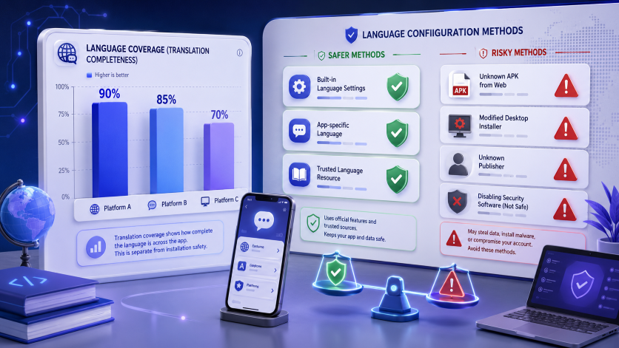
Figure 3. Built-in language controls and verified resources are safer than modified installers or unknown packages.
|
Final rollout checklist · Each supported platform has a current, tested instruction. · Interface language is distinguished from message translation. · Chinese characters display correctly in menus and support screenshots. · The selected language survives restart and update tests. · Users know how to return to the team’s standard configuration. · No guide recommends modified clients or unverified language packages. |
Conclusion
Multilingual messaging works best when language setup is treated as configuration management rather than a one-time personal preference. A short platform inventory, one-layer-at-a-time testing, and versioned instructions give every user a predictable path without forcing all devices into an identical experience.