사용한 에셋
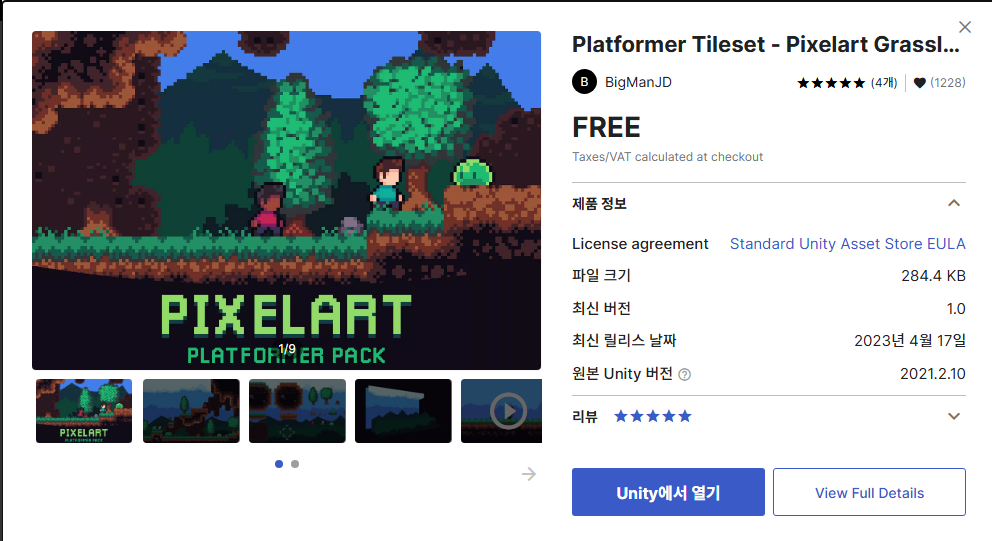
import 후
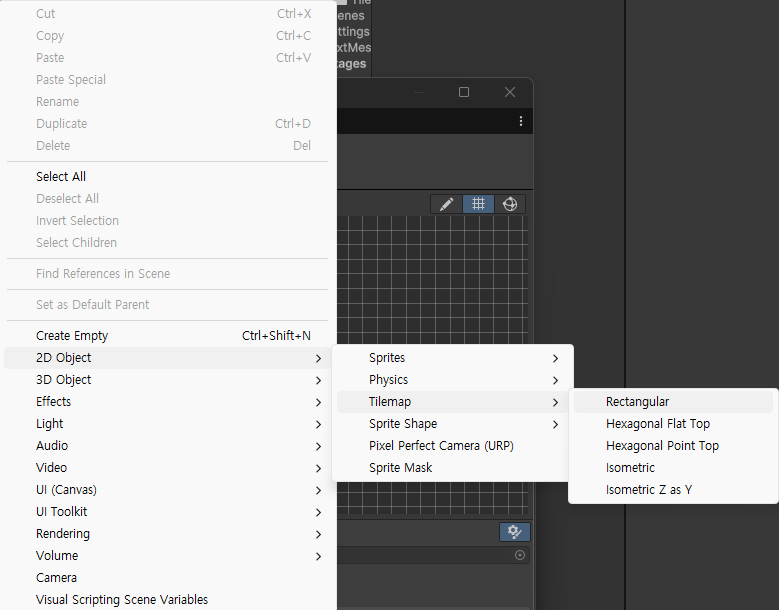
tilemap을 하나 만들어준다.
Tile Palette
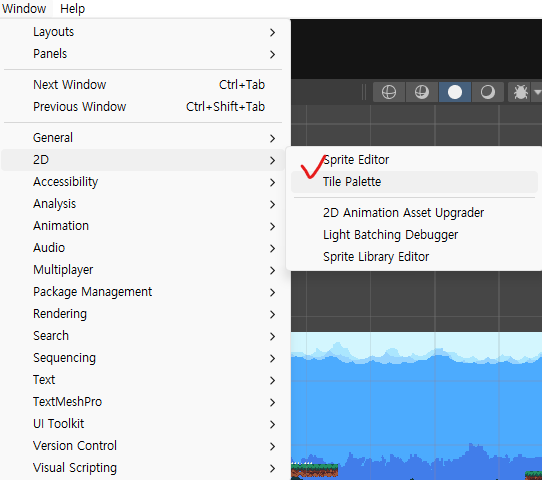
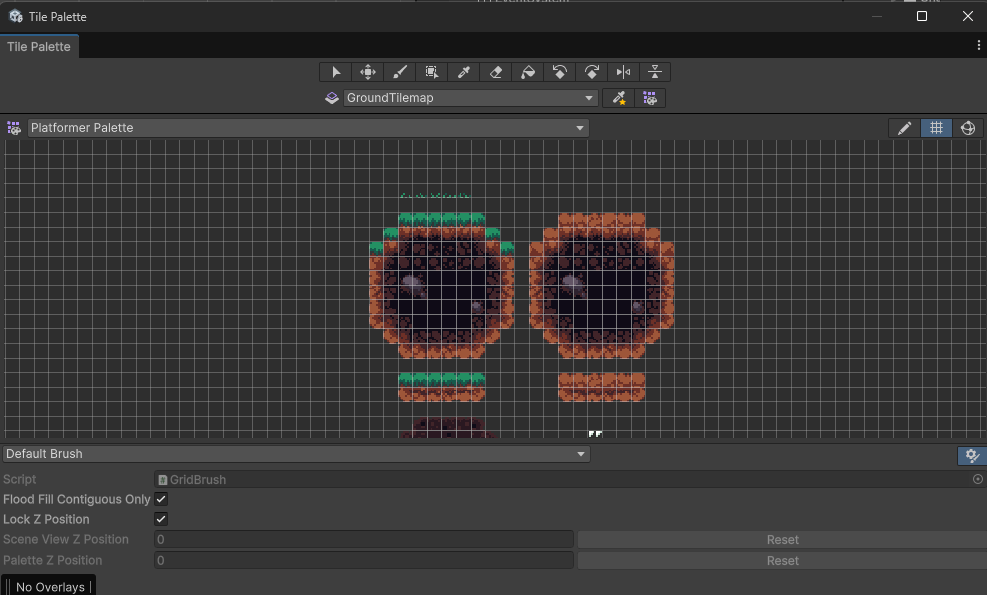
tile palette에서 마우스로 범위를 선택하면 Scene에 그릴 수 있다.

여러개의 타일로 구분해서 만들어 준 후에
각 타일별로 속성에 따라 Script를 만들어준다.
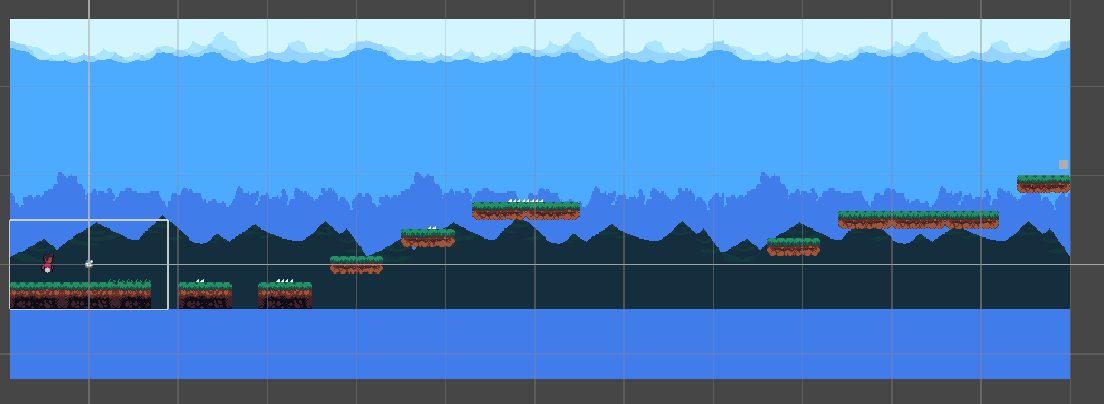
배경과 함께 조합해서 배치해주면 그럴듯한 게임모양이 나온다.
Respawn Point
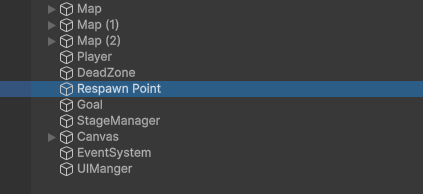
빈 오브젝트를 만들어서 리스폰 할 포인트를 만들어준다.
using UnityEngine;

public class StageManager : MonoBehaviour
{
    public static StageManager instance;


    [SerializeField] Transform player;
    [SerializeField] Transform respawnPos;

    Rigidbody2D playerRb;

    int deadCount;
    private void Awake()
    {
        if(instance == null)
        {
            instance = this;
        }
        else
        {
            Destroy(gameObject);
            return;
        }
        DontDestroyOnLoad(gameObject);
    }

    // Start is called once before the first execution of Update after the MonoBehaviour is created
    void Start()
    {
        playerRb = player.GetComponent<Rigidbody2D>();
        deadCount = 0;
        UIManager.instance.ChangeDeadCountText(deadCount);
    }

    public void PlayerDie()
    {

        //플레이어 사망 처리
        Debug.Log("플레이어 사망");
        //플레이어 리스폰
        Debug.Log("플레이어 리스폰");
        PlayerRespawn();

    }

    void PlayerRespawn()
    {
        player.position = respawnPos.position;

        playerRb.linearVelocity = Vector2.zero;

        deadCount++;
        UIManager.instance.ChangeDeadCountText(deadCount);
    }

}
플레이어가 죽을 경우 미리 stageManager에 넣어둔 Respawn Point로 이동시키도록 한다.
using UnityEngine;

public class FallDown : MonoBehaviour
{
    // Start is called once before the first execution of Update after the MonoBehaviour is created
    void Start()
    {

    }

    // Update is called once per frame
    void Update()
    {

    }

    private void OnTriggerEnter2D(Collider2D collision)
    {
        if(collision.gameObject.tag == "Player")
        {
            Debug.Log("플레이어 떨어짐");
            StageManager.instance.PlayerDie();
        }
    }
}
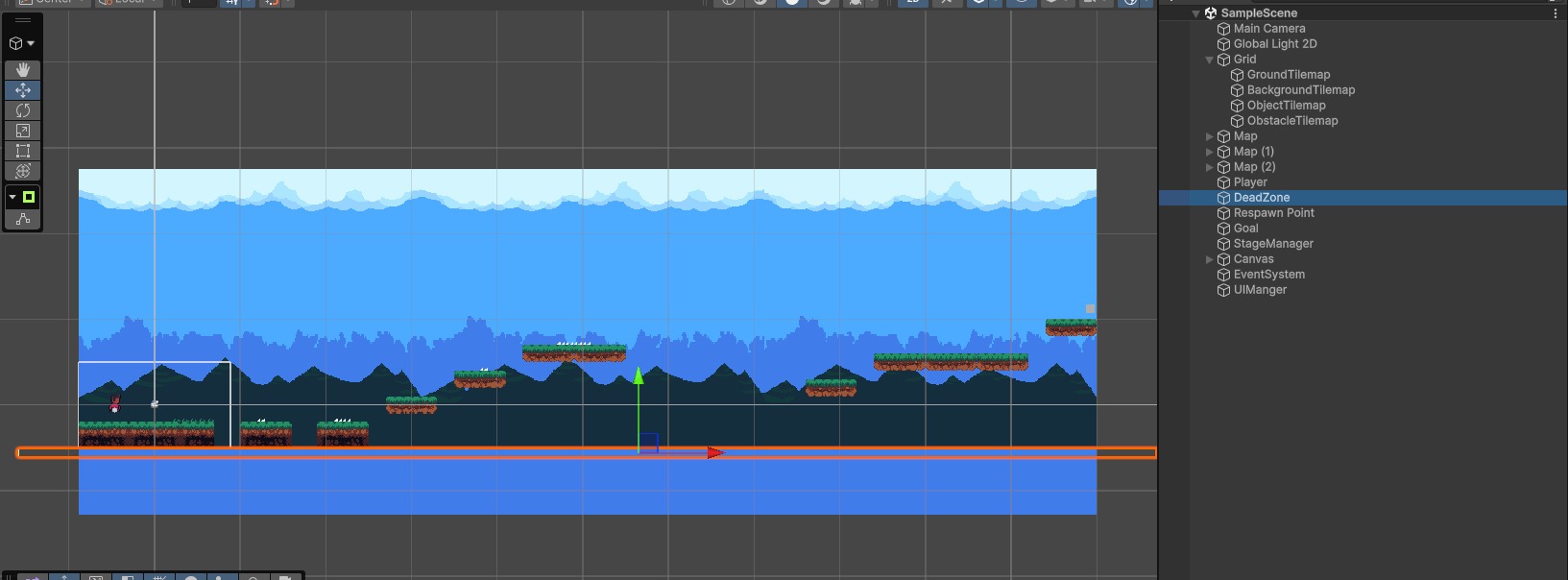
아래쪽에 deadzone 오브젝트를 만들어서 배치하고 투명하게 만들어준다. 그리고 그 오브젝트를 collider를 넣고 trigger로 바꿔준다음 그 부근을 통과하면 PlayerDie()를 실행하게 해주었음.
using UnityEngine;

public class Obstacle : MonoBehaviour
{
    // Start is called once before the first execution of Update after the MonoBehaviour is created
    void Start()
    {

    }

    // Update is called once per frame
    void Update()
    {

    }

    private void OnCollisionEnter2D(Collision2D collision)
    {
        if (collision.gameObject.tag == "Player")
        {
            //피격, 사망처리
            Debug.Log("방해물 충돌");
            StageManager.instance.PlayerDie();
        }
    }

}
마찬가지로 장애물에도 부딫히면 동일한 작업을 해주었음.
PlayerController.cs
using UnityEngine;
using UnityEngine.InputSystem;

public class PlayerController : MonoBehaviour
{
    private Rigidbody2D rb;
    private Collider2D col;
    private Animator animator;
    private SpriteRenderer sr;

    [SerializeField] private float moveSpeed;
    [SerializeField] float jumpPower;
    [SerializeField] int jumpCount;
    [SerializeField] int jumpCountMax;

    float dir;
    bool isGround;


    int isRun;
    int isJump;

    [SerializeField] LayerMask GroundLayer;
    private void Awake()
    {
        rb = GetComponent<Rigidbody2D>();
        col = GetComponent<Collider2D>();
        animator = GetComponent<Animator>();
        sr = GetComponent<SpriteRenderer>();
}

    // Start is called once before the first execution of Update after the MonoBehaviour is created
    void Start()
    {
        jumpCount = 0;
        jumpCountMax = 2;
        isRun = Animator.StringToHash("isRun");
        isJump = Animator.StringToHash("isJump");
    }


    private void FixedUpdate()
    {
        if (dir != 0)
        {
            animator.SetBool(isRun, true);
            //animator.SetBool("isRun", true);
            if (dir > 0)
            {
                sr.flipX = false;
            }
            else
            {
                sr.flipX = true;
            }
        }
        else
        {
            animator.SetBool(isRun, false);
            //animator.SetBool("isRun", false);
        }
        rb.linearVelocity = new Vector2(dir * moveSpeed, rb.linearVelocity.y);
    }

    // Update is called once per frame
    void Update()
    {
        dir = 0;
        if (Keyboard.current.aKey.isPressed)
        {
            dir -= 1;
        }
        if (Keyboard.current.dKey.isPressed)
        {
            dir += 1;
        }

        GroundCheck();

        if (Keyboard.current.spaceKey.wasPressedThisFrame)
        {
            Jump();
        }
    }

    void GroundCheck()
    {
        //그라운드 체크
        RaycastHit2D hit = Physics2D.CircleCast(transform.position, 0.3f, Vector2.down, 0.8f, GroundLayer);

        isGround = hit.collider == null ? false : true;

        if (isGround)
        {
            jumpCount = 0;
            UIManager.instance.ChangeJumpCountText(0);
            animator.SetBool("isJump", false);
        }

    }

    void Jump()
    {
        if (jumpCount >= jumpCountMax)
        {
            return;
        }
        //if (isGround == false)
        //{
        //    return;
        //}
        //좌우이동 중, 좌우 이동은 그대로 두기 위해서
        //점프 중 좌우이동 자연스럽게
        rb.linearVelocity = new Vector2(rb.linearVelocity.x, jumpPower);
        //isGround = false;
        if (isGround)
        {
            jumpCount++;
        }
        else
        {
            jumpCount += 2;
        }
        animator.SetBool("isJump", true);
        UIManager.instance.ChangeJumpCountText(jumpCount);
    }

    public void OnDrawGizmos()
    {
        Gizmos.DrawSphere(transform.position - new Vector3(0, 0.8f, 0), 0.3f);
    }

}
나머지 이동 + 점프 + isGround를 활용한 점프 가능한지 확인.
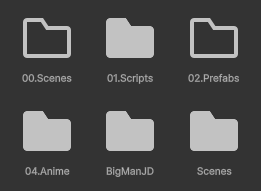
애니메이션 폴더 만들고 폴더에
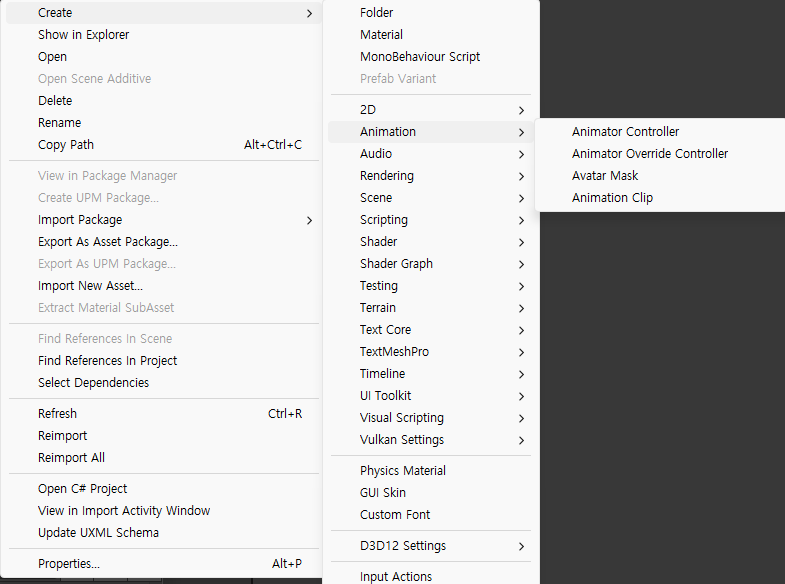
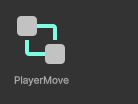
Animator Controller로 PlayerMove를 만들어준다.
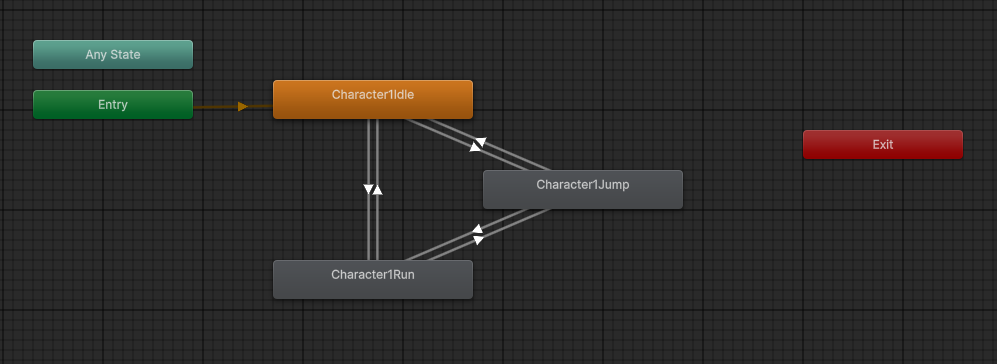
Scene창에 화면이나온다.(원래는 any State랑 Entry밖에 없다.)
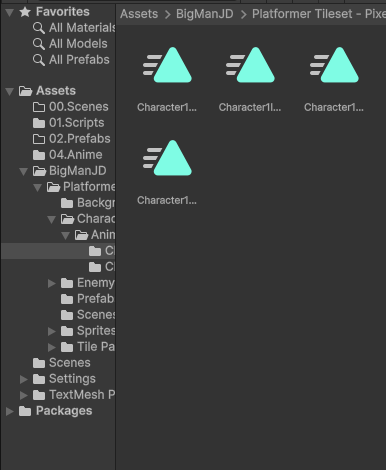
아까 받은 에셋에서 캐릭터 애니메이션을 찾을 수 있다.
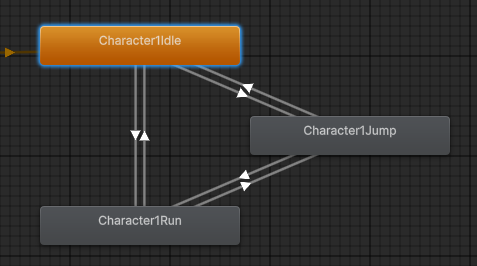
그걸 당겨서 배치해주면 사진처럼 가능하다.
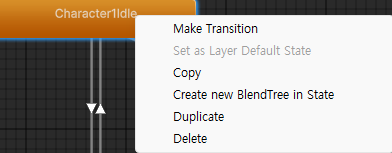
make transition으로 다 각자 연결해준다.
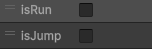
왼쪽에 이런 상태가 있을텐데 체크하면 true 풀면 false다.
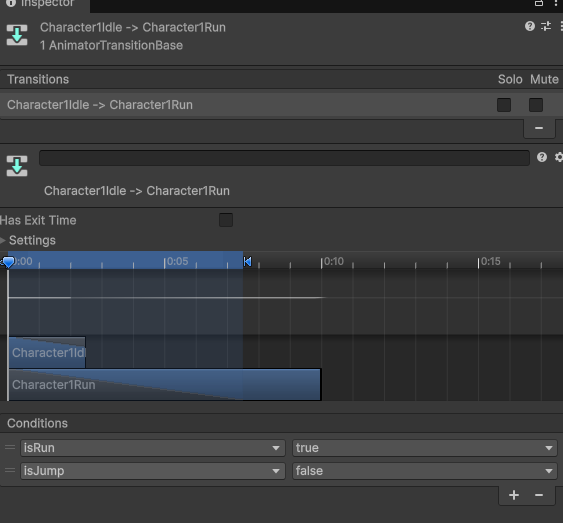
연결한 선을 눌러보면 conditions가 있는데 이걸로 애니메이션이 켜지는 상태를 체크해주면된다.
PlayerController.cs 중 일부
private Animator animator;

void awake()
{
   animator = GetComponent<Animator>();
}
void Start()
{
    jumpCount = 0;
    jumpCountMax = 2;
    isRun = Animator.StringToHash("isRun");
    isJump = Animator.StringToHash("isJump");
}


void FixedUpdate()
{
	animator.SetBool(isRun, true);
}
( 일부 코드 이므로 위의 PlayerController.cs 참고 )
위처럼 script를 만들어준 후
Player에 Animator 컨포넌트 만들어준다.
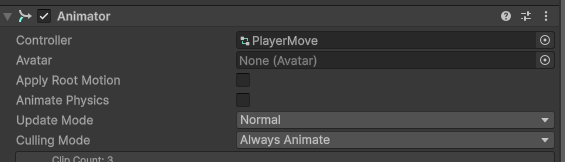
거기에 만든 애니메이션 파일을 넣고
실행하면 제대로 실행되는 것을 확인할 수 있다.