프로젝트에서 drei 의 Stats 컴포넌트를 사용하여 FPS, MS, MB 확인 가능
FPS
Frame Per Second
1초당 보여줄 화면의 장수
높은 FPS 일수록 더 부드러운 애니메이션
우리의 눈은 일반적으로 초당 약 24 프레임을 연속된 동작으로 인식
MS
Milliseconds Per Frame
한 프레임을 렌더링 하는데 걸리는 시간
작을수록 성능이 좋음
MB
MegaBytes Used
현재 웹페이지에서 사용중인 메모리의 양
메모리 누수 및 성능 이슈를 감지하는데 도움
또한, drei 의 StatsGl 컴포넌트를 사용하여 FPS, CPU, GPU 도 확인 가능

프레임 드랍이 일어나는 이유
하드웨어가 처리할 수 있는 것보다 더 큰 워크로드를 생성하는 그래픽 설정때문
예를 들어서, CPU 가 GPU 에 대량의 개체를 한 번에 렌더링 하라고 명령하는 경우
PC 가 초당 그리는 프레임 수가 적어짐
1 프레임을 계산하는데 걸리는 시간에서 CPU 와 GPU 의 지연이 발생하면 병목 현상이 일어남
※ 병목현상: 전체 시스템의 성능이나 용량이 하나의 구성 요소로 인해 제한을 받는 현상
2차선 도로에서 1차선 도로로 바뀔 시, 뒤에 오는 차량들이 느려짐
DrawCall 의 상한치
PC: 1000
Mobile: 100 ~ 200
1mesh + 1material = 1 drawcall
n meshes = n drawcall
n meshes + 1 material = n drawcall
1 mesh + n materials = n drawcall
몇번의 DrawCall 이 발생?
useThree 의 gl 속성의 info에 calls 를 사용하면 현재 프레임에서 몇 개의 drawcall 이 일어났는지 확인 가능
DrawCall 어떻게 줄여야 할까?
n mesh = n drawcall
mesh 들을 하나로 그룹화하여 처리한다면?
drei 의 Merged 컴포넌트 사용하기
// AllTree.jsx

const { nodes, materials } = useGLTF("/assets/models/tree.glb");

const meshes = useMemo(
    () => ({
      TreeMesh: nodes.tree,
    }),
    [nodes]
);

return (
   <Merged meshes={meshes}>
     {(mesh) => (
       <>
         <Tree
           position={[1, 0.5, -1]}
           mesh={mesh}
           material={materials["Material.003"]}
         />
         <Tree
           position={[-1, 0.5, -1]}
           mesh={mesh}
           material={materials["Material.003"]}
         />
         <Tree
           position={[3, 0.5, -1]}
           mesh={mesh}
           material={materials["Material.003"]}
         />
         <Tree
           position={[-3, 0.5, -1]}
           mesh={mesh}
           material={materials["Material.003"]}
         />
       </>
     )}
   </Merged>
);

// Tree.jsx

<group>
  <mesh.TreeMesh material={material} />
</group>
LOD (Level Of Detail)
모델이 멀리서 볼 떄 불필요한 세부 정보를 줄이는 기술
drei 의 Detailed 컴포넌트 사용
속성인 distance 에 따라서 보여줄 model 각각 설정
<Detailed distances={[0, 7, 15]}>
  {/* 상 */}
   <group scale={0.15} position={[0, -0.153, -0.004]}>
      <mesh
         geometry={nodes.beach_ball_red_0_1.geometry}
         material={materials.material}
      />
      <mesh
         geometry={nodes.beach_ball_red_0_2.geometry}
         material={materials.blue}
      />
      <mesh
         geometry={nodes.beach_ball_red_0_3.geometry}
         material={materials.white}
      />
      <mesh
         geometry={nodes.beach_ball_red_0_4.geometry}
         material={materials.yellow}
      />
   </group>
  {/* 중 */}
   <mesh>
     <sphereGeometry args={[1]} />
     <meshStandardMaterial color="blue" />
   </mesh>
  {/* 하 */}
   <mesh>
     <boxGeometry args={[1.15, 1.15, 1.15]} />
     <meshStandardMaterial color="white" />
   </mesh>
</Detailed>
폰트 최적화
웹 폰트를 경량화하는 일반적인 방식 중 하나는
TTF 나 OTF 와 같은 무겁고 용량이 큰 폰트 파일을 WOFF 로 변환하는것
추가로 사용하지 않는 글리프를 제거하여 경량화 할 수 있음
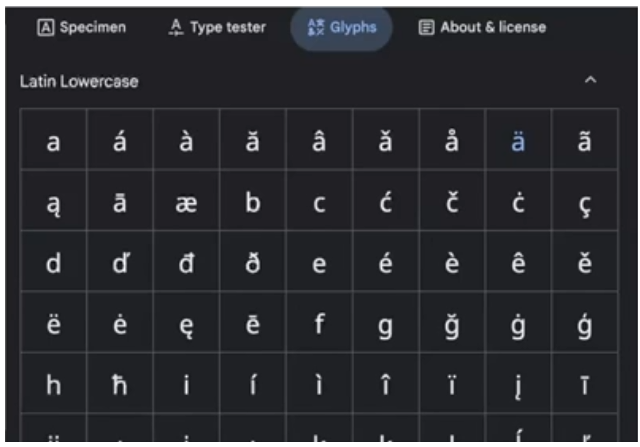
우리의 프로젝트에서는 How To Play 만 사용되어 글리프를 "H", "o", "w", "T", "o", "P", "l", "a", "y" 만 남기고 제거할 것이다.
useEffect(() => {
   const fontData = fontjson;

   const targetText = "How to Play";

   const modifiedGlyphs = {};
   for (let i = 0; i < targetText.length; i++) {
      const char = targetText[i];
      const charKey = char in fontData.glyphs ? char : char.toUpperCase();

      if (charKey in fontData.glyphs) {
        modifiedGlyphs[charKey] = fontData.glyphs[charKey];
      }
   }

    const modifiedFontData = {
      ...fontData,
      glyphs: modifiedGlyphs,
    };

    // 결과로 나온 modifiedFontData 를 JSON 형식으로 저장

}, []);
경량화된 최종 폰트 파일 비교 11MB => 7KB

텍스처 최적화
webgl 에 이용되는 모델들의 텍스처 이미지는 웹에서 사용되는 PNG 나 JPG 등 일반적인 형식으로 사용 가능하며,
보통 1024 2048 등 2의 배수 크기로 사용된다.
만약 2048 크기의 이미지를 1024 로 줄이면 절반 크기로 줄어든 효과를 볼 수 있어 네트워크 성능면에서 이득
이미지 파일의 형식중 webp 가 가장 작으므로 보통 webp 를 사용하는것이 좋으나 IOS 14 이상에서만 지원하는 환경제약이 있어 유의해야함
모델 최적화
glb, gltf 파일을 최적화
구글의 Draco
3D 모델의 데이터를 효율적으로 압축하여 저장하고 전송하는 데 사용됨
CesiumGS의 gltf-pipeline
Draco 를 좀 더 쉽게 사용할 수 있게 해주는 라이브러리
glTF 자산을 최적화 하기 위한 콘텐츠 파이프라인 도구
강력한 기능: glTF <=> glb 변환, Draco mesh 압축 적용
glb 파일을 gltf 파일로 변환
gltf-pipeline -i popup.glb -o popup.gltf
텍스처맵 형식으로 변환
gltf-pipeline -i tree.glb -t
드라코 압축 적용
gltf-pipeline -i tree.glb -o tree2.glb -d
드라코 압축 적용 시 자동차 모델 용량 152KB => 47KB