시작
인벤토리 UI는 앞선 글에서 설명했듯이 아이템 슬롯을 담는 컨테이너에 불과하다. 아이템 슬롯이 그만큼 중요하며 많은 기능을 담당한다.
많은 기능을 담당하는 만큼 코드가 비대해지므로 이를 어떻게 분리하느냐가 아이템 슬롯 구현의 핵심이라고 할 수 있다.
역시나 마찬가지로 아이템 슬롯 또한 MVP 패턴을 이용하여 구현할 것이다.
아이디어
우선 인벤토리 슬롯에서 필요한 기능들을 조금 정리할 필요가 있다.
- 획득한 아이템에 해당하는 스프라이트 이미지와 아이템의 개수를 표시할 수 있어야 한다.
- 슬롯에 들어올 수 있는 아이템 타입을 특정하여 특정 아이템만을 가질 수 있어야 한다.
- 마우스 클릭, 드래그를 이용하여 슬롯 동작(클릭, 드래그, 드랍)을 할 수 있어야 한다.
3번에 해당하는 내용은 이번에 설명할 범위가 아니므로 이 코드만 제외하여 확장하도록 한다.
View
우선적으로 View의 인터페이스를 정의하기 전에 과연 인터페이스에서 포함해야 할 기능들이 무엇인지 생각을 해야한다.
인벤토리에 아이템이 들어오면 이에 알맞게 슬롯을 업데이트할 수 있어야 하고, 아이템을 사용하거나 잃게 되면 슬롯을 비울 수 있어야 한다.
또한 특정 아이템 타입만을 받을 수 있도록 비트 연산을 통해서 걸러내야 한다.
using UnityEngine;
using UnityEngine.EventSystems;

public interface IItemSlotView : IPointerEnterHandler, IPointerExitHandler, IBeginDragHandler, IDragHandler, IEndDragHandler, IDropHandler, IPointerClickHandler
{
	void Inject(ItemSlotPresenter presenter);

    void ClearUI();
    void UpdateUI(Sprite item_image, bool stackable, int count);

    bool IsMask(ItemType type);			// 특정 아이템 타입만 걸러낼 때 사용한다.
    void SetCursor(CursorMode mode);	// 커서의 스프라이트를 변경할 때 사용한다.
}
이를 토대로 구체화 아이템 슬롯인 ItemSlotView를 작성한다.
using TMPro;
using UnityEngine;
using UnityEngine.EventSystems;
using UnityEngine.UI;

public class ItemSlotView : MonoBehaviour, IItemSlotView
{
    [Header("커서 데이터베이스")]
    [SerializeField] private CursorDataBase m_cursor_db;

    [Space(30f)]
    [Header("UI 관련 트랜스폼")]
    [Header("아이템 이미지")]
    [SerializeField] private Image m_item_image;

    [Header("아이템 개수")]
    [SerializeField] private TMP_Text m_count_label;

    [Header("쿨타임 이미지")]
    [SerializeField] private Image m_cooldown_image;

    [Header("슬롯 마스크")]
    [SerializeField] private ItemType m_slot_type;

    private ItemSlotPresenter m_presenter;

    private void Update() {}

    private void OnDestroy() {}

    public void Inject(ItemSlotPresenter presenter)
    {
        m_presenter = presenter;
    }

	// 아이템 슬롯을 비운다.
    // 1. 아이템 스프라이트 제거
    // 2. 아이템 개수 텍스트 초기화
    // 3. 쿨타임 이미지 초기화
    public void ClearUI()
    {
        m_item_image.sprite = null;
        SetAlpha(0f);

        m_count_label.text = string.Empty;
        m_count_label.gameObject.SetActive(false);

        m_cooldown_image.fillAmount = 0f;
    }

	// 아이템 슬롯에 아이템을 추가한다.
    // 1. 아이템 스프라이트 추가
    // 2. 중첩 아이템이면 아이템 개수 텍스트를 활성화
    // 3. 쿨타임 이미지 초기화
    public void UpdateUI(Sprite item_image, bool stackable, int count)
    {
        m_item_image.sprite = item_image;
        SetAlpha(1f);

        if (stackable)
        {
            m_count_label.gameObject.SetActive(true);
            m_count_label.text = NumberFormatter.FormatNumber(count);
        }
        else
        {
            m_count_label.gameObject.SetActive(false);
        }

        m_cooldown_image.fillAmount = 0f;
    }

	// 슬롯에 넣을 수 있는 아이템 타입인지 확인한다.
    public bool IsMask(ItemType type)
    {
        return ((int)m_slot_type & (int)type) != 0;
    }

	// 아이템 스프라이트를 특정한 알파값으로 설정한다.
    private void SetAlpha(float alpha)
    {
        var color = m_item_image.color;
        color.a = alpha;
        m_item_image.color = color;
    }

    public void SetCursor(CursorMode mode) {}

    public void OnPointerEnter(PointerEventData eventData) {}

    public void OnPointerExit(PointerEventData eventData) {}

    public void OnBeginDrag(PointerEventData eventData) {}

    public void OnDrag(PointerEventData eventData) {}

    public void OnEndDrag(PointerEventData eventData) {}

    public void OnDrop(PointerEventData eventData) {}

    public void OnPointerClick(PointerEventData eventData) {}
}
지금의 글과는 관련이 없기 때문에 커서와 관련된 내용들은 우선 제거한다.
IsMask
위의 코드에서 대부분의 내용들은 이해할 수 있으리라 생각한다. IsMask()에 대해서만 이야기를 해보자.
IsMask()는 특정 ItemType의 아이템만을 추리는 역할을 한다.
예를 들어, 앞서 정의한 ItemType에서 Skill을 생각해보자. 스킬은 1 << 3으로 정의되어 있기 때문에 1000이랑 동일하다.
너무 자명한 사실로 스킬 아이템은 인벤토리에 포함되면 안된다. 이를 표현하려면 ItemSloView의 슬롯 마스크를 Skill을 제외하고 모두 체크하면 된다.
그러면 다음과 같은 상황이랑 동일하다.
아이템 슬롯의 비트
11110111

스킬 아이템의 비트
00001000

이 둘을 & 연산을 한다.

	11110111
 &  00001000
-------------
	00000000 => False
이 정도면 IsMask()에 대해서 어느정도 이해했으리라 생각한다.
Presenter
이제 View에 연결할 Presenter를 구현해보자.
public class ItemSlotPresenter
{
	private readonly IItemSlotView m_view;
    private readonly IItemDataBase m_item_db;

    private DragSlotPresenter m_drag_slot_presenter;

    private int m_offset;
    private SlotType m_slot_type;
    private int m_item_count;

    // 상점이나 제작소에서 사용되는 슬롯인지의 여부를 확인한다.
    public bool IsShopOrCraft => m_slot_type == SlotType.Shop || m_slot_type == SlotType.Craft;

    public ItemSlotPresenter(IItemSlotView view,
                             IItemDataBase item_db,
                             int offset,
                             SlotType slot_type = SlotType.Inventory,
                             int item_count = 1)
    {
        m_view = view;
        m_item_db = item_db;
        m_offset = offset;
        m_slot_type = slot_type;
        m_item_count = item_count;

        m_view.Inject(this);
    }

    public void UpdateSlot(int offset, ItemData item_data)
    {
    	// 상점이나 제작소에 사용되는 슬롯이거나
        // 오프셋이 다른 경우에는 업데이트하지 않는다.
        if (!IsShopOrCraft && m_offset != offset)
        {
            return;
        }

		// 아이템 코드가 비어있을 경우, 슬롯이 빈 것으로 판단한다.
        if (item_data.Code == ItemCode.NONE)
        {
            m_view.ClearUI();
            return;
        }

		// 아이템 데이터베이스로부터 SO를 얻어 그 정보로 View를 갱신한다.
        var item = m_item_db.GetItem(item_data.Code);
        m_view.UpdateUI(item.Sprite, item.Stackable, item_data.Count);
    }
}
아이템 슬롯 팩토리
ItemSlotFactory
아이템 슬롯은 앞선 글에서 말했듯이 범용적으로 사용되며, 아이템 슬롯 자체를 풀링하여 사용하는 UI도 존재한다. 이를테면.. 제작소나 상점이 이에 해당한다.
따라서 손 쉽게 아이템 슬롯을 생성하기 위해 아이템 슬롯 팩토리를 구현한다. 지금까지의 내용으로는 아이템 슬롯 팩토리 역시 완전히 완성시키진 못한다.
using InventoryService;
using SkillService;

public class ItemSlotFactory
{
    private readonly IInventoryService m_inventory_service;
    private readonly IItemDataBase m_item_db;

    public ItemSlotFactory(IInventoryService inventory_service,
                           IItemDataBase item_db,)
    {
        m_inventory_service = inventory_service;

        m_item_db = item_db;
    }

    public ItemSlotPresenter Instantiate(IItemSlotView view, int offset, SlotType slot_type, int count = 1)
    {
        return new ItemSlotPresenter(view,
                                     m_item_db,
                                     offset,
                                     slot_type,
                                     count);
    }
}
그리고 이 팩토리가 동작하기 위해서는 팩토리 인스톨러가 필요하다.
using InventoryService;
using SkillService;
using UnityEngine;

public class ItemSlotFactoryInstaller : MonoBehaviour, IInstaller
{
    [Header("아이템 데이터베이스")]
    [SerializeField] private ItemDataBase m_item_db;

    [Header("커서 데이터베이스")]
    [SerializeField] private CursorDataBase m_cursor_db;

    public void Install()
    {
        var item_slot_factory = new ItemSlotFactory(ServiceLocator.Get<IInventoryService>(),
                                                    m_item_db);
        DIContainer.Register<ItemSlotFactory>(item_slot_factory);
    }
}
이 팩토리 인스톨러를 인벤토리 UI 인스톨러 이전에 배치하여 아이템 슬롯을 사용하는 UI를 인스톨하기 전에 미리 설치되어 있게 설정해야 한다.
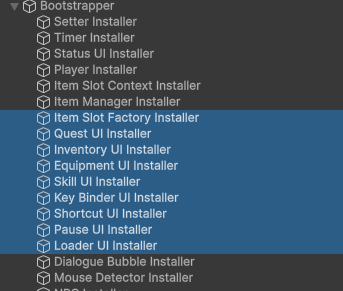
InventoryUIInstaller 확장
아이템 슬롯과 팩토리를 추가했으니 인벤토리 UI 인스톨러를 확장해야 한다.
using InventoryService;
using UnityEngine;

public class InventoryUIInstaller : MonoBehaviour, IInstaller
{
	// 이전과 동일

    public void Install()
    {
        DIContainer.Register<IInventoryView>(m_inventory_view);

        DIContainer.Register<IInventoryService>(ServiceLocator.Get<IInventoryService>());

		// ***새롭게 추가된 내용 시작***
        var slot_views = m_item_slot_root.GetComponentsInChildren<IItemSlotView>();

        var item_slot_factory = DIContainer.Resolve<ItemSlotFactory>();

        var slot_presenters = new ItemSlotPresenter[slot_views.Length];
        for (int i = 0; i < slot_presenters.Length; i++)
        {
            slot_presenters[i] = item_slot_factory.Instantiate(slot_views[i], i, SlotType.Inventory);
        }

        var m_inventory_presenter = new InventoryPresenter(m_inventory_view,
                                                           ServiceLocator.Get<IInventoryService>(),
                                                           slot_presenters);
        // ***새롭게 추가된 내용 끝***
        DIContainer.Register<InventoryPresenter>(m_inventory_presenter);

        Inject();
    }

    private void Inject()
    {
        var item_db = DIContainer.Resolve<IItemDataBase>();

        var inventory_model = DIContainer.Resolve<IInventoryService>();
        inventory_model.Inject(item_db);
    }
}
Inventory Presenter 확장
앞선 글에서는 골드만 관리했던 인벤토리의 Presenter에서 이제 아이템 슬롯이 추가되었으니 아이템 슬롯들도 관리해야 한다.
따라서 우리는 InventoryUIInstaller를 확장한 것에 이어 InventoryPresenter를 맞춰서 작성한다.
using System;
using InventoryService;

public class InventoryPresenter : IDisposable, IPopupPresenter
{
    private readonly IInventoryView m_view;
    private readonly IInventoryService m_model;

    private ItemSlotPresenter[] m_slot_presenters;

    public InventoryPresenter(IInventoryView view, IInventoryService model, ItemSlotPresenter[] slot_presenters)
    {
        m_view = view;
        m_model = model;
        m_slot_presenters = slot_presenters;

        m_model.OnUpdatedGold += m_view.UpdateMoney;
        m_view.Inject(this);
    }

    public void OpenUI() { /*이전과 동일*/ }

    public void CloseUI() { /*이전과 동일*/ }

    public void Initialize()
    {
        m_model.InitializeGold();
        for (int i = 0; i < 30; i++)
        {
            m_model.InitializeSlot(i);
        }
    }

	// 이전과 동일
}
아이템 슬롯 UI
이제 기본적인 아이템 슬롯에 관련된 스크립트들을 모두 작성했으니, UI를 생성한다.

그리고 프리펩화하고, 인벤토리 UI 하위의 어딘가에 Grid Layout Group을 이용하여 의도한 인벤토리 개수만큼 이를 배치한다.
동적으로 아이템 슬롯이 늘어나는 인벤토리 구조에는 적합하지 않으니 알아서 이를 참고하여 코드를 고쳐 사용하는 좋다.
마무리
이렇게 기본적인 아이템 슬롯 기능을 완성해봤다.
아마 아직까진 아이템 획득 기능을 따로 구현해서 제대로 작동하는지 확인한다고 해도 제대로 동작하지 않을 것이다. 인벤토리 슬롯의 내용 중 20% 정도만을 설명한 것이기 때문이다.
다음 글에서는 커서 매니저에 대해서 설명해보고자 한다. 다음에 봐용.