Flex
- width나 height로 조정했을 때 생기는 빈칸등을 수정하기 위해 사용
- 화면을 채울 때 비율을 조정
ex) container 두 개가 있을 때 하나를 flex: 1, 하나를 flex: 2 로 설정하면 첫 번째와 두 번째 container가 1:2 비율로 화면을 채움
예시
import 'package:flutter/material.dart';

void main() {
  runApp(
    MaterialApp(
      home: Scaffold(
        appBar: AppBar(
          title: Text('widget을 상하좌우로 배치하기'),
        ),
        body: Body(),
      ),
    ),
  );
}

class Body extends StatelessWidget {
  const Body({super.key});

  @override
  Widget build(BuildContext context) {
    return Column(
      children: [
        Flexible(flex: 1,
          child: Container( color: Colors.red, width: 500, height: 300
          ),
        ),
        Flexible(flex: 2,
          child: Container(color: Colors.blue,width: 500, height: 300
          ),
        ),
        Flexible(flex: 3,
          child: Container(color: Colors.green,width: 500, height: 300
          ),
        ),
        Flexible(flex: 4,
          child: Container(color: Colors.yellow,width: 500, height: 300
          ),
        ),
      ],

    );
  }
}
결과
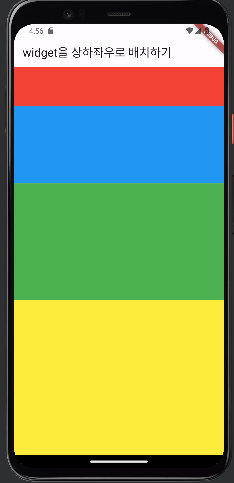
expanded와 flexible의 차이점
- flexible의 경우 안의 객체 사이즈에 따라 줄어들 여지가 있음
- expanded는 객체 안에 높낮이와 상관없이 flex로 선언된 모든 영억을 차지하는 위젯
예시
import 'package:flutter/material.dart';

void main() {
  runApp(
    MaterialApp(
      home: Scaffold(
        appBar: AppBar(
          title: Text('widget을 상하좌우로 배치하기'),
        ),
        body: Body(),
      ),
    ),
  );
}

class Body extends StatelessWidget {
  const Body({super.key});

  @override
  Widget build(BuildContext context) {
    return Column(
      children: [
        Container(width: double.infinity, height: 200, color: Colors.red,),
        Expanded(child: Container(color: Colors.blue, height: 100,)
        ),
        Flexible(child: Container(color: Colors.red, height: 100,)
        ),
결과
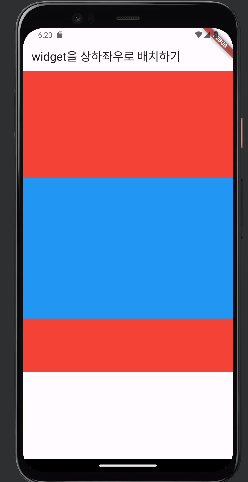
- Row로 실행하는 거나 스크롤하는 방법은 전 시간에 했던 것과 같은 방법으로 할 수 있음
예시
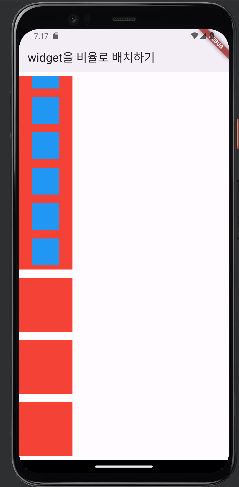
- row로 widget을 나누고 그 안에 비율로 파란색의 widget을 여러 개 나열하여 widget 안에서 개별적으로 스크롤이 가능하게 함
import 'package:flutter/material.dart';

void main() {
  runApp(
    MaterialApp(
      home: Scaffold(
        appBar: AppBar(
          title: Text('widget을 비율로 배치하기'),
        ),
        body: Body(),
      ),
    ),
  );
}

class Body extends StatelessWidget {
  const Body({super.key});

  @override
  Widget build(BuildContext context) {
    return Column(
      children: [
        Expanded(
          child: Container(
            width: 100,
            height: 100,
            color: Colors.red,
            margin: const EdgeInsets.symmetric(vertical: 8),
            child: SingleChildScrollView(
              child: Column(
                children: [
                  Container(color: Colors.blue, height: 50, width: 50,margin: const EdgeInsets.symmetric(vertical: 8),),
                  Container(color: Colors.blue, height: 50, width: 50,margin: const EdgeInsets.symmetric(vertical: 8),),
                  Container(color: Colors.blue, height: 50, width: 50,margin: const EdgeInsets.symmetric(vertical: 8),),
                  Container(color: Colors.blue, height: 50, width: 50,margin: const EdgeInsets.symmetric(vertical: 8),),
                  Container(color: Colors.blue, height: 50, width: 50,margin: const EdgeInsets.symmetric(vertical: 8),),
                  Container(color: Colors.blue, height: 50, width: 50,margin: const EdgeInsets.symmetric(vertical: 8),),
                  Container(color: Colors.blue, height: 50, width: 50,margin: const EdgeInsets.symmetric(vertical: 8),),
                  Container(color: Colors.blue, height: 50, width: 50,margin: const EdgeInsets.symmetric(vertical: 8),),
                  Container(color: Colors.blue, height: 50, width: 50,margin: const EdgeInsets.symmetric(vertical: 8),),
                  Container(color: Colors.blue, height: 50, width: 50,margin: const EdgeInsets.symmetric(vertical: 8),),


                ],
              ),
            ),
          ),
        ),
        Container(
          width: 100,
          height: 100,
          color: Colors.red,
          margin: const EdgeInsets.symmetric(vertical: 8),),
        Container(
          width: 100,
          height: 100,
          color: Colors.red,
          margin: const EdgeInsets.symmetric(vertical: 8),),
        Container(
          width: 100,
          height: 100,
          color: Colors.red,
          margin: const EdgeInsets.symmetric(vertical: 8),),
      ],
    );

        // Flexible(flex: 1,
        //   child: Container( color: Colors.red, width: 500, height: 300
        //   ),
        // ),
        // Flexible(flex: 2,
        //   child: Container(color: Colors.blue,width: 500, height: 300
        //   ),
        // ),
        // Flexible(flex: 3,
        //   child: Container(color: Colors.green,width: 500, height: 300
        //   ),
        // ),
        // Flexible(flex: 4,
        //   child: Container(color: Colors.yellow,width: 500, height: 300
        //   ),
        // ),


  }
}

이동완