Unity 6000.2.6f2 환경에서 구현하였습니다.
New Input System으로 드래그로 카메라 이동 구현하기
입력을 매 프레임 검사했던 이전 방식(InputManager)과 달리 New Input System은 입력이 발생할 때만 이벤트 기반으로 처리해 불필요한 연산이 감소하고 가독성과 유지보수성이 향상되고, 키 재바인딩으로 다양한 입력 장치를 지원하기 때문에 다양한 기기 대응에 유리하다.
InputManager와 New Input System 두 시스템 다 장단점이 있기 때문에 용도에 맞게 사용하면 되지만, 저는 실습을 위해 구현해보았습니다.
설정하기
Window>Package Management>Package Manager에서 New Input System이 설치되어있는지 확인한다.
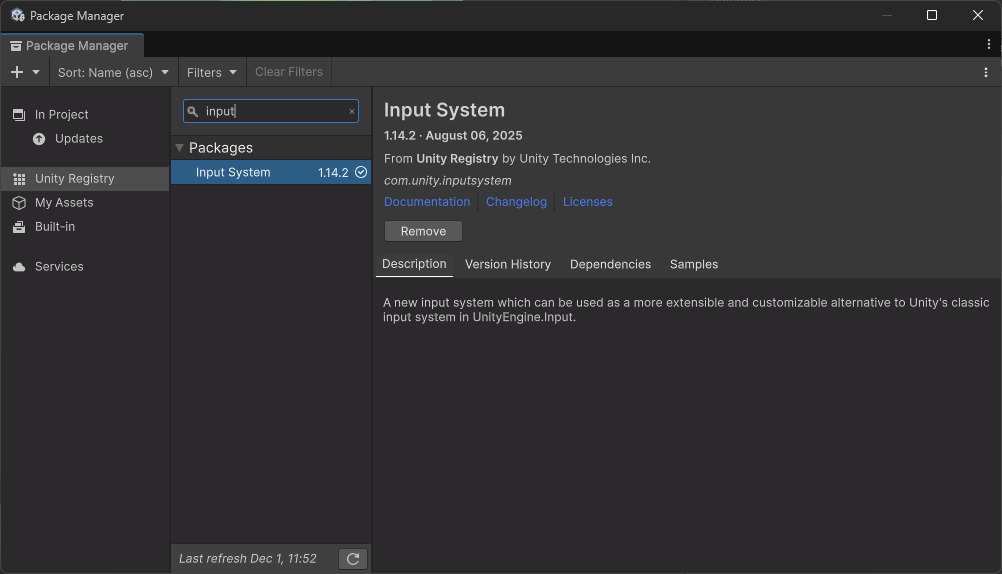
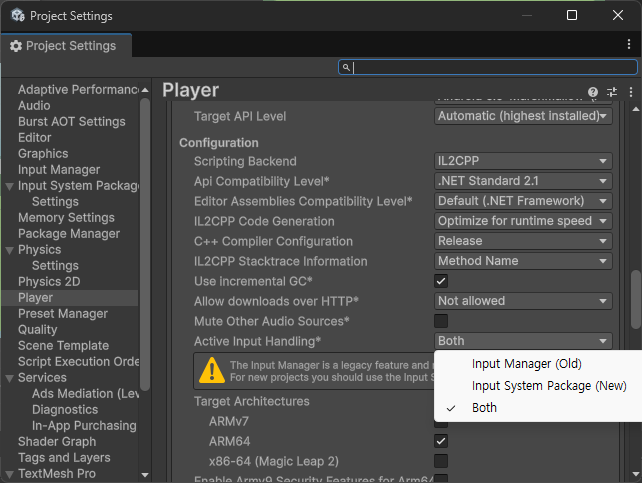
Edit>Project Settings
Player>Configuration>Active Input Handling 설정에서 Input System Package(New)를 포함한다.
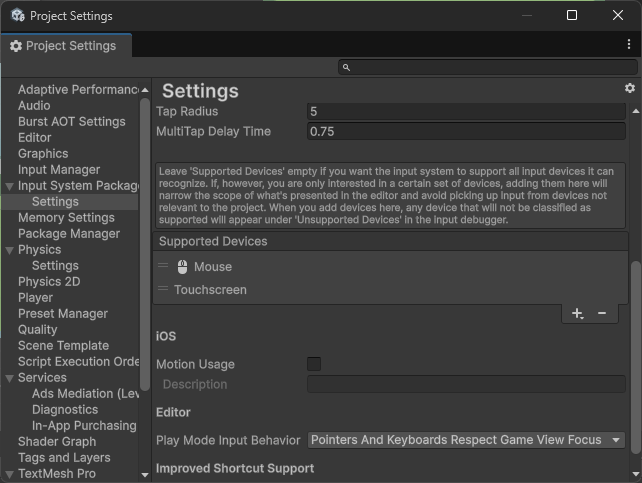
Input System Package>Settings에서 Create settings asset으로 에셋을 생성한 후, Supported Devices에서 사용할 장치를 추가한다.
구현하기
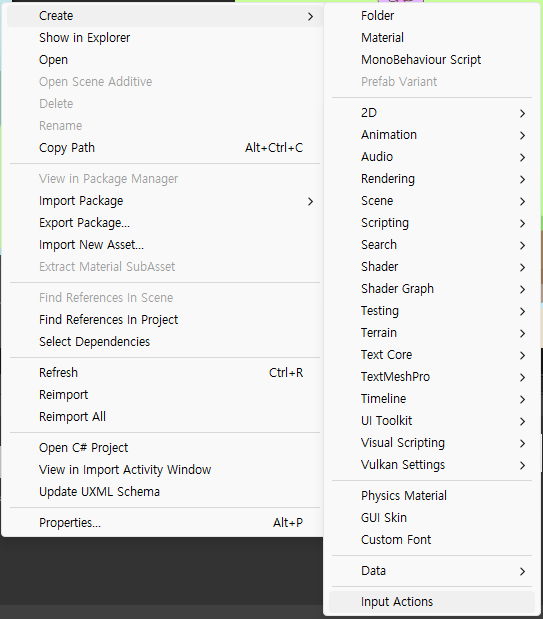
Create>Input Actions로 Input Action을 생성한다.
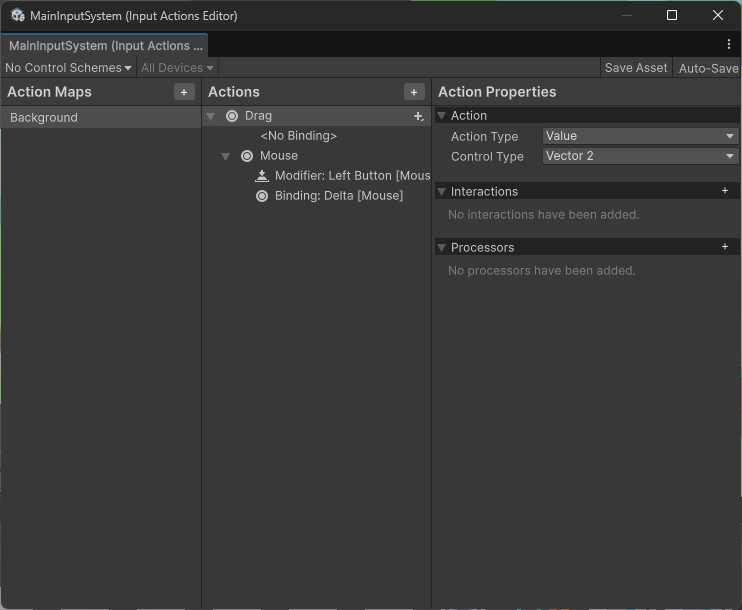
Action Maps, Actions를 필요에 맞게 설정한다.
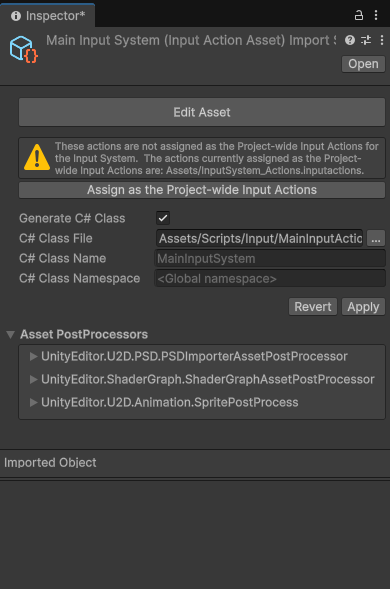
Generate C# Class 체크 후 경로를 지정하고 Apply해 C# Class를 생성해준다.
// 카메라 이동
using UnityEngine;
using UnityEngine.InputSystem;

public class CameraController : MonoBehaviour
{
    [SerializeField]
    float dragSpeed;    // 드래그 민감도

    [SerializeField]
    float minX, maxX, minY, maxY;


    private Camera cam;
    // nis
    private MainInputSystem mainAction;
    private InputAction dragAction;
    private bool isDragging = false;
    private void Awake()
    {
        cam = Camera.main;

        mainAction = new MainInputSystem();
        dragAction = mainAction.Background.Drag;
    }
    private void OnEnable()
    {
        dragAction.Enable();
        dragAction.started += Started;
        dragAction.performed += Performed;
        dragAction.canceled += Canceled;
    }
    private void OnDisable()
    {
        dragAction.started -= Started;
        dragAction.performed -= Performed;
        dragAction.canceled -= ctx => isDragging = false;
        dragAction.Disable();
    }
    void Started(InputAction.CallbackContext context)
    {
        Debug.Log("Started");
    }
    void Performed(InputAction.CallbackContext context)
    {
        Debug.Log("Performed");
        OnDrag(context);
    }
    private void OnDrag(InputAction.CallbackContext ctx)
    {
        if (!Mouse.current.leftButton.isPressed) return;

        Vector2 delta = ctx.ReadValue<Vector2>(); // 마우스 프레임 간 움직인 픽셀

        Vector3 move = new Vector3(-delta.x, -delta.y, 0f) * dragSpeed;
        Vector3 newPos = cam.transform.position + move;

        newPos.x = Mathf.Clamp(newPos.x, minX, maxX);
        newPos.y = Mathf.Clamp(newPos.y, minY, maxY);

        cam.transform.position = newPos;
        isDragging = true;


    }
    void Canceled(InputAction.CallbackContext context)
    {
        Debug.Log("Canceled");
    }

}
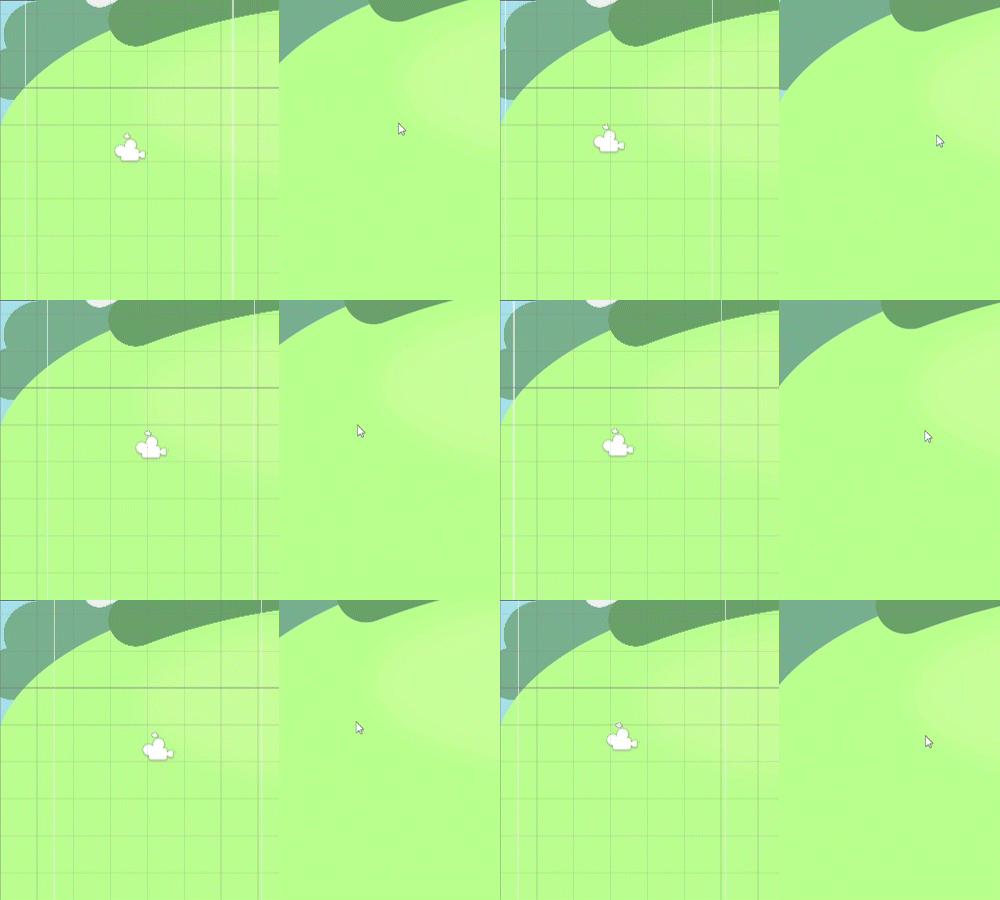
스크립트를 적용하고 감도와 제한값을 입력하면 마우스 드래그로 메인 카메라가 이동하는 것을 확인할 수 있다.