prologue
In this article, we will learn about Array among the data types of JavaScript, and learn about the array methods and how to use them through examples.
contents
- Datatype - Array
1.1 What is an Array?
1.2. Array declaration by [ ]
- JS Array Methods
2.1 toString()
2.2 join( )
2.3 pop( )
2.4 push( )
2.5 shift( )
2.6 unshift( )
2.7 concat( )
2.8 splice( )
2.9 slice( )
2.10 sort( )
2.11 filter( )
2.12 map( )
2.13 reduce( )
2.14 includes()
2.15 indexOf()
1. Datatype - Array
1.1 What is an Array?
An array is a special variable, which can hold more than one value. Also, the array can be assigned any kind of date type. You access an array element by referring to the index number. The array indexes start with 0. [0] is the first element. [1] is the second element.
The full array can be accessed and modified by referring to the array name.
let mix = [1, "a", 3, true, {}, []];1.2 Array declaration by [ ]
      let nums = [1, 3, 15, 4, 70];
      let str = ["a", "b", "c"];
      let mix = [1, "a", 3, true, {}, []];

      console.log(nums[2]); //15
      console.log(mix[3]);   //ture
You can define an array using square brackets [ ] and return an element using the index of the array.
2. JS Array Methods
JavaScript is a collection of objects. Each object contains methods (built-in functions) that are provided by default. Array objects also contain many methods. Let's look at the properties and usages of the array methods.
2.1 toString()
This function returns each element of an array as a string.
At this time, each element is separated by , (comma), but they are "one" string.
      const notes = ["Do", "Re", "Mi", "Fa", "Sol", "Ra", "Ti"];
      console.log(notes.toString());

      //Do,Re,Mi,Fa,Sol,Ra,Ti
2.2 join( )
This function uses the character passed as a parameter as a separator between each element to combine them into a single string. In the case of toString(), the comma (,) is used as the separator, but with join(), you can directly enter the separator you want, and you can use join("") to combine them without a separator to make one string.
      const notes = ["Do", "Re", "Mi", "Fa", "Sol", "Ra", "Ti"];
      console.log(notes.join(" * "));
      console.log(notes.join(""));

      //Do * Re * Mi * Fa * Sol * Ra * Ti
      //DoReMiFaSolRaTi
2.3 pop( )
This function removes the last element from an array and returns the last element that was "popped out".
      const notes = ["Do", "Re", "Mi", "Fa", "Sol", "Ra", "Ti"];
      console.log(notes.pop()); //Ti
      console.log(notes);  //(6) ['Do', 'Re', 'Mi', 'Fa', 'Sol', 'Ra']
2.4 push( )
This function adds a new element to the end of an array.
After adding elements, return the length of the array as a number.
      const notes = ["Do", "Re", "Mi", "Fa", "Sol", "Ra", "Ti"];
      console.log(notes.push("Do", "Re", "Mi", "Fa", "Sol", "Ra", "Ti"));

      //14
2.5 shift( )
This function removes the first array element and "shifts" all other elements to a lower index then returns the element that was "shifted out". It is a function opposite to pop( ). This function can be useful in practice when writing code that processes task lists one by one in the order in which they are sorted in an array.
      const notes = ["Do", "Re", "Mi", "Fa", "Sol", "Ra", "Ti"];
      console.log(notes.shift()); //Do
      console.log(notes);      //(6) ['Re', 'Mi', 'Fa', 'Sol', 'Ra', 'Ti']
Array elements can be deleted using the JavaScript operator delete.
Using delete leaves undefined holes in the array.
Use pop() or shift() instead.
2.6 unshift( )
This function adds a new element to the beginning of an array and "unshifts" older elements then returns the length of the array as a number. Just by looking at the name, it looks like the opposite of shift(), but it is the opposite concept of push().
        const notes = ["Do", "Re", "Mi", "Fa", "Sol", "Ra", "Ti"];
        console.log(notes.unshift("Ti"));

         //8
2.7 concat( )
This function allows you to merge(concatenate) two or more arrays into one array. Allows additional concatenation of existing arrays through commas (,). The concat() method does not change the existing arrays. It always returns a new array.
      const note1 = ["Do", "Do", "Sol", "Sol"];
      const note2 = ["Ra", "Ra", "Sol"];
      const note3 = ["Fa", "Fa", "Mi", "Mi"];
      const note4 = ["Re", "Re", "Do"];
      console.log(note1.concat(note2, note3, note4));

      //(14) ['Do', 'Do', 'Sol', 'Sol', 'Ra', 'Ra', 'Sol', 'Fa', 'Fa', 'Mi', 'Mi', 'Re', 'Re', 'Do']
The concat() method can also take strings as arguments
      const note1 = ["Do", "Do", "Sol", "Sol"];
      console.log(note1.concat("Ra"));

//['Do', 'Do', 'Sol', 'Sol', 'Ra']- Arrays can be combined by declaring arrays in the form of [...array1,...array2,...arrayn] using the Spread Operator (...).
        const note1 = ["Do", "Do", "Sol", "Sol"];
        const note2 = ["Ra", "Ra", "Sol"];
        const note3 = ["Fa", "Fa", "Mi", "Mi"];
        const note4 = ["Re", "Re", "Do"];
        console.log([...note1, ...note2, ...note3, ...note4]);

      //(14) ['Do', 'Do', 'Sol', 'Sol', 'Ra', 'Ra', 'Sol', 'Fa', 'Fa', 'Mi', 'Mi', 'Re', 'Re', 'Do']
2.8 splice( )
This function allows you to add a new element to a specific location in an array. When adding, you can add while deleting existing elements. At this time, the deleted element is returned, and the existing array is transformed.
splice can have 3 parameters.
- the first parameter - defines the position where new elements should be added (spliced in). It is also possible to remove from the end of the array with a negative value.
- the second parameter - defines how many elements should be removed. before adding elements.
- The rest of the parameters - define the new elements to be added.
If the rest of the parameters are omitted, no new elements will be added.
      const notes = ["Do", "Re", "Mi", "Fa", "Sol", "Ra", "Ti"];
      console.log(notes.splice(4, 0, "Fa#")); //[]
      console.log(notes); //(8) ['Do', 'Re', 'Mi', 'Fa', 'Fa#', 'Sol', 'Ra', 'Ti']
      console.log(notes.splice(-2, 2, "sol#")); //(2) ['Ra', 'Ti']
      console.log(notes); //(7) ['Do', 'Re', 'Mi', 'Fa', 'Fa#', 'Sol', 'sol#']
The first parameter is 4, so after "Fa",
the second parameter is 0, so an empty [] array is returned to the console window, and
since "Fa#" is added as the rest of the parameters, the existing array is transformed into
['Do', 'Re', 'Mi', 'Fa', 'Fa#', 'Sol', 'Ra', 'Ti'].
Also, there is a negative value of -2 as the first parameter, you can splice from "Ra".
Since the second parameter is 2, the two elements are removed and ['Ra', 'Ti'] is returned.
Since we added "sol#" as the rest of the parameters, the source array is transformed into
['Do', 'Re', 'Mi', 'Fa', 'Fa#', 'Sol', 'sol#'].
2.9 slice( )
This function slices out the elements of an array and returns them as a new array. splice() transforms the existing array, but slice() can return the selected elements as a new array without transforming the source array.
The slice() can have two parameters.
- The first parameter - the starting index for slicing out to return. It is also possible to slice out from the end of the array with a negative value.
- The second parameter -the end index (but not including) for slicing out to return. If the second parameter is omitted, the elements from the start index to the end index of the array are returned.
      const notes = ["Do", "Re", "Mi", "Fa", "Sol", "Ra", "Ti"];
      console.log(notes.slice(3, 5));         //(2) ['Fa', 'Sol']
      console.log(notes);         //(7) ['Do', 'Re', 'Mi', 'Fa', 'Sol', 'Ra', 'Ti']
      console.log(notes.slice(-3, -1));        //(2) ['Sol', 'Ra']
The first parameter is 3, so from "Fa",
the second parameter is 5, so ['Fa', 'Sol'] is returned to the console window, and the source array is still
['Do', 'Re', 'Mi' , 'Fa', 'Sol', 'Ra', 'Ti'].
Also, the first parameter has a negative value of -3 so it can be sliced from "Sol", which is the third from the back. ['Sol', 'Ra'] is returned because the second parameter is -1 (not including).
The source array is still ['Do', 'Re', 'Mi', 'Fa', 'Sol', 'Ra', 'Ti'] as well.
2.10 sort( )
This function sorts the elements of an array alphabetically.
      const notes = ["Do", "Re", "Mi", "Fa", "Sol", "Ra", "Ti"];
      console.log(notes.sort());

      //(7) ['Do', 'Fa', 'Mi', 'Ra', 'Re', 'Sol', 'Ti']
#Numeric Sort
If you want to sort numbers in ascending order, you need to put a function (a callback function) as a parameter in the sort() function .
      const nums = [200, 4, 8, 29, 135, 58, 312];
      console.log(nums.sort());

      //(7) [135, 200, 29, 312, 4, 58, 8]
By default, the sort() function sorts values as strings.
If numbers are sorted as strings, "4" is bigger than "312", because "4" is bigger than "3".
We can fix this by providing a compare function.
Set two as factors of a new function, and compare the two values.(a-b)
If the return value is positive, replace the places of a and b.
If the return value is negative, keep the places of a and b.
If you proceed until the places of a and b are no longer interchanged, you can get an ascending number sort.
      const nums = [200, 4, 8, 29, 135, 58, 312];
      console.log(
        nums.sort(function (a, b) {
          return a - b;
        })
      );

      //(7) [4, 8, 29, 58, 135, 200, 312]
In the case of descending order,
it is easily obtained by setting the comparison of the two factors to (b-a).
      const nums = [200, 4, 8, 29, 135, 58, 312];
      console.log(
        nums.sort(function (a, b) {
          return b - a;
        })
      );

      //(7) [312, 200, 135, 58, 29, 8, 4]
2.11 filter( )
This function creates a new array with array elements that pass a test(a specific condition).
The filter() function takes a callback function as a parameter and returns a new array if the parameter of the callback function is true.
At this time, the source array does not change.
      const nums = [200, 4, 8, 29, 135, 58, 312];

      const newNums = nums.filter(function (x) {
        return x >= 30;
      });

      console.log(newNums); //(4) [200, 135, 58, 312]
      console.log(nums); //(7) [200, 4, 8, 29, 135, 58, 312]
2.12 map( )
If the element of an array is an object, this function returns a new array by changing the key-value pair of the object into a new object type.
Use the callback function to redefine what the object in the array has and return it as a new array.
The source array is not changed.
      const carInventory = [
        { brand: "Merceds", model: "cls", price: "$65000", year: "2020" },
        { brand: "BMW", model: "x5", price: "$77000", year: "2022" },
        { brand: "Hundai", model: "ioniq", price: "$28000", year: "2019" },
        { brand: "Volvo", model: "xc90", price: "$48000", year: "2020" },
      ];

      let newCarInventory = carInventory.map(function (cars) {
        return {
          name: cars.brand + " " + cars.model + " " + cars.year,
          price: cars.price,
        };
      });

      console.log(newCarInventory);
      console.log(carInventory);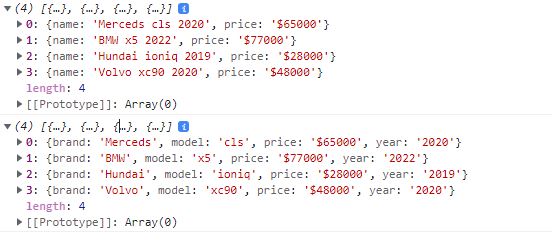
If you check it in the console window, you can see that new arrays which contained redefined key and values are returned.
Also, you can check that the source array is not changed.
2.13 reduce( )
The reduce() is a function used when you want to reduce an array element to a single value.
It receives a callback function and an initial value as arguments, but the initial value can be omitted.
The original array is not changed.
The callback function can have 4 parameters.
- The first parameter: accumulator - It can be an accumulator value, a sum, but it can also be used as an array accumulator.
- The second parameter: currentValue - current array element
- The third parameter: currentIndex - current array index number (optional)
- The fourth parameter: array - the array itself (optional)
      const nums = [200, 4, 8, 29, 135, 58, 312];
      let sum = nums.reduce(function (
        accumulator,
        currentValue,
        currentIndex,
        array
      ) {
        return accumulator + currentValue;
      },
      0);
      console.log(sum);   //746
2.14 includes()
This function allows us to check if an element is present in an array(including NaN)
      const notes = ["Do", "Re", "Mi", "Fa", "Sol", "Ra", "Ti"];
      console.log(notes.includes("Sol#")); //false
2.15 indexOf()
The indexOf() method searches an array for an element value and returns its position.
      const notes = ["Do", "Re", "Mi", "Fa", "Sol", "Ra", "Ti"];
      console.log(notes.indexOf("Fa"));     //3
epilogue
We learned about arrays, a representative data type of JavaScript, and
learned about various array methods.
In order to familiarize myself with the usage of each method,
I looked up the definition of each function word in the Oxford dictionary and used the method of associating the usage of each function with the dictionary meaning, and the matching was successful.